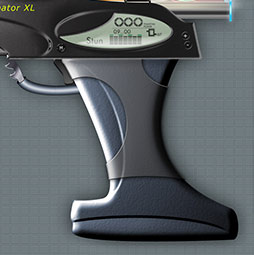
Photorealistic Interface – Part 2, Adding 3d Depth Photoshop Tutorial

This is Part 2 of a 4 part tutorial
Please note Adobe have retired the 3D lighting effects in Photoshop CC. If you are using a newer version of Photoshop, you will have to substitute the steps at the beginning of this tutorial for adding bevels with Layer Styles.
1
Begin with the shape you created last tutorial.
Make a selection by Cmd/ctrl+clicking on the layer thumbnail

2
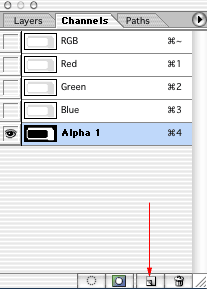
Now open the dreaded channels palette. Don’t worry I will hold your hand and you will come out safely. (Actually channels really are not that terrifying, they just sound scary)
Click on the new channel button and your shape should appear in an alpha channel.
3
This is how your shape should look in the main window.
Deselect
If yours is inverted (shape black and bg white), press cmd/ctrl+I
Otherwise lets go on… you did remember to deselect, right?

4
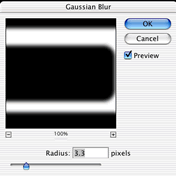
Filter>blur>Gaussian blur
Click ok.
5
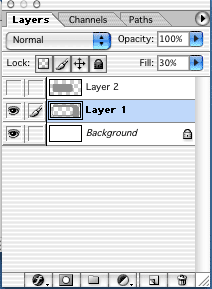
Now go back to the layers palette and click on layer 1.
Important! Even if you think you don’t need to click on layer 1 do it. (that way, will make sure you are working in all channels and not just in the alpha channel).
6
Lets add depth
Filter>render>lighting effects
You will see this big dialog box.
Here is the trick… Under texture channel, choose alpha 1
You should now see some depth in the preview.
Adjust the light in the thumbnail preview by clicking and dragging on any of the 5 points. Try to achieve a pretty even lighting effect without any extreme shadows or highlights
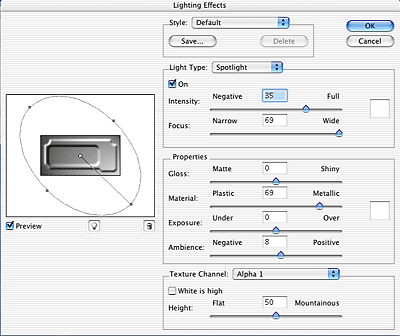
Click ok
7
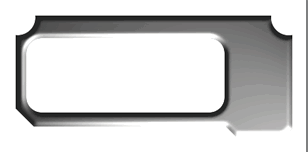
Your layer should now look something like this
We now have a 3d look. Making it chrome is very easy, in fact so easy we are going to do it now.
8
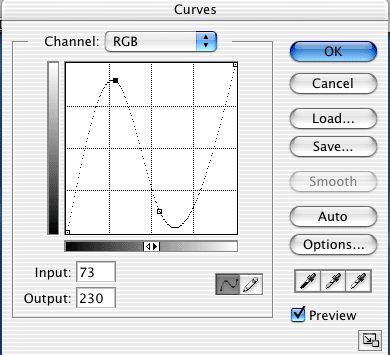
Open the curves dialog box. The quickest way is to press Ctrl/cmd+M
If you are totally opposed to keyboard shortcuts then go image>adjust>curves
You will see a diagonal line Click about a third way from the left and drag up. Click about a third from the right and drag down. Make fine adjustments until your chrome is looking good. You can see the artwork as you are making the adjustments. If you can’t see any change on your image check the preview box in the curves box.
9
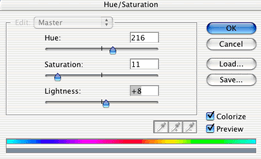
Make a quick little color adjustment.
Image>adjust>hue/saturation cmd/ctrl+u
Click colorize and adjust as shown to produce a slight blue hue to the interface to make it appear more like chrome.
10
Add a quick drop shadow and you’re your shape should look something like this.
Yeah, now your getting excited.
Tune in next week for more of my corny humor, I mean for the thrilling continuation of the interface tutorial. We will be creating a screen and display.
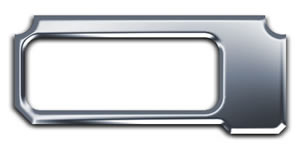
Click here to download this layered .psd.iface-2

Keep growing with Premium Courses
Photoshop 2026 for Digital Photographers
Learn Photoshop properly, from the basics to pro retouching, step by step.
$129.00 · one-time purchase · instant download

Free for you
The Photoshop Vault
Get my free Layer Blending Modes ebook along with dozens of exclusive Photoshop goodies: actions, brushes, presets and cheat sheets.
You're on the list, so your free goodies are waiting for you in the Vault.
Get Free Photoshop Goodies Open the Vault
Making semi-transparent selections with Alpha channels
Here is a tutorial that you can use for layered collaging. While it might be easier to use a layer mask or... Read tutorial
How to change the color of eyes in Photoshop
Here is a very realistic way of chaging the color of anyones eyes in Photoshop using curves. Colin Smith shows you his... Read tutorial
Realistic Spotlight Effect in Photoshop Photoshop Tutorial
I am going to show you an alternative to lightening your photographs. This technique will add depth to your lighting and emphisis... Read tutorial
Crazy Cars, Being creative with Photoshop tools
This tutorial shows you how to make some fun cartoon styles cars from Photos using the Content Aware Scale tool in Photoshop.... Read tutorial
Photorealistic brick wall Photoshop Tutorial
In this Photoshop Tutorial we are going to create a photorealistic brick wall. First we will make the brick pattern, then we... Read tutorial