Photoshop 2026 for Digital Photographers | Photoshop Secrets
Photoshop 2026 for Digital Photographers | Photoshop Secrets
Photoshop Secrets: Photoshop 2026 For Digital Photographers
The long awaited update to our flagship Photoshop training is here and every workflow uses the very newest tools and techniques in Photoshop 2026.
99 lessons, over 12 hours of bite-sized lessons. Colin Smith’s (Your instructor) images are included for every lesson, so you can easily follow along at your own pace.
This 11th edition of our award-winning training has been completely re-imagined to take advantage of Photoshop 2026. Every video has been recorded fresh, all the workflows have been updated to take advantage of the new tools and techniques in Photoshop 2026. This is the fastest way for you to master Photoshop and transform your photos, even if you are new to Photoshop.
This training is created with one goal in mind. Helping you to get the absolute best result possible, in the shortest time possible, and to do that consistently, no matter what the Photoshop imaging challenge you face. Right now, you may be intimidated by the complexity of Photoshop 2026 and all the changes and new tools and ai technology.
All the new ai tools are covered, as well as how to do each task without ai, so you will be ready to take advantage of ai, or avoid it all together. You will also be equipped to fix the ai mistakes.
When you have finished this training, (I don’t care if you’re 14 or 84) Photoshop will be as familiar as a glove and you’ll have the confidence to take on any task. That’s when you can really have fun and enjoy creating wonderful imagery, and let your imagination take over as the mechanics become second nature.
Let me ask you something. Have you been struggling to learn Photoshop, or to find a truly great course that will teach you what you need to know without hours of time-wasting talk or gimmicky techniques? Would you like to personally learn from an instructor that is widely recognized as one of the world’s top experts, and actually uses Photoshop every day? Have you seen photos and wondered how they look so good, clean and detailed, as well as how they get those particular looks (By now, I’m sure you realize, it’s not all in camera).
Your search is over, you have just found the training you need to transform all your images. Broken up into easy bite-sized lessons and delivered in well-paced plain English, you will work your way through some of the finest Photoshop instructions you can find anywhere. It will be like watching over Colin’s shoulder as he reveals the techniques and tricks that he has learned over 25 years of creating award-winning images for some of the biggest brands in the world. There is a reason that Adobe calls on him on a regular basis to speak at their conference (Adobe MAX, where he was awarded Max Master) and represent Adobe at places like YouTube and Sony Kando. Adobe even asked Colin to create some of the tutorials that are built right into Photoshop. Colin has also written 23 books on Photoshop, so he knows his stuff and wants to pass on this knowledge to you in a friendly and conversational way.
Whats' in this training?
- Download securely and safely right now and start learning immediately
- Comprehensive with 99 videos, packed with information and tips
- Latest techniques and workflows, including ai and non-ai workflows
- Covers all the key new features in Photoshop 2026
- Everything you need to know to confidently work with photos in Photoshop 2026
- Simple language and conversational delivery, even a beginner can follow along
- Deep enough, with advanced techniques like luminosity masking and frequency separation, that an experienced user will learn new things
- Hidden tips and secret tricks generously sprinkled throughout
Includes:
- All the same lesson files used by Colin (Your instructor)
- Bonus actions, LUT
- Cheat sheet for Luminosity Masking, Frequency Separation and High-Pass Sharpening
- You are delighted, or your money back (as always at PhotoshopCAFE).
If you are a photographer, designer, hobbyist, anyone who works with images, beginner to professional, this training is for you!
YOUR INSTRUCTOR
Colin Smith is a Los Angeles based digital artist, photographer and trainer. He is founder of one of the worlds most popular websites for creators, photoshopcafe.com. Which has received over 60 million visitors. As an Award winning digital artist, Colin has 3 guru awards under his belt. His work has been featured in most of the industry magazines as well as Time Magazine and the New York Times.
His client list includes, Toyo Tires, Microsoft, Saatchi and Saatchi and Rock and Roll Hall of Famer, David Lee Roth.
As a leading trainer, Colin has written 23 books, and too many video courses to count. His training clients include Adobe, Apple, Nvidia, Disney and Edison International. He is a regular speaker at major conferences, including Adobe Max, PPE, WPPI, Photoshop World, Creative Pro and Imaging USA. He runs a popular youtube channel (photoshopCAFE) with over 400,000 subscribers.
When he isn’t at his computer, Colin can be found pursuing his passion of travel and capturing beauty with his camera.
What you will learn in Photoshop 2026 For Digital Photographers:
How to Learn Photoshop 2026
PART 1. GET STARTED + CAMERA RAW
1. INTRODUCTION: Welcome, what to expect. Instructions
2. OPENING IMAGES IN PHOTOSHOP: How to get your images into Photoshop
3. BRIDGE OVERVIEW: Bridge is your asset manager. Launching images from Bridge
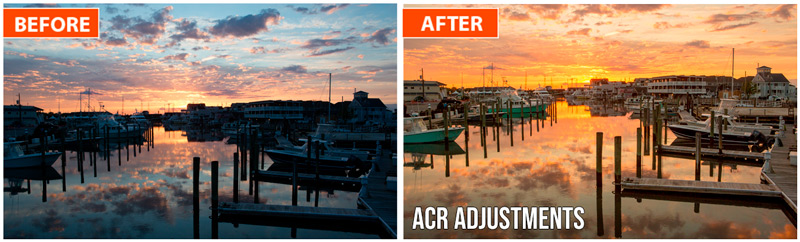
4. ACR OVERVIEW: Camera Raw is the best place to do basic adjustments to your photos
5. ACR BASIC ADJUSTMENTS: Essential tone and color adjustments, where photos start
6. DENOISE: Removing noise from your images, make them smooth
7. ACR MASKS: Powerful new masking to select skies, objects and more
8. ACR VIGNETTE: Spotlight with a super vignette
9. ACR BRUSH: Changing specific areas in your photos
10. OBJECT REMOVE ACR: Remove people and objects with AI in ACR
11. ACR PRESETS: Reusing settings in a single click
12. ADAPTIVE PROFILE: Intelligent color profiles that adapt for different images
13. PHOTOSHOP AND LIGHTROOM INTEGRATION: If you use Lightroom, how to open your images into Photoshop
PART 2. LAYERS
14. QUICK MASK: A powerful mask that enables you to paint on selections
15. LAYER BASICS: How layers work for beginners
16. LAYER MASKS: How to use Photoshop Layer Masks
17. BLEND MODES HIDE BLACK/WHITE: Hide white or black with layer blending modes
18. SMART OBJECTS: A powerful way of working non-destructively
19. COLOR SETTINGS: How to stop colors changing when combining images
PART 3. ADJUSTMENTS (COLOR AND TONE)
20. TASK BAR: The floating taskbar is very useful for quick access to things
21. HISTOGRAMS: See the tone distribution in your image
22. ADJUSTMENT LAYERS: The best way to use adjustments
23. ADJUSTMENT BRUSH: Paint on adjustments exactly where you want
24. SHADOW / HIGHLIGHT: Show detail in shadows and highlights
25. CURVES: How to use Curves for tone (PS’s most powerful tool)
26. CURVES COLOR: How to use Curves in powerful color mode
27. EYEDROPPER: A fast and precise way to adjust your images
28. ADJUSTMENT PRESETS: Save and reuse adjustment settings instantly
29. LUMINOSITY MASKS: A powerful way to adjust images, by breaking them into 7 tonal regions
PART 4. COLOR
30. WHITE BALANCE: Fixing and removing color casts when the light color is wrong
31. FIX COLOR CAST REFLECTIVE SURFACES: Remove colored light off reflective surfaces
32. REMOVE HEAVY GEL COLOR: Neutralize color from heavy color gel
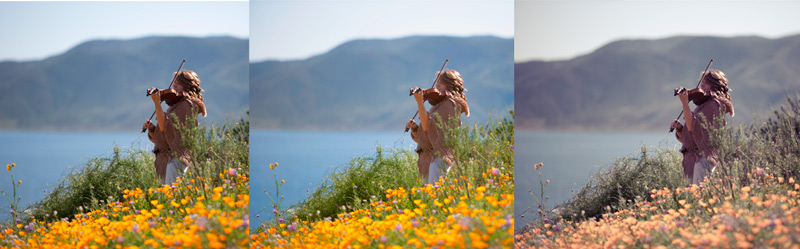
33. COLOR GRADE: Vintage and retro coloring using Color Grade
34. GRADIENT MAPS: Add high-end color grading
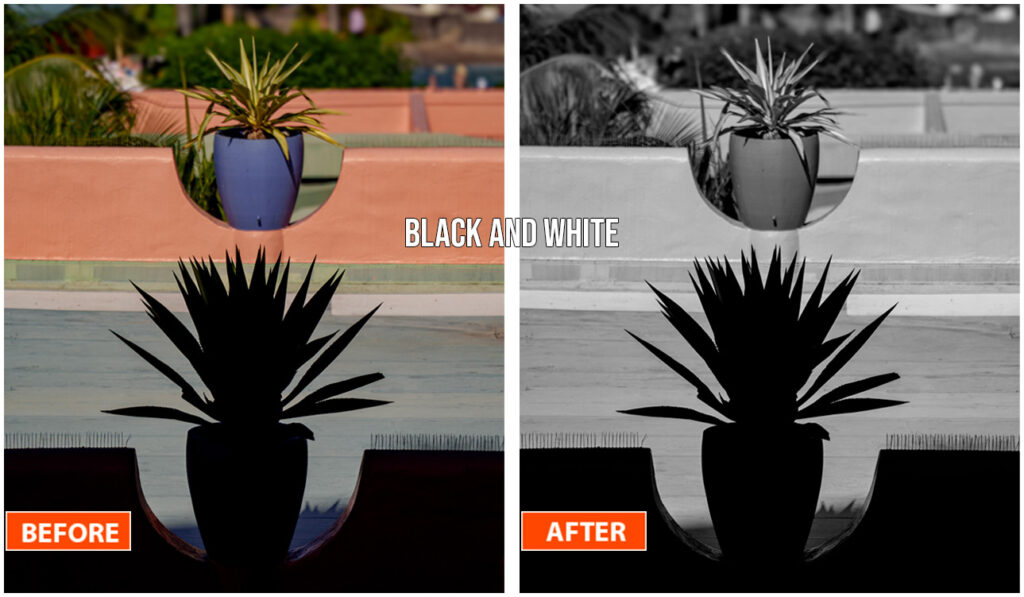
35. BLACK AND WHITE #1: Quick black and white conversion with B&W adjustment
36. BLACK AND WHITE #2: Change to black and white with Channel Mixer
37. COLORIZE B+W: Turn a black and white image into color using Neural Filters
38. LUTS: Use looks for instant color and tone presets
39. CHANGE COLORS: How to change the color of something without the need for selections
40. MATCH COLORS EXACTLY: Change color to an exact specified color
41. COLOR TRANSFER: Copy color from one image to another
42. LAB COLOR: Use LAB mode to fix stubborn images

PART 5. RETOUCHING + CORRECTION + Ai
43. STRAIGHTEN PHOTO: Straighten that crooked photo
44. STRAIGHTEN EXPAND: Straighten an image without losing edges and corners using Generative Expand
45. NOISE REDUCTION: Reduce the noisy grain in a photo
46. REMOVE REDEYE: Get rid of red eye on people and pets
47. SELECTION BRUSH: Make selections as easily as painting
48. GENERATIVE CREDITS: How Generative Credits work
49. REMOVE TOOL: Powerful AI tool to remove anything instantly
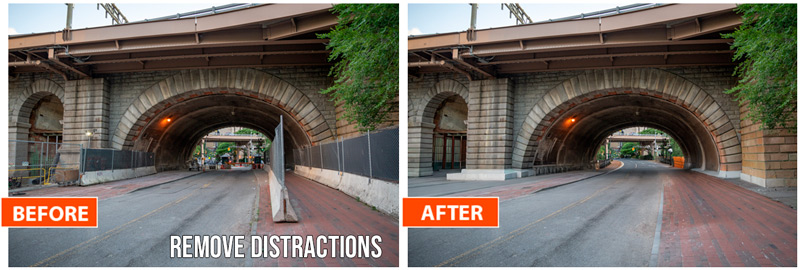
50. GENERATIVE EXPAND: Make your canvas larger with Generative AI
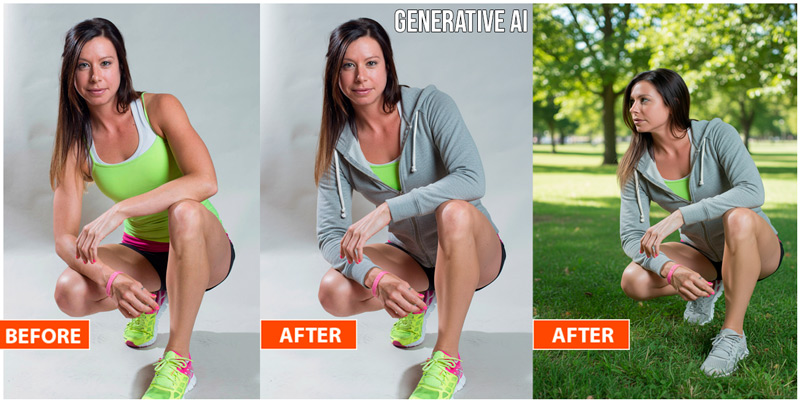
51. GENERATIVE FILL: Replace anything with Generative AI
52. REMOVE PEOPLE: Instantly remove crowds or groups of people
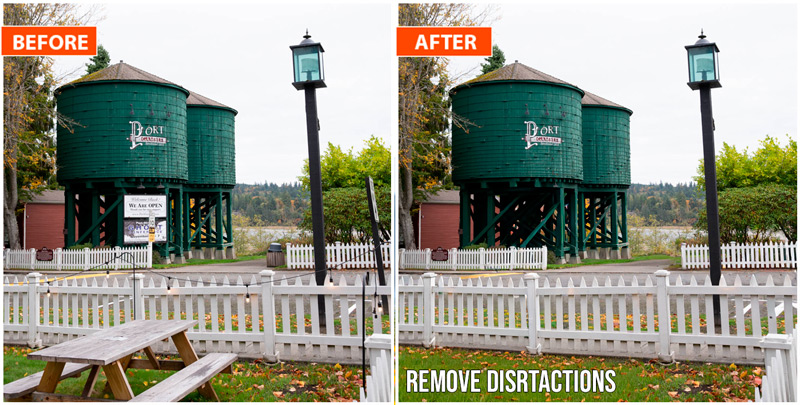
53. REMOVE POWERLINES: Remove power lines and wires instantly
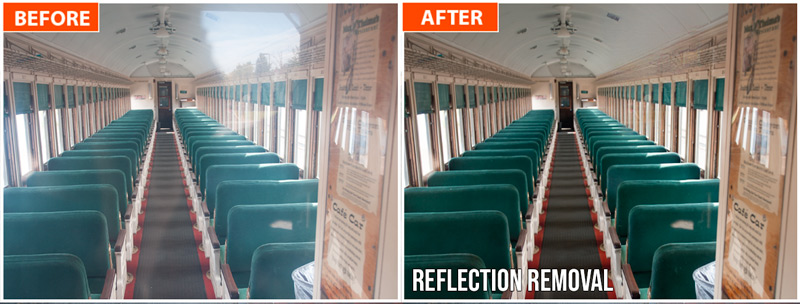
54. REMOVE REFLECTIONS: Magically remove reflections from glass windows
55. GENERATE BACKGROUND: Create a new environment from a text prompt with AI
56. NANO BANANA PARTNER MODELS: Powerful AI models in Photoshop like Nano Banana
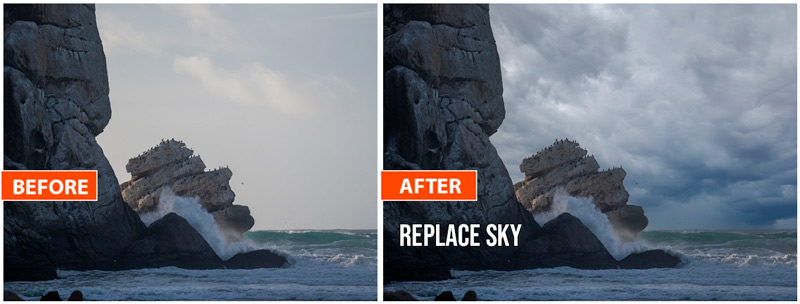
57. SKY REPLACEMENT: Change out the sky with Photoshop’s built-in skies, or use your own
58. PATCH TOOL: Cover and heal larger areas of your image
59. CONTENT AWARE FILL: Remove distractions and fill holes with ease
60. CONTENT AWARE MOVE: Move an object and plug the hole in a single click-drag
61. CLONE STAMP: Remove anything without AI, fixing your image with the most control
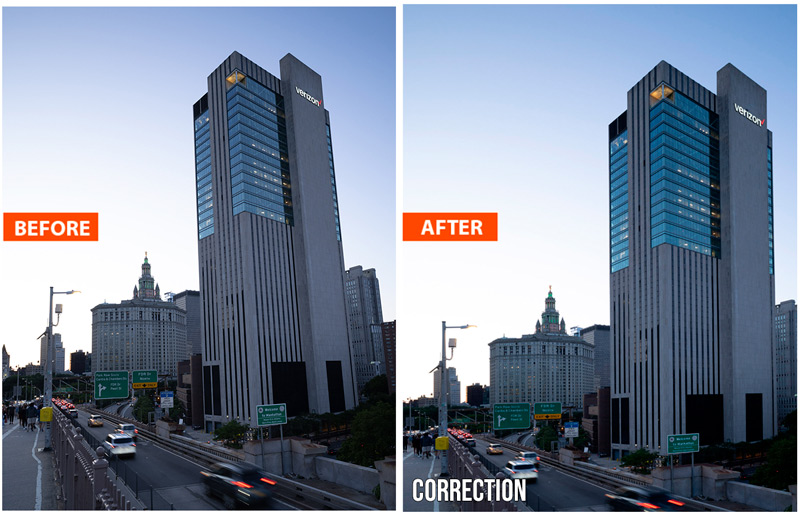
62. LENS CORRECTION: Use built-in lens profiles to fix distortion and fisheye
63. PERSPECTIVE CROP: Fix perspective distortion in images
64. FIX KEYSTONING: Fix keystoning with Adaptive Wide Angle
PART 6. RETOUCHING + ENHANCEMENT
65. GENERATIVE UPSCALE: Enlarge your photo with Generative Upscale and Neural Filter
66. ENLARGE RAW SUPER RESOLUTION: Enlarge a RAW file with Super Resolution
67. SPOT HEALING: Easily remove spots and blemishes
68. UNSHARP MASK: The quick and basic way of sharpening in Photoshop
69. SMART SHARPEN: A more advanced way of sharpening a photo
70. HIGH PASS SHARPEN: Non-destructive way of sharpening a photo
71. DODGE AND BURN: Painting shadow and highlights for depth and emphasis
72. CHANGE ASPECT RATIO AI: Change aspect ratio using AI Generative Expand
73. CHANGE ASPECT RATIO NO AI: Content Aware Scale to change aspect ratio
74. SELECT PEOPLE DETAILS: Easily select things in photos and new Object Finder
75. HEAVENLY GLOW: Make skin or anything glow with this “glamor shots” look
76. BODY SCULPTING: Reduce fat and baggy clothing
77. FREQUENCY SEPARATION: Advanced way for perfect “high-end” skin
78. BLUR BACKGROUND: Creating a shallow depth of field bokeh blur
79. ADVANCED BACKGROUND BLUR: Make depth maps to blur background
80. VANISHING POINT: Clone and paste perspective in an image
81. IRIS BLUR: Create a very narrow focus area like a macro blur
82. SPIN BLUR: Make things look like they are rotating
83. TILT SHIFT: Make things look like little toys with tilt-shift
84. PATH BLUR: Make objects look like they are moving in interesting ways
PART 7. COMPOSITING
85. BLEND IF: Hide the background without selections
86. OBJECT FINDER: Select objects in a single click
87. OBJECT SELECTION TOOL: Easily select things in photos
88. CUT OUT PERSON: Basic workflow to remove a person from their background
89. CUT OUT IMPOSSIBLE IMAGES: Cut out difficult images, no AI
90. MATCH COLOR: Make color and light match between layers when combining images
91. HARMONIZE: Automatically match light and shadows while combining images with AI
92. PERSPECTIVE WARP: Match angles and perspective on objects when combining photos
PART 8. MULTI-SHOT TECHNIQUES
93. COMBINE PHOTOS: Mask two similar photos into a single composite
94. FOCUS STACKING: Combine images with shallow depth of field for a fully sharp image
95. PANORAMA IN ACR: Stitch photos in Camera RAW for panorama
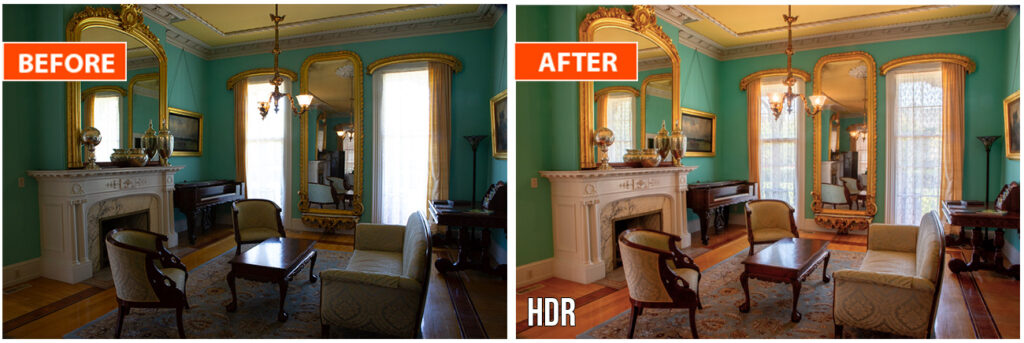
96. HDR IN ACR: High dynamic range technique using Camera RAW
97. HDR PANORAMA: Combine a panorama and HDR for the ultimate landscape image
98. HDR PHOTOSHOP DEGHOSTING: How to fix ghosting in HDR image sequences
99. NEXT STEPS: Suggestions for further learning
And tons of useful power tips sprinkled throughout!
Includes all the images used in lessons, actions, PDF table of contents and cheat sheet.
Running time 12+ Hours. 99 Lessons
You will be thrilled, or 100% money back
Description

$129.00


danny zrihen –
The best of the best
Claire (verified owner) –
Colin is my go-to man for keeping me up to date with Photoshop. It changes so quickly that it’s impossible to stay on top of everything I need or would like to know, so I rely on Colin’s expertise to keep me up to date.
Keith Matthew scaife (verified owner) –
I find this exceptionally good so much easier than before and am really impressed with the fix colour cast been trying to fix an infected photo forever five minutes with the new version and now have a much better looking photo thank you Colin keep up the good work
Jack Sofield (verified owner) –
The most informative and useful teaching series yet. I can even see which tool control Colin is activating and that makes it easy to follow. Will be using these instructions for quite some time, that is until the next ones come out!
Jack
Steve Baldwin (verified owner) –
I just read a bunch of other reviews of Colin’s programs and we all appear to feel the same way. The amount of useful information he packs into a training session is fantastic. When ever I am stumped as to how to solve a Photoshop problem I can find the answer in his training. When you also consider the steady stream of updates he sends out telling us about the latest changes to Photoshop he is a resource that I consider a necessary item in everyones tool kit.
Don Sutherland (verified owner) –
When I was working professionally, I shot thousands of rolls of film and Kodachrome. That is all in the distant past. To function today and realize your vision you need to combine your photography with Photoshop. Colin will guide you through the programs many capabilities, so you do just that.
benjamin.clari (verified owner) –
I have just started going through the course and it is amazing to discover the amount of things you don’t know yet about a tool (Photoshop) that you have been using for years!!! It’s clear there will be a before and after in the way I will be using it and getting much better results out of it. Thank you Colin!
V.m.Straus (verified owner) –
Having been forced to suspend my photography by a physical blip, I was hopeful that my purchase of the Photoshop 2026 course would be worthwhile to get me back in gear without too much trouble. The thing that stood out in my first impression was Colin’s very typical interesting and informative take-through of the video. Since this is an early impression, I can’t go into any extended detail. But the progression into the videos is just what I needed.
John Scott –
Outstanding
Tom Franks (verified owner) –
Having retired about 10 years ago, I have not kept up-to-date in my Photoshop skills. Collins latest video tutorials have helped get me back up to speed and guide me through this latest version of Photoshop. Money well spent.
simon-6610 (verified owner) –
I’ve been using Photoshop for years but Colin’s great course has revealed many of the things I have been missing. He clearly explains some of the tools and techniques that I have always known about but never clearly understood until now
Gerry –
Exactly what I needed.
I had felt that Photoshop was running away from me, and that I desperately needed a refresher. Fortunately, I found this course, which is perfect. I really appreciate having access to the files to work on, as it helps the knowledge stick.
I also like that the course is divided into bite-sized chunks, each clearly and thoughtfully explained. The course is now stored on my computer as a permanent memory refresher. Highly recommended!
Clarissa (verified owner) –
I am really enjoying these lessons. Great investment for a low price!
Steve Farrington –
I have been watching Colin for some years now and just love his presentations given in such a natural way. Some sessions are way over my head but still enjoy watching them
Please keep up the good work
ROB T. (verified owner) –
I am already a PHOTSHOP user for mostly landscape photos and these tutorials have helped me immensely with other aspects I have never thought about using. Like the old commercial quote says: “Try it, you will like it.”
Doc (verified owner) –
Colin has a laid-back presentation that make his courses more fun but keeps my interest up. His pacing is just right and he presents new information in small bites. That gives a geezer like me time to digest concepts without being hurried onto the next batch.