How to Change the Color of Anything in Photoshop, Even Difficult Images
Changing the color of an object in Photoshop can be really easy. But what happens when the object shares similar colors with skin, hair, or the background? That’s when things get more interesting.
I’m going to show you three levels of color changing in Photoshop, from super easy to more challenging. You’ll learn how to isolate difficult colors, keep the original textures, and change an object to virtually any color, including black or white.
And just for fun, we’ll put Photoshop’s AI to the test and see which method is faster.
The easy way to change colors in Photoshop
Let’s start with an easy image. We’ve got an object with a fairly solid color, and there aren’t any similar colors elsewhere in the photo.
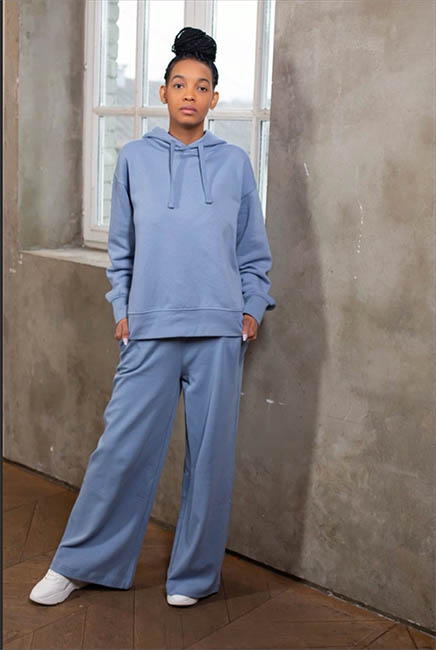
Click on Adjust Colors in the TaskBar.

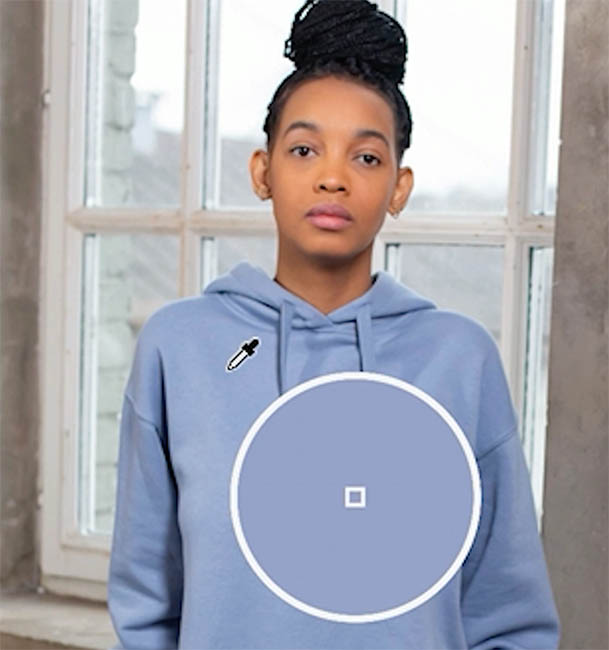
You’ll see the 6 prominent colors detected in the image. Click the color that most closely matches the object you want to change.

Tip: For a more accurate sample, after you have chosen a color circle, choose the Eyedropper and click directly in the image, on the color you want to change. This gives you a more accurate starting point.
Move the Hue slider to change the color. (If you don’t see the Hue slider, click on the color circle first)
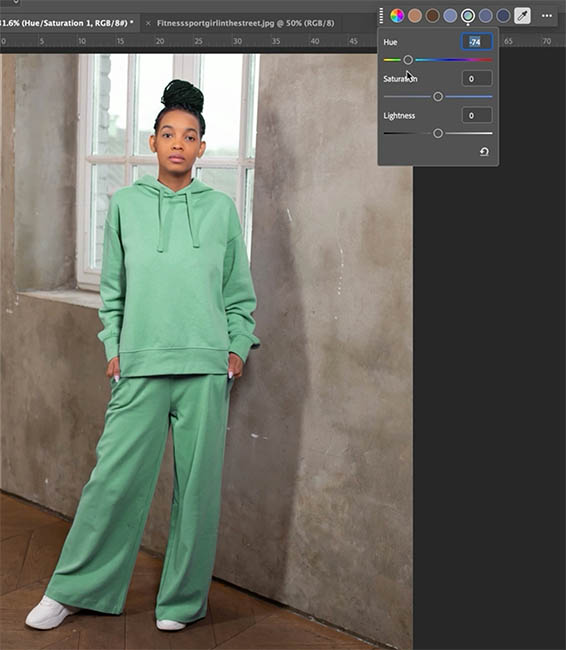
That’s it! On an image like this, you can change the color in just a few seconds.
But not all images are this easy.
Changing colors in a difficult image
Let’s try something more challenging.
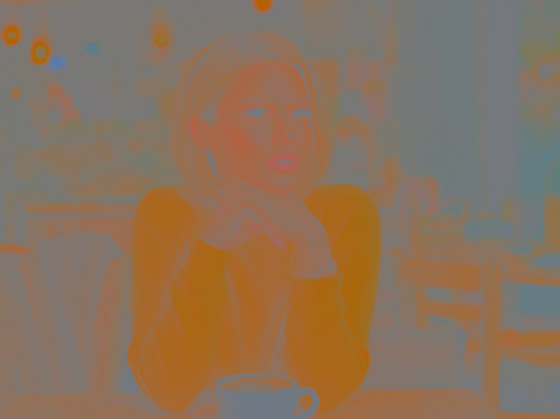
In this photo, we want to change the color of a woman’s sweater. The problem is that similar colors also appear in her face, hair, and background.
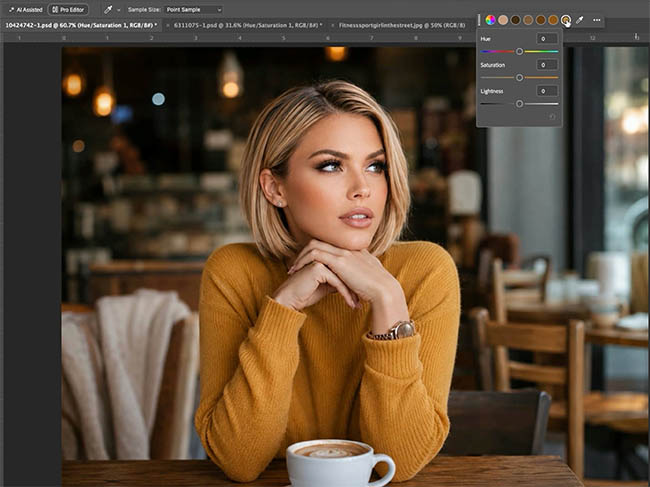
If we look at color only, you can see the similarities. (I used LAB color to separate for this screenshot)
Choose Adjust Colors again.
Select a color close to the sweater, then use the Eyedropper to sample the actual sweater color.
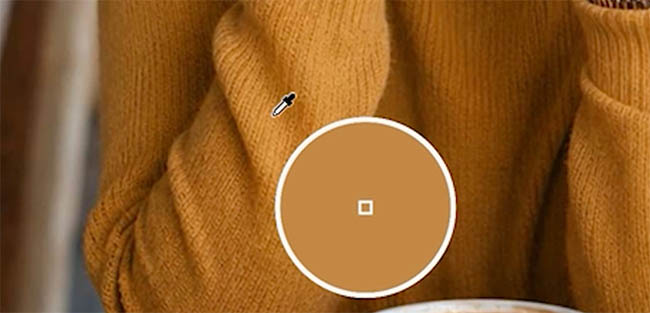
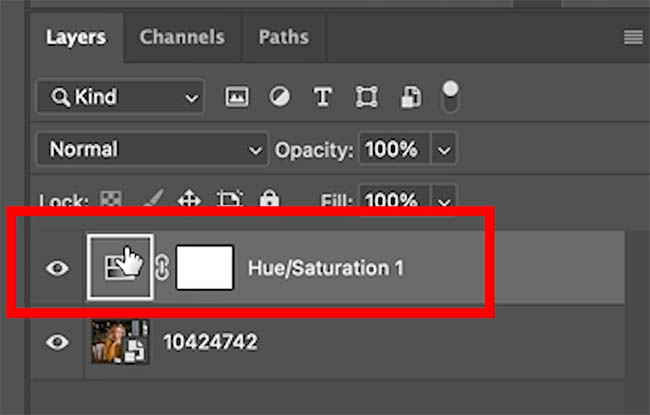
Not sure, if you noticed, but Photoshop creates a Hue/Saturation adjustment layer in the Layers panel. This works just like the classic Hue Saturation adjustment, but it has an alternative way to get there with the task bar, called Adjust Color.
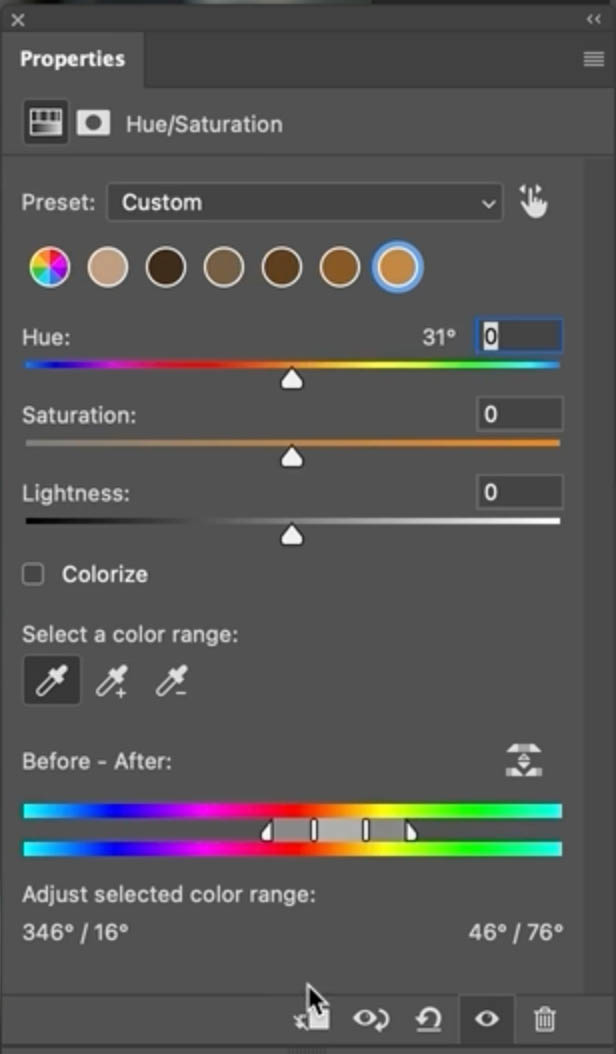
Open the Properties panel, this is similar to what you see in the task bar, but it has more controls. Expand it so you can see the color range controls at the bottom of the Panel.
Now move the Hue slider.
Notice what happens. The sweater changes color, but so do parts of her skin, hair, and background.
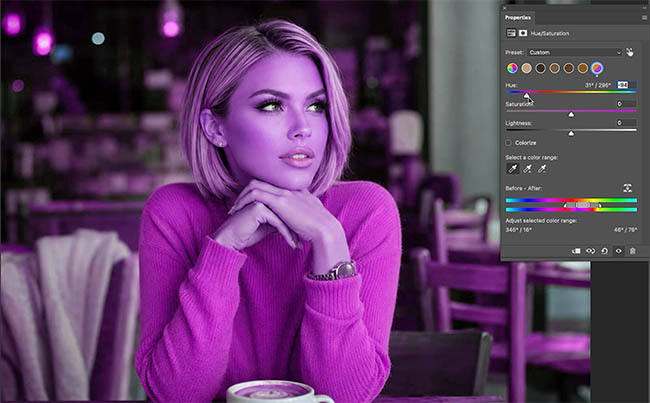
It might look like we’re adjusting the entire photograph, but we’re actually affecting all the colors that fall within the selected color range.
We need to narrow that range.
Refining the color range
Look at the two color bars in the Properties panel.
The upper bar represents the original colors. The lower bar shows what those colors are changing into.
You’ll also see small handles that control which colors are affected and how gradually the adjustment fades into neighboring colors.
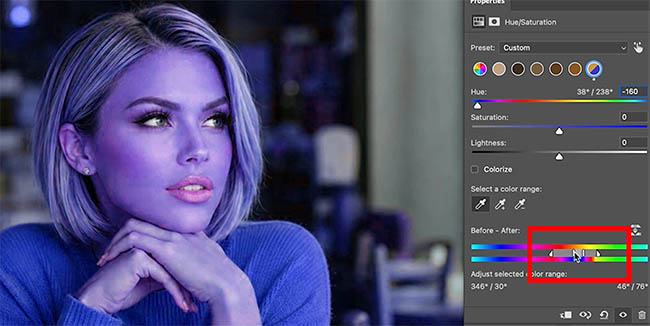
In our example, we’re changing orange tones into blue.
Drag the color range handles away from the reds and more toward the yellows.
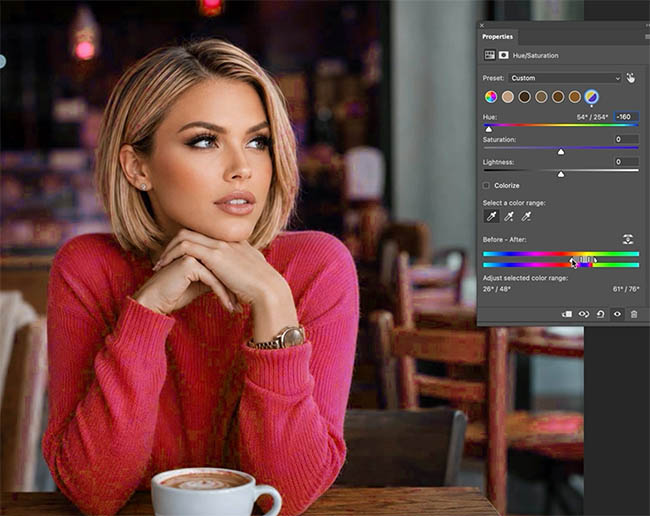
Notice how the adjustment starts to roll off the skin tones.
Adjust the handles on the other side of the range as well.
Often adjusting the color range is all you need.
Tip: The outer color range handles control the gradual transition between adjusted and unaffected colors. Use these to create a smooth result rather than an abrupt change.
The Problem
In this case, we haven’t fully selected the sweater, thats why it’s showing as pink and not blue.
Keep refining until most of the face and hair return to their original colors while the sweater continues to change.
I almost have the sweater fully selected, but now the hair is starting to change, because its so similar to the original hair color.
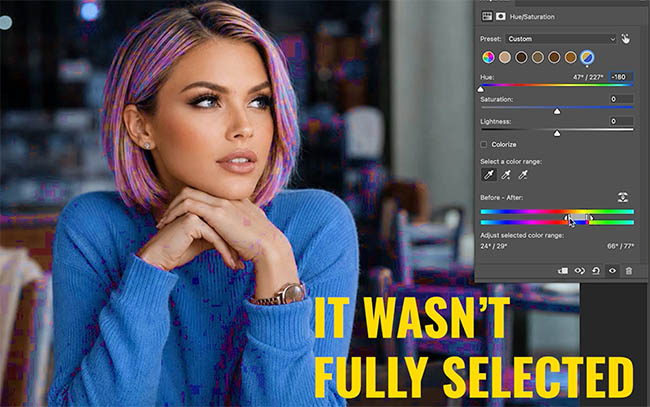
If we widen it enough to include the entire sweater, we start losing the color on the face again.
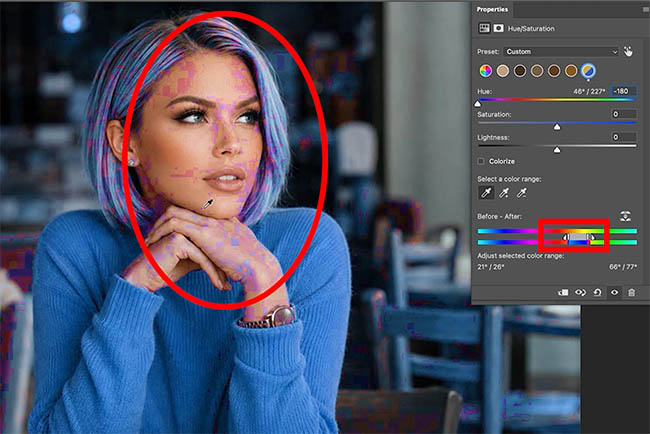
In this case, there simply isn’t enough separation between these colors to isolate the sweater with color range controls alone. That’s why this is a difficult image.
That’s when we need a mask.
Three levels of color changing
I like to think of color changing in Photoshop as three levels of difficulty.
Level 1: Simple color change
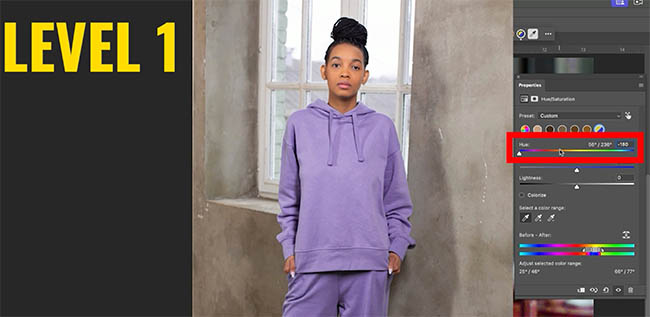
The object has a distinctive color that doesn’t appear elsewhere in the image.
Just sample a color and adjust the Hue slider.
This can take as little as 5 to 10 seconds. (if you are quick)
Level 2: Refine the color range
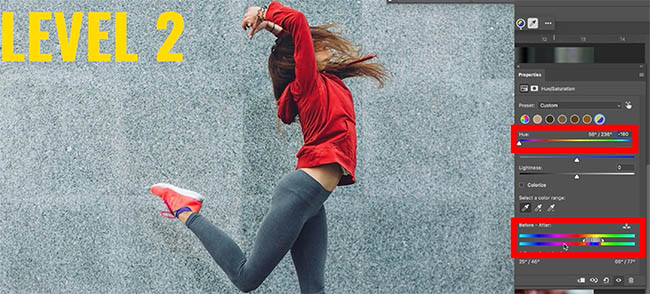
Similar colors appear elsewhere, but you can separate them using the color range controls.
This might take around a minute. (if you are rushing)
Level 3: Color range and a mask
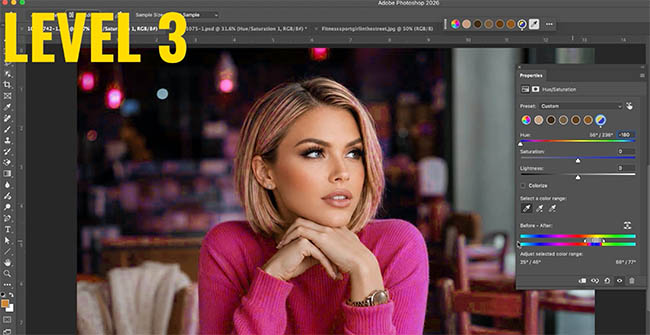
The object shares colors with other parts of the image, and the color range controls can’t fully separate them.
This is the situation we’re dealing with here.
It might take a minute or two, but we can still get a very clean result.
Use a mask to isolate the sweater
Let’s finish this properly.
First, adjust the color range until the entire sweater is changing color (fully selected). Don’t worry if we’re also affecting some of the face or background. We’ll fix that with a mask.
Temporarily hide the adjustment layer so we can see the original image.
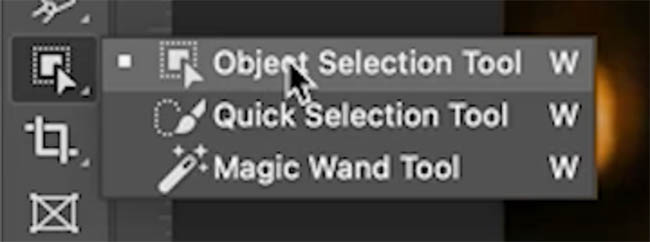
Choose the Object Selection Tool from the toolbar.
Drag a rectangle around the sweater.
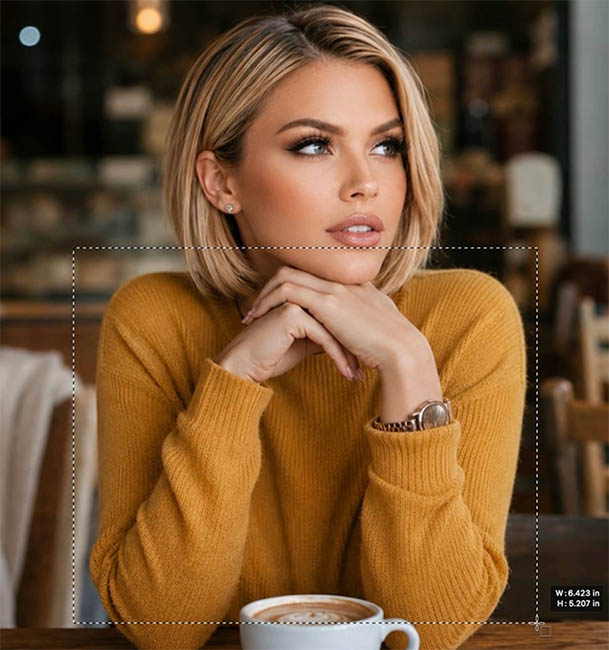
Photoshop will attempt to identify and select it.
If it misses a small area. Hold Shift and drag over the missing part to add it to the selection.
If it selects too much, hold down Alt (Windows)/Option (Mac) and drag to remove from the selection.
Now we have the entire sweater selected.
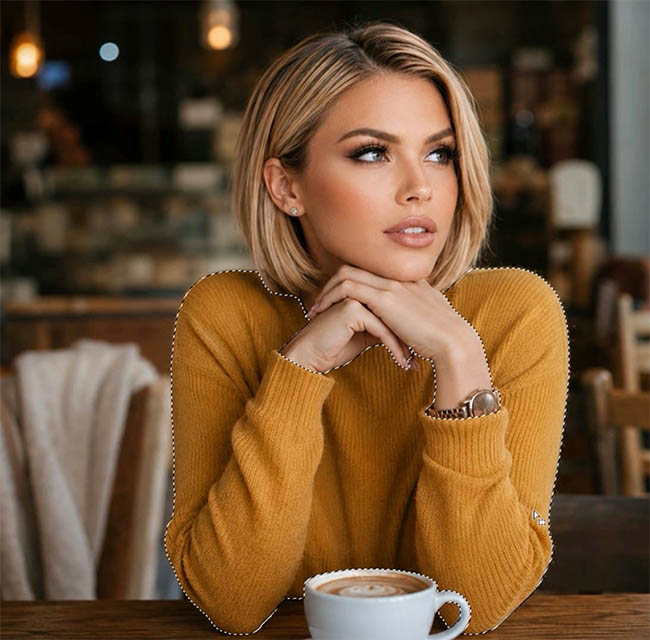
Turn the Hue/Saturation adjustment layer back on.
Click the layer mask thumbnail on the adjustment layer. You will see the blue sweater again with the speckled colors everywhere else.
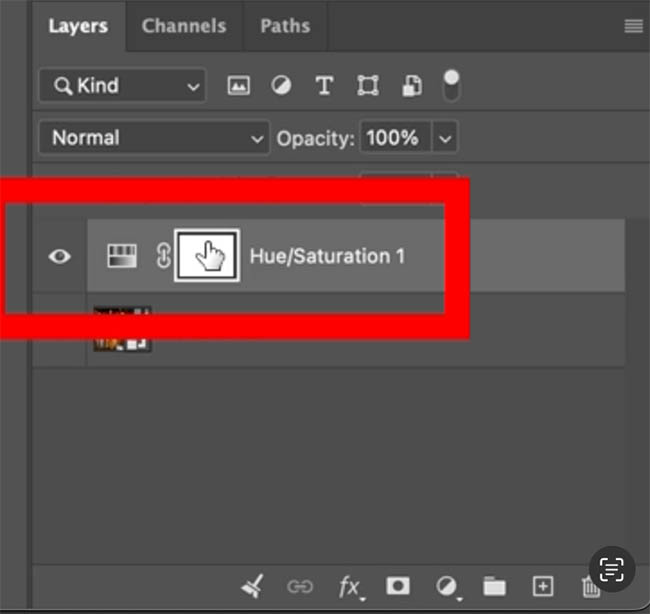
Remember how layer masks work:
- White reveals the contents of the current layer.
- Black hides the contents of the current layer and shows what’s underneath.
Right now, we have the sweater selected. We want the sweater to stay white on our mask while everything outside becomes black.
Choose Select > Inverse to select everything except the sweater.
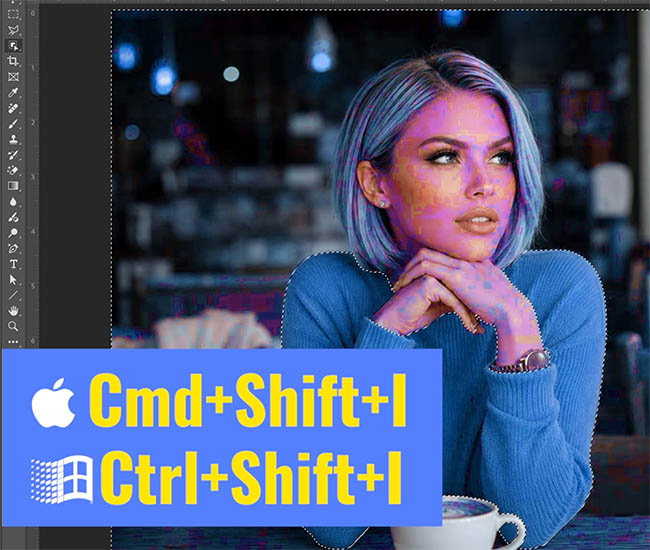
Make sure black is your foreground color. (D key)
On Windows, press Alt+Backspace to fill with the foreground color.
On Mac, press Option+Delete.
This fills the selected area of the mask with black, hiding the color adjustment everywhere except the sweater. The image should look clean now.
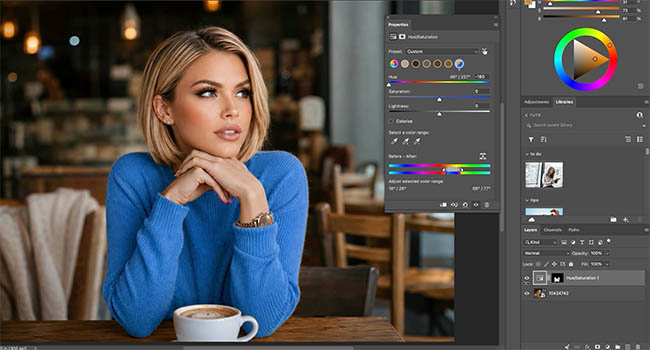
Press Ctrl+D (Windows) or Cmd+D (Mac) to deselect.
There we go!
Now the sweater changes color without affecting her skin, hair, or the background. This is the advantage of combining a color adjustment with a mask. We’re no longer relying on color alone to isolate the object.
You might wonder, why we don’t just use a mask on every image instead of refining?
Most times, you don’t need to add a mask because the refine can get it perfectly. In that case, any small areas that might need cleanup, use the Brush Tool to paint with black or white to clean it up.
When you use a mask, you have introduced another adjustment and the opportunity for rough edges that might need to be fixed. That’s why I divided the images into 3 levels, so we do the minimum amount of adjustments that we need, for quality, not just speed.
Change the sweater to any color
Now that we’ve isolated the sweater, we have complete freedom to experiment with colors.
Select the Hue/Saturation adjustment layer and return to the Properties panel.
There are three controls we can use together: Hue, Saturation, and Lightness.
Hue: Choose the color
Drag the Hue slider to cycle through different colors.
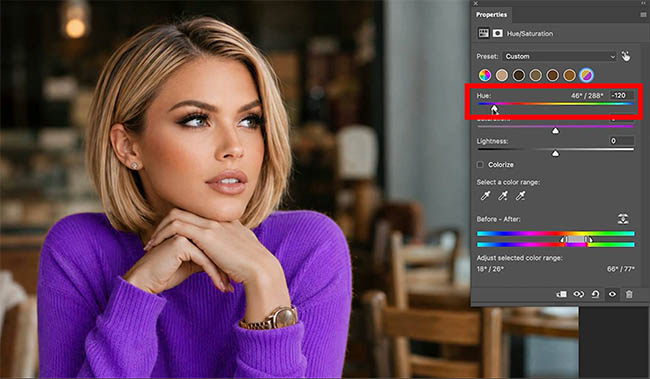
We can change the sweater from orange to red, yellow, green, blue, purple, or anything in between.
Saturation: Control the amount of color
Move the Saturation slider to the right.
Notice how the color becomes more vivid.
Move it to the left to create a softer, more muted color.
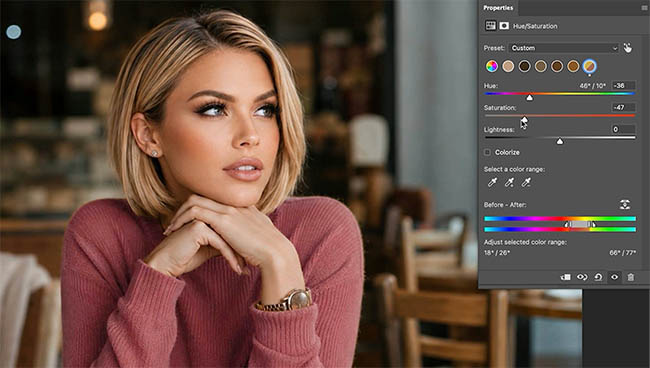
Take the saturation all the way down to remove the color and turn the sweater gray.
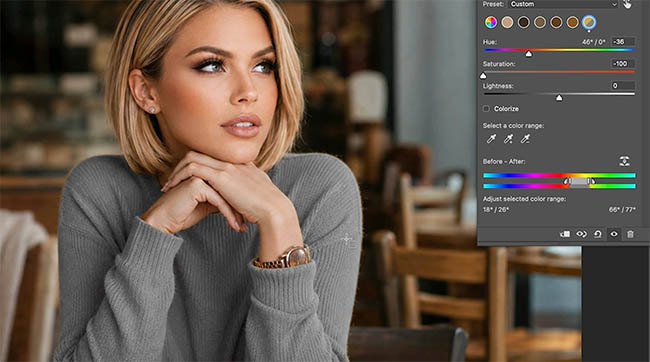
Lightness: Make the color lighter or darker
With saturation turned down, move the Lightness slider toward the left.
The sweater becomes darker until we have a charcoal-black appearance.
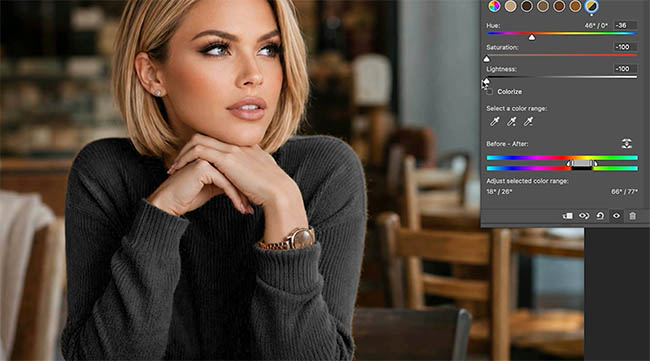
Move the slider toward the right and the sweater becomes lighter, all the way to white.
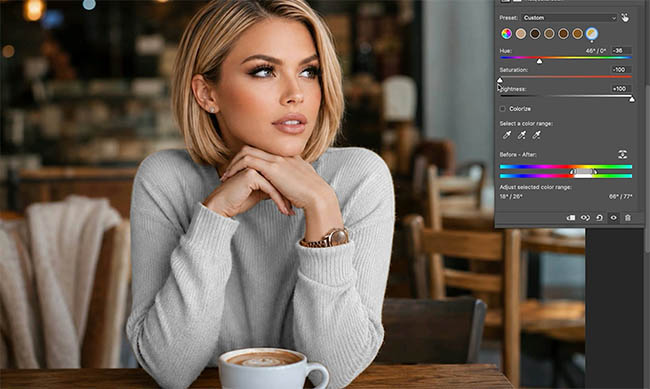
This is how we can change the clothing to black, white, or different shades of gray. (Note: You can add a curves adjustment if you need to make it lighter or darker than Hue Saturation alone, I only used Hue/Saturation in these examples).
Tip: Pay attention to the original highlights and shadows when making very dark or light colors. Extreme Lightness settings can flatten some of the detail, so adjust until the result looks natural.
Now add some saturation again (without Saturation, there is no color).
Try moving Lightness upward to create lighter pastel colors.
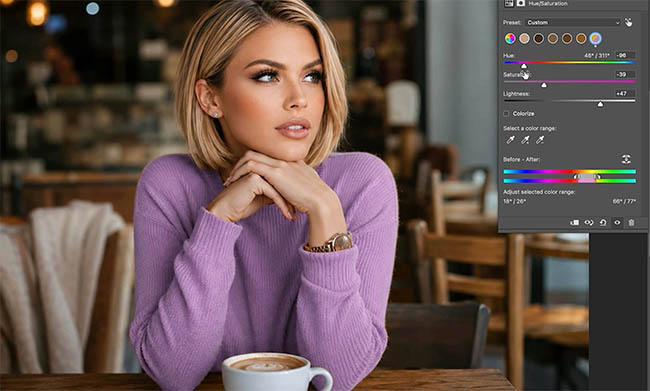
Move it downward for deeper, earthier tones.
By combining these three sliders, we can create a huge variety of colors without rebuilding our selection or mask.
And because we’re using an adjustment layer, we can keep changing our minds.
Is Photoshop AI better for changing colors?
Now comes the interesting part.
Wouldn’t it be easier to just ask AI to change the color?
Let’s find out.
Hide our Hue/Saturation result and click on the bottom layer so we can begin with the original image.
Choose Prompt to Edit.
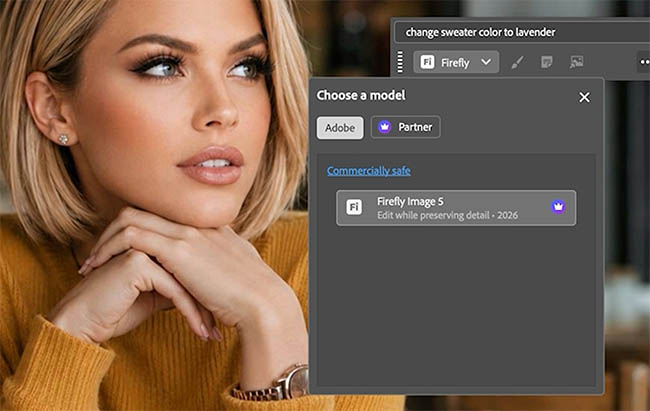
Enter the prompt:
Change the sweater color to lavender
Select Firefly Image 5 and click Generate.
Photoshop generates a lavender sweater.
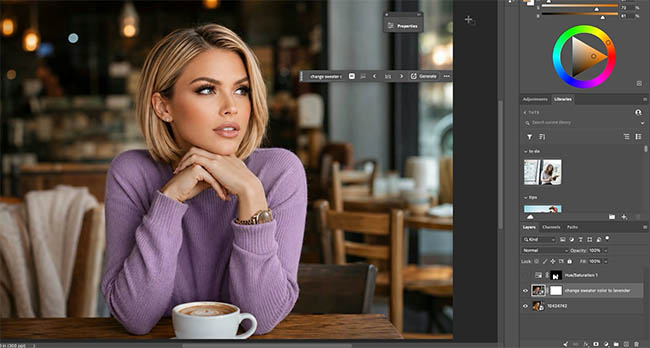
At first glance, it looks pretty good, (and it is good on this image).
But there are some important differences.
AI doesn’t give us the same control
With our Hue/Saturation adjustment, we can instantly change the lavender to a lighter purple, a richer violet, or a completely different color.
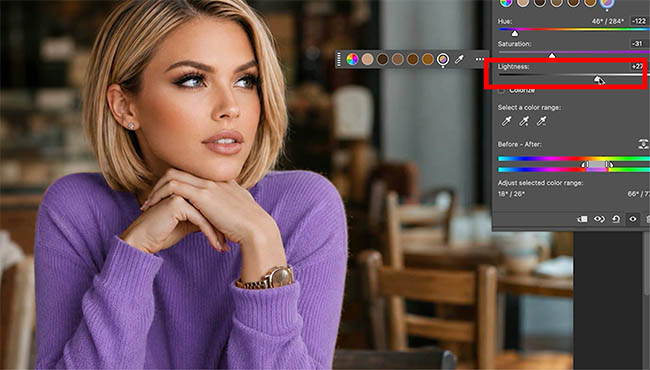
With the AI-generated result, we don’t have those same editable color controls.
If we want a different generated result, we may need to generate another variation. We can enter a HEX value in the prompt, to help ai get closer to a predetermined color.
AI may change other parts of the image
Let’s compare the AI-generated version with the original.
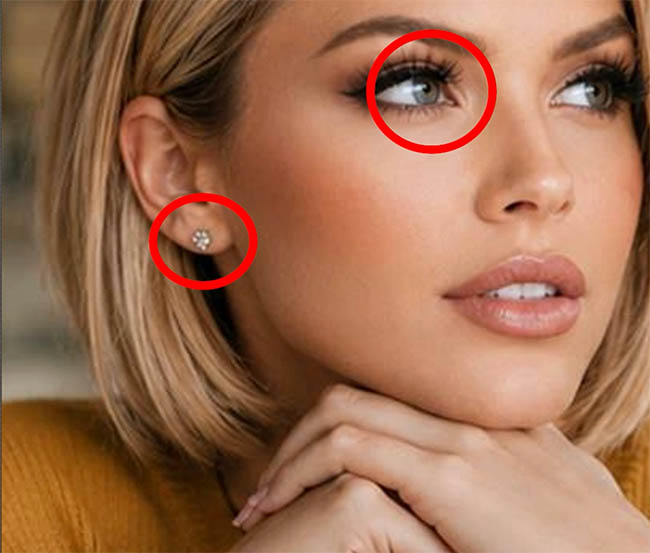
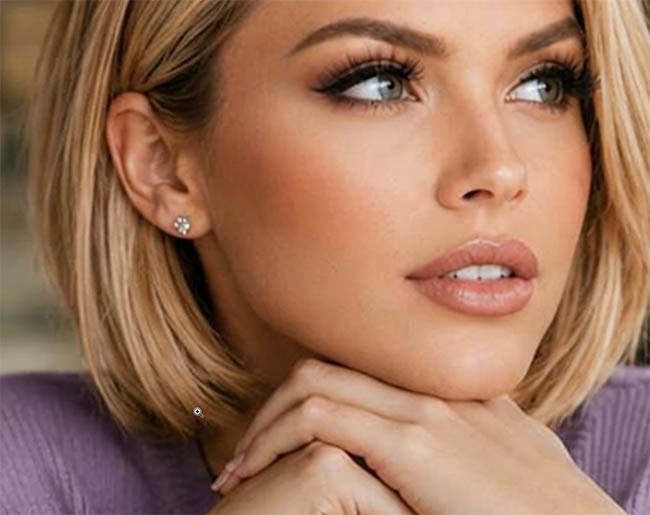
Look closely at her earring, hair, and eyes.
Notice that some of these details have changed, even though we only asked AI to recolor the sweater. In this case, it’s barely noticeable, but some generations, we don’t get this lucky.
Our Hue/Saturation adjustment doesn’t have this problem because the rest of the image isn’t being regenerated. To help the ai image, you should mask the sweater so only that part of the generative layer is showing.
AI can affect texture and detail
The biggest caveat with ai is resolution. With smaller images, it doesn’t matter as much, but with larger files (the kind we use for print) it becomes very noticeable. Look closely at this other image.
In the original image, we can see the fabric texture.
With the AI result, some of that texture has been smoothed out or changed.
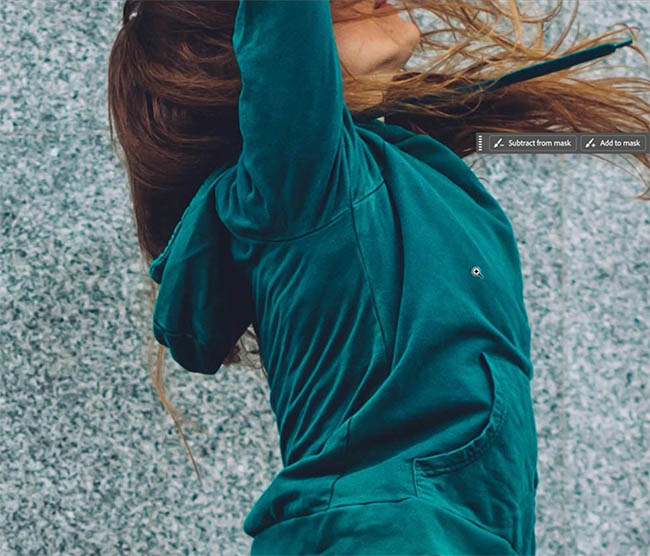
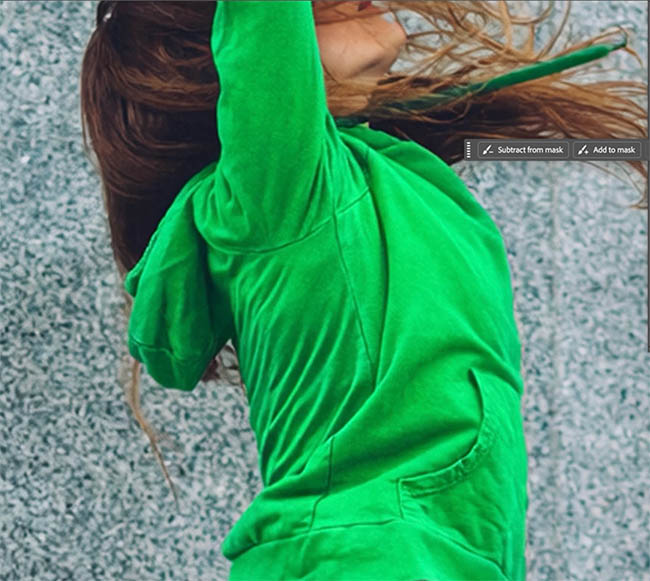
It might not be obvious when we’re zoomed out, but it can matter when working on high-resolution photographs.
Our traditional Photoshop adjustment works with the existing pixels. We’re changing their color without generating a replacement for the fabric.
This helps retain the original photographic detail.
Generative credits
There’s also the question of cost.
AI generation uses generative credits, while Hue/Saturation adjustments and layer masks don’t.
And once we’ve created our mask, we can experiment with as many colors as we want without generating new versions.
Photoshop vs AI: Which is faster?
Here’s something people often say: “Isn’t it just quicker to type a prompt?”
Let’s actually test it.
We’ll change the sweater to blue using both methods and time the process with a stopwatch.
First, AI.
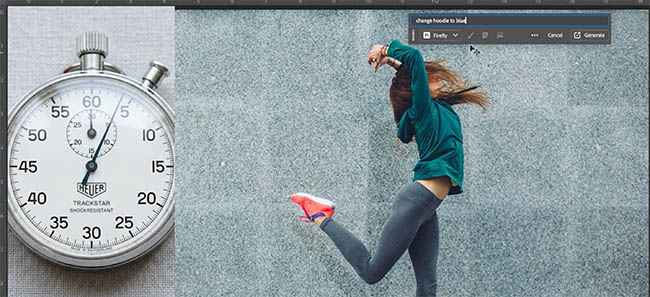
I even have the prompt ready to paste, so AI gets a little head start.
Choose Prompt to Edit, enter the instruction, and generate the result.
AI time: 41 seconds.
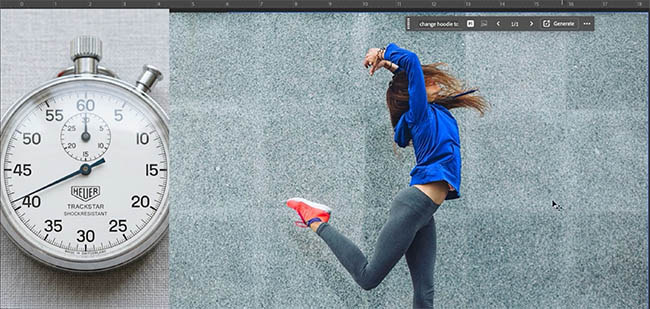
Now let’s try the manual Photoshop method.
Using Adjust Colors, refining the color range, and masking where needed, I change the sweater to blue.
Manual Photoshop time: 28 seconds.
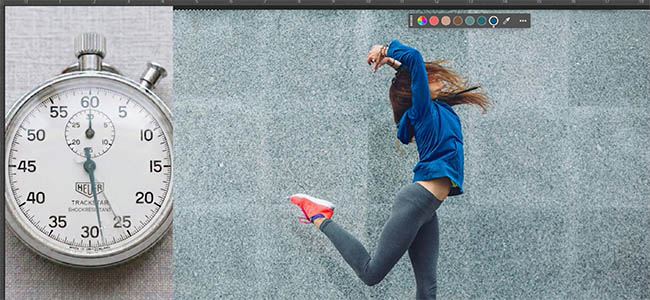
So in this test, the traditional Photoshop method was actually faster.
And we still have the advantages of editable color, preserved texture, and no generative credits.
Of course, these times will vary depending on the image, your experience, and how long AI takes to generate. But it shows that using AI isn’t automatically the fastest option.
I’m not trying to poop on ai here. It’s a great tool that can save us a lot of time. But my point is its just a TOOL and it shouldn’t be used all the time, for everything, as a replacement for your learning or your skills. It’s an assistant, you should still be in the drivers seat.
Which color-changing method should you use?
If your object has a unique color, use Adjust Colors and move the Hue slider. It’s extremely fast.
If similar colors appear elsewhere, refine the color range to isolate the ones you want.
And when you can’t fully separate the colors, combine the adjustment with a layer mask.
This gives you a flexible, non-destructive color change that you can fine-tune whenever you want.
If you can’t get the result you want, or the starting color is too difficult for you, then by all means, use ai to help. If you are starting from Black or White, this tutorial shows how to change those colors too.
What about you? Have you found AI faster for changing colors, or do you still prefer the traditional Photoshop tools? Let me know in the comments.
It’s great to see you here at the CAFE
Colin

Keep growing with Premium Courses
Photoshop 2026 for Digital Photographers
Learn Photoshop properly, from the basics to pro retouching, step by step.
$129.00 · one-time purchase · instant download

Free for you
The Photoshop Vault
Get my free Layer Blending Modes ebook along with dozens of exclusive Photoshop goodies: actions, brushes, presets and cheat sheets.
You're on the list, so your free goodies are waiting for you in the Vault.
Get Free Photoshop Goodies Open the Vault
How to add strong color to white in Photoshop
How to change the color of an object in Photoshop and get good strong colors, change white to any color and change... Read tutorial
How to Turn White into deep Color and colorize Black in Photoshop
How to colorize white or black. Quick steps to change white or black areas into color with ease. Read tutorial
New Adjust Colors in Photoshop, easily change colors the new way
New Adjust Color in Photoshop makes it easy to change colors and to make certain colors pop in a photo Read tutorial
How to Change the Color in complex objects in Photoshop without selections
In this Photoshop tutorial, Colin Smith shows how to instantly and easily change the color of something in a photo using Photoshop.... Read tutorial
Layer masks in Photoshop – Get perfect smooth transparency on your masks
How to get the best layer masks of your life in Photoshop. Layer masking a better way. Read tutorial