
How to wrap text around images. Photoshop text wrap.
Photoshop doesn’t have a dedicated text wrap tool, but you can still make paragraphs of text wrap around images. The trick lies in using a long running feature in Photoshop call type in a path, along with vector paths. It’s really easy, lets go!
We want to add text to the left of this image but have it wrap around the woman. How do we do this? Easy…

Start with the rectangle shape tool

At the top make sure its set to Path

Drag out the shape you want to put the text in. (Similar to how you would do it with the type tool)

We have a text box, but now we need to change the shape.
Grab the pen tool. How to use the pen tool in Photoshop

Click to add a point at the top. add a second point under it

Hold down Carl/Cmd and drag on the point.

You can add points and drag them to curve the side of the box.
Also drag the handles to change the shape of the path. If you don’t know how to use the pen tool, here is a tutorial.

Here is the finished path.
Note this isn’t the only way to create a path in Photoshop, but for me, it’s the easiest way to make a nice neat box with a curved side. The important thing is to have a vector path at this point of the tutorial.

How let’s put the text in it.
Grab the type tool

As you move the cursor inside the path, you will see it has a circle around it. This means we will add type IN a path.

Click to apply, You’ll see place holder text. Type in your own words, or paste them from another document.

Choose Type>Paste Loren Ipsum to add ,ore placeholder text for styling if you aren’t ready to put your own text in yet.
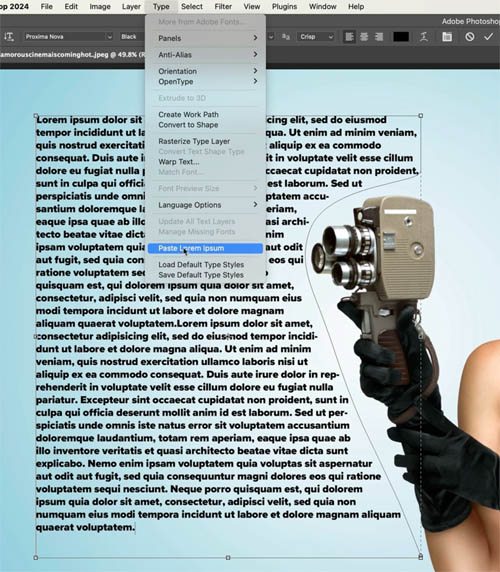
To select all the text, click the text with the text tool and Press Ctrl/Cmd+A to select all.

Change the properties such as font, size and color to complete your look.

I hope this short tutorial helped you.
Browse the 700 free Photoshop tutorials here at the CAFE and I’ll be back next week with a new one
Great to see you here at the CAFE
Colin

Recommended for this tutorial
Photoshop Compositing: Sky City Project. Photoshop 2026
Build a complete composite from start to finish and learn the techniques behind it.
$39.99 · one-time purchase · instant download

Free for you
The Photoshop Vault
Get my free Layer Blending Modes ebook along with dozens of exclusive Photoshop goodies: actions, brushes, presets and cheat sheets.
You're on the list, so your free goodies are waiting for you in the Vault.
Get Free Photoshop Goodies Open the Vault

How to outline type in Photoshop tutorial
This Photoshop tutorial shows you how to outline type and make it vector in Photoshop. If you want to preserve the edge... Read tutorial
How to wrap text around a photo in Photoshop tutorial
In this Photoshop tutorial, I'm going to show you how to wrap text around a photo using displacement maps and image warp.... Read tutorial
Combine type and images, How to put a photo inside text in Photoshop Tutorial
In this Photoshop Tutorial, Colin shows you how to combine type and photos in Photoshop. Learn how to place a photo inside... Read tutorial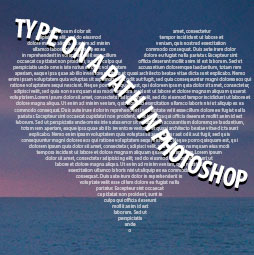
Align type to a path and inside a shape in Photoshop tutorial
In this Photoshop tutorial, you will learn how to fill a shape with type and how to align type to a path... Read tutorial
How to make Thor Ragnarok 80s Chrome logo in Photoshop Tutorial
How to make the Thor Ragnarok chrome extruded logo in Photoshop tutorial. Read tutorial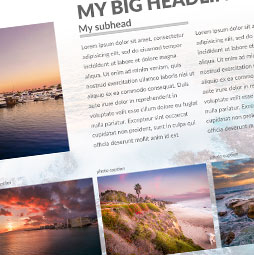











Damn! I never knew how to do that! So far, it’s been a painstaking process of editing type line by line! Thank you so much
The method of adding text wrap to type in Photoshop was new to me, a long time Photoshop user. Thanks!
Ok, wow. That is so easy ! Thank you. I’ll try that asap.
GREAT text wrapping tutorial Colin. I learned something new and very useful. Thanks for these short tuts.
COOL!!!
In addition to the general topic, I learned about using CTL-H to hide the highlighting of the selected text.
Great
Oh my gosh – I wish I knew this long before now! Thanks so much, Colin!
you have explained nicely
I can’t believe I didn’t know this! Thank you so much for your very clear explanation. It’s going to save me a lot of time in the future.