
How to remove color tints from photos in Photoshop, gel removal.
This tutorial shows you how to fix the color of a photo when all the original color is lost, it works well on an extreme case like our example. If you are just dealing with a common color cast, here are 4 ways to fix it in Photoshop. This example image (from Adobe Stock) is a perfect example. This image has 2 different colored gels, which creates a nice cyberpunk look.
If you want to restore the original colors this used to be very difficult. but not any more. If you have done any work as a designer or retoucher, you are going to be asked to do this at some point in your career.
1. The instant result
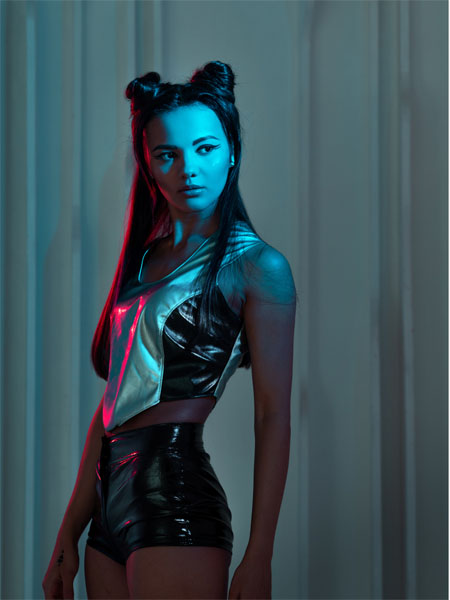
I will show you the single click method here, but read on and watch the video for a better results as well as how to control the new colors as well as use different colors for the background and things.
Quick fix? Choose Filter>Neural Filter>Colorize
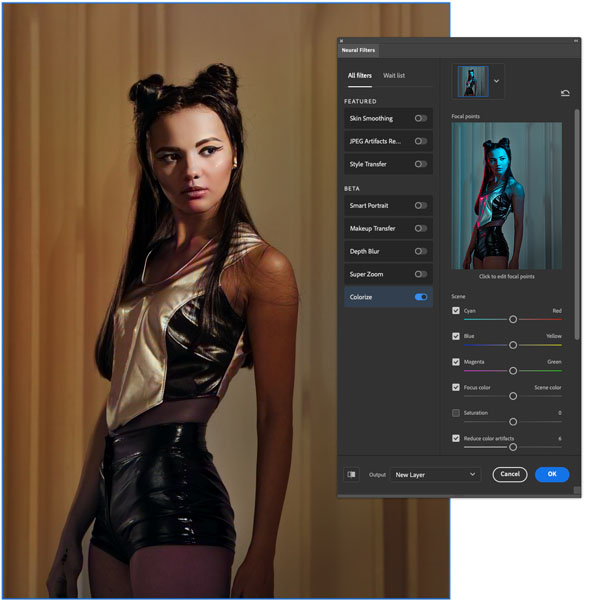
Boom done! Read on for a better result though.
2. The better result
Start with the original image.
Press Ctrl/Cmd+Shift+U to desaturate the colors.
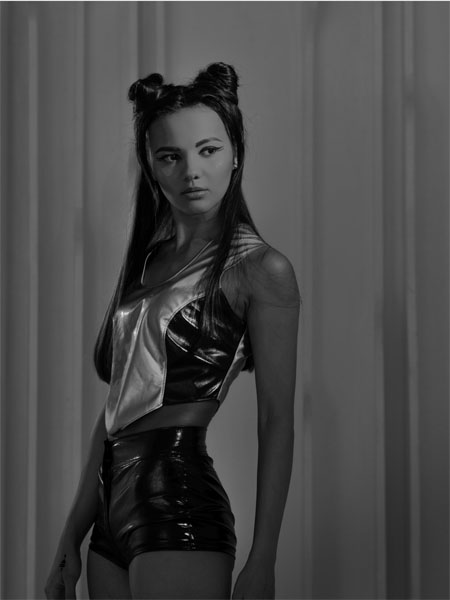
Removing the color, allows you to see the tones clearly. They are muddy.
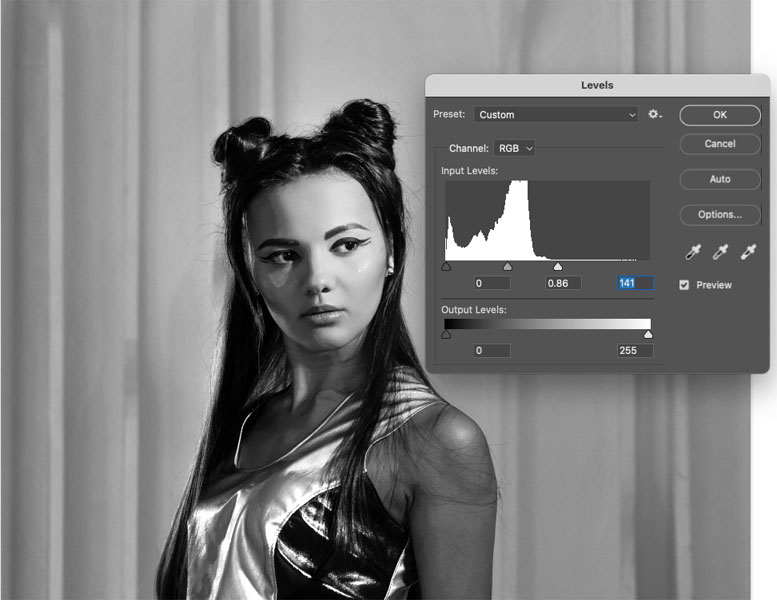
Press Ctrl/Cmd+L for levels (Don’t use an adjustment layer – you won’t hear me say that often).
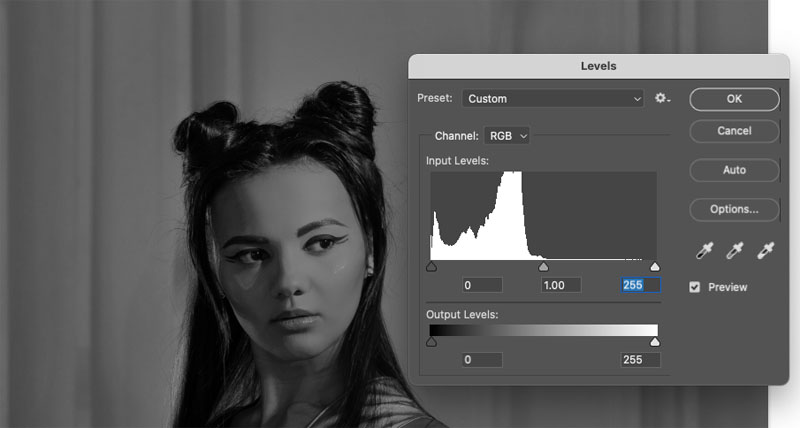
Move the white slider (triangle) to the left to clean the highlights, it should be where the pixels start on the histogram as pictured.
Nudge the gray mid-tone slider a little to get the contrast you desire.
Click OK
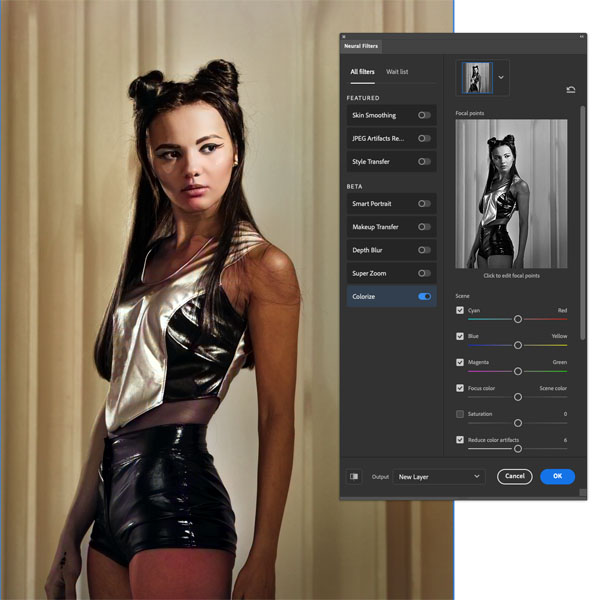
Choose Filter>Neural Filter>Colorize
This time we get a more pleasing and controlled result.
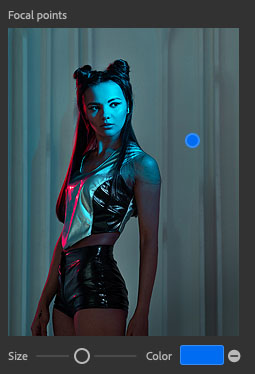
If you want to change the background color click on the background in the thumbnail
choose a new color
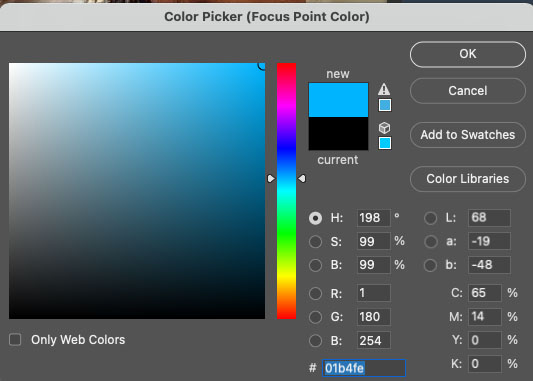
and it will change.
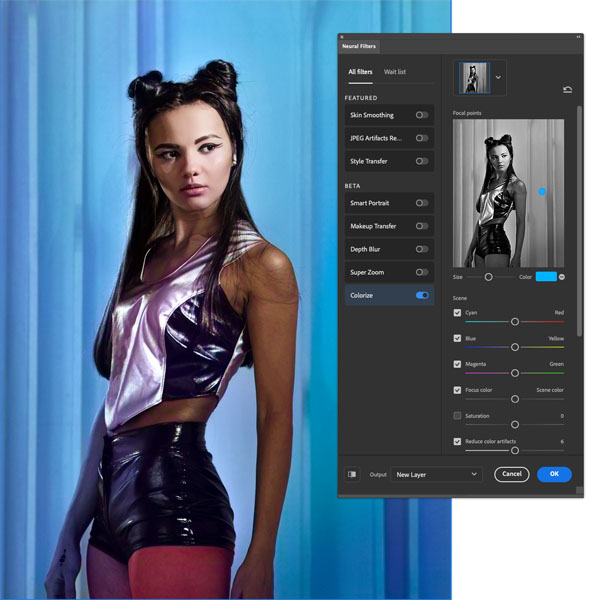
here is a different result with a deeper blue.
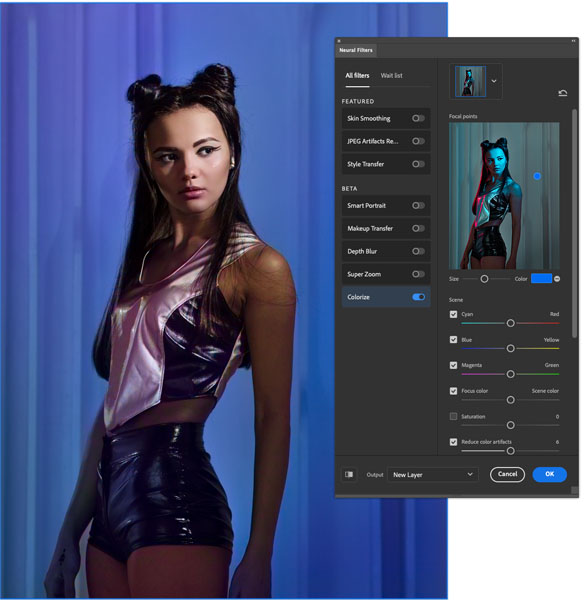
This stuff is pretty amazing right?
Check out all the new features in this latest Photoshop version including colorize.
The neural filters are powered by Adobe Sensei, Adobe’s Legacy AI engine. Generative ai is from Firefly.

Keep growing with Premium Courses
Photoshop 2026 for Digital Photographers
Learn Photoshop properly, from the basics to pro retouching, step by step.
$129.00 · one-time purchase · instant download

Free for you
The Photoshop Vault
Get my free Layer Blending Modes ebook along with dozens of exclusive Photoshop goodies: actions, brushes, presets and cheat sheets.
You're on the list, so your free goodies are waiting for you in the Vault.
Get Free Photoshop Goodies Open the Vault

Fix color in photos, 1 click in Photoshop or Lightroom
Use this trick to Fix color in any photo in 1 click in Photoshop, Lightroom or Camera Raw Read tutorial
Secret setting in Harmonization, to match colors between photos in Photoshop
An essential, but unknown tip for using Harmonization to match colors between layers in Photoshop. Match image color in Photoshop composites. Read tutorial
Remove Color shadows from a face with Point Color in Photoshop
New Point Color for fixing colored shadows on faces. Read tutorial
Photoshop colorize neural filter, 3 tips for total control over color
I have been experimenting with the amazing colorize ai powered filter added to Photoshop. I discovered a few things that will really... Read tutorial
How to add strong color to white in Photoshop
How to change the color of an object in Photoshop and get good strong colors, change white to any color and change... Read tutorial












Incredible feature…♫♥ Thank you for the info.
If one doesn’t have the latest version of ps, is there another workaround. Great feature.
I tried this on a perfect tonal B&W portrait, and it blew me away! However, it didn’t work well on every image that I tried. Still, it’s an incredible time saver, and I’m glad Adobe is providing these Neural filters; they are certainly fun!
Fantastic as always. Thnx Colin
I have found colourize to be a fantastic tool. I have a box of family black and whites and am having a great time being wowed by the speed of the colouring. It is not a perfect tool, but, is a super tool. There are some instances where there is colour leaching, but, overall a great addition to Photoshop
Holy Cow!
I do a fair amount of small venue concert photography in the area. It takes so much time to remove the effects of stage lights in the blue range, I don’t even bother any more. I don’t have time. I just toss them.
My first test of this neural filter was outstanding. My keeper rate for those shoots just went up by a factor of 3x to 4x
Thanks for the clue!
I got the idea from my concert photos too 🙂
Yes tanks for the tips. The neural filters are great but I was a bit disappointed to find that some of the original style transfer options were missing!
This is really neat, I will have to try this out. Thank you for the video.
Love this effect, and thanks for the tip on how to use it to save a photo whit much colorcast.
Thanks again Colin, as usual very informative and helpful! These neural filters will really help me with color issues I run into in restoring old photos.
Simple and very fun to use.
great info – I just received a couple of pictures of my Mom & Dad – colorize does work well with photo – do you have a tutorial on ways to manually colorize my black and whites
WOW! what a tip, not tried this but have loads of images that will be dramatically improved.
My CS6, v.13.0 doesn’t have “Filter>Neutral Filter” Any other options?
Thanks
Its not in CS6, this is a new feature