
Levitation floating effect in Photoshop
How to make people float / hover in Photoshop
This tutorial shows you how to make people and objects float or levitate. This is one of those tutorials that everyone want to do. It’s a lot of fun to suspend reality and suspend objects in the air. Its relatively easy to do this, but there are a couple of things that are really important to know. Check out this tutorial and defy gravity. Then I encourage you to experiment and try this with a few different images and come up with something fun on your own.
Photos used:
Drop a comment and let me know your thoughts!
If you haven’t subscribed to PhotoshopCAFE yet, do it now and be sure to get new tutorials every week.
Thanks for checking it out
Colin

Keep growing with Premium Courses
Photoshop 2026 for Digital Photographers
Learn Photoshop properly, from the basics to pro retouching, step by step.
$129.00 · one-time purchase · instant download

Free for you
The Photoshop Vault
Get my free Layer Blending Modes ebook along with dozens of exclusive Photoshop goodies: actions, brushes, presets and cheat sheets.
You're on the list, so your free goodies are waiting for you in the Vault.
Get Free Photoshop Goodies Open the Vault

How to add dimension and shape with Dodge and Burn in Photoshop Tutorial
Learn how to dodge and burn in Photoshop, make photos look 3d with depth of toning and highlights in this free Photoshop... Read tutorial
How to make the colors match between different photos in Photoshop
Learn how to make the colors look the same on different photos on different layers in Photoshop. This is a very requested... Read tutorial
How to make a video game cover in Photoshop: tiny city photoshop composite
How to combine photos to make a photoshop composite of King Kong in Los Angeles Read tutorial
How to blend Layers in Photoshop and select faces with masks
How to blend images in Photoshop to make a poster, using channels to select faces Read tutorial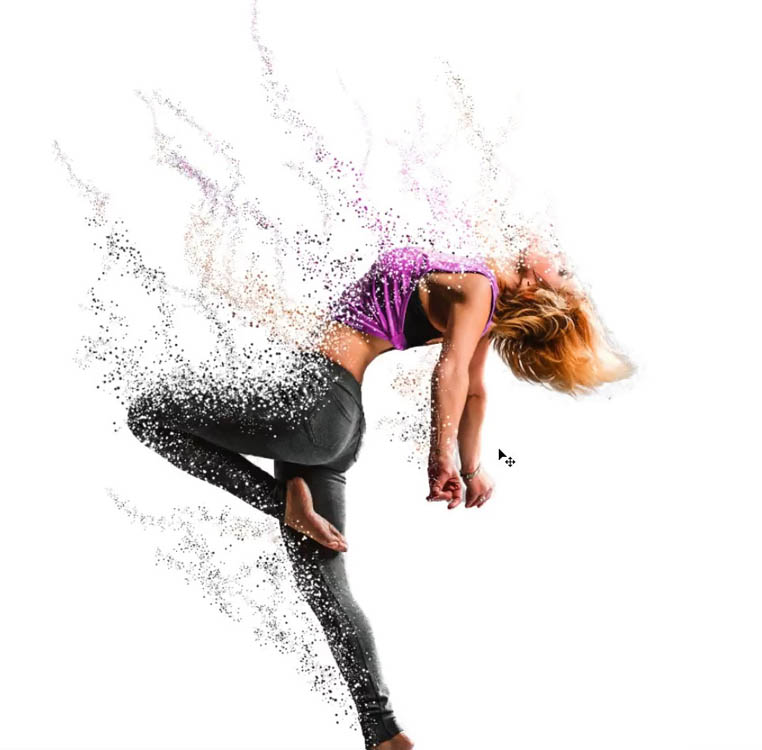
How to make Avengers Dust effect in Photoshop, Infinity wars, endgame particle dispersion
How to apply Avengers Infinity Wars, Endgame style dust effect to a photo in Photoshop. Particle disintegration tutorial on Photoshop, step by... Read tutorial











PC Desktop with occasionally using Surface Pro.
Windows 10, laptop (Surface Book)
MacPro
Mac desktop
Mac desktop.
I’m interested in how your are going to rid yourself of the bug in PS? When you have to the time. Thanks
Mac Desktop
home built desktop pc and dell laptop
I’m grateful for your excellent guidance. Mine’s a PC desktop. Future topics “LR Output” (slideshows, books, print (screen/print calibratio?)).
Great tutorial But didn’t see the link to download the images you used.
Desktop win 10
Hi Colin,
Love this tutorial. I want to try this with my family pictures. I am using a PC Laptop with Windows 10, and Photoshop CC 2018. I would like to know how to match colors, on some of my pictures that have gotten discolored spots in the older photos.
iMac 24inch
Windows 10, desktop PC. 2 x 3TB drives D & F, 1 SSID 1TB drive C; 64 RAM
Great tutorial as usual but I cannot find the link to the photos you used and I would love to try this out.
W10 Under the desk model!
thanks
Windows 10, Desktop PC
Hi, I work on a laptop and do not have a wacom or pen and I have researched them but found it confusing and prices are so different I just went back to my laptop…………lol
work on windows Desktop with Wacom tablet
Desktop PC; Win 10
Hey Colin,
Another brilliant tutorial – have learned so much from your tutorials – I use a MacBook Air 13″
Cheers
Sherryl
Mac Mini & Macbook Pro
your teaching is excellent, thank you
your teaching is excellent, thank you
Really appreciate your teaching style. Easy but pack filled. Thank you!
My initials are PC, so that’s what I use. I just wish I could get a little more RAM and a new, faster processor. I have been using the same one for 60 years and I forget a lot. LOL
I use a Desktop PC – Windows 10. Never used the Liquify – very cool to learn that trick! Excellent!
Windows!