
How to turn any photo into a Facebook 3D photo in Photoshop

Turning a photograph into a Facebook 3D photo
When you are in Facebook and scrolling, suddenly a photo seems to come to life. As you move your mobile device or mouse around, you will see a cool parallax effect. Maybe you wondered how they do it. Or if it’s possible for you to do it. Perhaps you thought it required special gear or special skills. The good news is that its really easy and you can get this effect with any photo. Here is a tutorial thats shows you exactly how to turn any of your photos into an exciting Facebook 3D photo in Photoshop. Enjoy.
Here is a live example (like the photo, comment + follow me on FB and join the PhotoshopCAFE group).
Your photo can be with a phone that doesn’t have depth, or any camera. If you have a phone with depth such as google pixel or iPhone X, shoot in portrait made and upload, done. If you don’t have that kind of phone, o you want to work the magic on a non-Depth photo, then read on.
This photo was shot on a gopro by my paddle boarding instructor from SurfHNL. This is me in Hawaii, trying Stand Up Paddle Boarding (SUP) for the very first time. For the record, I loved it.
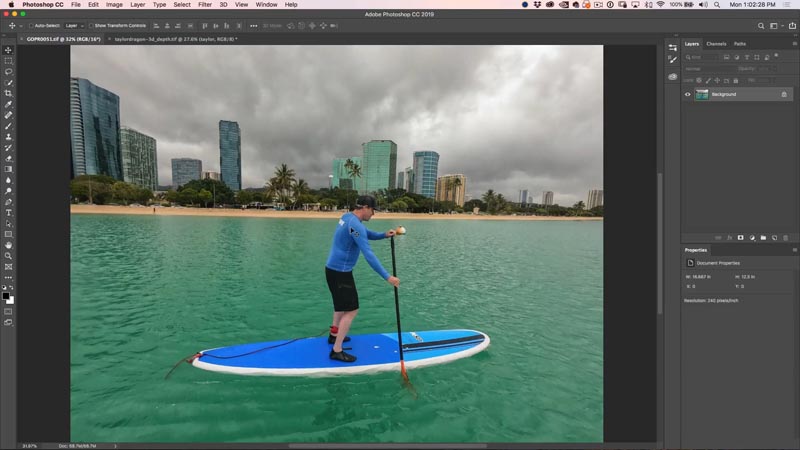
Step 2. Make a selection around the subject.
Use the quick selection tool to make a selection. (Making Selections in Photoshop)
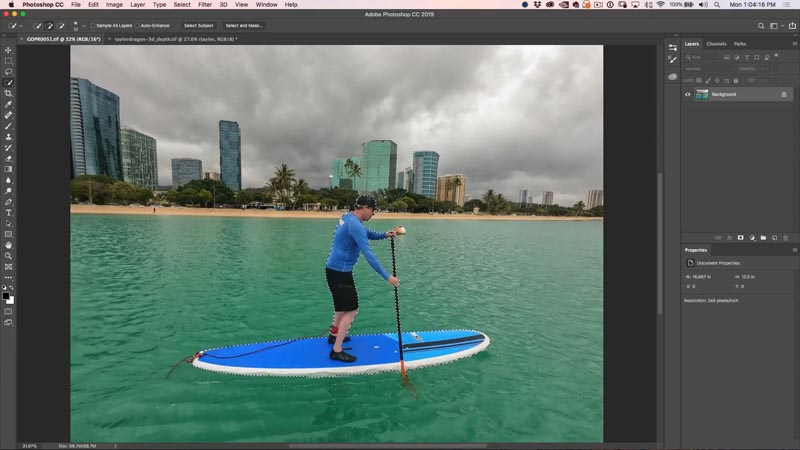
Step 3.
Make a new Layer
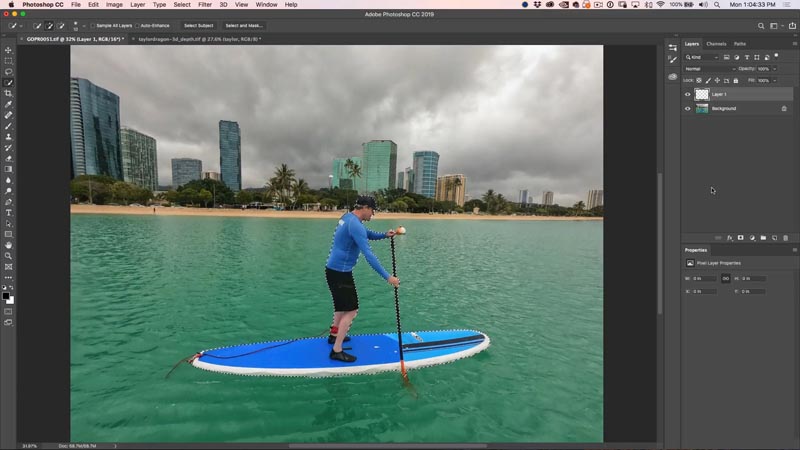
Step 4.
Fill the new layer with white (or any color at the moment).
Ctrl+Delete (win) / Cmd+Backspace (mac) will fill with background color.
Alt+Delete (win) / option+Backspace (mac) will fill with foreground color.
Cmd/Ctrl+D to deselect
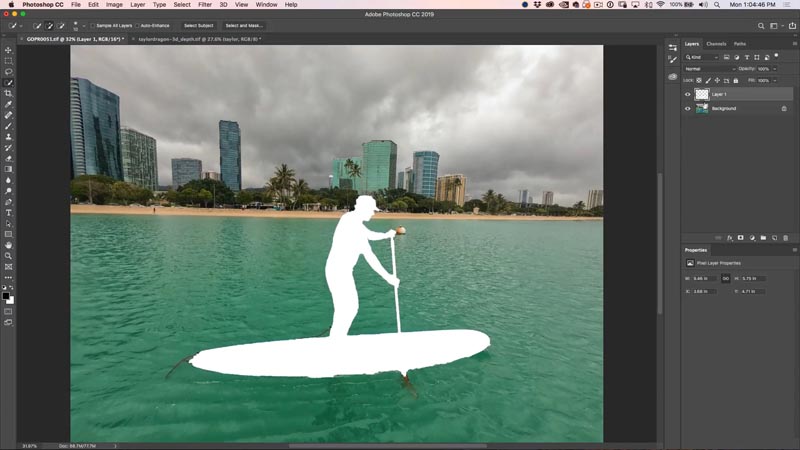
Step 5. Select the mid-ground
Select the water and the buildings
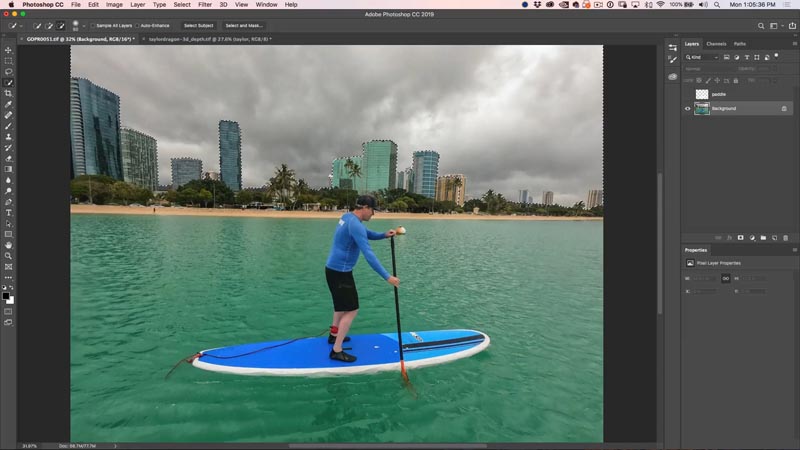
Step 6.
Create a new Layer
Fill the mid ground with white.
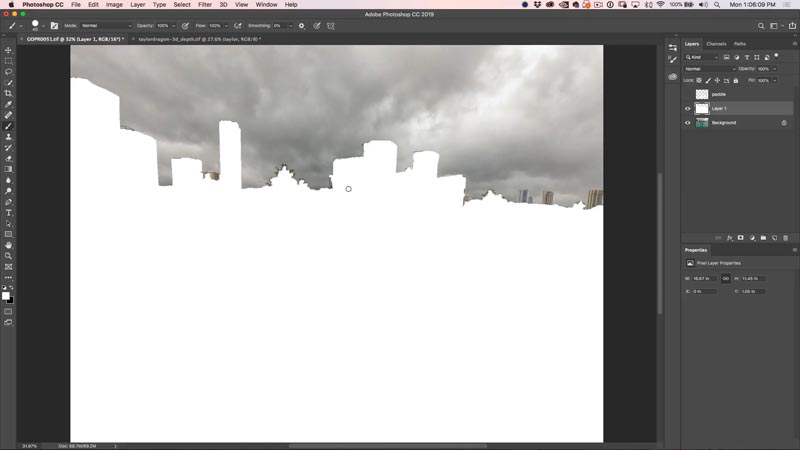
Step 7. adding some extra depth.
Make a selection around the distant buildings, this will make a far mid-ground.
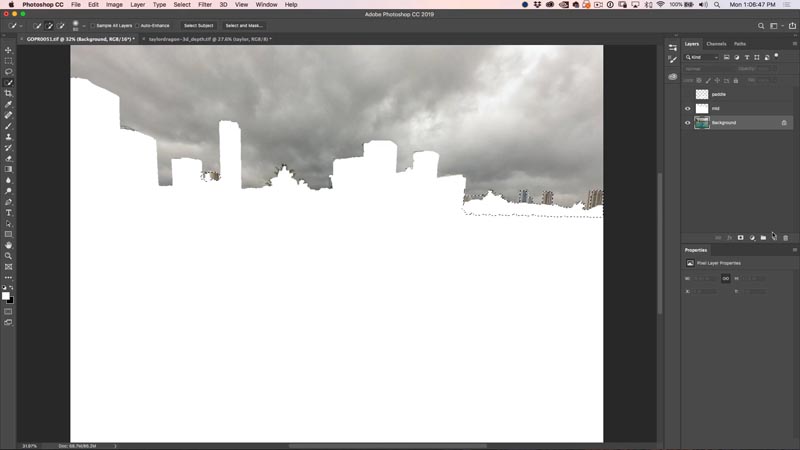
Step 8.
New Laye, then Fill with White.
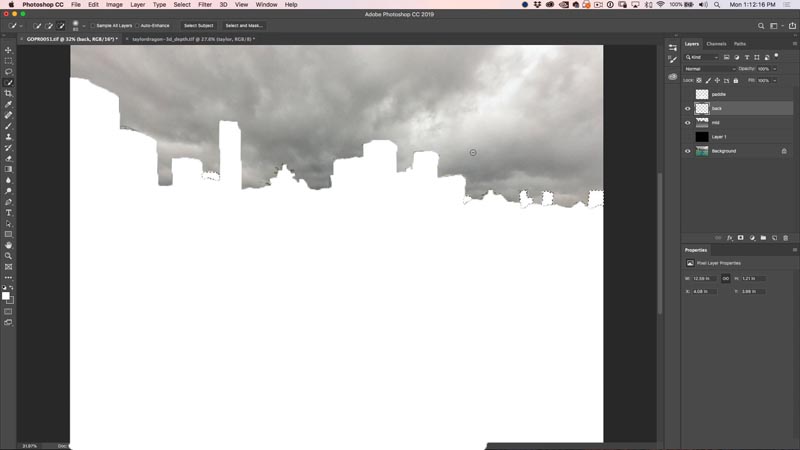
Step 9.
Create a new layer and fill with black.
Move the black layer to the bottom of the depth-map layers as shown.
This is our background.
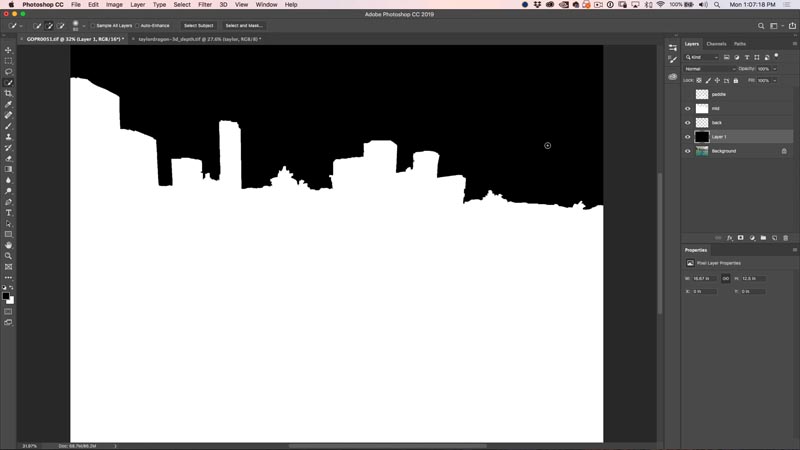
Step 10. Creating Depth Maps.
Remember, we define distance by using different gray tones. The darker the shade, the further back and the lighter the shade, the further forward.
Choose the mid ground layer and Ctrl/Cmd+click on the layer thumbnail to load the selection.
(1) Choose the gradient tool
(2) Choose foreground to background
(3) Linear
(4) Normal blending mode
(5) 100% opacity
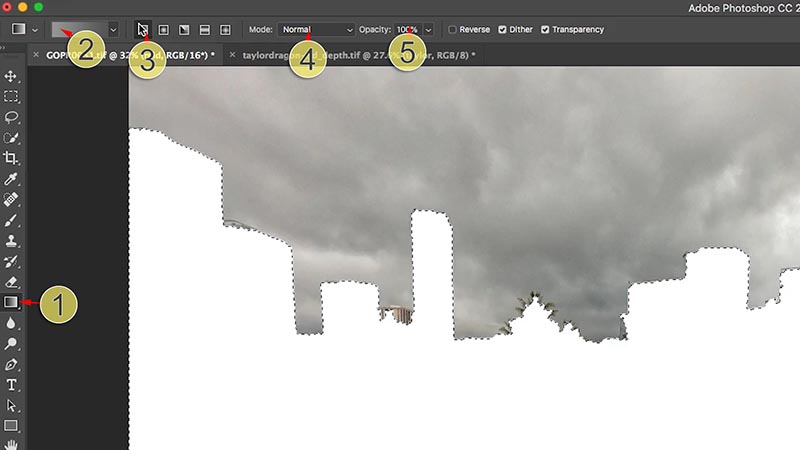
Step 11.
Create a gradient by dragging the gradient tool on the image.
Remember to make the lighter side of the gradient at the bottom, which is closer to the viewer.
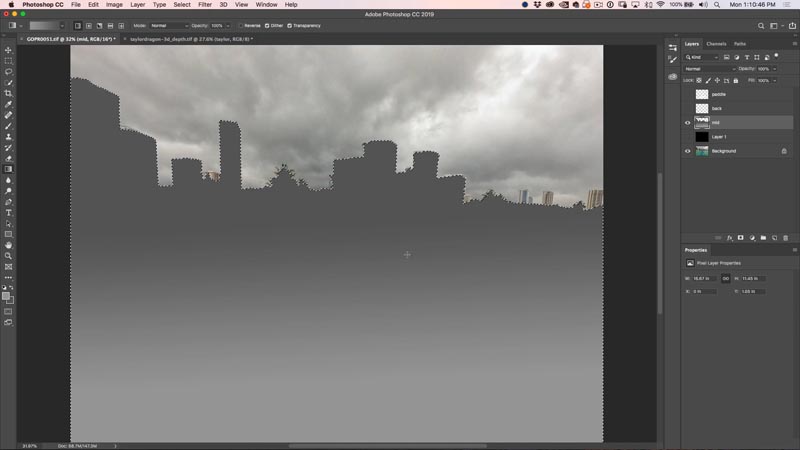
When you make the gradient, make sure the gradient part is the area where there is distance. Area like the buildings will be fairly even, so they should be a flat shade. This is accomplished by ending the gradient before the buildings. Use a shorter drag. If you are new to Photoshop gradients, try a few times and you will pick it up quickly enough.
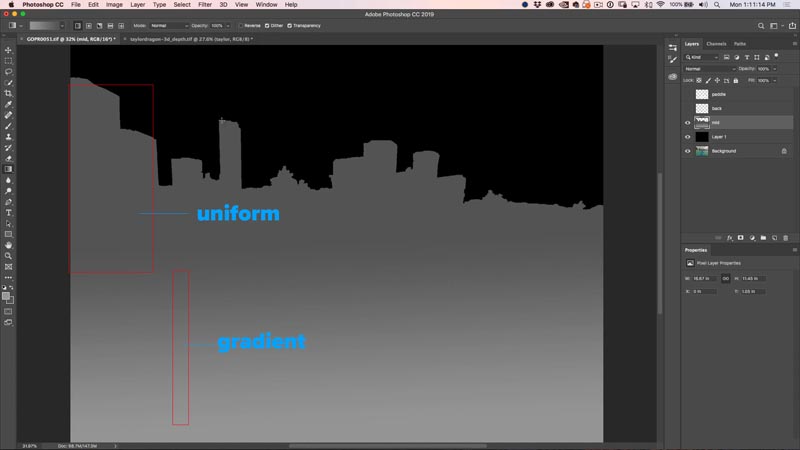
Step 12.
Select the layer and load the selection from the background buildings.
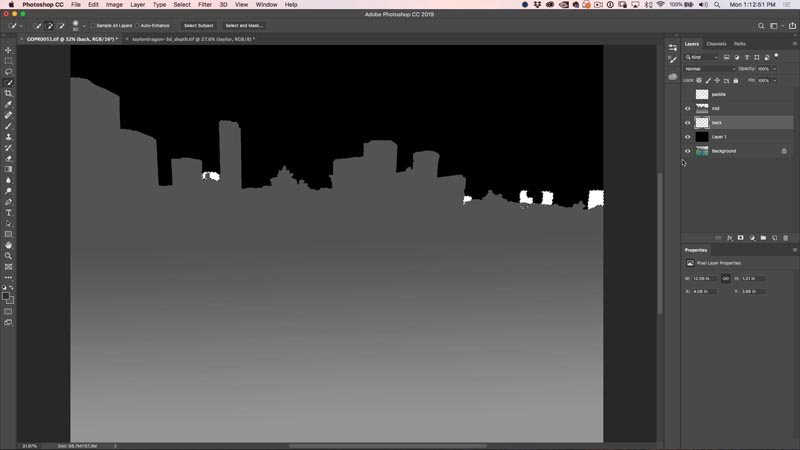
Step 13.
Fill them with a darker gray, but not as dark as the background.
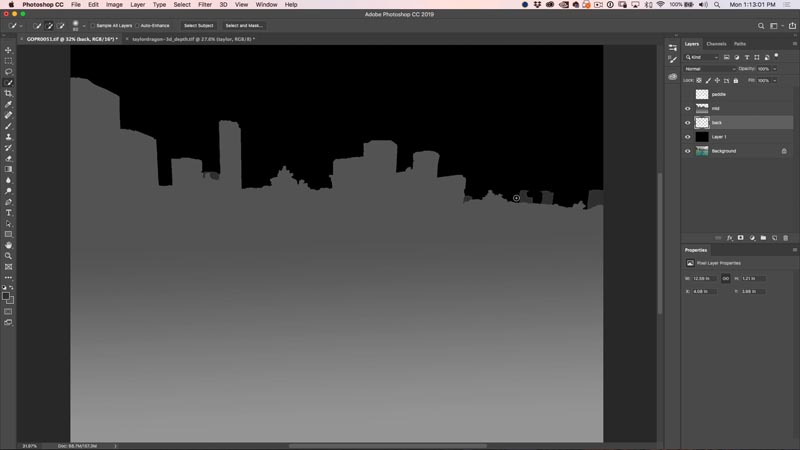
Step 14.
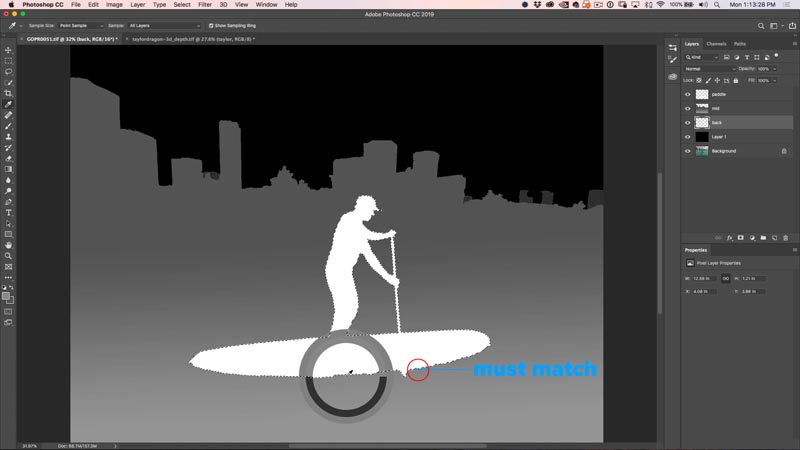
Turn on the layer of the paddle boarder and load the selection.
Using the eye dropper tool (Hold alt/option while in the gradient to sample). Sample the shade right next to the bottom of the Paddle Boarder.
Tip: When you want to anchor a subject, its shade must match the underlaying layer, or it will just float in space when turned into 3D.
Step 15.
Apply a gradient with the top of the subject a little lighter than the bottom. Make sure the bottom blends in. If the background has enough of a gradient, you could fill the subject with a solid shade nd get a better result.
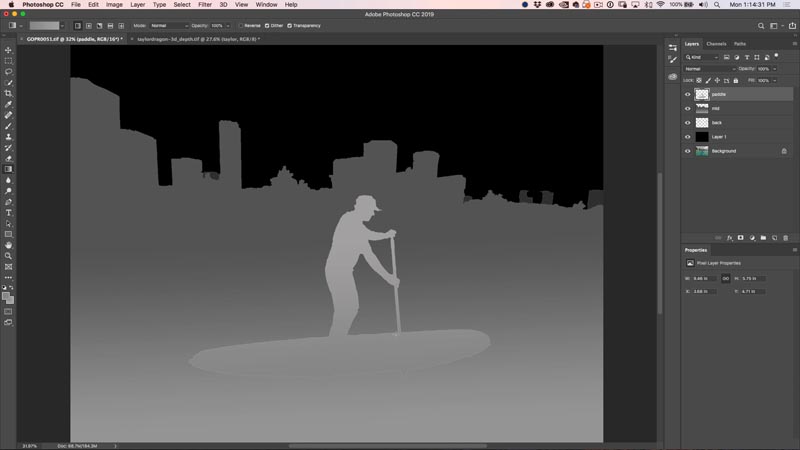
Ok, our depth map is now ready. let’s post it as a 3D picture to Facebook.
How Facebook reads depth maps and makes 3D photos
Making the image work in Facebook is really easy actually. We need to upload both the photo and the depth map. They can be either jpg or png, either will work. Making the photo jpg will make it 1/10th the size of a png and you won’t see much difference.
Note: Because solid shades work better as PNG than jpg (artifacts) you can make your depth map PNG, yes you can mix and match formats. This will make it look better for people using 3D goggles such as Occulus. Of course, if you use a jpg for both, people viewing on a mobile device won’t see much difference.
Step 16. Uploading a photo to Facebook as a 3D photo.
Hide the depth map layers for now and show the original image.
Choose file save as.. or File>Export>Save for web (make sure the image stays under 4000 px).
Name and save your image.
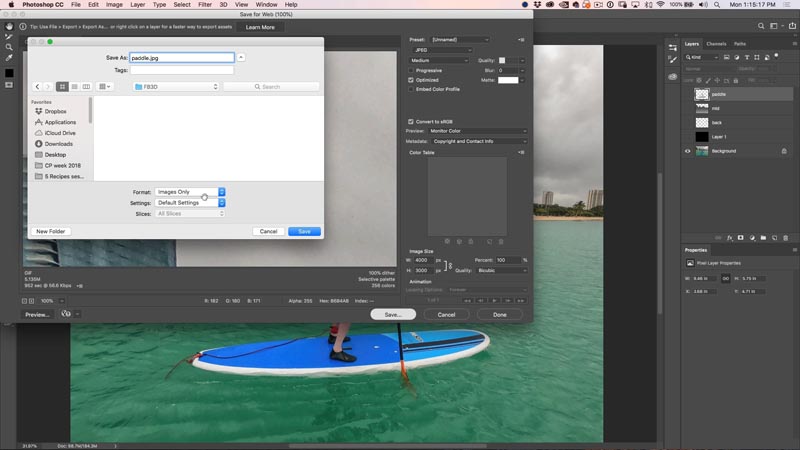
Step 17.
Turn on layer visibility for all the depth maps layers.
Choose File>Save as.. or File>Export>SaveFor web and save out your depth map with the same name as the photo but with _depth at the end of the name.
The key is in naming. The depth maps is the same name as the image but with underscore depth. eg. name.jpg / name_depth.jpg
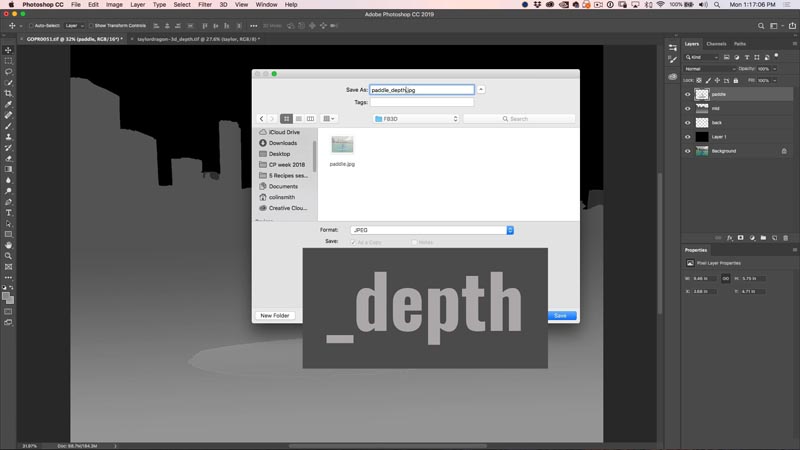
Step 18. Uploading to Facebook
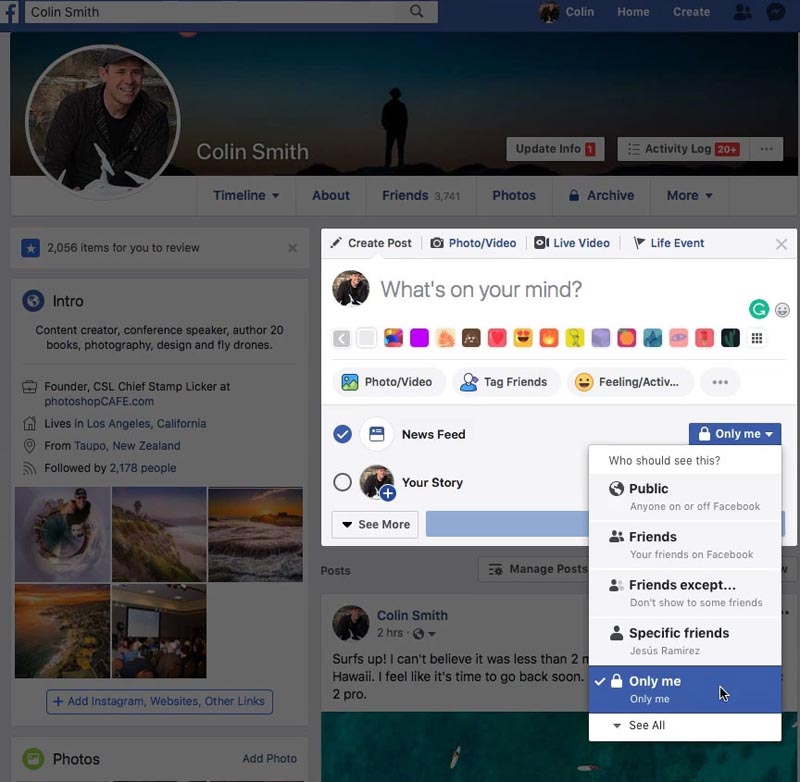
Go to your facebook profile
Set privacy to Only me so you can test it.
Click on Photo/Video
Select both your photo and your depth map
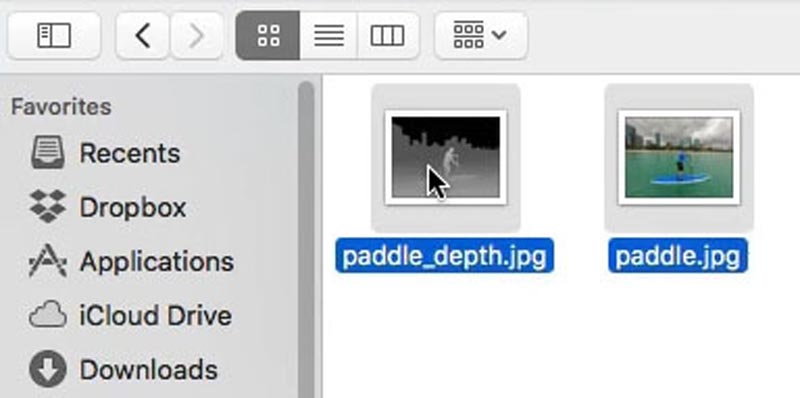
Facebook will combine the photos and process a 3D image, it will take a little bit of time, so don’t close your browser yet.
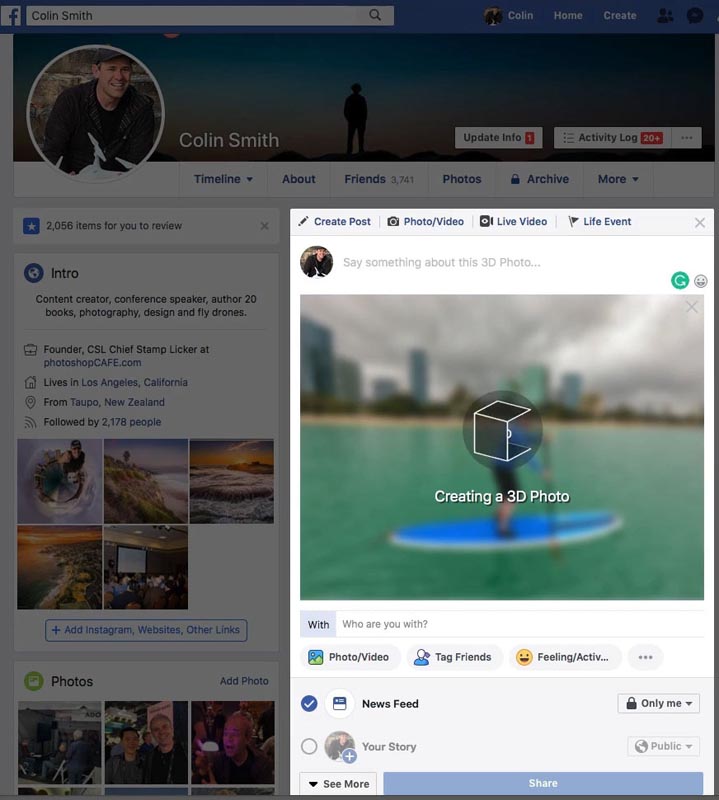
And finally, you will have a cool Facebook 3D image.
Change privacy to public or friends, so other people can see it and add a description, hey, maybe even add a link to this tutorial 😉
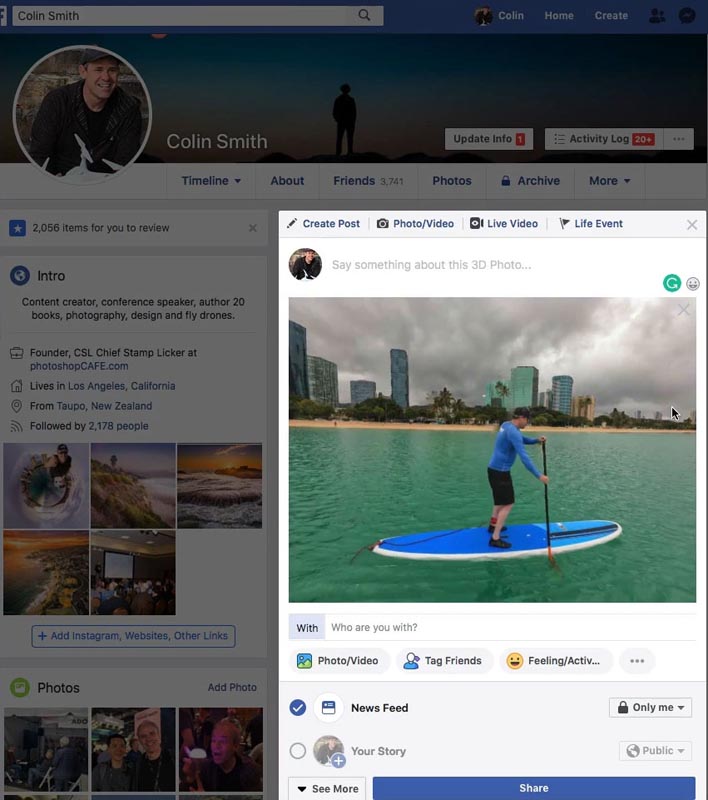
Here is a live example (like the photo, comment + follow me on FB and join the PhotoshopCAFE group).
I hope you enjoyed this tutorial and found it easy to follow.
I am working on a more advanced one for tutoring Photoshop Composites to Facebook 3D and will post it soon, keep any eye on this site: photoshopcafe.com for it.
Thanks,
Colin

Keep growing with Premium Courses
Photoshop 2026 for Digital Photographers
Learn Photoshop properly, from the basics to pro retouching, step by step.
$129.00 · one-time purchase · instant download

Free for you
The Photoshop Vault
Get my free Layer Blending Modes ebook along with dozens of exclusive Photoshop goodies: actions, brushes, presets and cheat sheets.
You're on the list, so your free goodies are waiting for you in the Vault.
Get Free Photoshop Goodies Open the Vault
Facebook 3D and Photoshop guide. How to turn a layered Photoshop image into Facebook 3D photo
How to turn a layered Photoshop composite into a Facebook 3D photo in Photoshop Read tutorial
How to make a Facebook 360 panorama VR, in plain English
Learn how to make a VR 360 Panorama on Facebook. This tutorial shows you how to prepare your image to work on... Read tutorial
How to add dimension and shape with Dodge and Burn in Photoshop Tutorial
Learn how to dodge and burn in Photoshop, make photos look 3d with depth of toning and highlights in this free Photoshop... Read tutorial
How to make the colors match between different photos in Photoshop
Learn how to make the colors look the same on different photos on different layers in Photoshop. This is a very requested... Read tutorial
Levitation floating effect in Photoshop
How to make a levitation effect in Photoshop. How to make objects and people look like they are floating in Photoshop tutorial. Read tutorial










Fun little trick, but a lot of work. Not really sure how applicable it is for anything other than just for fun. I quit Facebook months ago but I putter around on YouTube and Instagram.
Love this paddle boarder!
Awesome thank you sir.
Nice video. You asked if I do 3D. I have two 1948 stereo cameras and a huge collection of stereocards and Viewmaster reels. I own the website Stereographer.com but I haven’t used it in a while and the domain is for sale.