
How to blend Layers in Photoshop and select faces with masks
Blending layers with faces in Photoshop
This Photoshop tutorial will show you how to combine images together to make a composite. I will show you a tip that helps automatically isolate faces to make posters and things, you can also use this for retouching.
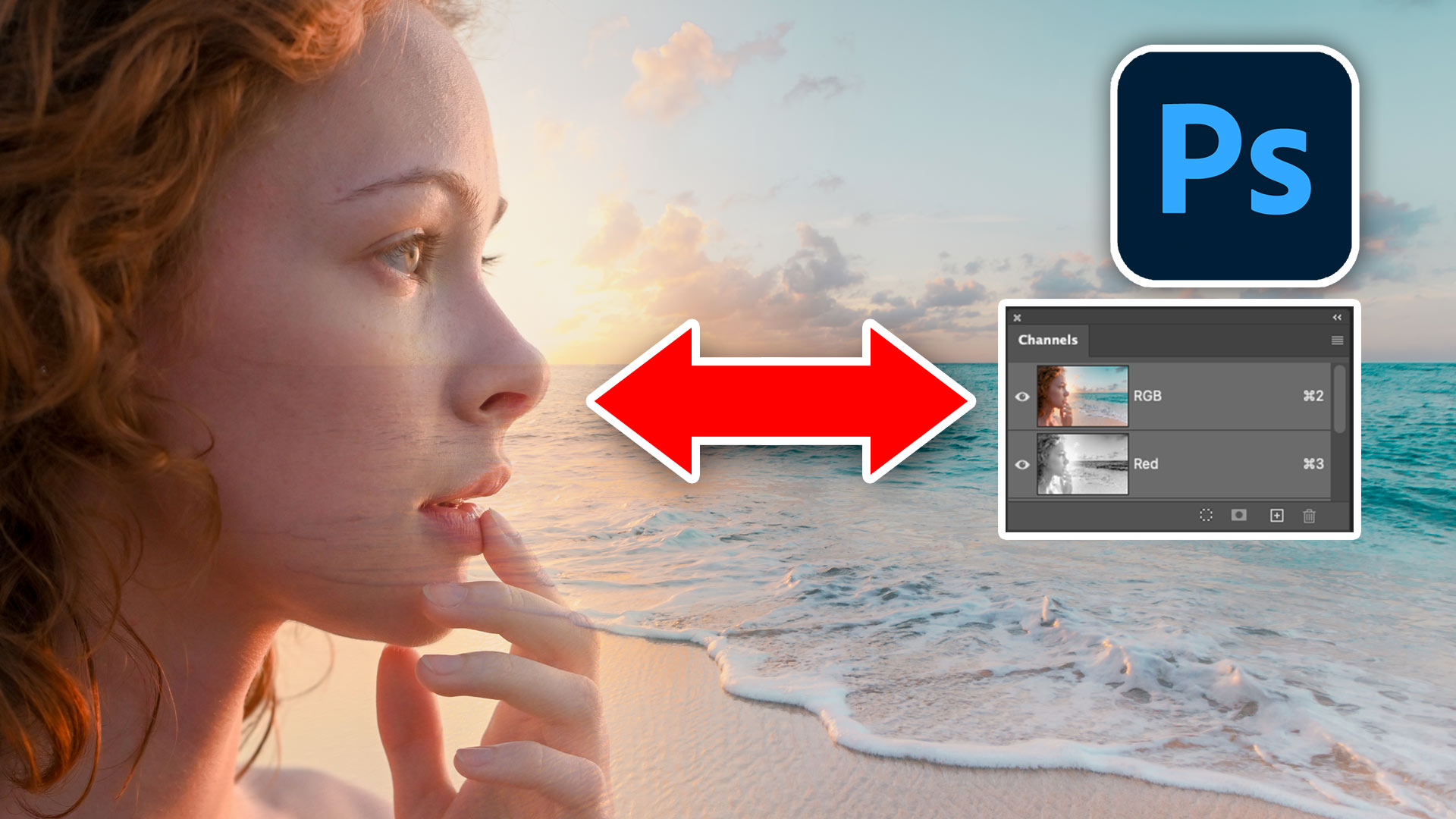
This is how you make images like the one I quickly threw together here.

1. Combine 2 images into one document. Here is a simple tutorial to combine images
See the face on the layer above the background

2. Lets isolate the face
Choose the Channels panel
Hold down Ctrl/Cmd and click on the red channel.

3. This will load a selection of the reds. It will grab all the reds, which exist in some degree in every skin tone.

4. In the layers panel
Press Cmd/Ctrl+J to copy the selection to a new layer

step 5
If I hide the other layers, you can see what we copied from the red channel.
In some instances, you will get the opposite result. If this is the case, go back to the selection step 3 and press Ctrl/Cmd+Shift+I to inverse the selection.

step 6
Turn back on the face layer and background and hide the duplicated face layer (Layer 1)
Click on new layer mask for the original face layerm you will see a nmask.

step 7
Choose the gradient tool and black to white as the gradient.
Set it to linear and Normal blending mode

Drag the gradient through the face

You will see a nice even blend

Turn on the top fac layer and it will add some opacity to the face, whicle keeping the smooth blend on the rest of the image

Using the same technique, I created this fake poster
I hope you found this useful. Check out the quick video at the top for more detail and tips.
Thanks
Colin

Free for you
The Photoshop Vault
Get my free Layer Blending Modes ebook along with dozens of exclusive Photoshop goodies: actions, brushes, presets and cheat sheets.
You're on the list, so your free goodies are waiting for you in the Vault.
Get Free Photoshop Goodies Open the Vault
Keep Growing with Premium Courses
When you're ready to go deeper, Photoshop 2026 for Digital Photographers takes you through Photoshop step by step.
8 thoughts on “How to blend Layers in Photoshop and select faces with masks”
Leave a Reply

How to Retouch a face in Photoshop. In this High End Retouching tutorial You will learn how to tone a...

How to make a multilayered effect on a single layer in Photoshop using Smart Filter Blending. Make an Orton effect...

New Features in Photoshop 2024, how to use new features in Photoshop 25 with Colin Smith from PhotoshopCAFE








I rarely use the channels. After watching this I think that will change. Thanks Colin.
That was really nice–Thanks so very much for sharing and making it so UN-complicated!
Respectfully and Blessings
Thanks Colin, enjoy your tutorials.
thanks FANTASTIC
did you use the red channel do to the red image
am ready for the challange
Learned a new lesson, I done it. Thanks for this nice tutorial.
Thank you so much Colin, this is a great hack.
I love your tutorials.