
How to cut out anything in Photoshop, 3 best ways to remove backgrounds from photos
The best 3 ways to cut out anything in Photoshop (2 for all versions)
Learn how to cut out photos and objects in Photoshop. One of the mot popular tasks in Photoshop is cutting out things, AKA remove the background. In this tutorial we will look at quick Select, Refine Edge and the Pen tool. Your choice will depend on the image, see the difference and then choose the best option for your task.
The fastest way to cut out in Photoshop is with Select Subject, but that doesn’t always give the best results, so check out these other methods too. Select subject is a great way to get the initial selection in Photoshop.
3 Ways to cut out Photoshop in Photoshop CC (2 work in any version)
The three methods I’m showing here are Quick select and Select and mask, which is great for things like hair and fur. Then I’ll show Color range which is awesome for things like trees. Finally, Ill give you a crash course on the pen tool and why you should use it. You’re thinking, “I don’t have all day” All this happens in 15 mins. If you use Photoshop this is time well invested.
Which is your favoriate method? Let me know in the comments.
The photos used in this tutorial come courtesy of Adobe Stock.,
Links to images used (Download the watermarked versions for free)
Method 1: Cut out Hair in Photoshop
For the first method, (Which works on Photoshop CC only) we will start with this image Woman with red hair.
She has curly hair, so it will be a bit tougher than straight hair. This technique also works on fur.

Step 1. The selection.
Grab the quick select tool from the toolbox.

Rather than select our subject, we will select the background because it’s simpler. (If it was a complex background, select our subject instead. Here is a tutorial for cutting out against busy backgrounds)
Drag your quick select tool over the area to select it. If you go too far, Alt/Option, drag to deselect areas.
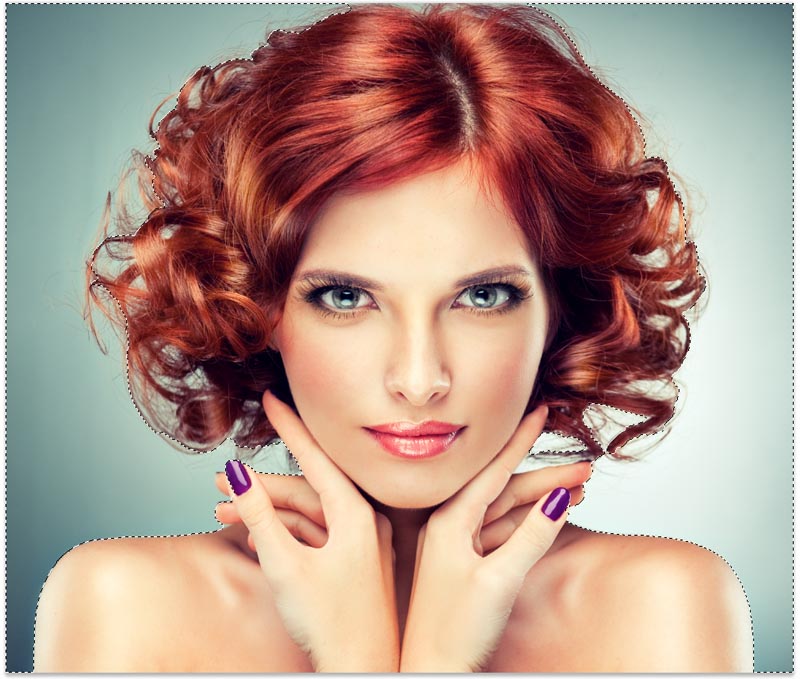
Step 2.
When everything is selected, we need to inverse the selection so that our subject is selected. Choose Select>Inverse or Cmd/Ctrl+Shift+I.

Step 3. Refining the selection.
Click on Select and Mask from the top toolbar, this will take you into the Select/Mask workspace.
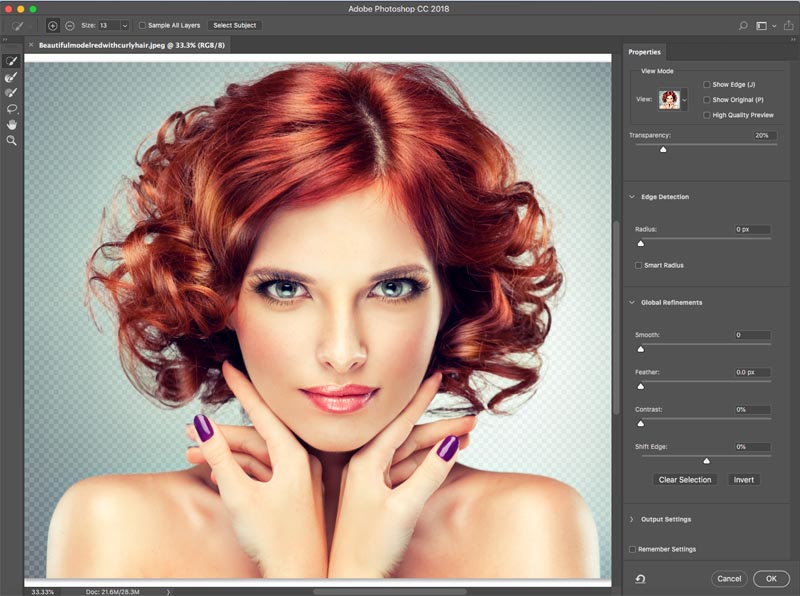
Increase the Transparency so that you make the background invisible. (This is just for preview purposes).
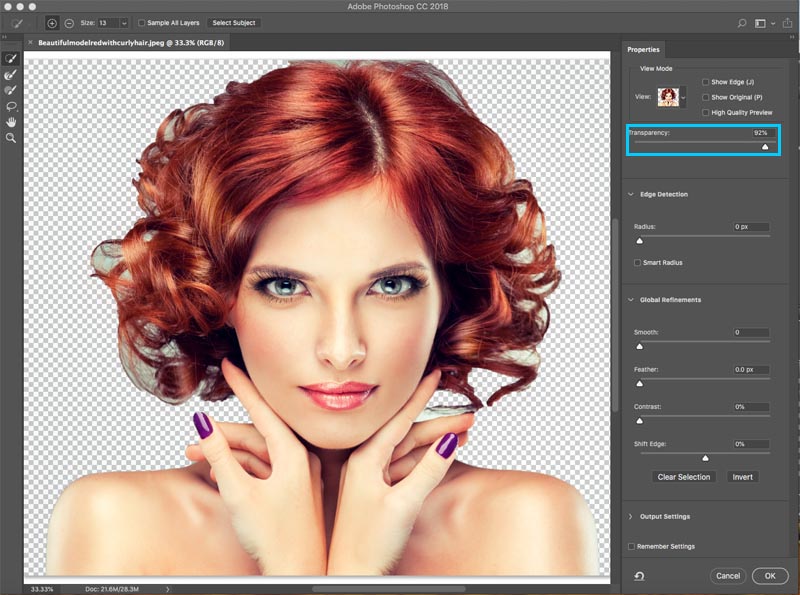
Change the view to black or white, whichever shows the edge the best.
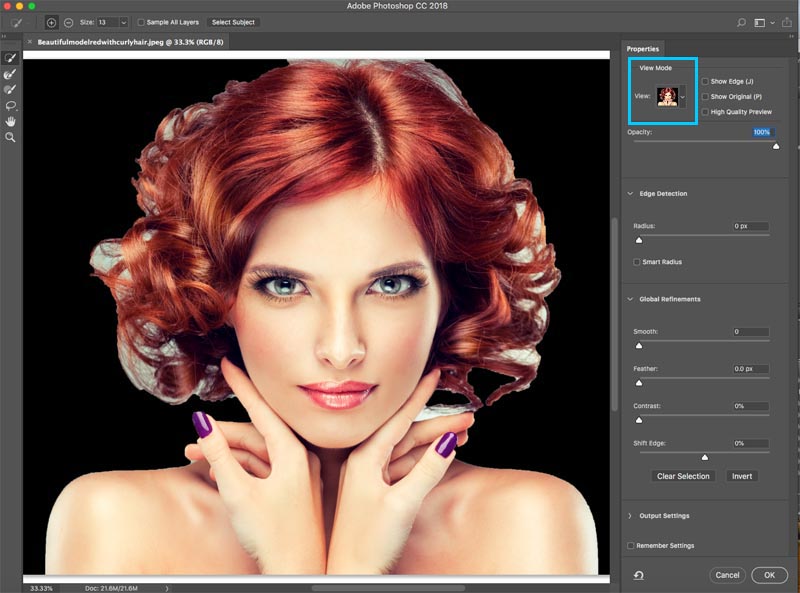
Grab the refine brush for the left toolbar. 
Paint over the areas of the flyaway hair. Make sure you get all the ends of the hair and don’t go too far into the image, you just want to get the edges, so you can tell Photoshop what is hair and what is the background.

You will notice as you refine, the entire selection gets smarter and the selection will get better.
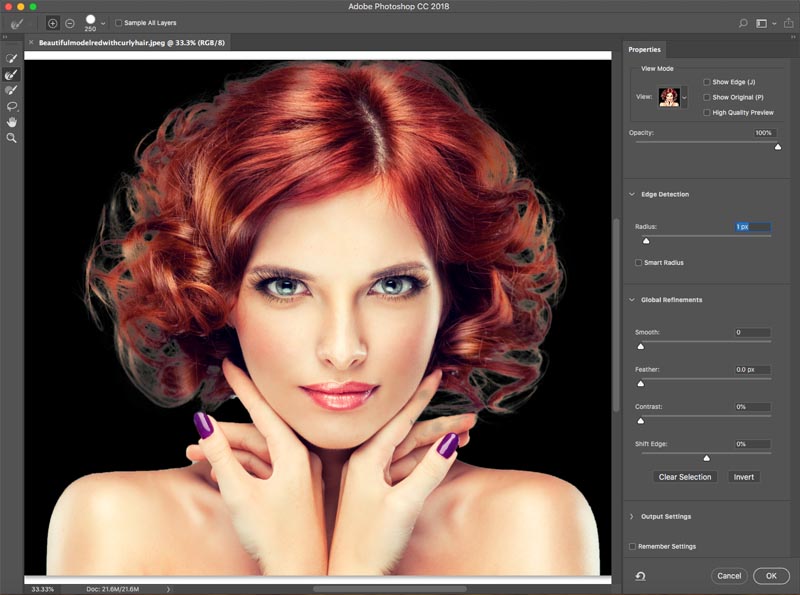
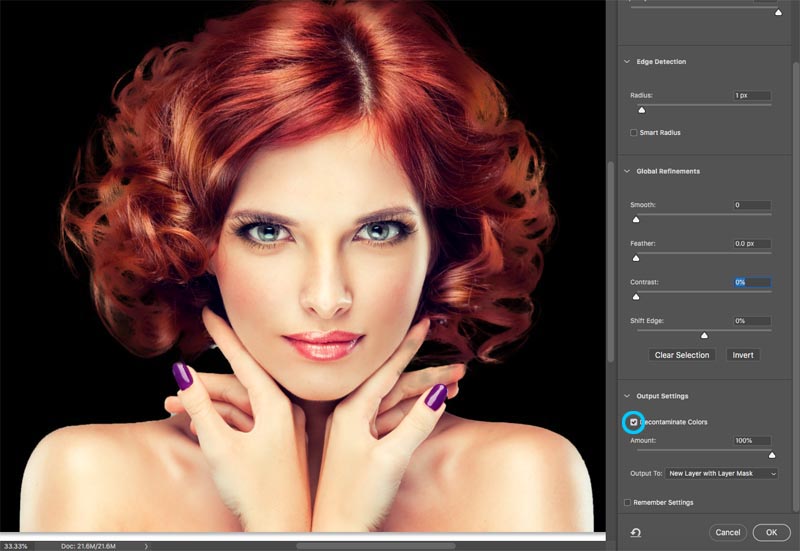
Here is a secret weapon in Select and Mask when it comes to hair. Turn on Decontaminate colors. Immediately, the color fringing disappears.
Change output to: New Layer with Layer Mask, Click ok.
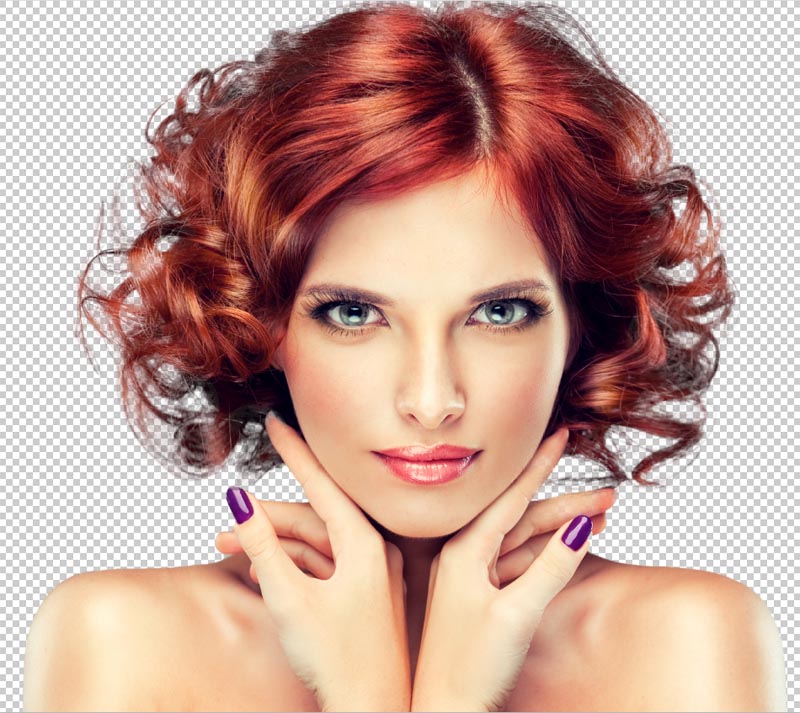
Result, cut out hair.
And now we have a nice cutout. You will see a layer mask on the layer that you can use to further refine the cutout if you need it.
Method 2: Cut out Trees with Color Range (Works on all versions of Photoshop).
In this tutorial, we will cut out The Tree using color Range. This tool is also great for cutting out transparency, like glass smoke and liquid (see tutorial).
This is the best method when we need selections and the subject is complex with lots of holes, but a uniform color behind it.
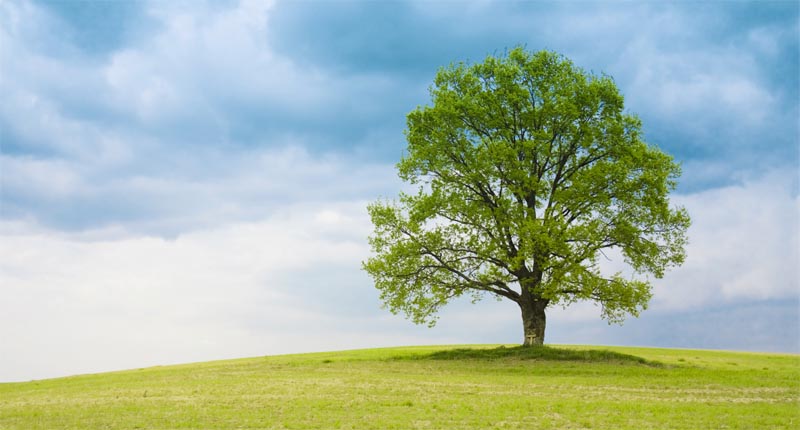
Step 1. Using Color Range to make a selection in Photoshop
Choose Select>Color Range.
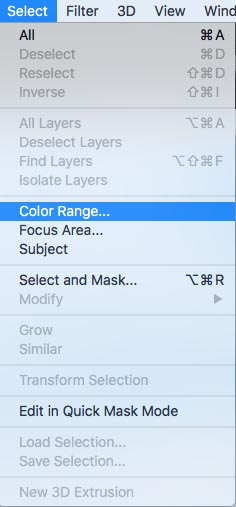
The dialog box pops up.
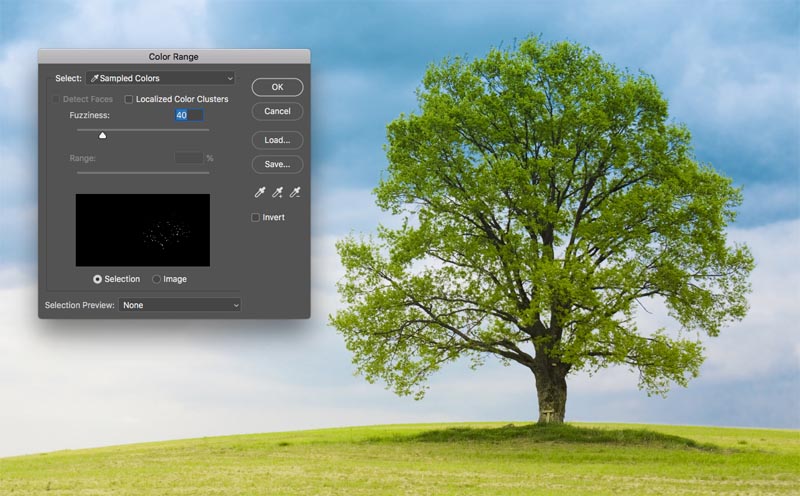
Step 2
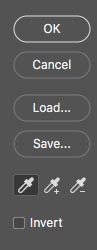
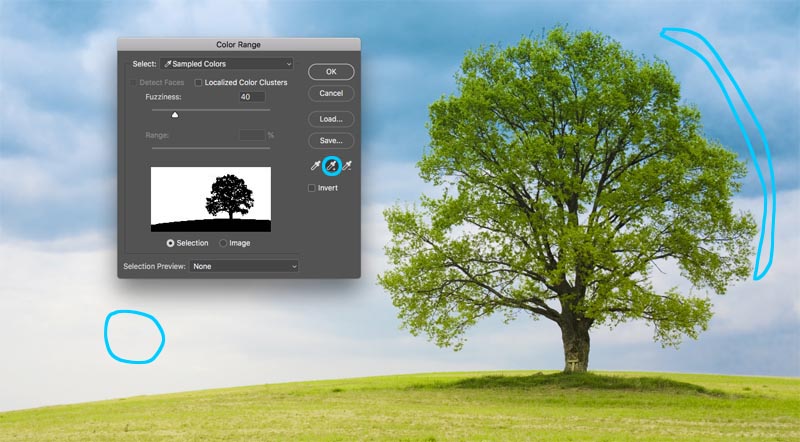
Choose the left Eyedropper tool.
Click on the background, choose the most common color and close to the subject. I clicked on the sky blue. Notice the Window in Color Range shows some bits of white. Those are the selected areas.
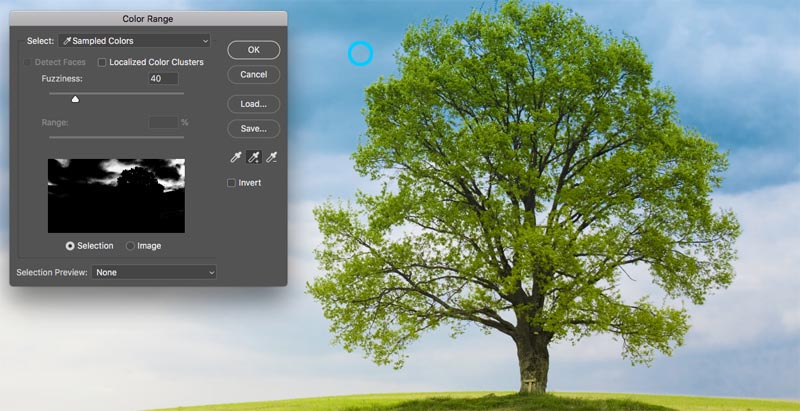
Step 3. Refining the selection
Click The eyedropper that has a + next to it.
Drag this across the background to add to the selection. Here I dragged to the right of the tree to pick up all the blues and whites.
I was missing a tiny bit, so I clicked again in the white area. Look at the preview window. Notice is a nice black and white, This is the goal, to get close to this.
Step 4.
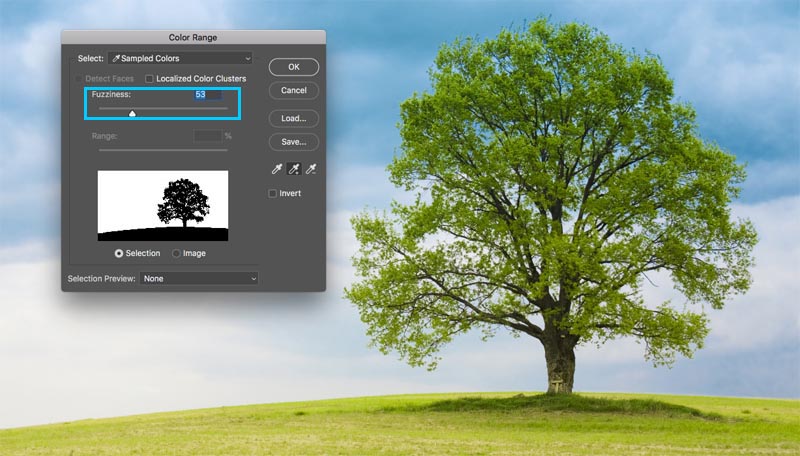
Slide the fuzziness slider to refine the selection and get our subject nice and black and the background white.
Click ok.
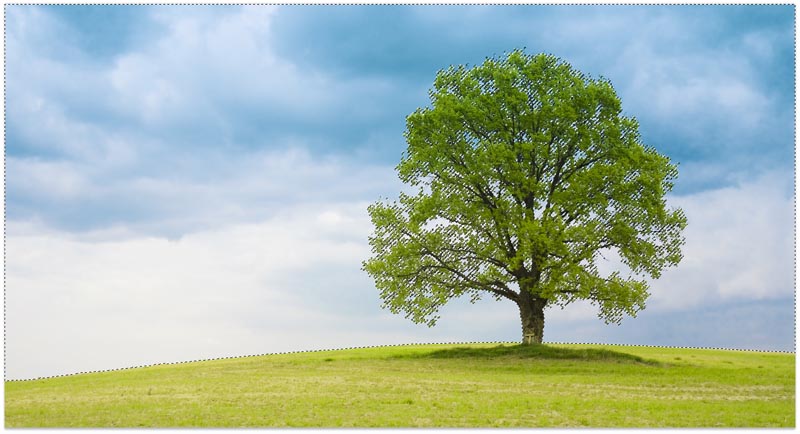
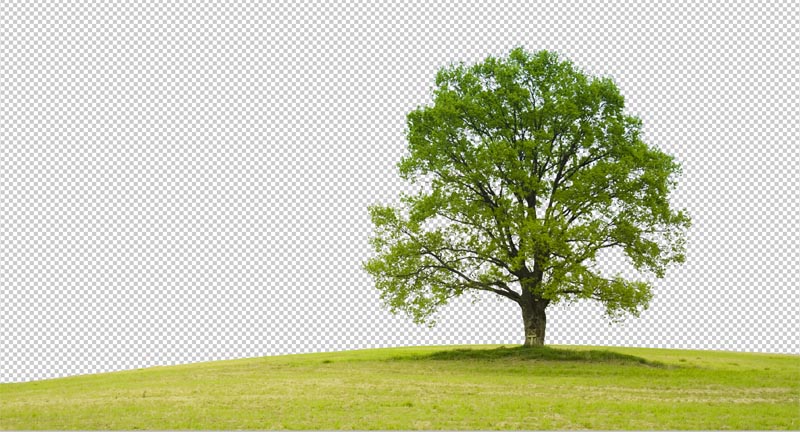
Notice the marching ants section. We have successfully selected the background.
Step 5. Masking the selection
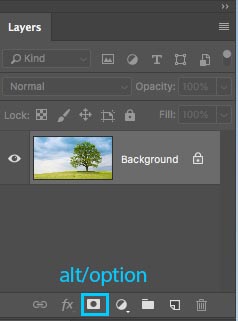
Let’s cut this selection out: Because the background is selected, we want to invert the area that is cut out. (Show the subject and hide the background). Because of this we will hold down the Alt/Option key and click the new Layer mask. (If the subject is selected, then don’t hold down Alt/Option). Click the Layer Mask icon.
You will see a layer mask has been created, (More on Layer masks here).
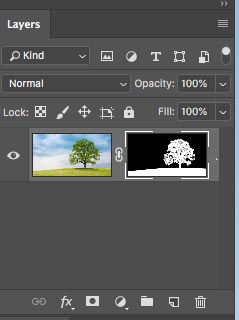
And here is our nice, clean cutout.
Method 3. Using the Pen tool in Photoshop to cut out hard edged selections
When it comes to clean edges, nothing beats the pen tool. This makes it the best choice for simpler shapes that need a crisp edge. It’s one of the hardest tools in Photoshop to master, but once you get it down, it will be so useful to you. I have created an in-depth tutorial on the pen tool that will take you from total beginner, to a decent understanding of the capabilities of this powerful tool. Make sure to finish this tutorial and watch the video above first.
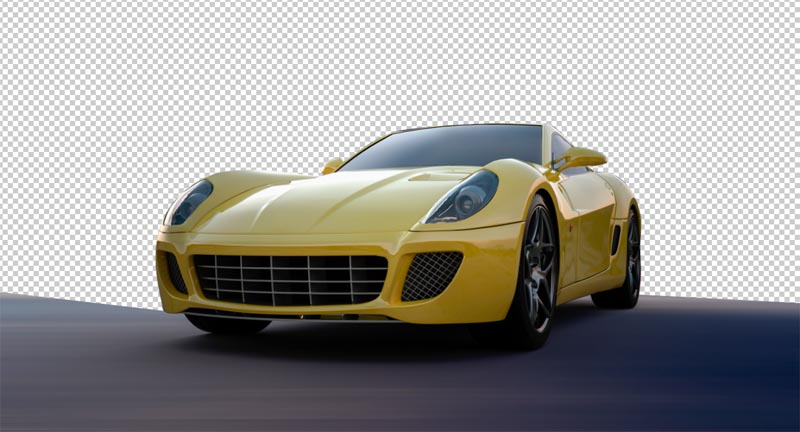
Here is the image of The car that I used from Adobe Stock. Let’s cut it out.

Step 1. Making a rough edge with the pen tool
I have my own way of using the pen tool, that I think works pretty quickly, I’ll introduce you to it here.
Choose the pen tool from the toolbar. Make sure the options at the top say path and not shape.

Click on the corner where you want to begin and drag in the direction that you want o make your path
Choose the first curve in your object and then click and drag again. This time you will see an elastic line between the 2 points. Notice how it changes when you drag close or further away from the point, or what happens when you change direction. Don’t worry about perfection at this point, all we want to do is make a path that roughly follows the outline of the shape.

Notice when I got to the right wheel, I made a few points around the car, I am keeping the ground, so I don’t need to select the bottom of the car.
To finish drawing your path, move the cursor over the very first point. As you hover, you will see a little circle. Click on that point to close the path and finish drawing.
Tip: The goal is to outline the subject with the least amount of points possible.

Step 2. Refining the path
Some people strive to get their paths perfect the first time around, and that’s ok too. Personally I like to break it into 2 phases.
Under the Path Selection tool, choose the Direct Selection tool.
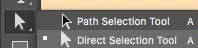
You can now click on a point to activate it.
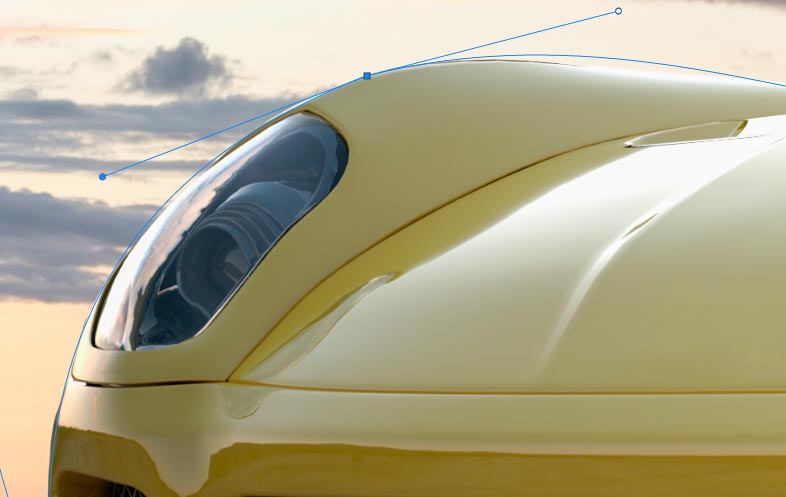
Zoom in nice and close and carefully drag the points into position. Click the ends of the handles to change the angle of the curves. Push and pull these end points to change the steepness of the curve. It may seem weird at first, but it will get easier with a little practice, hang in there!

Tip: To move just one side of the curve, hold down Alt/Option as you drag on an endpoint.
Step 3. Adding points to the curve
When you drag a point into tight areas with lots of curves, it will be tricky at first.
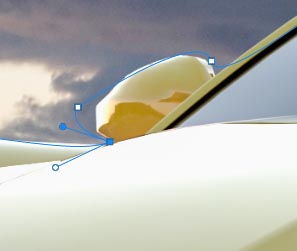
Here we have dragged the point into the mirror, but we aren’t getting the right curve on the top.
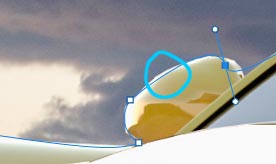
Choose the pen tool with the + on it to add a point.

Click and release on the line, where you want to add another anchor point. You will now see a new point.
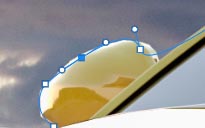
You can go back to the direct section tool, or keep using the + pen tool (they work the same for dragging points)
Grab the new point into position and now you have a nice curve. Don’t worry if you are getting confused, check out this simple tutorial on the pen tool
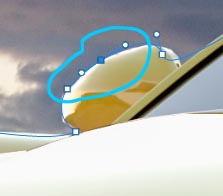
Finish refining the path using the techniques shown.

Step 4. Finishing off the path.
Once you are done, let’s consider moving the outside points to fully cover the sky.

Drag the corner points until you have something like this. If you have gotten this far, congratulations!

Step 5. Making a selection from a path
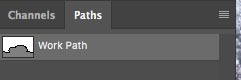
Go to the Paths panel
You will see our path as “Work Path”. You can save and use this path as a clipping group in InDesign or Quark Xpress. (If you are going to a layout application for print, this is the best option because the path is a vector which sales and prints better than pixels.) For compositing work in Photoshop, convert to a selection and mask as in the following steps.
In this case, we are going to turn it into a selection. Hold down Cmd/Ctrl and click on the work path in the Paths panel.
You will now see the marching ants section.

Hold down Alt/Option to create an inverted mask.

And we now have a perfect cutout with the cleanest edges you have seen.
Alright, I have just shown you 3 methods for cutting out different images in Photoshop. The is a big tutorial, so make sure you watch the video at the top. I have also included more in-depth tutorials on the individual techniques in the links below. You may want to bookmark this page (and share with your friend). I think it will serve as a good “selection resources” landing page for you.
Here is a short list of my other tutorials on cutting out and extracting.
- ► Select Subject,
- ► Using the Pen tool in depth
- ► How to cut our transparent objects
- ► How to cut out trees in Photoshop
- ► How to extract impossible images
- ► How to cut out hair in Photoshop
Thanks for checking out this tutorial and explore PhotoshopCAFE, there is a lot of useful content on the site.
See you soon,
Colin

Keep growing with Premium Courses
Photoshop 2026 for Digital Photographers
Learn Photoshop properly, from the basics to pro retouching, step by step.
$129.00 · one-time purchase · instant download

Free for you
The Photoshop Vault
Get my free Layer Blending Modes ebook along with dozens of exclusive Photoshop goodies: actions, brushes, presets and cheat sheets.
You're on the list, so your free goodies are waiting for you in the Vault.
Get Free Photoshop Goodies Open the Vault

How to cut out Glass, Smoke + Water in Photoshop
How to cut out glass, smoke and liquids in Photoshop. Colin Smith shows you how to select semi transparent objects in Photoshop... Read tutorial
Drawing Paths with the Pen tool in Photoshop Tutorial
It seems that one of the most requested and under-explained things is using the pen tool in Photoshop. The pen tool is... Read tutorial
Placing a person inside a picture Photoshop Tutorial
In this tutorial I will demonstrate how to place a person inside an image using the "paste into" command. You can use... Read tutorial
Cut out hair and difficult Images in Photoshop Tutorial
We will use Channels to help mask out a complex objects with clean edges. This technique will also save you a lot... Read tutorial
Photoshop masking tools for easy cutouts
How to cut out things in Photoshop using the amazing tools in the mask panel, color range and select and mask without... Read tutorial












started back in early 90s with adobe – 2.0 (no layers!!!) and then 2.5 showed up and I started loving PS then… along with illustrator!
I’m not sure I understand why you’re encouraging photographers to sell their work with Adobe Stock, then, at the same time, offering to give them free photos from there. How do we make money if Adobe is giving our pictures away?
I started using Photoshop in 1997 with version 4
Great tutorial, Colin!! Even though you have shown this previously, we always as time goes by forget if we don’t use some of them. But as always, you’re the man!! Thanks!!!
Your very cool cobber, I do like your posts and have learned a heap of different ways to do things in Ps. BTW! I’ve using Ps since PS6 to 7 CS CS2 to CS6, I don’t like this subscription bit, you never own the program, just my thoughts. Hey keepon doing what your doing……..
First purchased CS4, way back in the dark ages.
Hey Colin, Great tutorial. I mostly work with Landscapes so the Color Range is my favorite. I also use the pen tool on Classic Car photos, but I’m going to have to practice more with it. I’ve been using PS since CS2. Keep these tutorials coming … Love ’em.
Thanks, as usual, for great tutorials. My first class in PS was in January 1997 with version 4 – that’s plain 4, not CS4. Whoa, almost 20 years ago. I might be old. Don’t tell anyone… 😎
Hi Colin,. Thanks for a great tutorial. I normally use the Quick Selection but will now start using the Pen tool more. Have used Photoshop since PS6. Now stuck on CS5 because I too don’t want to subscribe as I don’t use it regularly enough. Keep up the good tutorials though.
Thanks again for the excellent tutorial. I took three pages of notes to add to the many pages of notes that I have from your previous free tutorials and the tutorials I purchased from you. I have been using Photoshop since at least 2001 when I purchased my first digital camera, a Sony cyber shot.
love the colour range method. always good stuff from the photoshop cafe.
Hi Colin; Great video. I always seemed to have difficulty with cutting out the background around trees. No matter how much time I would spend, I could never seem to get it right. Now a days I use the fussy method. It seems to give me the best results.
I’ve been using PHotoshop since it was just ‘Photoshop’ (when it first came out) and, when you selected the tree, you have shown me something I have never seen before! Thank you.
I like ALL the cut out methods, especially the hair one since I take a lot of photos of animals with many being fuzzy. The tree tut. is excellent too since I just labored over a tree cutout and was not entirely successful. Thanks for all your superior tips and help. I have loved and “struggled” for many years with PS but your help makes my struggles less!!!!
Have used Photoshop from 1994 and use all of the selection methods. The biggest challenge for me are images that have both hard, precise areas and hair to select. I end up using two layers with selections and masks that are created with different methods. A pain! Do you know an easier approach?
Great tutorial! Been using PS since Adobe released Photoshop 5.5.
Love the tutorial! I started with PSE 4 and then moved to CS4 which is where I stayed! I use Photoshop for digital scrapbooking and making background slides for church presentations. I mostly use the quick selection tool, but have found the color range technique very helpful. I have used the pen tool on a few occasions but am not very good at it.
I started on PS 3 mid 2000
I have CC 2019 but for some reason I can’t fine the Refine Edge tool you use in the 1st option. Help! What am I missing?
Its now called Select/mask If you choose select mask from the menu and hold down the Shift ket, the old refine edge will open
Hi Colin!
I wish to say THANK YOU for all the help you have given me throughout the years – its greatly appreciated. I am not sure which version of Photoshop was my first, but I can tell you I was using it even when Adobe Pagemaker was in existence! (Yes, I guess this means I am old! lol)
Sorry I missed you at the Adobe Max last year – would have loved to thank you in person!
Hi Colin, always appreciate your tutorials, even tho I’m confined to CS6 for all too familiar reasons. I started using Photoshop about 25 years ago with Version 3.3 and have stayed with it. I’m still amazed at what people can accomplish with it. I would be interested to know what the experience has been with PS CS6 on Windows 10, since I’m going to move over before much longer.
I don’t think Ive used CS6 on Win 10. I think I got CC before Win 10 came out.
This a good overview for daily work. Thank you! For a faster pre selection just click the “select subject” button in CC and in any cases you get a really good automatic selection of your subject. Then continue with the steps in your hair tutorial.
Hi Colin, I have tried several times with curly hair with different techniques, but I struggle with select and mask. Whatever way I do, I get half transparent curls by the edge, even if I decontaminate colors. Any clue? Thanks.
Try increasing the contrast
HELP, HELP —–IN ELEMENTS 8 L I have a color photo,, 8 x 10. I want to remove a 2 x 3 in. piece OUT of middle and leave white space so I can put in some text. Sort of a reverse crop tool, a retangular “drop out”….why is that so hard to figure out?
Hi Colin
Thanks for sharing knowledgeable tips, seems very helpful various ways of super cutout. Very well narrated – step-by-step in easy to understand language.
Is there a setting for the REFINE EDGE tool that needs to be set. I continue to struggle with this method with selecting and isolating my dog from her photos. Thanks!
its best to zoom in close and paint carefully with the refine brush for fur.
Great! Thanks!
Educational and accommodating for us. Much thanks to you such a great amount for sharing about eliminate a foundation from photograph
It was good. Thank you!
I’m learning photo collage but I’m having a lot of trouble removing the background of a photo. Lucky to have read this article. Thanks to the author for sharing this useful information. Recently, my friends shared another tool called “https://removal.ai”. I have tried it and it is really helpful. I believe it will help you too.
Love love love. Thank you so much share this tips. I am working past 12 years in adobe photoshop. Could you tell me please which is the best tool for clipping path and background remove. I am using pen tools some time i am using magic want tools.
Waiting for your reply.
Thanks for sharing this information it’s very useful.