
Newly updated ai selections and masks in Photoshop are amazing
One of the most important updates in Photoshop
Adobe has just updated the training and algorithm for Select subject and its huge. This ai selection tool is working much better than it had. Select subject has been with us for a while now, but the performance improvements are notable.
This feature was in beta, but is now in the current shipping build of Photoshop.
There is a setting that will make Both Select Subject and Remove background better.You will see a drop down menu that says Cloud or local. Cloud does a better job because it utilizes a server farm to compute, rather than your local CPU. If there is no internet connection, it will automatically default to local.

I suggest setting and forgetting. Go to Preferences and choose Image Processing. Set this to cloud.
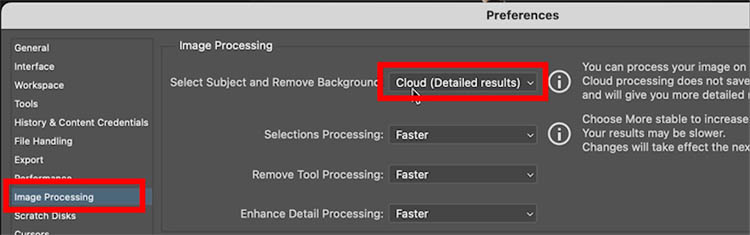
To make the selection, you can choose the Object selection tool and click on Select Subject.
Alternatively, click Select Subject from the task bar.

You can see this work live on the video at the top as well as a few extra tips.
To test, we will simply make the initial selection. (Just making the selection isn’t the entire workflow.) We usually refine the selection as well, but for the sake of this test, we won’t refine yet. Makes it easy to see how good the initial selection is.
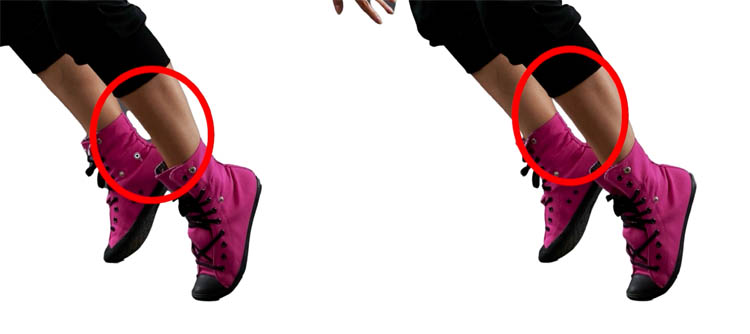
Test 1 selecting Person, with hair.

We start with the previous version of Photoshop.
make the selection and then pop it on a mask to view.
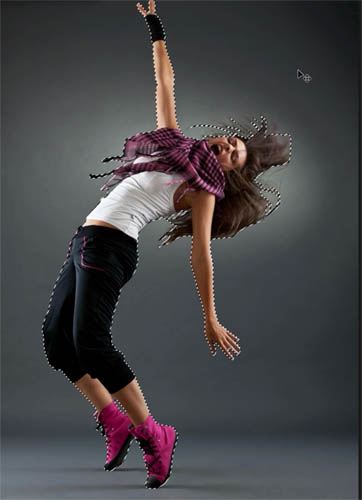
Notice the issues, like webbing on fingers and tight spaces.
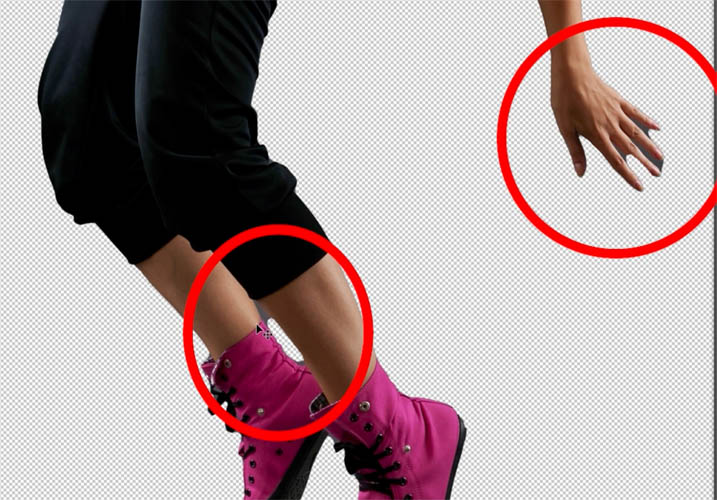
When we test this on the current version of Photoshop., see how the webbing is gone and it gets into the gaps more tightly.
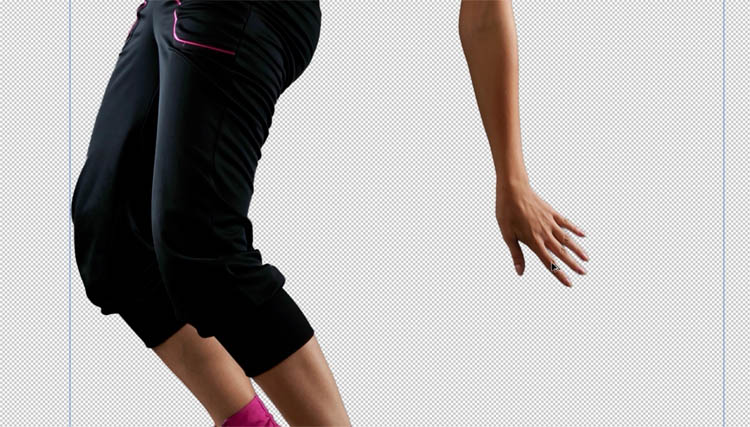

Also notice the hair is better.
Left (old version) Right (New version)

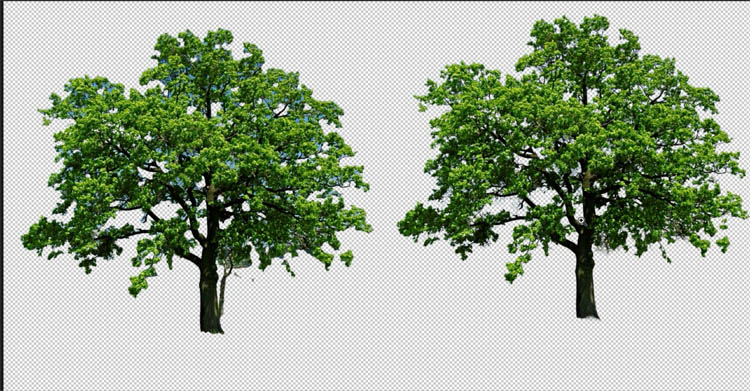
2nd example, lets cut out a tree
Challenge is getting into all those small spaces between the branches and leaves.

Left (old version) Right (New update)
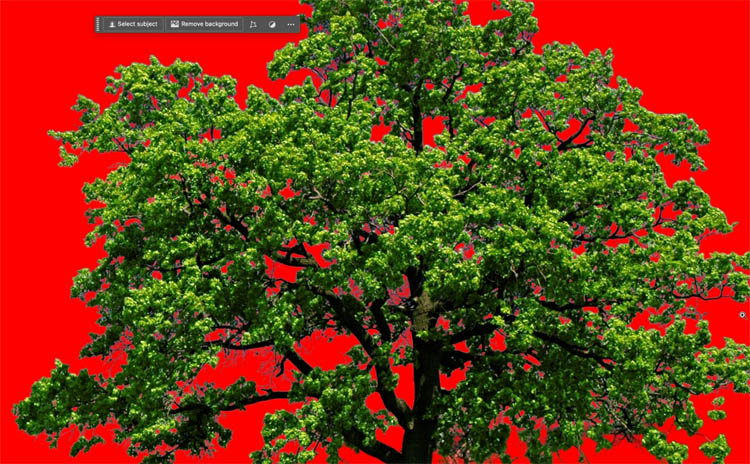
Close up of previous version on red.

Close up of new.
#3 Cutting out flat art and flattened vectors
This is where it really shines. (At the point, I haven’t seen anyone else test this type of subject).
Have you ever tried to extract flattened art, logos, kine art etc?

Left (prev version) Right (New update)
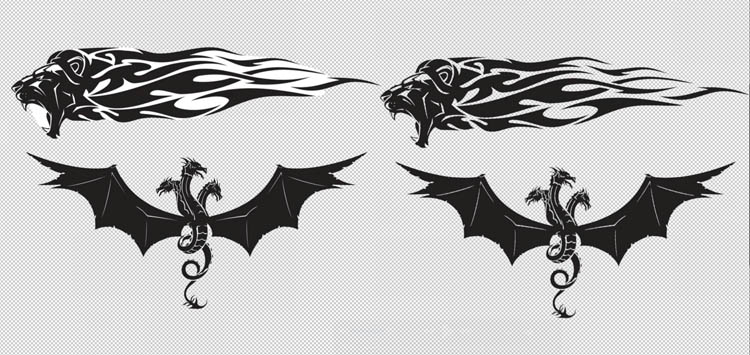
If I change the background to black, you can see thaere are almost no areas of white showing on the selection on the new one. It even gets the thin lines in the dragon wings.

Heres a close up.

Current version on red. You can see lots of pieces got missed.
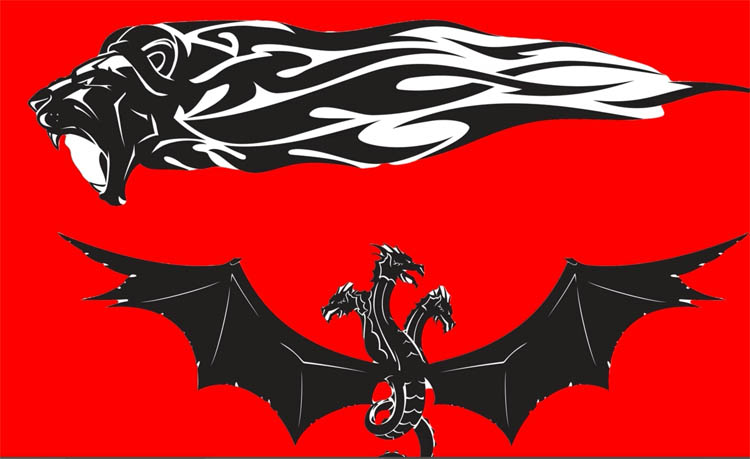
On the new version, its almost prefect. Very impressive.

This tutorial is focusing on the quality of the edges and making a clear comparison with the new update. This is why I wasn’t using complex backgrounds.
Here is one with very difficult backgrounds.
Here are more resources on the latest Photoshop and Lightroom UPDATE.
7 Favorite new features in Photoshop 2025 April update
Auto Selections | Auto selections on difficult images
Ok there you have it.
Great to see you at the CAFE
Colin

Recommended for this tutorial
Complete Guide to ai in Photoshop 2026
Generative Fill, Firefly, Harmonize and every AI tool in Photoshop, step by step.
$79.00 · one-time purchase · instant download

Free for you
The Photoshop Vault
Get my free Layer Blending Modes ebook along with dozens of exclusive Photoshop goodies: actions, brushes, presets and cheat sheets.
You're on the list, so your free goodies are waiting for you in the Vault.
Get Free Photoshop Goodies Open the Vault
Photoshop refine Mask Tricks in 2022
2 Tips to instantly make cutouts look better in Photoshop. How to refine masks in Photoshop to remove backgrounds, cut out objects... Read tutorial
Auto Selections in Photoshop with difficult backgrounds
New Photoshop ai selection against difficult backgrounds. How to make instant cutouts with busy backgrounds in Photoshop Read tutorial
How to Cut out Hair in Photoshop CC Tutorial
How to select hair, cut out people and remove them from their background in Photoshop CC . This free tutorial is your... Read tutorial
How to refine a mask in Lightroom and camera Raw
How to make the ai masks better in Lightroom and Camera Raw Read tutorial
How to use Blend if in Photoshop – Remove backgrounds without selections
How to use blend if to cut out objects and remove backgrounds in Photoshop without selections. Quick and powerful masking tool Read tutorial












Wow! Just wow!
Wow, Colin this is truly a game changer! What a difference! Many thanks for showing us that. Aloha.
Hi
lately when I watch your Videos on you tube it gets synchronized to German, wich I dont really like, I am German speaking but my English is 100% and I dont like your A1 german where can I change the setting that your tutorials come in your native tongue, best Thomas
I was unaware of that, It’s something Youtube is doing. If you click the YouTube link it will take you to the YouTube play page. You should be able to change the language back to English.
Hi Colin, Yes the new Beta update of PS looks great for Selections. It might be worth breaking my rule of never installing a Beta version for production work. Incidentally your presentation on Virtual Summit – Creative – 2025 was terrific. Every time I listen to you I learn or re-learn PS. Thanks
Thanks so much! Happy to help
Incredible! Will always use the beta version, but how do you get direct access as seen in your video. I have both versions on my p.c?
I enjoy your tutorials
This is a welcomed improvement, when will it be in the regular version of photoshop? BTW, thanks for the video .
They are there now!