
Tron Perspective Grid glowing lines Photoshop Tutorial
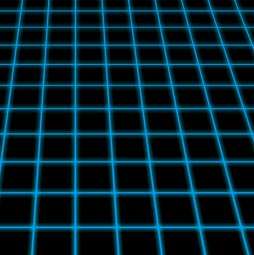
How to make glowing lines on a grid like in Tron
You could draw rules and lines all over the page to produce this effect. But let me show you a quicker way!
Step 1
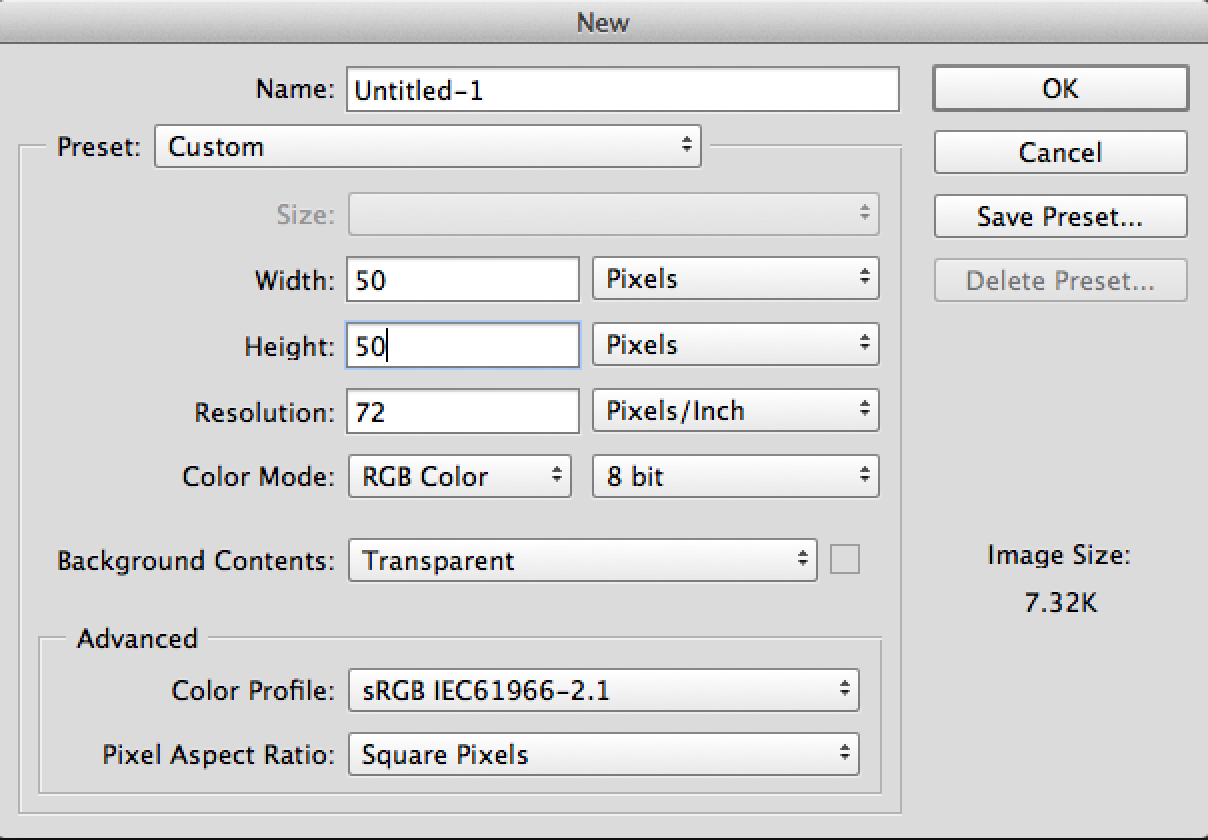
We will first make a pattern. Create a new document the size of the squares you want in your grid. Be careful to check transparent for the contents. If you don’t, nothing will show behind your grid.
Step 2
Select all Ctrl/Cmd+A
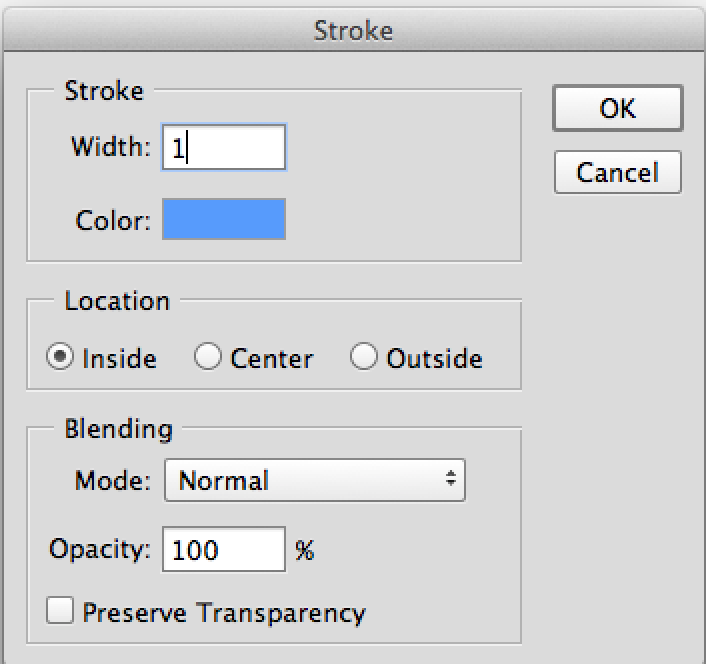
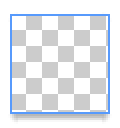
Now got to Edit>stroke, select your color and enter the settings as shown in the picture.
Make it 1 for the width and choose “Inside”
Step 3
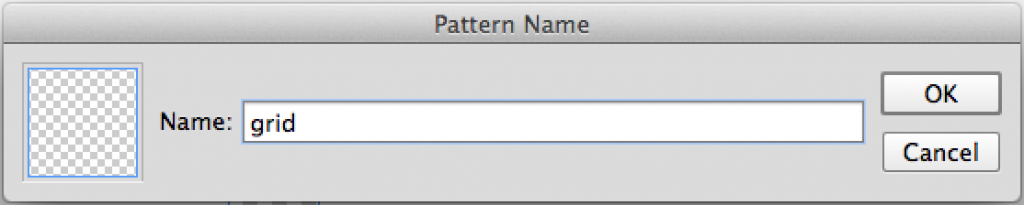
Now we will save our new pattern. Edit>Define Pattern. I called it umm.. grid. You now have it saved and you can use it as often as you wish.
Step 4
Create a new document. Make it however large you want your image to be and fill with black.
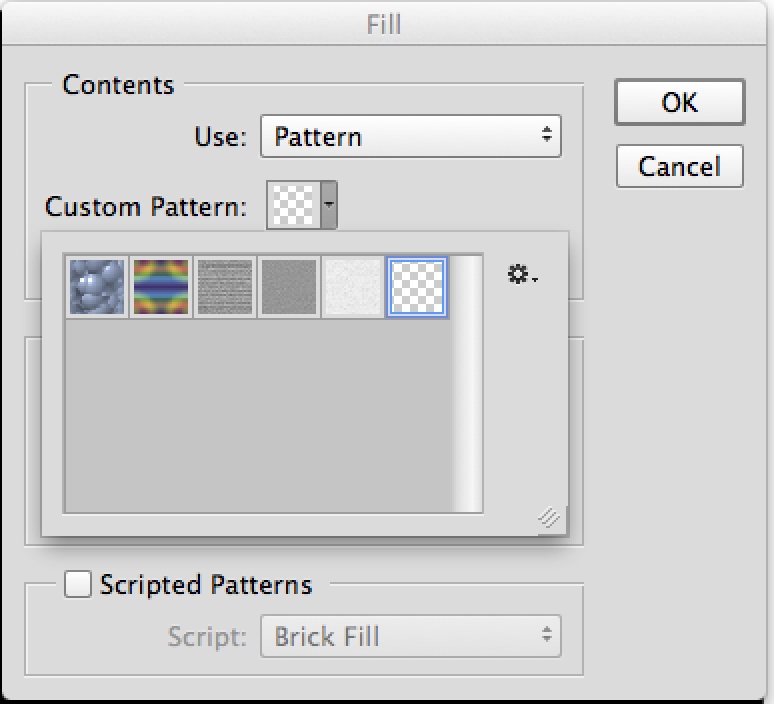
Create a new blank layer and open the fill dialog box by: Edit>Fill or press Shift+Backspace. Under contents use Pattern.
Click on the custom pattern, select our little grid that we just made.
Step 5
Hit Ok and wow, imagine that? We have a tiled pattern that just happens to be our grid. You could stop right here if you wanted, or go a little further into the world of 3D!

Step 6
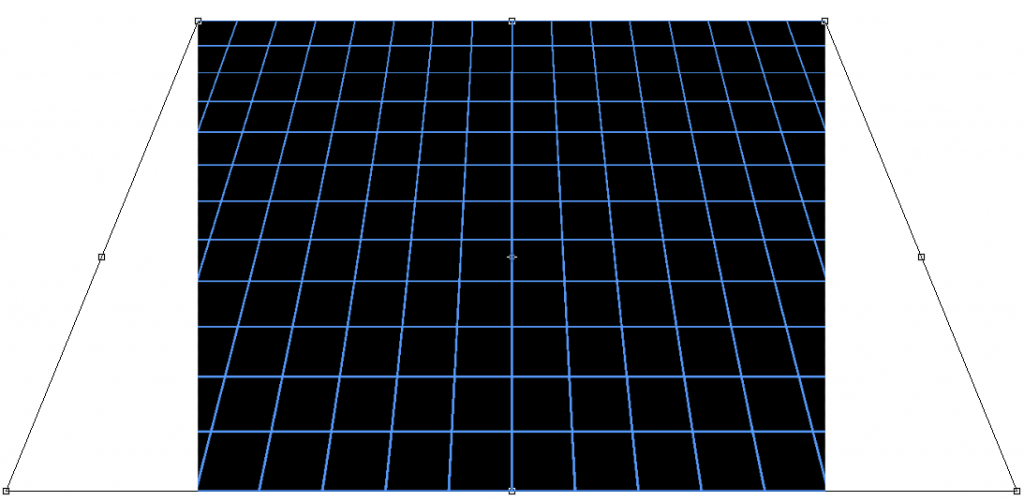
Press Crtl/Cmd+T to bring up the free transform tool. Now Cmd click on Mac, or right click on PC and select perspective. Grap the little box on one of the bottom corners and drag out from the image.
Step 7
If you really want a Tron effect, you will need the grid to glow.
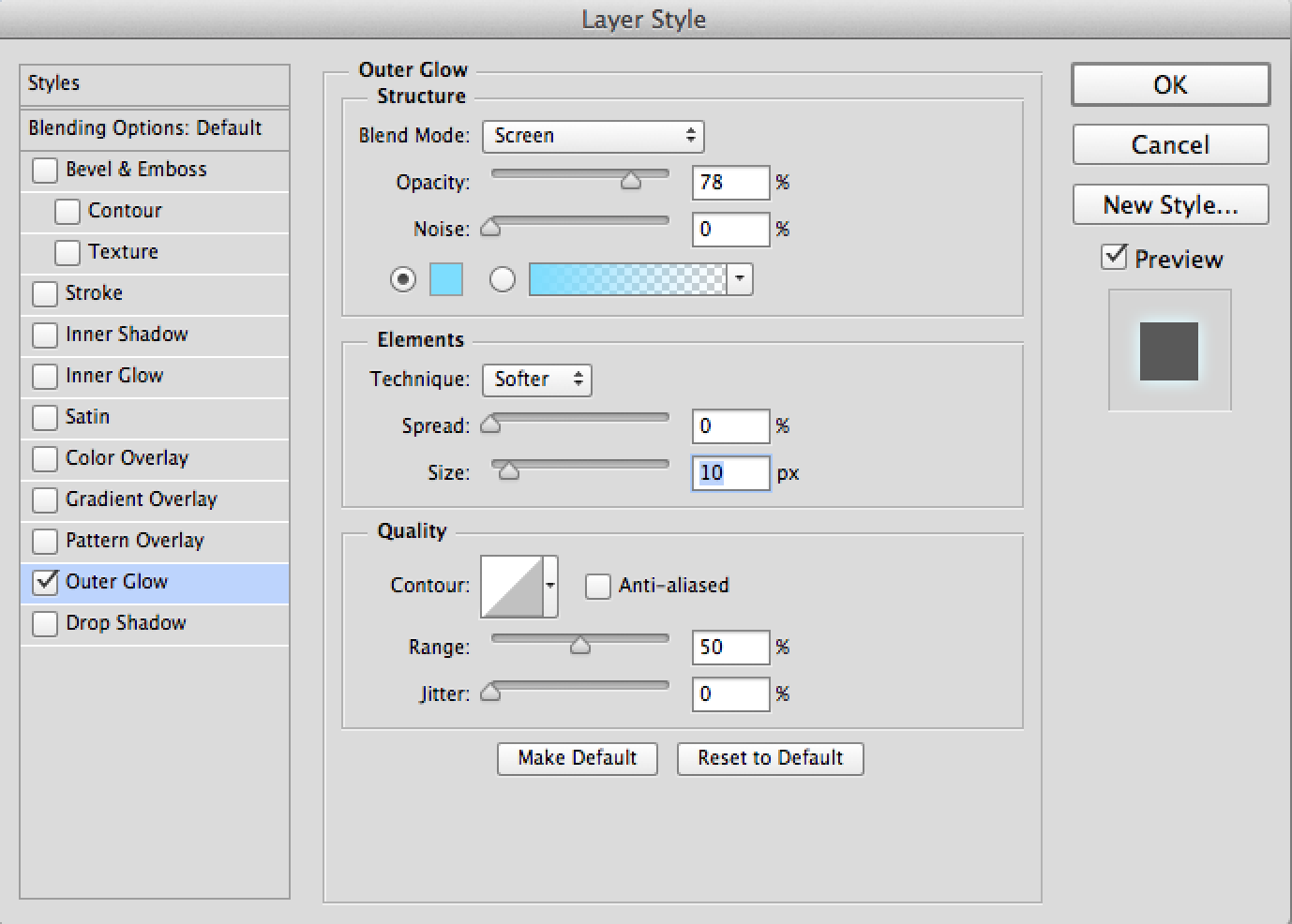
Choose the layer styles from the bottom of the layers panel (the little f icon)
Select Outer Glow and copy the settings as shown.
And there you have it, a glowing, Tron style perspective grid. Enjoy!

Comment and let me know what you think.

Keep growing with Premium Courses
Photoshop 2026 for Digital Photographers
Learn Photoshop properly, from the basics to pro retouching, step by step.
$129.00 · one-time purchase · instant download

Free for you
The Photoshop Vault
Get my free Layer Blending Modes ebook along with dozens of exclusive Photoshop goodies: actions, brushes, presets and cheat sheets.
You're on the list, so your free goodies are waiting for you in the Vault.
Get Free Photoshop Goodies Open the Vault
Creating Starburst glints of light in Photoshop Photoshop Tutorial
Here is a nice effect that looks like the sun glinting off a metallic or shiny surface. This starburst effect even includes... Read tutorial
3D Cubes Photoshop Tutorial
I have been asked a few times, how to make a 3d cube in Photoshop. here is the manual method. This tutorial... Read tutorial
Placing a person inside a picture Photoshop Tutorial
In this tutorial I will demonstrate how to place a person inside an image using the "paste into" command. You can use... Read tutorial
How to make a page turn effect in Photoshop
How to make a page turn effect in Photoshop. Step by step instructions and video tutorial on how to make a realistic... Read tutorial
How to Place a logo in Photoshop
How to add a logo to a object in Photoshop. Read tutorial











I followed these instructions with modifications for Elements 13 and it works! So sweet of you to do this. I just love it.(Perspective grid lines – TRON) Thanks very much. Patterns are a great tool and so easy to make.