
Wrapping objects with Displacement Maps Photoshop Tutorial
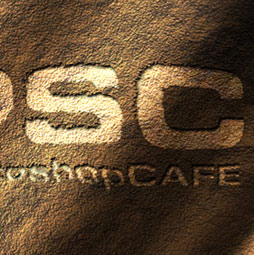
This is the technique that will wrap your art around objects and (seemingly) magically make it hug every contour.
I also have a variation of this tutorial here where I wrap text around a photo.

Step 1
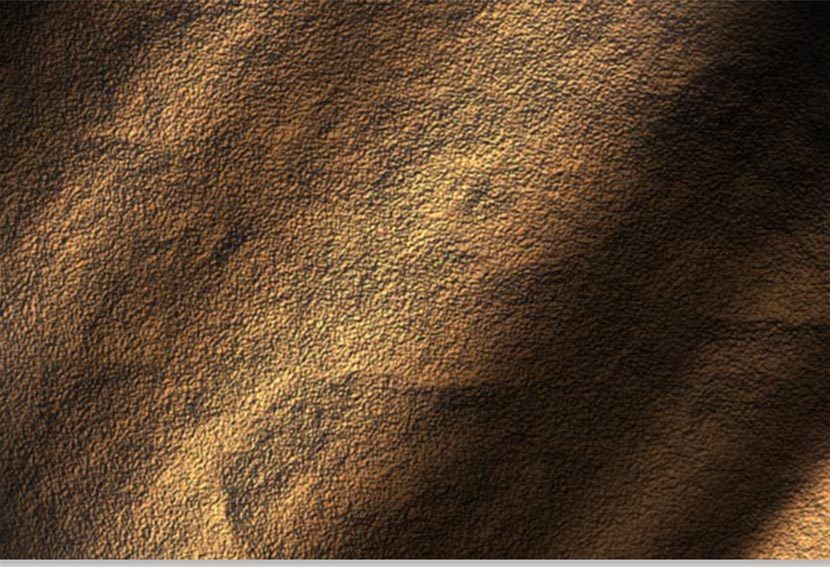
Begin with a texture, you must be in RGB mode. I have another tutorial under textures that shows you how to create this rock surface. You can also just download it if you wish.
Step 2
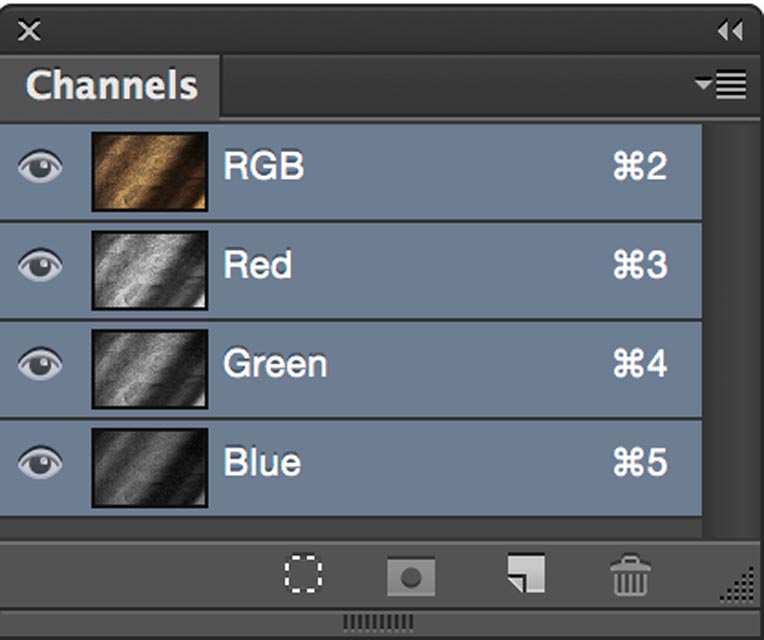
Click on the Channels palette and click on each channel until you find the one with the most contrast (dark to light). In this case it is the Red channel.

Step 3
We need to make a new document out of the channel.
Either right click/Control+click on the channel area of the channels palette, or click on the top right arrow to open the drop down menu. Choose “duplicate channel.”
Under destination>document, choose new.
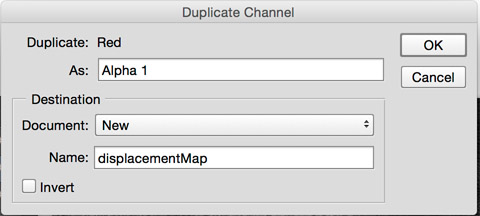
Click ok
Step 4
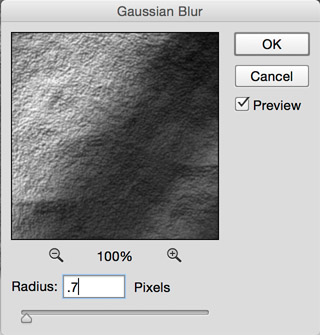
You will now have a new document. This will become our displacement map. Apply a 0.7 Gaussian blur (Filter>blur>Gaussian blur) to lower the sharp detail a bit. This will make for a smoother image in the end.
Step 5
Save the document as a .psd, I called it displacementMap.psd, any name will work, just remember it and the location. I put mine on the desktop.
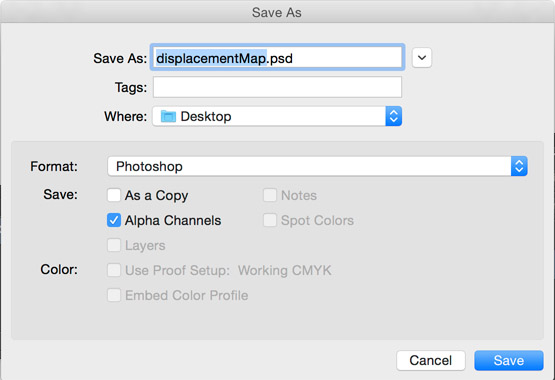
We have now created our displacement map for use later on.
Step 6
On our original document, click on the “RGB” to restore the default channel display.
Step 7
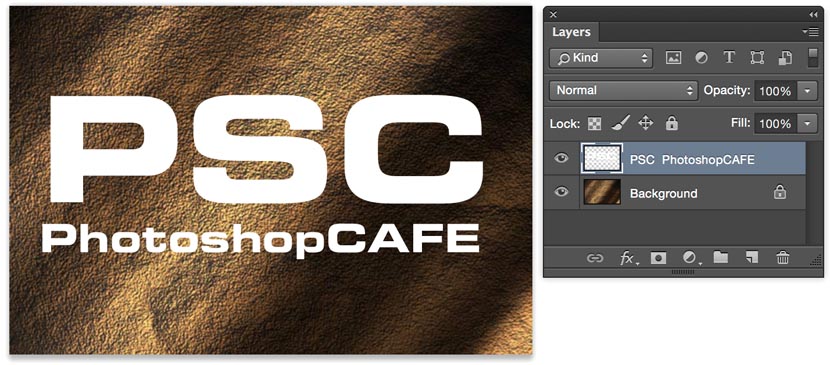
Open the layers panel and add your artwork or text on a new layer. This is the content that you want to warp. Make sure you have everything you want to warp on one layer. If you have text, rasterize it now. (Right click on the layer palette next to the name and choose “rasterize layer” from the pop up menu.
Step 8
Now lets apply the displacement map…
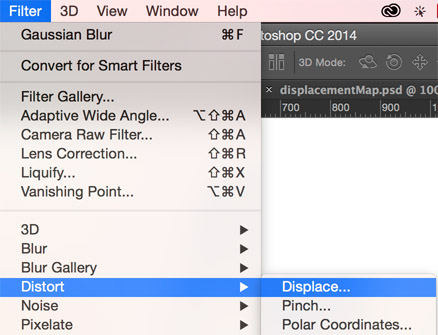
Filter>Distort>Displace
Step 9
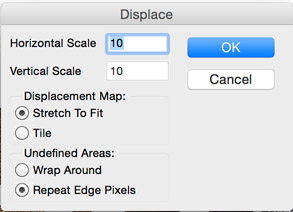
Use the settings shown here when the Displace palette opens.
Click ok
Step 10
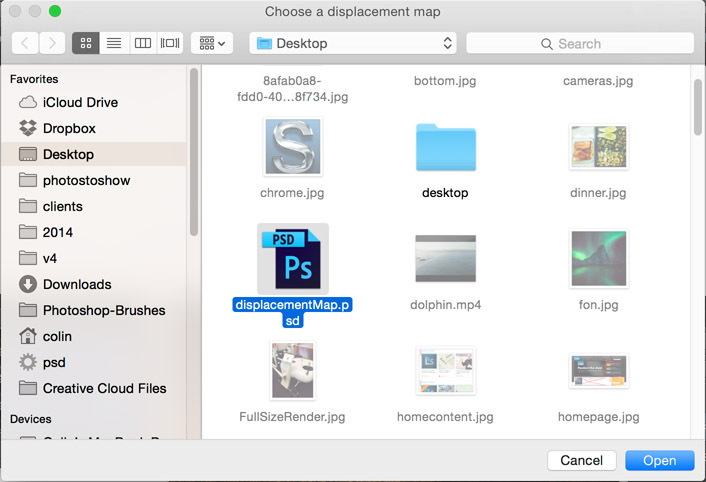
You will now see a browser asking you to choose a displacement map. Navigate to the desktop and load the image we created at the beginning of this tutorial.
Click open
Step 11
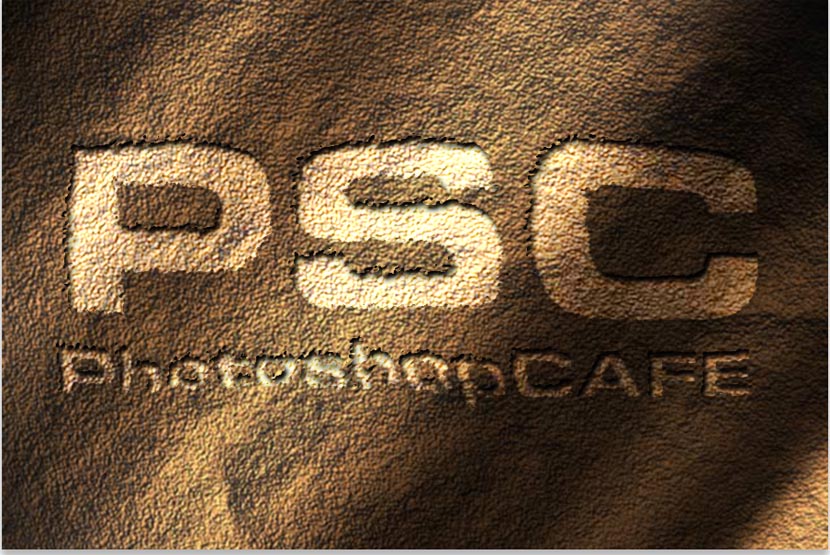
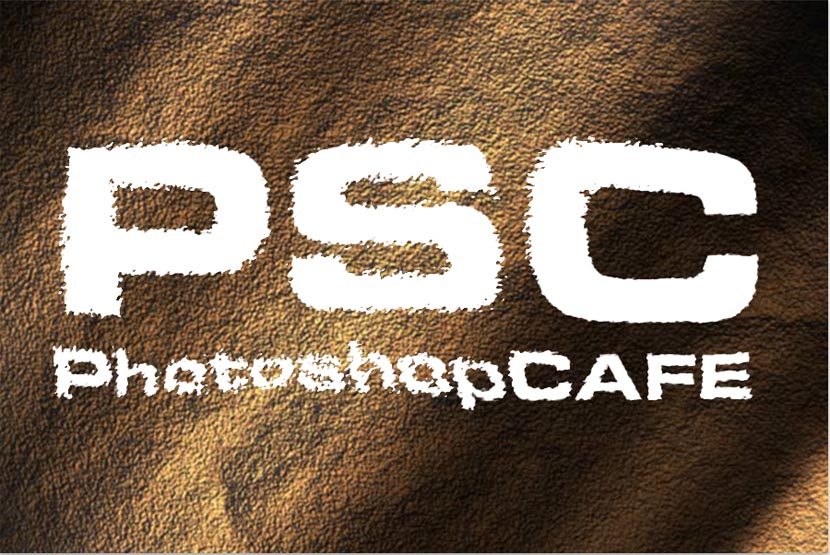
You will now see your artwork distort to hug the texture of the rock.
Lets jazz it up a bit.
Step 12
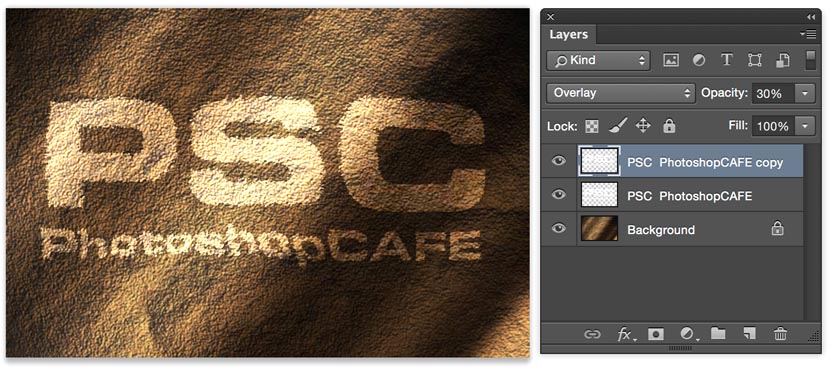
Choose Overlay mode to add some realistic blending.
Duplicate the distorted layer to add a bit more strength to the effect. I dropped the opacity of the top layer to 30 to tone it down a bit.
Here is the result on the blending mode.
See how the color blends in with the texture.
Step 13
Here is exactly the same image but with a variation. I added an inner shadow layer style to the top layer
I hope you had fun with this tutorial and learned a lot.
I also have a variation of this tutorial here where I wrap text around a photo.
Recommended for this tutorial
Photoshop Compositing: Sky City Project. Photoshop 2026
Build a complete composite from start to finish and learn the techniques behind it.
$39.99 · one-time purchase · instant download

Free for you
The Photoshop Vault
Get my free Layer Blending Modes ebook along with dozens of exclusive Photoshop goodies: actions, brushes, presets and cheat sheets.
You're on the list, so your free goodies are waiting for you in the Vault.
Get Free Photoshop Goodies Open the Vault
How to wrap text around a photo in Photoshop tutorial
In this Photoshop tutorial, I'm going to show you how to wrap text around a photo using displacement maps and image warp.... Read tutorial
Photorealistic brick wall Photoshop Tutorial
In this Photoshop Tutorial we are going to create a photorealistic brick wall. First we will make the brick pattern, then we... Read tutorial
Wire frame Text effect in Photoshop Tutorial
In this Photoshop tutorial, learn how to create text that looks like it's made out of metal wire. The text remains fully... Read tutorial
Reflective Liquid type Photoshop Tutorial
Tutorials on creating metal type abound online, as do variations on simple liquid effects. Most are fairly short, offering a good foundation... Read tutorial
3D Effect using Channels Photoshop Tutorial
This is how you get the 3D look using channels. By creating a bump map and transfering it to an alpha channel,... Read tutorial











It is a nice tutorial. What was the font name that you used
The font is Eurostile Extended Bold
This one is Eurostile Extended Bold
DOESN’T WORK ON MY CC HELP
Which part doesn’t work? What step? I can’t help without specifics
http://photoshopcafe.com/wrap-text-around-photo-photoshop-tutorial-displacement-map
Excellent tutorial. I like it.
In Photoshop CC we can’t find the Distort>displace under filter option. Can someone teach us how to do it on CC? thanks in advance
CC version here http://photoshopcafe.com/wrap-text-around-photo-photoshop-tutorial-displacement-map
Choose Filter>Distort>Displace is on CC
how to create a wine glass in Photoshop cs 6. Plz teach me Colin sir.
This is another really great tutorial – great because it provides a simple example to help begin to understand some potentially complex aspects of Photoshop. I know ‘zip’ about Channels or Displacement Maps but now I have one, clear example to come back to every now and then to gain a little more insight into those ‘complex things’.
Thanks for another good one, Colin.
Concise and to the point with some good suggestions on how to ‘jazz it up” – nice tut.
I want to download free, for personal use, Displacement Maps for Photoshop CS6
THANK YOU! I can always count on you to give me the Photoshop help I need. Much appreciated, sir!