
Big Photoshop update April 2026, 12 top new features
New Features in Photoshop 2026. April 2026 Release.
Adobe always drops updates, but there are 4 major ones a year. Usually April and October are the biggest. Let’s take a look at the new features that have just dropped. Some are from beta, some are completely new. Some are ai and some are non-ai. It’s a pretty big release.
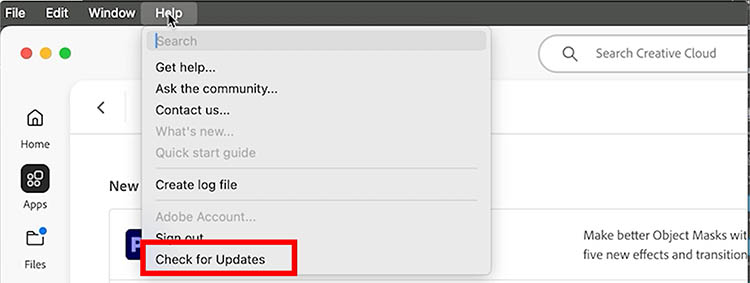
To find the Photoshop update, go to the Creative Cloud desktop app. Make sure you choose Help>Check for Updates. If you don’t do this, you may not see the latest, newest updates.
Then Choose update Photoshop. Let’s look at the new features.
New TaskBar ai design
Firefly model 5 is a huge update. This one allows to you edit your images, like you would using Nano Banana.
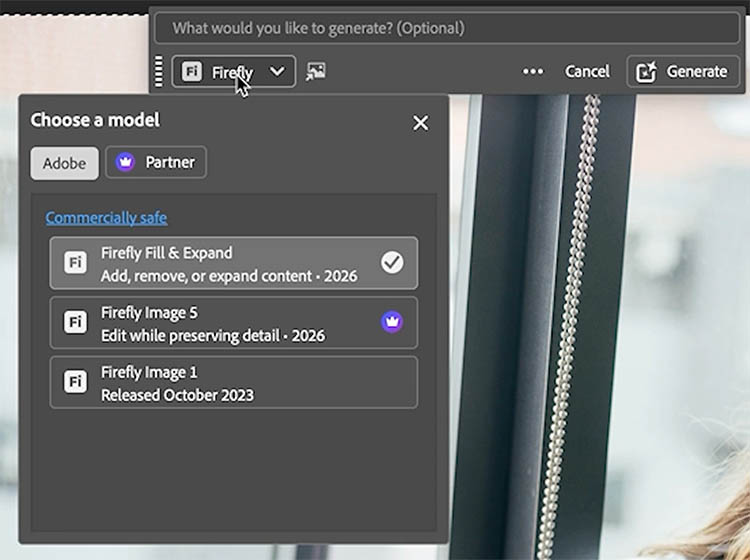
When you enter Generative fill you will notice the Task bar has an updated appearance. The changes to the ai taskbar in Photoshop Beta have made their way to Photoshop general release.
New Model Picker
The model picker, where you choose the ai model. has been updated.
You will see the Adobe Models. Firefly 3 has been removed because we no longer need it, it has been replaced by the Fill and Expand Model.
The new one is Firefly Image 5. This model allows you to edit images with just a prompt.
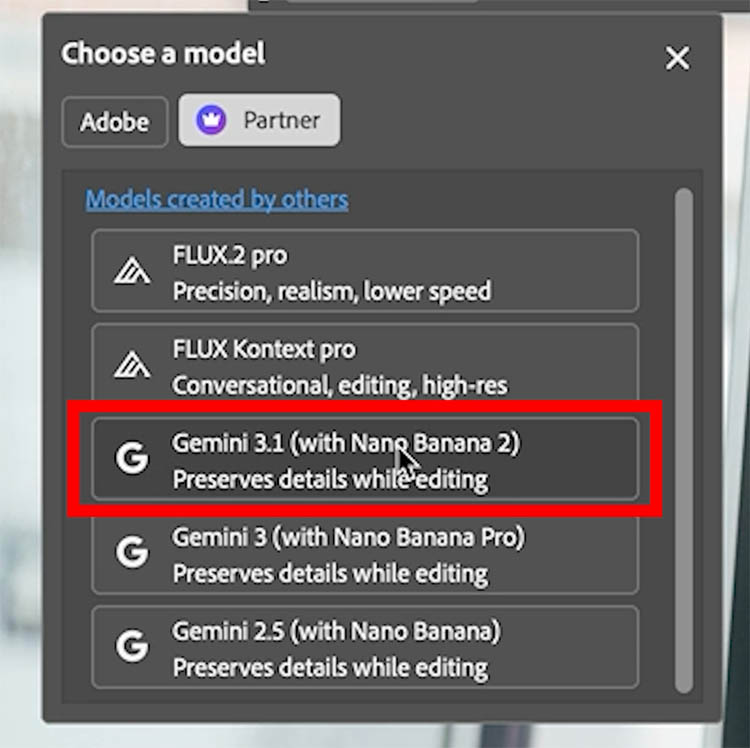
Under the Partner models, you will notice that Gemini 3.1 (Nano Banana 2) has been added.
New ai Firefly 5 Edit Model.
We will be working in Firefly Image 5 for this tutorial. We will transform the office scene below, to vacation time!
Press Ctrl/Cmd+A to select all.
Click Generative Fill in the task bar.
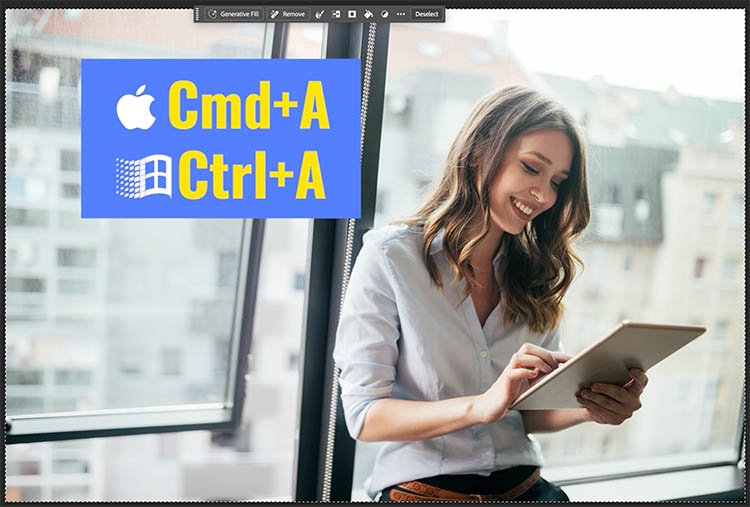
Add the prompt: “Change the view out the window to a tropical island view.”

Notice the window frames stay where they are, the woman is unchanged and the view is now different.
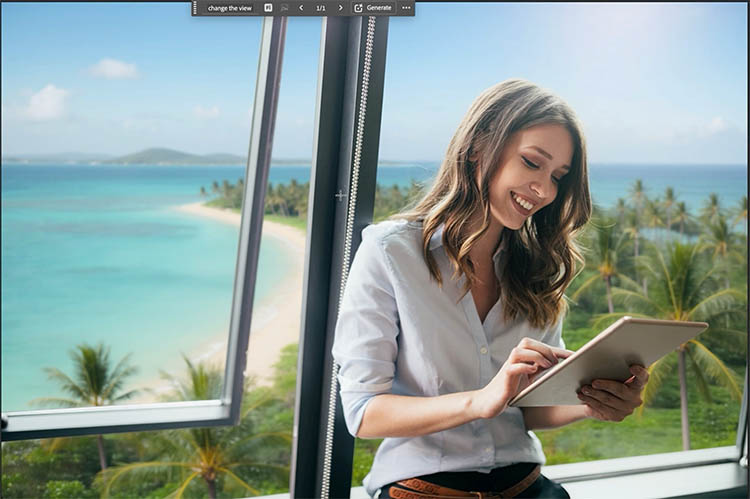
To add another edit on top of the ai edit, we need to select all again. Otherwise it will just change the previous edit.
Ctrl/Cmd+A
Type “change the window frame to a thatched tiki hut.”

Here is the result. The entire background has now been changed.
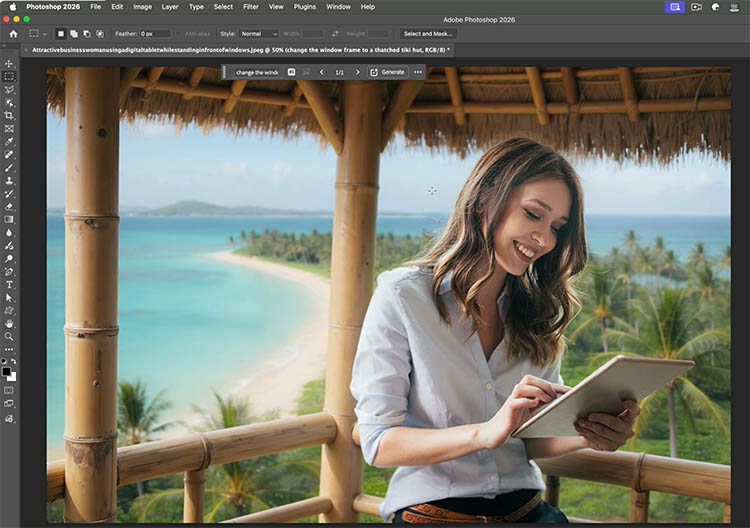
Lets change out the iPad.
Make a selection around the area that contains the iPad and her hands.
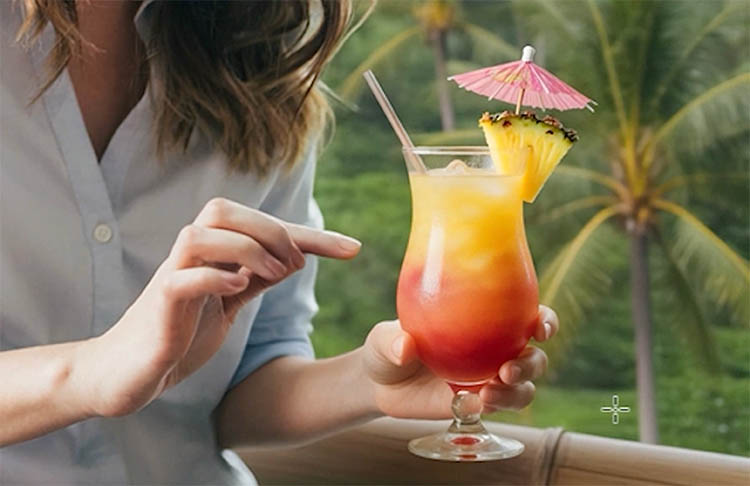
Add the prompt: “change iPad to a tropical drink with umbrella.”

Here is a closeup of the result. A pretty convincing Mai Tai!
Did she lose a finger here? I tried holding a bottle and found you can easily use an index finger to stabilize the glass from behind and the finger would be hidden. Or maybe she lost a finger? Open to interpretation, but ai has gotten pretty good at the right amount of digits for a while now.
Finally we changed the work clothing to a vacation dress. All of these were Generated from the first attempt, no re-dos.
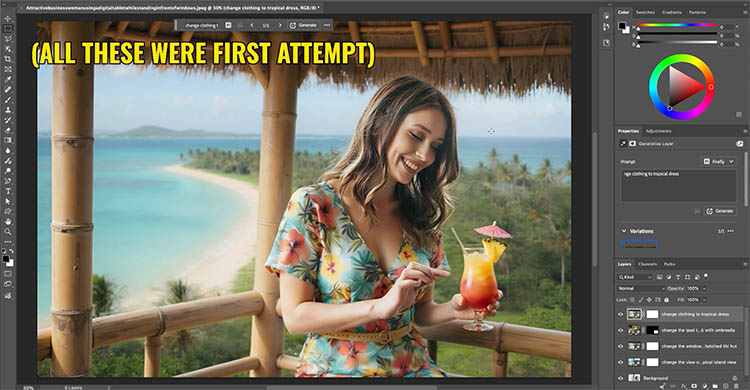
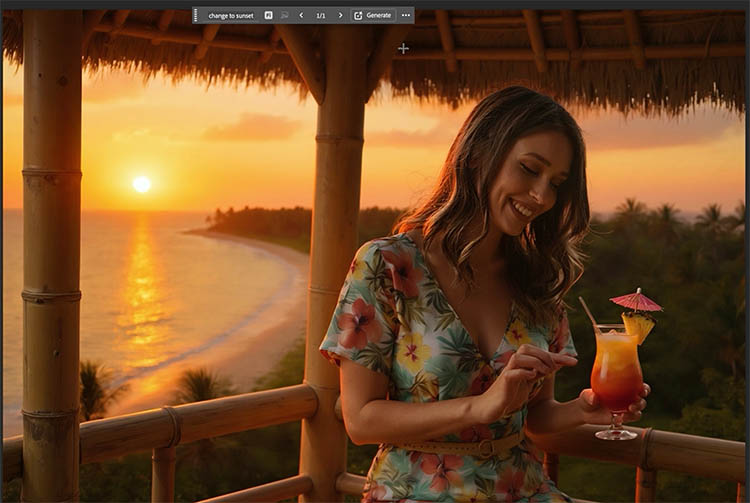
Let’s change the lighting. Select all, and type the prompt: “Change to sunset and have sunlight enter from the top left.”

Now we get a nice sunset.
Rather than 1024 px square or 2048 px, the resolution is 2.4 megapixels. The reason for the change, is that we can generate long, or wide and distribute the resolution, rather than only square. We can only hope for more resolution soon.
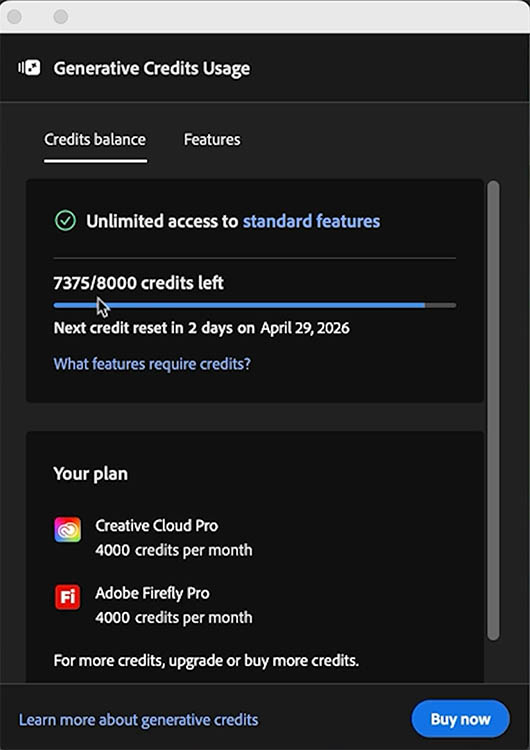
Generative Credit Counter
If you click this icon in the task bar (in beta currently), you can see your generative Credits remaining.

Here is the Generative Credits counter and your plan.
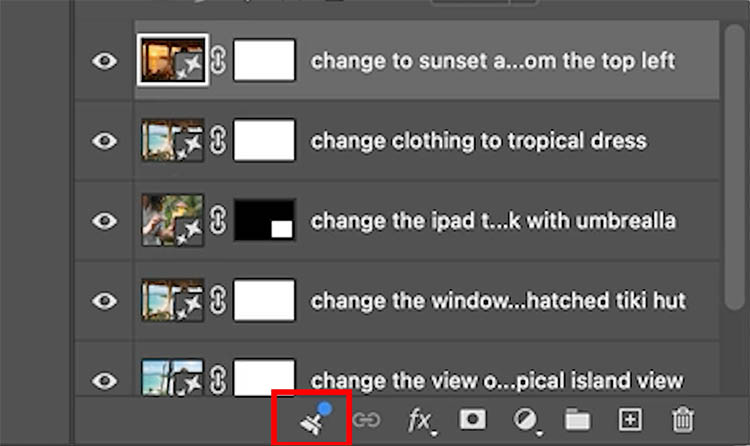
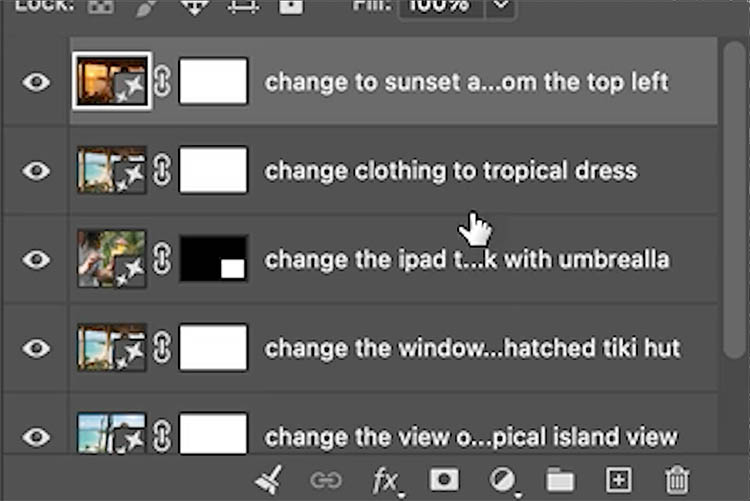
Layer Cleanup
This might be the most useful feature to hit Photoshop in a long time, Layer cleanup.
See the broom at the bottom of the Layers panel? Click it.
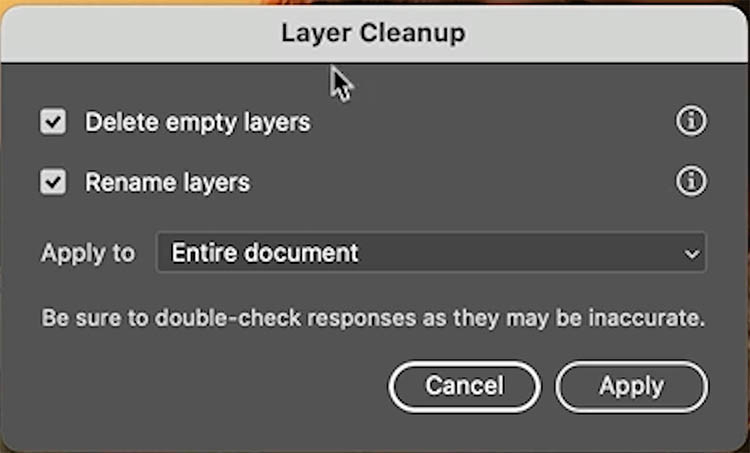
Layer Cleanup box appears. You can delete empty Layers, or..
Yes! Rename Layers!
It will automatically rename your layers to nice descriptive names. (you can see it in action on the video at the top of the page).
Rotate Object
This feature was briefly in beta, I made a more detailed tutorial on Rotate Object in Photoshop here.
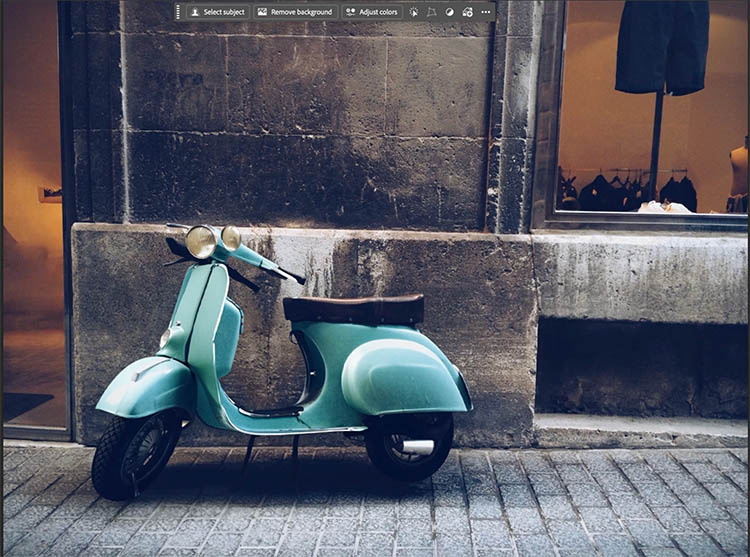
Say, we want a different angle for this Vespa?
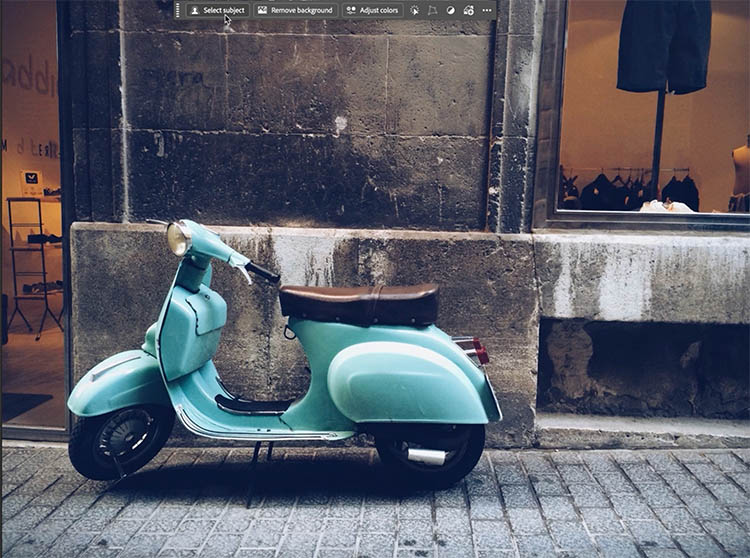
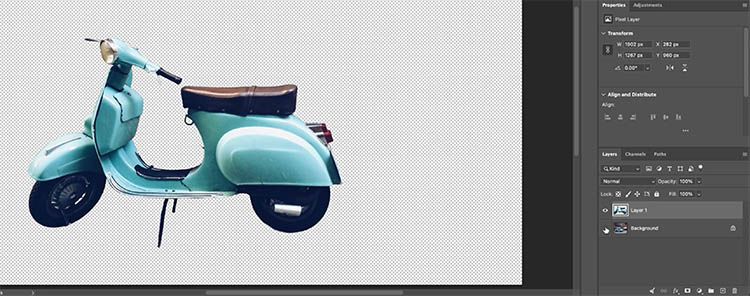
Choose Remove background, or select subject, and press the Layer mask to isolate the Vesper from its background.
Choose Edit>Rotate Object
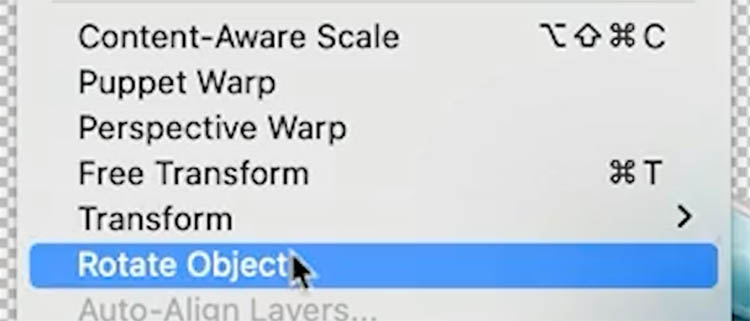
How its a 3D object. It’s very rough and blocky, but don’t worry, this is just temporary.
Now, you can rotate it.
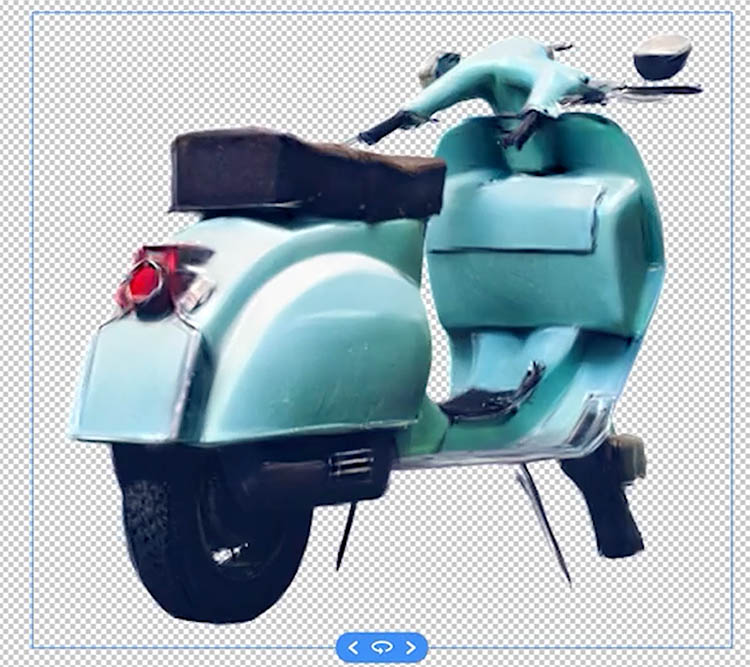
Or tumble it. Basically move it around in 3D space.
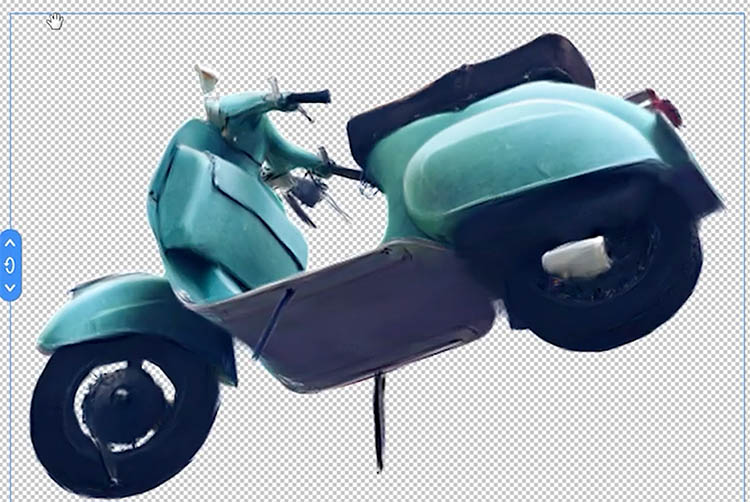
Press the Checkmark to apply
When you apply the new angle, the object renders back to high resolution., but in a different angle and position.
Sometimes the results aren’t 100% perfect and will require a little retouching.
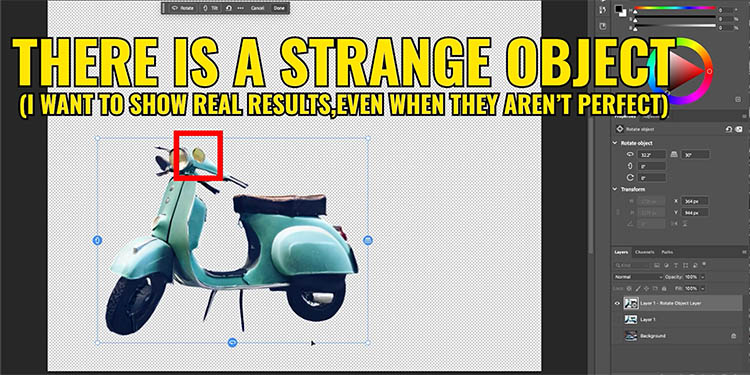
Here is the new angle from a flat photograph!
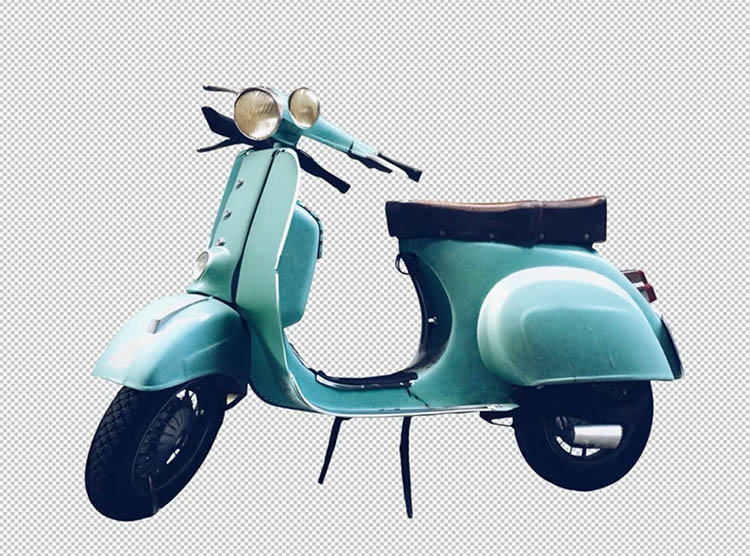
Bring back the background and remove the old scooter. (It’s all in the video part of this tut).

New Actions Panel
This is bigger than it sounds. A brand new Actions panel is now in Photoshop! I made a tutorial on the updated actions panel in Photoshop beta. There have been more changes and its now part of Photoshop General release.
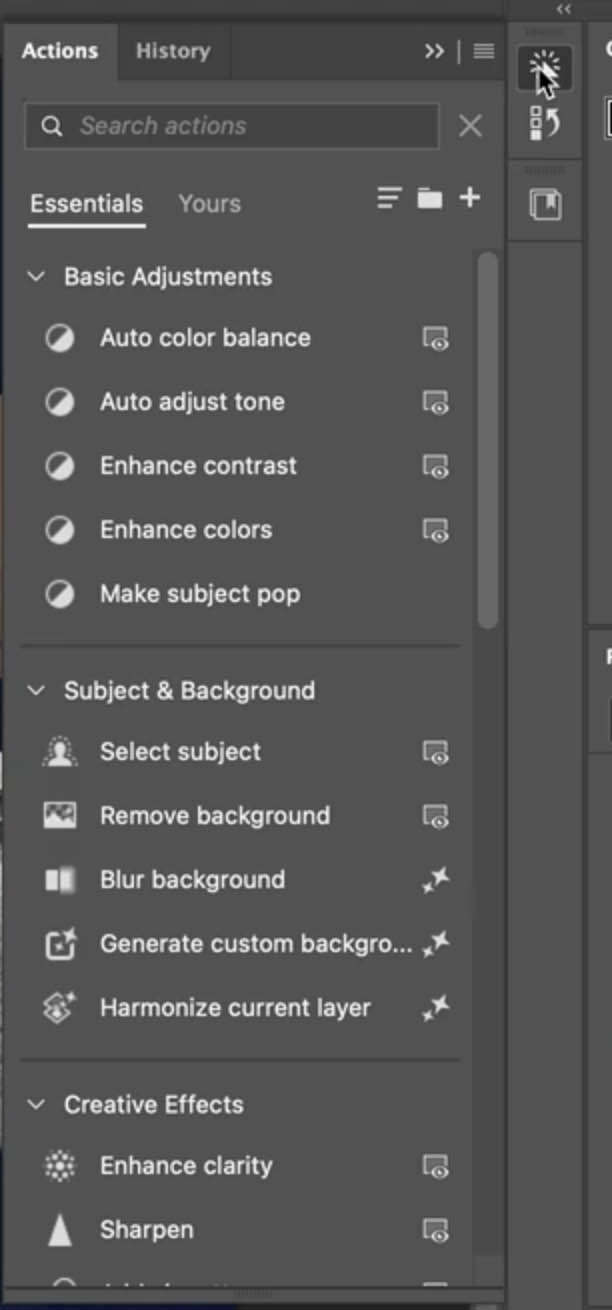
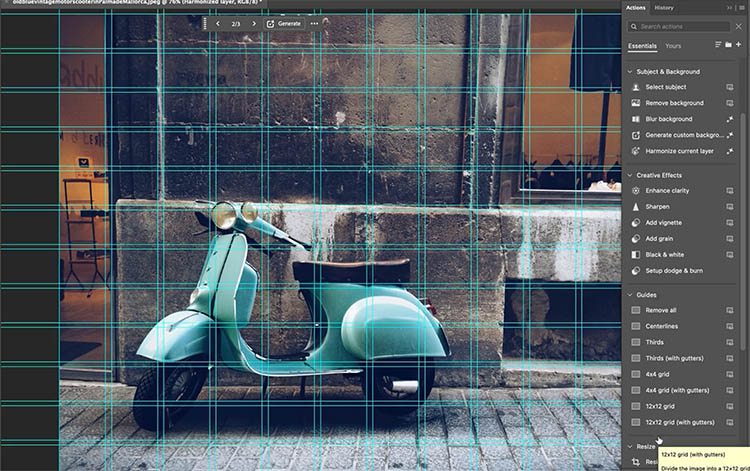
There are a number of new actions including grid presets. You get hover previews of what the actions will do to the images and more. I won’t dive too deep now, because I’ll do a separate tutorial on this tool as it warrants one.
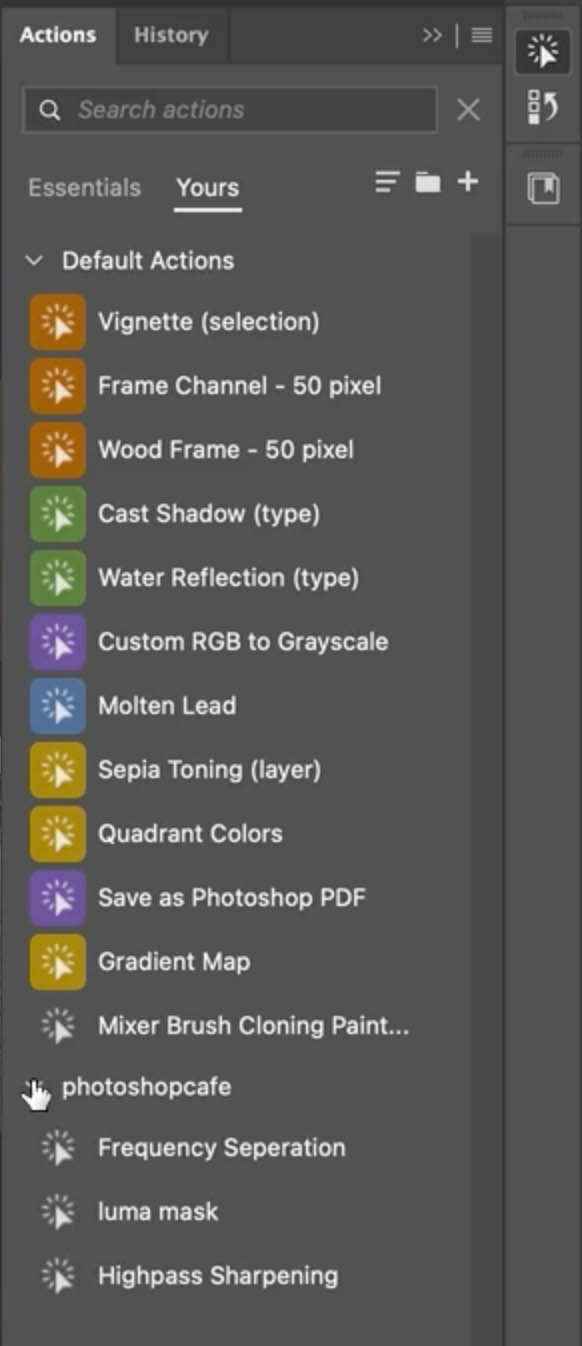
Your own actions still work in the new panel
General Distractions removal
I recently made a tutorial on this feature too when it was recently introduced to Photoshop Beta.
Photoshop can detect and automatically remove all kinds of different distractions in images.
Choose the remove tool from the toolbox.
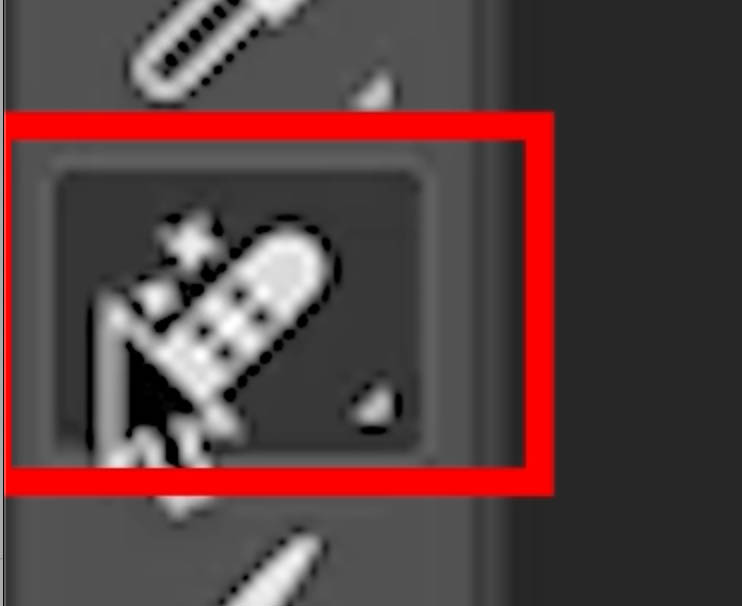
At the top, choose Find Distractions. Click “Find” next to General Distractions.
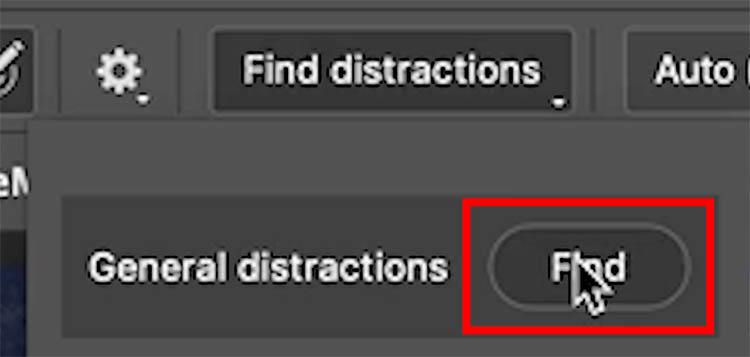
Now many different things will be detected in the image.
The highlighted areas will all be removed when we apply the tool. First, you can refine what selected. You can unselect different things, or add things.
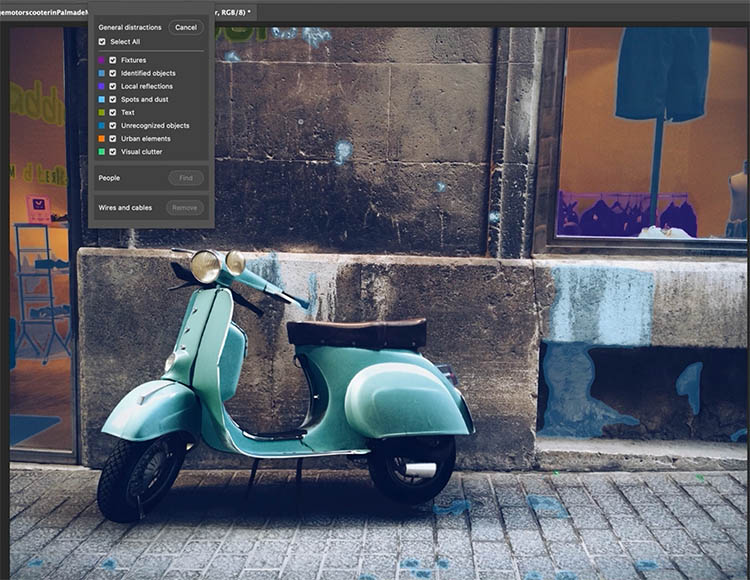
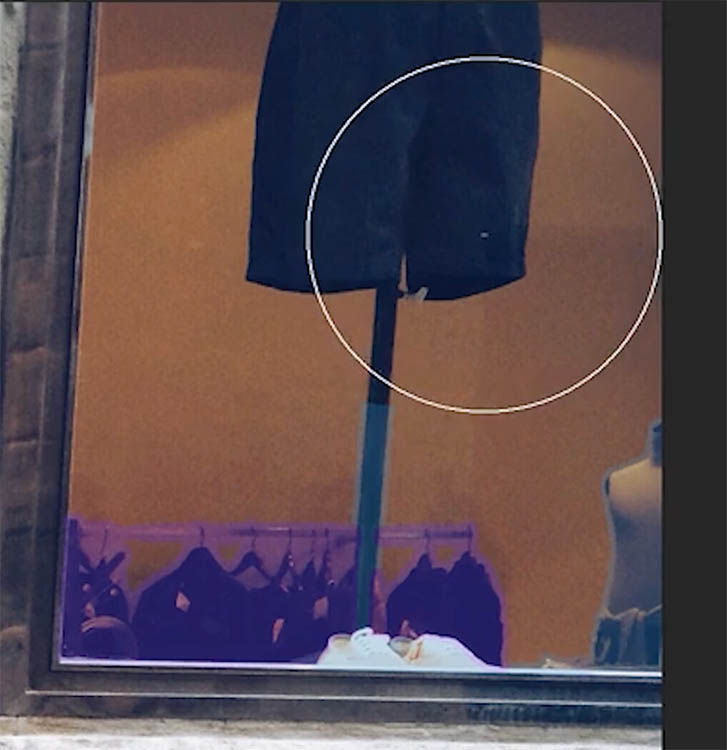
In this case, we don’t want to remove the objects in the shop window.
To remove the selection; Hold the Alt/Option key and paint over the selections to remove.
To add area to be removed, paint over them with the brush.
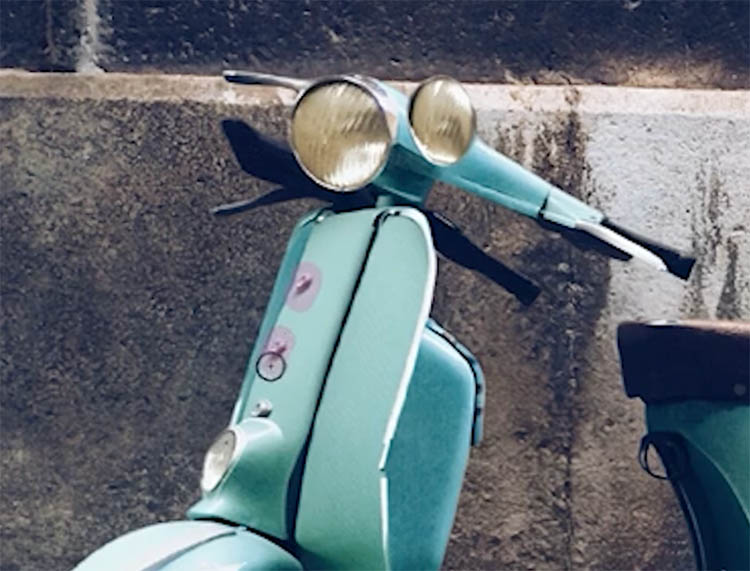
You can choose of you want to use ai or not for the removals.
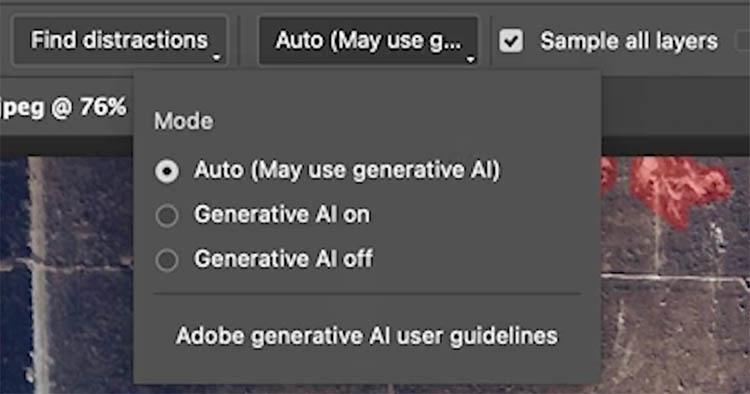
Press Enter, or press the checkmark at the top to apply. Here, all the highlighted distractions have been removed.
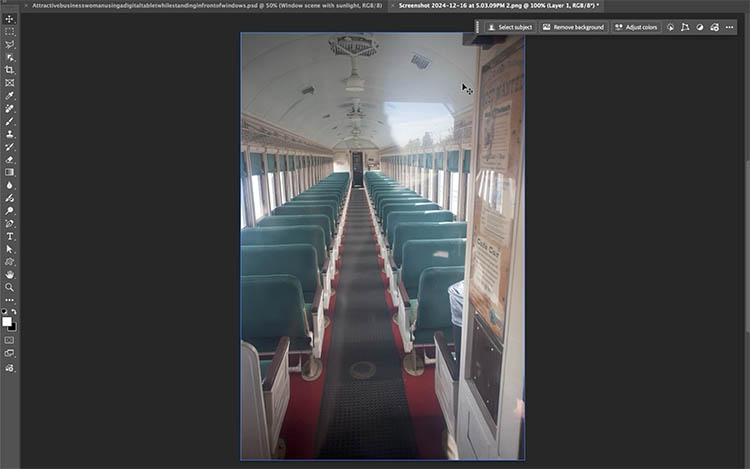
Remove glass reflections from photos in Photoshop
For a while now, we have had Reflection removal in ACR and Lightroom. Now we have access to this amazing tool directly inside Photoshop.
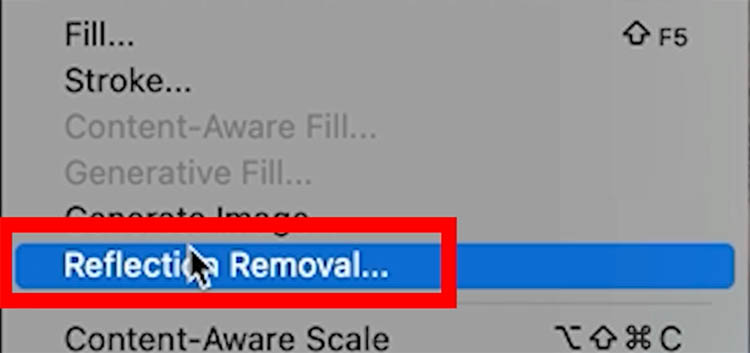
Choose Edit>Reflection Removal.
The dialog pops up.
Choose the quality (Standard is a good trade-off between quality and speed most of the time).
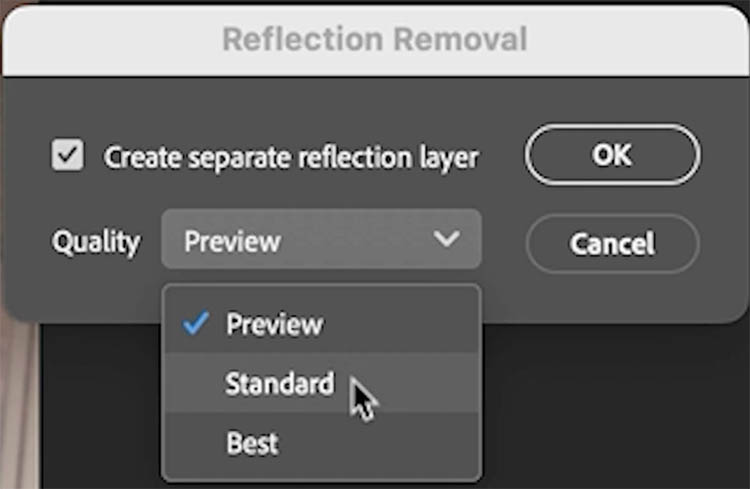
Notice the quality is the same as ACR or LR reflection removal.
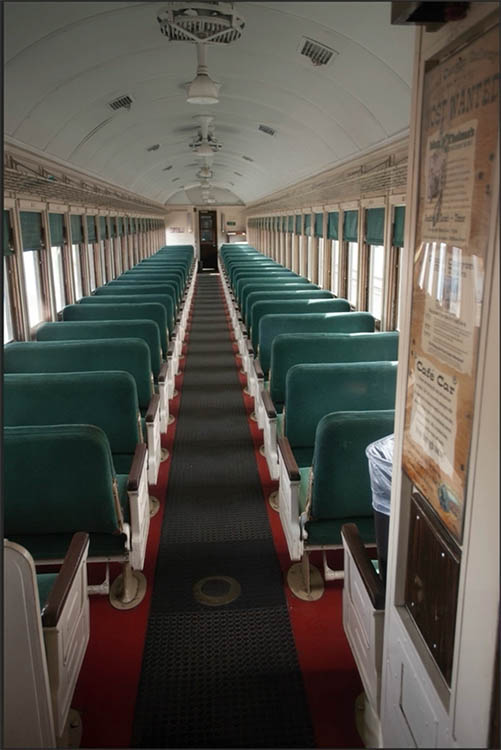
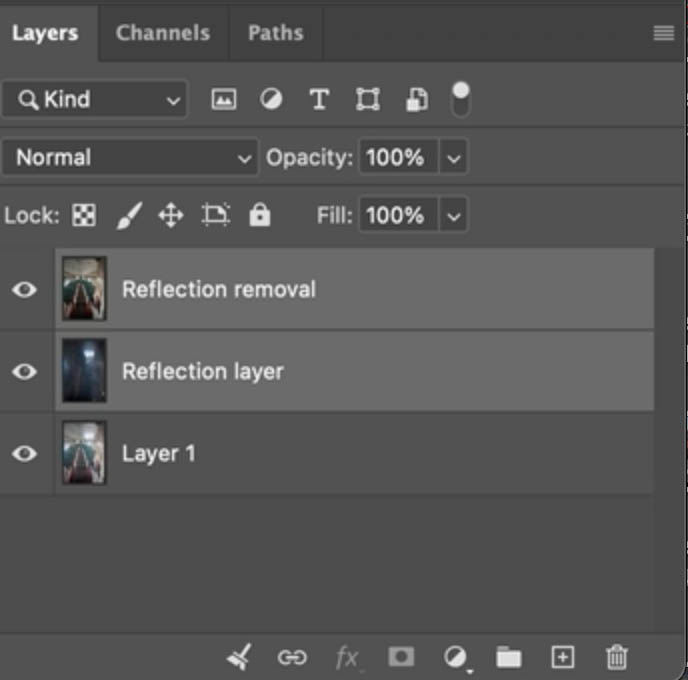
New layers are created. A clean removal on top, with a reflection layer underneath.
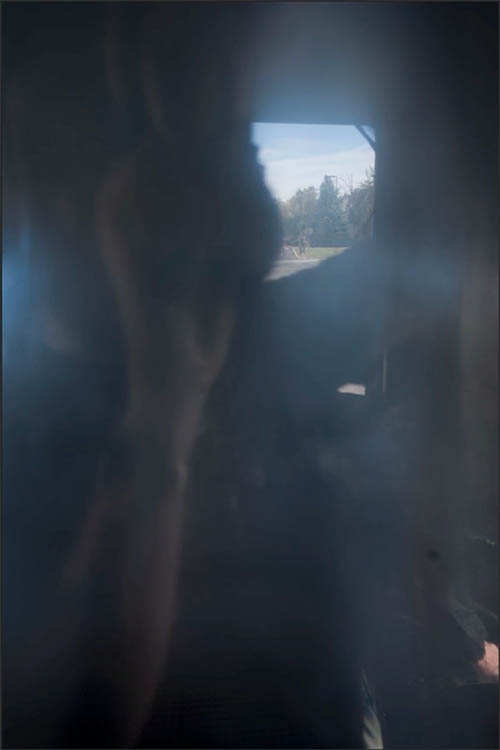
Here is the reflection layer, containing just the extracted reflection. Adjust the opacity of the top layer to add a small amount of reflection without completely eliminating it.
Dynamic Text, arch and circle.
Dynamic Text was originally a way to make nice blocks of text. Now it has new shapes.
Here’s my tutorial on Dynamic text in arch or circles. I made that tut when it was in beta, it’s now in General release.
Add some text.

Click on Dynamic Text in the Task bar.
Choose the shape you want.
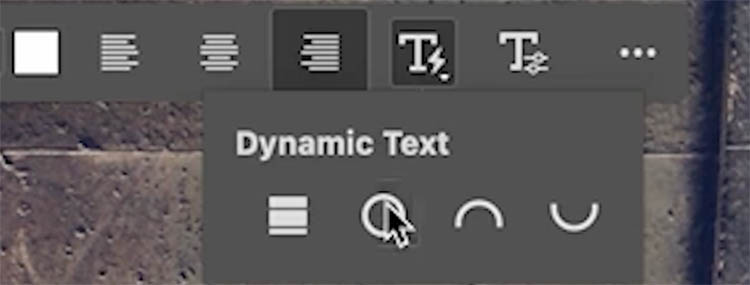
Check out my existing tutorial where I go into all the shapes and options in depth.

New feature, color pickers in the Filter Gallery
This is one of those “big”, “little” features.
When you use the Filter Gallery Filter>Filter Gallery there are a number of filters you can use. Many use the current Foreground and Background colors.
The problem is; when you want to use a different color, you have to exit the filter. Change the colors and then go back into the filter.
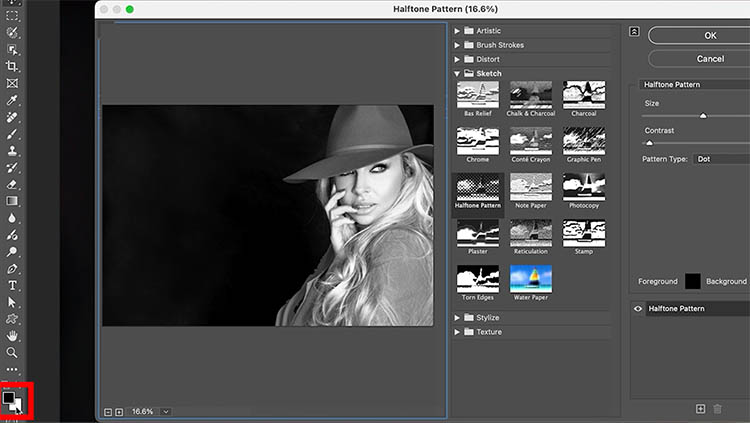
Now, color swatches have been added inside the Filter Gallery.
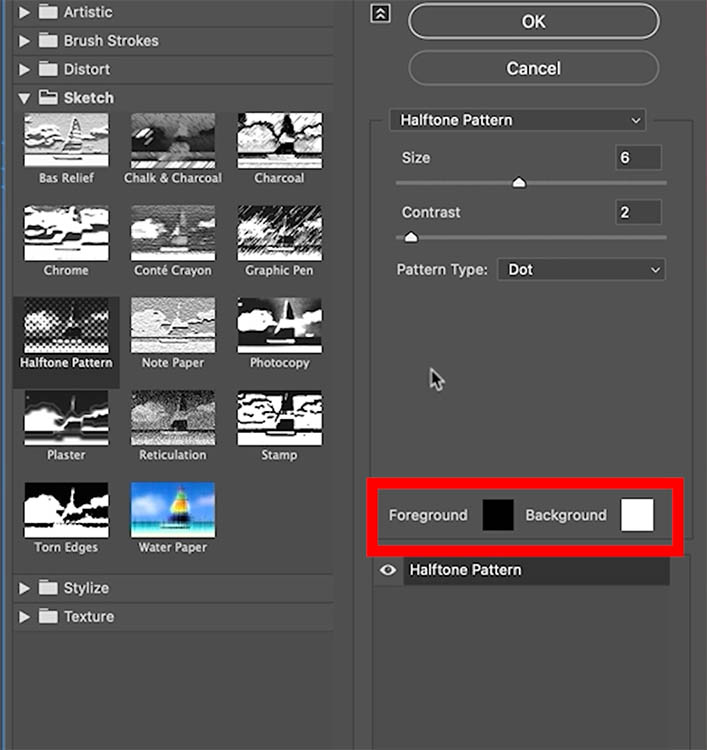
So you can change the colors you want to use right within the filters.
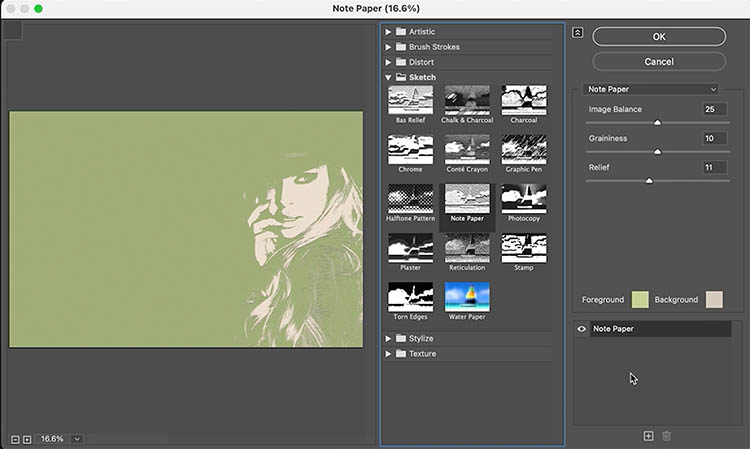
Such a time-saver for those of you who use these filters. Graphic Designers will be very happy with that one little change.
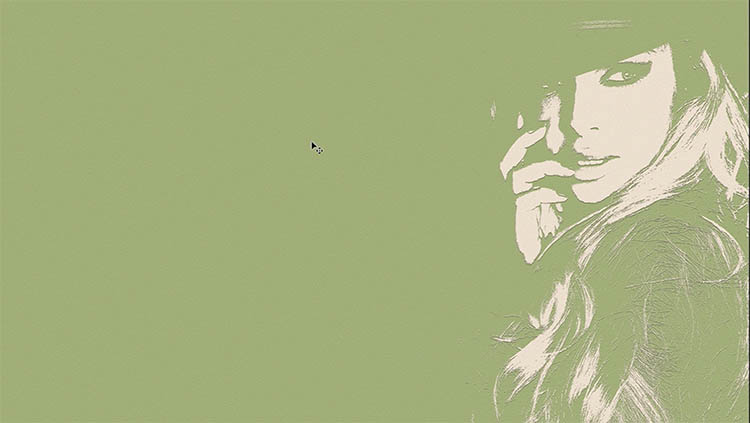
There’s the new features!
Let me know which ones you like best and which ones you would like me to go deeper into. Add a comment.
Great to see you here at the CAFE!
Colin
PS: My new ai course is here! This covers all this kind of stuff as well as Generative ai, Which models to use for what, Gen credits, how to write prompts, Neural Filters and a lot more. Grab it this week before the launch special expires.

PS Don’t forget to follow us on Social Media for more tips..
(I've been posting some fun Instagram and Facebook Stories lately)
You can get my free Layer Blending modes ebook along with dozens of exclusive Photoshop Goodies here

5 thoughts on “Big Photoshop update April 2026, 12 top new features”
Leave a Reply
7 best new features in Photoshop 2025 April update

How to use the Selection Brush tool and Quick Mask in Photoshop, detailed guide.
How to use the NEW features in Photoshop 2025 July 29 update, free written tutorial and short video tutorial by...







Remove glass reflections does not work in Photoshop (latest version used). All I get is a multi coloured screen. Help please.
General removal of distractions, this feature is not supported on Mac Intel computers!
Why not?
My guess would be the features are unsupported by Rosetta since everything Intel has to run through Rosetta. Apple have been moving away from Intel since 2020. Expect more of this with other apps.
You mentioned that you might produce a tutorial on actions, and I would love to see this happen! Thanks.
Keep your eyes open for it soon