
Generative remove ai in Photoshop, remove anything from a photograph
How to make Generative ai Remove and not replace in Photoshop
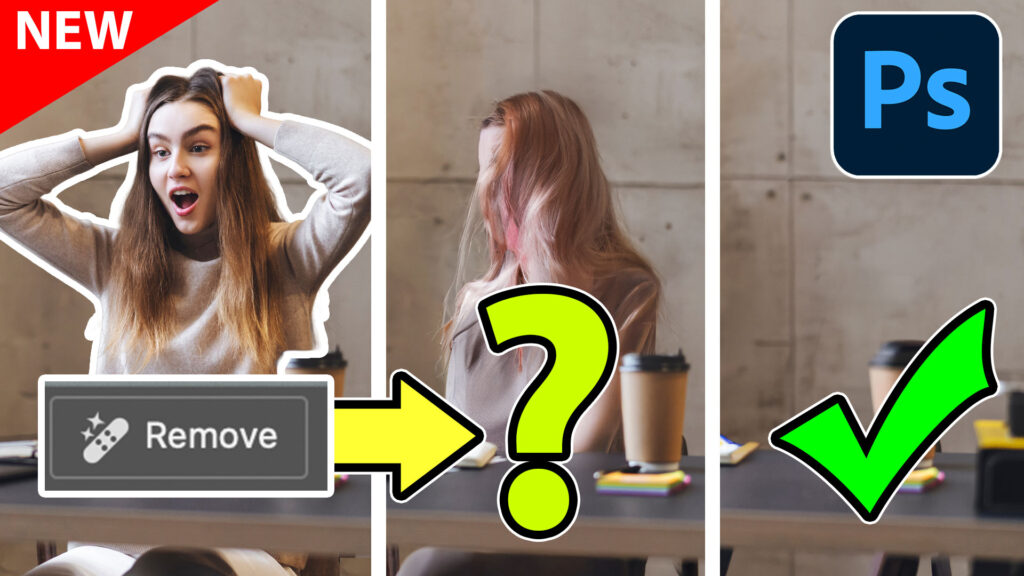
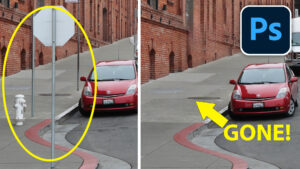
Has this happened to you? You select a distraction and then use Generative fill to remove it. Instead of removing, it replaces the area with something weird.
You see it here on the thumbnail. We go to remove the woman and end up with something weird like the second frame, instead of removing in the 3rd frame. We will fix that in this tutorial.
The feature is out of beta version of Photoshop and in the main Photoshop.
Here’s a zoom in of a photo, I recently shot in Kailua Hawaii. We want to remove the people from the pillbox.

The quickest way to select is to use the Select People and then finish off with object selection tool.
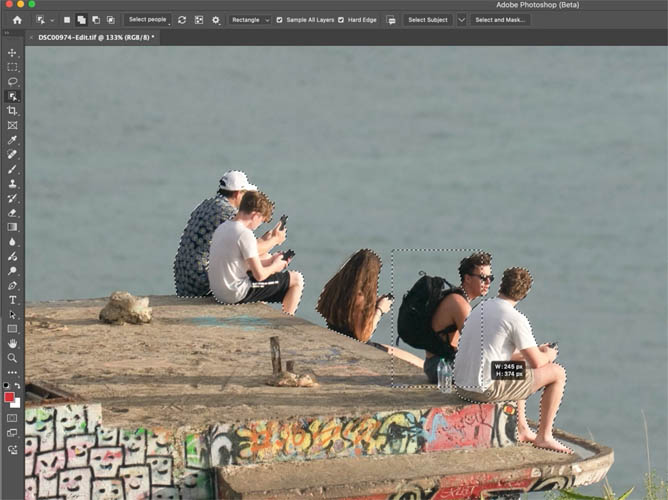
We get a quick tight selection which is good because we have preserved most of the subject and not replacing anything we don’t need to.
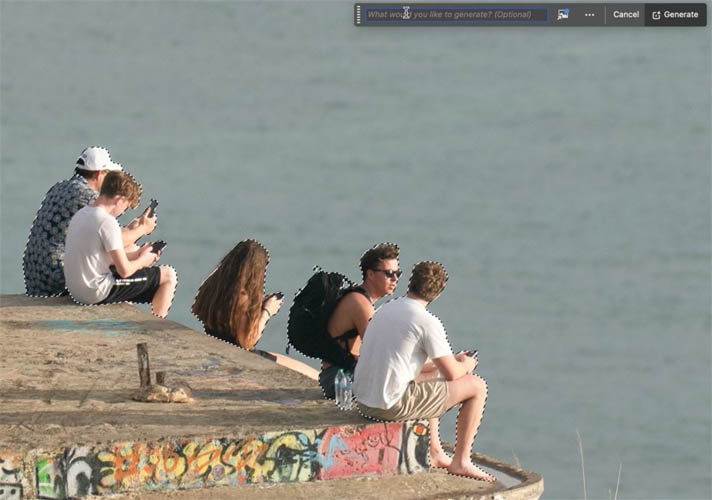
The disadvantage of a tight selection manifests when we use Generative Fill. I’ve found if the selection id too tight to too close to the shape of an object, it often replaces with something else, rather than removing.
To demonstrate, choose Generative Fill from the contextual task bar. Leave the prompt blank and choose Generate.
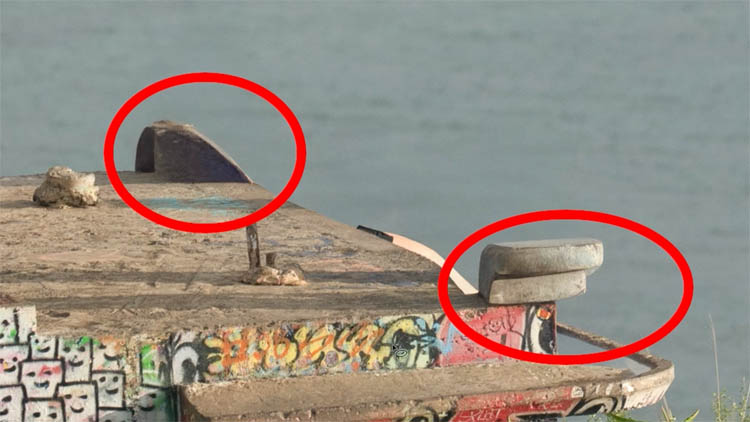
Here the people are gone, but we now have these weird concrete shapes.
It’s been stated, that perhaps the concrete shapes were generated to work with the shadows. That’s very possible (and a good call by @e1b1 on YouTube), but we still don’t want them, and that also doesn’t answer why the woman was generated in the previous example.
Let’s look at the new tool.
With exactly the same selection, open Photoshop beta and look at the contextual task bar. See the Remove button. (This also uses Gen ai, but calls up a different model that’s used by the remove tool).
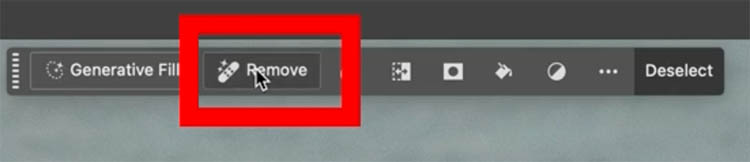
Notice it removes the people without adding any weird shapes.
(And yes, the shadows are still there, if we wanted to remove the shadows, just select them as well. I wanted to make a simple example so it’s easy to follow.)
There’s an additional advantage of using the remove option, because it uses the remove tool model, it doesn’t use any Generative credits.
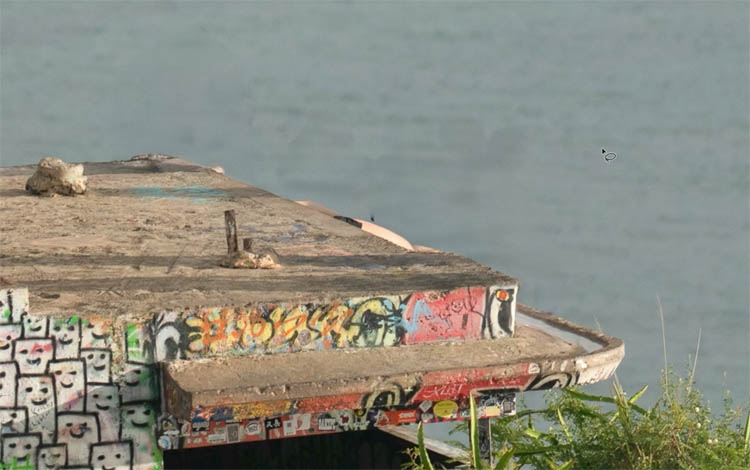
Let’s look a little closer at the results. Here is another image I shot in Hawaii. (It’s a great place to photograph content for training).
I haven’t finished working on this image yet, but one of the first things I want to do, is remove the concrete and person in the lower right corner.
Make a selection with the lasso tool.

Here we removed the distraction using the Remove option. As you can see the result looks good. Let’s look a little closer.

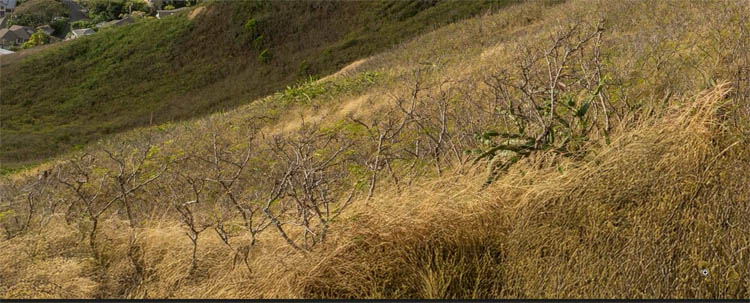
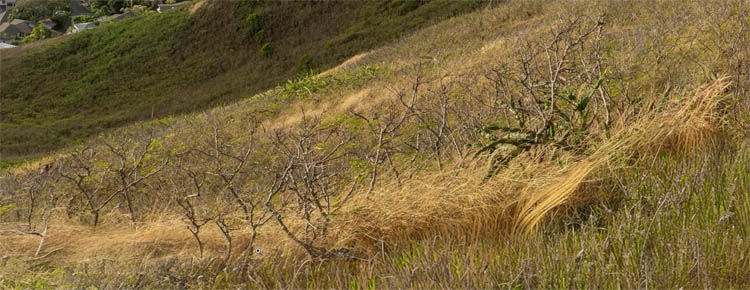
If we zoom in we can compare the difference. (This image was a multi shot panorama, so it’s quite high res).
This is with Generative Fill. You can see the texture and resolution mismatch.
With the remove option. Notice the finer detail and smoother blending.
I encourage you to watch the video above for a closer look as well as trying this tool for yourself. Love to hear your thoughts. If you share on Social media, tag us @PhotoshopCAFE
Great to see you here at the CAFE
Colin
Recommended for this tutorial
Complete Guide to ai in Photoshop 2026
Generative Fill, Firefly, Harmonize and every AI tool in Photoshop, step by step.
$79.00 · one-time purchase · instant download

Free for you
The Photoshop Vault
Get my free Layer Blending Modes ebook along with dozens of exclusive Photoshop goodies: actions, brushes, presets and cheat sheets.
You're on the list, so your free goodies are waiting for you in the Vault.
Get Free Photoshop Goodies Open the Vault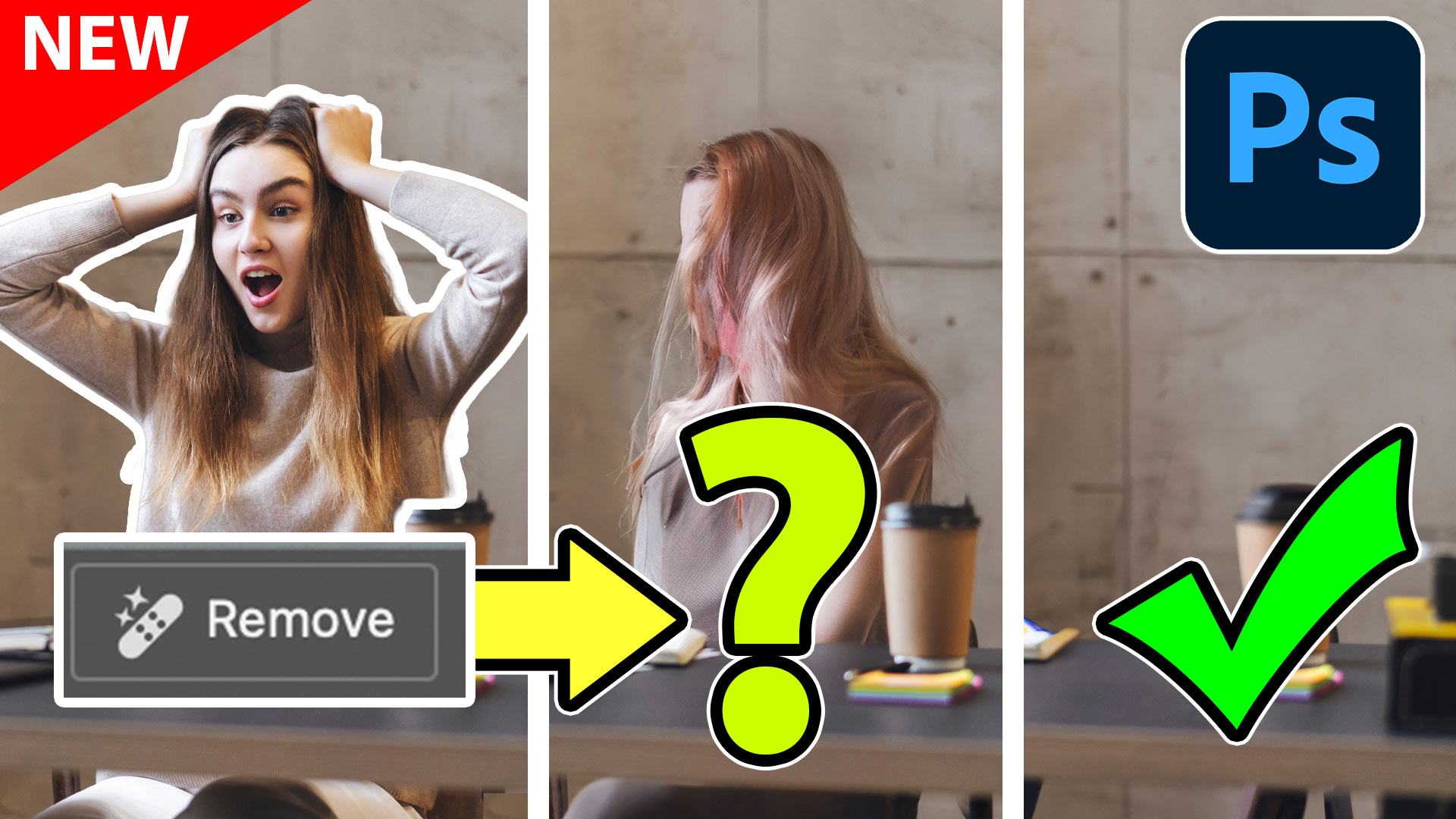
Generative Fill vs Remove tool ai in Photoshop, when to use each tool
New ai Remove tool vs Generative Fill in Photoshop, which should you use? Read tutorial
Photoshop removes anything instantly with General Distractions
Auto remove anything in Photoshop with General Distractions tool. Read tutorial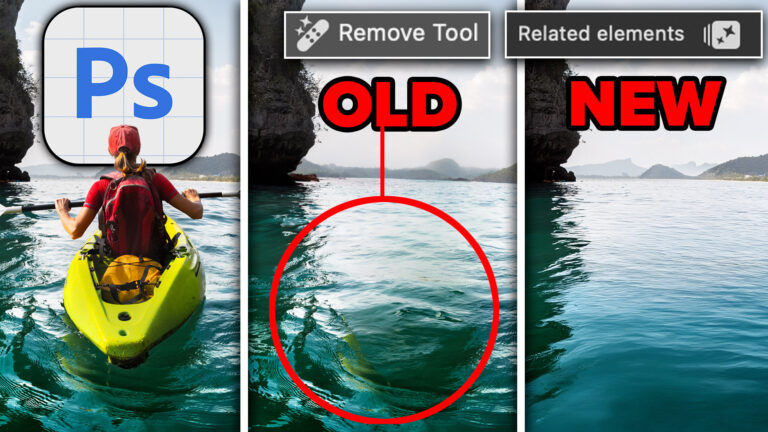
Photoshop Remove Tool, Remove Related Elements like Shadows and Reflections
Learn how to remove objects, shadows and reflections in Photoshop using Related Elements, improve results with Enhance and avoid wasting generative credits. Read tutorial
How to use Gemini 3 Nano Banana Pro in Photoshop
How to use Gemini 3 Nano Banana Pro in Photoshop Read tutorial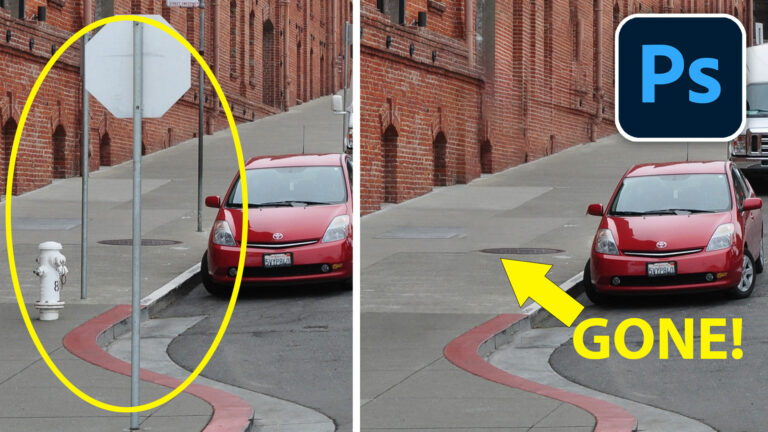
New AI Remove tool in Photoshop, How to remove anything from a picture really easy
How to install and use the new Remove Tool in Photoshop to remove anything from an image using ai technology Read tutorial












What are generative credits? I hadn’t heard about that.
Thank you Colin, you’re always so helpful. Thanks for keeping us up to date.
Thank you for all your tips and trick, Colin. Love Photoshop Cafe.
Wonderful Colin, Love it
Thank you always for keeping us informed and up to date
Thanks, I try 🙂
Thanks Colin. Another great tut helping to keep me up-to-date with all the changes happening.
Thanks, lots of new stuff coming out