Dynamic Text in Photoshop: Circle, Arch, and Advanced Controls Explained
Better Than Warp Text? Master Circular Typography with Dynamic Text
Adding text to a circle or arch in Photoshop has always been possible. The problem is making it look good.
Traditionally, we’ve relied on Warp Text or Type on a Path. Both work, but they can distort letterforms or require a lot of manual adjustment. Now, with the new Dynamic Text options in Photoshop Beta, creating clean circular and arched typography is much easier—and far more flexible.
Let’s walk through three real examples and then explore some hidden controls that really expand what this tool can do.
Important: At the time of recording, these features are only available in Photoshop Beta.
Creating a Basic Arch
Start by selecting the Type Tool.
Click on the canvas and type your text. In this example, the phrase is:
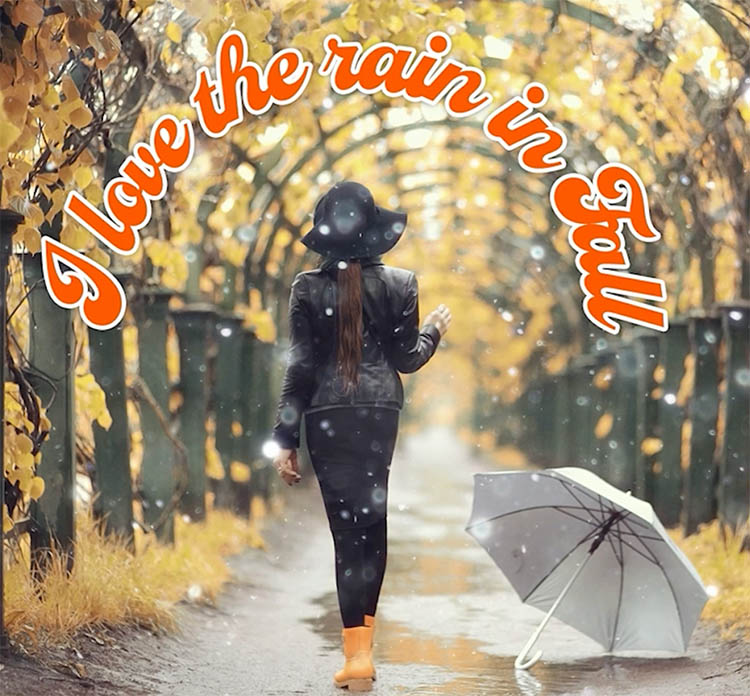
“I love the rain in fall.”
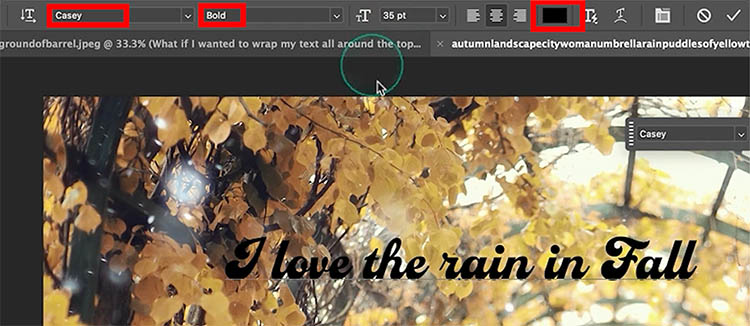
The font used here is Casey Bold at 35 pixels, set to black. You can adjust sizing later, so don’t worry too much about precision at this stage.
With your text layer active, go to Dynamic Text. You’ll find it in the Toolbar or the Contextual Task Bar.
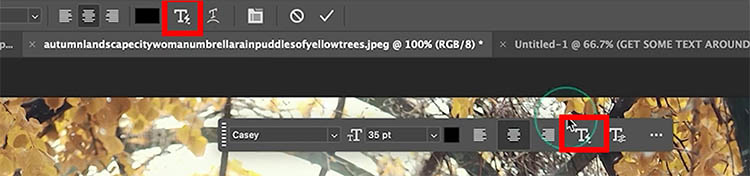
When you click it, you’ll see several options:
- Stack
- Circle
- Arch
- Bow
We’ll begin with Arch.
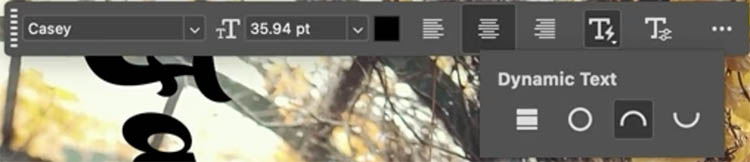
Click Arch, and your text instantly conforms to a clean semicircle.
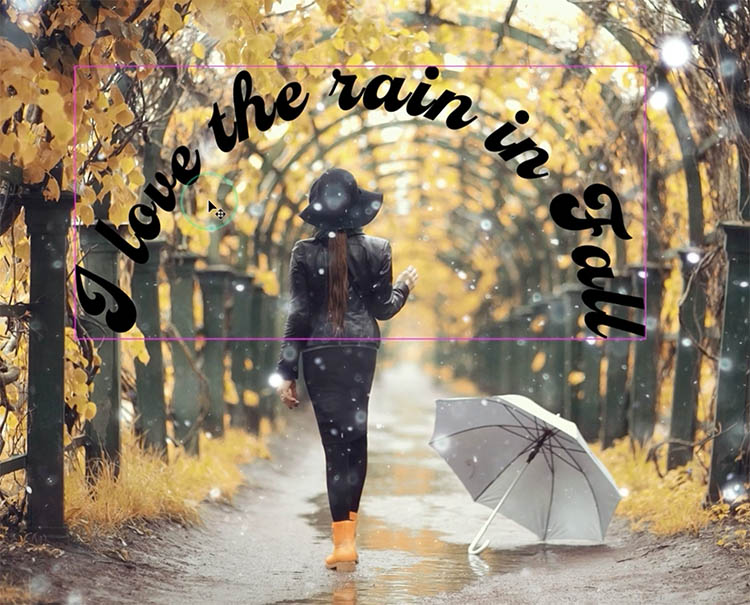
Switch to the Move Tool to reposition it.
In the Character panel, adjust Tracking to control overall spacing between letters. Increasing tracking creates more space and visually makes the type feel smaller and more open. Reducing tracking tightens everything up.
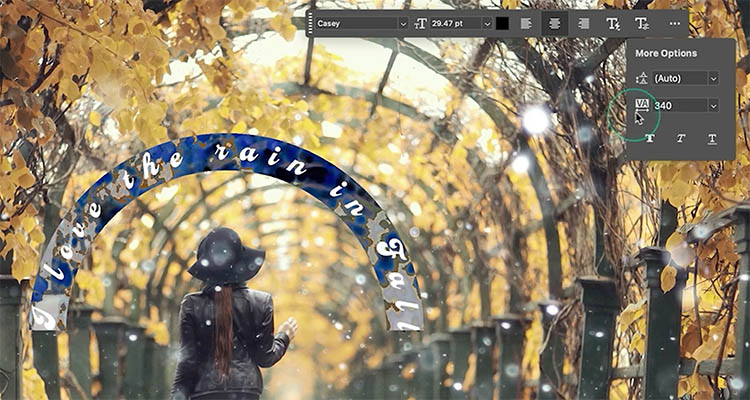
You can also tap the spacebar between words to push spacing further while keeping the text constrained to the arch.
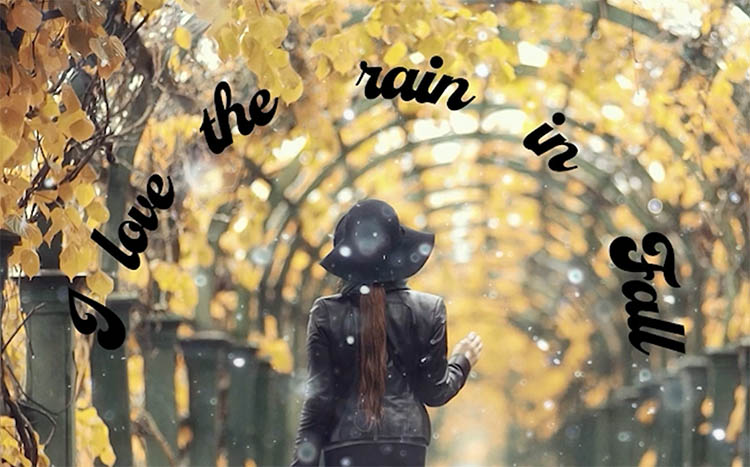
Using the Properties Panel for Hidden Controls
With the text selected, open the Properties panel and scroll down to Dynamic Text options.
Here you’ll find positioning controls:
-
Above Path
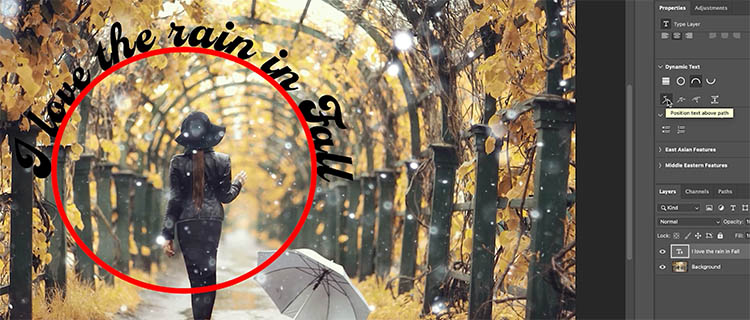
-
Center
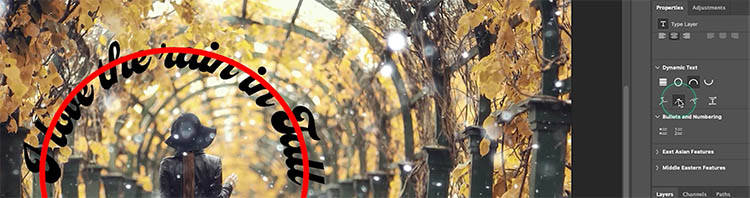
-
Below Path
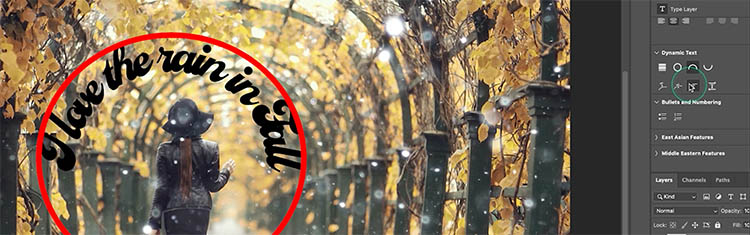
Switching between these changes how tightly the text hugs the curve.
Tip: If you need to fine-tune kerning between specific letters, place your cursor between them, hold Alt (Option on Mac), and tap the arrow keys. You’ll see the spacing adjust directly on screen.
You can also apply a layer style to the text if you wish and it still remains editable.
Select the text layer and choose Circle in Dynamic Text.
Your text forms a full circular path.
You can reposition it with the Move Tool, and use Ctrl+T (Command+T) to resize. Hold Alt (Option) while scaling to resize from the center.
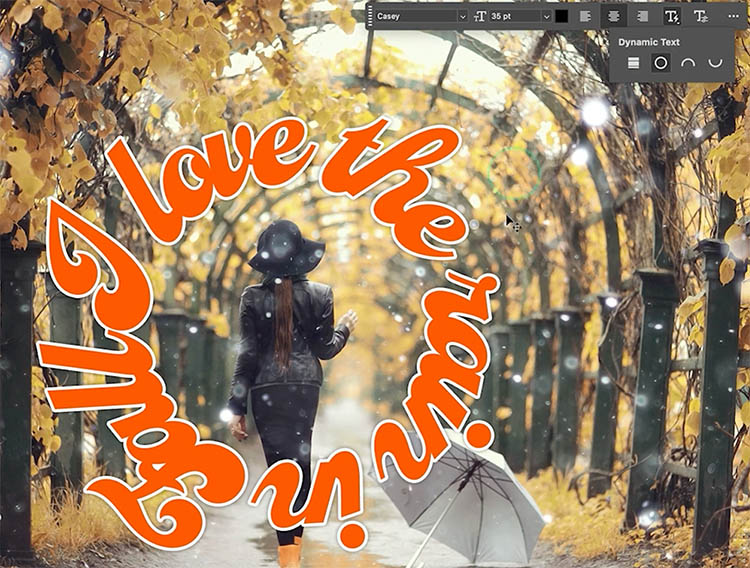
Now let’s switch from Arch to Circle.
Select the text layer and choose Circle in Dynamic Text.

Your text forms a full circular path.
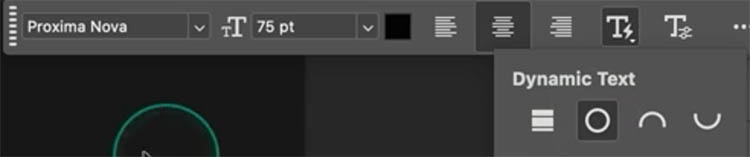
You can reposition it with the Move Tool, and use Ctrl+T (Command+T) to resize. Hold Alt (Option) while scaling to resize from the center.
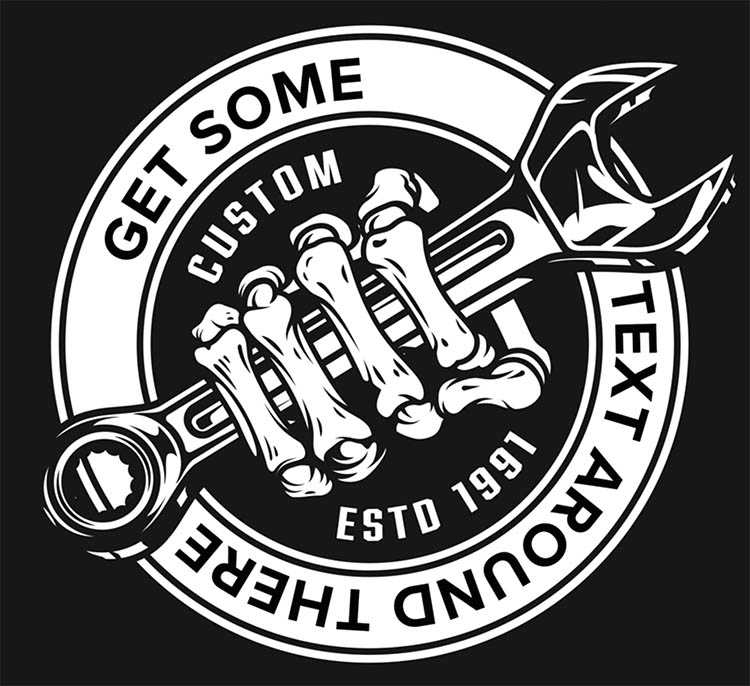
Splitting Text Around a Circle
Let’s say you want part of the text at the top of the circle and the rest at the bottom.
Edit the text and insert extra spaces between words to create separation.
Then press Ctrl+T (Command+T) and rotate the circle to position the starting point where you want it.
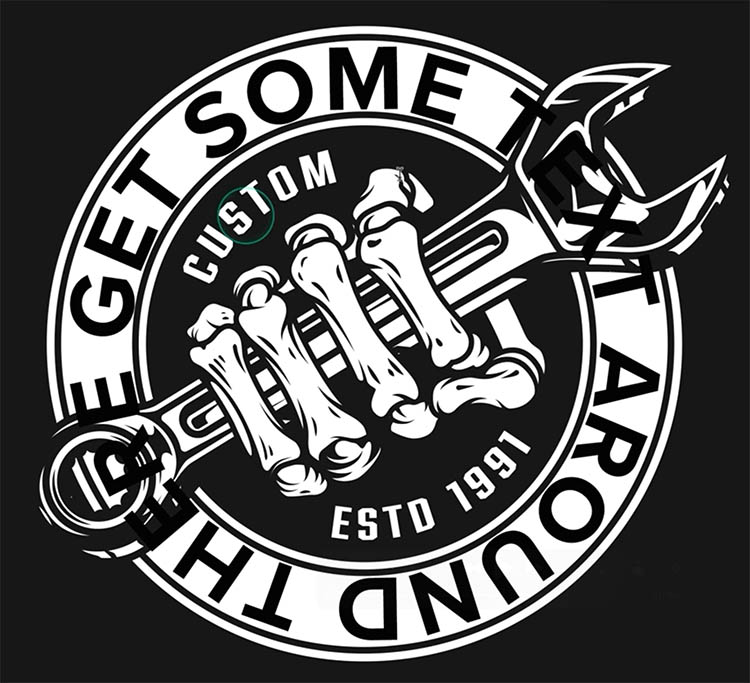
To control exactly where text begins and ends, switch to the Path Selection Tool.
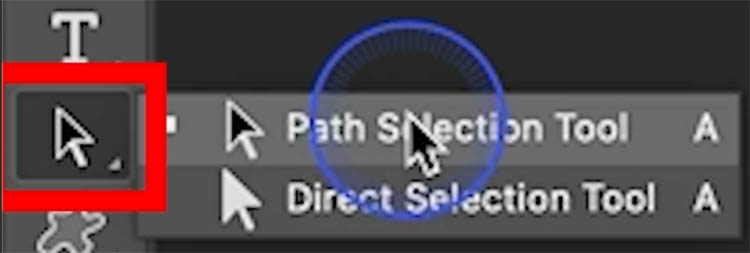
When you hover near the beginning or end of the text, you’ll see a small arrow indicator. Click and drag to redefine the start or end point along the path.
Hover in the middle of the text until you see the movement icon, then drag to slide the entire text string around the circle.
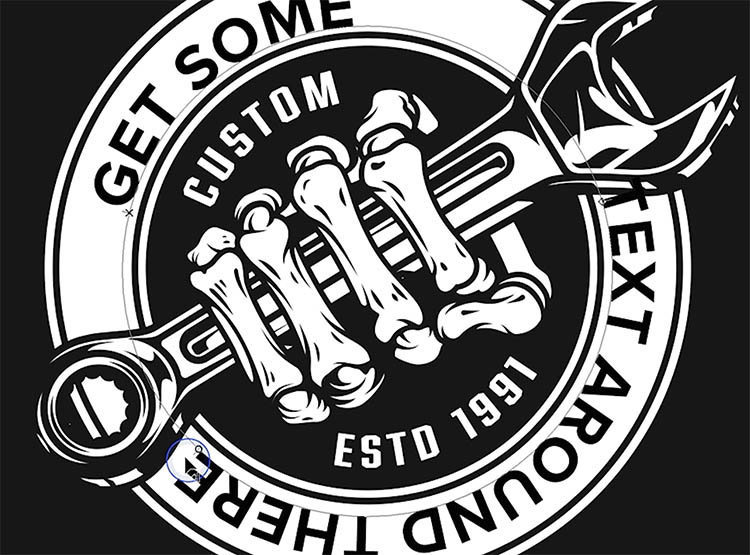
If you drag inward toward the center, the text flips to the inside of the circle. Drag outward to return it to the outside.
This gives you extremely precise placement without rebuilding anything.
Customizing the Arch Shape
Let’s take this further.
Suppose you want text to follow the curve of an object, like the top of a barrel.

Apply Arch again.

Switch to the Direct Selection Tool.
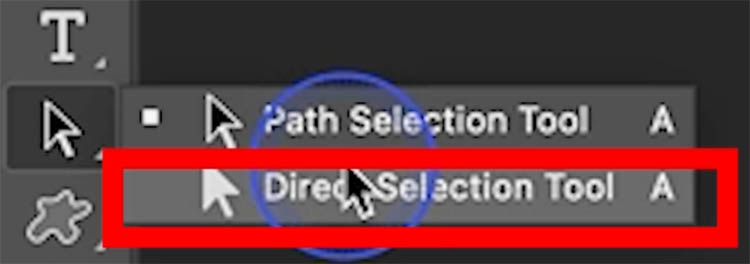
Now you can click directly on the anchor points of the arch path and reshape it. Pull points up or down to match the curve of the object underneath.
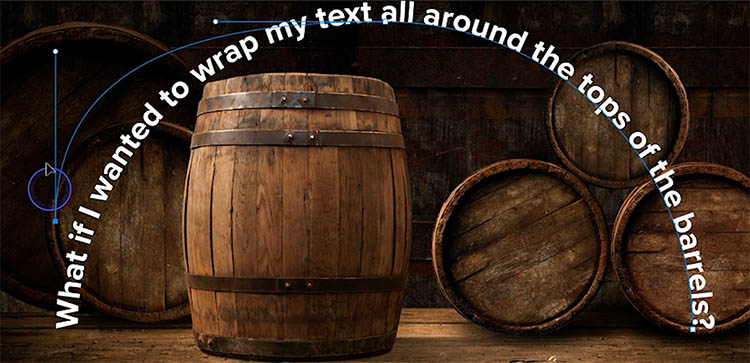
Then switch to the Path Selection Tool to adjust:

- The start point
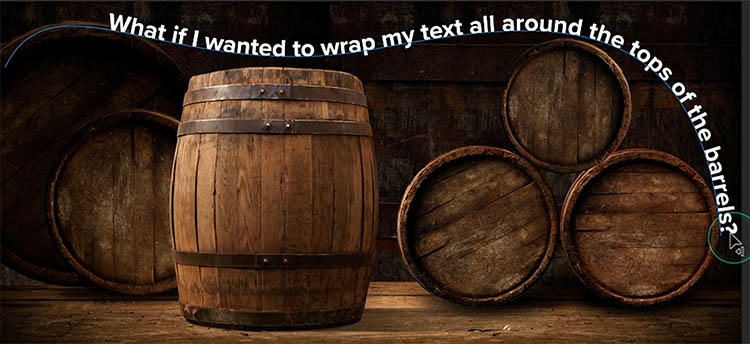
-
The end point

- The position of the entire text along the path

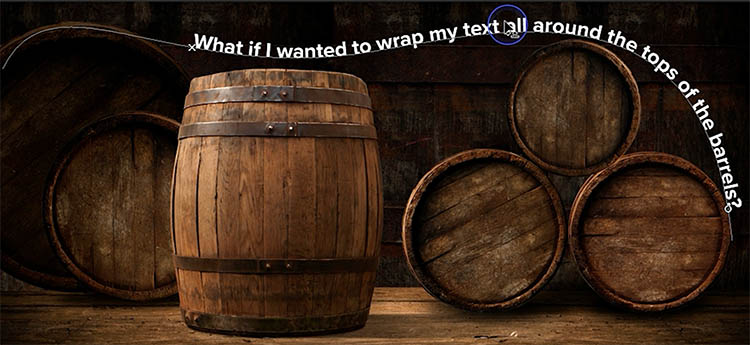
Drag inward or outward to flip above or below the path.

This is where Dynamic Text becomes much more than just a preset arch tool. It becomes an editable path-based typography system.
Choose reverse direction to fix the flipped text
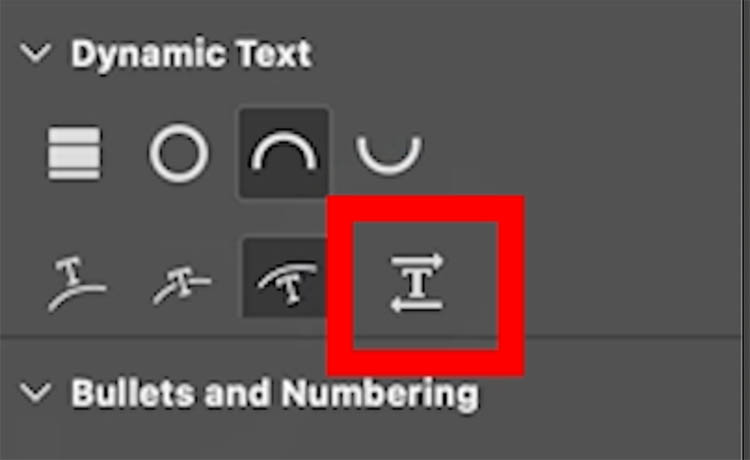
Here it is the correct way, but on the bottom of the path.

Watch the video to see a comparison between the traditional Type on a Path and this new Dynamic Text.
Dynamic Text has advantages:
- Faster setup
- Automatic scaling within its bounding box
- Easy switching between circle, arch, and block
- Quick direction and alignment changes
- No distortion of letterforms
It’s simply more flexible for most circular typography needs.
Practical Uses
Dynamic Text is especially useful for:
- Logos
- Badges
- Labels
- Social graphics
- Packaging mockups
And because the letters remain undistorted, your typography stays clean and professional.
I’m curious what you think about this new approach. Do you see yourself replacing Warp Text and Type on a Path with Dynamic Text in your work?
It’s great to see you here at the CAFE
Colin
Recommended for this tutorial
Photoshop Compositing: Sky City Project. Photoshop 2026
Build a complete composite from start to finish and learn the techniques behind it.
$39.99 · one-time purchase · instant download

Free for you
The Photoshop Vault
Get my free Layer Blending Modes ebook along with dozens of exclusive Photoshop goodies: actions, brushes, presets and cheat sheets.
You're on the list, so your free goodies are waiting for you in the Vault.
Get Free Photoshop Goodies Open the Vault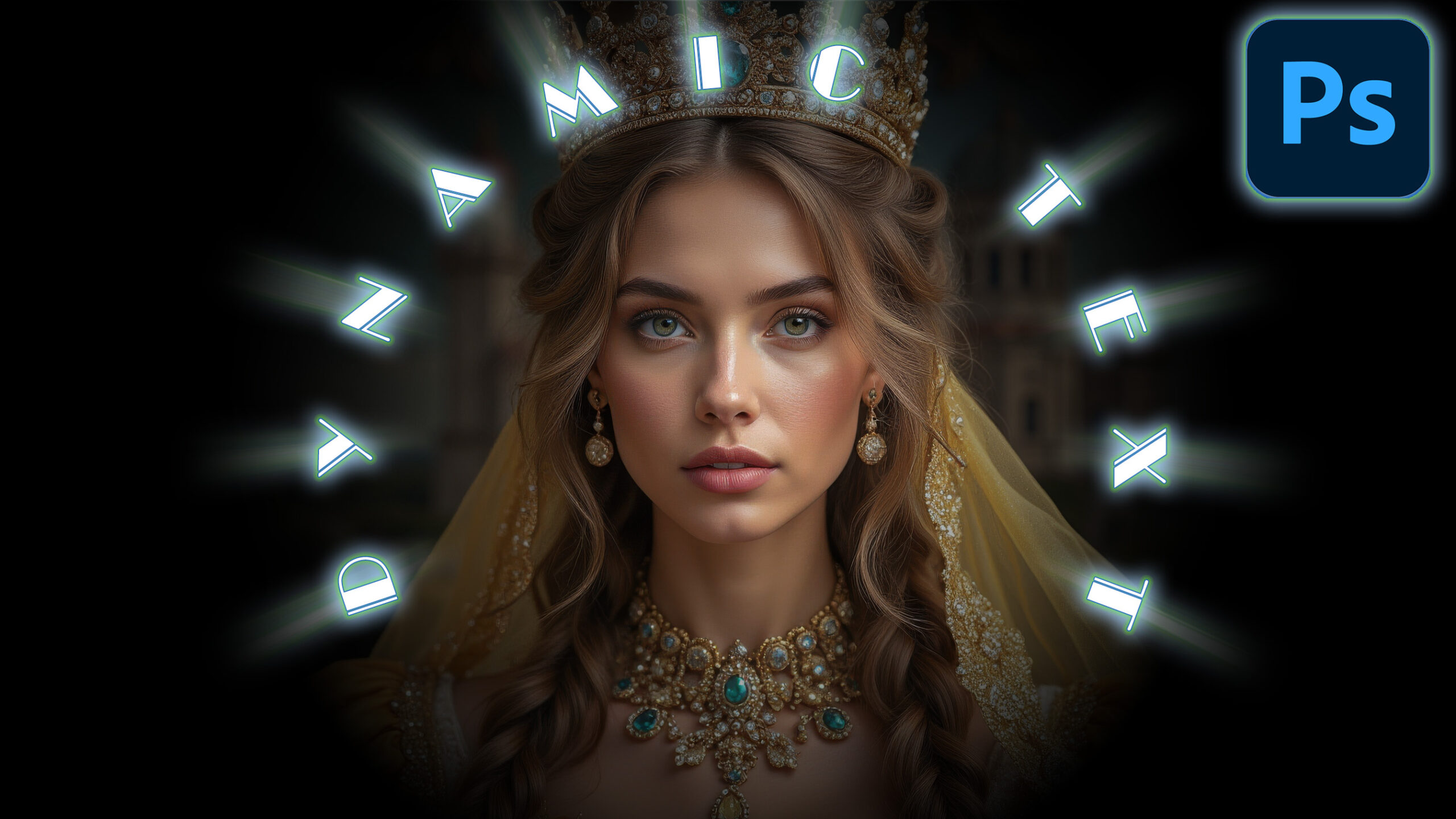

Dynamic text in Photoshop automatically create beautiful blocks of text
How to use new Dynamic Text in Photoshop to automatically format text to beautiful typography blocks. Read tutorial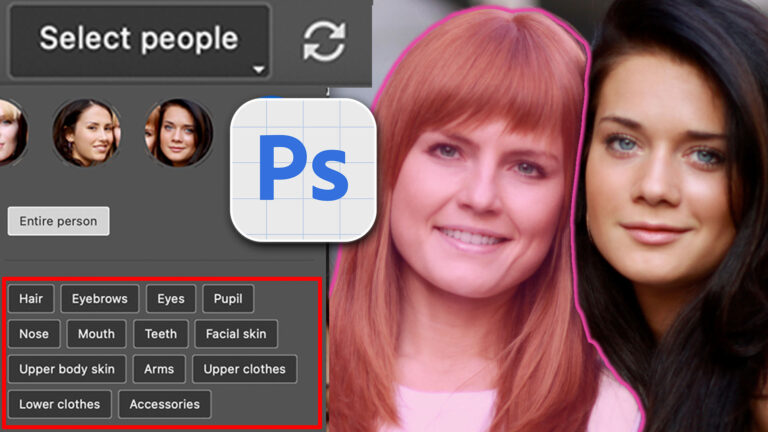
Auto Select people and features in Photoshop
How to automatically select people and facial features in Photoshop, like in ACR + Lightroom Read tutorial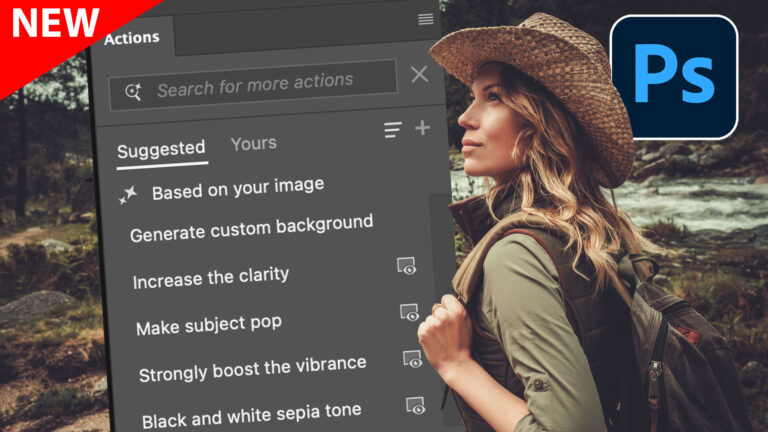
New Actions Panel in Photoshop Beta
Reimagined Actions in Photoshop The actions panel hasn’t been changed in years, but now there’s a big update that promises to make... Read tutorial
How to use Updated Frame Tool in Photoshop
How to use the new features in the frame tool in Photoshop. Read tutorial
New Adjust Colors in Photoshop, easily change colors the new way
New Adjust Color in Photoshop makes it easy to change colors and to make certain colors pop in a photo Read tutorial