Generative Upscale in Photoshop, how does it compare?
Photoshop Beta Generative upscale, enlarging images in Photoshop
A new feature in Photoshop Beta, is Generative Upscale. It uses generative ai to enlarge an image and improve its quality. How to get Photoshop Beta.
Let’s look at how it works and compare it to 2 other ai upscales in Photoshop (yes, there are 3, 4 if you count Super resolution for Raw files in ACR).
Here is an image at 100% size.
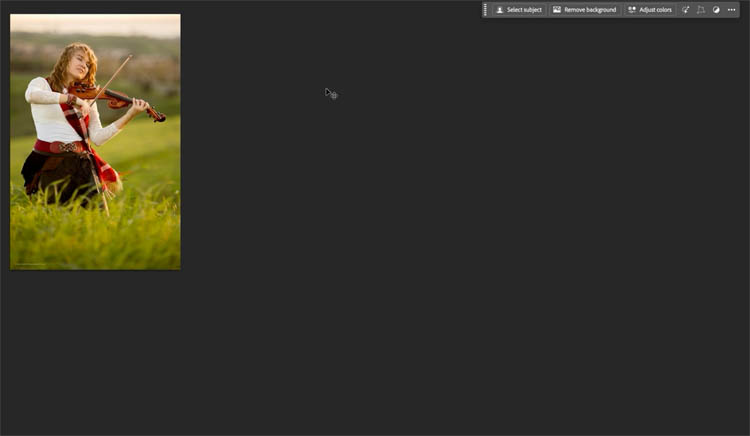
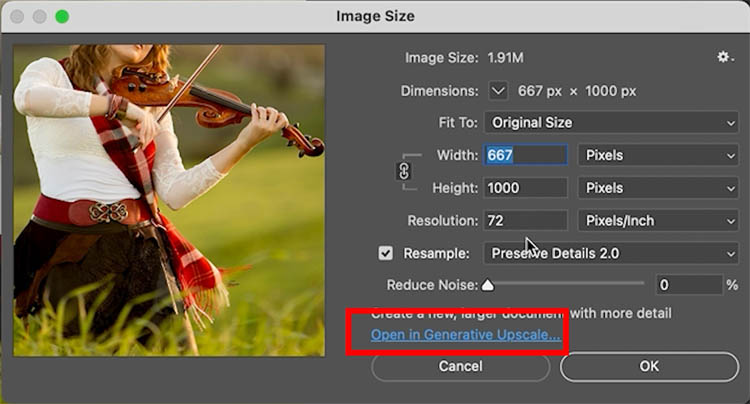
Choose Image>Size.
You can see its 667px x 1000px
Click on Open in Generative Upscale.
You will notice that there are 3 options, 2x, 3x and 4x. You will see a warning if the final image is to exceed 4096 px.
We are using 4X.
Press Upscale
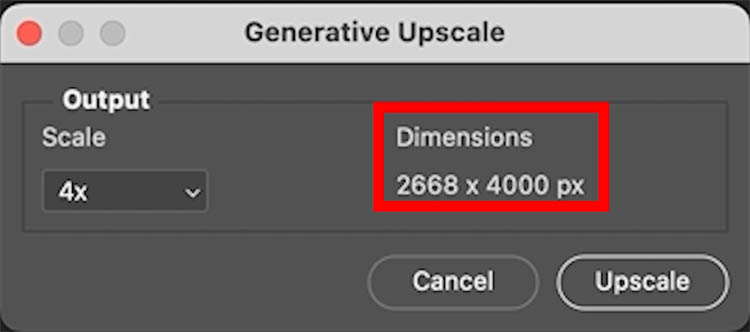
At the moment it only goes up to 4096px on the longest edge, which is plenty for many things. On the Adobe website, it implies that it might go larger when out of beta.

The Adobe website, also says it doesn’t use Generative credits while in beta, which also implies it will use them out of beta.
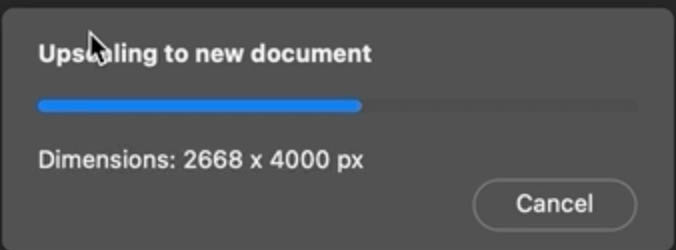
A new document is created and it looks smooth for something blown up so much. It’s not really blown up, it’s entirely regenerated with ai. Let examine closer.
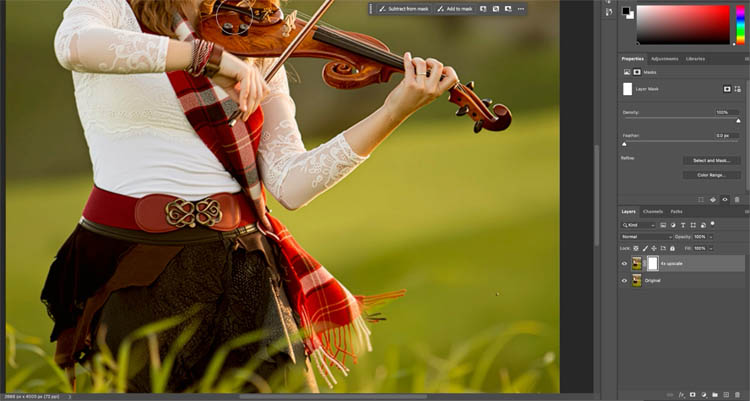
There are 2 layers. Upscale and original.
We are viewing the enhanced layer.
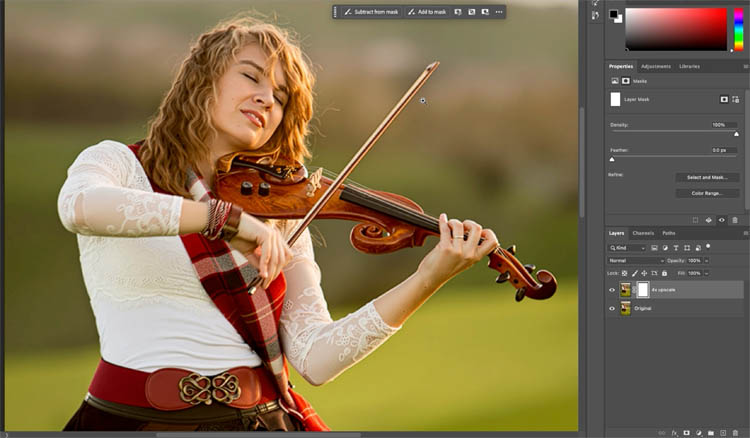
Here is the original layer, which would be like free transforming to the larger size.
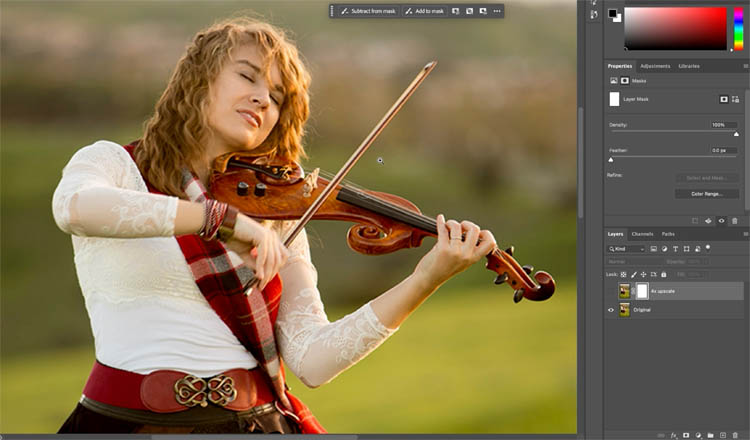
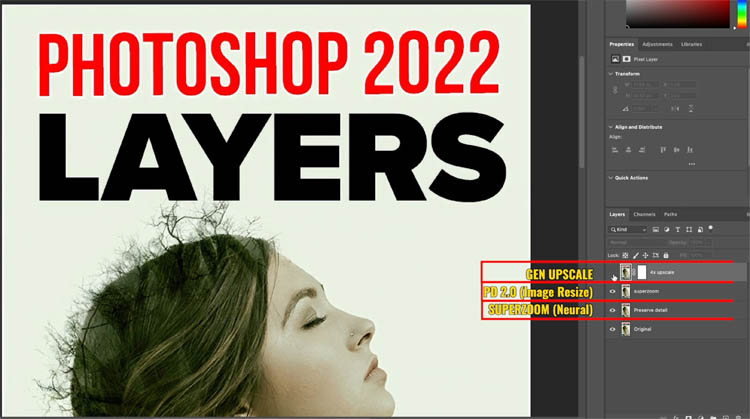
The battle of Ai resizing in Photoshop. Generative Upscale, Vs Preserve Details 2.0 vs Super Zoom
As I mentioned before, this isn’t Adobes first ai resizer in Photoshop, but it is the first to use Firefly Generative ai. The older ones used Sensei.
Choose Image>Size, For resample, we are using Preserve Details 2.0 which is also ai.
Take it up to 4000 px.
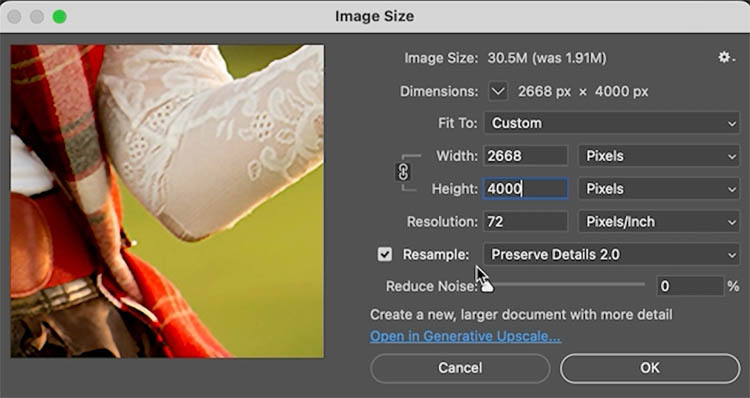
Make another copy and choose Filter>Neural Filters.
Turn on Super Zoom.
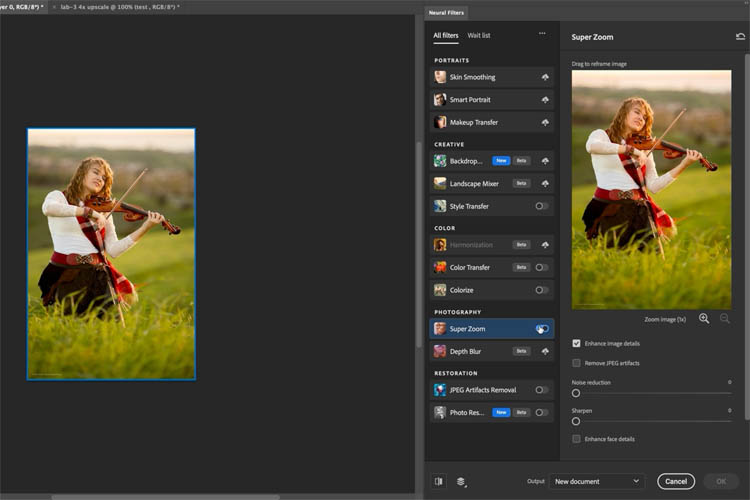
Make it 4x.

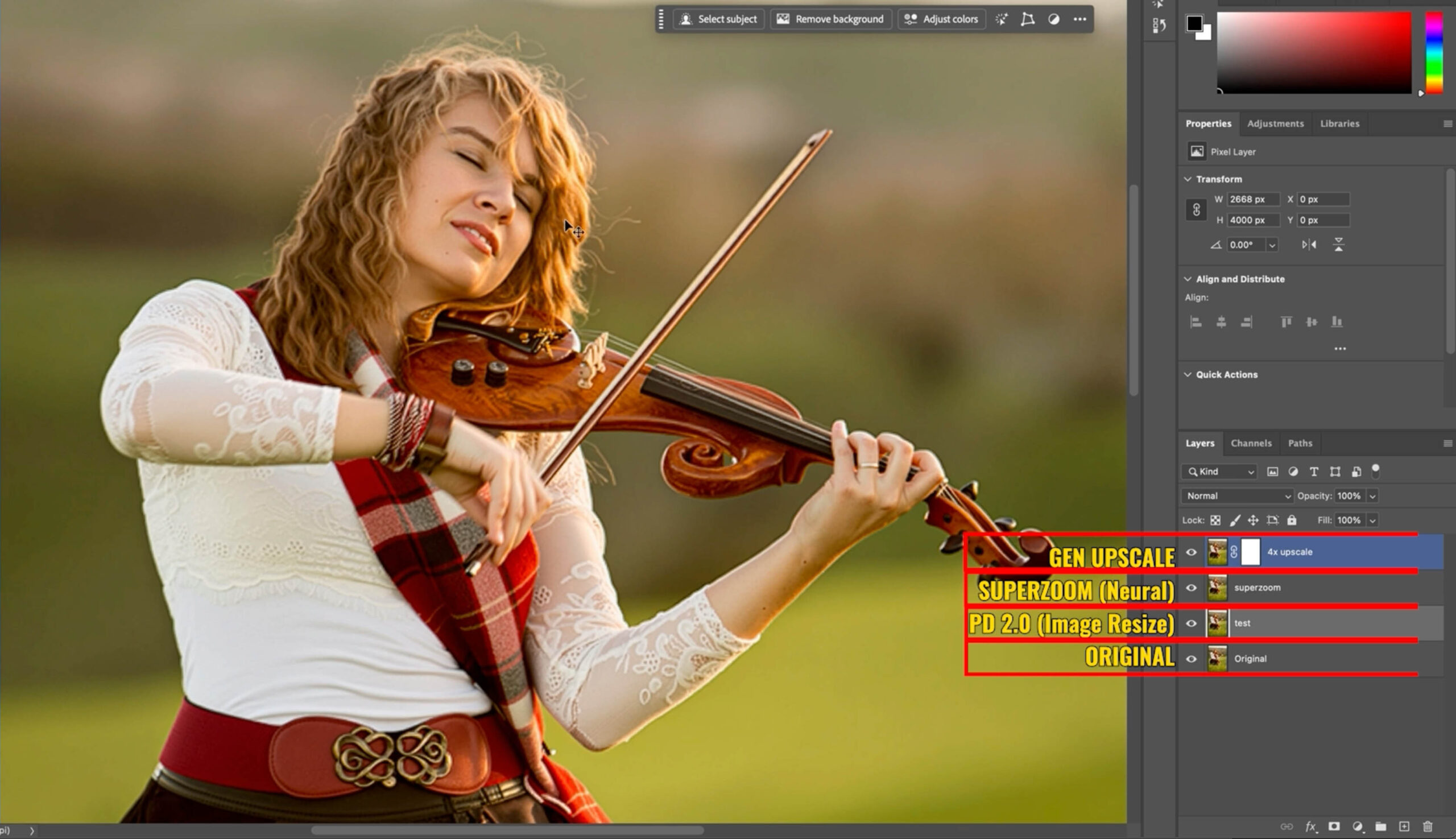
I dragged all the different results into separate layers to compare. The video shows the process.
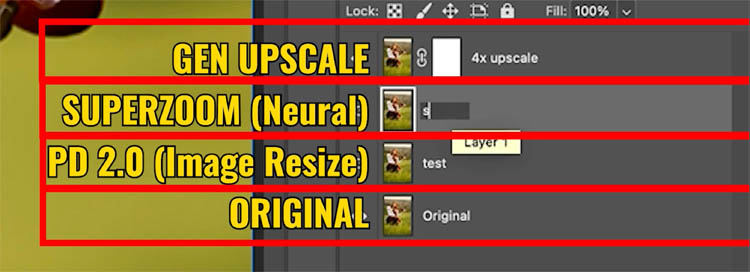
This is easier to see on the video because its full size, but this is Preserve Details 2.0 (Image>Size).
Click on following 3 images to see larger
Photoshop resize, Preserve Details 2.0
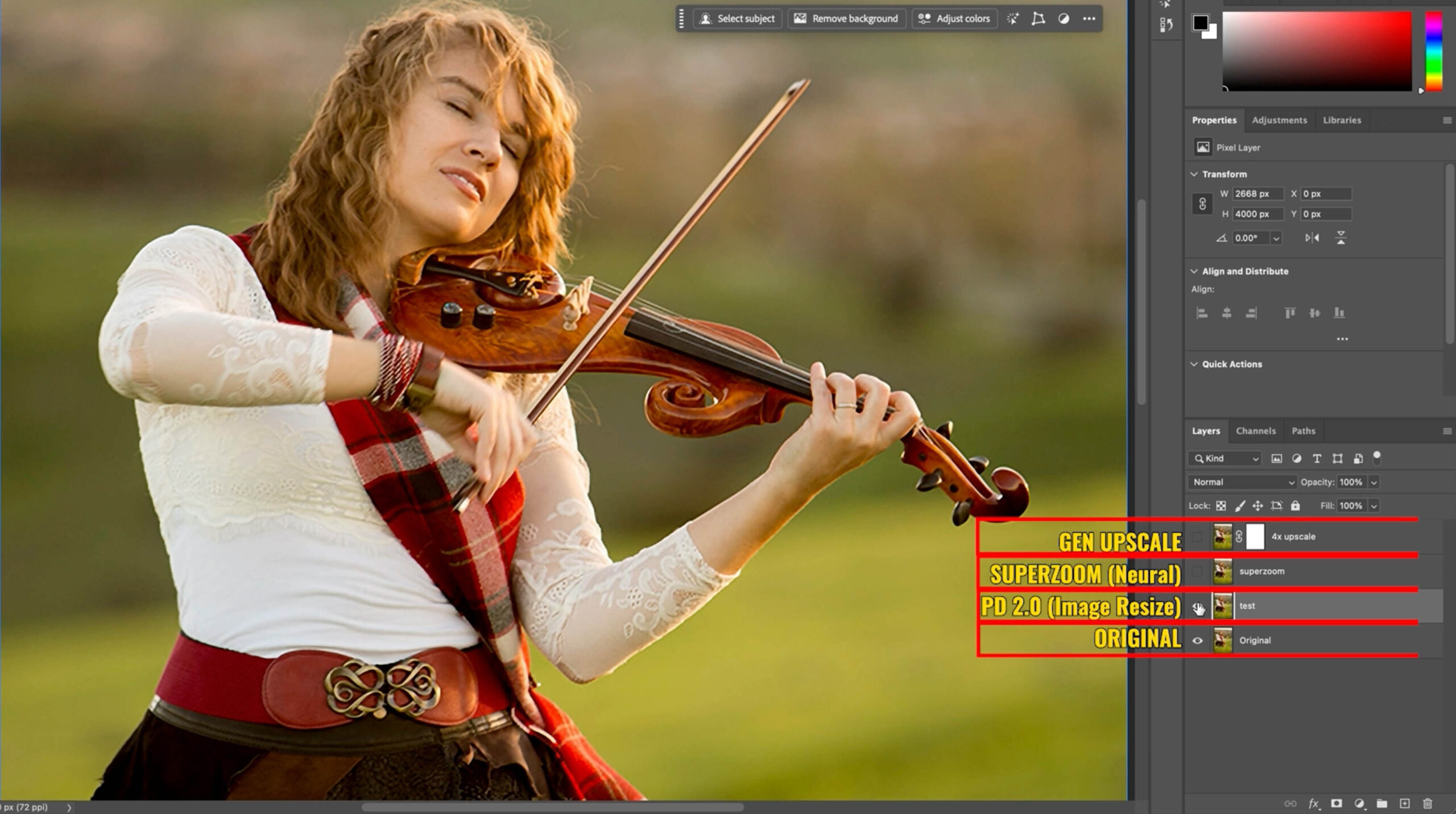
Photoshop Neural Filter Super Zoom
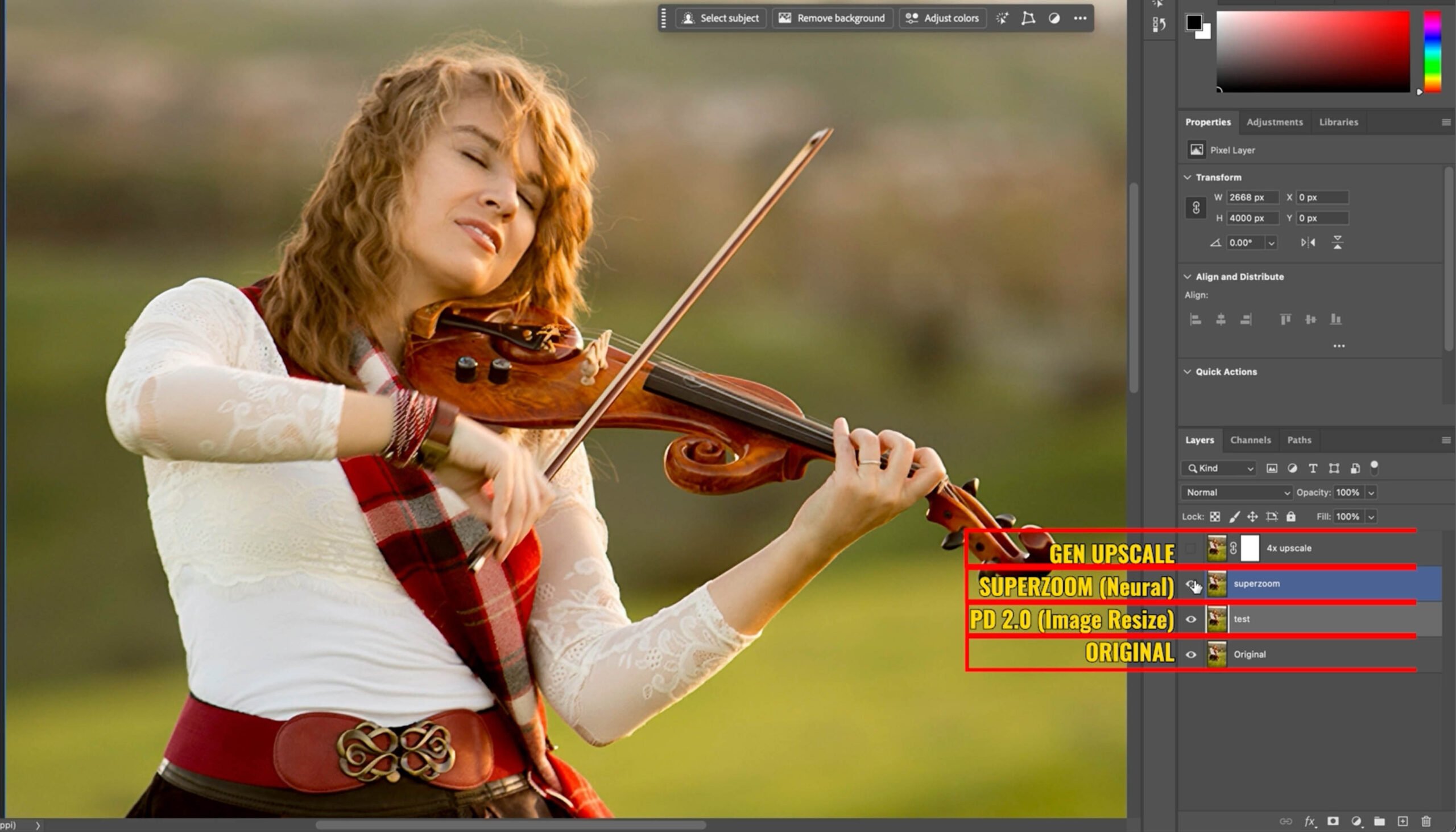
Photoshop Generative Upscale
.
Generative Upscale for Graphic Design
I also tried it with some designs using text.
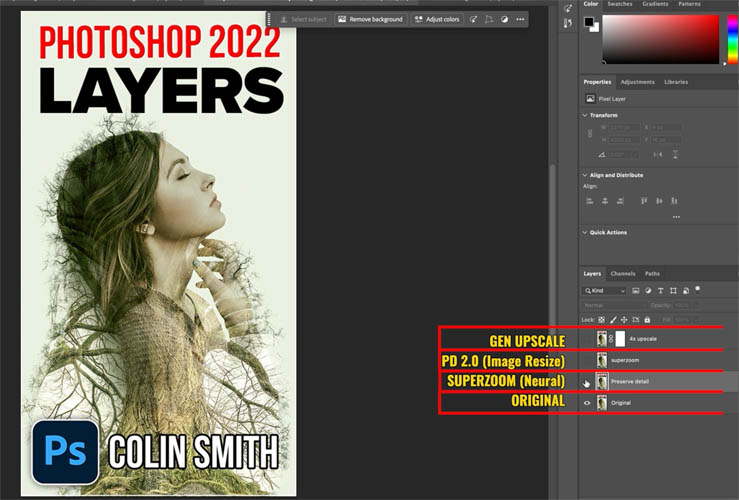
It seemed that Generative upscale enlarged the face and photographic elements the best, but it did alter details.
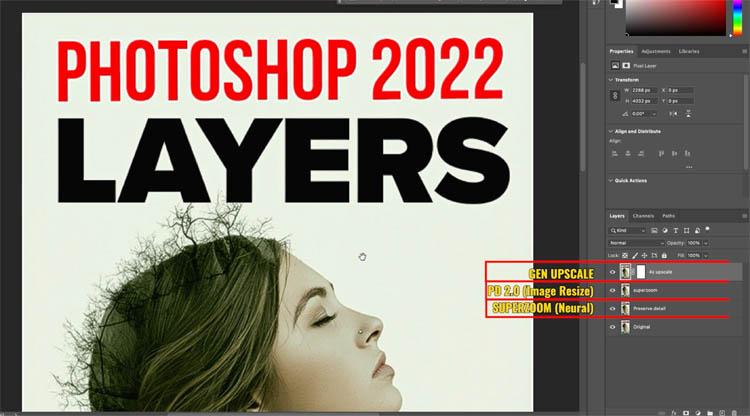
Preserve Details 2.0 seems to perform the best with text.
The solution is to make masks and combine the different layers for the best result. (On the video)
My verdict is that Generative Upscale does a very nice job, however, because it actually recreates the entire image with ai, it does smoothen things too much and its not really a photograph anymore, its technically a rendering. In some cases faces can look a bit cartoonish. This feature is still in Beta, so it shows a lot of promise.
Hopefully you found this tutorial useful.
Other new feature tutorials in this Photoshop update
- All the new features in this Photoshop release! (July 29 2025)
- Harmonize (and resolution hack)
- ai Dust removal
Great to see you at the CAFE
Colin
Recommended for this tutorial
Complete Guide to ai in Photoshop 2026
Generative Fill, Firefly, Harmonize and every AI tool in Photoshop, step by step.
$79.00 · one-time purchase · instant download

Free for you
The Photoshop Vault
Get my free Layer Blending Modes ebook along with dozens of exclusive Photoshop goodies: actions, brushes, presets and cheat sheets.
You're on the list, so your free goodies are waiting for you in the Vault.
Get Free Photoshop Goodies Open the Vault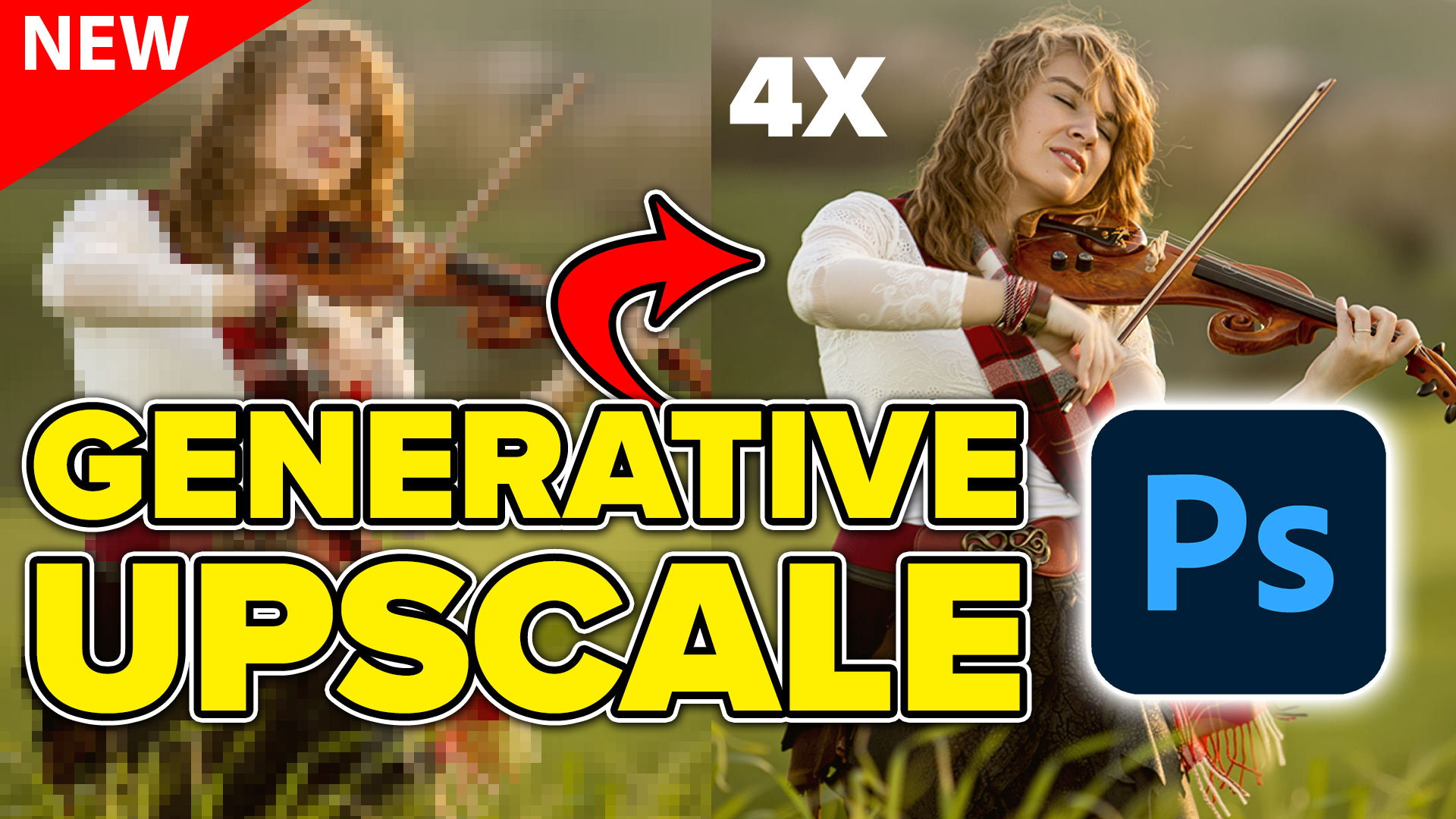
Generative Upscale in Photoshop 2026 with Topaz Gigapixel
Learn how Photoshop 2026 integrates Topaz Gigapixel and Topaz Bloom into Generative Upscale. Read tutorial
What’s New in Photoshop 2026 (Full Release Overview)
Explore the top new features in Photoshop 2026, Full release Read tutorial
Auto Select people and features in Photoshop
How to automatically select people and facial features in Photoshop, like in ACR + Lightroom Read tutorial
New Actions Panel in Photoshop Beta
Reimagined Actions in Photoshop The actions panel hasn’t been changed in years, but now there’s a big update that promises to make... Read tutorial
Generative remove ai in Photoshop, remove anything from a photograph
New tool in Photoshop removes anything in a photo instantly, new remove option in Generative Fill. Generative remove Read tutorial