
How to create your own icons in Photoshop CC
How to turn drawings or screenshots into icons in Photoshop. Creator assets
In this week’s tutorial, I’m going to show you how to make your own icon Library in Photoshop. If you are making videos on youtube, or you are a graphic designer, or working at a startup, you will find this especially useful. First you will learn how to make a reusable icon out of existing icons or logos that you find online (remember to respect copyrights). Then you will learn how to turn a hand drawn logo or icon into a digital reusable design element. As a bonus you will get an introduction into the very useful Libraries in Photoshop. Time to start building libraries that will serve you well for years to come.
Making youtube video assetts
These steps can actually be used for anything, but for the example, we will make a set of icons to be used on youtube videos. We will need a like, comment and a subscribe badge.
Method #1 Turn found images into icons
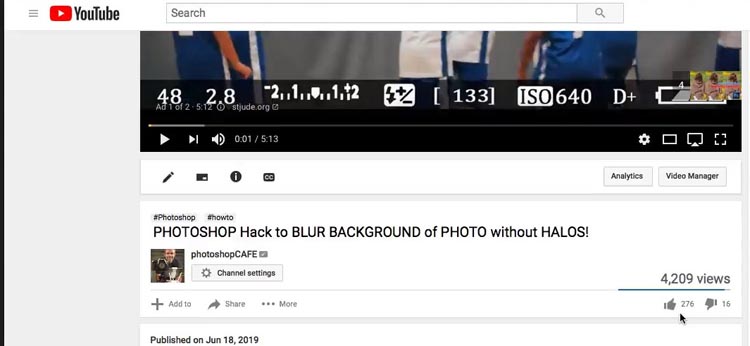
In this case we will go to youtube and snag the like icon, the thumbs up.
Step 1. Make a screen capture of the icon.
- On Mac its Cmd+Shift+4 and drag the region to capture.
- On Windows its the Print Scr key. Then go to Photoshop create a new document and Ctrl+V to paste the screen shot
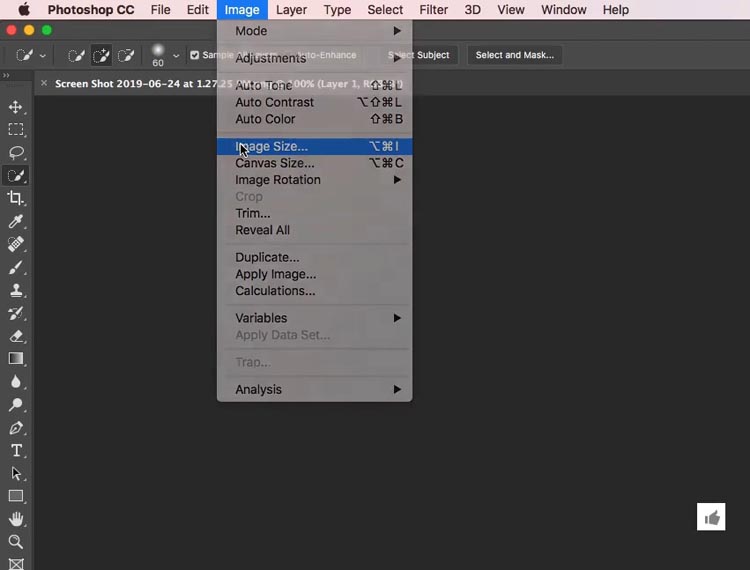
Step 2. Resize the image
Choose Image>Image size (see how small it currently is in the bottom right corner)
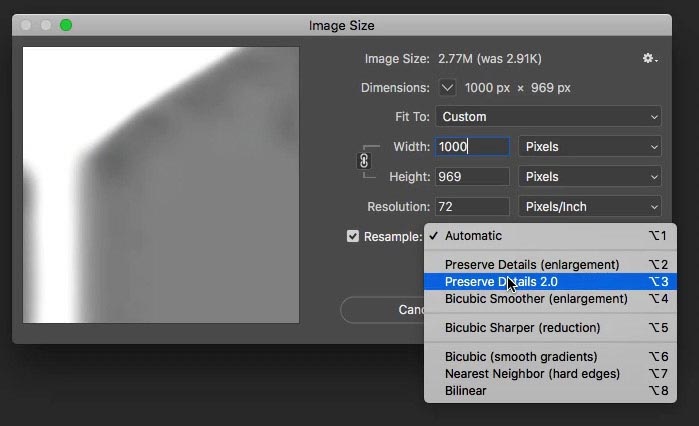
Choose Preserve details 2.0 for resample method.
Set the width to 1000 pixels, this will be big enough to trace.
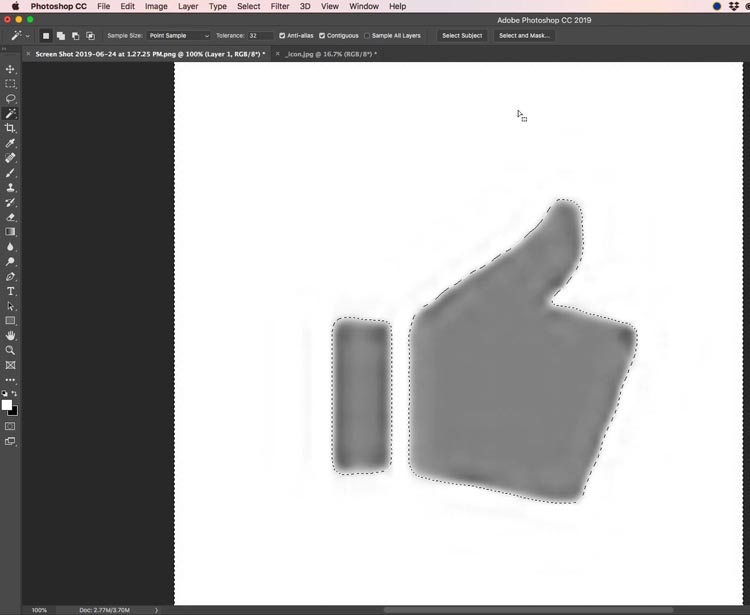
Step 3. Make a selection
Use the Magic want and select the white around the shape.
Press Ctrl/Cmd+Shift+I to inverse the selection. Just the icon should now be selected.
Step 4. Make a Path
Open the Paths Panel in Photoshop (Window>Path)
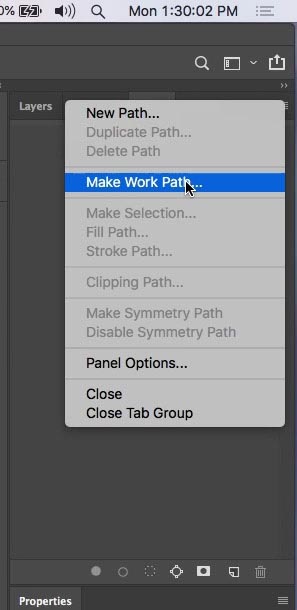
Choose Make work path, if its grayed out, make sure your selection is active
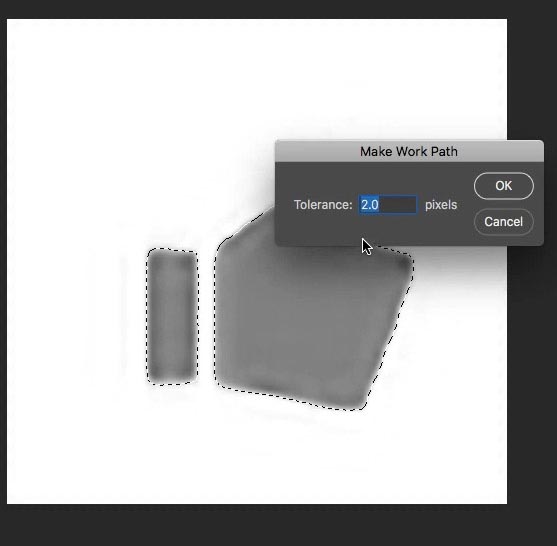
This is where Photoshop will turn the selection into a vector path. (you don’t have to use the pen tool because PS will do it for you.)
By default, tolerance is set to 2.0, this will work. Lower number = more complex path, higher number, simpler path.
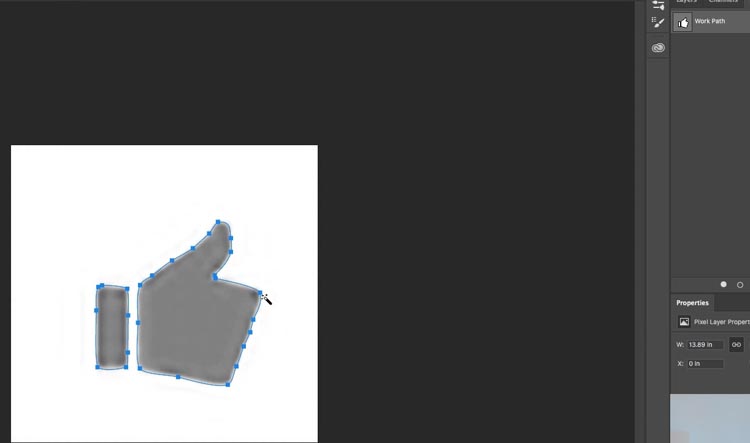
You will now see a path created around the shape. Its called the work path in the path panel. You can use the pen tool to clean up the path if needed.
We are making paths because they are Vectors. This means that you can make them as large or as small as you like and they will always have sharp edges. They are solution independent, unlike pixels.
Step 5. Turn the path into a shape.
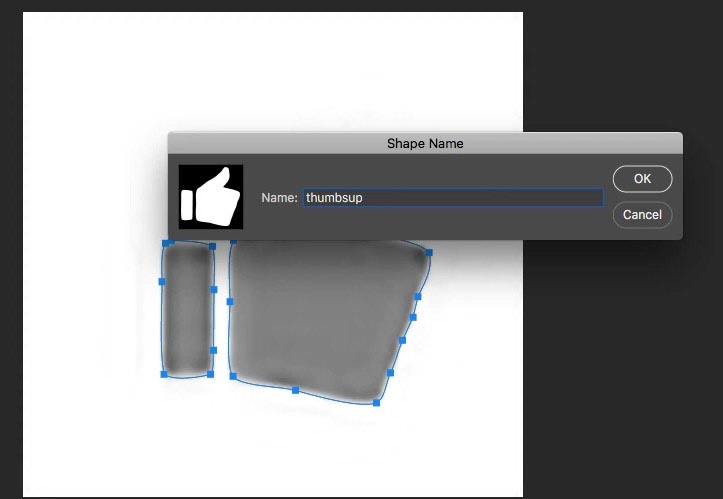
Now we want to make a custom shape. This makes it easy to use in the future.
Choose Edit>Define Custom Shape
Click ok and the new thumbsup icon will be added to your shape library
Ill show you how to use the shape in the following steps and some great tips on using Libraries in Step 9.
Making icons from your own drawings
Now we will look at making an icon from a sketch. You can skip to step 9 if you aren’t making another shape.
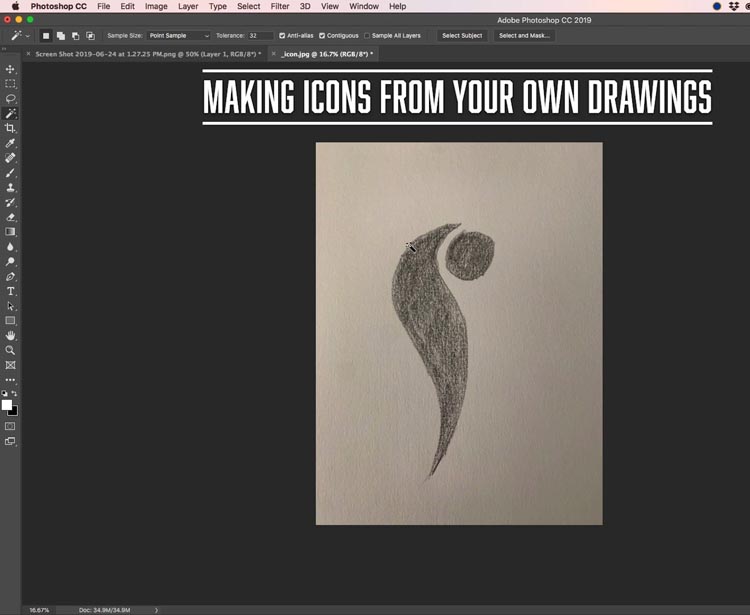
Here is an icon I quickly sketched with a pencil on a piece of bristol paper. Obviously using a marker on smooth paper will make this easier, but I want this tutorial to be useful for any image and be limited to “perfect” images.
I got it into Photoshop by snapping a picture on my phone. You can also use a scanner if you have one.
Step 6 getting a clean outline
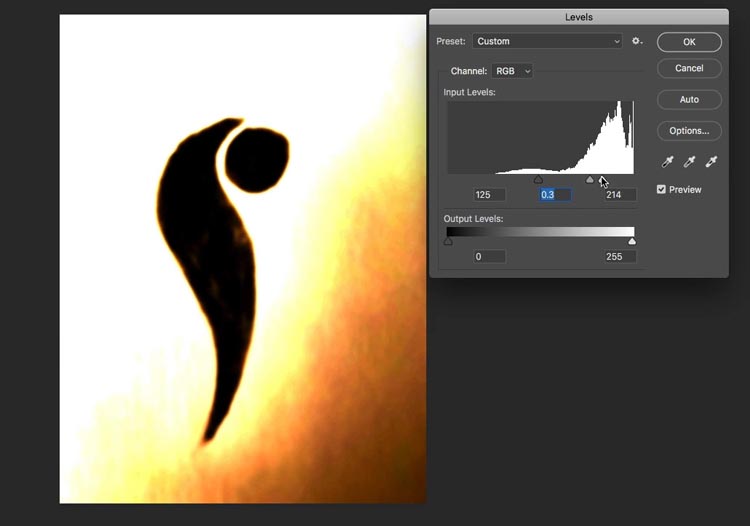
Because the pencil sketch isn’t a solid tone, we need to make it more defined. If you have a clean drawing, you can skip this step.
Apply a small amount of blur to the drawing to smudge all the areas together. Filter>Blur>Gaussian blur (See how I do it in the video above).
Choose Cmd/Ctrl+L for levels. Squeeze in the triangles in levels to make the icon more dense and a clear outline.
The image doesn’t have to look good, just have a nice clearly defined shape.
Step 7. Making the selection
Just like we did with the thumb icon, use the magic wand to select the white area (I used the lasso tool to clean up the dark areas on the paper, you can see on the video).
Press Ctrl/Cmd+Shift+I to inverse the selection. Just the icon should now be selected.
Just like before, make a work path in the Paths panel. This time give it a tolerance of 8.0 this will smoothen out the bumps.
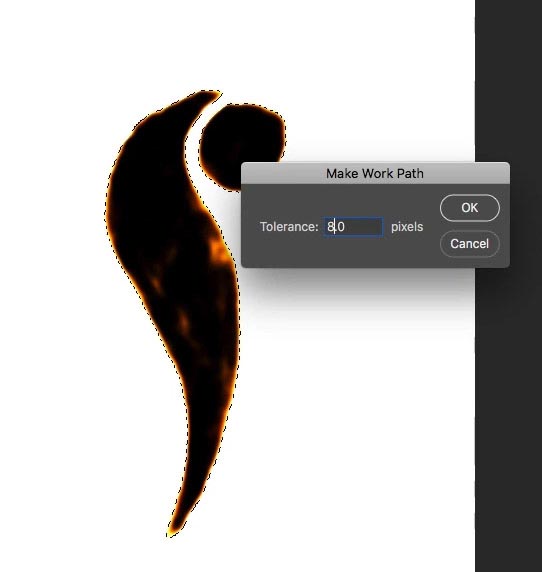
You might need to use the Pen tool to finesse the path a little bit. Here is a tutorial on using the Pen tool.
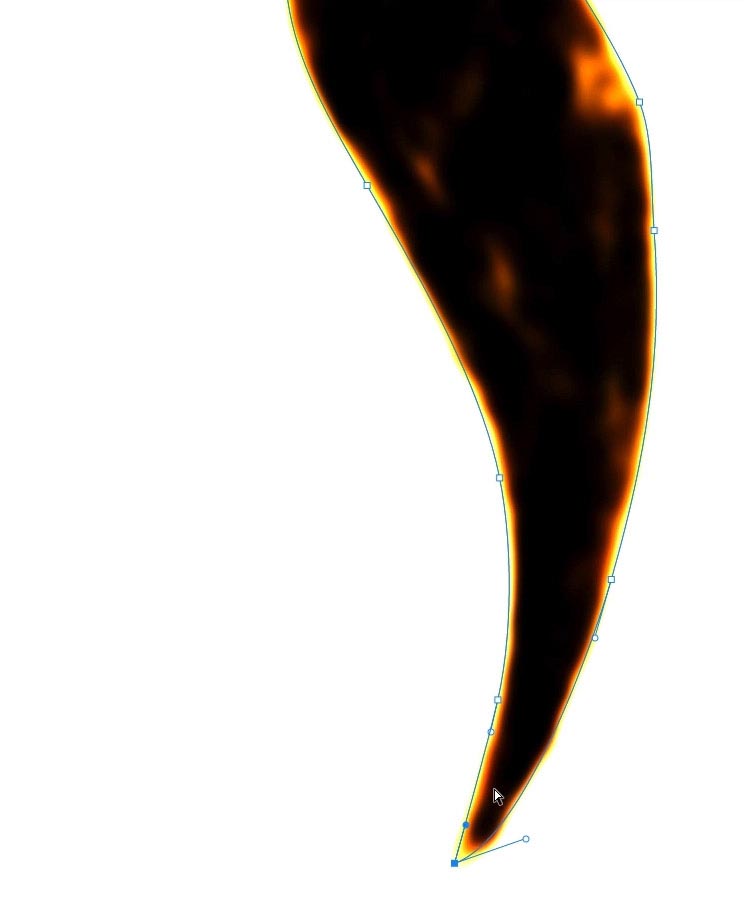
Step 8. Make the shape
Choose Edit>Define Custom Shape
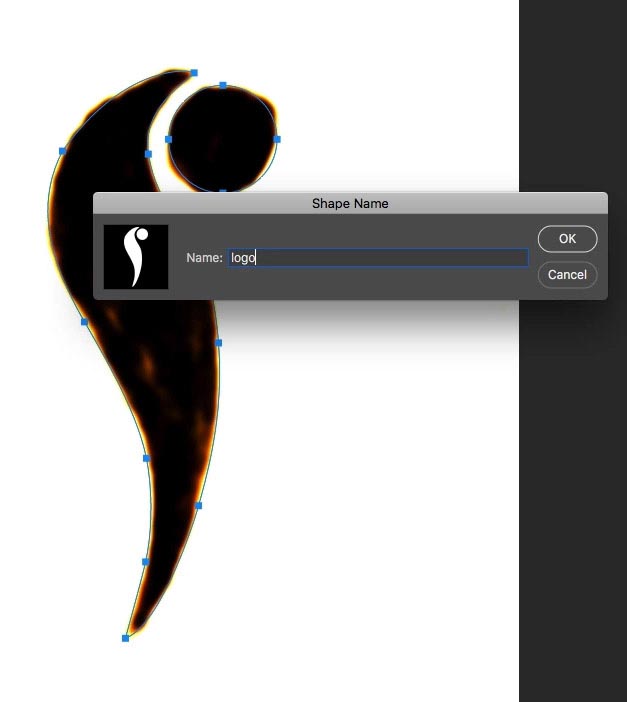
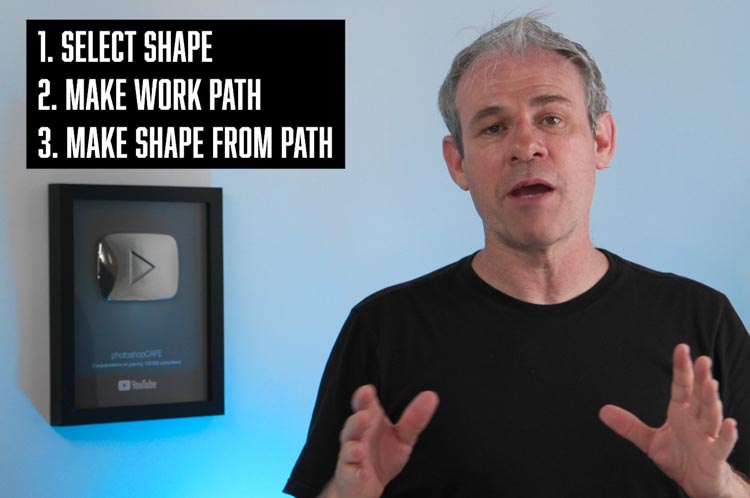
To quickly recap
- 1. Select the shape
- 2. Make a Work Path
- 3. Make a Custom Shape from the Path
Making icon badges from the custom shapes
Step 9. Using the shapes.
Here we will create some icons from the shapes and save them for future use.
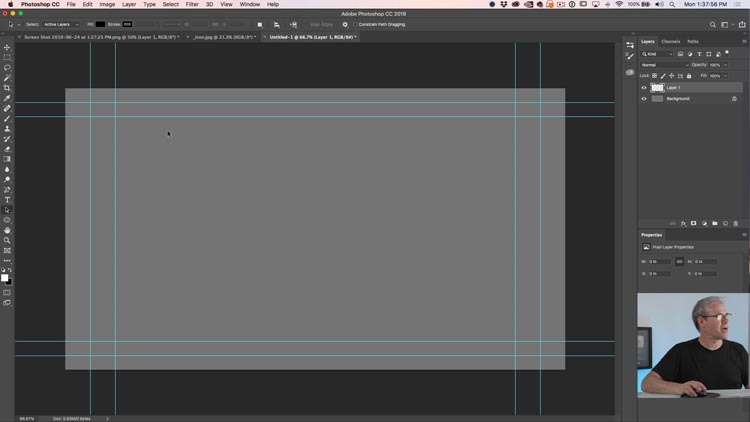
Create a new Document. It can be any size, here we used 1920×1080 (HD video size)
I also created a gray background. We won’t use the background, its a helper layer so we can see what you are doing while working.
Make a new layer
Step 10. Revealing the Library
Choose the Shape tool
In the top toolbar you will see an assortment of Shapes that come with Photoshop. There are many more, lets get them.
Choose the gear icon and select All. When the dialog box appears, choose append.
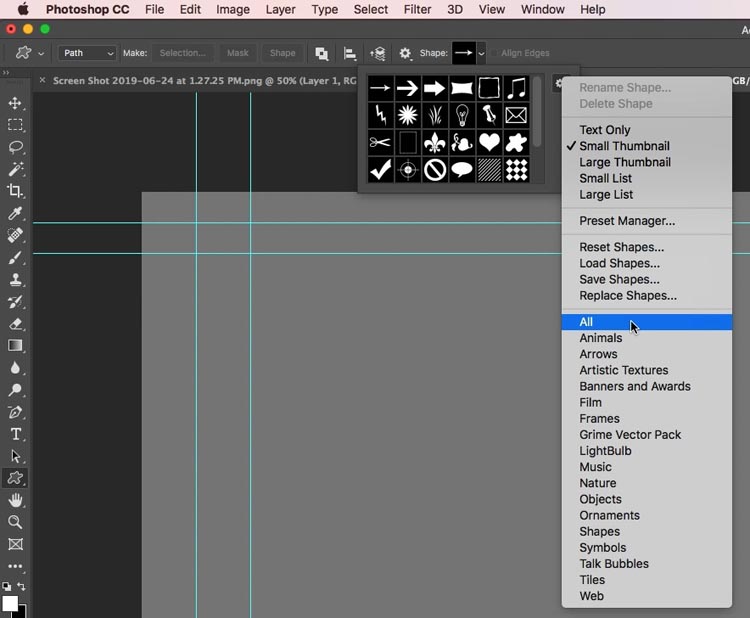
Now you will see all the Shapes that come with Photoshop, lots more 🙂
You will also notice our thumb and custom icon are in there too. When you make a Shape, this is where they go.
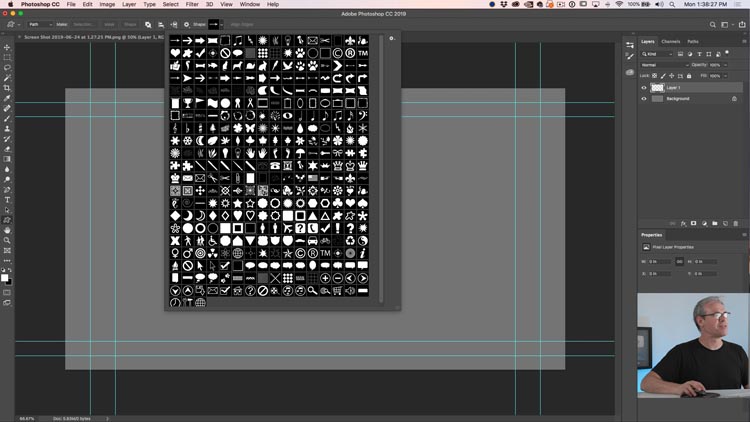
Step 11. Using the Shapes
Choose the Squared off speech bubble
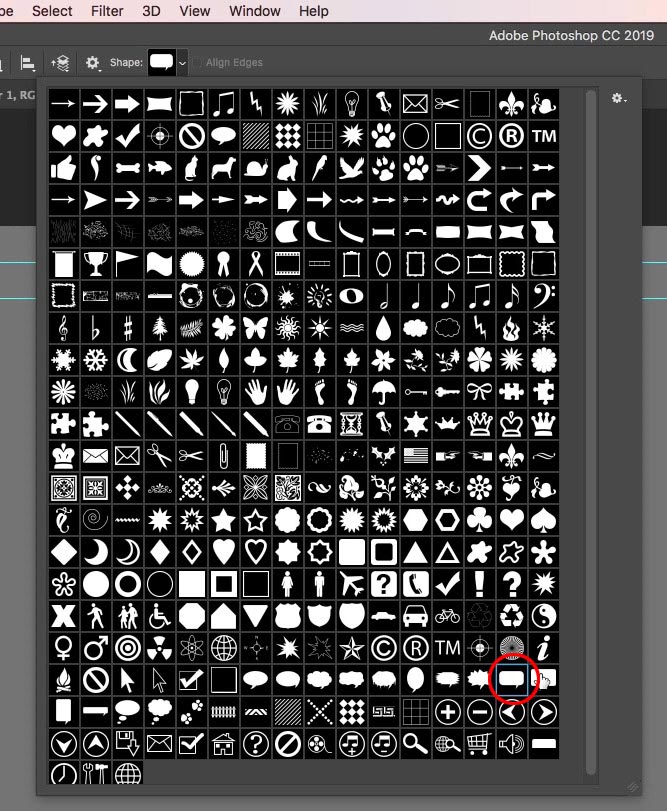
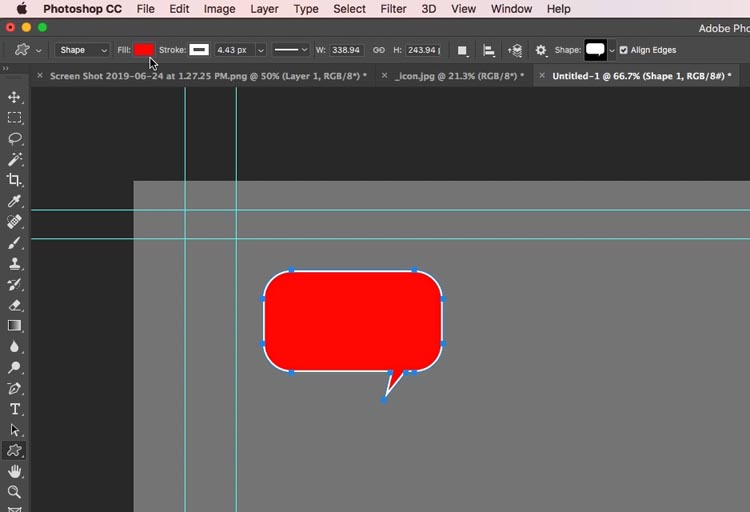
Make sure you choose Shape from the left dropdown menu. (Shape Path or Pixels)
Drag onto your canvas to create the shape. Hold Shift to constrain the proportions.
Notice you can also select a fill and stroke color as well as thickness of the stroke (outline),
Step 12
Create a new Layer
Choose the thumb Shape that we made earlier
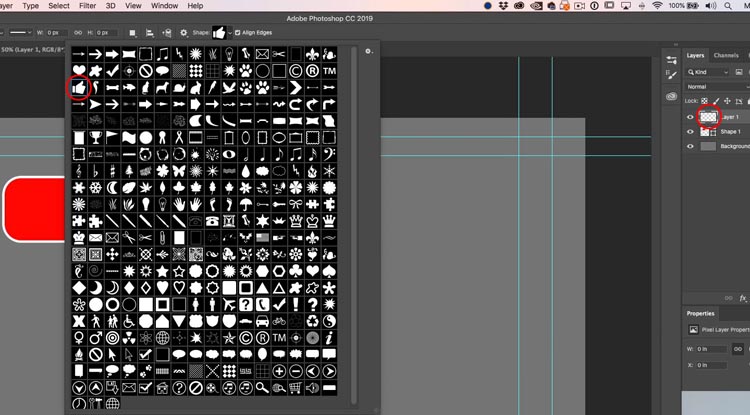
Drag the shape on top of the speech bubble and set it to white fill and no stroke.
We now have a thumbs up icon!
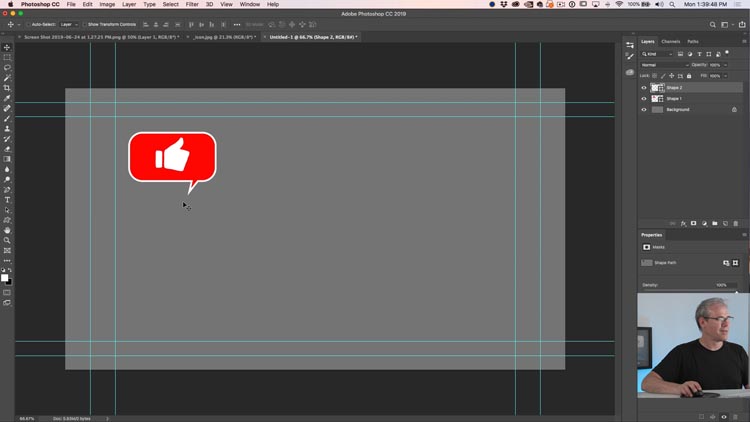
Step 13.
Select both of the Layers that make top the icon and Press Cmd/Ctrl+G to make a group.
Make several more icons using the same steps as above. Notice our icon from our drawing is there. Make sure each one is in a group.
Tip: Press Cmd/Ctrl+J to duplicate the icons, so you can modify each one and not start from scratch.
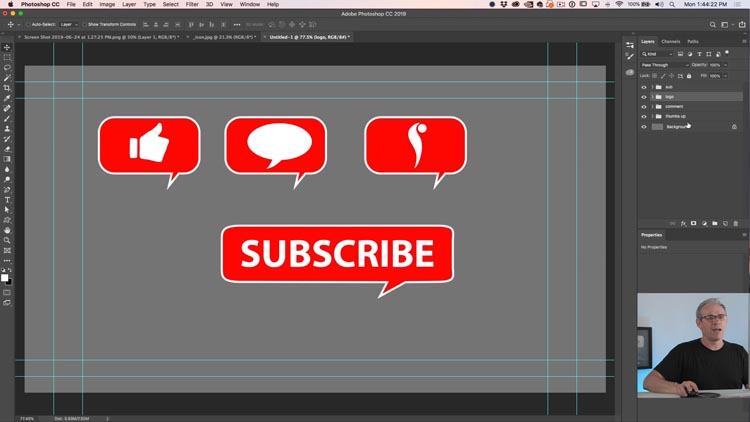
Now we are going to make a CC Library of the icons. Not on CC? You should save the images as PSD and back up to Dropbox or onto a drive.
Step 14. Making a Library of icons.
Right now we have all the icons on a page. Now I’m going to show you how to save them for future use as well as trim each one.
Delete the gray background, we don’t need it any more.
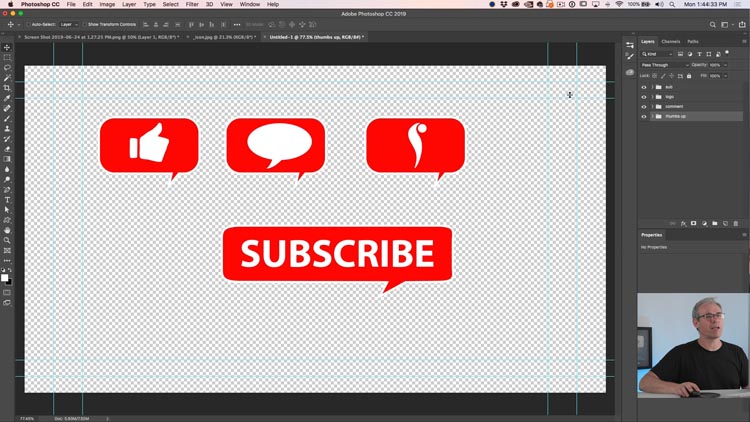
How to use the Library Panel in Photoshop
Step 15. Make a library
Open the Library Panel. Window>Library
In the Library Panel menu (top right) choose Create New Library
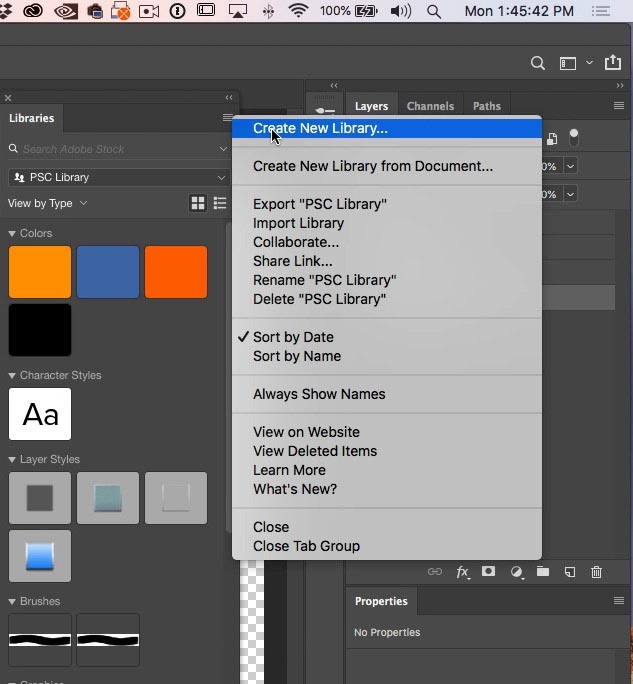
You will now see a new Library. I named it icons
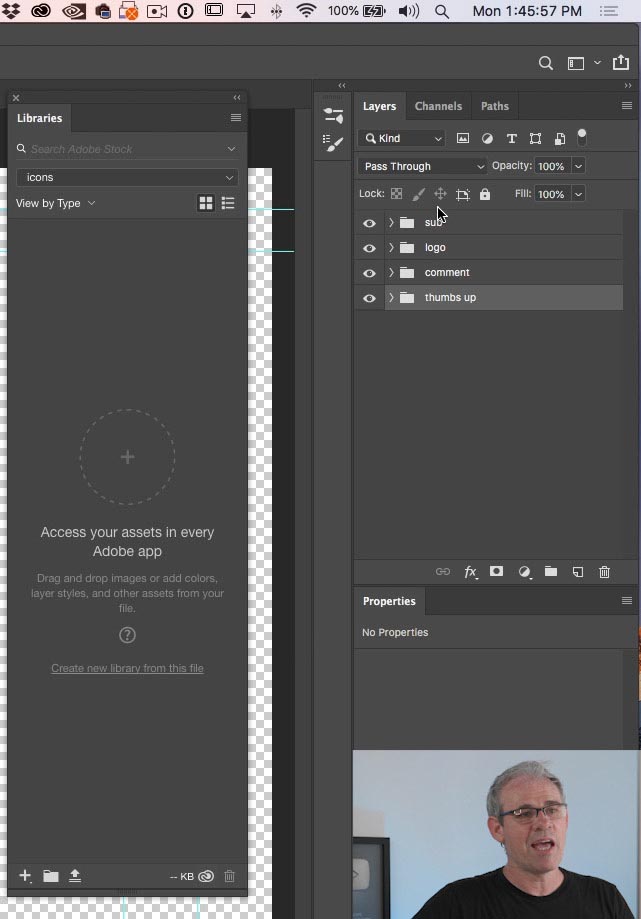
Step 16. Add items to the library
Because we put each icon into a group, its easy to add to the library. (Recap: Choose the layers and press Cmd/Ctrl+G to put into a group)
Drag the group from the layers panel to the library.
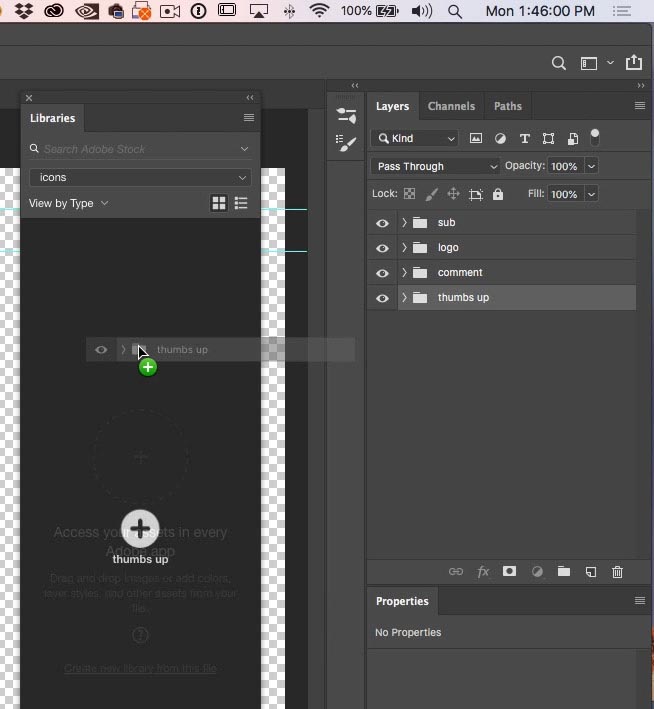
And you will see the icon is now in the library. Its that easy!
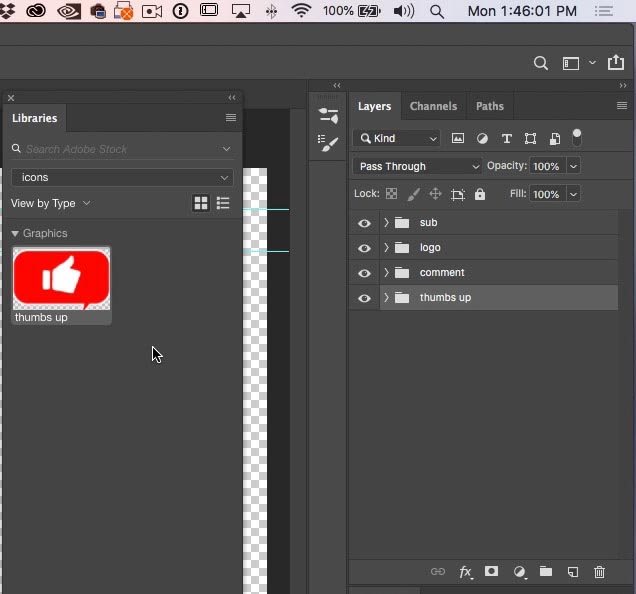
Drag each group into the Library and you will see your icon set have been added to the library, No need to save, because the Library is synced in the cloud and these icons will be available on any computer that you sign into with your Creative Cloud account.
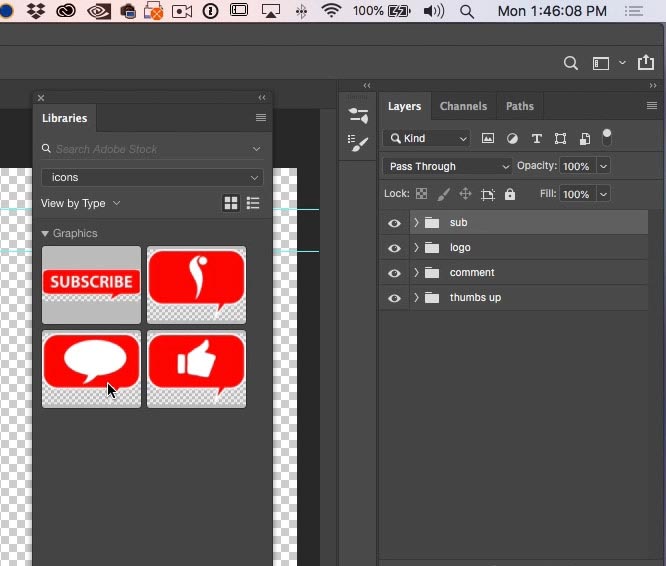
Using Creative Cloud Libraries.
There are several ways of using the Creative Cloud Libraries, we will examine them now.
Step 17. Using the Library
You can drag items from the Library directly into a Photoshop document
If you double Click an icon from the Library, it will open as a new document. Notice that its nicely trimmed.
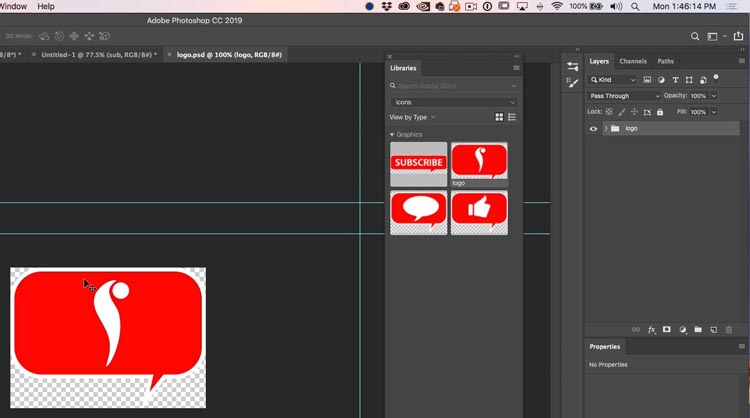
If you want to use the icon on other non-Adobe programs such as Final Cut, or upload them to websites, then they should be saved out.
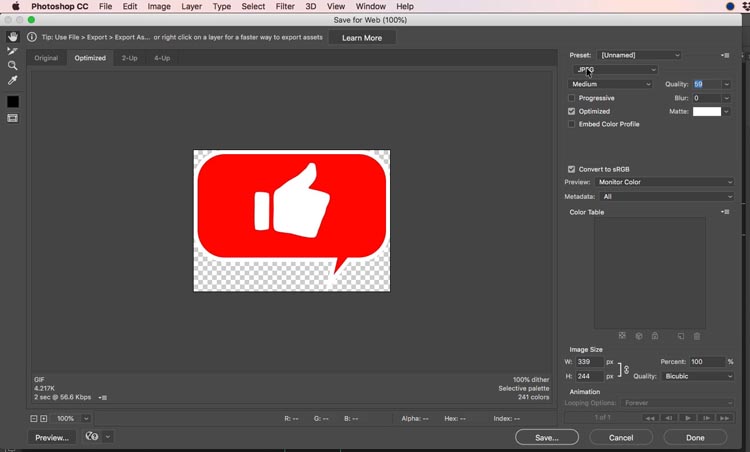
Choose File>Save For Web
By default, it wants to use jpg. If you want to preserve the transparency, then save as PNG.
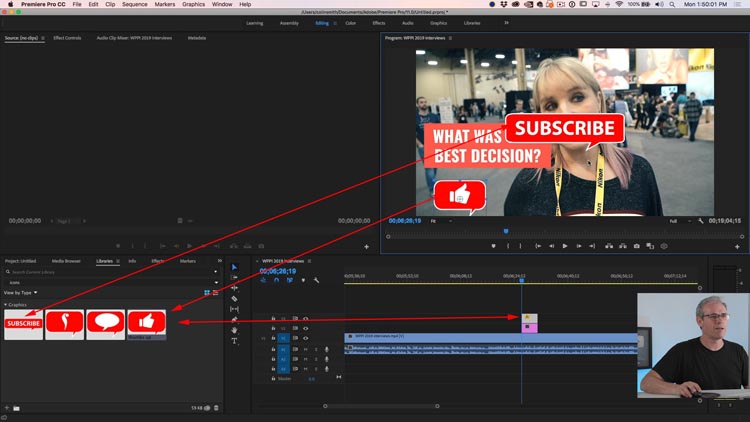
Anther Option is to use these in other Adobe Apps. Most Creative Cloud applications have the Library panel and items are shared across programs.
For example, here I can open the Library in Premiere Pro and drag the icons into my video timeline and use them on youtube videos.
Did you catch that? I didn’t have to do anything extra, The icons we just made are available for use in Premiere Pro automatically. They are also in InDesign, Illustrator and other apps.
That was a big tutorial. I really hope you found this useful and don’t forget to check out more tutorials here at PhotoshopCAFE, where we have the best free Photoshop tutorials for Designers AND Photographers.
Thanks
Colin

Keep growing with Premium Courses
Photoshop 2026 for Digital Photographers
Learn Photoshop properly, from the basics to pro retouching, step by step.
$129.00 · one-time purchase · instant download

Free for you
The Photoshop Vault
Get my free Layer Blending Modes ebook along with dozens of exclusive Photoshop goodies: actions, brushes, presets and cheat sheets.
You're on the list, so your free goodies are waiting for you in the Vault.
Get Free Photoshop Goodies Open the Vault

How to outline type in Photoshop tutorial
This Photoshop tutorial shows you how to outline type and make it vector in Photoshop. If you want to preserve the edge... Read tutorial
How to Fill a shape with a photo in Photoshop, 3 ways.
How to place a photo into a shape in Photoshop. This easy Photoshop tutorial shows you 3 ways to fill a shape... Read tutorial
How to search and download Adobe Stock images in Photoshop
How to find and search photos easily in Adobe stock. How to use Adobe Stock in Adobe Photoshop with CC Libraries. Adobe... Read tutorial
Dotted lines in photoshop tutorial
Seems like I have had so many people ask how to do a dotted line in Photoshop, so here is the easiest... Read tutorial
Align type to a path and inside a shape in Photoshop tutorial
In this Photoshop tutorial, you will learn how to fill a shape with type and how to align type to a path... Read tutorial











I’d be interested in learning much more re libraries. You’ve peaked my interest! And, I love your videos and tutorials!
Great tutorial… “THUMBS UP” to you…
Thanks 🙂
I also would like to know more about libraries, particularly with teams.
A tutorial on libraries would be very worthwhile
Thank you for this great tutorial, Colin. I will most certainly use it in my own work. Looking forward to your next video!
Thank you Colin. I would like to know more about libraries also. Don’t use it at the moment but would like to.
I understand how to make icons and save them as pngs or psds to reuse in PS or another adobe / creative app but how do you convert /save them as true icon files (vs photo files) with an extension of .ico, so they can be used as icons for your computer’s system of folders, desktop files, etc?
But I don’t want a .png I’m look for .ico
You have to use a plugin. PS doesn’t support ico format