How to Stop Nano Banana Stretching Selections in Photoshop
Hey Cafe Crew! I previously said that Nano Banana doesn’t work properly with selections in Photoshop.
There was a reason for that. If you make a selection on an existing image and generate directly into it, Nano Banana can stretch or squash the image inside the selected area.
But there’s a simple workaround
Let me show you how it works.
Why Nano Banana stretches a selection
In this example, I want to add a helicopter to the helipad on this superyacht.
Choose the Rectangular Marquee Tool and drag a selection around the helipad.

Click Generative Fill in the Contextual Task Bar.
If you don’t see the Contextual Task Bar, choose Window > Contextual Task Bar.
Open the model picker.
Choose Partner Models and select Gemini 3.1, Nano Banana 2.
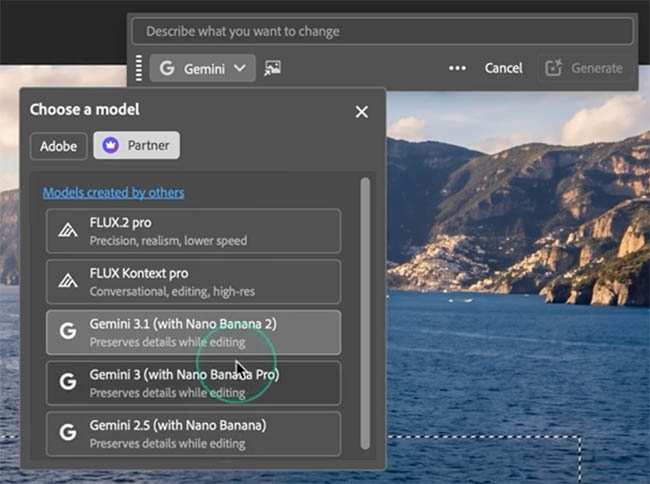
Enter a prompt to add a helicopter and click Generate.
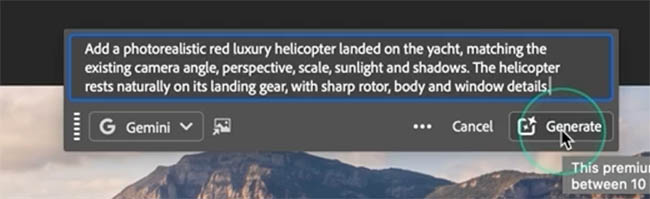
Look closely at the result.
The helicopter is there, but the image inside the selected area has been stretched.
You can see that the boat no longer lines up correctly with the surrounding image.
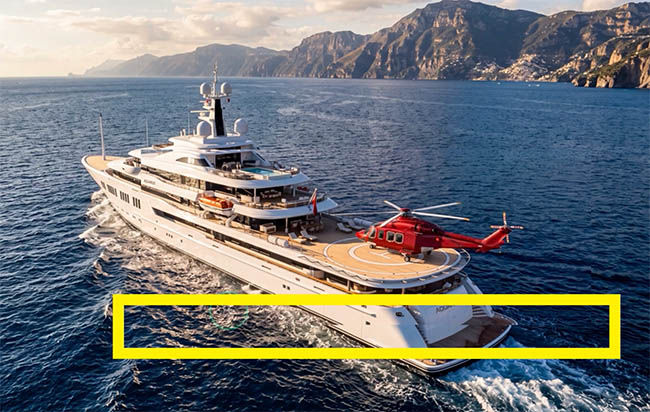
The contents have also been squashed because the aspect ratio of the generated result doesn’t match the rectangular selection.
Here’s how to fix it.
Make a square selection
Choose the Rectangular Marquee Tool again.
This time, hold Shift while dragging.
This constrains the selection to a perfect square.
Hold the Spacebar while dragging if you need to reposition the selection.

Keep the selection reasonably close to the area you want to change, but leave enough room around the subject for things such as shadows.
Tip: Don’t make the selection too tight. Give the AI enough surrounding image to create lighting, shadows and other details naturally.
Choose Generative Fill.
Enter the same prompt and click Generate.

Nano Banana now generates the helicopter inside the square selection. It’s that simple!
Watch the video at the top for an additional tip to get more resolution out of your Gen ai Models.
If you want to know which Photoshop AI models work best for different tasks, grab my free AI model cheat sheet.
Did you know about this Nano Banana workaround, or is this one new to you?
Let me know in the comments.
It’s great to see you here at the CAFE
Colin
Recommended for this tutorial
Complete Guide to ai in Photoshop 2026
Generative Fill, Firefly, Harmonize and every AI tool in Photoshop, step by step.
$79.00 · one-time purchase · instant download

Free for you
The Photoshop Vault
Get my free Layer Blending Modes ebook along with dozens of exclusive Photoshop goodies: actions, brushes, presets and cheat sheets.
You're on the list, so your free goodies are waiting for you in the Vault.
Get Free Photoshop Goodies Open the Vault
Photoshop, Firefly Fill and expand model. Everything that’s new
What's changed in Photoshop Generative Fill, Fill & Expand model? Read tutorial
Revealing hidden features in Photoshop Generative Fill to convert photos to art and more
Hidden way to convert your photos into different art styles using Generative ai inside Photoshop. Access Firefly settings inside Photoshop Read tutorial
Big ambitious NEW features in Photoshop 2025 July 29 update
How to use the NEW features in Photoshop 2025 July 29 update, free written tutorial and short video tutorial by Colin Read tutorial
How to use Gemini 3 Nano Banana Pro in Photoshop
How to use Gemini 3 Nano Banana Pro in Photoshop Read tutorial
New Features in Photoshop 2026 Jan 26 update
Photoshop’s January 2026 update is here, what’s new? Read tutorial