Create a water reflection in Photoshop
In this photoshop tutorial, we will learn how to create a realistic water reflection to a photograph in Photoshop. If you want to create a reflection on graphics or text, see this tutorial instead.
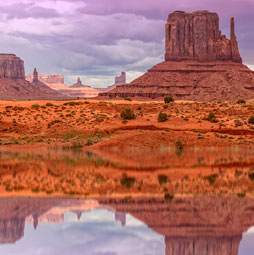
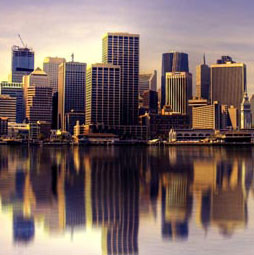
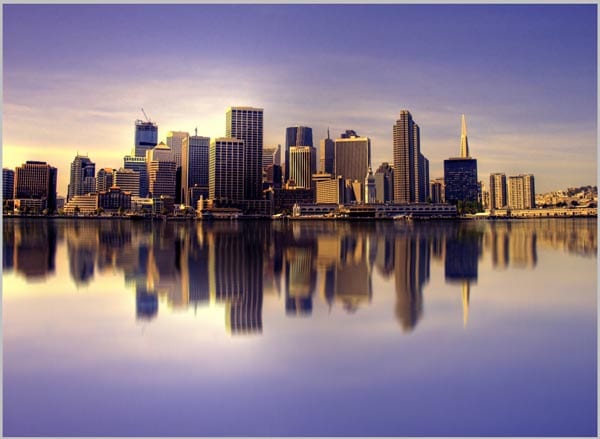
Here you can see the preview of the final result.
This is a guest post by Simone Sala

Step 1
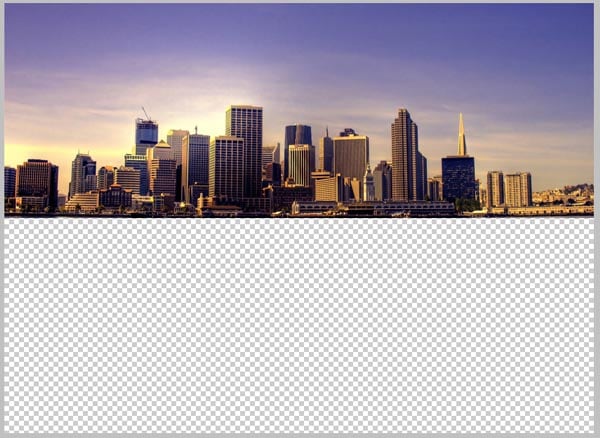
The very first thing you have to do is to open the image you want to modify in Photoshop. Then go to “Image”, click on “Canvas Size” and double the “Height”. Make sure you choose the top as the anchor point.
(Note: You can also use the crop tool and crop the image larger than the canvas size)
Thus, we have created the space for the reflection.
Step 2
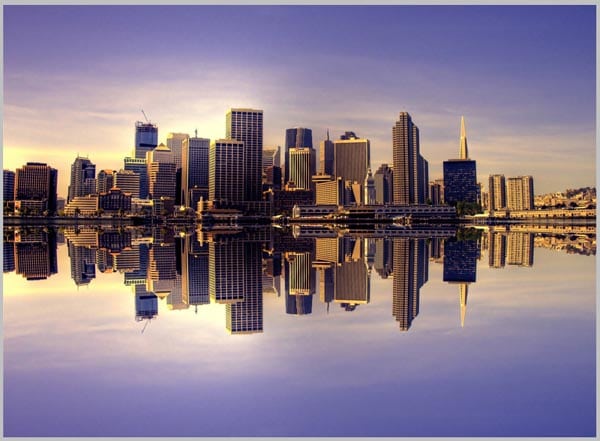
In this step we’ll start creating the reflection. So, duplicate the previous layer (CMD/Ctrl+J) and call it “Reflection”. Then go to “Edit>Transform>flip Horizontal”
Step 3
Now, we’ll create some blur. Filter>Blur>Motion Blur. Set the angle to 90° and the distance to 30 pixels.
Step 4
Select the “Smudge Tool” and set the size of the brush to 150 pixels, the hardness at 0 and the strength to 20%. Use this tool to create some irregularity typical of a water surface.
I suggest you experiment with settings to get the result you like most.
Step 5
It’s time to create the water ripples.
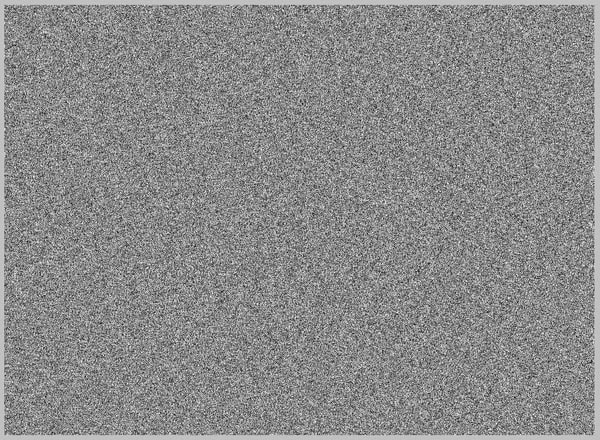
Now, create a new layer, fill it with White. Go to Filter>Noise>Add Noise.
Amount 400%, set the “distribution” to Gaussian and check “Monocromatic”.
Step 6
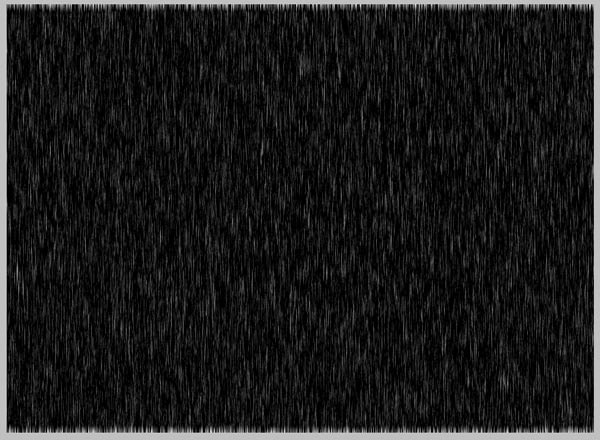
Go to Filter>Blur>Motion Blur. Set the angle to 0 degrees and the distance to 40 pixels.
Now we’ll modify the contrast. So click Ctrl + L and use the following values:
Input Black: 147
Midtones: 1,53
Input White: 219
Step 7
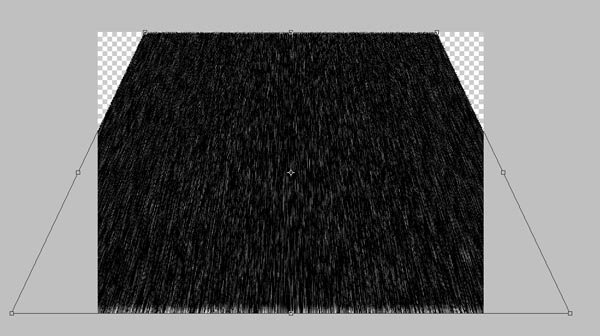
To make the ripples seem more real, we’ll work on the perspective.
So, go to “Edit”, “Transform” and click on “Perspective”. Simply go to a bottom corner (left or right) and drag the corner out. Do the same with a top corner but drag it in.
You should get this result.
Step 8
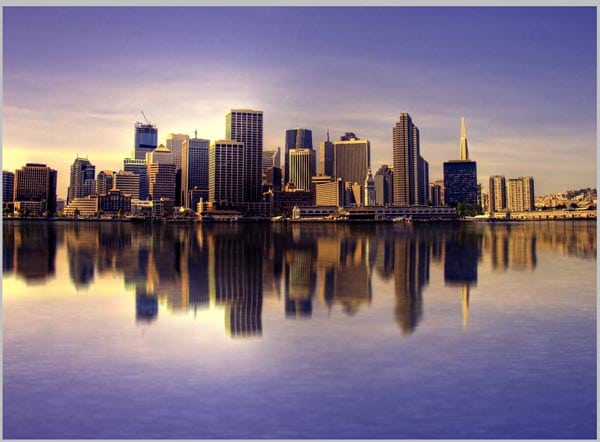
Go to “Filter”, “Blur” and Gaussian “Blur”: set the Radius to 3 pixels.
Now set the layer opacity to 30% and the blend mode to Soft Light.
Step 9
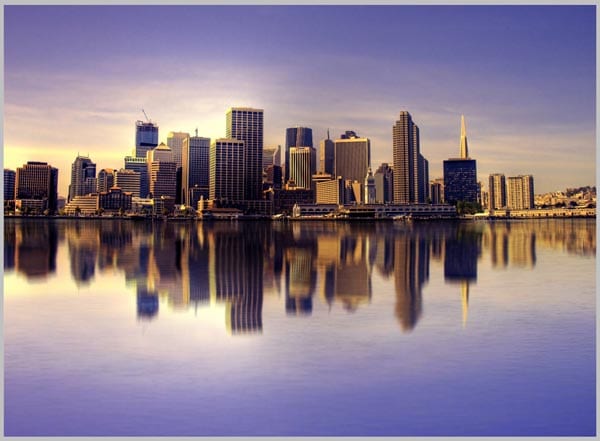
Duplicate the previous layer.
Press Ctrl + I (to invert the colors) and set the blend mode of the level to Overlay, the opacity to 25%.
Remember to put these two layers between the layer with the original picture and the one called “Reflection”.
Final
Once again I invite you to make your own changes and experiments to get the best-looking result you can.

Keep growing with Premium Courses
Photoshop 2026 for Digital Photographers
Learn Photoshop properly, from the basics to pro retouching, step by step.
$129.00 · one-time purchase · instant download

Free for you
The Photoshop Vault
Get my free Layer Blending Modes ebook along with dozens of exclusive Photoshop goodies: actions, brushes, presets and cheat sheets.
You're on the list, so your free goodies are waiting for you in the Vault.
Get Free Photoshop Goodies Open the Vault
Make photo edges in Photoshop tutorial
Here is a photoshop tutorial that will show you how to roll your own dynamic photo edges in Photoshop Read tutorial
Color and Light Matching for Composites in Photoshop
In photoshop composites, models are shot in a different environment to the background plate used. A challenge is matching the light and... Read tutorial
Create a Planet in Photoshop
Hope you enjoy this tutorial, specialy written for photoshopcafe.com by raul bermudez ,elemento.1 Step 1 First start by creating a new document.... Read tutorial
Creating a cylinder in Photoshop Tutorial
Here is another tutorial that has come about by a request from the forum. This is how you wrap something around a... Read tutorial
How to combine Photos in Photoshop
Learn how to combine images in Photoshop. This quick and easy free tutorial, shows different ways of combining photos and matching the... Read tutorial