
Create a Planet in Photoshop
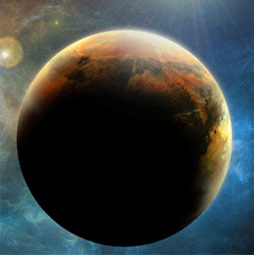
Hope you enjoy this tutorial, specialy written for photoshopcafe.com by raul bermudez ,elemento.1
Step 1
First start by creating a new document. I will recommend at least 1000×1000. Create a black background, then on a new layer do a perfect circle, (marquee tool & hold shift).

Step 2
On the new layer fill the circle with the base color of your planet in this case Orange, you can pick any color you like

Step 3
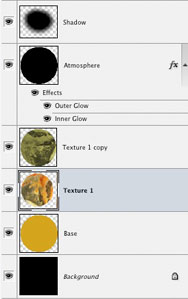
Duplicate it 2 more times and give the following names:
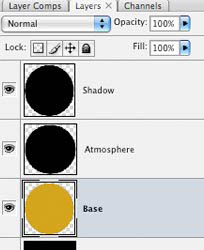
Step 4
Disable your shadow layer for now and
select your atmosphere layer, go to
layer styles and enter the settings as shown here.
Don’t forget to set the layer mode to “screen”

Step 5
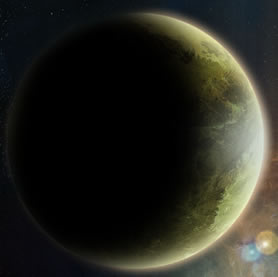
Now you should have something like this:
Step 6
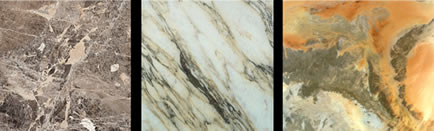
Now, we are going to add texture, please be creative
take your own pictures (or find royalty free ones online) to create your planets.
(Note that all NASA images are public domain)
Step 7
We will use the orange texture at this stage.
If the image is not big enough, use the clone tool
randomly to fill your circle, select your base layer
and on your texture layer go to filter> distort>spherize

Step 8
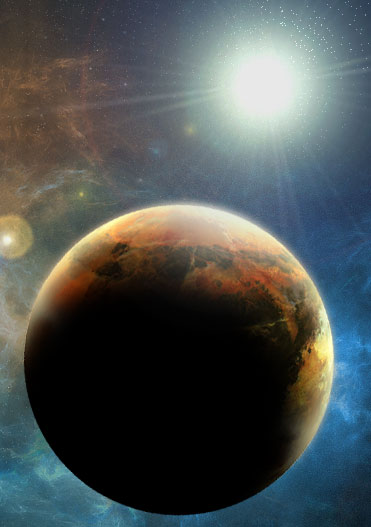
If you followed the steps right you should have something like this.
Make sure your texture layer is between Atmosphere and Base layers.

Step 9
Yes, we are missing the Shadow layer.
Make it visible now, select the base but make sure you have selected the shadow layer and apply Gaussian Blur.
Then move the shadow layer where ever you like.
Once your happy,select the base layer and erase the edge of the shadow so you get rid of the planet highlight on the shadow side. (best to use a layer mask to erase)
This should be the order of your layers

Step 10
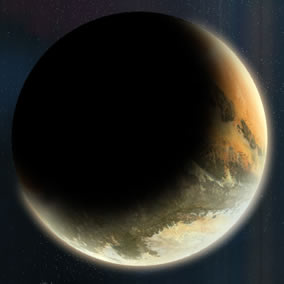
If you like to go a bit further, sharpen your texture layer, duplicate it, lower the opacity around 50%.
Use the move tool to rotate it and go to Image- adjustments And play with Brightness/Contrast.
You can do this as many times you like, please experiment, use Hue/saturation, curves, sharpen etc. The limit is your imagination.

Keep growing with Premium Courses
Photoshop 2026 for Digital Photographers
Learn Photoshop properly, from the basics to pro retouching, step by step.
$129.00 · one-time purchase · instant download

Free for you
The Photoshop Vault
Get my free Layer Blending Modes ebook along with dozens of exclusive Photoshop goodies: actions, brushes, presets and cheat sheets.
You're on the list, so your free goodies are waiting for you in the Vault.
Get Free Photoshop Goodies Open the Vault
Rounding corners of anything in Photoshop Tutorial
In this tutorial we are rounding the rorners of a shape the princliple of this tutorial is to show you how to... Read tutorial
Create a water reflection in Photoshop
This tutorial will walk you through all the steps to create a realistic-looking water reflection to add a splash of life to... Read tutorial
Screw heads in Photoshop Photoshop Tutorial
This tutorial will show you how to hold your images together with realistic looking screws. Read tutorial
How to blend text into a photo realistically in Adobe Photoshop tutorial
How to blend text realistically into a photo, free Photoshop tutorial, includes blending, shaping, distressing and adding 3D depth to make it... Read tutorial
Plastic Engraved type in Photoshop Photoshop Tutorial
How to embed type in photoshop. Heres a tutorial that will how you how to carve your mark. This is so simple... Read tutorial









I’m a little confused in step 3. Are we supposed to duplicate the black background layer 2 times or are we supposed to duplicate the orange circle layer two times and then make them black?
Thank you!!!!
Step 3 does not duplicate as shown in your example. Also, Step 7 is very vague about how to get the texture. Obviously, a texture layer is required but the instructions omit that. Can you please clarify? I am hoping to use this project in my Digital Media class. Thank you.
I agree with Barnes and Karen.
I also would like the answers to questions Barnes and Karen asked
I didn’t actually write this tutorial, but Ill look into it and fix it. As far as I can tell at a quick glance is to duplicate and fill with black and then duplicate again, so you have 2 black layers.
As far as getting textures, Raul was saying that you can go to NASA and get texture files. All the images on NASA are free to use.
This article is completely useless now. Photoshop’s options have changed so much that you can’t get beyond step 4.
Yeah, this is a really old one.