Photorealistic Interface – Part 1, the basic shape Photoshop Tutorial

How to make a realistic looking 3D interface in Photoshop
This is Part 1 of a 4 part tutorial
Step 1
I have several ways of drawing shapes. We will use my “Dump and Chop” method in this tutorial Create a new document in rgb mode. Create a new layer. Choose the rectangle shape tool with the settings shown Make your foreground color gray.

Step 2
Draw a large rectangle to cover most of your canvas area.

Step 3
Choose the elliptical marquee tool and make a circle. Hold down the shift key to constrain to a perfect circle. Hit the delete key to cut a corner out. With the selection tool still selected, click and drag the selection to the opposite corner. Hit delete again. (Are you starting to see why I call this the Dump and chop method yet?)

Step 4
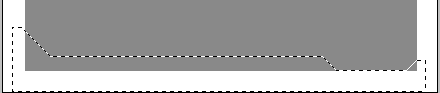
Now lets make the classic High Tech Interface shape at the bottom. Choose the polygon lasso tool. Just click and then as you move the mouse it will stretch until you click again to join the dots. Here is the secret, hold down the shift key to constrain the shape to increments of 45 deg. (I hear someone saying “ohh that’s how they do that) Click all the way around until you get back to the start point. You will see a little circle. Don’t be shy, click it! And… you will see a selection around the shape. And as our custom is. Hit the delete key.
Step 5
How about a rectangle with rounded corners. Choose the rounded rectangle shape tool and use the settings as shown.

Step 6
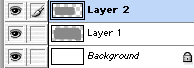
Create a new layer. Draw a rounded rectangle about the size you need for a screen. Now for a little layer jumping… Cmd/Ctrl+Click on the “screen” to load the selection. Choose our iface layer. (layer 1)
Step 7
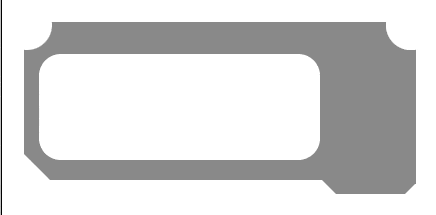
Hit the delete key and you should have a shape as shown here. Will the interface escape the lab of the evil flatland? Will it get depth and texture? Will it ever see buttons and features? Tune in next week to the same channel and same time. Hang on to this psd, because we are going to continue with it next week and give it depth and texture
I hope you enjoyed this Photoshop tutorial and found it useful
Colin

Keep growing with Premium Courses
Photoshop 2026 for Digital Photographers
Learn Photoshop properly, from the basics to pro retouching, step by step.
$129.00 · one-time purchase · instant download

Free for you
The Photoshop Vault
Get my free Layer Blending Modes ebook along with dozens of exclusive Photoshop goodies: actions, brushes, presets and cheat sheets.
You're on the list, so your free goodies are waiting for you in the Vault.
Get Free Photoshop Goodies Open the Vault
How to change the color of eyes in Photoshop
Here is a very realistic way of chaging the color of anyones eyes in Photoshop using curves. Colin Smith shows you his... Read tutorial
Cast Shadow in Photoshop Tutorial
What do you do when a drop shadow isn't realistic enough? Create a cast shadow. When you see an object in a... Read tutorial
English Tea can painting – metal etch Photoshop Tutorial
This tutorial will show you how to turn a Photo into a painting that resembles something you would see on on of... Read tutorial
Photo zoom blur effect in Photoshop tutorial
You can pull the viewers eye into a portion of a photograph by simulating an in-camera zoom effect. This zoom effect is... Read tutorial
Realistic Spotlight Effect in Photoshop Photoshop Tutorial
I am going to show you an alternative to lightening your photographs. This technique will add depth to your lighting and emphisis... Read tutorial