
Curves in Photoshop explained Photoshop Tutorial
Many people shake with fear at the very mention of Curves. You don’t need to fear anymore, because this helpful video will take the pain out of it. Watch as I explain in plain English how to use curves and bend them to your advantage. (pun intended).
Tips on curves
Use Adjustment Layers whenever possible, because they are non-destructive. (Can be changed later).
Click the little finger icon to drag and adjust directly on the screen.
(With the Curves Modal Dialog only Ctrl+M/Cmd+M – Non Adjustment layers)
Hold down the Ctrl/Cmd key and click on a portion of an image to add a targeted point to the curve.
Hold Down Ctrl+Shift/Cmd+Shift to add points to the color channels of a curve.
If you enjoyed this tutorial, maybe you would like to dive deeper into the amazing world of curves. With curves you can:
- Adjust specific regions of images
- Change any color, to any other color PRECICELY
- Add high end color grading with ease
- Super Dodge and Burn
- So much more.
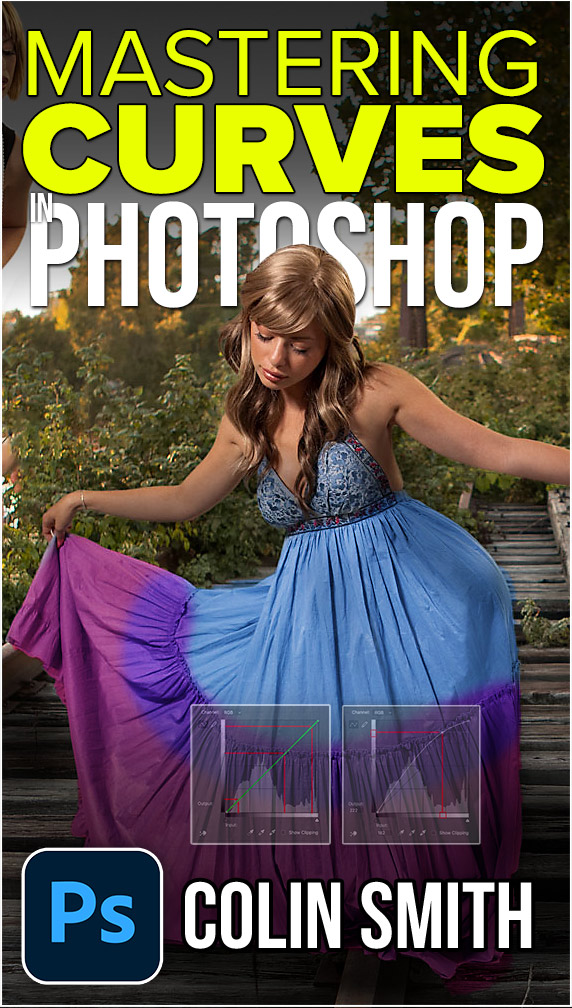
Colin’s course on Mastering curves in Photoshop is one of our most popular and for good reason, it opens up a level of control you can’t get any other way in Photoshop. It may seem daunting, but Colin makes it so easy. You will never edit images the same again after this. Color and tone confidence, will be yours!
Check out Mastering Curves in Photoshop
PS Don’t forget to follow us on Social Media for more tips.. (I've been posting some fun Instagram and Facebook Stories lately)
You can get my free Layer Blending modes ebook along with dozens of exclusive Photoshop Goodies here


2 thoughts on “Curves in Photoshop explained Photoshop Tutorial”
Leave a Reply
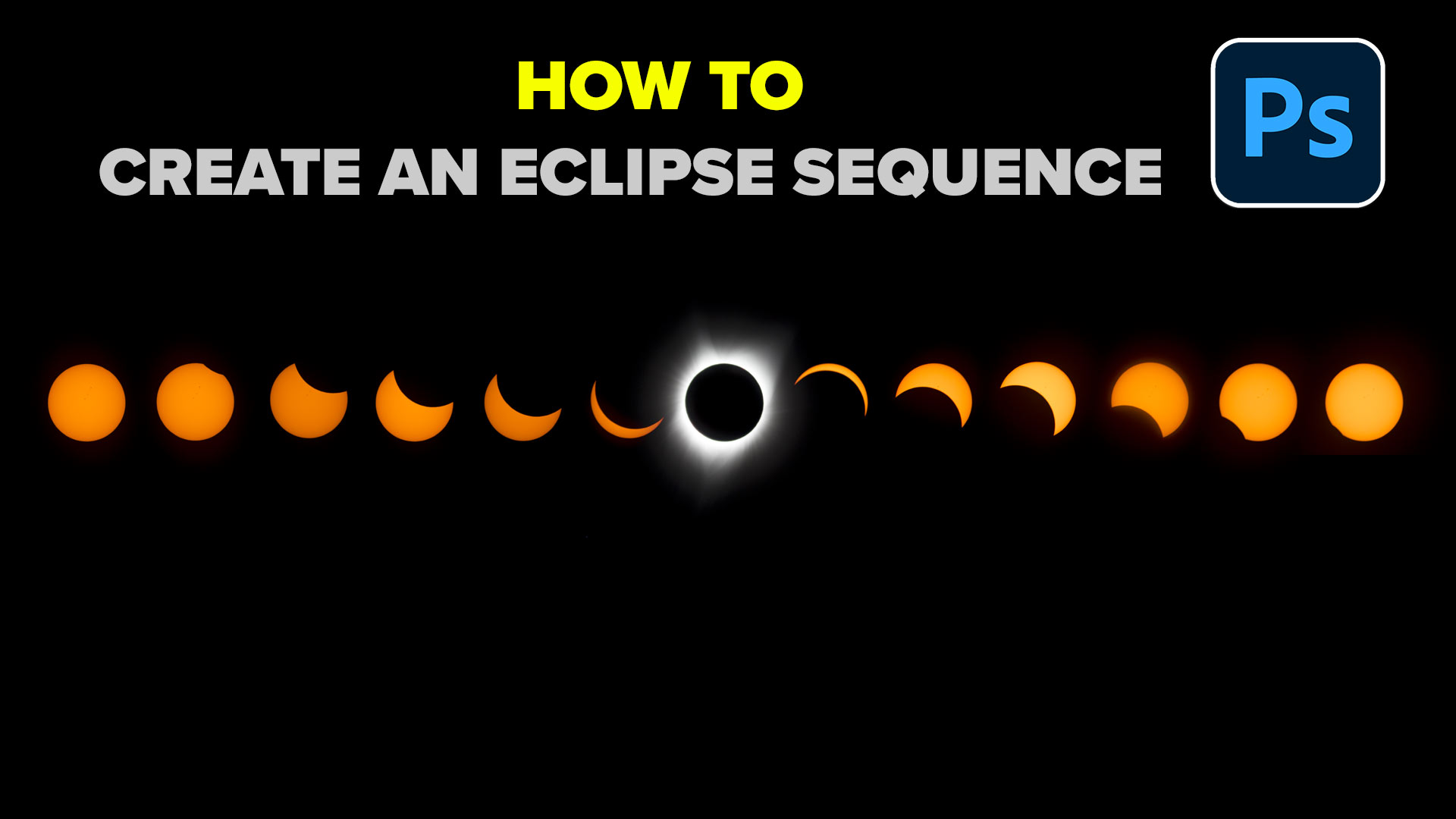
How to make an eclipse sequence in Photoshop, the complete guide for total solar eclipses and lunar eclipses

How to resize or crop a picture to the best size for Instagram in 2022 using Adobe Photoshop, easy to...










nice tutorial very helpfull to me
Great tutorial and nice content. Thanks for shairng.