
Photoshop 2021 new features. How to use the top new features in Photoshop 2021
What’s new in Photoshop 2021, New feature guide. How to use the new features in Photoshop 2021
Its that time of the year when Adobe drops their big updates to their apps and Photoshop 2021 doesn’t disappoint.
Before updating, check out my tips on updating Photoshop
What’s new in Photoshop 2021?
Let’s jump right in and have a look at the new features in Photoshop 22, AKA Photoshop 2021. I suggest you also watch the video above, as it has details not included in this written text.
Refine hair
Cutting out hair is one of those tasks that is always a challenge in Photoshop. This new feature helps.
Choose the object selection tool
Click on Select subject to set a selection.

Click on Select and Mask, to enter the Select andMask workspace.
On the right panel, you will see a new mode is added. Color Aware (the original setting) and the new AI powered Object aware, which is best for hair and complex objects.

Lets change the preview to “on black” so you can see the result.

At the top, you will see a new “Refine Hair” button.

Once you choose refine hair, notice how the white in between is cleaned up and the fringes are diminished.

Its not perfect, but it certainly will speed up your workflow, doing most of the hard work for you. This is the equivalent of painting with the refine brush on the edges of the hair.

Let’s try it on another photo of a male.

Click refine hair and it looks a lot better.


Reset Transform
This enables you to reset a smart object. Let me demonstrate.
Convert a layer to a smart object.
Scale, rotate or warp the layer.
Here. I’m transforming it a lot. Ctrl/Cmd_T for free transform, right click and choose warp.

Its very warped. Right click on the smart object in the layers panel and choose Reset Transform

And the image goes back to its original state before all the transformations.
Neural Filters
This one is kinda crazy! Neural filters have been slowly becoming a thing lately, applying age progression and such. Its powered by Machine Learning (AI, Artificial Intelligence).
There are several filters in the Photoshop Neural filter gallery. Let’s look at a couple. I’ll do a separate tutorial on this.
Style transfer. In a single click, you can take the style from a painting and apply it to your image.

Smart Portrait
This one is really crazy. In a single slider you can change expression, age and more.
Lets make our subject more angry.

Slide it the opposite direction to make him appear less angry.

How about adding a few years, slide the Facial age
There are lots of different options to explore here.

Sky Replacement
This is a big one. People have been looking for quick ways to replace skies in images.

Choose Edit>Sky Replacement
You will see the sky is instantly changed and somecolor applied to blend it in. .

The first time you launch sky replacement, you may need to click the gear and choose Append Default Skies. This will load in the skies that ship with Photoshop.

Let’s try a panorama and see if it works.

Choose the sky you want from the thumbnail.

Choose Fade edge and shift edge to blend it in better.

How to use your own sky images
I’m sure you have your own photos of skies that you are itching to use.
Click the plus sign at the bottom.

Now you can navigate in the finder to select your own images.
Here I grabbed a milky way photo. It adds it to the library and applies it to your image.

The skies are applies as layers with layers masks, And adjustments such as color will also be applied as sepeartelayers, so you can change them however you like and manually refine them.
Camera RAW 13
Camera RAW also gets some updates.
The first one is a preference to use Compact mode.

Here is our usual Module panel

And in compact mode, it shrinks it down to reduce scrolling and reveal more options on smaller screens, such as laptops.

Here are the sliders in compact mode.

and normally.

You don’t have to go into preferences to change the mode.
Right-click at the top of the modules and you can choose the option for compact or normal right here.

Color grading and 3-way color corrector
The split tone has been replaced by a more powerful 3 way color corrector.
This gives us the ability to apply Hue/Saturation and Luminance to the shadow, highlights and midtones independently.

This makes it easy to apply color grades to our photos with ease.

Each color wheel has 3 controls to change the color and brightness.

Pattern Preview
Pattern preview allows you to see what a repeating pattern will look like as you create it. This is especially good to seamless repeating patterns for wall papers, webpages, 3D textures and more.
Here is how it works
With a document open that contains a simple shape. .

Choose Pattern Preview

It now tiles on the canvas.
I zoomed out here, so you can see the tiling. The document is the small rectangle in the center.

Here I added 2 more deer to the document in the middle. you can see the tile in real time as you work.

Here the tile is applied as a backdrop, like you would see at a red carpet event.

Live Shapes
There are a couple of things here that people have been asking for.
There is now an actual triangle tool. We used to choose a Polygon and set the sides to 3. This is much faster for such a common shape.

You will see a little dot on the live shapes.

Drag the dot towards the center.

And it rounds the corners.

Same with rectangles, round the edges visually in real time.

This is so useful for lots of things! Graphic designers are cheering 🙂

Bonus Tip: Hold down the alt/Option key and you can drag corners individually.

To round off a single corner, or as many as you like.

If you are experiencing any issues with Photoshop, here is how to fix the common problems of a new Photoshop update
I hope you enjoyed this superguide of the top new features in Photoshop 2021. (We have super-guides of every update in Photoshop and Lightroom going beck toPhotoshop CS3 and every version of Lightroom here)
Bookmark this spot.
Our Photoshop 2021 Superguide
Lots more coverage of the new features in Photoshop 2021, by Colin Smith
Top new Features in Photoshop 2021
New Features on Lightroom Classic 10
New Color Grading in Photoshop 2021
New feature: Sky Replacement in Photoshop 2021
Neural Filters in Photoshop 2021
Photoshop 2021 Live Stream, in depth, new features
Browse our hundreds of other free tutorials here, or search for what you are looking for in the search at the top of the page.
You can also browse by topics in the free tutorials menu.
If you are ready to get serious about Photoshop, see our full length courses here
Great to see you here at the CAFE,
Colin

Keep growing with Premium Courses
Photoshop 2026 for Digital Photographers
Learn Photoshop properly, from the basics to pro retouching, step by step.
$129.00 · one-time purchase · instant download

Free for you
The Photoshop Vault
Get my free Layer Blending Modes ebook along with dozens of exclusive Photoshop goodies: actions, brushes, presets and cheat sheets.
You're on the list, so your free goodies are waiting for you in the Vault.
Get Free Photoshop Goodies Open the Vault
5 big new features in Photoshop 2026 August update
5 New Photoshop 2026 Features You Need to Know Adobe has added a number of new features to Photoshop 2026, and some... Read tutorial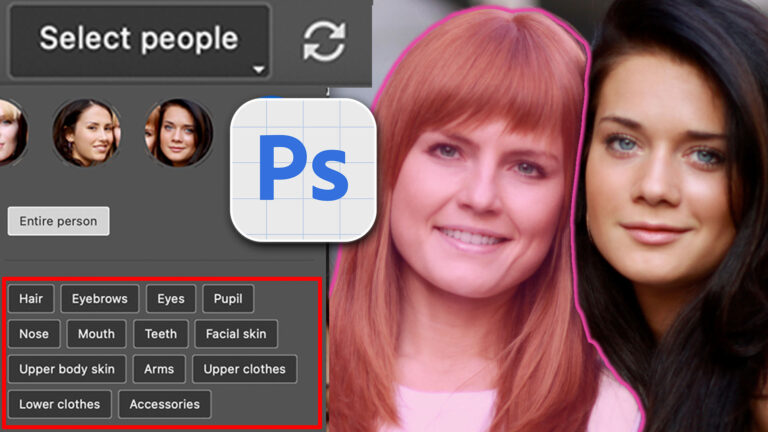
Auto Select people and features in Photoshop
How to automatically select people and facial features in Photoshop, like in ACR + Lightroom Read tutorial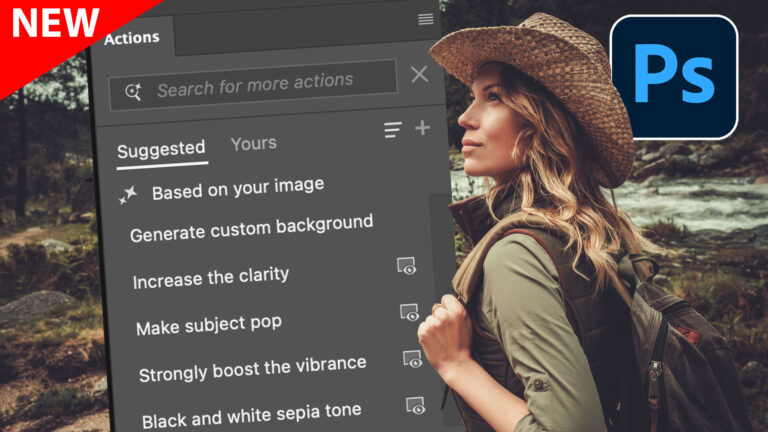
New Actions Panel in Photoshop Beta
Reimagined Actions in Photoshop The actions panel hasn’t been changed in years, but now there’s a big update that promises to make... Read tutorial
How to use Updated Frame Tool in Photoshop
How to use the new features in the frame tool in Photoshop. Read tutorial
New Adjust Colors in Photoshop, easily change colors the new way
New Adjust Color in Photoshop makes it easy to change colors and to make certain colors pop in a photo Read tutorial












Thanks, Colin. Can’t wait to try a few of these out.
AWESOME as always, Colin! Thank you, and the ATX thanks you!
You give such great clear instructions….thanks so much.
Wow!!!! I just love all the new features, especially the Refine Hair they are all GREAT and Thank you for this Video… I am sure that I will enjoy a lot!!!♫♥
The facial configuration tools make it that much easier to distort reality. Passport photos, Facebook images, Fake News, tabloids, although the means to distort the truth was always out there now Photoshop has brought it the masses.
I would like to see more of the Hair selection. I couldn’t tell where you were getting the refine hair button
Thanks Colin, really like the sky replacement tool.
Thanks Colin. Very informative, as usual. I think I’ll continue to master my current PS version
PS 21 reminds me of “The confusion of many choices” theory.
Thanks for the update, could have done with the guide before the update. Looks impressive though
Tony
Hi Colin,
Have you heard any feedback about 2021 and how it works with Mac Catalina? Last upgrade caused lots of issues.
My favorites are Refine Hair and Replace Sky
Awesome! Can’t wait to try them out, especially the refine hair
Colin,
Enjoyed your video on the new features of Photoshop. I would like to see you address the Sky Replacement module. For example; the one you did with climber, he had a rope, and the rope gets over written with the new Sky. How would you handle getting the rope back. The same will happen with telephone wires.
Thanks
Ed
Thanks for the heads up on some of the new features. The Neural Filter and pattern preview look to be my favs.
Some really cool new features. Love the sky replacement, and Refine Hair. Looking forward to seeing tutorials from you on all new features. Thank you for sharing.
Downloaded the most recent version but found it would not load on my computer (Windows 10). Contacted Adobe chatline and after 6 and a half hours was none the wiser. Stopped and went to bed. Tried again next morning and after two hours on the chatline was informed I did not have the correct CPU so have got to buy a new computer – great! Do I have the will to carry on – I am thinking about it.
Thanks Colin. Will definitely use the refine hair tool and looking forward to getting creative with the smart portrait, neural filters & replace sky to use on our creative stuff. Any tutorials on any of these would be awesome. Thank you
Although I have not tried it yet, I expect the refine hair tool will become a god send. I have always had trouble with the refine brush and am looking forward to becoming less frustrated.
Really like the Sky Replacement feature; being able to use my sky photos so easily will be great. Thank you very much, Colin, as ever
I down loaded Photoshop cc 2021 yesterday
today I cannot open anything , as one pulls down a menu after 1 second the pull down information disappears
The only way to close the program down is to go ctrl , alt delete
All other versions work perfectly for me in the past
I have a freind with the same problem who has also remove Photoshop cc 2021 from his computor and has reverted to 2020 vertion
What is the solution.
Regards
Patrick Murphy
Reply to Richard Moore, I got the new version to load but very slow on some of the features eg the neural Filter but I am reluctant to change my photos so much. I probably need a faster computer as well! Can anyone tell me the optimum or minimum requirements? Also do you leave the last version on your computer and does it take up memory if both versions are there?
I’m glad I found your tutorial, this was a really great introduction to these new PS2021 features. Thanks you!
I like the sky replacement feature best, will use it most, I think.
I really appreciate your written tutorials with pictures. I watch your tutorials, and have been going to Live from Lockdown – but being able to go quickly to written instructions to remind myself what to do, is the best. Thank you.
clicked on refine hair….then what? Where is destination output hiding now?
where do I find destination “ouput”
You choose it yourself
Can the neurals filters be used in other types of photos i.e. landscapes travel etc?
yes they can