
How to Make a Panoramic photo – shoot and edit a Pano in Lightroom or Photoshop
How to Make a panoramic photograph
This tutorial will show you how to shoot and stitch a panorama photo. First of all, I’ll give you some tips on how to shoot a pano and then I’ll show you the steps in processing the photos into a single, wide pano photograph using Lightroom or Photoshop. Make sure to watch the video for detailed instructions and then read the written steps as a useful reference guide.
Why Panoramas?
Panoramas, or panos are a great way to do a couple of things. First of all, they make it possible to photograph a subject that is too big to fit in a single image. You shoot multiple images and then stitch them together into a seamless panorama. Panoramas can be either horizontal or vertical, they can also be both. The second reason for shooting panoramas is to extend the size of the image. If you want a larger pixel count, zoom in and shoot as a panorama.
How to Shoot a Panorama
Shooting a panorama isn’t that difficult, but these tips will help.
First of all, shoot with the camera vertical. (If you can, most drones won’t allow this). The reason for this is that you get more shy and ground into the image and you will also end up with a higher resolution image.
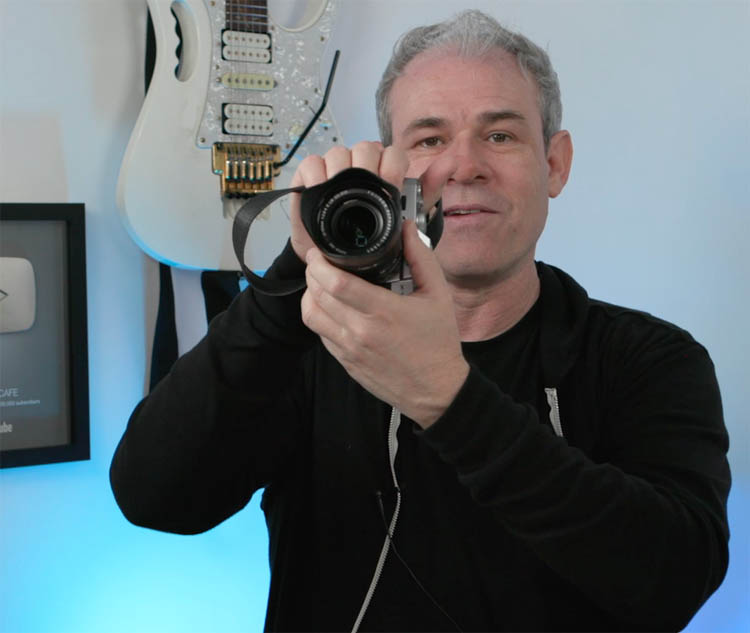
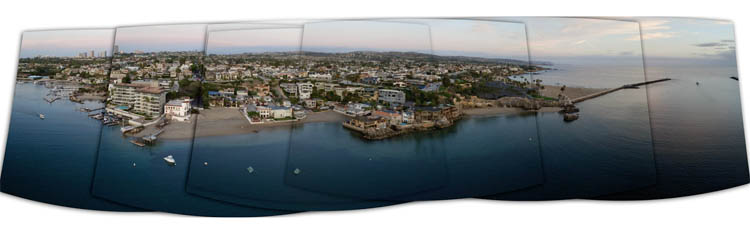
When you shoot, go for a 30% overlap. If you are using a drone, or a very wide angle lens, got for a higher amount, even 50% because of the distortion.
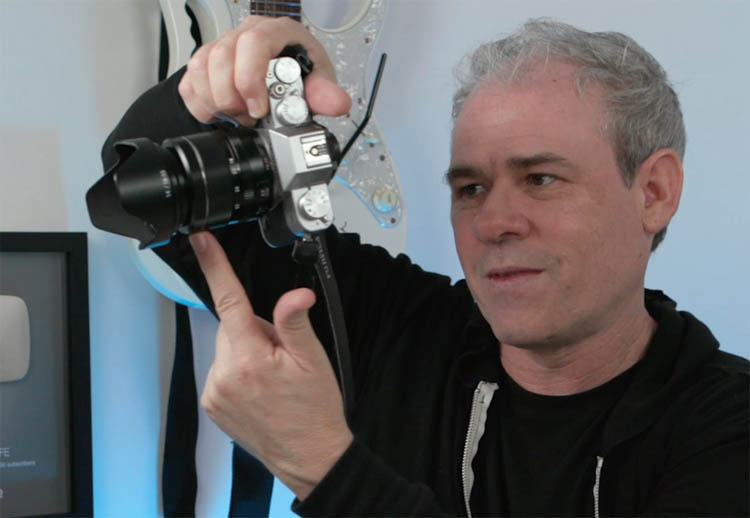
Make sure you rotate the camera on the point of no parallax or the nodal point. I explain this in the video as well as provide a hack for doing it without a panoramic head.
Meter for the brightest part of the image. Blown out highlights can’t be recovered.
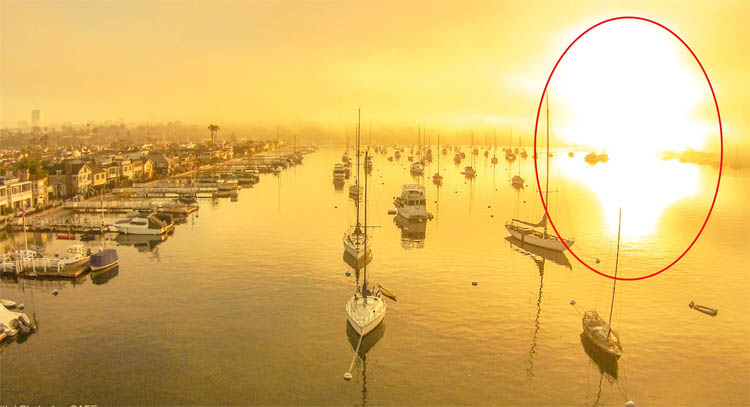
When you are properly exposed, you can even capture the suns color itself during sunrise or sunset. (This was an HDR Panorama)
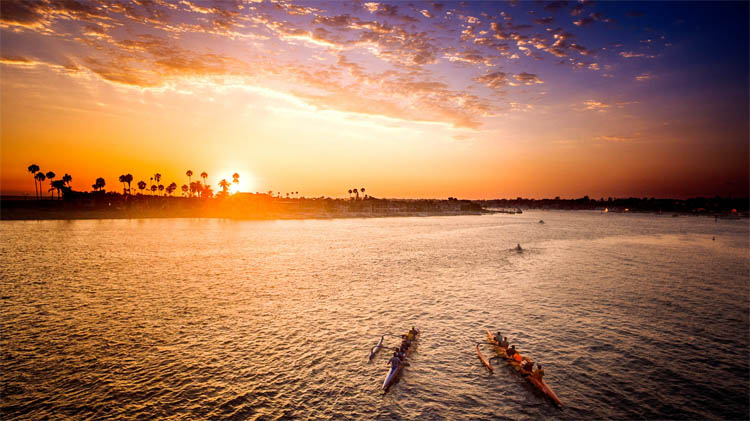
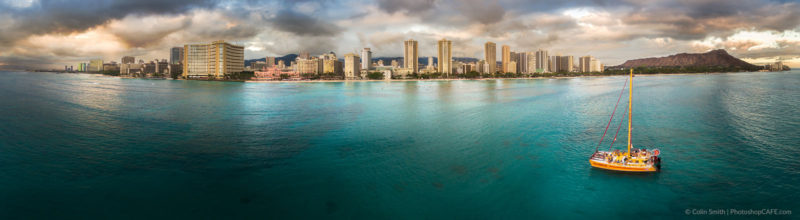
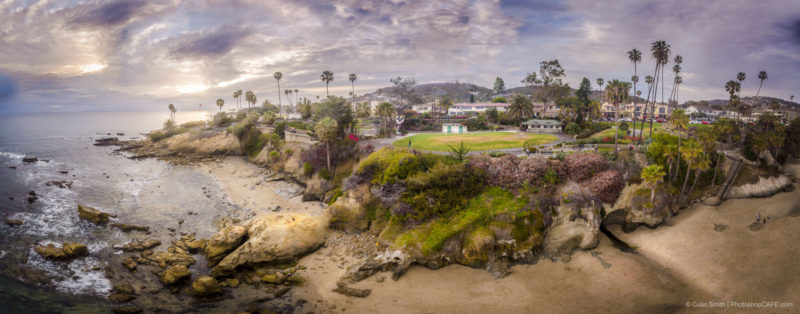
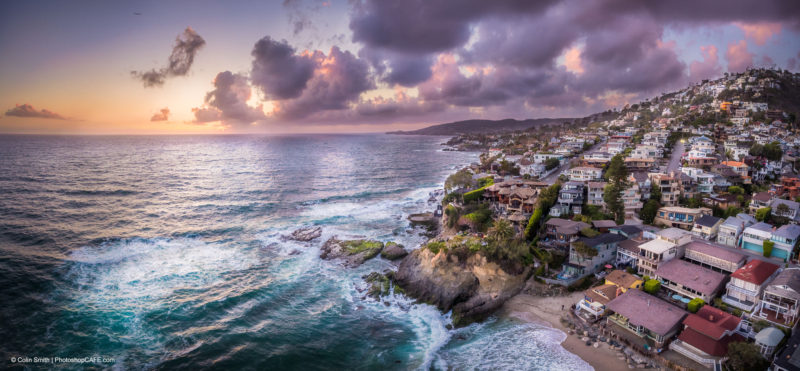
Here are just a few of my panos.
I have lots of examples of my panoramas on my gallery page, and also on my instagram feed.
Stitching and processing a panoramic photo
Let’s look at putting together a panorama.
Open in Lightroom or in Camera Raw in Photoshop. The settings are identical.
1. Select all the image
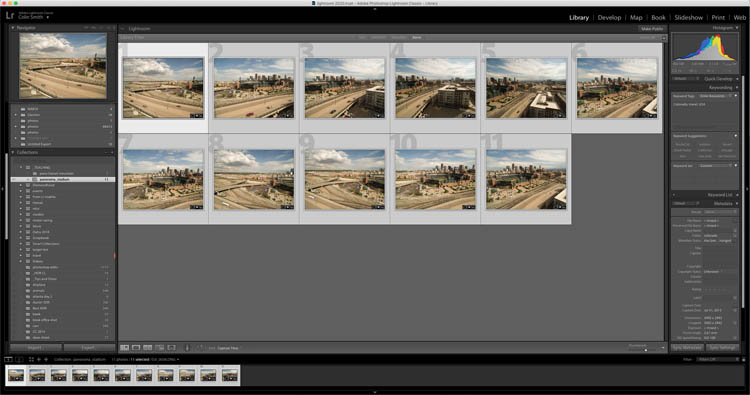
2. Merge
Right Click and choose Photo Merge> Panorama
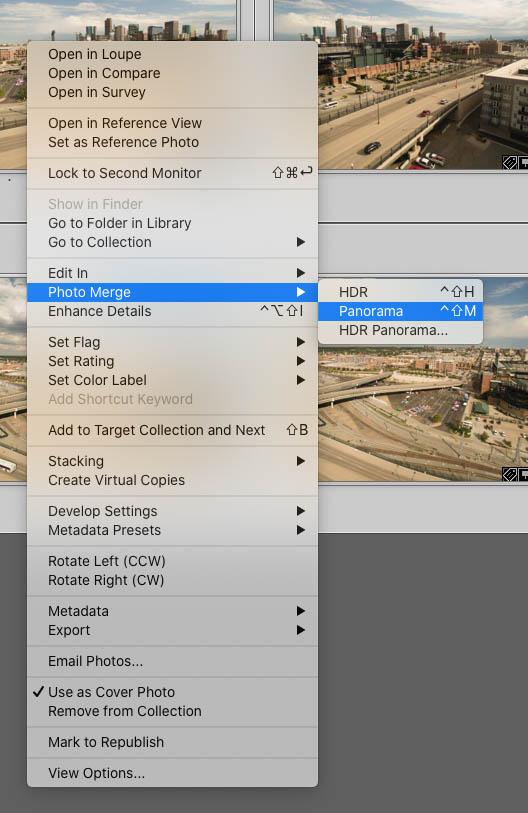
Step 3.
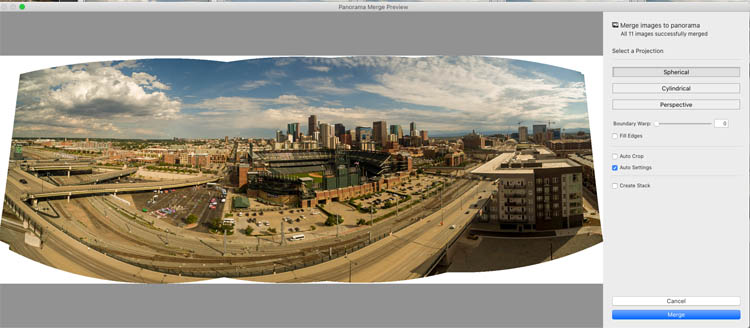
You will see a preview of the panorama.
Notice the edges need to either cropped or fixed to show the final photo properly.
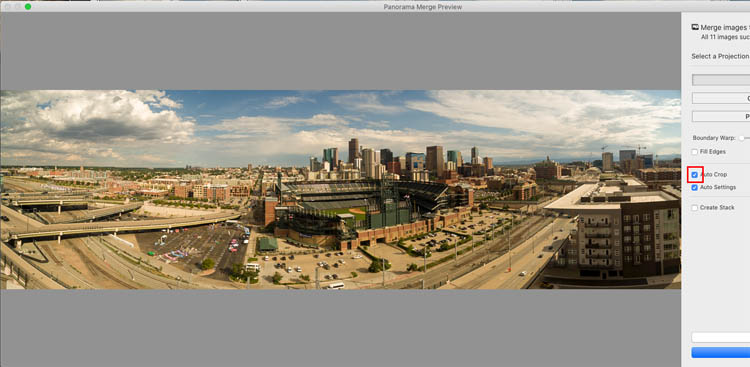
If you choose auto crop, the transparent parts will be cropped out. This will work in many cases. Sometimes you will lose too much of the sky or foreground.
The second option is to increase the Boundary warp, often this works well. But it can have the unfortunate side-effect of bending the horizon.
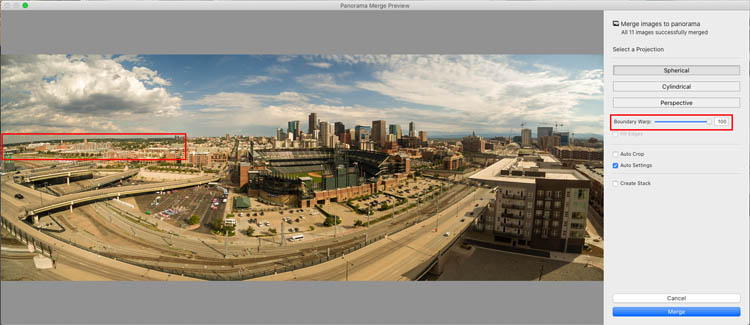
It works be stretching the pixels, kind of like silly putty. Not what you always want.

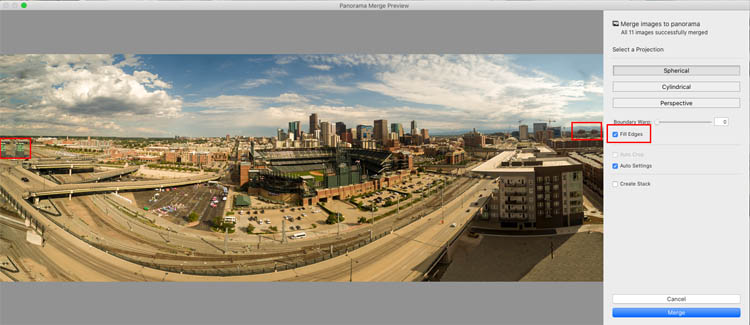
A newer option added is fill edges. This uses content aware fill to fix all the transparent areas.
This can add a little doubling in places, the doubling can easily be fixed with the patch tool.
How I like to do it
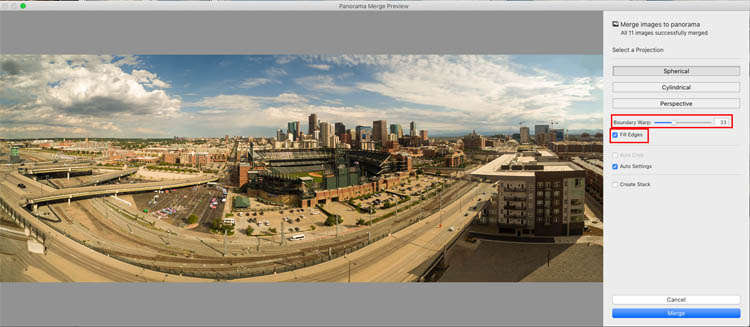
If none of the other methods work without side effects (most of the time, one of the methods mentioned will work perfectly) Then do a combo. Use the boundary Warp, but not so far that it bends the horizon. Then add the Fill edges or auto crop.
You will see much better results. Click Merge to apply.
Step 4
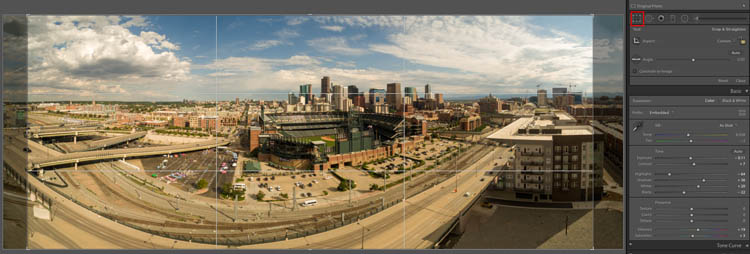
After stitching, you can crop the sides to remove any problems and still have the full height of the sky and foreground.
Step 5.
Make your adjustments to finish off the image. Here is a tutorial on those adjustments.
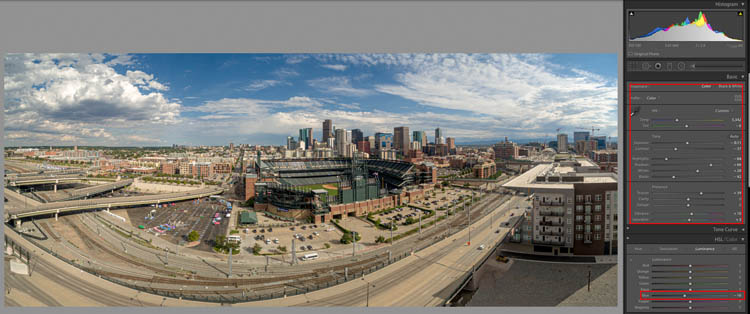
I hope you enjoyed this tutorial and found it useful. If so, tell your friends about PhotoshopCAFE and subscribe to our youtube channel.
If you want to learn more about Panoramas, HDRand HDR Panoramas, check out my Multi-shot Mayhem course.
Great to see you here at the CAFE
Colin
Recommended for this tutorial
HDR, Panorama and Timelapse in Photoshop
Shoot and process HDR, panoramas and timelapse in Photoshop.
$49.99 · one-time purchase · instant download

Free for you
The Photoshop Vault
Get my free Layer Blending Modes ebook along with dozens of exclusive Photoshop goodies: actions, brushes, presets and cheat sheets.
You're on the list, so your free goodies are waiting for you in the Vault.
Get Free Photoshop Goodies Open the Vault
How to make a Panorama Photo from gopro video in Lightroom and Photoshop
Tutorial on how to turn a video into a panoramic photograph in Photoshop and Lightroom. works with any camera, shot with GoPro... Read tutorial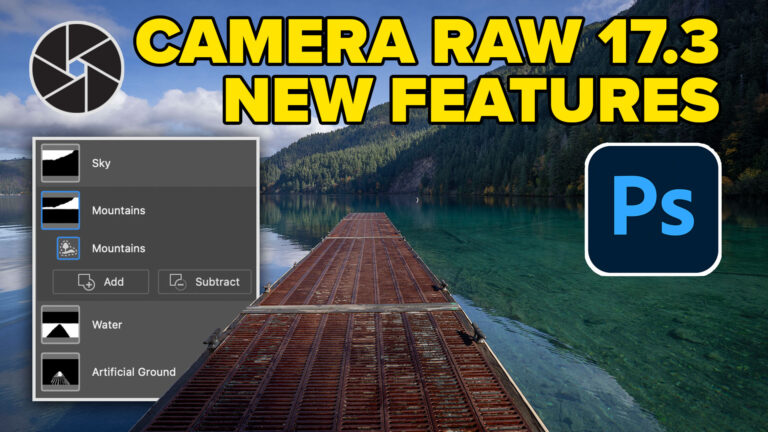
New in Adobe Camera RAW 17.3
New Features in Adobe Camera Raw 17.3 ACR in Photoshop 2025 April update. Landscape Masks and reflection removal updates Read tutorial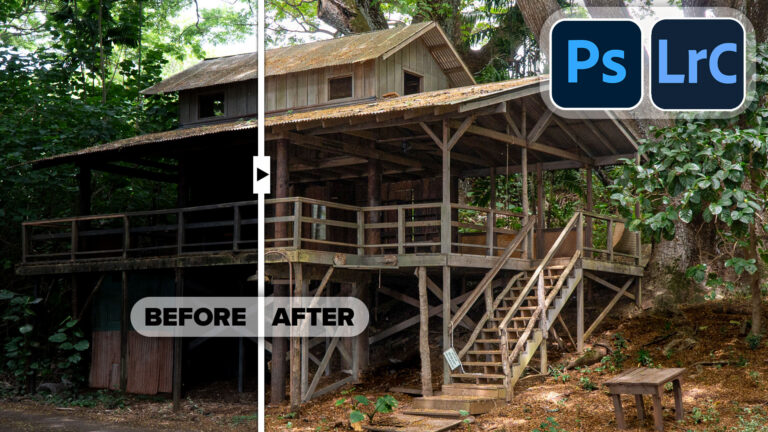
Powerful Landscape Masks, make easy, precise photo editing in Lightroom and ACR in Photoshop
Powerful Landscape Masks, make easy, precise photo editing in Lightroom and ACR in Photoshop Read tutorial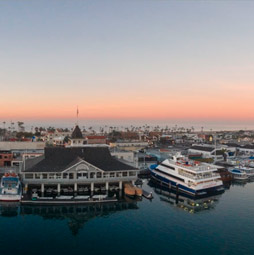
Merge Panorama in Lightroom CC tutorial stitch pano images
in this free Lightroom tutorial learn how to stitch a panoramic photograph in Lightroom 6 / Lightroom CC. Merge photos together to... Read tutorial
How to make panorama photos in Adobe Camera Raw (ACR) tutorial
This Photoshop CC tutorial shows you how to make a seamless panorama in Camera RAW from multiple photographs. Learn how to make... Read tutorial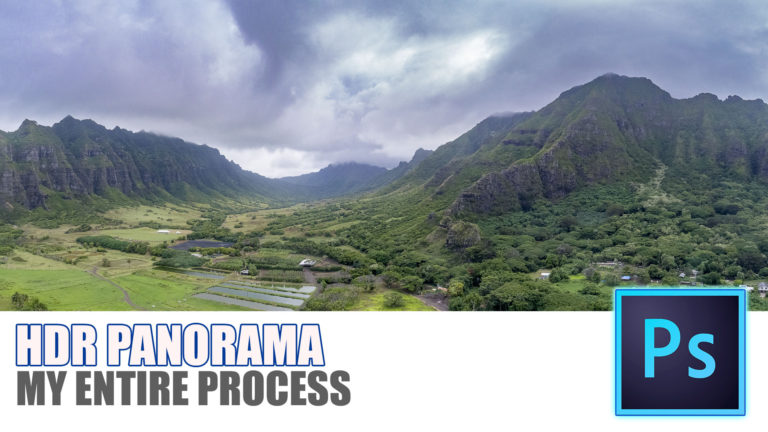











Excellent tutorial as usual Colin. Am going to try and shoot more panorama images this year. Thank you.
Great tutorial Colin. I don’t use LR but I can see how I could use ACR & PS to achieve the same result.
Thank you Colin, there is nearly always something new I learn from watching your presentations. Cheers
Roger
Hello Colin,
Thank you for this.
What type of drone do you use?
Lon
I have a ton of them, in the reviews section you can see them
Thanks a lot, I have been using panoramas but you taught me to use the slider ‘Boundary warp’ with the use of’ fit the frame’. That is so useful!!! Thank you for sharing your knowledge!
wonderful tutorial Colin, I’ve been using pano but I usually edit in Photoshop for merging and stitching, after I do editing in lightroom.
find the edge and using wrap is another new thing that I should use in lightroom as it works well there.