
How to remove a person from a photo in Photoshop without ai (Complex Background)
2 different ways to remove people for photos in Photoshop
Let’s examine 2 ways to remove a person from a photo. There are two scenarios.
2 Scenarios: The first is when you are the photographer.
In this case, I always get the shot and then have the model leave the scene and shoot a clean background plate. In this case, I used a photo from Adobe Stock, and I searched for more photos from the same shoot. I was able to get a different shot, but one that revealed a different part of the background. You will see how we use it right now.
You can use Generative remove, but if you prefer to do it without ai, here is how.
Then we will look at the 2nd scenario, you are the retoucher/designer and you only have the single image to work with. This way, everyone should be covered 🙂
Technique #1 Remove people from a photo when you have more than one image to work with
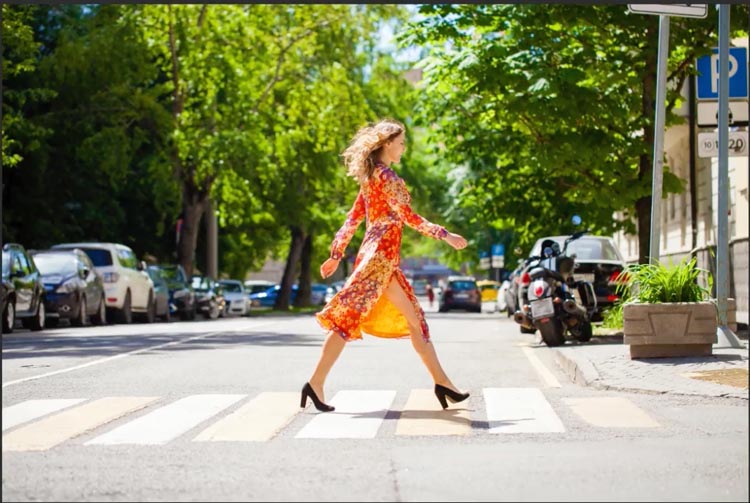
Here is the starting photo. We will remove the person. Let’s go…
Step 1
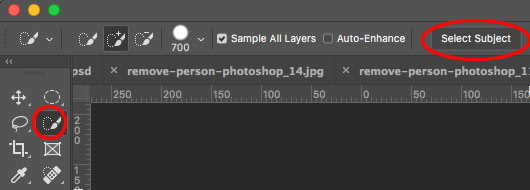
Choose the Quick Selection brush
Click on Select Subject (If you are on CS6, you will need to brush over the subject to select it).
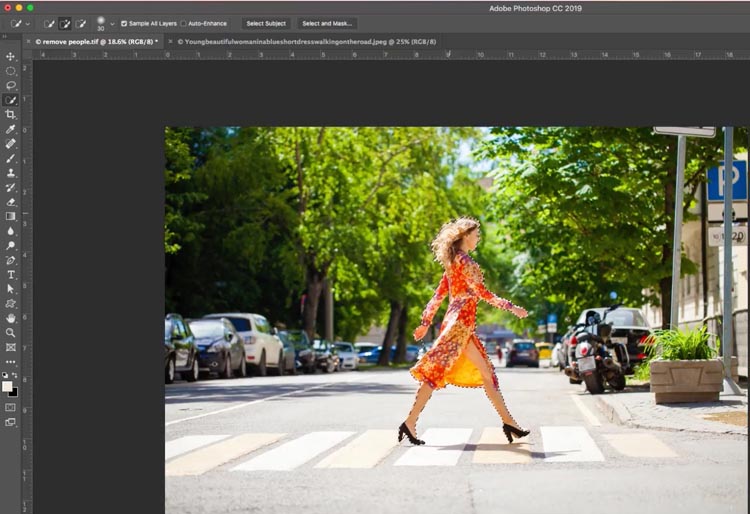
Your person will be selected. But we want a nice loose selection for a better background blend.
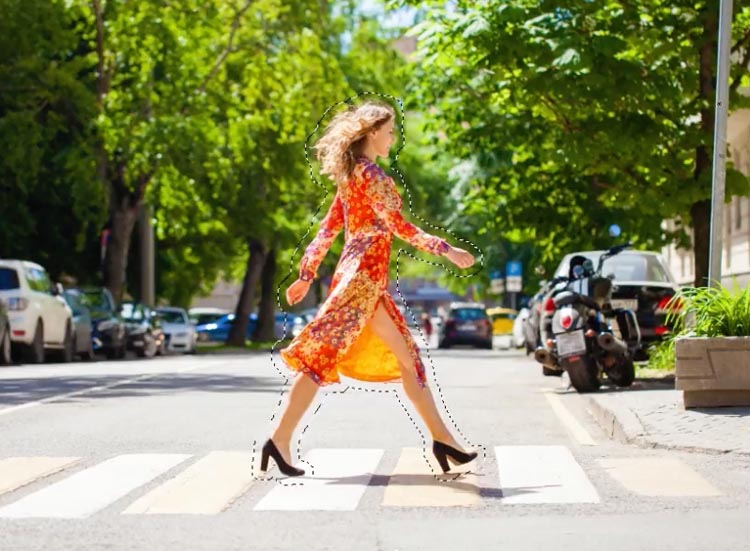
Step 2.
Choose Select>Expand>50 pixels
Step 3.
Press Shift+Delete (Shift+Backspace on Windows) this opens up fill.
Choose Content Aware and click ok
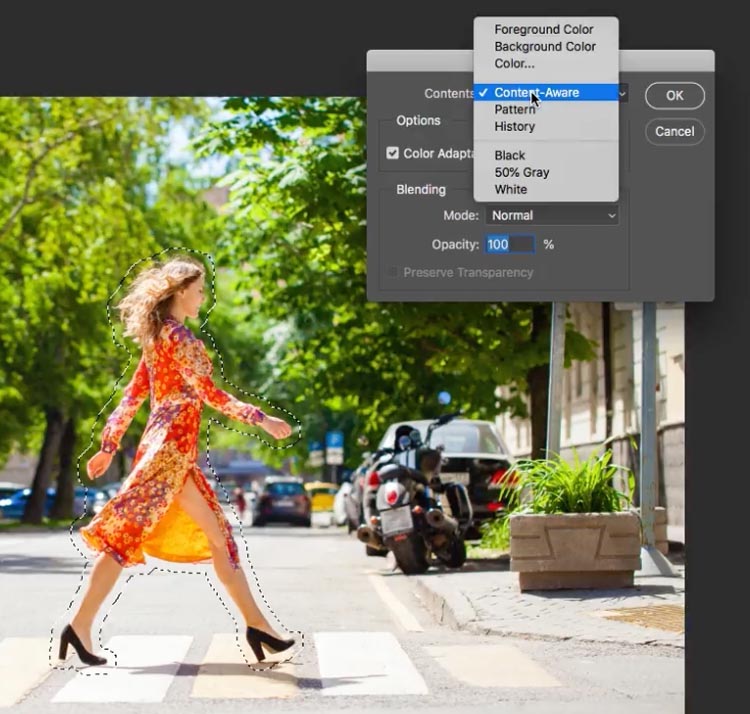
It does a pretty decent job to start with
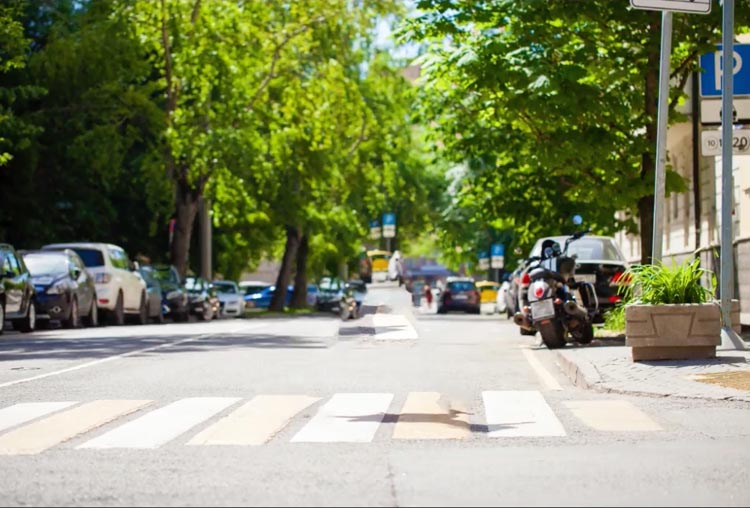
We can go 2 ways from here. Either fix the rest of this photo (which we will do in a few steps) or use an additional photo to patch it. Lets look at the patch option right now.
Step 4. Using Multiple photos to remove a person.
If you have shot other photos at the same location, use an addition photo that is unobstructed in the area we are fixing.
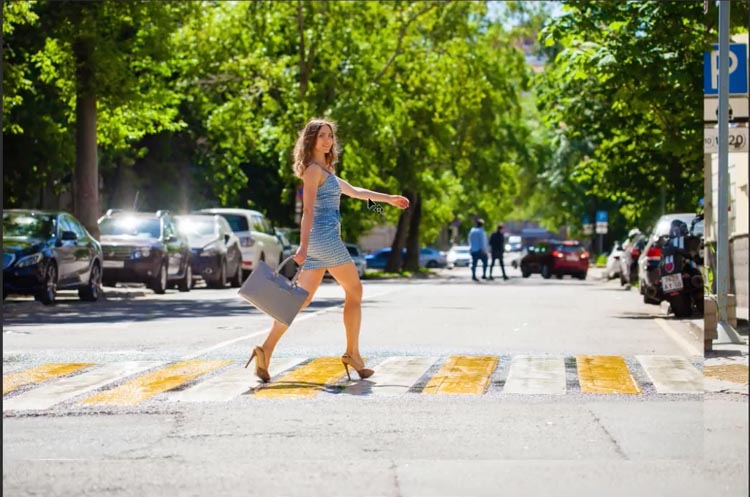
Drag the new photo into the same document as our main photo. So we will have the 2 images on separate layers.
To combine, drag the photo into the tab at the top of the screen, of the other photo. Wait for the document to open and then move to the center of the image and then release. How to combine 2 photos.
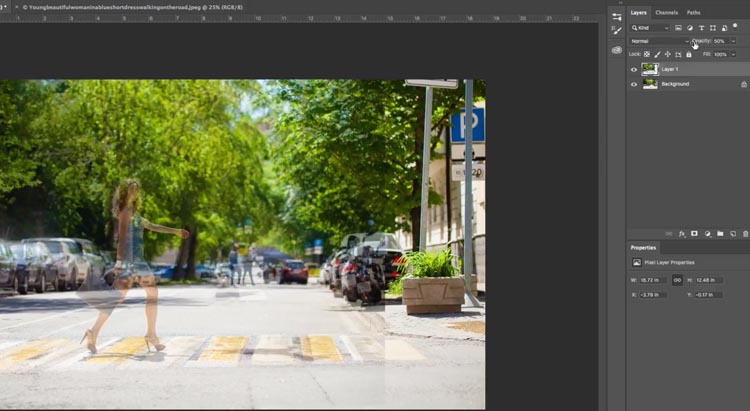
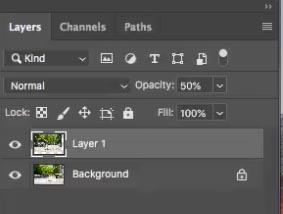
Lower the opacity of the top layer to 50% so you can see both.
Using the move tool (V) reposition the top layer so that it lines up with the one underneath.
(Note you may have to rotate, scale and dirtier the layer to fit, if so, press Cmd/Ctrl+T for free transferm and right click for additional options).
Step 5.
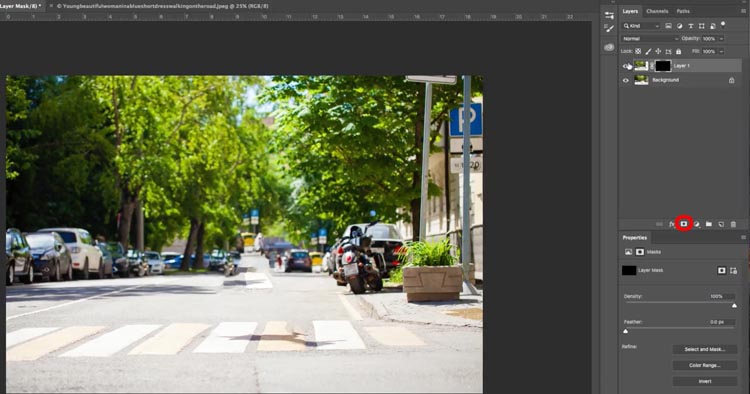
Once you have lined up the layer, hide it with a mask: While holding down Alt/Option click on the new layer mask icon.
It will make a mask that is black and hides the top layer.
Step 6.
Choose a soft edged black brush.
Choose the black layer mask and paint over the area to patch.
Paint in the top layer over the area you want to hide (The video above shows all this).
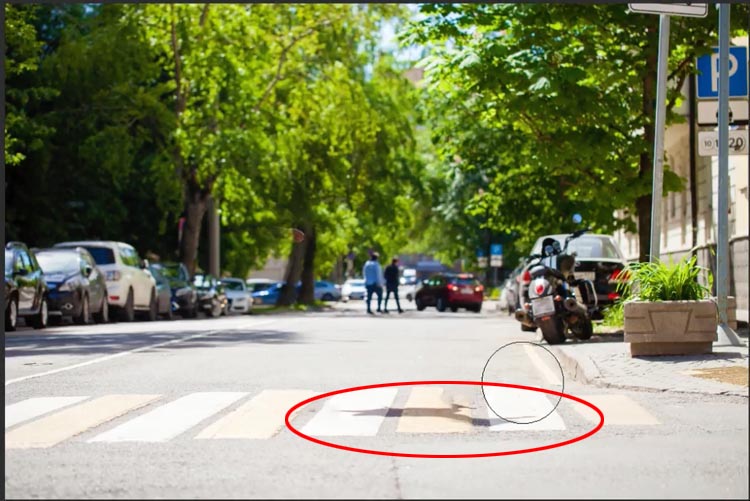
Here I have painted it the top layer over the top half of the photo. Notice it looks perfect. The only thing is the shadow on the cross walk. We will address that in the next technique.
Technique #2. Removing a person from a photo with a single image.
Here we will remove a person from a photo without using a second photo to patch the image. This is the technique you will use if you only have a single image to work with.
Step 1
Press Cmd/Ctrl+J to duplicate the layer (This leaves us with a clean background layer in case we need it later.
Choose the Quick Selection brush
Click on Select Subject (If you are on CS6, you will need to brush over the subject to select it).
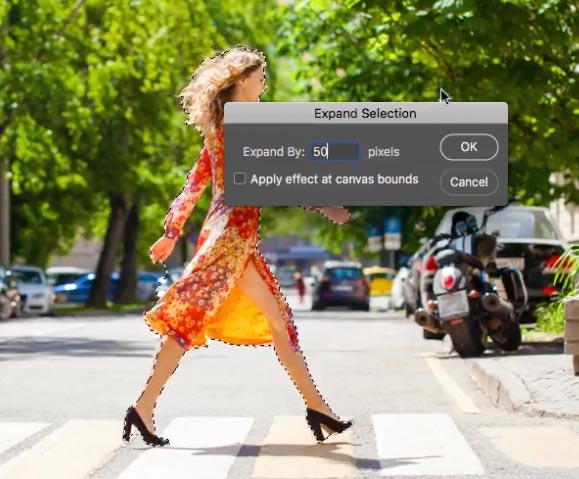
Your person will be selected. But we want a nice loose selection for a better background blend.
Step 2.
Choose Select>Expand>50 pixels
Step 3.
Press Shift+Delete (Shift+Backspace on Windows) this opens up fill.
Choose Content Aware and click ok
This is the result. Not a bad start
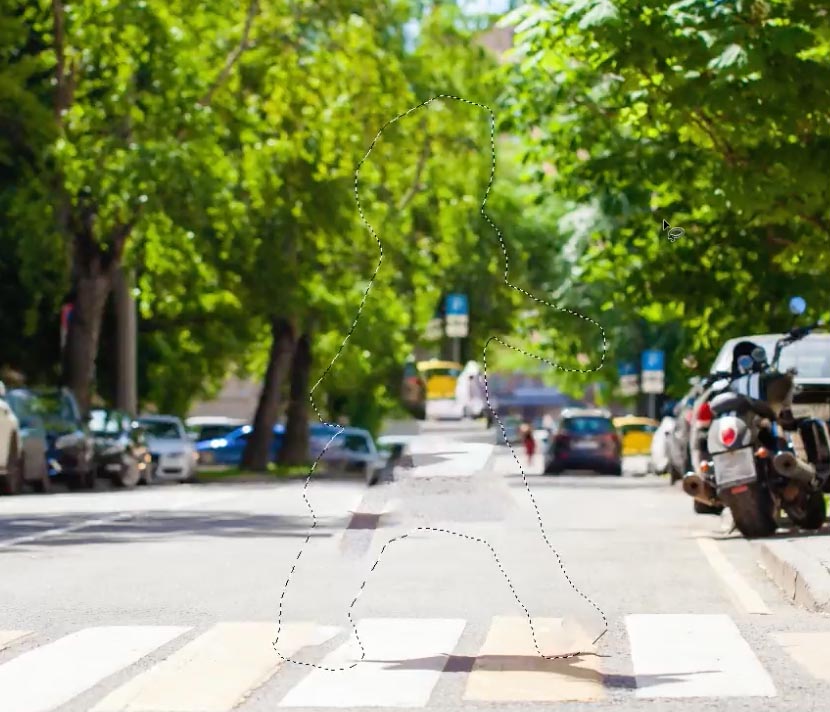
Press Cmd+D to deselect.
Step 4.
The top part needs some work, lets apply Content Aware to that.
Choose the lasso tool

Make a selection around the area that needs more work.
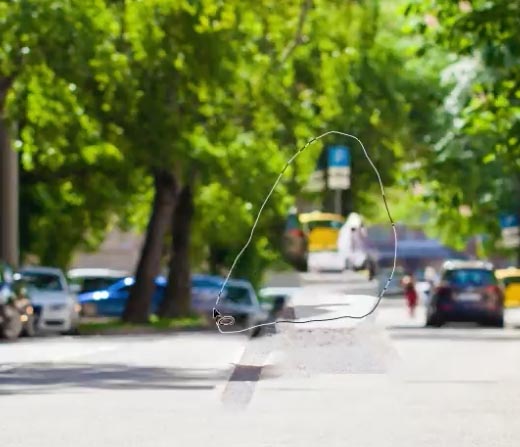
Step 5.
Press Shift+Delete (Shift+Backspace on Windows) this opens the fill dialog box.
It looks a lot better than it did.
Choose content Aware and press enter.
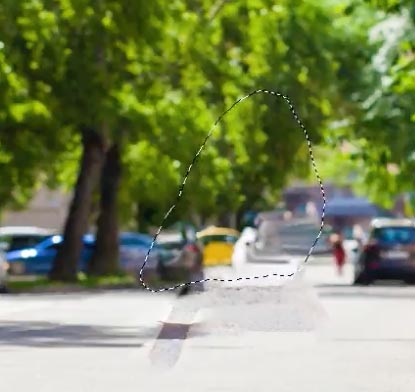
Step 6.
Now its time to hit the clone stamp to fix things up.
Create a new Layer, its best to clone onto a new layer.
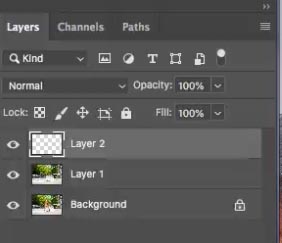
Step 7.
Choose the Clone Stamp Tool
Make sure you choose “Current and below” from the options so that the stamp isn’t blank.
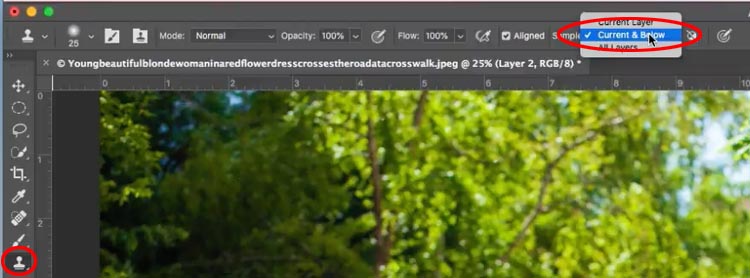
Step 8.
Use the Clone Stamp: Hold down the Option/Alt key and click on the area you want to sample.
Click and drag to paint with the sampled area. (The video shows this in operation in detail)
Use the clone stamp to copy bits in the photo to plug in the holes and hide the areas that look weird. Resample often to avoid repetitive patterns.
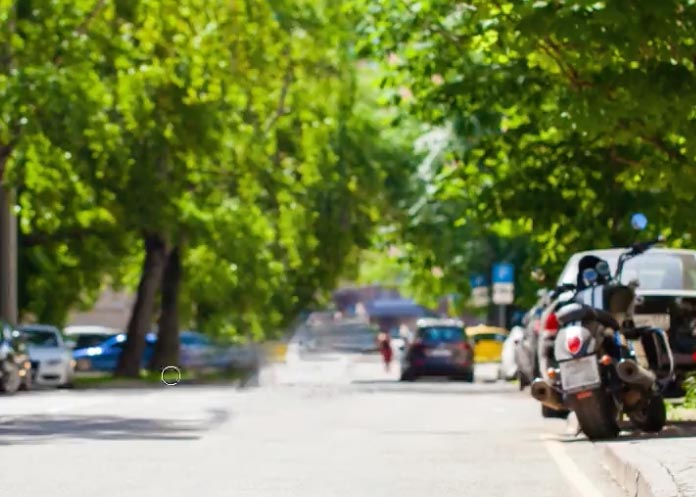
Step 9.
Finally we need to fix the shadow in the cross walk.
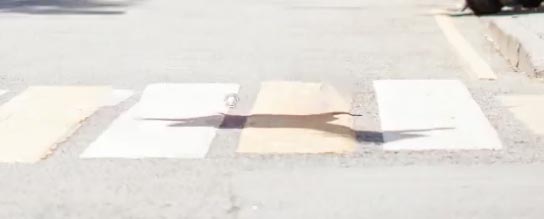
Press Alt/Option to sample. Move the brush until the edges line up and begin to paint with the clone stamp.
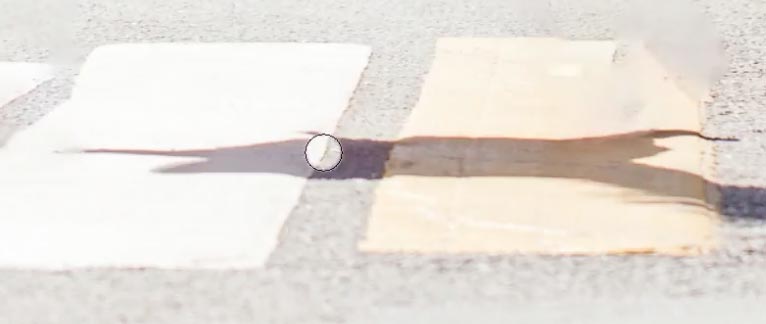
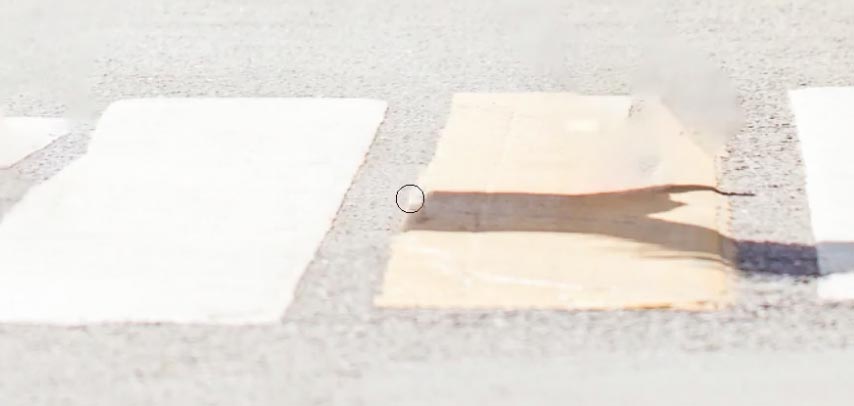
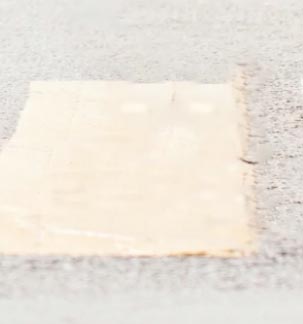
Sometimes you will come to a problem like this. The corner is missing.
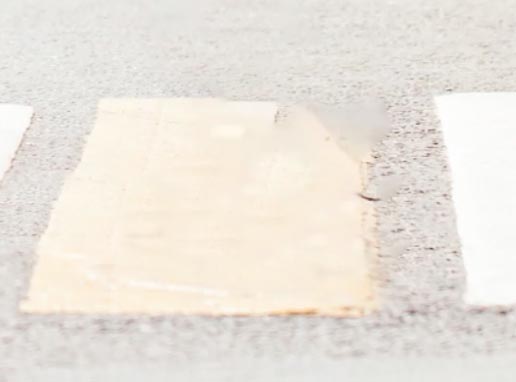
Step 10.
Create a new layer
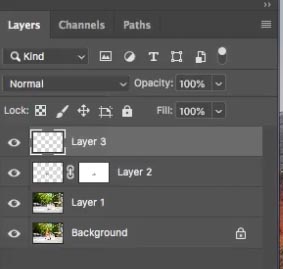
Step 11.
Clone on the new layer. Following the top edge and the side edge.
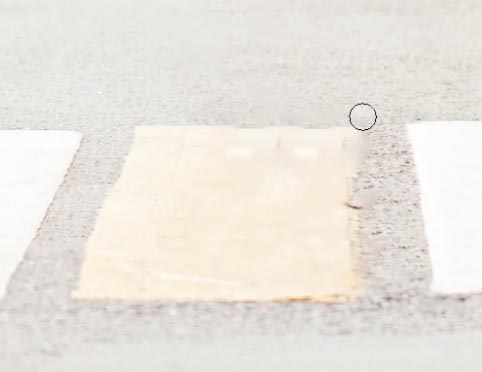
Don’t worry if you go over. We will fix that. In fact sometimes its better to go too far and then use layer masks to clean up.
Step 12.
Click the new Layer Mask icon in the Layers panel to create a layer mask.
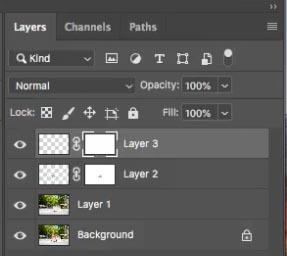
Step 13.
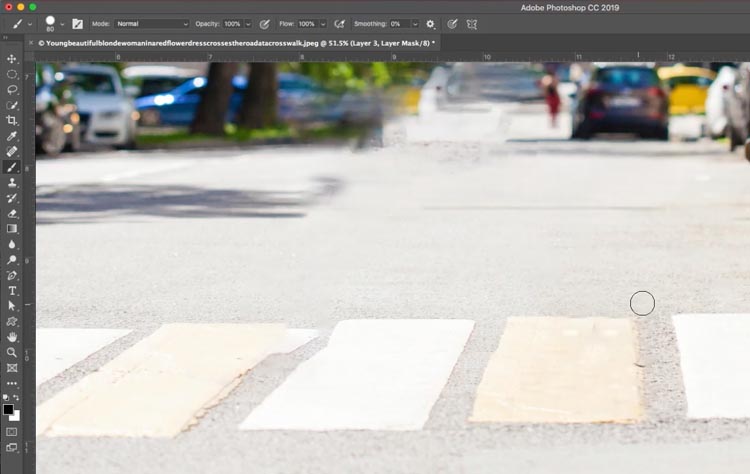
Choose the brush tool
Press Cmd/Ctrl+D to reset the color.
Press the X key to swap foreground and background colors. The foreground should be black.
Choose the layer mask.
Paint on the edges of the shape to make away the excess.
Step 14.
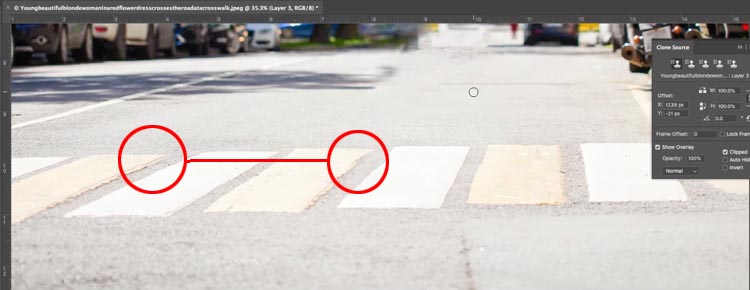
What if we want to sample from a different area and the angle is different. We want to copy the left yellow rectangle over the highlighted yellow rectangle. However the angles are different.
Step 15.
Choose Window>Clone Source to open the clone source panel.
Change the angle amount by dragging on it in the panel.
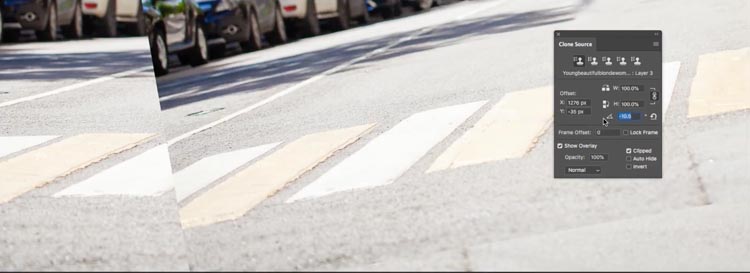
Now when you clone, the angle will change to match the new angle.
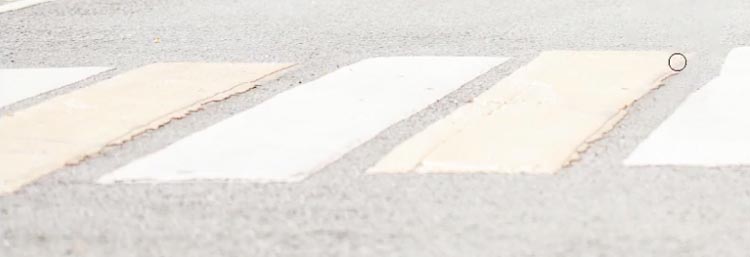
And we are all done.

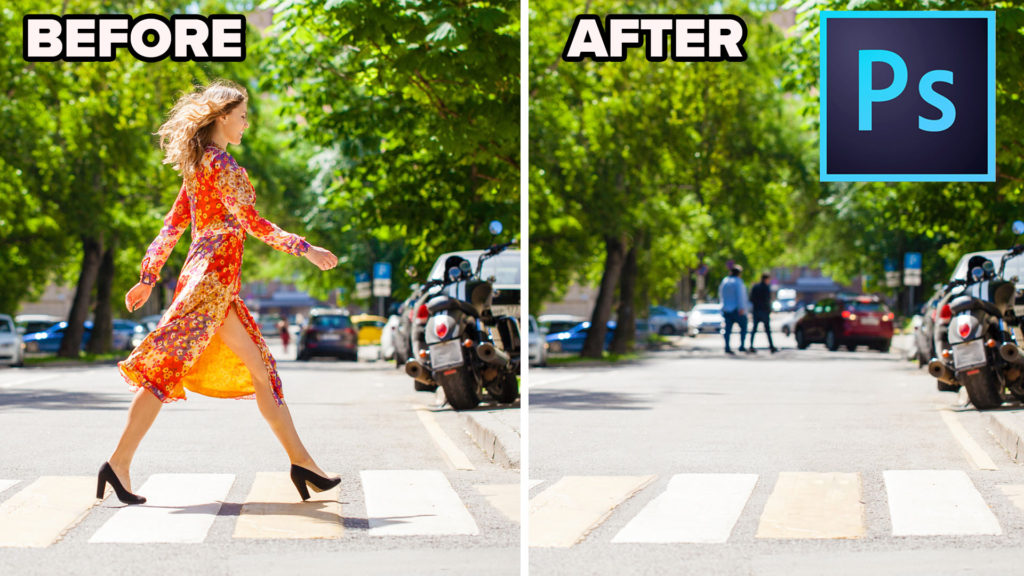
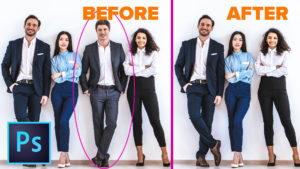
For the thumbnail, I combined the top half of the image from the first technique and the cross walk from the second technique. It came out so good, I was accused of using a different image 🙂
I really hope that you found this video and written steps useful and that this helps you remove people from photos a couple of different ways. If it was helpful, please tell everyone about PhotoshopCAFE and share this tutorial on your social media.
Great to see you here at the CAFE
Colin

Recommended for this tutorial
Complete Guide to ai in Photoshop 2026
Generative Fill, Firefly, Harmonize and every AI tool in Photoshop, step by step.
$79.00 · one-time purchase · instant download

Free for you
The Photoshop Vault
Get my free Layer Blending Modes ebook along with dozens of exclusive Photoshop goodies: actions, brushes, presets and cheat sheets.
You're on the list, so your free goodies are waiting for you in the Vault.
Get Free Photoshop Goodies Open the Vault

How to remove difficult objects from photos. Removing distractions from photographs.
How to remove difficult subjects from photos in Photoshop tutorial. Remove anything using healing brush, Content aware fill, clone stamp and more.... Read tutorial
How to use the clone stamp in Photoshop
Learn how to use the clone stamp tool in photoshop to remove distractions and duplicate objects. Photoshop tutorial. Read tutorial
Photoshop CC 2014, best new features for photographers
This tutorial touches on the best new features in the 2014 release of Photoshop CC and how to use them. This includes... Read tutorial
How To Remove Anything from a Photo in Photoshop
This Photoshop tutorial shows you different tools and techniques to remove anything from a photo. We will remove braces from teeth, make... Read tutorial
Remove distractions in photos with Photoshop advanced Content Aware Fill
Easily remove things from photos with advanced content aware fill options in Photoshop. When Content Aware Fill doesn't work as expected Read tutorial











Great job, Great tutorial as always.
One more thing to fix/clean up though.
Your Art Director or Client should’ve caught this.
The shadow of a tree on the bottom left side of the picture
should either be removed or extended.
In the original pic, that shadow is interrupted by the model’s
right leg behind her. When you removed her, that tree’s shadow
unnaturally, and abruptly, ends in the middle of the street.
Actually, there’s a faint shadow edge that comes out from under
the model’s skirt. It was the bottom extended trail of the tree shadow.
Its now weirdly shifted up and disconnected from the tree shadow.
That tree shadow comes out strong, and looks good,
on your corrected fixes before the pic merges for your
thumbnail pics for the video.
I would use that or remove it entirely from your second picture.
Looking forward to more tutorials,
Jonathan
Thanks,
Great work, Colin. So far you’re doing an outstanding work, so don’t listen the bad criticism on your technic.
Like you said: those who don’t like it, go find someone else. Thanks for your work.
Hi Colin
Another great tutorial. Thanks for all the effort you put in teaching. It is very much appreciated. Anyone who submits criticism I would consider to be a pompous ass. I have been following your tutorials for years and collect them for future reference. Very valuable information.
As usual – good practical tutorial. Thanks.
Thank you I always enjoy your tutorials, they are informative but not to complex. please keep up the great work
Paul
Colin, your tutorials are constantly insanely brilliant.
I’m 54, and I have been using Photoshop since day dot, and I always hold the attitude, that if I can learn one more thing (or more of course) from any tutorial, then it’s a winner. You’ve now taught me about the clone stamp source panel, and changing angels. Oh how I could have used that in the past. Thank you so much, and please keep up your terrific sharing – and forget about the knockers. They’re not on the same page.
kind regards Paul
I greatly appreciate you showing us how to use these tools and it is up to us to perfect them in our own application. People should understand you do not have time to fully edit from go to finish. After all we have to learn from experimentation and there are always your written notes. I say thank you for your easy to understand tutorials.
Hi Colin,
Thanks for the great tutorial. I always learn something new by watching your tutorials, particularly your tuts are easy to follow and the text underneath the video makes it even easier if I missed anything from the video. Please keep up the great work.
I never knew about the clone source button, Colin and that is going to make things so much easier to clone. Thank you so much, for this video, it’s a really invaluable way to remove and/or replace items in a photograph.
Still working with CS6 Extended. But these tutorials are gold. Thanks Colin
Enjoy and learn from your tutorial
I always enjoy and learn a great deal from your tutorials. Please keet it up.
Thanks for your page. I have PS 2015 and other tutorials for this pointed to a different method I couldn’t do with this version. Cheers