
Gemini 3 Nana Banana Pro Comes to Photoshop: How to Use It
Google just introduced Gemini 3 Nana Banana Pro, a big step up for Nana Banana. On day one, Adobe integrated it as a partner model inside Photoshop—and it opens up some seriously useful workflows. Here’s a fast, practical tour of what’s new, what works great, and where the current limits are.
We will start in the native Gemini page and then move to Photoshop.
Go to Gemini.google.com

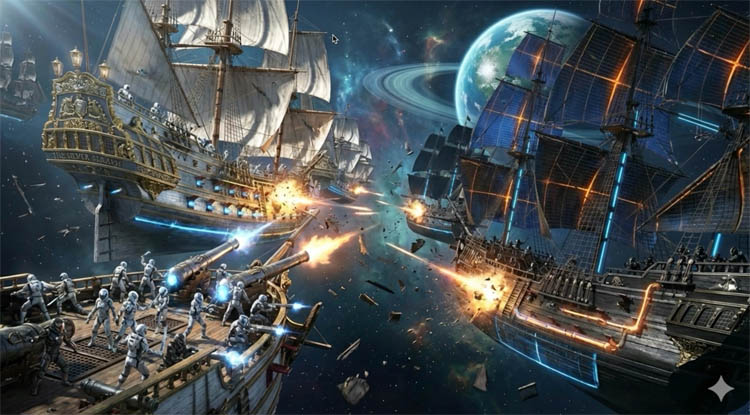
Just for fun, I decided to generate a detailed scene to see how well it works.
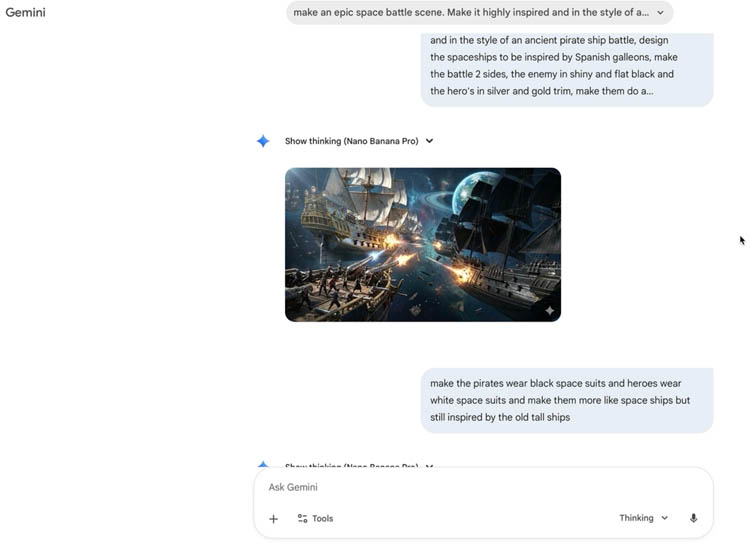
The resolution in Nano Banana Pro is 4k, but its only available from the highest level of subscription on google.
Quick Look Outside Photoshop: Fixing out of Focus photo
Open Gemini on the web and upload an out-of-focus portrait.
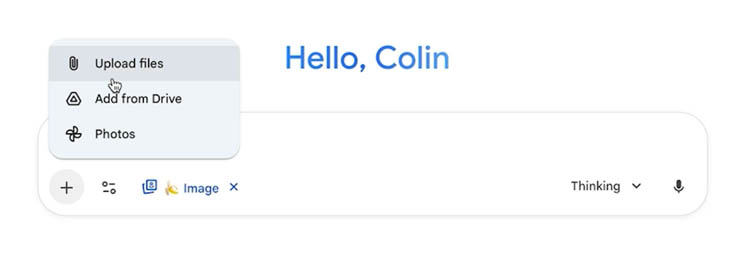
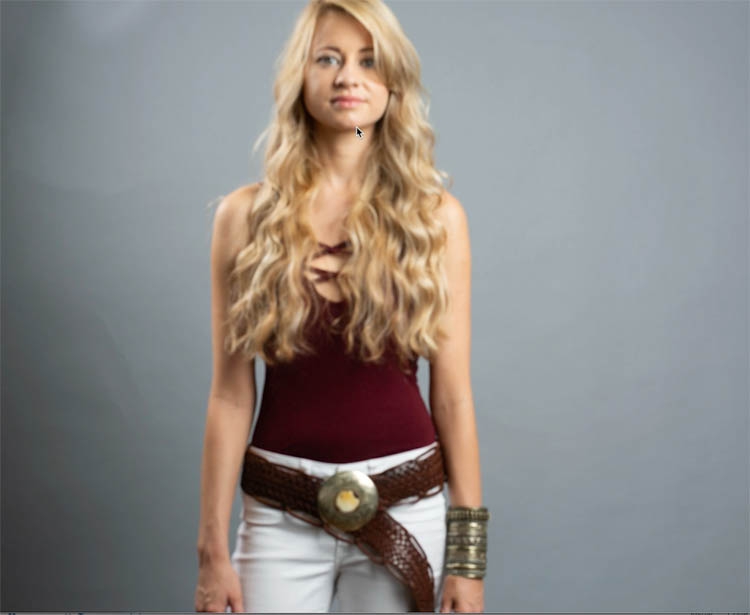
Prompt: “Change sharp focus to person.”
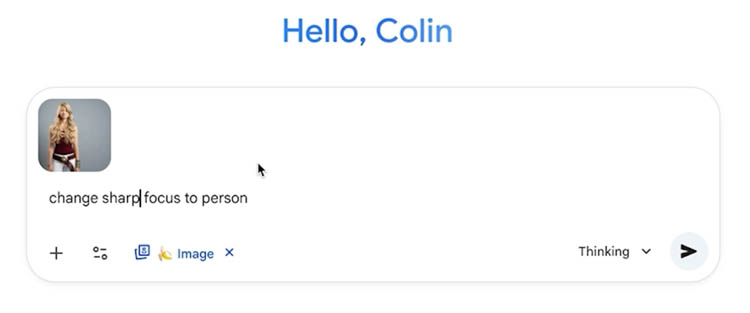
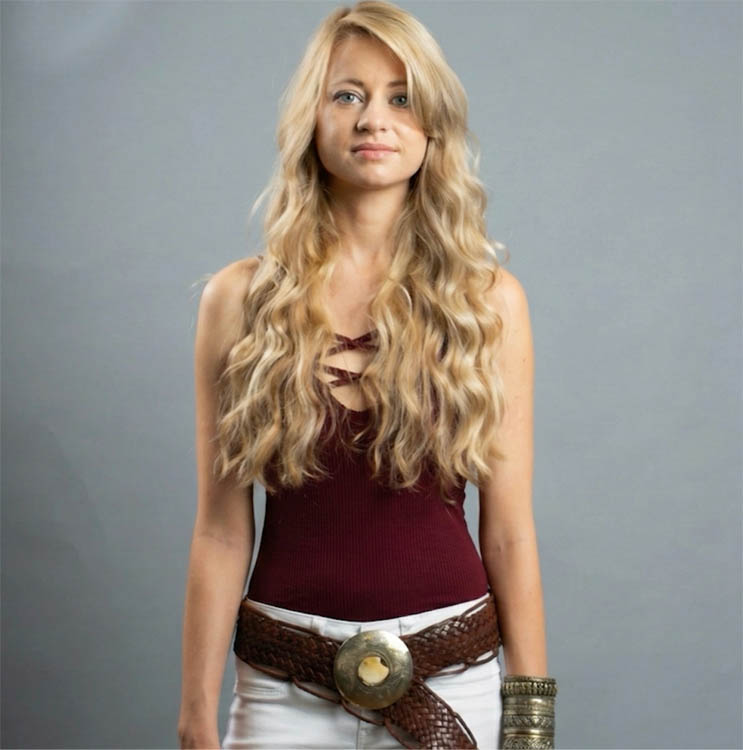
Download the result and compare at full size—the focus shifts from the background to the subject.
We can do pretty much everything in the native app. But you will be limited to 3 Nano Banana Pro generations a day, and then it falls back on Nano Banana 2.5. You can generate 100 images a day in 2.5 NB on a free account, before Google asks you to buy a subscription. Inside Photoshop (depending on your subscription level ), you can generate many more Nano Banana Pro images, but it’s currently limited to 1k resolution.
Using Gemini 3 Nana Banana Pro Inside Photoshop
Open your image in Photoshop. Latest Mainline build, not beta.
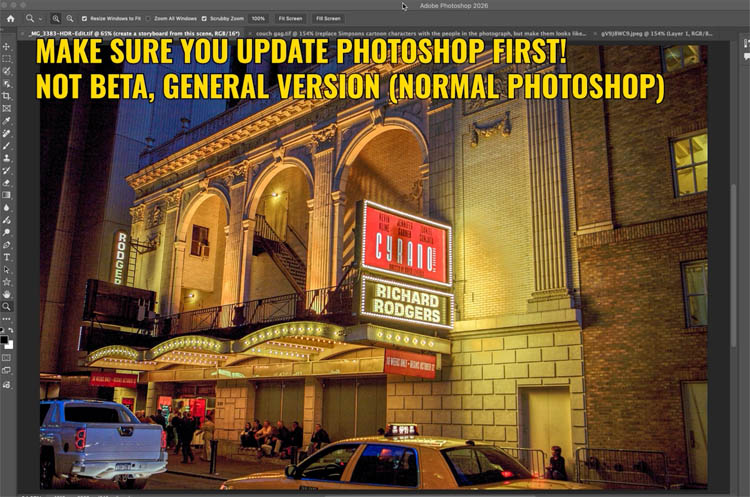
Make a loose selection around the text you want to change. We are going to change Richard Rodgers to my name, just for fun.
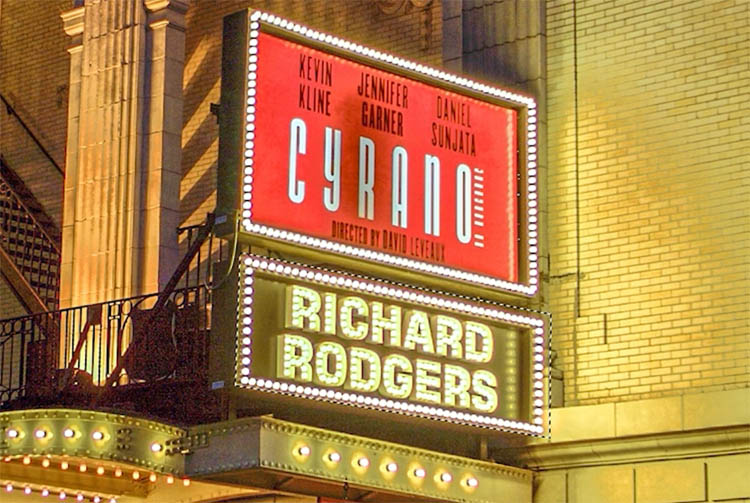
Choose Generative Fill,
Prompt with quotes for reliability: “Change ‘Richard Rogers’ to ‘Colin Smith’.”

Click on “Fi” or “G” to open the Model Switcher, and pick Gemini 3 Nana Banana Pro.
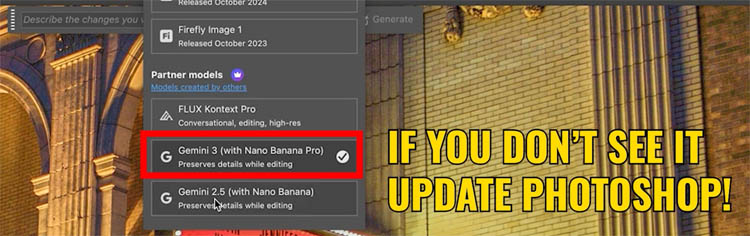
Generate and review—same font style, spacing, and even reflections are preserved.
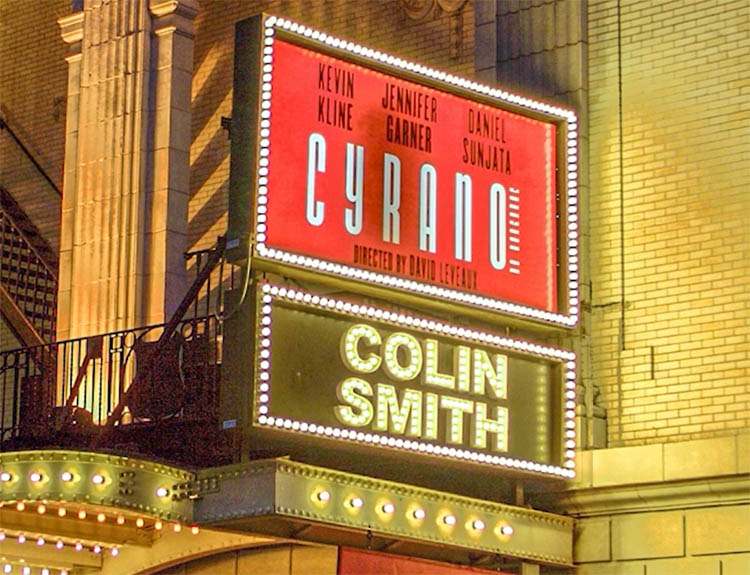
Tip: As a best practice, put replacement text inside quotation marks.
Create a Storyboard From a Single Scene
Press Control/Command A to select the whole canvas.
Open Generative Fill and prompt: “Create a storyboard from this scene.”

Generate and review the multi-panel layout it produces from your still image.
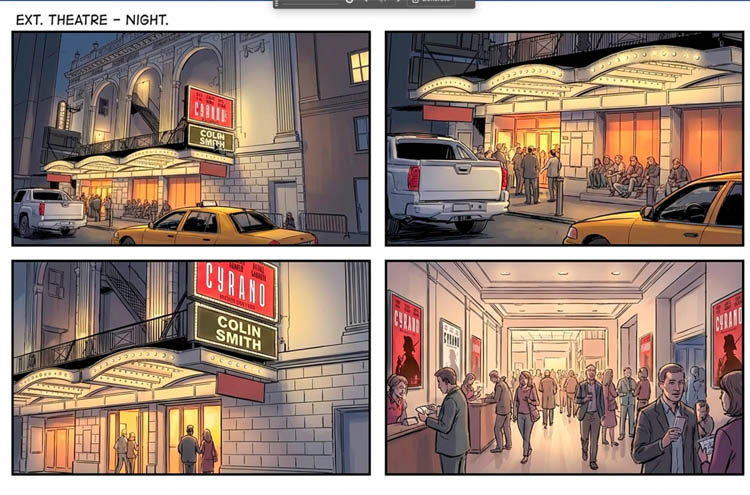
If any label text is off, regenerate or revise the prompt with clearer panel notes.
Build a Stylized Group Scene (Simpsons Couch Gag)
On a blank canvas (1900 x 1080), Select All, then prompt: “The Simpsons couch gag.”
It generated the famous “Couch gag” scene at the beginning of every episode, where something different happens on the couch.
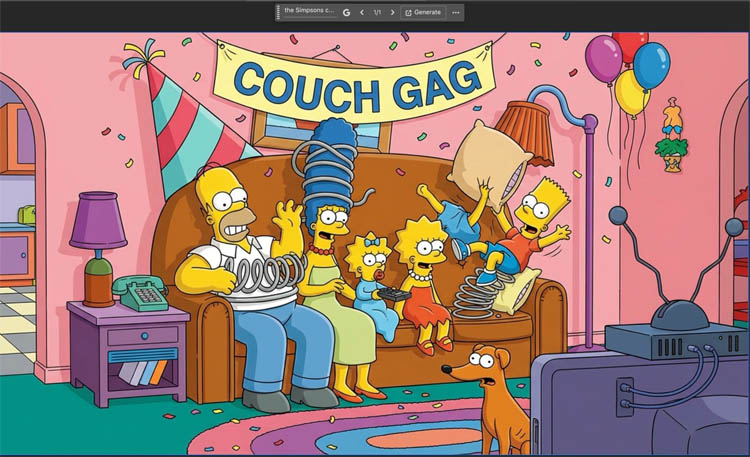
Let; change the people in the image.
I decided to change the people with some of the instructors from the Photoshop Virtual summit.
Let me select just the top row with myself and some of my friends.
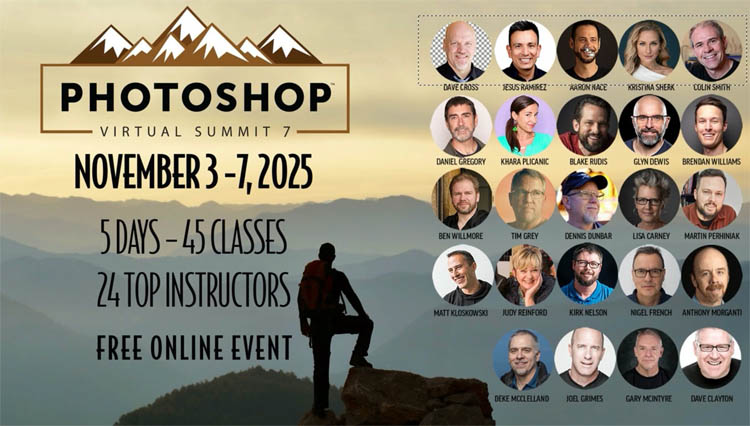
I move the row of faces into the image on a new layer (How to combine images)
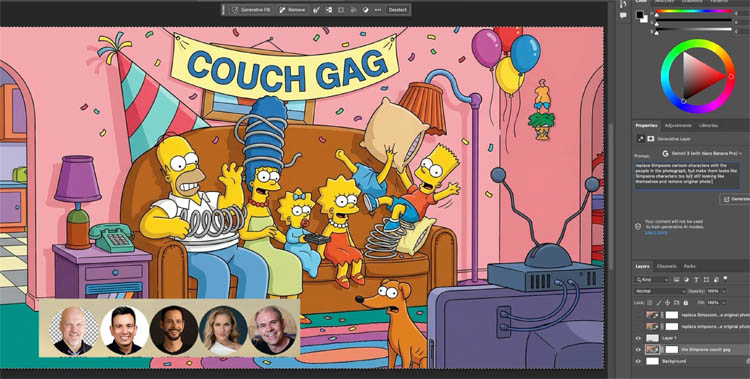
Select All again and prompt: “Replace Simpsons characters with the people in the photograph; make them look like Simpsons characters but still themselves; remove original photo.”
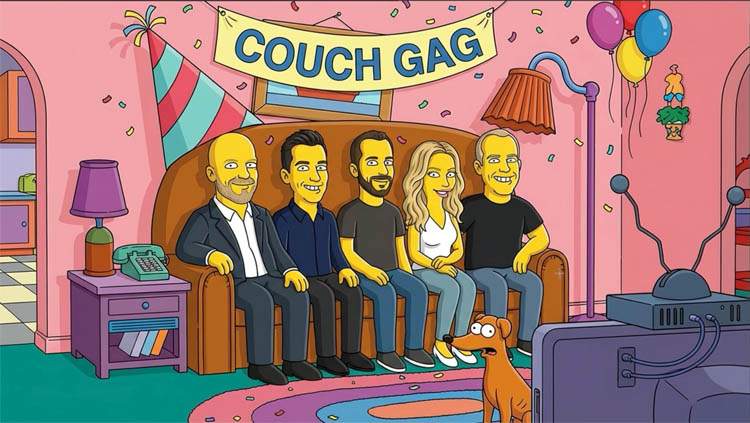
Tip: Add constraints like “don’t change pose” or “keep proportions” to maintain composition.
Bring a Person Into Focus—Without Color Shifts
Select All and open Generative Fill.
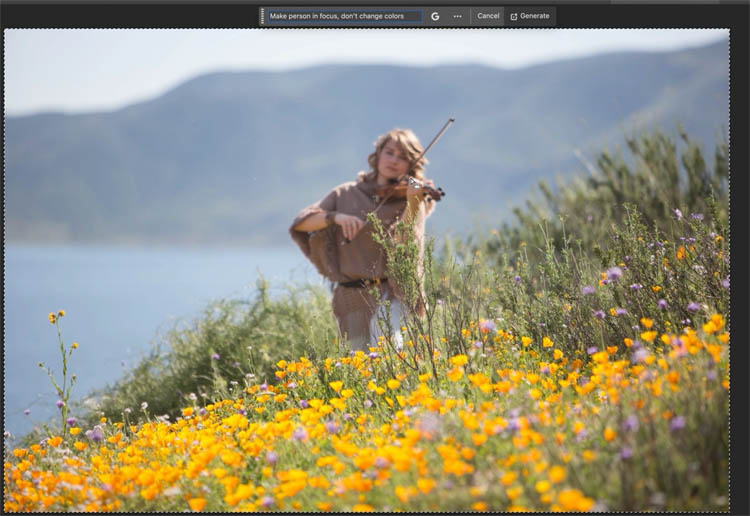
Prompt: “Make person in focus. Don’t change colors.”
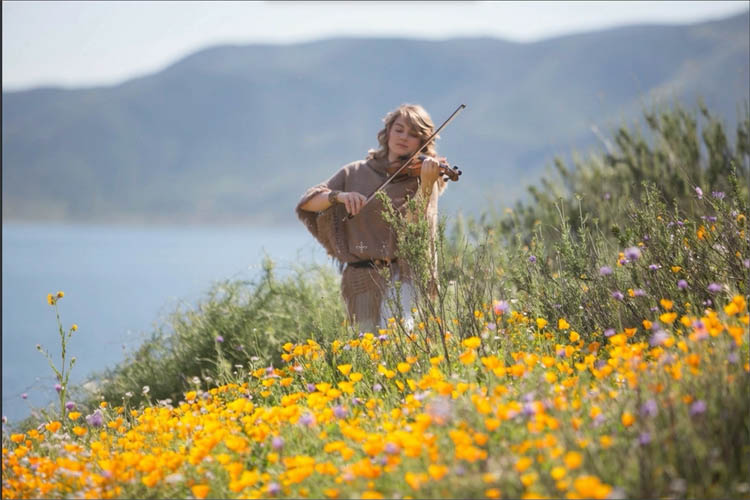
If you’re working on a 16-bit document and see color shifts, convert a copy to 8-bit and try again.
Regenerate if edge sharpness needs a bump.
From Sketch to Brand Kit (Kawaii Logo + Mockups)
Place a rough dog sketch on a clean layer. I called this character Puppie Dogg
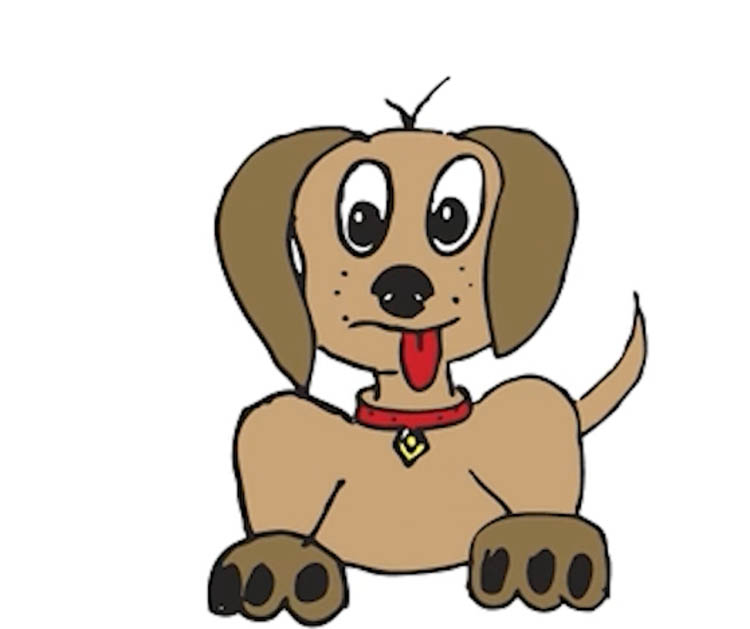
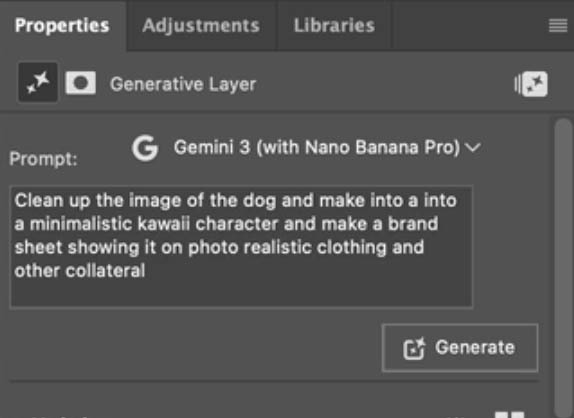
Select All and prompt: “Clean up the dog drawing as a minimalistic kawaii character; create a brand sheet with photorealistic clothing and collateral mockups.”
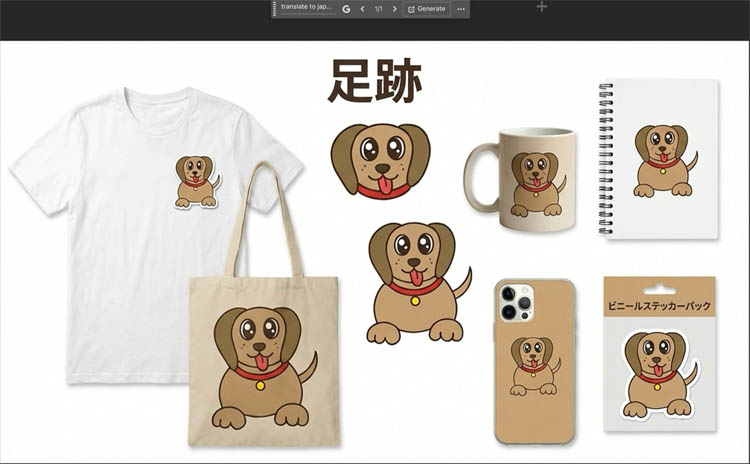
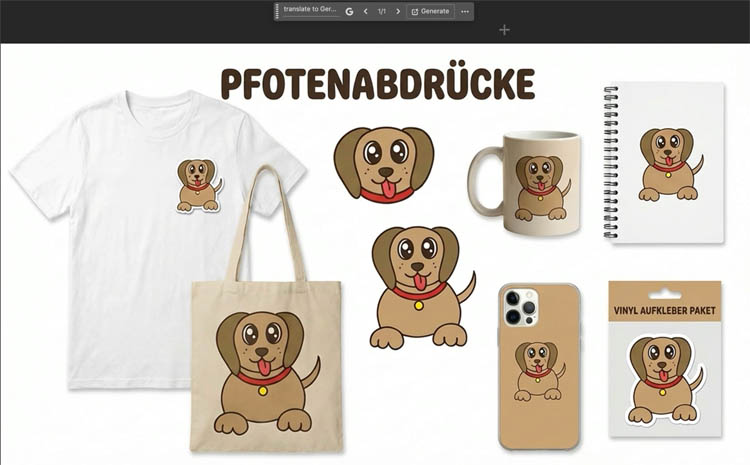
Review the generated logo and auto-placed mockups (phone case, tote, tee). It made up the name “paw prints” I could easily change it.
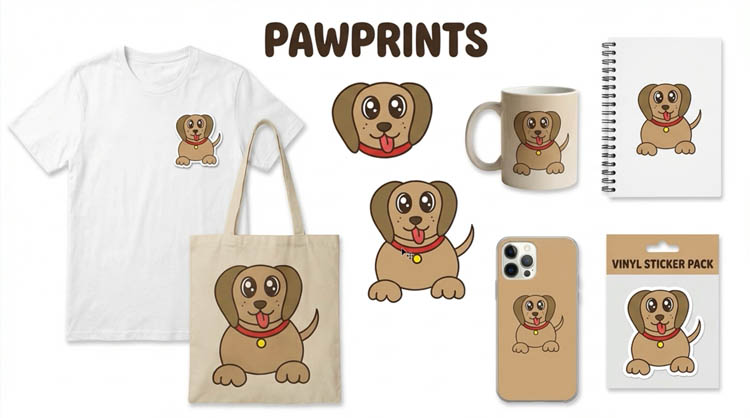
To translate and localize the language, regenerate with “Translate text to Japanese,”
I’ve been told the Japanese translation is good, but the font isn’t good.
then again with “Translate to German,” and spot-check accuracy.
I’ve been told by one German speaker, the translation is good, another said, it’s just ok.
Tip: For consistent brand color, include color values in your prompt (e.g., “use #FF7A00 primary, #111111 accents”).
Practical Notes, Limits, and Workarounds
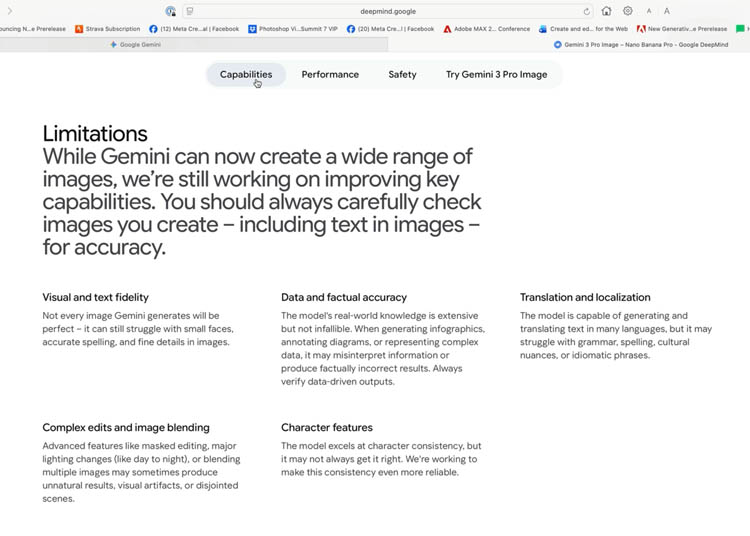
There are some limitations and exciting new features. I’ll give you an overview here.You can read up about there here on Goggles page
-
Capabilities that feel new
-
Better context understanding for scenes and characters
-
Text handling (edit/replace fonts in-scene)
-
Simple storyboards and layout ideation
-
Basic focus/defocus adjustments
-
Rapid localization mockups across languages
-
-
Current limits and how to work with them
-
In-Photoshop generation size: currently capped around 1K output. For larger needs, generate externally or upscale afterward.
-
Text/visual fidelity: quotes help for text; regenerate for cleaner kerning or reflections.
- Good Translation for words, but struggles with punctuation and localized context.
-
-
Credits and plans (at the time of testing)
-
In Photoshop, Gemini 3 Nana Banana Pro uses 10 premium credits per generation (same as Gemini 2.5 Nana Banana).
-
On Google’s side, there’s a daily free tier until capped; paid tiers like AI Pro and AI Ultra exist for heavier use.
-
Choose Photoshop credits vs. a direct Gemini plan based on your volume and whether you need larger-than-Photoshop outputs.
-
Tip: For print or large comps, generate the concept in Photoshop, then upscale the accepted frame with Generative Upscale or an external tool to reach target resolution.
Final Thoughts
At this point, I don’t really see Nano Banana as working with Photoshop. I see it as more of a separate ai tool embedded within Photoshop. If you are an ai user, it saves you purchasing a separate subscription at google and topaz for example. It also spares you from leaving Photoshop.
If you are an editor that doesn’t use ai, or makes light use of ai, it won’t get in the way of your workflow as it’s quite hidden unless you are using it.
I’d love to hear your thoughts
It’s great to see you here at the CAFE
Colin
Recommended for this tutorial
Complete Guide to ai in Photoshop 2026
Generative Fill, Firefly, Harmonize and every AI tool in Photoshop, step by step.
$79.00 · one-time purchase · instant download

Free for you
The Photoshop Vault
Get my free Layer Blending Modes ebook along with dozens of exclusive Photoshop goodies: actions, brushes, presets and cheat sheets.
You're on the list, so your free goodies are waiting for you in the Vault.
Get Free Photoshop Goodies Open the Vault











Where is this all going to end? I tried to add an ombre hair effect to a model – two colours – light green and light blue – and it worked a treat. Also experimented with text – fantastic.
Putting subject in focus has to be a winner. I would rank it up with removing reflections.
It’s a very useful feature, especially if you combine it with Topaz gigapixel in Generative Upscale, I think you would have to combine them for resolution, unless just sharing to socials.
Why is speed downgraded to 1x only? Sure wastes a lot of time.
This is a great question, I’m not sure why. Do you have any theories?
AS an 80 year old professional Photographer and artist who taught Photography in two Florida Museums. my feeling is that AI is just one element in completely destroying life as we know it, as I was brought up to believe. How can I teach Photoshop anymore? “Type in anything you want and it is created for you; why bother to learn anything creative if “creative” is done by a push of a button, not by your own intellect, thoughts or training.” The Genie is out of the Bottle and we are forever lost.