
Dynamic text in Photoshop automatically create beautiful blocks of text
How to use Dynamic text in Photoshop
Dynamic text will automatically format your text into a block and resize everything to fit a block. You can resize and change the proportions of the box and the type will automatically reflow to fit.
Previously this was only in Photoshop public beta. Now it’s in the main version of Photoshop.
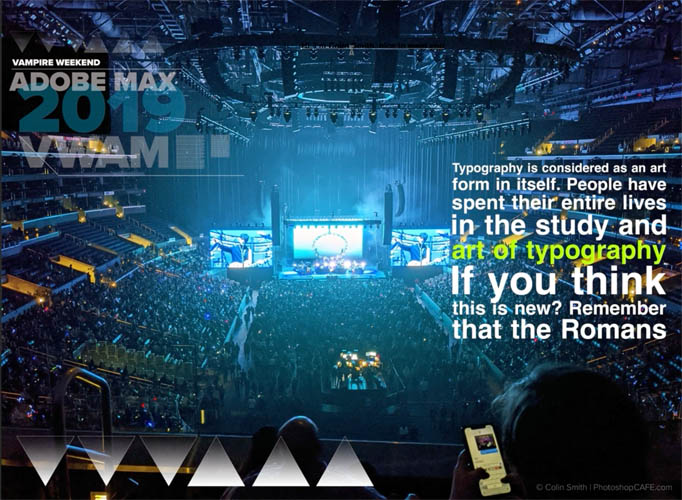
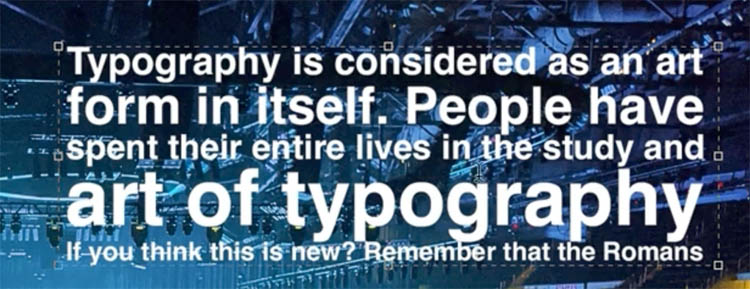
You can see the example here with the text on the right of this image I made of the Max Bash at Adobe Max 2019.
Add some text to your page.
If you want to use Paragraph text, drag the type tool to make a box. This will give you multi-line text. If you simply click with the type tool and type, everything will be on a single line. Dynamic text works with both.
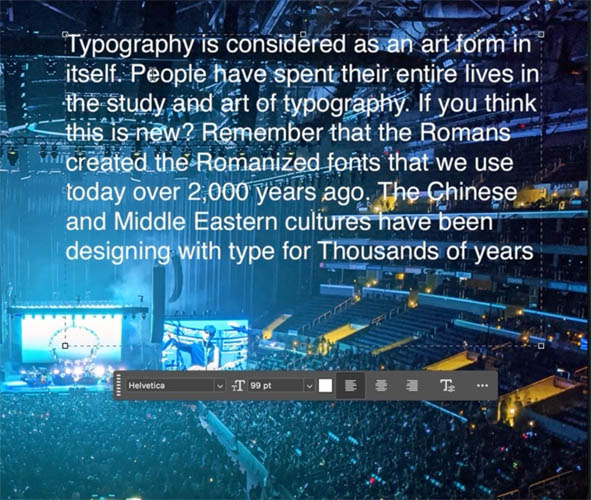
Here I can changed the typeface to Helvetica.
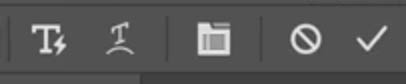
With the type selected and the type tool active, look for the T icon in the toolbar with the lightning bolt.
Click to convert to dynamic text. (Click again to turn off dynamic text.)

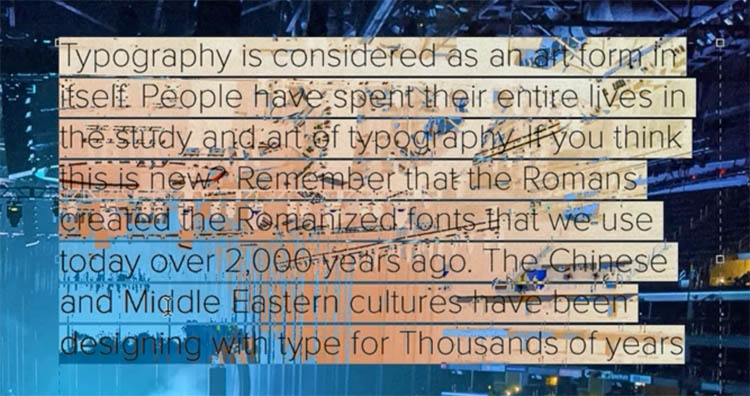
Now you see the type becomes different sizes to fill the space. Each line of text is enlarged or shrunk to make it perfectly fit the box.
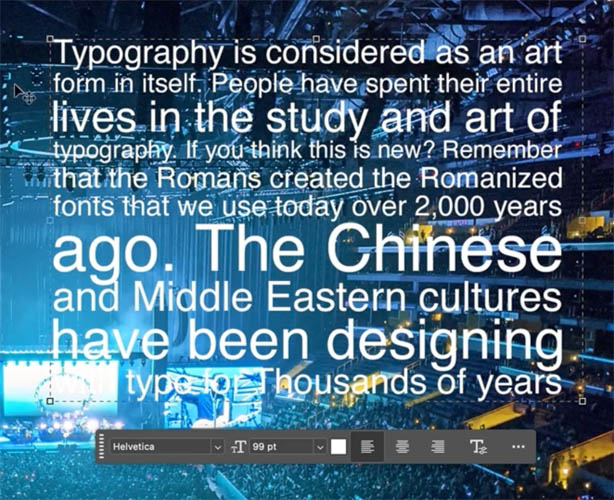
As you drag the corners of the type click, with the type tool the text will reflow dynamically. Note: You can’t change the shape with the move tool, only the type tool.
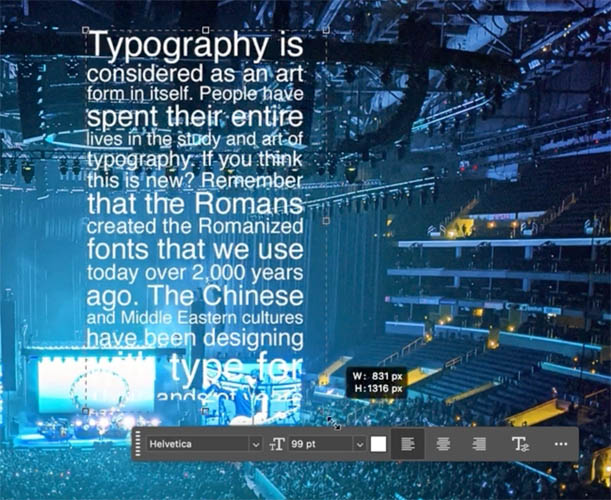
Taking control of Dynamic text manually
What if there is a word or phrase that you want to appear on it’s own line? You can control that with barrage returns.
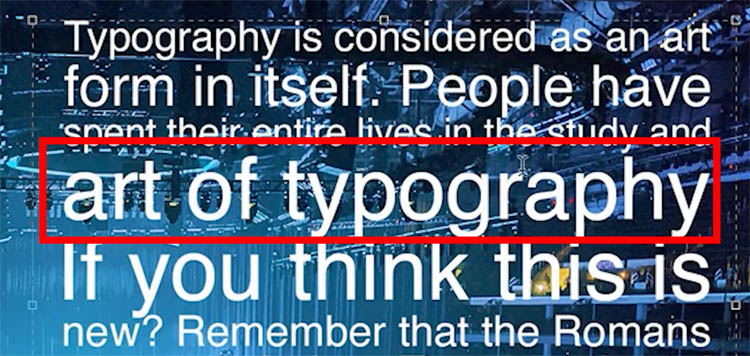
Lets make art of typography appear on its own line, and stay there even when we resize.
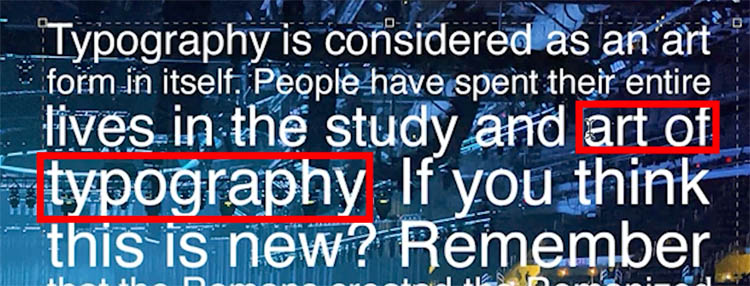
Put the type cursor before the first letter and hit enter.
Put it after the last letter and hit enter. Now you have that phrase on its own line.
Changing to a bolder font
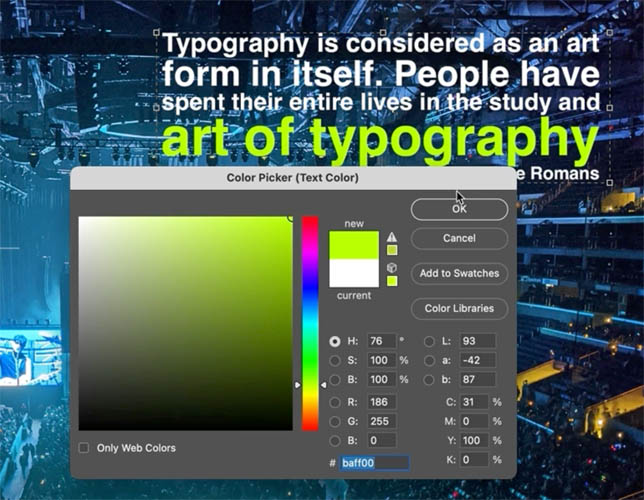
You can highlight any of the words and change the color.
Settings for Dynamic Text
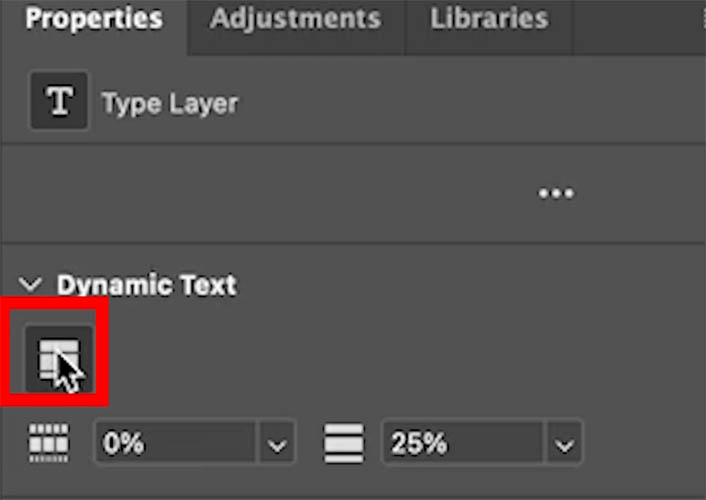
Scroll to the bottom of the Properties panel with the type tool active.
You will see Dynamic text. Press the block to turn it on or off.
Notice the 2 settings underneath it.
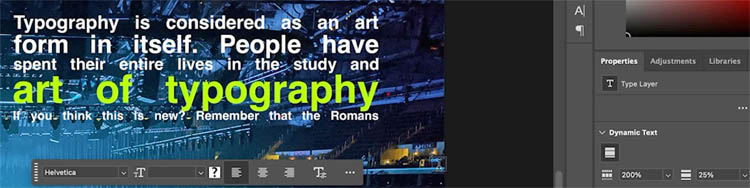
The first slider will change the spacing between words.
Here its increased to 200%
or -100% to remove the space altogether.
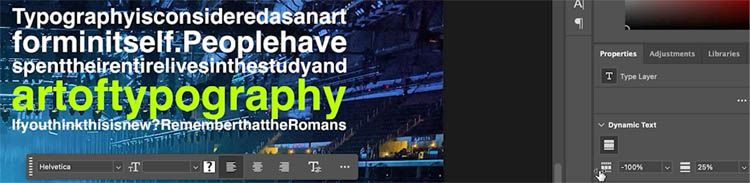
The second setting in the line spacing (leading)
This image shows it increased.
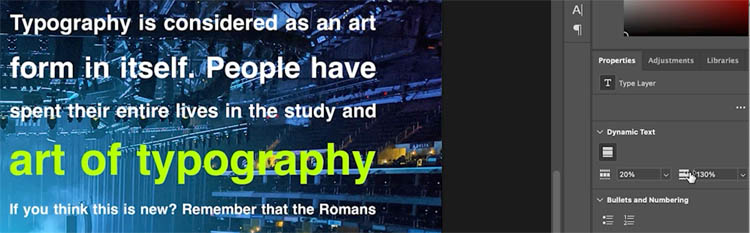
Once you have changed the settings they will remain even when you resize or reshape.
This tool saves a lot of time. Check out the video for more tips and a more in depth explanation as well as a demo of it in action.
In other news, Adobe Fonts have added 1500 new fonts, including some of the world’s most popular fonts from Monotype. If you know fonts, I don’t have to tell you this is huge! Adobe Fonts is included in app apps CC subscriptions.
Try this out and enjoy!
Great to see you here at the CAFE
Colin
Recommended for this tutorial
Photoshop Compositing: Sky City Project. Photoshop 2026
Build a complete composite from start to finish and learn the techniques behind it.
$39.99 · one-time purchase · instant download

Free for you
The Photoshop Vault
Get my free Layer Blending Modes ebook along with dozens of exclusive Photoshop goodies: actions, brushes, presets and cheat sheets.
You're on the list, so your free goodies are waiting for you in the Vault.
Get Free Photoshop Goodies Open the Vault

Dynamic Text in Photoshop: Circle, Arch, and Advanced Controls Explained
Create clean circular and arched text using Dynamic Text in Photoshop Read tutorial
3 ways to make rasterized text easier to read on the web
Blocks of pixel text at small sizes often appear blurry, smudged, or just plain unreadable when viewed on a Web page. Photoshop... Read tutorial
How to Place text behind an object in Photoshop
In this Photoshop tutorial, I show you how to run text behind a portion of a photo. This is what you often... Read tutorial
How to outline type in Photoshop tutorial
This Photoshop tutorial shows you how to outline type and make it vector in Photoshop. If you want to preserve the edge... Read tutorial
How to wrap text around images. Photoshop text wrap.
How to wrap text around images in Photoshop, Photoshop text wrap tutorial Read tutorial











thank you, Colin! As always, a quick, simple, demonstration, easy to understand, at all levels!!!
How does it know what lines you want to make stand out? That was unclear. Like in the last example what if you wanted your name to be bigger than the other text?
By using carriage returns (press enter)
Your YouTube video is great and I will probably use the dynamic text feature sometime.
I’m not sure I like the lack of control of font size though.