
Combine 2 photos to make a better photo, simple Photoshop tutorial
Combine 2 photos into a single image in Photoshop.
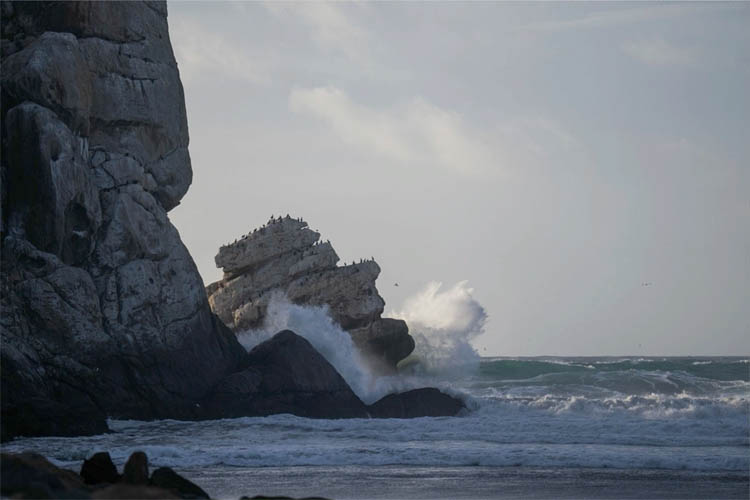
Sometimes you don’t have to choose from the best photo, you can combine 2 different shots into the same image. For this example, the ocean is crashing on a rock in 2 different places but not at the same time. To make a bigger splash, I captured both splashes and will combine them. The challenge? This was handheld, so they aren’t aligned. No problem, let’s do this.
Lets load in the 2 images into layers.
Choose File>Scripts>Load Files into Stack
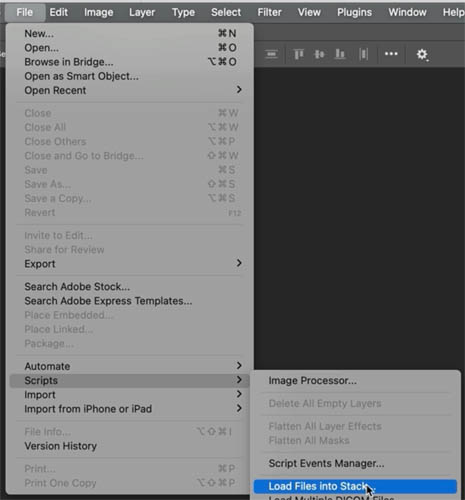
Choose the photos from the Browse menu
Click ok
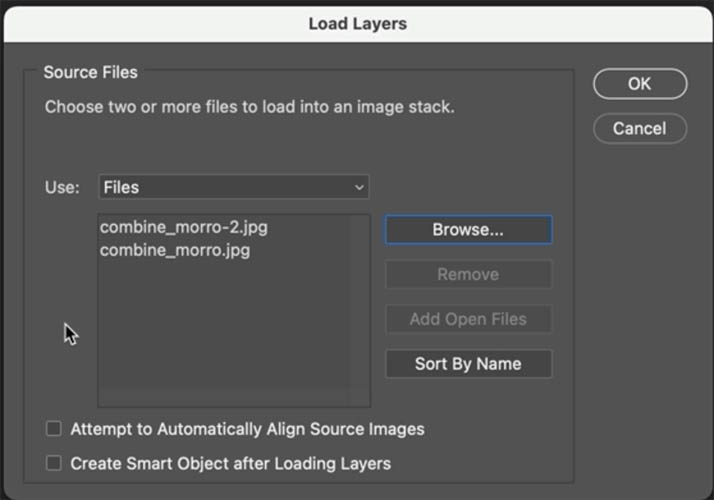
Both images are there on seperate layers
Lets align them: Shift+Click on the top layer to select them both.
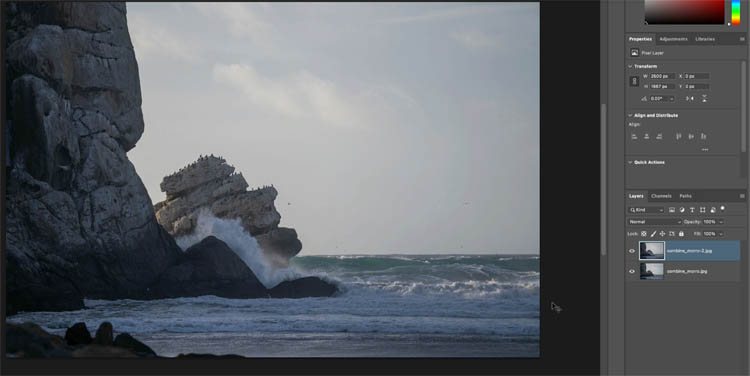
Choose Edit>Auto Align Layers
Auto. Click ok
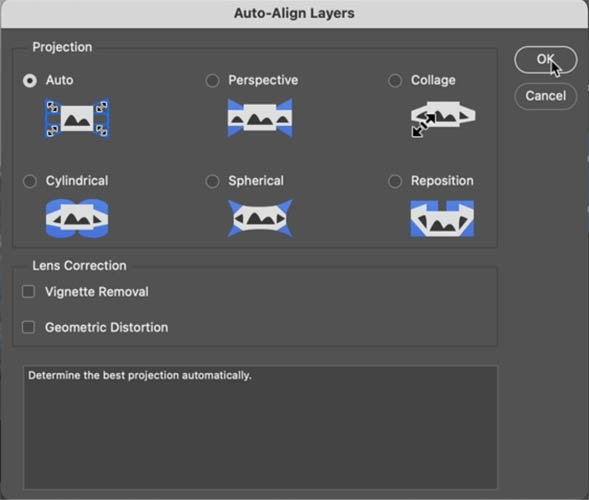
Now they are aligned and ready for masking.
The bottom layer shows the ocean splashing on the left side of the rock.
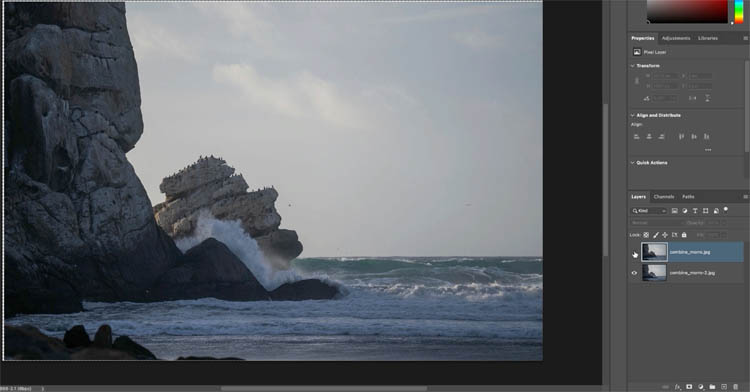
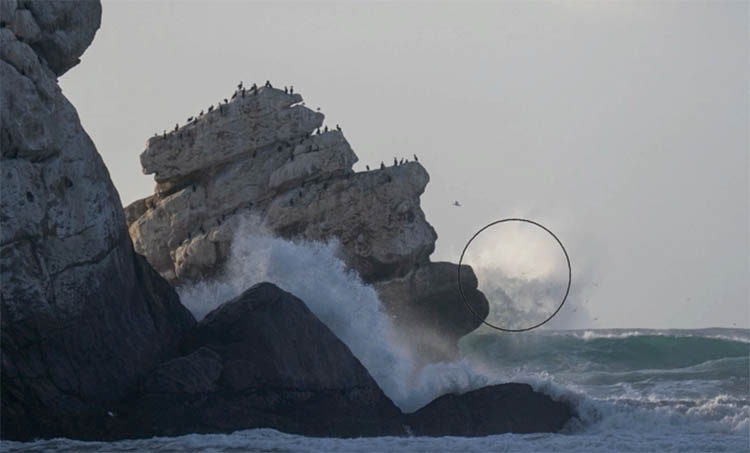
Show the top layer to reveal the ocean splashing on the right side of the rock.
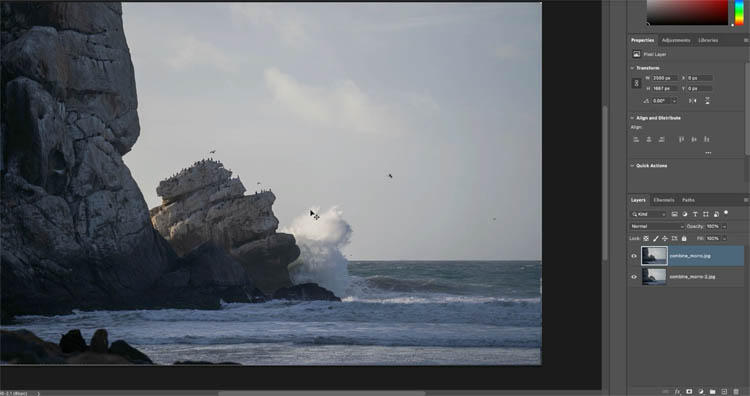
With the top layer selected,
Hold down Alt (Windows) / Option (Mac) and click on add layer mask
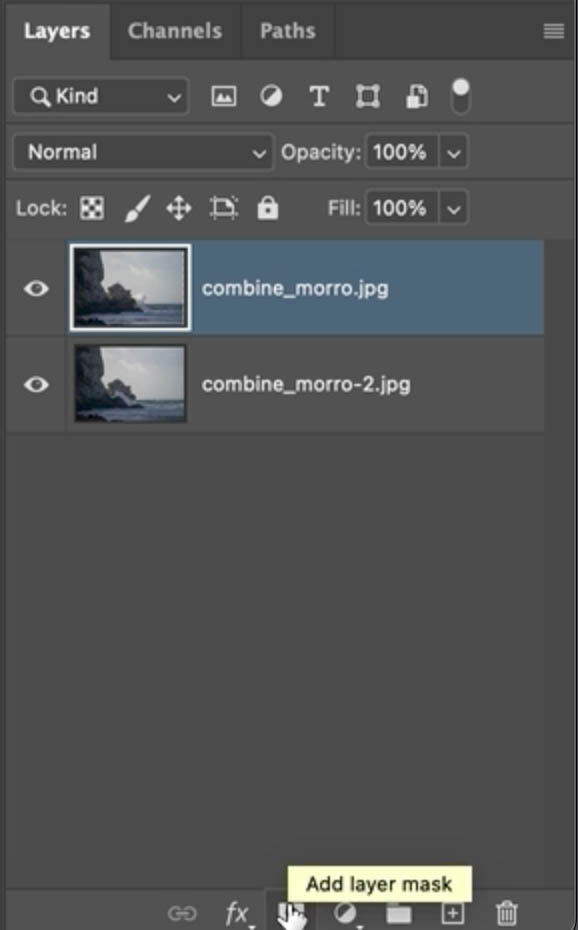
The mask is black because the alt/option invert the mask and hides the top layer.
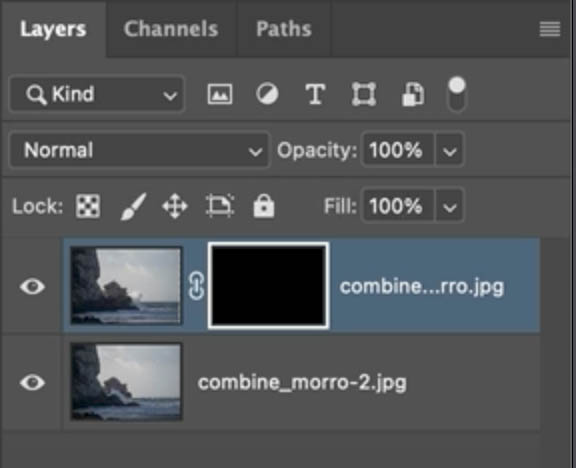
Choose the brush tool and set foreground color to white.
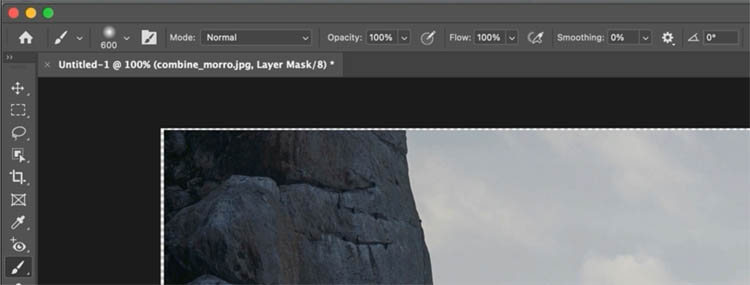
With the mask selected, paint on the image to reveal the top splash. The White brush reveals the contents of this layer).
That’s it. A very simple technique, but very powerful and useful. You can use this for many things, like group photos and choose the best facial expression on each. Or stack more than 2 images and mask out the parts you need. Or check out my flying bicycle using this technique.
Thanks for checking out this week’s tutorial, I hope its useful
Great to see you here at the CAFE!
Colin

Keep growing with Premium Courses
Photoshop 2026 for Digital Photographers
Learn Photoshop properly, from the basics to pro retouching, step by step.
$129.00 · one-time purchase · instant download

Free for you
The Photoshop Vault
Get my free Layer Blending Modes ebook along with dozens of exclusive Photoshop goodies: actions, brushes, presets and cheat sheets.
You're on the list, so your free goodies are waiting for you in the Vault.
Get Free Photoshop Goodies Open the Vault
How to change the color of eyes in Photoshop
Here is a very realistic way of chaging the color of anyones eyes in Photoshop using curves. Colin Smith shows you his... Read tutorial
How to Use Layer Masks in Photoshop and 7 Layer Masking tips
How to use Layer Masks in Photoshop. Layer Masks explained and 7 tips on Photoshop Masks. If you want to create digital... Read tutorial
How to edit a photo in Photoshop using Pen Pressure & Wacom Tablet
How to use Pen Pressure to Edit photos in Photoshop with a Wacom Tablet. Read tutorial
How to Seamlessly Blend faces into background in Photoshop using new radial gradients
How to seamlessly combine pictures in Photoshop to make the floating heads effect on posters, magazine and album covers. Read tutorial
How to Fade an image in Photoshop
How to fade or blend a photo on a layer in Photoshop 2024 Read tutorial











How do you bring both pictures in from Lightroom?
You can select multiple images, Right-Click>Edit In>Open as Layers in Photoshop (Or Smart Object Layers)