
How to make apple Liquid Glass effect in Photoshop
How to make apple Liquid Glass effect in Photoshop
When Apple announced their Liquid Glass redesign at WWDC on Monday, I knew I had to make a tutorial on this. This change is bound to set off a number of design trends and I figured you would want to know how to create this effect for yourself. (I worked hard on coming up with this technique, so if you see it somewhere else, it was copied from here. Posted on Jun 11, 2025)
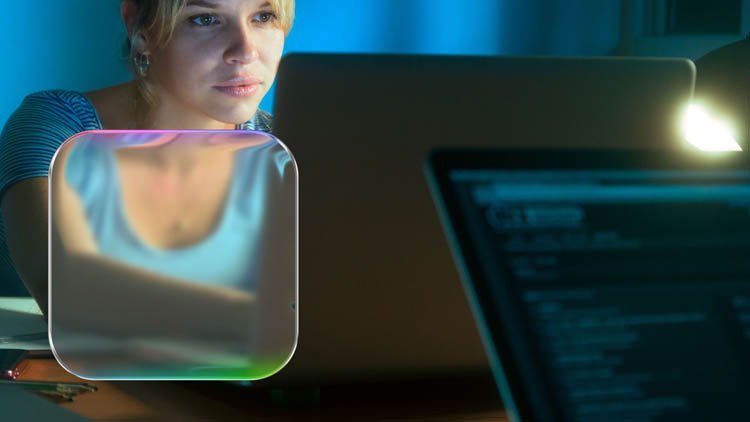
This is fun! I have 2 versions here. The fast and easiest way to get the effect for beginners and then a more advanced method that shows you what you need to get something that looks very close to the apple Liquid Glass effect, that apple will use in all their upcoming interfaces. As usual, the video at the top shows step by step and is easy to follow.
DOWNLOAD THE LAYER STYLE OF THIS HERE. | GET MANY MORE ADD-ONS LIKE THIS HERE.
To install it, choose Layer Styles hamburger menu on top right and choose import styles.
Method 1. Liquid Glass on Text
This first method reveals the key steps to getting the result. The 2nd method used a tile rather than text. Either method can be used on anything, text shapes etc.
With an image open, choose the type tool and grab a nice heavy font.
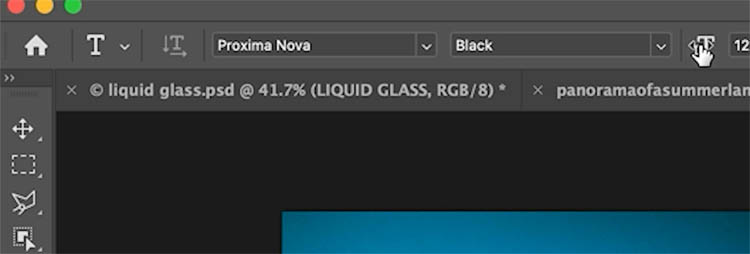
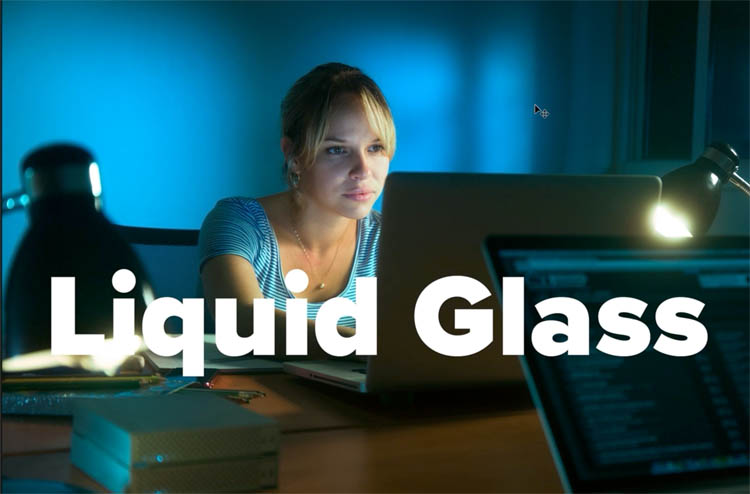
In this case, we typed Liquid Glass, you can use anything.
Choose the Layer Styles. This first method is pretty old school, but I modernize this in the 2nd method.
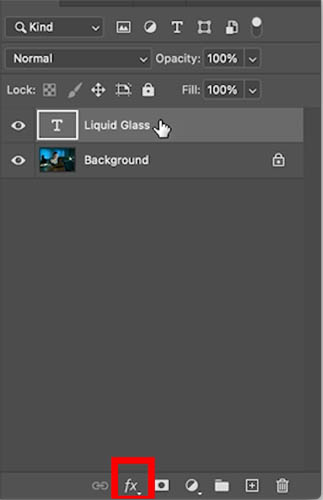
Choose Bevel and Emboss
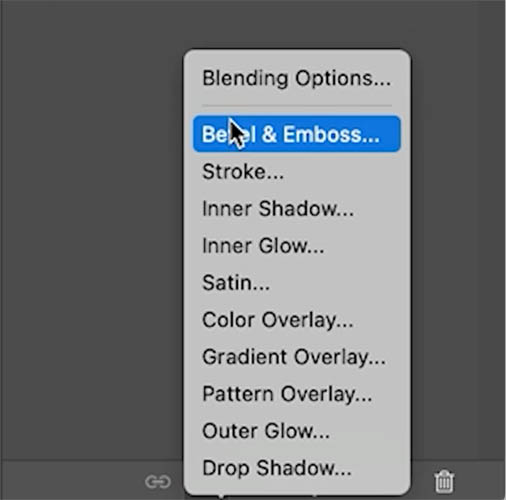
We will go through the settings in a moment.
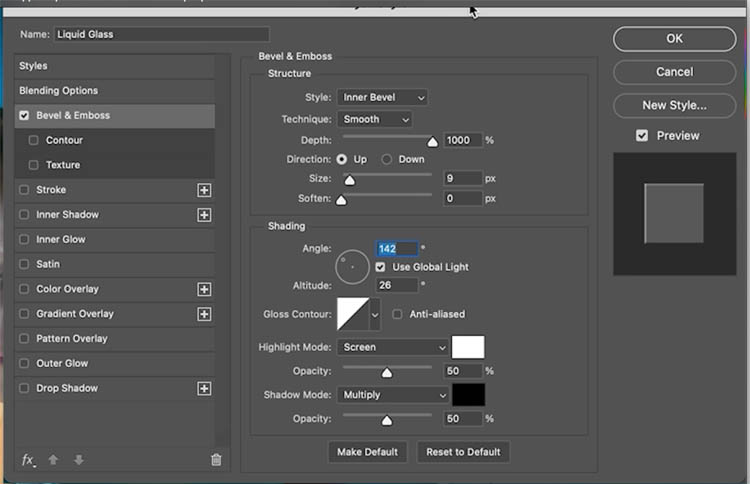
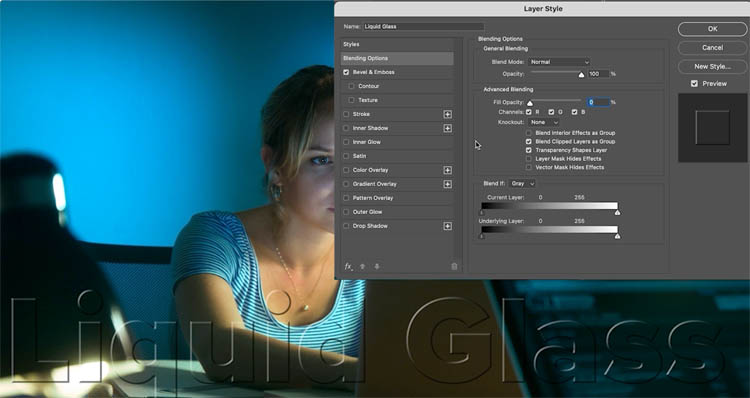
Choose Blending Options.
Reduce Fill opacity to 0.
Now you see just the layer style without the pixel layer. This is the core of the transparent effect.
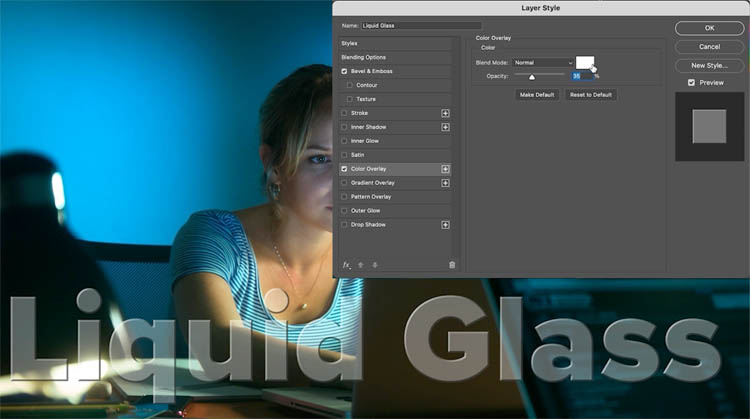
If you want a little shade, add a color overlay, choose white and adjust the transparency (opacity).
Go back to Bevel and emboss.
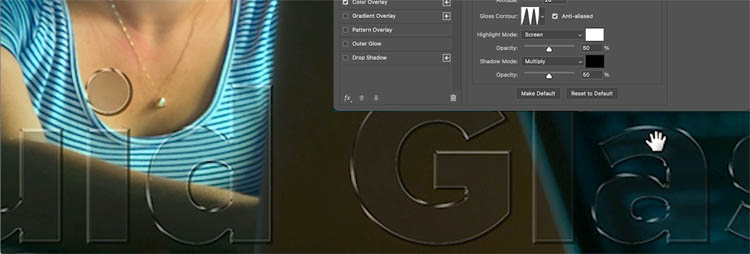
Change the gloss contour to add some shine and reflection to the bevel.
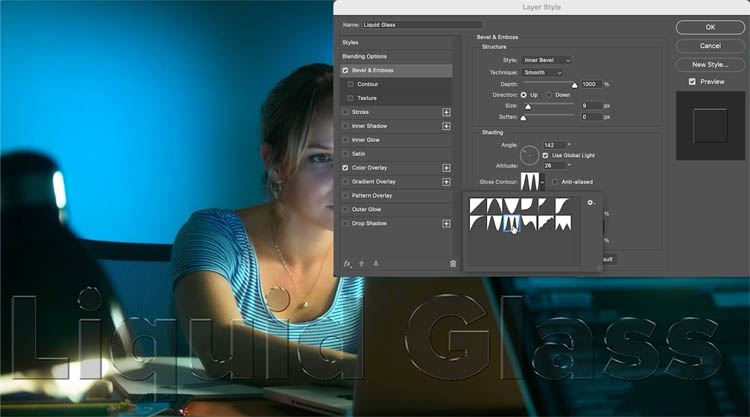
This gives you a basic glassy look.
Method 2. Liquid Glass effect with some realism.
Now, we will make a more realistic version. It’s based on the principles from the first example, but a different approach.
If you look at the Apple Liquid Glass images on their website, you will see there are a few variations, but they all have certain things in common. This tut will equip you do make any of them.
If you observe, you will see the image is blurred behind the icons. Also see the refraction around the edges? Some have a colored hint on the edges too. Lets do this!
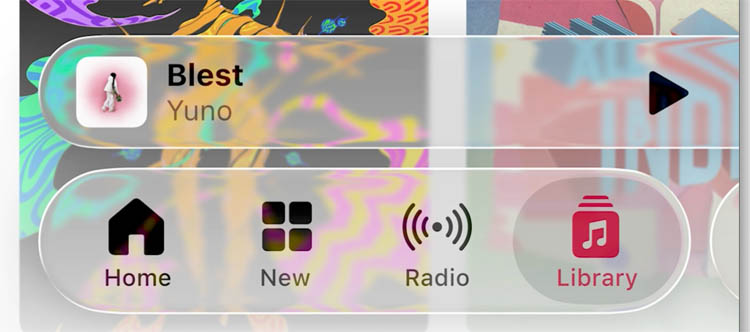
Start with the bevel
Choose the rectangle shape tool
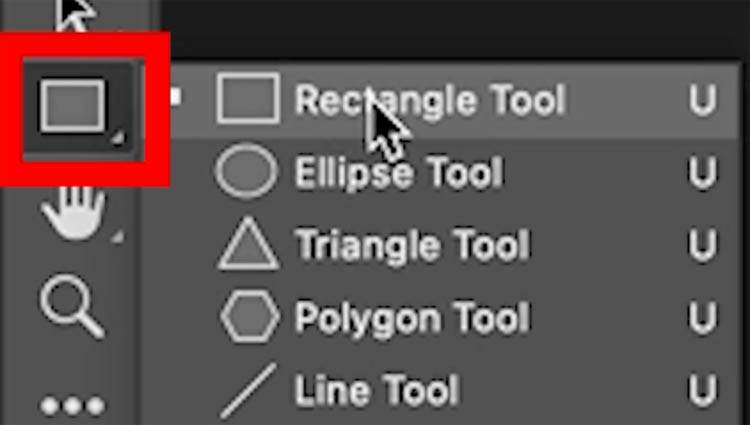
Choose Shape, no stroke and rounded corners. Here the corners are set to 121. It seems to give a nice rounded corner similar to what apple uses.

Drag on your document to create the shape. Tip: Hold down the Shift key to constrain to a perfect square.
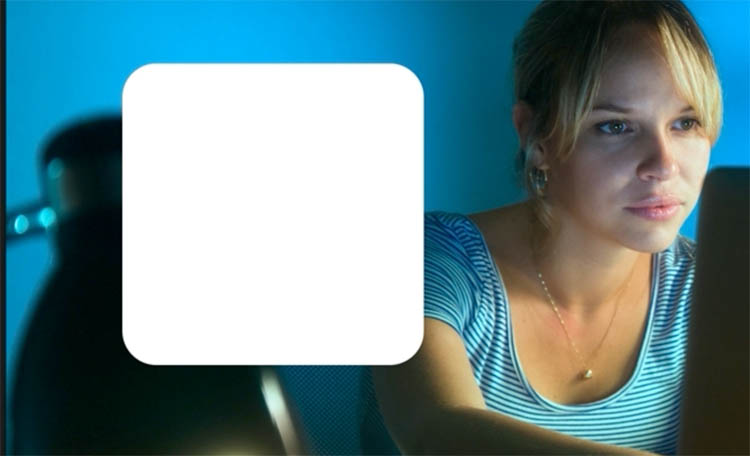
Apply a Bevel and emboss layer style.
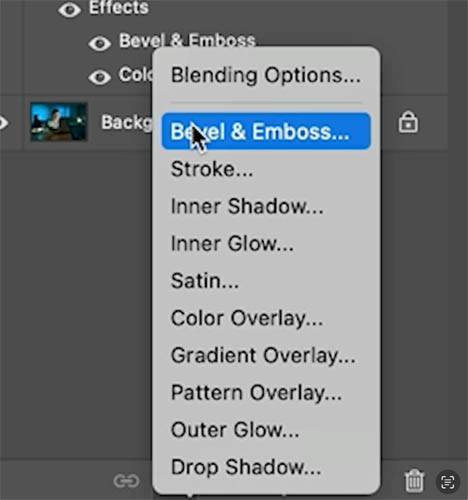
Click on Blending Options
Reduce Fill opacity so you can see the effect.
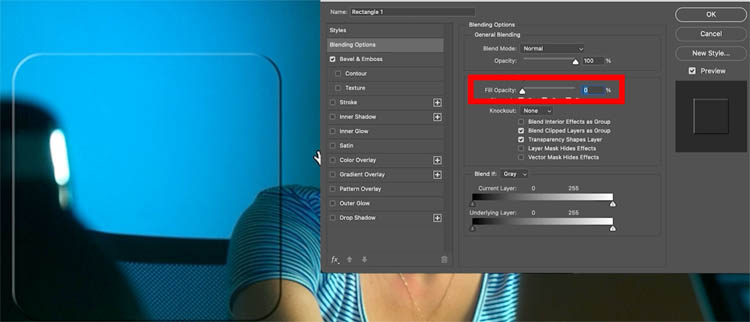
Click on Bevel and Emboss
I noticed that we can get a better result for this using the stroke emboss.
Change to Stroke emboss.
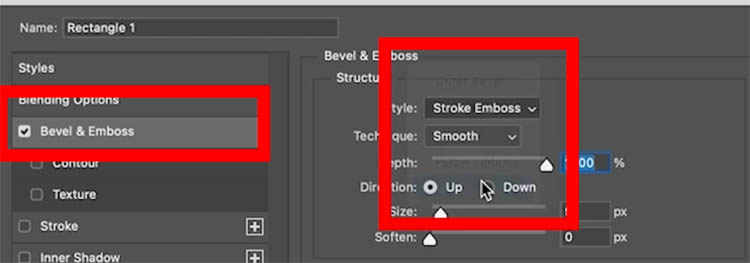
You wont see anything. That’s because you need a stroke (outline).
Choose stroke and add a thin white stroke. I used 9 pixels. This will vary depending on the size and resolution of the image you are working with. My images is 4860px x 3240px
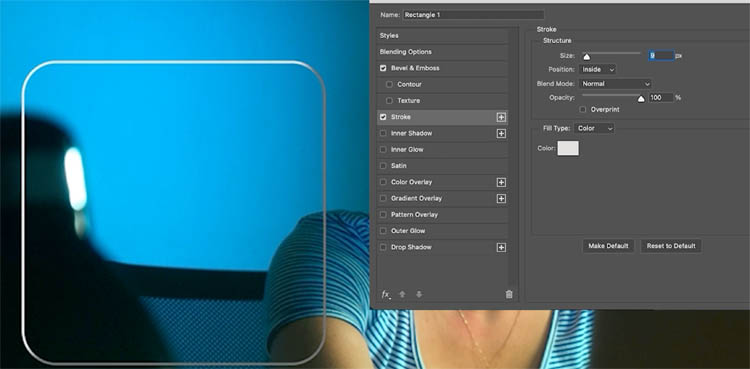
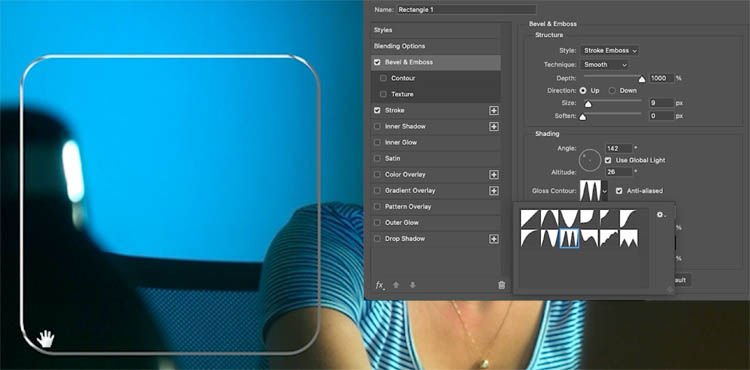
Click Bevel and emboss. Change the gloss contour to the double ring for the shiny effect.
Choose color overlay and add a little white.
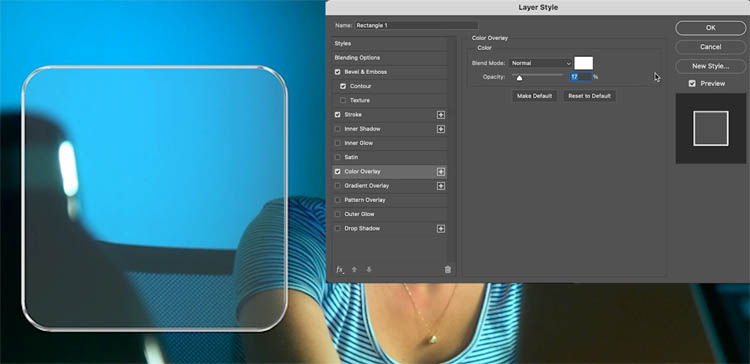
We are similar to where we were with the type example, except I think the stroke emboss is giving a better result.
Blur behind the glass
There are many ways to do this next step. I am going to show you a flexible way that is non-destructive.
Press Ctrl/Cmd+J to copy the background layer
Drag the Background copy to the top of the layers panel
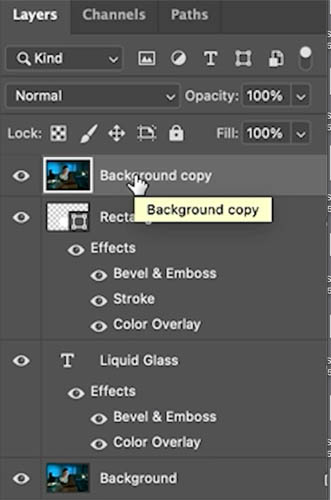
Choose Filter>Blur>Gaussian Blur
I used 19, and click ok
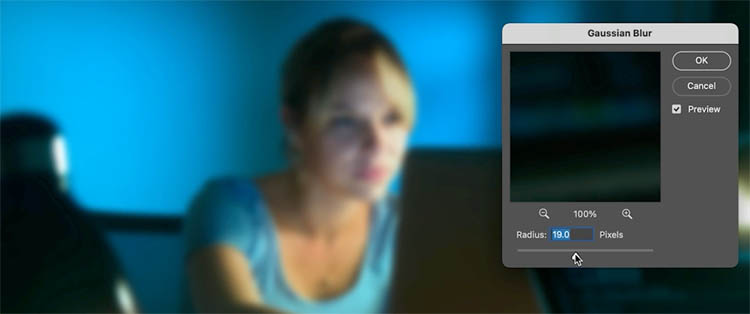
Right now you will see just a blurred image and nothing else.
Lets make it fit to just the square.
Move your cursor to the line between the blurred image layer and the square shape on the next layer underneath it.
Hold down alt/Option and you should see an arrow.
Click
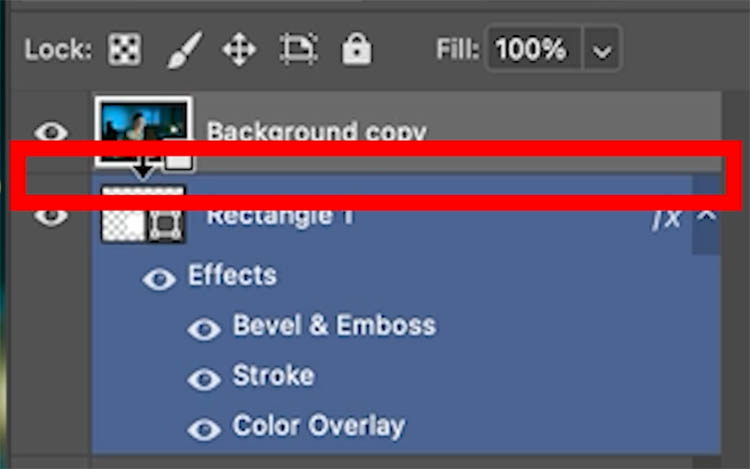
You have now made a clipping group.
You will see an arrow on the top layer showing its clipped.
You will also probably notice the blurred layer isn’t showing now.
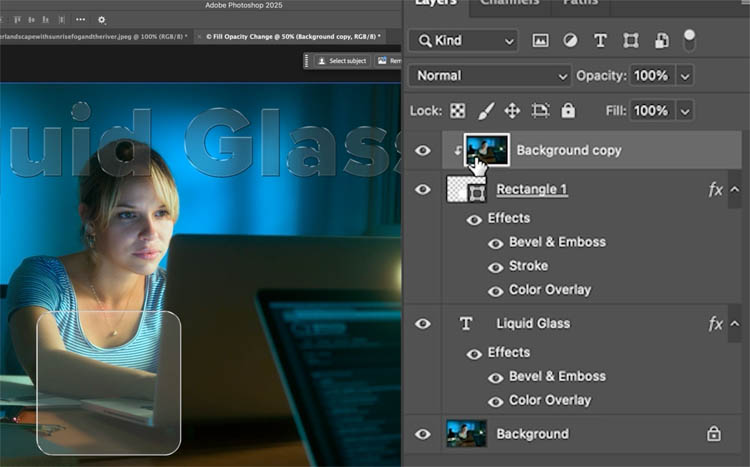
Choose the Rectangle layer.
Notice the fill is at 0. This is the fill opacity that we turned all the way down, earlier.
Slide that slider to 100
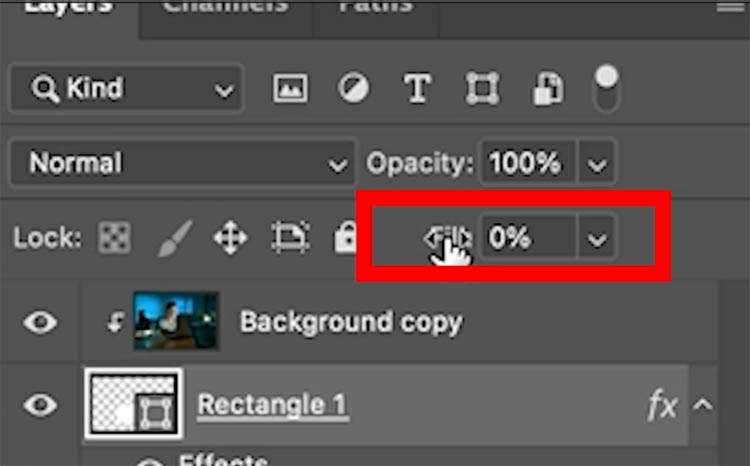
Now you should see the blur appear inside the rectangle.
Because the blurred image is clipped above the shape, it will now show instead of the box color.
Why did we do it this way? Flexibility.
Choose the move tool and drag the box around. Notice it can go anywhere and whatever is beneath it is blurred. Very cool and flexible huh?
So, if we decide to scale the box or move it, we don’t have to redo the previous steps.
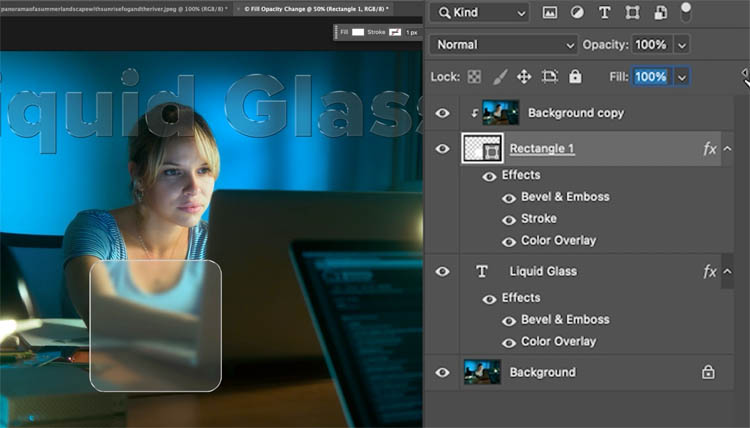
Adding the edge Refraction
Ok, I think this next step is the best bit!
After this point, we won’t be working non destructively anymore. I can probably figure out a way to do that with Smart Objects, but not today, I have to get this tutorial finished!
Ctrl/Cmd+Click on the rectangle thumbnail in the layer panel. This will load the marching ants selection around the rectangle (the square).
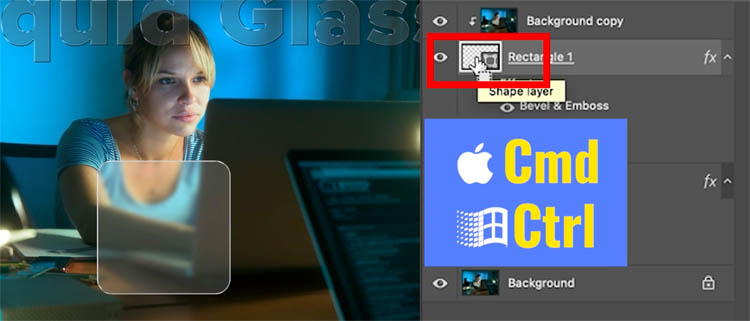
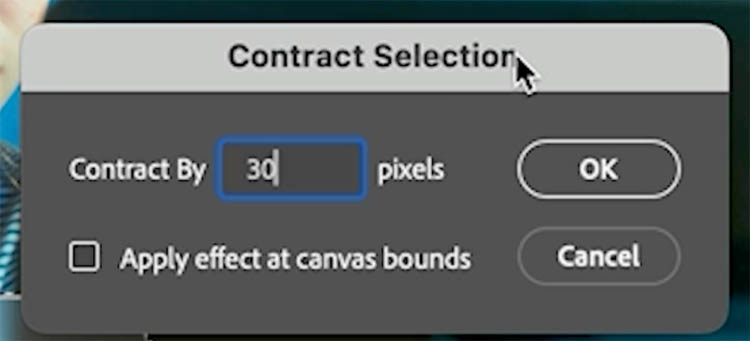
Choose Select>Modify>Contract
Choose 30-40 pixels (you will have to experiment with different settings depending on the resolution of your image).
Click Ok
Now we have selected a smaller rectangle shape inside the square.
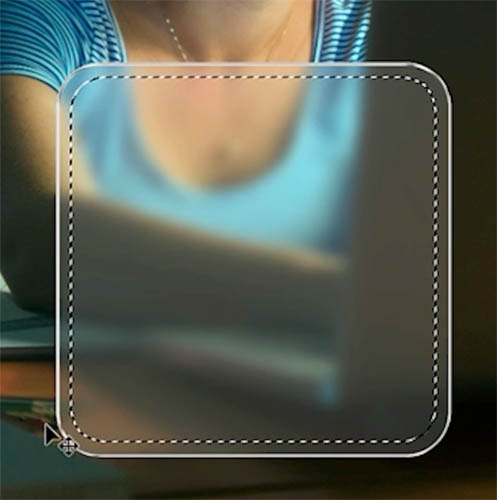
Press Ctrl/Cmd+Shift+I to inverse the selection.
This means we have a selection around the edge of the rectangle.
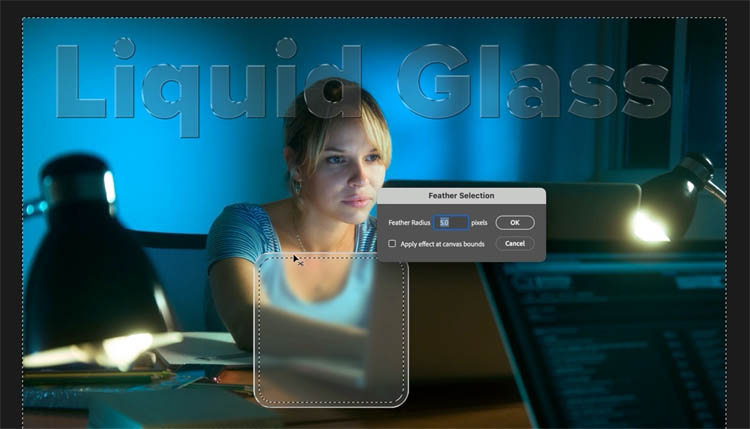
Click in the pixel layer above the rectangle (background copy), this is where we will apply the blur.
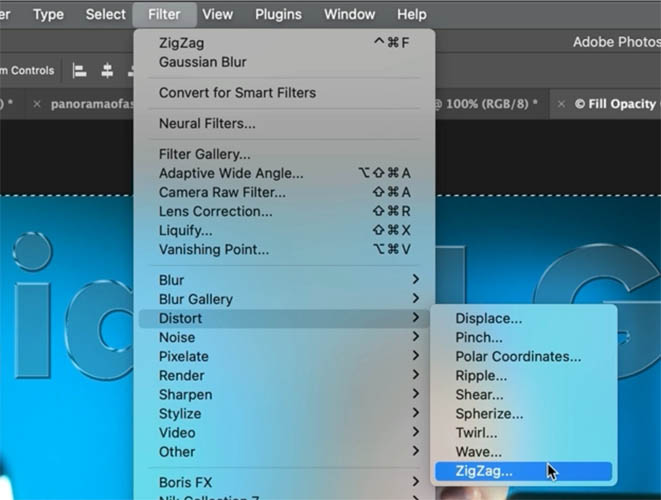
Choose Filter>Distort>ZigZag
The main thing to change is the style, use Around Center.
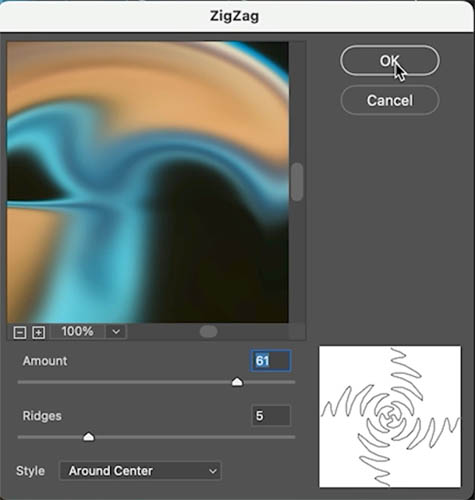
Click ok and look at that magic!
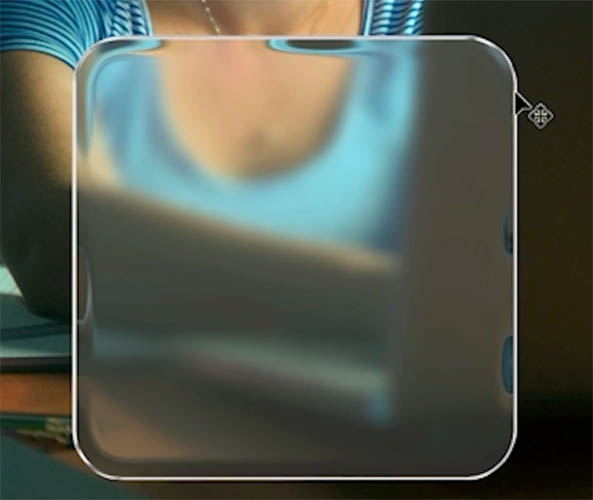
Adding a Hint of color (optional)
Some of the Apple Liquid Glass icons have a little color on the bottom or on the edges. Here’s how we do that.
Ctrl/Cmd+Click on the rectangle to load the selection
Choose the top layer and add a Gradient adjustment layer
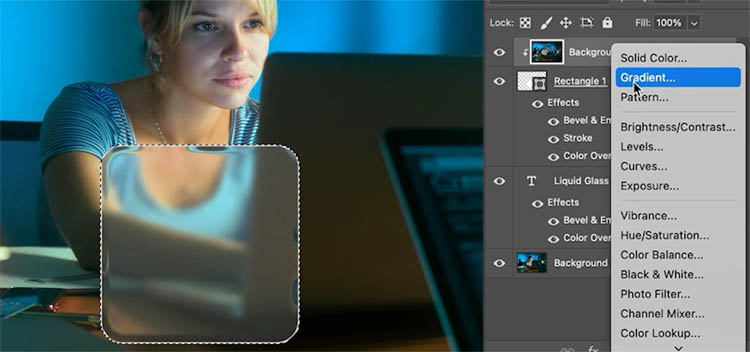
For color choose the rainbow colored gradient. If you don’t see it, you need to load the legacy gradients, its covered on the video at the top.
Change the angle to 0 or 180. increase the scale to around 300.
Notice the purple/pink color we want isn’t showing.
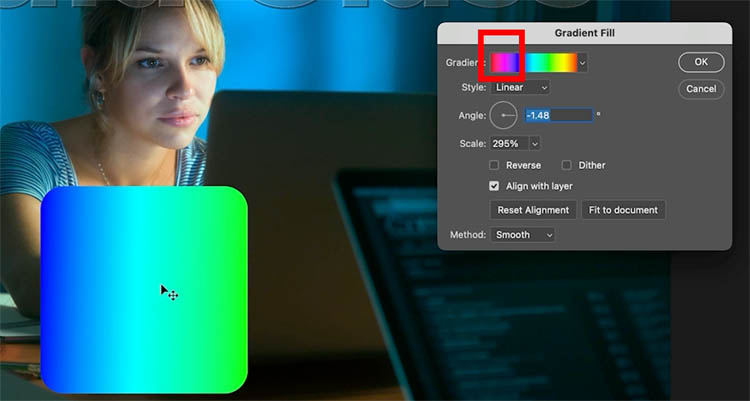
With the Gradient Fill panel still open,
Drag on the gradient to cycle through the colors.
Click ok.
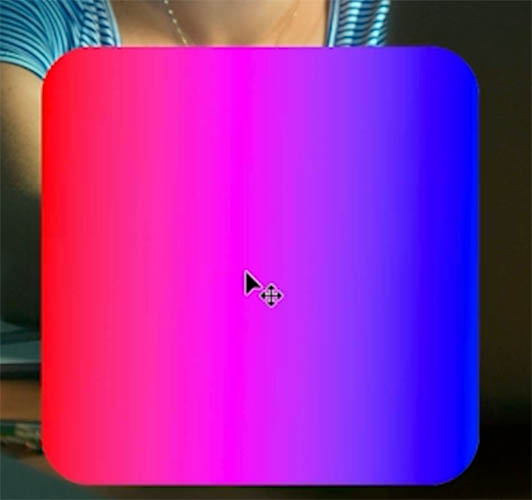
Now we need to blend the gradient into the edge of the shape
With the gradient layer selected, press Ctrl/Cmd+G to put it in a group.
We put it in a group so we can add a second mask. The layer mask is already used for the shape.
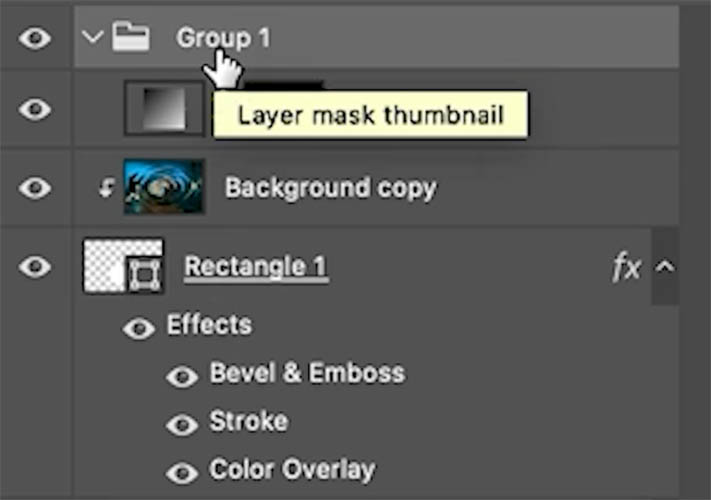
With the group selected, Press the add Layer Mask button in the layers panel.
This will add a mask.
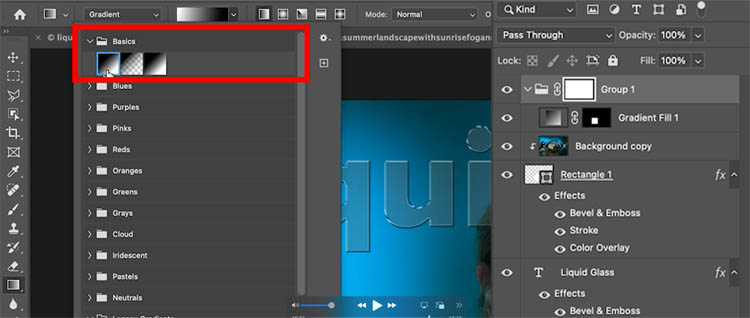
Choose a black to white, linear Gradient.
Drag on the shaoe to blend the color into the bottom edge.
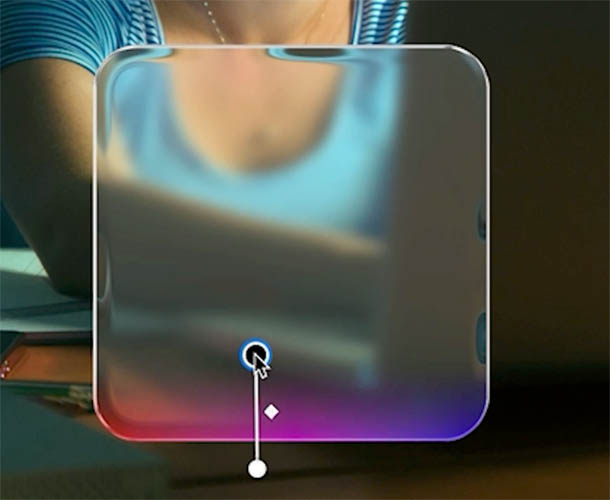
Optional: Repeat on the top to get something like this. Add you icons, text or whatever you like to the box.
That was fun! I hope you enjoyed it. Let me know
DOWNLOAD THE LAYER STYLE OF THIS HERE. | GET MANY MORE ADD-ONS LIKE THIS HERE.
To install it, choose Layer Styles hamburger menu on top right and choose import styles.
Great to see you here at the CAFE!
Colin
Recommended for this tutorial
Photoshop Compositing: Sky City Project. Photoshop 2026
Build a complete composite from start to finish and learn the techniques behind it.
$39.99 · one-time purchase · instant download

Free for you
The Photoshop Vault
Get my free Layer Blending Modes ebook along with dozens of exclusive Photoshop goodies: actions, brushes, presets and cheat sheets.
You're on the list, so your free goodies are waiting for you in the Vault.
Get Free Photoshop Goodies Open the Vault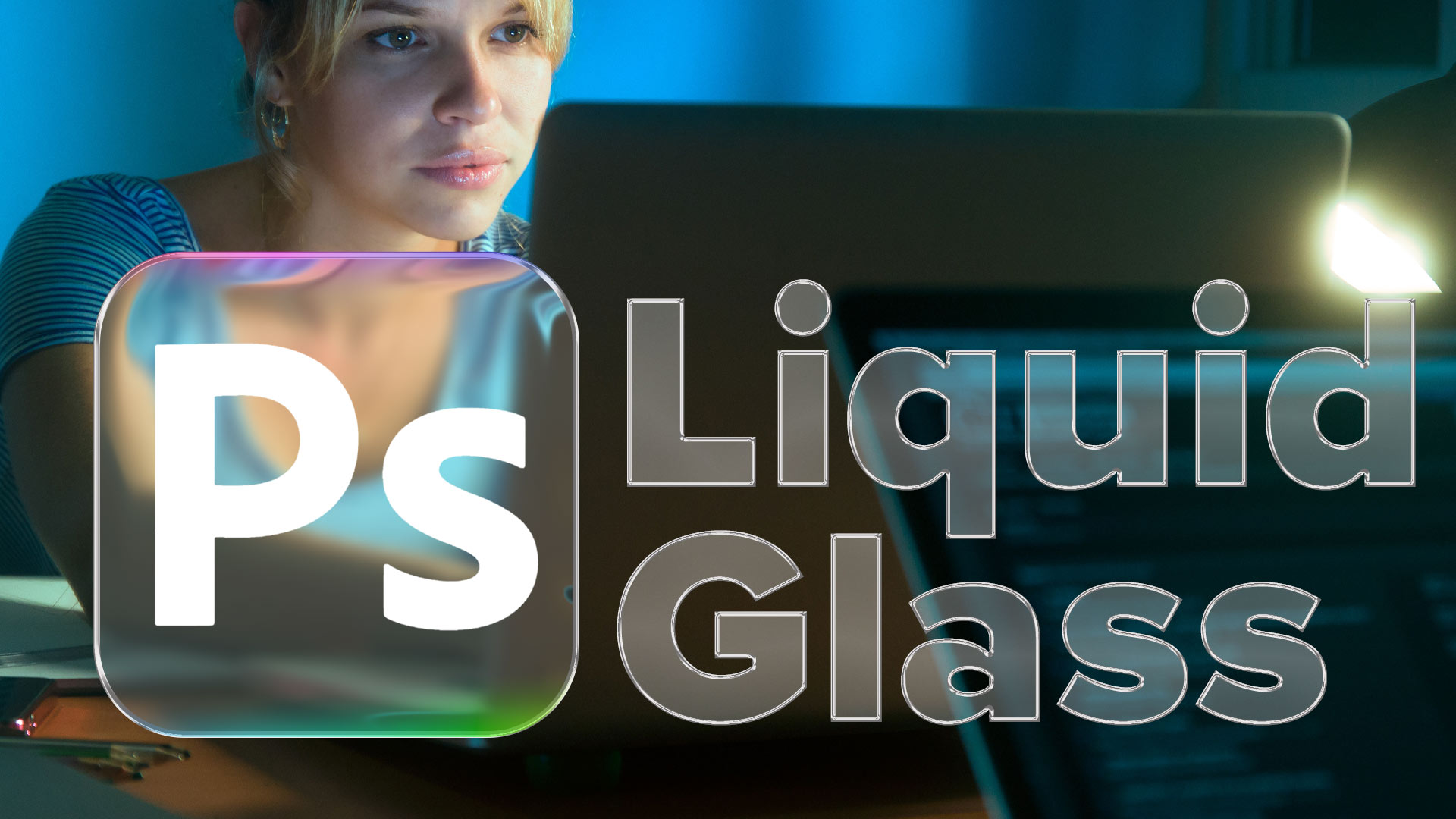
ANIME BEADS Photoshop Tutorial
I received a request from the forum for this effect from one of our Members living in Japan. This is a technique... Read tutorial
Original Gangsta bling diamonds Photoshop Tutorial
This is the original Tutorial on this rap diamond effect, there have been many rips of it in other places. (imitation is... Read tutorial
Texturing your way to 3D Photoshop Tutorial
Let's talk some more about texturing, this time working with an interface style image over several layers. Photoshop 6 layer styles allow... Read tutorial
Plastic Engraved type in Photoshop Photoshop Tutorial
How to embed type in photoshop. Heres a tutorial that will how you how to carve your mark. This is so simple... Read tutorial
Transparent Glass Text Photoshop Tutorial
Learn how to create a transparent glass effect to text in Photoshop tutorial. Read tutorial










Absolutely brilliant Colin! Thank you very much for all of this!
Super Tolle Webside
Hi, sorry, I don’t understand the comment.
Your liquid glass action unzipped to an .ASI extension, which is not recognized by Photoshop.
Any chance of reposting?
My mistake. I had “actions” on my brain from what I was working on. Spaced. This is a style, so asi works. Doh! My apologies. Thank you for responding anyway. Great piece.
Yes, it loads as a layer style
Hi, Colin, thanks for this. Everything worked until I got to the point where you used the zig zag. First, Ps insisted I either rasterize or turn the layer into a smart object. I tried both. Maybe it’s because it’s several months later after Ps 2026 was released and updated, but this part of the instructions turned my square into a totally crazy shape with ziz-zags pulled out a long ways on all sides. I tried adjusting the sizes, but no help. Hoping you can suggest how to proceed to get that beautiful edge refraction!
This will work the same in 2026. (It’s rare that there are workflow changes with existing tools).
It looks like I left out a step. Before you apply the effect choose the pixel layer above the rectangle (background copy), this is where we will apply the blur.
I also updated the written steps. I hope this helps!