
New Features Lightroom Classic 2025. LRC 14
Its that time of the year for the big upgrades. Big, as in they get full version numbers. Generally many beta features are now promoted to full features and new ones added.
There are a lot of performance improvements in LRC this time around and if you have modern computer, you should notice them. Modern, because more stuff is pushed to GPU.
The first thing you will need to do, is upgrade your catalog when you first launch.
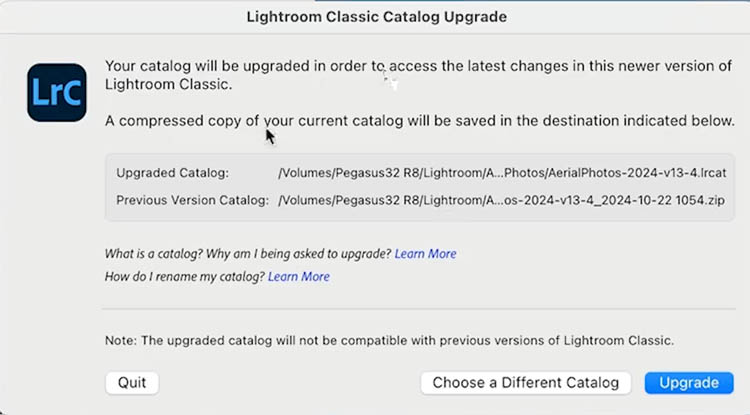
This brings us to the first new feature, which is an unseen one. Lightroom automatically creates a backup of your old catalog now.

Another “small” but big to some people (I’m one of them) the long-awaited ability to easily rename your catalog. I know, I know, why did that take so long?
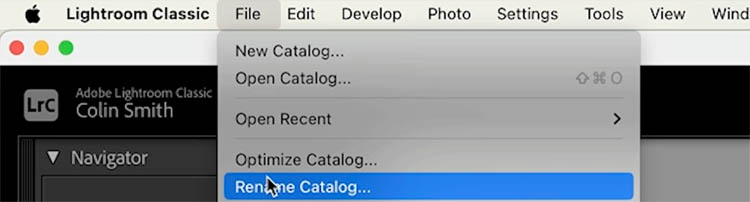
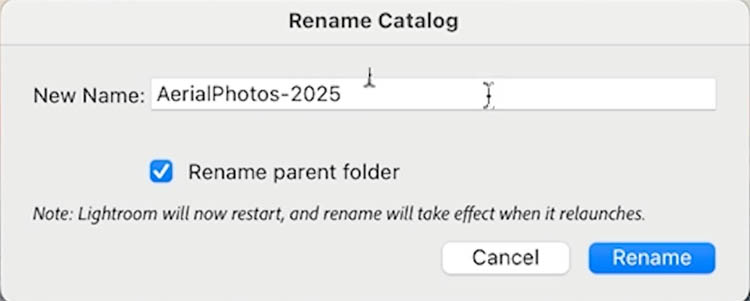
Now, when you rename your catalog, all the supporting files will be renamed including the ability to rename the parent folder. No more Lightroom_199_main-v13-3_v6_really_the_new_updated_2023_update filenames!
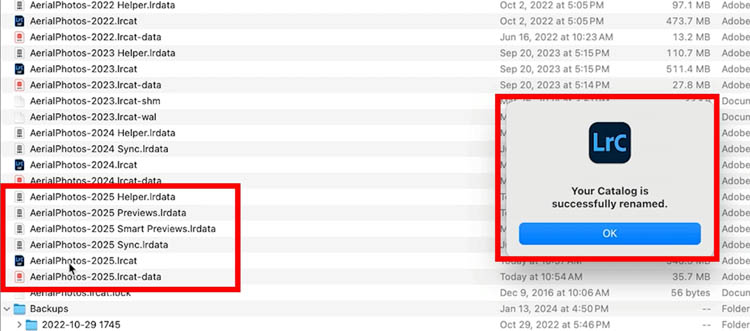
You can see everything is now renamed. You can also delete your old catalogs as you can see the names clearly now. (Tip: Before deleting old catalogs, I suggest moving them to a different folder and make sure everything works on the new catalogs before emptying out the old ones).
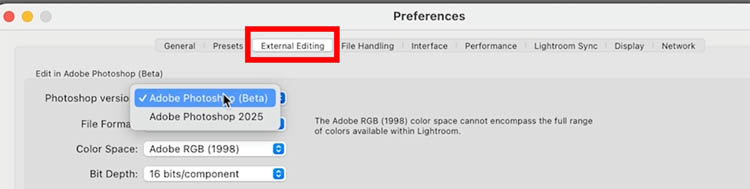
Choose Photoshop version
This isn’t new, but I want to include it because I am asked this ALL the time.
If you go to settings, you can choose the version of Photoshop (regular or Beta) to edit in from the External Editing tab. If this doesn’t work, launch the version of Photoshop you want to work in first. Then when you choose edit in Photoshop, it should go to the correct one.
Remove Tool updates
Same as in ACR the ai remove tool is updated.
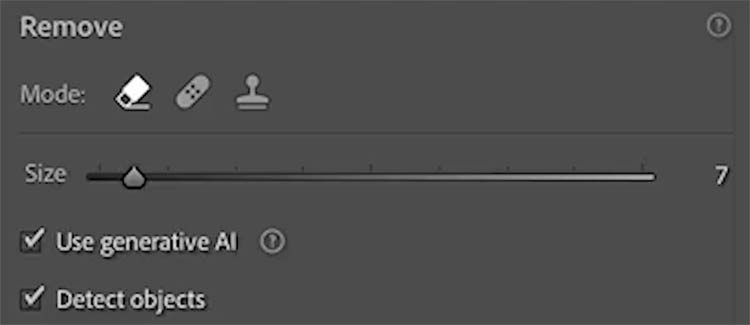
You can circle select
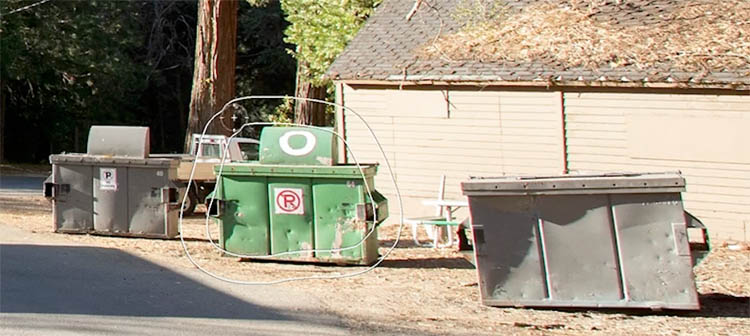
It will detect the shape, you can keep painting to add other objects, or hold alt/Option and paint to remove from the selection.
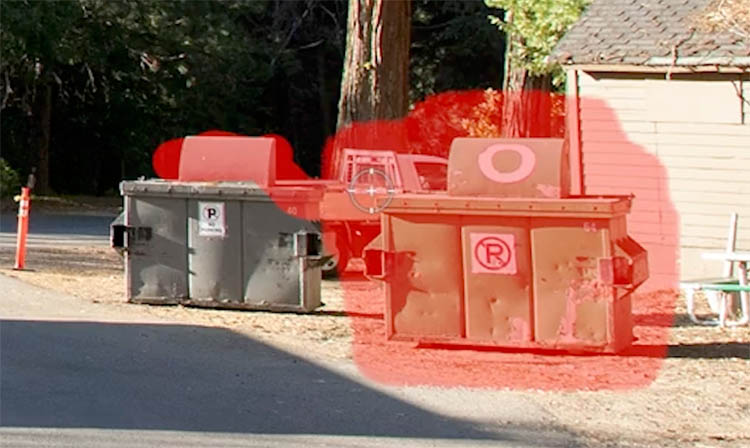
Click on remove
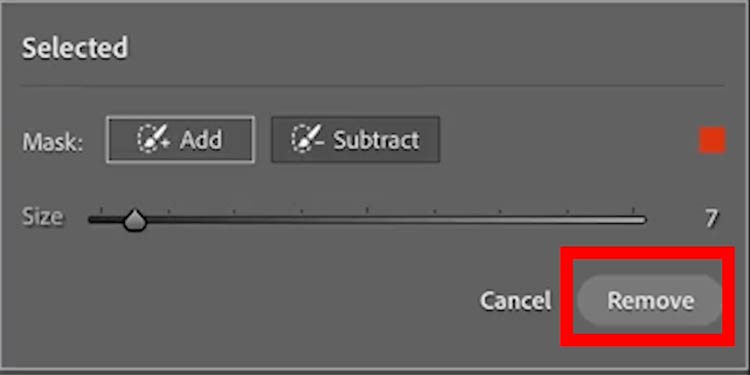
And it does a great job. Use variations arrow to choose the best one.
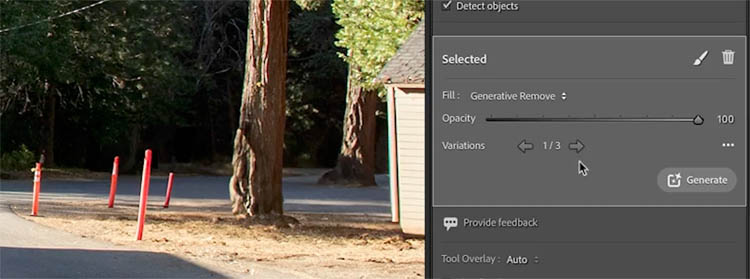
You can also scribble select to tell Lightroom which object you want to select for removal.

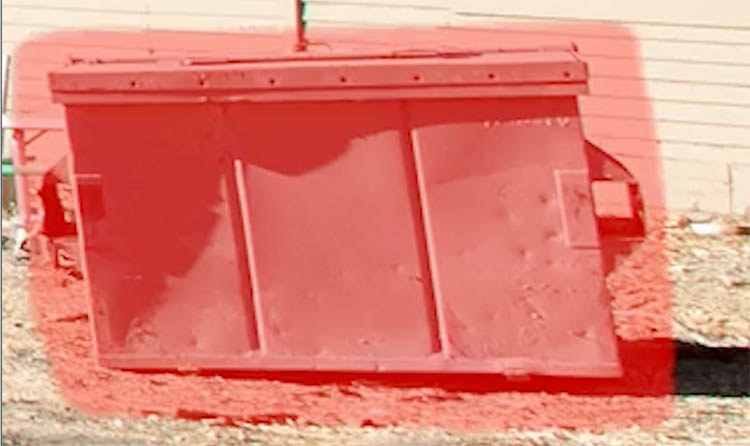
It works quite well.

And a bit more clean up

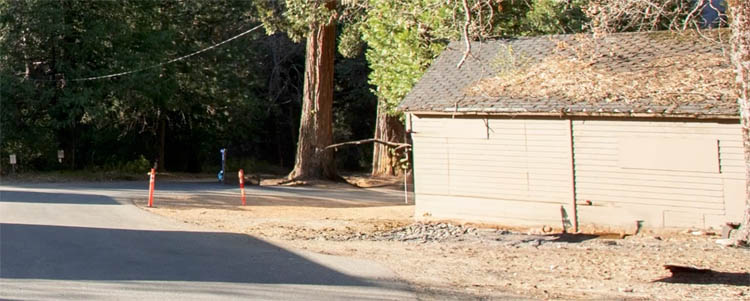
done.
This works best in smaller areas on images that you will print, because the resolution isn’t large enough for areas bigger than 1024 px x 1024 px at a time. You can safely using it on multiple small areas to eventually encompass a larger area. If you are sharing them smaller for social media, it mostly doesn’t matter as much.
Tethered Capture updates for Nikon.
Nikon shooter rejoice! The same snazzy new tethering that was added for Sony is now here for Nikon. Expect drastically faster and more reliable performance when your Nikon camera is tethered.

Content Credentials
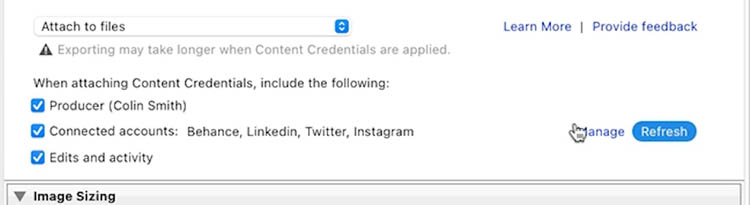
Content credentials allow you to add your information and links to your socials into your photographs. You can have the info on the Cloud, attached to your images or both. Now people can find and contact you if they like your images.
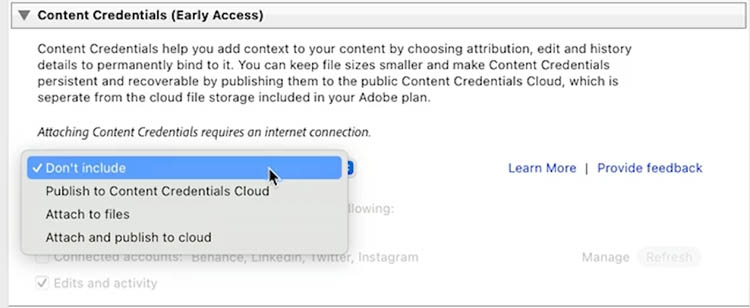
This is optional, and you can choose what info to include.
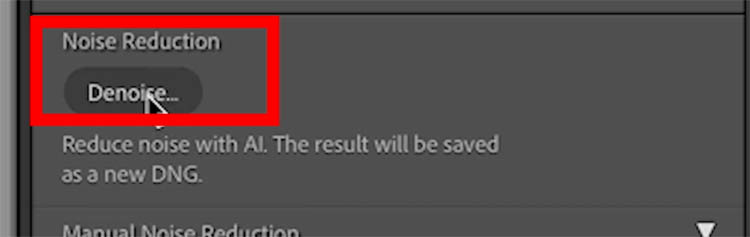
Noise Reduction. Denoise
The ai denoise for RAW photos is out of beta (early access)
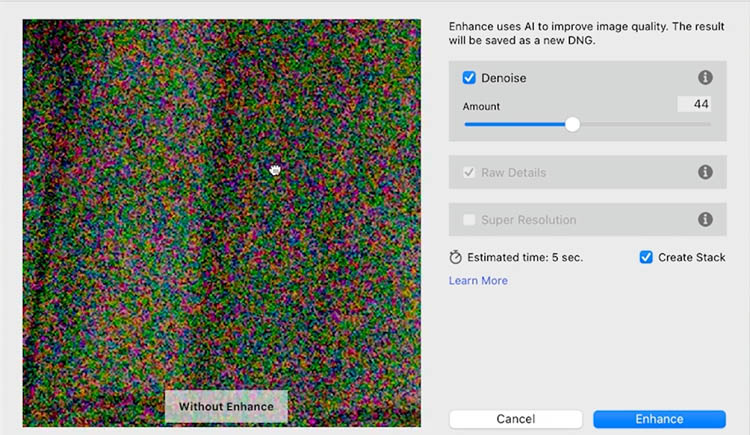
Look at this noisy image.

Choose Denoise
You will see a preview
Without denoise
With
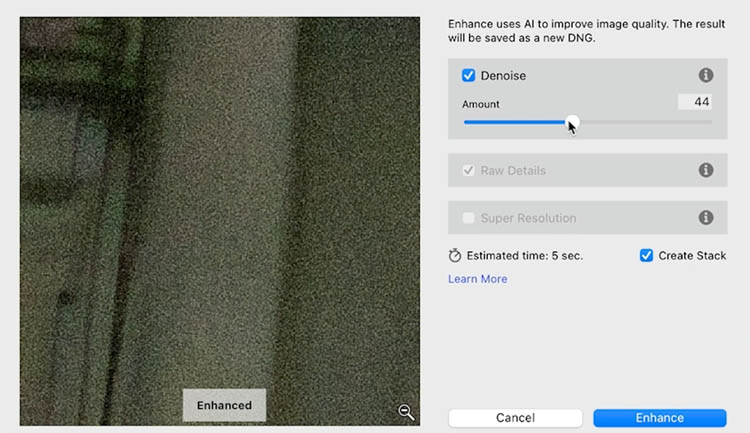
As you can see it does a terrific job.
Unlike in ACR, this is still using the earlier version of denoise, which creates a new file. Hopefully the new beta version of denoise in ACR makes it way over, but nevertheless it works really well.

HDR update Gain Map
Lightroom Classic has been getting HDR updates for a while now and I’ve made tutorials about them and told you about each update.
If you have an HDR enabled monitor, you can see HDR images have more detail in the highlights and look more vibrant and realistic. (you will notice this on the XDR phones and HDR TVs as well).
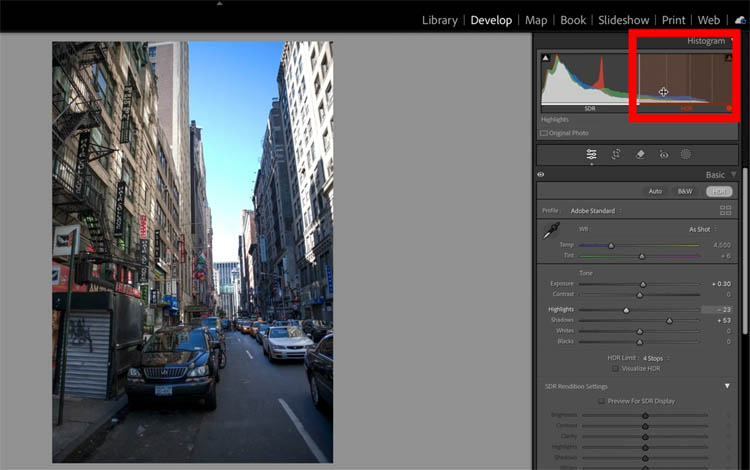
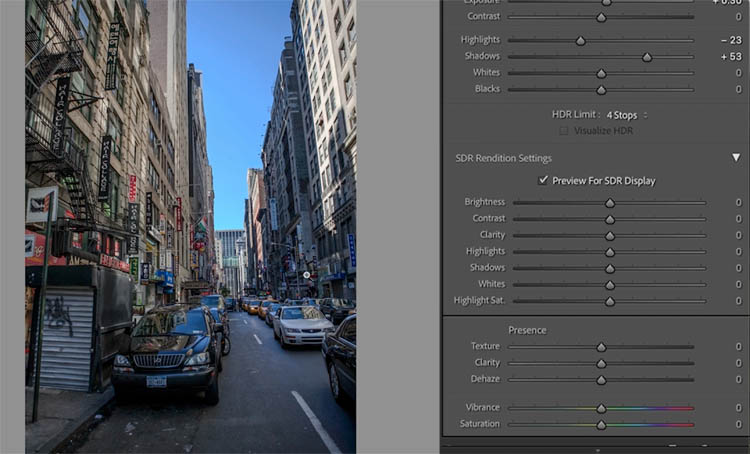
If you turn on SDR (Standard Dynamic Range) previews you can adjust the output for non HDR (High Dynamic Range) screens.
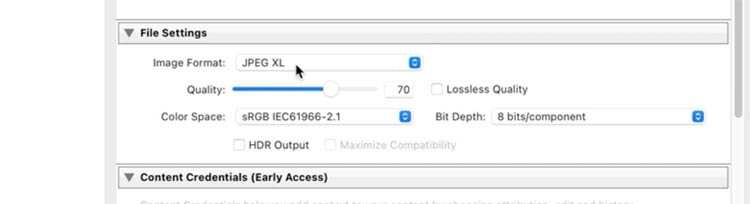
You may have wondered what happened to the 2 versions? Is it just a simulation? Now with Gain Maps, when you create an HDR image, both versions are included and the viewer will be shown the correct version depending on their display. You have to choose a compatible file format, such as Jpeg XL. You will enable HDR output. I should mention, a regular (SDR) photo won’t be magically converted to an HDR image. And, no (as I’ve been saying for YEARS) you cant process the same image differently and merge them together to get HDR images, you will just get a heavily tone mapped SDR image. I have written and made videos extensively about HDR if you need to get up to speed.
Extended displays on additional monitors now support HDR as well, this is a good new feature for people using multiple HDR displays.
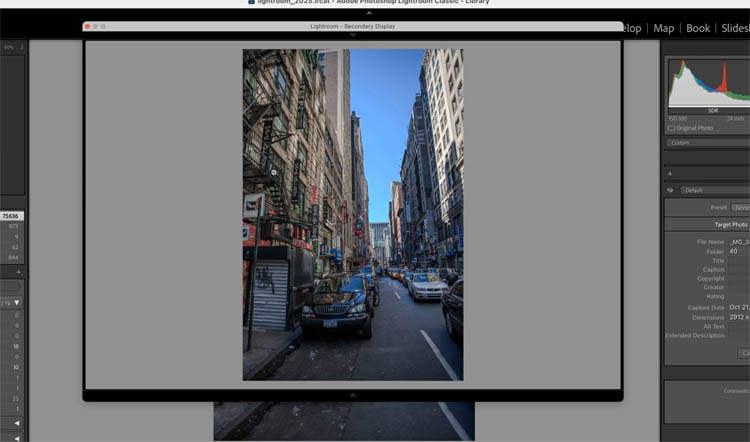
There you have it, those are the big new features in Lightroom Classic. Check out the video above to see them all in action,. as well as mention of a couple more smaller ones.
Thanks for checking it out
Colin

Recommended for this tutorial
Learn Masks in Lightroom and Camera RAW
Make precise local adjustments in Lightroom and Camera Raw with every type of mask.
$59.99 · one-time purchase · instant download

Free for you
The Photoshop Vault
Get my free Layer Blending Modes ebook along with dozens of exclusive Photoshop goodies: actions, brushes, presets and cheat sheets.
You're on the list, so your free goodies are waiting for you in the Vault.
Get Free Photoshop Goodies Open the Vault
New Features in Lightroom, Lightroom Classic and ACR Feb 2025 update
New Features in Lightroom, Lightroom Classic and Adobe Camera RAW Feb 2025 update. Read tutorial
Big Lightroom update April 2026 New Features
April 2026 Lightroom updates, including AI-powered search, improved performance, smarter culling, and new creative tools. Read tutorial
What’s New in Photoshop 2026 (Full Release Overview)
Explore the top new features in Photoshop 2026, Full release Read tutorial
New in Adobe Camera RAW 17.3
New Features in Adobe Camera Raw 17.3 ACR in Photoshop 2025 April update. Landscape Masks and reflection removal updates Read tutorial
New Features in Lightroom and Camera RAW, August 2026 update
New Lightroom Classic and Camera Raw features including mask edge refinement, Render to DNG, blemish removal, Generative Expand and vectorscope. Read tutorial













Extensive and thorough as usual and well explained.
Thanks
I was wondering if the “remove reflections” ever made it to the latest versions of Photoshop or Lightroom Classic? It would be such a useful tool. Thanks.