
Big Lightroom update April 2026 New Features
Lightroom April 2026 Update — What’s New and How to Use It
The April 2026 update brings meaningful improvements to both Lightroom and Lightroom Classic, with a strong focus on AI-powered tools, workflow efficiency, and creative flexibility.
Let’s walk through the new features and how they actually help in real-world editing.
Natural Language Search (Lightroom Desktop)
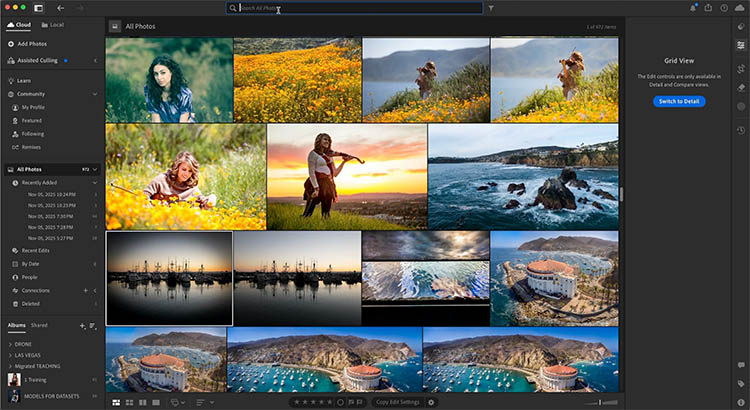
In my opinion. the biggest update in this release is the new AI-powered search. This is only in Lightroom Desktop (We will get to the Lightroom Classic Features in a moment).
Instead of relying on keywords or metadata, you can now type full phrases to find images.
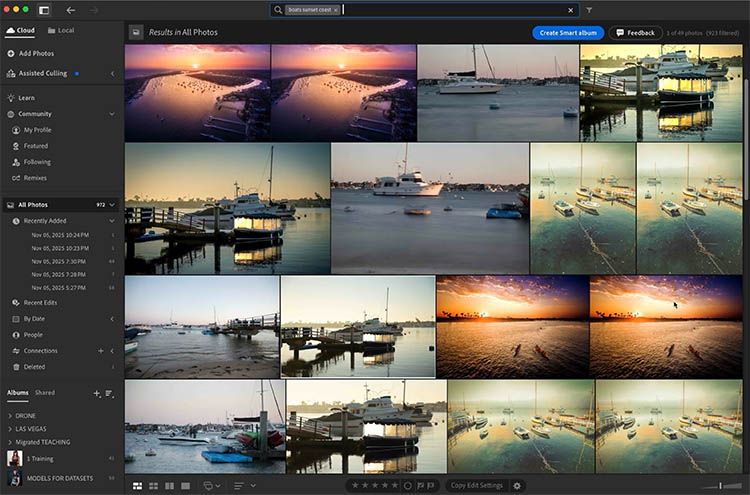
Type something like “boats at sunset on the coast,” and Lightroom intelligently analyzes your images to return relevant results—even if you never tagged those photos.

This isn’t metadata-based searching. It’s visual AI recognition working directly on your images.
You can try broader terms like “neon,” and Lightroom will pull in:
- Neon signs
- Cyberpunk lighting setups
- Portraits lit with neon colors
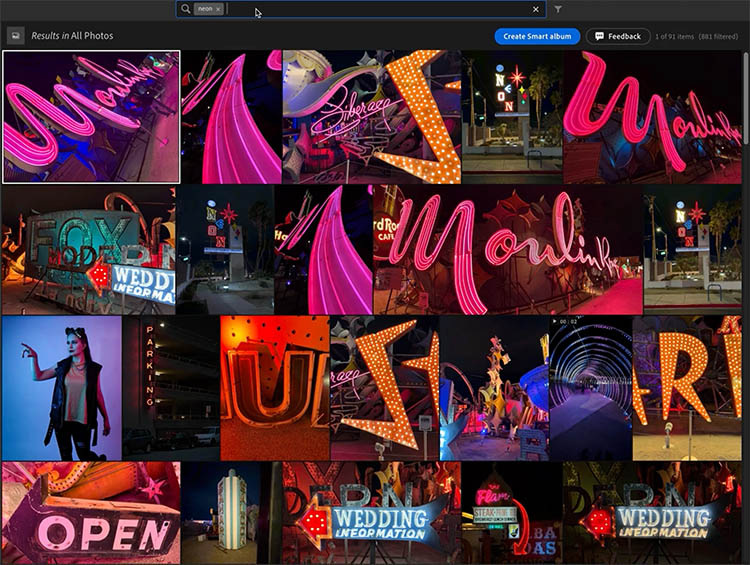
This is one of the most practical uses of AI for photographers—especially if your library isn’t fully keyworded.
Expanded Photoshop Editing Options
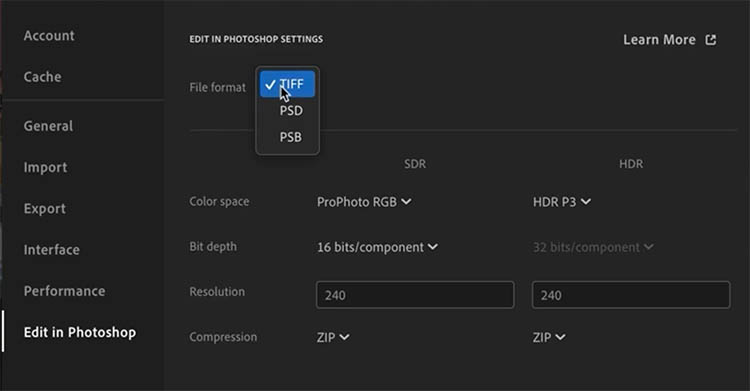
Right-Click and choose Edit in Photoshop Settings, Lightroom Desktop now includes more advanced settings directly in the interface (These settings are in Classic already).
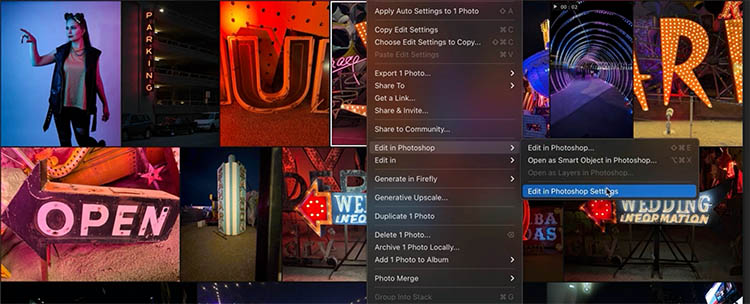
You can control:
- File format
- Color space (SDR and HDR)
- Bit depth
- Resolution
Zoom and Pan in the Crop Tool
The crop tool has received a subtle but powerful upgrade.
You can now zoom and pan while actively cropping.
Zoom in using Option + mouse wheel, then hold the spacebar to pan around inside the crop.
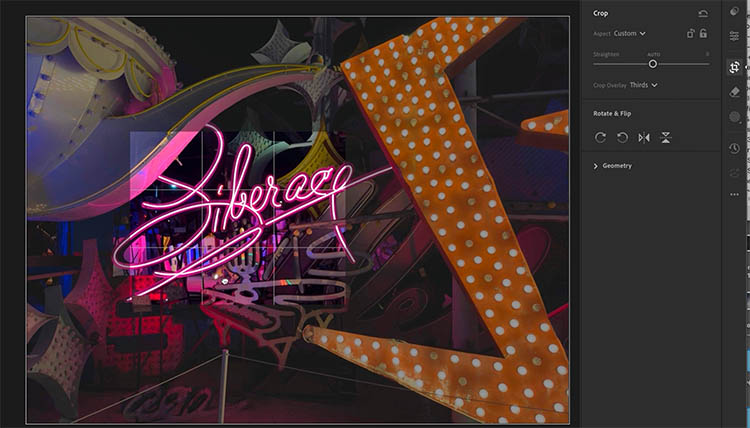
Without holding spacebar, you’re simply repositioning the crop frame—but with it, you can navigate the image freely.
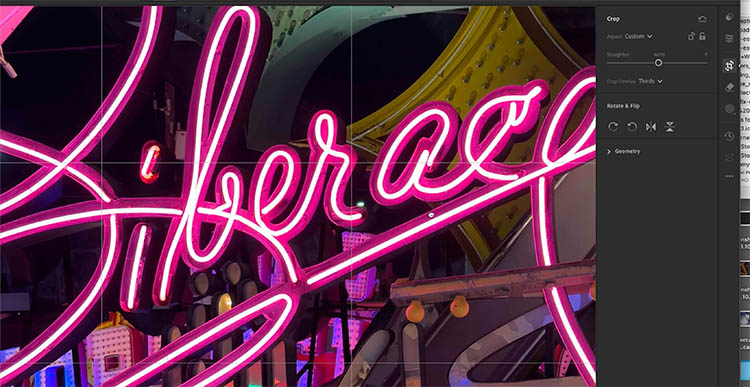
This makes fine-tuning composition much faster and more precise.
Background Processing in Lightroom Classic
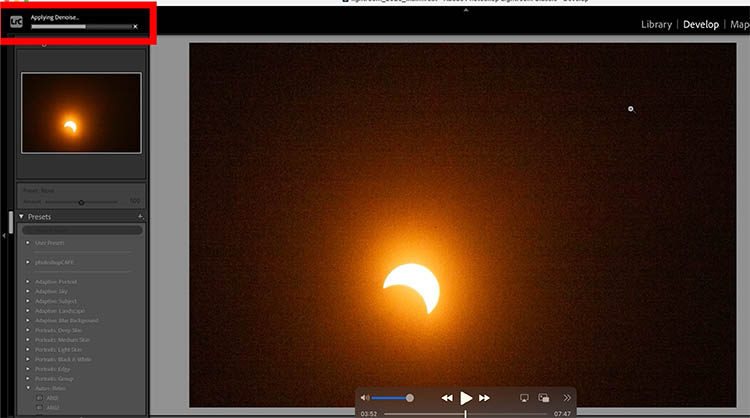
Lightroom Classic now handles more tasks in the background, allowing you to keep working uninterrupted.
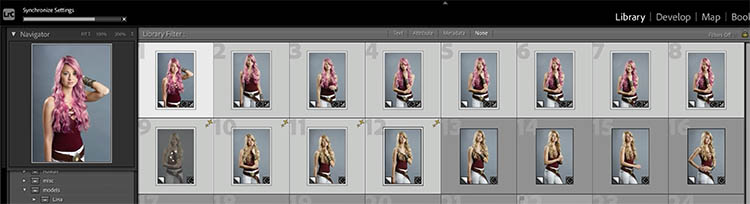
When syncing settings across images, the process runs in the background while you continue editing. You will see the progress bar in the top left of the interface.
The same applies to:
- Denoise
- Raw Details
- Super Resolution
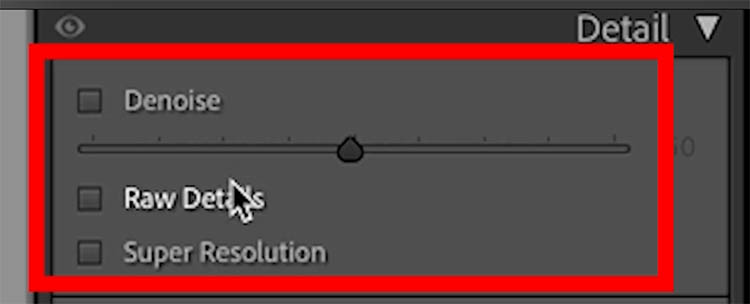
Previously, these operations could interrupt your workflow. Now, they’re handled asynchronously.
Performance Improvements
Adobe has also improved overall performance in Lightroom Classic, including:
- Smoother slider responsiveness
- Better memory usage in full-screen mode
- Faster cloud sync downloads
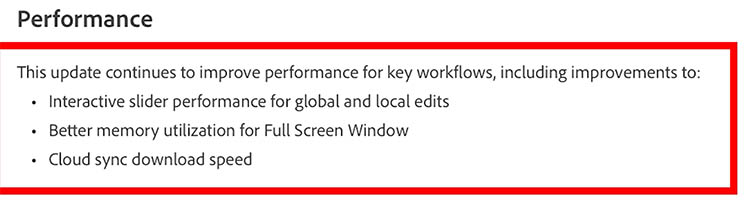
These aren’t flashy updates, but they make a noticeable difference during long editing sessions.
Assisted Culling Improvements
Assisted culling has been refined, especially when it comes to focus detection.
It now better understands shallow depth of field, making smarter decisions about what is actually out of focus.
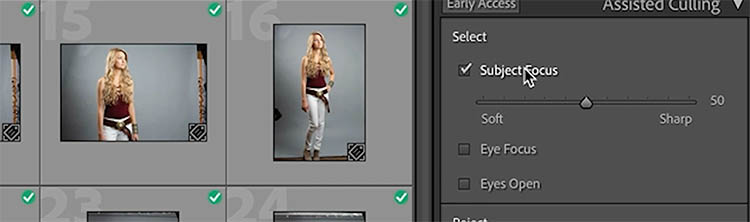
You can adjust the sensitivity:
- Lower values are more forgiving
- Higher values are more strict
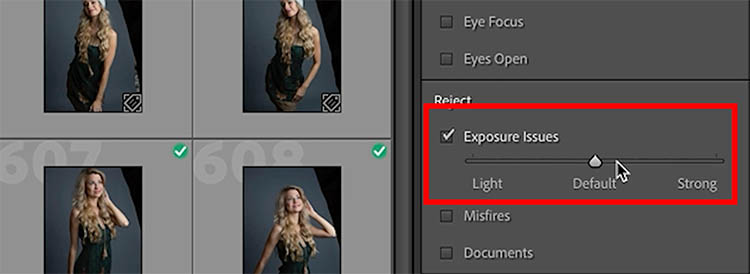
It also flags exposure issues more accurately, such as missed flash shots.
PSB File Support
Both Lightroom and Lightroom Classic now support PSB files (Photoshop Big).
This is essential when working with very large documents—especially composites or high-resolution panoramas.
New Film-Inspired Presets
Adobe has added a collection of film-inspired presets.
These provide stylized looks that emulate classic film tones, and they’re fully adjustable.
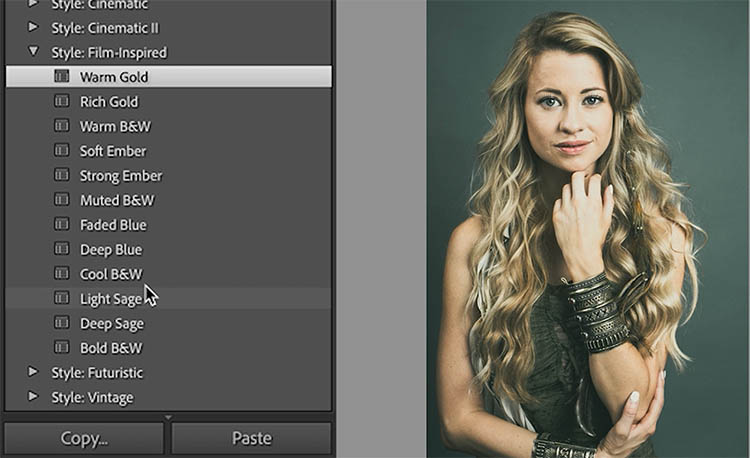
You can:
- Preview different looks quickly
- Control intensity
- Combine with manual adjustments
These presets are a solid starting point rather than a final look.
Sony Compressed RAW Support
Lightroom now supports Sony’s newer compressed RAW format, improving compatibility for Sony shooters with newer cameras.
Firefly Mood Boards
A new creative feature is the ability to generate mood boards using Adobe Firefly.
Right-click your images and choose “Start a Mood Board” to send your images to Adobe Firefly.
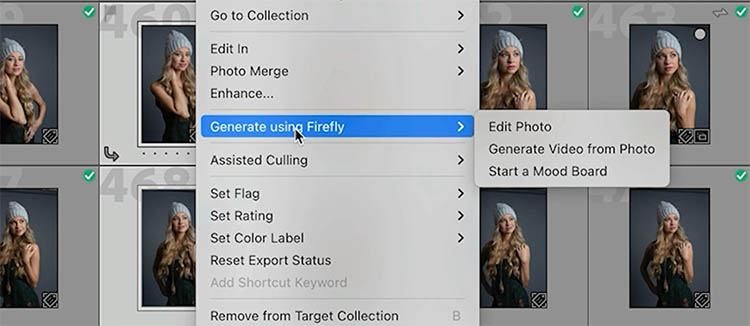
From there, you can:
- Arrange images visually
- Build concepts and ideas
- Generate AI content (optional)
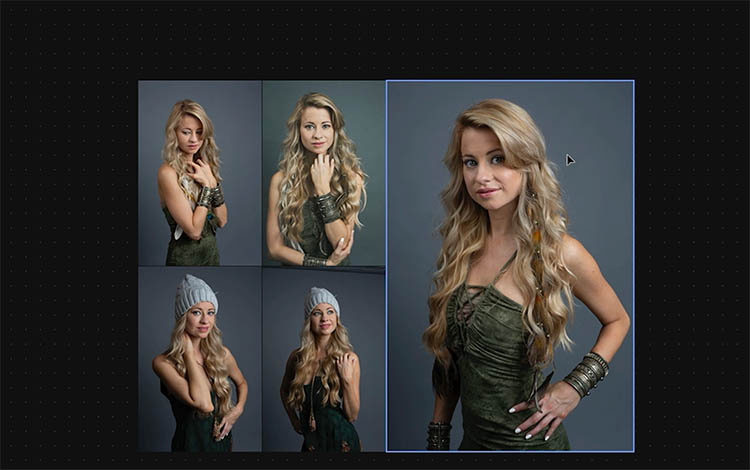
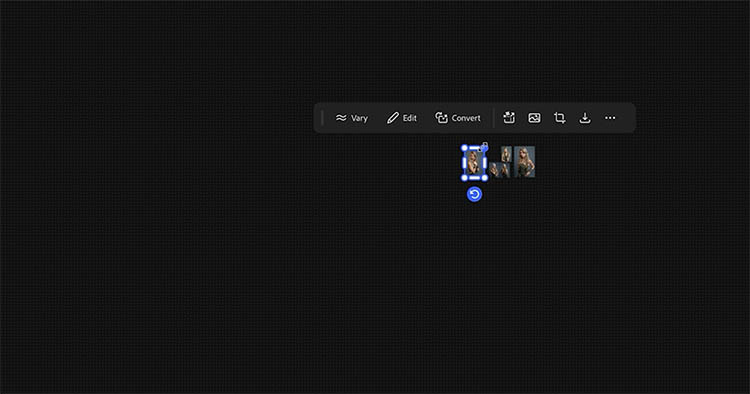
Even if you’re not using AI generation, it works as a flexible visual planning tool.

Tip: Use mood boards to plan shoots, color palettes, or client presentations.
Final Thoughts
This update is less about flashy tools and more about smarter workflows.
The standout feature is clearly the natural language search—it changes how you interact with your entire library. The background processing and performance improvements are just as important, especially for professionals working with large volumes of images. And the creative additions like mood boards and film presets give you more ways to explore ideas without slowing down your workflow.
What’s your favorite feature in this update—and are you using Lightroom Desktop or Lightroom Classic in your workflow? Drop a comment and let me know!
It’s great to see you here at the CAFE
Colin
PS Don’t forget to follow us on Social Media for more tips.. (I've been posting some fun Instagram and Facebook Stories lately)
You can get my free Layer Blending modes ebook along with dozens of exclusive Photoshop Goodies here

22 thoughts on “Big Lightroom update April 2026 New Features”
Leave a Reply

This new Photoshop feature makes it easy for you to work with multiple layers

Watch this video to discover how to best work between Photoshop and Lightroom. Find out how to keep your Lightroom...
New Adaptive Profiles in ACR Adobe Camera Raw make photos better









I am a LR desktop user!
I am a lightroom user
2/3 Classic, 1/3 Desktop. Haven’t had a chance to use the new features yet. PS settings is one that will be handy at times and always welcome performance improvements.
LR Desktop doesn’t work on my desktop, so I use LRc exclusively.
I use Lightroom Classic primarily for virtual copies.
Confused. I thought LRC = Lightroom desktop. The newer product is just Lightroom. You are saying in this video that LRC = newer product and Lightroom desktop is the older product. I use Lightroom desktop
This was interesting. I don’t use Lightroom, even though it’s part of my subscription. (I’m unwilling to learn it.). I have had enough of learning so many programs: InDesign and Photoshop (and its Beta) are my main programs, but I also use Illustrator, Premier, Topaz, CorelDRAW and Paint, Smartshow 3d, On1, Radiant, PanosFX, it goes on. Add to that all the David Cross Summits, your and Glyn Dewis videos, and KelbyOne “The Grid.” I’ve had enough! I stop buying plugins and learning new programs. I want a few programs that I can really use for as much as possible, like InDesign and Photoshop. Can you address program/plugin/video overload? I’m looking for a time when I can eat lunch. Lou Blazquez
Sounds like shiny object syndrome. I’d first see what you want to do first, then choose 1 app for each.
I use Lightroom Classic, Photoshop, and Photoshop Beta but mainly LC. I really enjoy your videos and look forward to many more.
I use mostly LRC
Hi Colin,
I notice you refer to Lightroom Classic and the Desktop version. The Adobe website, however, only refers to Lightroom Classic and Lightroom, without mentioning a “Desktop” version. It seems that Lightroom is cloud-based, while Classic is the desktop version.
My Adobe subscription is in South Africa—do you perhaps use a different naming convention in the USA?
The desktop is one component of lightroom – Desktop/phone/web and tablet
Really interesting changes and updates. I use LRc. I’m most interested in the mood board feature, as I will be putting multiple images together on one slide and moving them around in real time on Zoom. I’ll dive more deeply into this feature now, as I knew nothing about it until I watched your video, Colin, which is always excellent. So thanks.
Thank you for sharing both the video and your notes regarding the April LR changes. I am a LR Classic user.
Lightroom Classic
Lightroom Classic
I do not like working on my phone nor tablet. I stick to classic.
I tend to find more an more of my needs covered by Lightroom Classic. I will only turn to Photoshop for “larger” edits.
Thanks for your videos. To the point.
I would like a course like “All that came to R Classic in the last 3 years”. not going over all the iterations but handling the things that changed over the last couple of years and teaching the stat of the art today.
Thanks for the comment!
Lightroom Classic user on a Laptop. PS: I totally appreciate your tutorials. I am self-taught with PS and LRC…coming from the Advertising, Marketing business….. Thank you again… best
Happy to help!
Lightroom Classic
Lightroon desktop and mobile