Lightroom Classic Update Deep Dive: What’s New and What Actually Matters June 2026
Lightroom Classic Just Added Duplicate Detection and 9 more features
Adobe has released another major update to Lightroom Classic, and while there are several impressive additions, one feature stands above the rest.
After years of requests from photographers, Lightroom Classic finally has duplicate detection.
That alone would make this an important update, but Adobe didn’t stop there. We also get improved AI masking, faster Denoise performance, keyword syncing between Lightroom ecosystems, upgraded assisted culling, and a new background activity manager.
Let’s take a closer look at what’s new and how these features can improve your workflow.
How to Update Lightroom Classic
Before exploring the new features, make sure you’re running the latest version.
Open the Creative Cloud application and navigate to the Apps section.
Choose Check for Updates before installing anything. This forces Creative Cloud to ping Adobe’s servers and retrieve any updates that may not yet be showing in your application.
Once Lightroom Classic appears in the list, click Update.
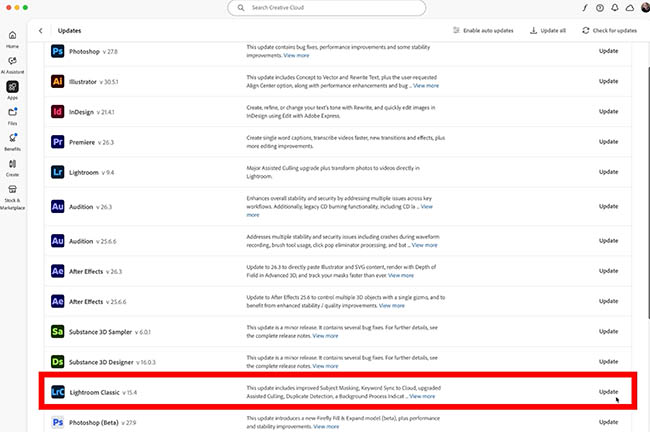
When you launch Lightroom Classic for the first time after updating, you’ll be prompted to upgrade your catalog.
Don’t worry about your previous catalog. Lightroom automatically creates a backup copy and stores it in a ZIP archive, allowing you to restore it later if necessary.
The upgrade process is quick and painless.
Now let’s get to the good stuff.
Finally: Duplicate Detection in Lightroom Classic
This is the feature many Lightroom users (me, me, me) have wanted for years.
The new Duplicate Detection tool scans your catalog and identifies duplicate or extremely similar images.

What’s especially impressive is that Adobe isn’t simply comparing file names.
Instead, Lightroom uses AI to analyze image content and identify matching photographs, even when filenames differ.
When duplicates are found, Lightroom automatically organizes them into stacks, making them easy to review.

Clicking on a stack reveals the duplicate images grouped together.
At first glance, this seems straightforward, but there are some important details you need to understand before deleting anything.
Remove from Lightroom vs Delete from Disk
When Lightroom identifies duplicates, you’ll see the option to remove them.
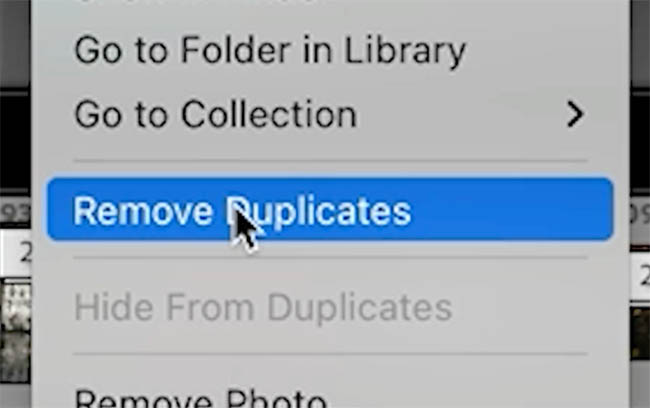
This is where you need to be careful.
Lightroom gives you two choices:
- Remove from Lightroom
- Delete from Disk
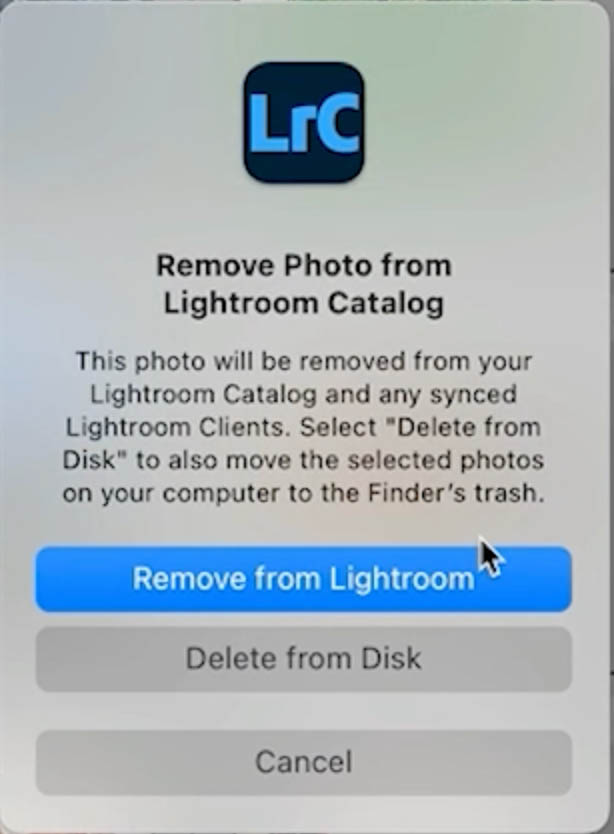
Removing from Lightroom only removes the image from the catalog view. The actual file remains safely stored on your hard drive.
Deleting from Disk permanently removes the file from your computer.
The challenge is that Lightroom doesn’t immediately show the file path when you’re reviewing duplicates.
Before deleting anything, right-click and choose Show in Finder (Mac) or Show in Explorer (Windows).
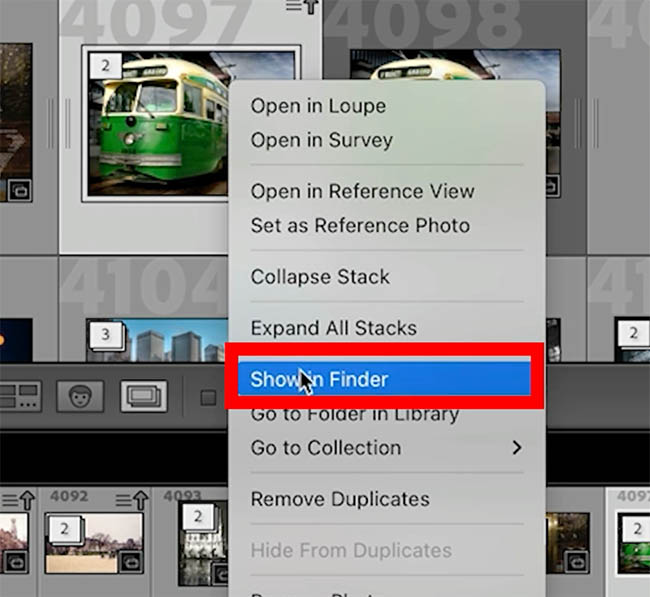
This allows you to see exactly where each file is stored.
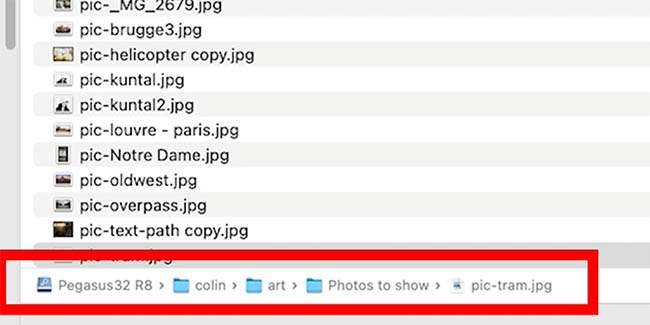
You may discover that what appears to be a duplicate is actually serving a different purpose.
For example, one file might live inside your master photo archive while another exists in a separate folder used for presentations, client proofs, or mobile viewing.
In those situations, deleting the file could create unintended problems.
Tip: Always verify the file location before deleting duplicates. Two identical images may be intentionally stored in different folders for different workflows.
A Better Way to Review Duplicates
One trick that makes Duplicate Detection much more useful is displaying folder information directly in the Grid View.
Open View > View Options.
Turn on extras and choose “Compact Cells”
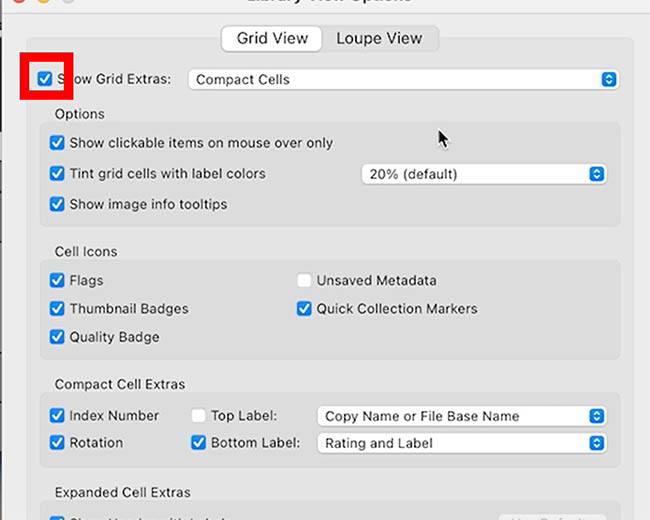
Under the Compact Cells extras, choose the Folder display.
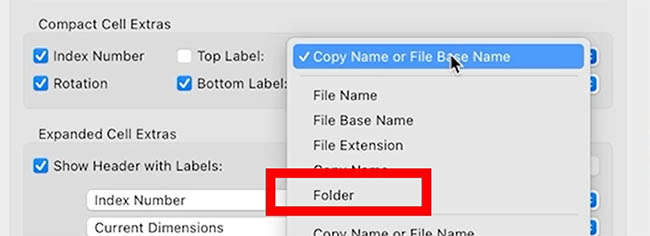
To make it appear over the thumbnails, turn on Top Label.

Now when you return to Duplicate View, Lightroom shows the folder location underneath each image. Unfortunately, it only displays the immediate folder name, not the entire path.

This gives you immediate context when deciding which version to keep.
Instead of guessing, you can instantly see whether an image belongs to your archive, a client folder, a presentation library, or another project.
That additional information can prevent costly mistakes.
New Background Activity Manager
Adobe has also introduced a dedicated background activity panel.

Click the new status icon and you’ll see background processes currently running inside Lightroom.
These include tasks such as:
- Duplicate Detection
- Face Detection
- Address Lookup
- Assisted Culling
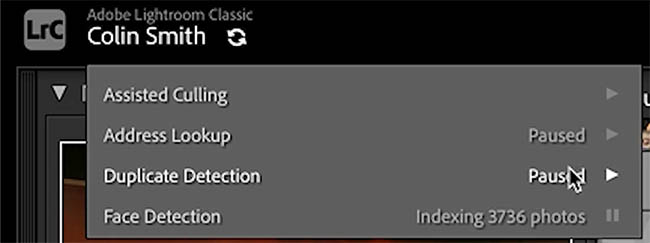
You can pause individual tasks whenever you need to free up system resources.
This is especially useful when editing large jobs or working on slower systems.
Rather than shutting everything down, you can selectively pause the activities that aren’t important at that moment.
Select Subject Gets a Major Upgrade
The masking improvements in this update are surprisingly significant.
Most people will immediately notice improvements in Select Subject.
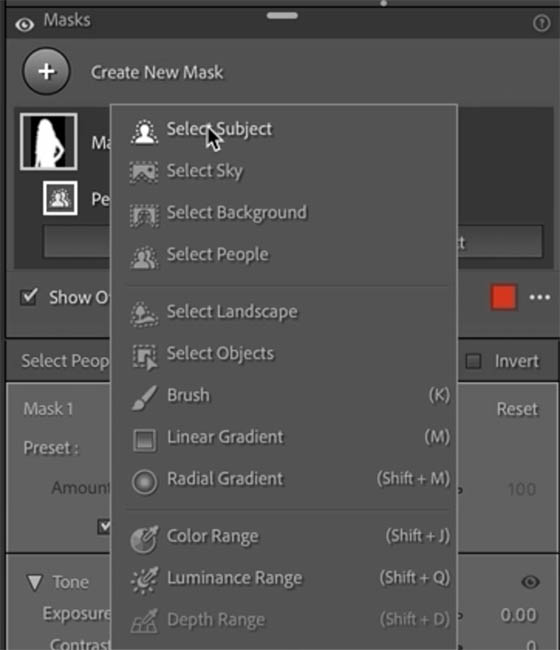
To compare the results, create two masks:
One using Select Person.
Another using Select Subject.
Switch the mask overlay to White on Black and zoom into detailed areas such as hair, feathers, or fur.
The difference becomes obvious very quickly.

The new Select Subject mask does a dramatically better job capturing fine detail around edges.

Hair strands, feather textures, and other delicate details are preserved much more accurately.
Meanwhile, Select Person still produces the softer, rougher edge quality we’ve become accustomed to.
The improvement is substantial.
In many situations, Select Subject now produces results that previously required manual refinement.
Tip: When working with hair, fur, or feathers, try Select Subject before Select Person. The edge quality is noticeably better.
Faster AI Denoise on Apple Silicon
If you’re using an Apple Silicon Mac, Adobe has delivered another welcome improvement.
AI Denoise is now significantly faster.
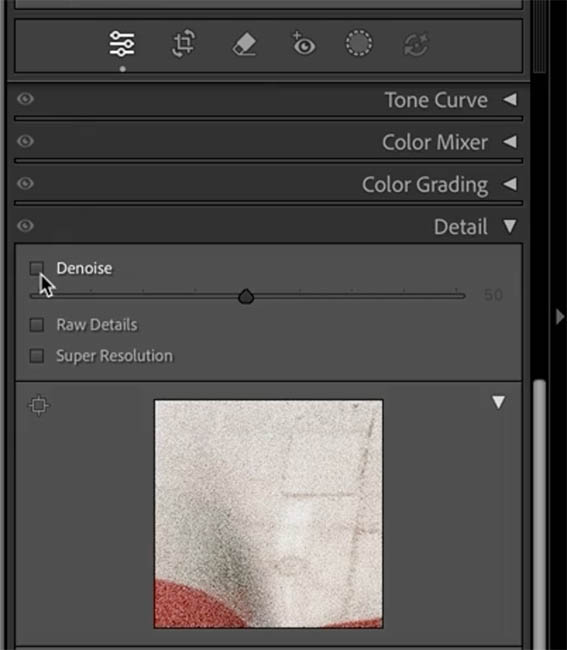
Photographers working with high ISO images will notice the difference immediately.

Images that previously required a lengthy wait now process much more quickly.

The improvement isn’t limited to rendering speed either.
Adjusting the Denoise amount feels much more responsive, allowing you to preview changes and dial in the ideal setting faster than before.
For photographers who regularly shoot events, wildlife, concerts, or low-light work, this upgrade alone could save a significant amount of time.
Be aware this only works on RAW files.
Assisted Culling Leaves Beta
A feature graduating into full release is Assisted Culling.
The Early Access label is now gone.
One of the biggest improvements involves detection on group photos.
When reviewing group photographs, Lightroom can now evaluate individual people within a group rather than treating the group as a single subject.
This allows Lightroom to more accurately identify:
- Closed eyes
- Missed focus


For portrait, wedding, and event photographers, this makes Assisted Culling considerably more practical.
New AI Filters in Metadata Search
Adobe has quietly added a useful filtering option that many photographers may overlook.
Open the Filter Bar by pressing the Backslash key.
Choose Metadata.
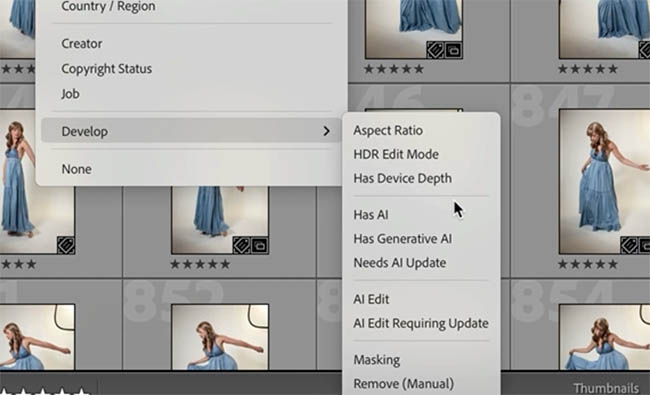
You’ll now find AI-related filtering options.
You can filter images based on:
- AI Edits
- Generative AI Edits
- AI Updates Required
- AI Edit Requiring Updates
This becomes incredibly useful when managing large catalogs that contain AI-generated removals, masks, or enhancements.
For example, you can quickly locate every image that used AI-based object removal and review those edits.
This provides much better visibility into where AI tools have been used throughout your catalog.
Keyword Syncing Finally Arrives
If you work between Lightroom Classic and Lightroom Cloud, this update solves a long-standing frustration.
Keywords can now sync between both ecosystems.
Open Preferences and navigate to the Lightroom Sync section.
You’ll find a new option to enable Keyword Syncing.
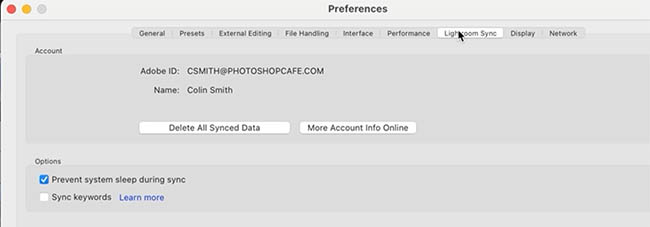
Once activated, your keywords can travel between Lightroom Classic and Lightroom, making it much easier to maintain consistent organization across devices.
For photographers who regularly move between desktop and mobile workflows, this is a welcome addition.
Improved Brush Performance
Adobe has also worked on brush responsiveness.
This will be especially relevant for photographers who perform extensive dodging and burning using masks.

On higher-end systems, the difference may be subtle because performance was already good.
However, many users should notice smoother brush interactions and reduced lag while painting masks.
The impact will likely vary depending on your hardware configuration.
If you’ve struggled with brush responsiveness in previous versions, this is definitely worth testing.
New Canon Tethering Engine
One of the less-publicized updates affects Canon users.
Adobe has rebuilt its tethering system and now uses its own tethering engine instead of relying entirely on Canon’s API.
This gives Adobe greater control over development and future updates.
Potential benefits include:
- Faster camera support
- Faster bug fixes
- Improved reliability
- More frequent feature updates
At launch, this applies to Canon cameras, but it’s easy to imagine Adobe expanding this approach to additional manufacturers in the future.
Final Thoughts
This Lightroom Classic update delivers improvements in several areas, but Duplicate Detection is undoubtedly the headline feature.
The ability to automatically identify duplicate and visually similar images using AI is something photographers have requested for years.
Beyond that, the masking improvements, faster Denoise performance, keyword syncing, and enhanced Assisted Culling all provide meaningful workflow upgrades rather than simply adding flashy features.
Adobe seems focused on making Lightroom faster, smarter, and more efficient for working photographers, and that’s exactly the direction many users have been hoping for.
Which of these new features are you most excited about? Will Duplicate Detection change your workflow, or do the masking improvements stand out as the biggest update?
It’s great to see you here at the CAFE
Colin
Recommended for this tutorial Learn Masks in Lightroom and Camera RAW Make precise local adjustments in Lightroom and Camera Raw with every type of mask. $59.99 · one-time purchase · instant download Free for you The Photoshop Vault Get my free Layer Blending Modes ebook along with dozens of exclusive Photoshop goodies: actions, brushes, presets and cheat sheets. You're on the list, so your free goodies are waiting for you in the Vault.




Lightroom Classic 2026 new features (Lightroom 15)
New features in Lightroom Classic 2026 Lightroom 15 release Read tutorial
New Features Lightroom Classic 2025. LRC 14
New Features in Lightroom Classic 2025 aka Lightroom Classic 14 Read tutorial
New Features in Lightroom, Lightroom Classic and ACR Feb 2025 update
New Features in Lightroom, Lightroom Classic and Adobe Camera RAW Feb 2025 update. Read tutorial
Big Lightroom update April 2026 New Features
April 2026 Lightroom updates, including AI-powered search, improved performance, smarter culling, and new creative tools. Read tutorial
New Features in Lightroom and Camera RAW, August 2026 update
New Lightroom Classic and Camera Raw features including mask edge refinement, Render to DNG, blemish removal, Generative Expand and vectorscope. Read tutorial