
Photoshop Frames in Depth + TIPS

Photoshop Frames and 5 tips
Frames are an amazing new feature that allow us to make picture in picture, thumbnails and collages in Photoshop. In the past, we had to create clipping groups to do this. It got complex very quickly and very confusing to change things later. Now with Frames in Photoshop CC 2019, its really easy. There are a lot of things that frames can do and I’ll share them with you in this tutorial.
Frame Tool
If you have ever had to create things like thumbnails, you will love this feature. (I will add to this written section)
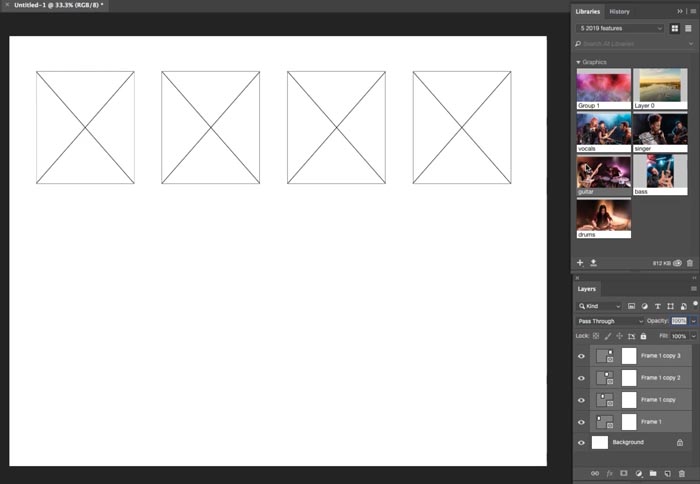
Here is what it replaces: You would create a rectangle. Drop in a photo. Create a clipping group to add the photo to the rectangle and then resize and reposition the photo.
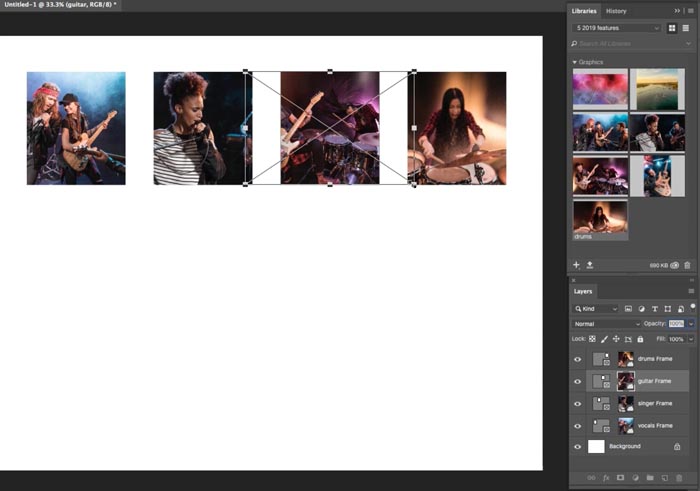
Now you just grab the frame tool (rectangle or oval) and draw on the canvas. Now you can drag a photo from the library, or a different layer and it will go into the shape and resize to fit. Here are a few tips:
- Double click with frame tool to toggle between selecting the photo and selecting the frame.
- To replace with a new photo, drag in a new one and it will replace existing image.
- This is big: Right click in the layers panel to convert and text or shape to a frame, custom shapes!!
PHOTOSHOP CC 2019 NEW FEATURE TUTORIALS
- Top 5 Features, overview video
- 5 Big Little hidden things in Photoshop CC2019
- Content aware fill in depth
- New Features in Lightroom Classic
- Adjustable Depth Of Field
Thanks
Colin
More CC New Feature tuts
► Lightroom New Features tour and tutorial
► All new features in Photoshop CC 2019.

Keep growing with Premium Courses
Photoshop 2026 for Digital Photographers
Learn Photoshop properly, from the basics to pro retouching, step by step.
$129.00 · one-time purchase · instant download

Free for you
The Photoshop Vault
Get my free Layer Blending Modes ebook along with dozens of exclusive Photoshop goodies: actions, brushes, presets and cheat sheets.
You're on the list, so your free goodies are waiting for you in the Vault.
Get Free Photoshop Goodies Open the Vault
How to use Updated Frame Tool in Photoshop
How to use the new features in the frame tool in Photoshop. Read tutorial
New Photoshop features Photoshop 2025 April update
7 best new features in Photoshop 2025 April update Read tutorial
New Features in Photoshop 2026 Jan 26 update
Photoshop’s January 2026 update is here, what’s new? Read tutorial
What’s New in Photoshop 2026 (Full Release Overview)
Explore the top new features in Photoshop 2026, Full release Read tutorial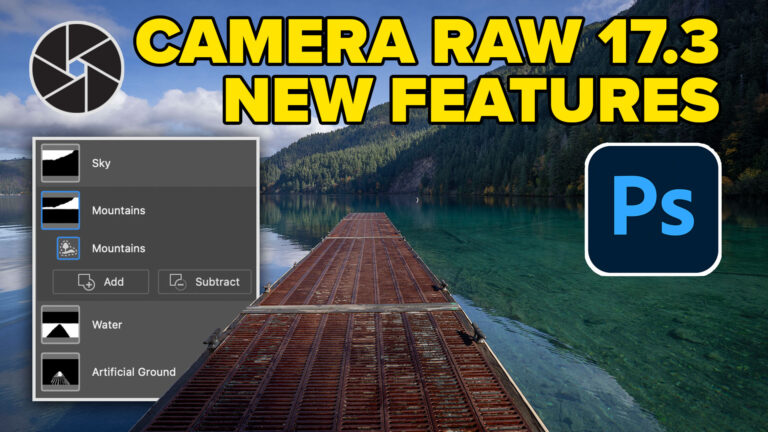
New in Adobe Camera RAW 17.3
New Features in Adobe Camera Raw 17.3 ACR in Photoshop 2025 April update. Landscape Masks and reflection removal updates Read tutorial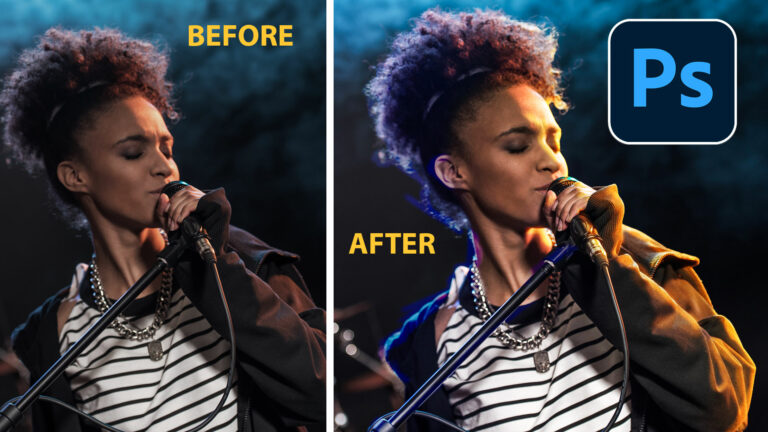














usually I will wait a bit to update the latest version.
Usually, wait due to font management. Suitcase has a new version but I haven’t purchased it yet.
I also found that you can drag straight from your Lightroom grid view into a frame thats cool !
I update immediately
FRAME TOOL
Hey Colin,
I usually wait until I see how all the new features work and if they are of interest to me and my workflow. So far all the Photoshop updates have had usable new features for me! I really like the new Undo and the Frames so far!
My favourite new feature are these Frames, and I updated to PScc 2019 Inmediately
I usually wait – to get info regarding how other people are managing to download with out losing their existing software. I have read that not every one is having success even though they have pressed the correct button.
Colin, That was a great tutorial! I am super excited about the new Frames tool. It is my favorite new feature in Photoshop CC 2019. I am also very pleased to see that the Free Transform tool now locks the aspect ratio–by default, and that you can preview the Blend Modes by simply hovering your cursor over the BM. Those are both very logical, intuitive moves.
I usually update immediately; eager to try the enhancements.
I make multi face composites for college classes. I think the new frames feature is going to make creating a template with 15 (or whatever number) of ovals a snap. If I want each face to be in a 2.5″ x 3″ oval, how do I make the “frame” tool create a series of 2.5″ x 3″ ovals?
Gosh, Colin. You are an absolute GENIUS and so sweet to share these profound tips. I’ll use all these frame tips in preparing my photo book.
Thank you Thank you Thank you. xxoxoxo