
New Photoshop features Photoshop 2025 April update
New Features in Photoshop 2025
Adobe has just made a big update to Photoshop this week, and I’m going to show you my seven favorite features. Now, some of these features you have never seen before. Some of them used to be in beta, and now they’re in the main version, and then a couple of them are only in the beta. I’m going to let you know which version each of these features is in.
CAMERA RAW UPDATES
Auto Landscape Masks
Open Photoshop and then choose filter,>camera raw filter,
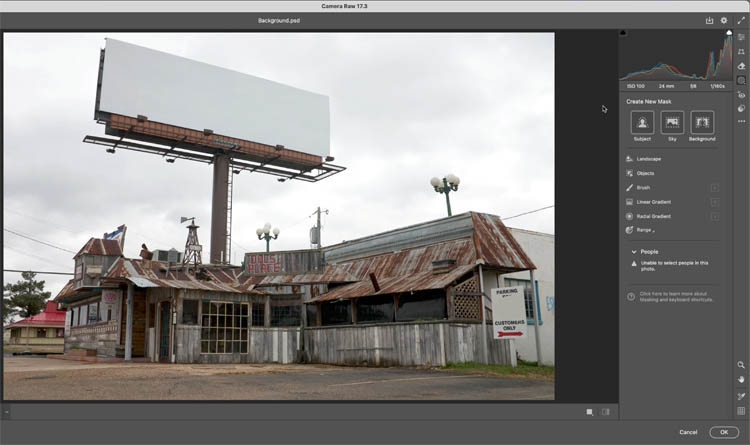
Now, if we go under the masks inside of Photoshop, a new AI mask has been created, and that’s called Landscape.
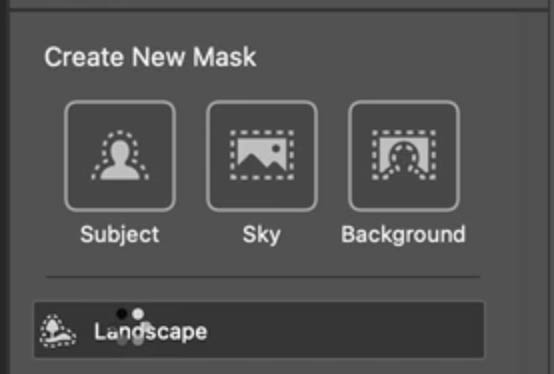
Now, this doesn’t just work on landscapes.
Notice this can select all types of things. We can select the sky. We can select things like architecture, vegetation, artificial ground, and natural ground. So the artificial ground would be things like cement, concrete, natural ground, things like dirt, sand. Vegetation is trees, bushes and grass etc.
Choose all the options
.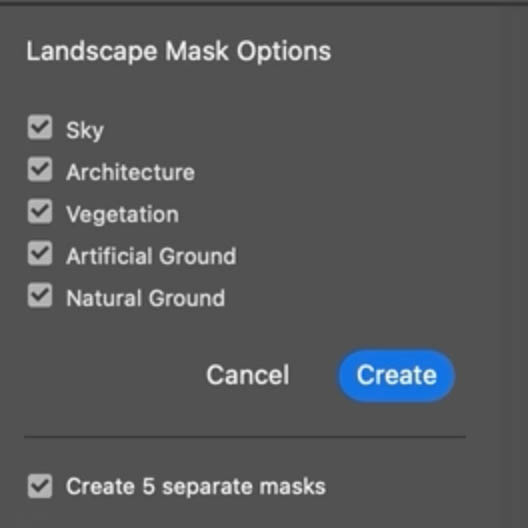
So why don’t we just select all of these right now and we’re going to create individual masks.
Choose Create, and you’re going to see all the different types of masks. So we can make adjustments of these
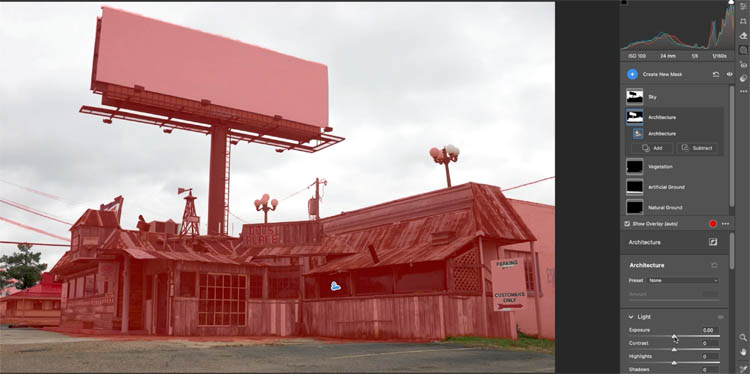
So if we choose, say, the architecture, and now I want to make adjustments in here, maybe I want to take the exposure down just a little a bit.
I’m going to warm it up just a little touch. Let’s make the details pop, give it lots of texture, and give it a little click of dehaze here and just open up the shadows a little bit. (you can see all this on the video).
Let’s also adjust the sky. Let’s take the exposure down a little bit. There are some clouds in there. Let’s take the highlights all the way back. Maybe get a little color into the blue.

We can see we’ve made a massive difference by using these masks. Check out this tutorial where we dig much more in-depth into this.
Reflection removal Improvements
This next feature is a huge one. You might have seen reflection removal in camera raw, but it only worked on certain types of raw files. Now it works on other file types including jpg and tiff.
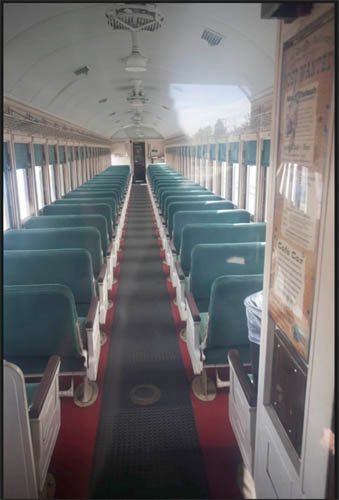
Filters> camera raw filter.
Now we’re going to go down to the remove tool, which is going to be the Eraser.
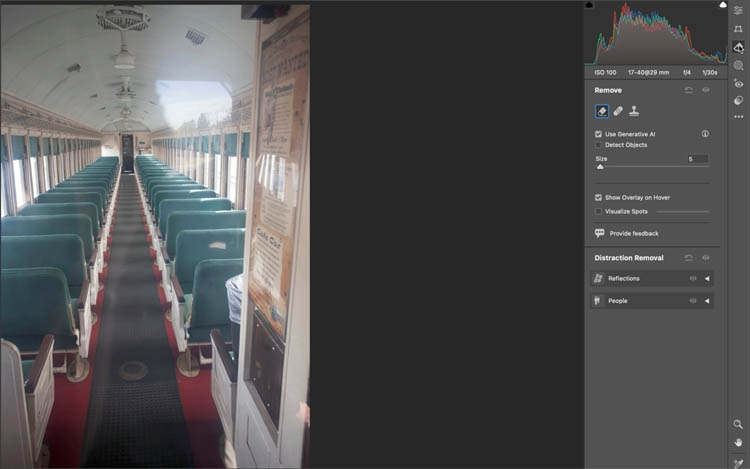
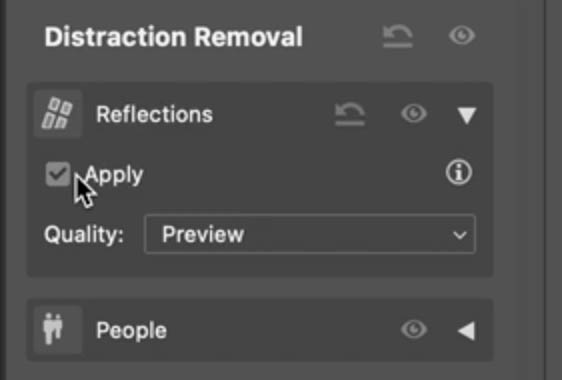
And now we’re going to choose Reflections and hit Apply.
And look at that, we removed the reflection on a JPEG file. Now, if you haven’t seen this, I’ve done a more in-depth tutorial on this as well.
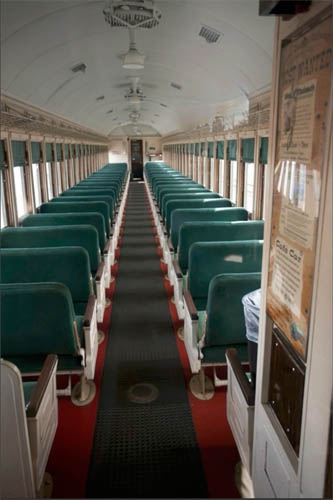
If I was to slide back the slider, we could reduce the amount of reflection removal until we go all the way down to zero and zero will actually give us the original image.
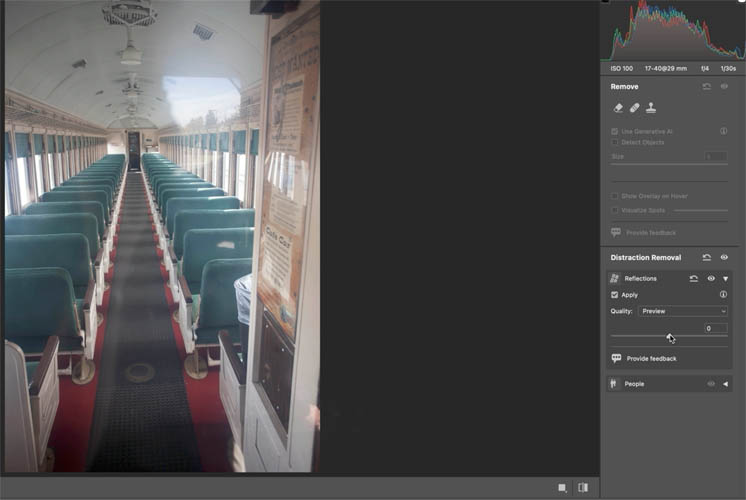
But here’s where it gets even better. If I go to the left, I can actually start to reduce the amount of the image and show more of the reflection until I go all the way to the end and we just see the reflection on its own.
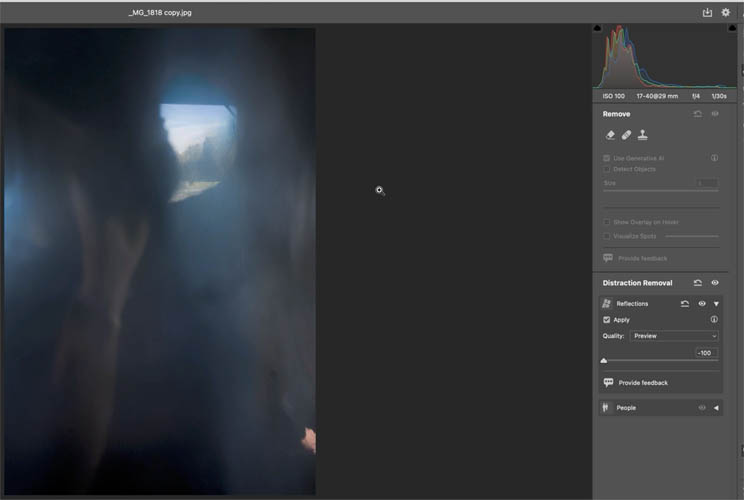
Now that has a lot of other uses, like maybe you want a reflection because you want a composite reflection onto some glass or use it for other purposes
Photoshop 2025 Main Build Updates
Adjust Colors
Okay, next new feature we’re going to jump into here was previously in beta. Now it’s in the main shipping version of Photoshop.
This is a quick way to change the color without making any selections. So let’s change the color of her skateboard.
So we’re going to go up to the Contextual Task Bar under adjust colors and we’re going to click.
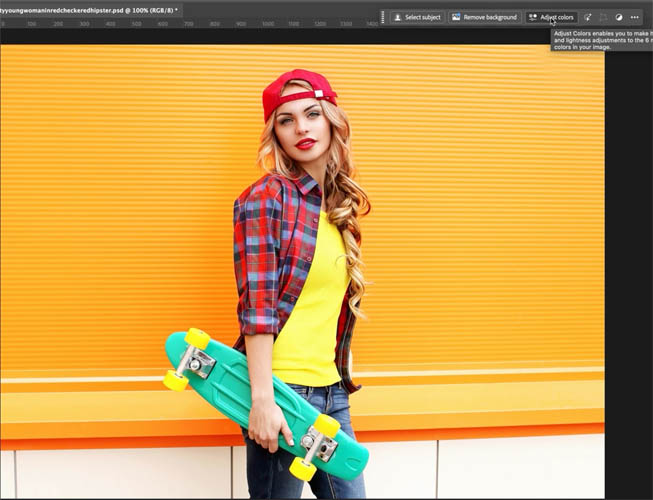
And you’re going to see a couple of things happen. First of all, a hue saturation adjustment layer is created. And then we get seven of these circles. The first one will shift all the colors together. The other six are the prominent colors within the image, and we can see that Turquoise is the closest to the skateboard.
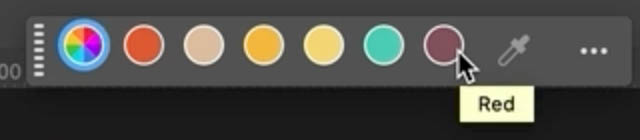
If we click on it, we see three sliders, hue, saturation, lightness.
Hue will change the color. So as we slide this, notice we can change the color of that skateboard to something like a red.
Saturation will be the amount of that color. Let’s reduce the saturation to give it a crimson color.
Lightness will make it lighter or darker.
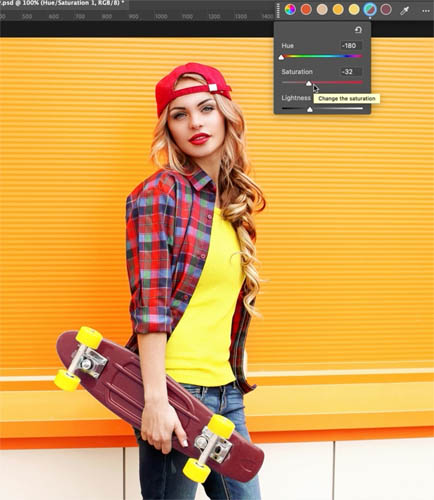
So by using these three sliders, you can change a color to almost any color that you like.
05:25 Advanced Adjust Colors
Check out the video to see a more difficult image including refining the color range to get more precision.
Select Details
The next new feature I want to show you is previously in beta too and now also in the main version of Photoshop. We can select parts of people.
Go to the Object Selection tool and then you’ll see Select People. Notice it’s finding all the people in the image.
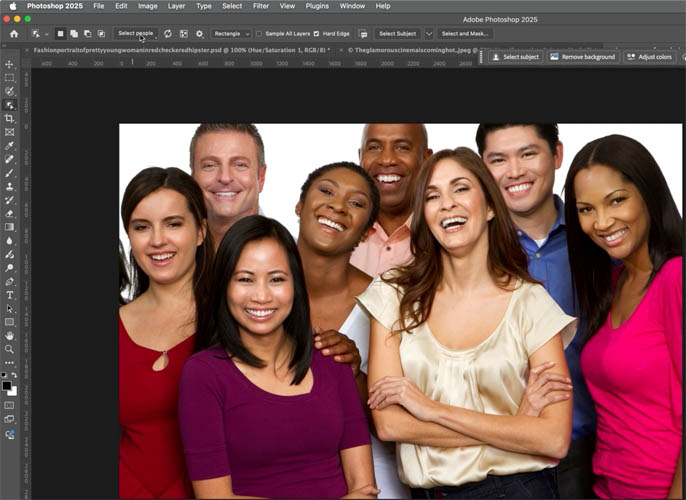
And if we click down here, we can actually go through the faces and we can select any of these people individually. But if we click here, this shows us there’s other things we can select.
So if we wanted, we could just select the facial skin on all of the people, or we could choose one person and do them individually.
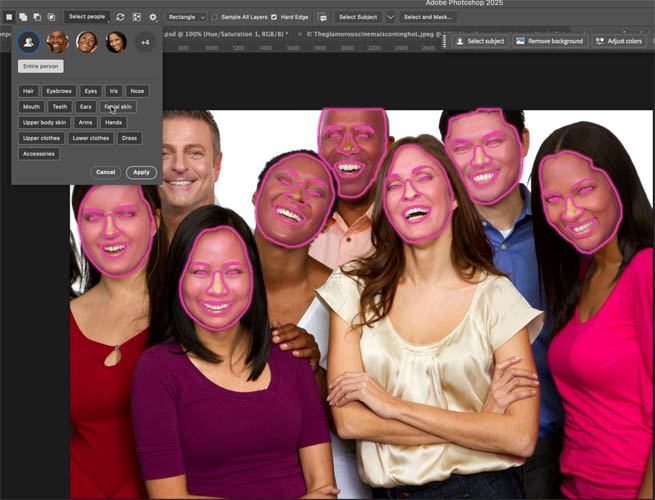
Let’s do all the people. Choose the upper clothes and the dresses, and we’re going to hit Apply.
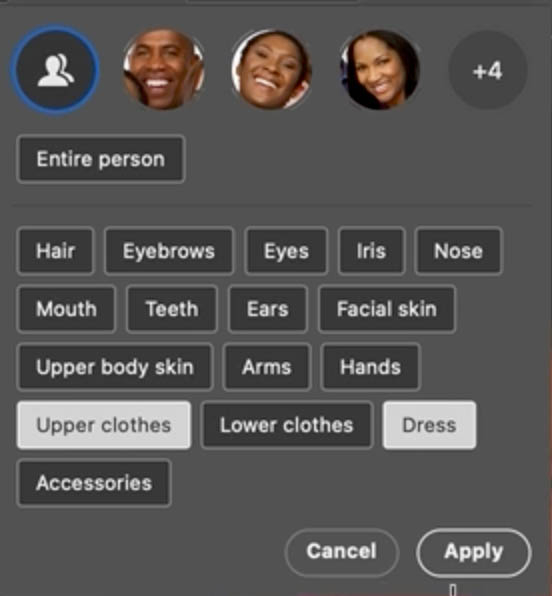
And notice all their clothing is selected.
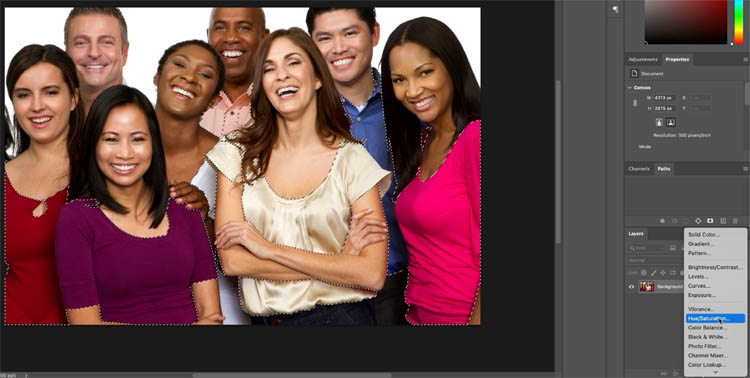
So if I wanted to do something like maybe change the color of it, we would just go under here and grab hue saturation. Let’s choose Colorize.
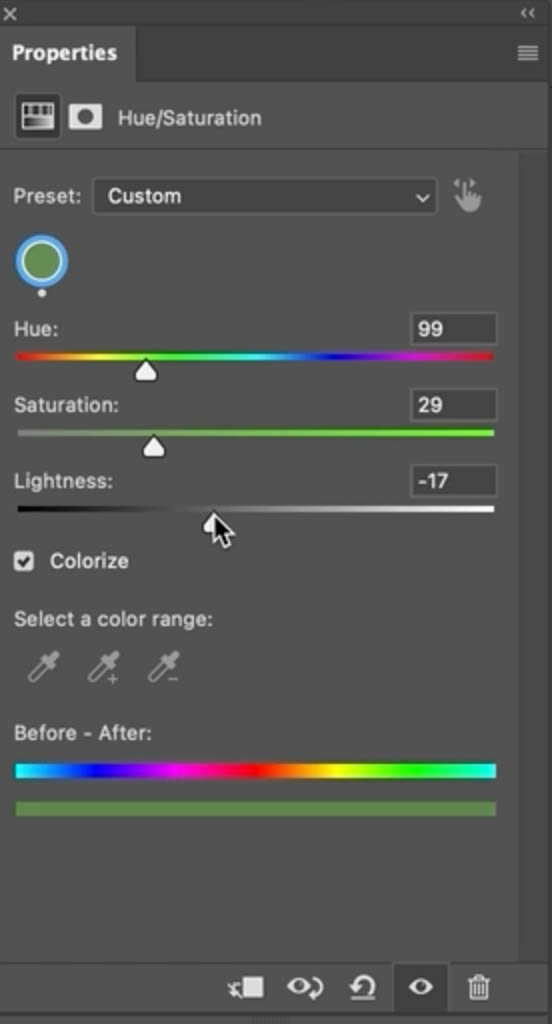
Maybe go for a little St. Patrick’s Day. And notice we can change all the clothes together.
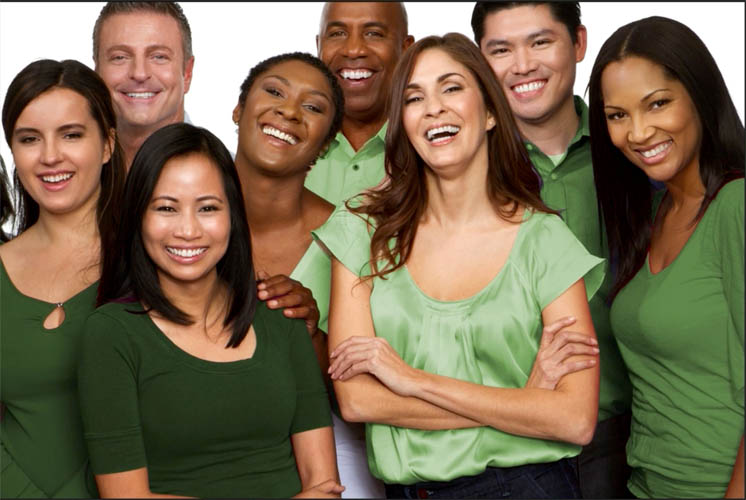
Now, this is going to be an incredibly useful tool to save you time making selections when you’re doing retouching and different things like that.
Improved Object selection
So the next new feature I want to show you, I’ve also done more in-depth tutorial when it was in beta, but now it’s in the real version of Photoshop, and that’s doing much better auto selections.
So if we look at something like this, Spokes on Bicycles, it would be very, very difficult to get.
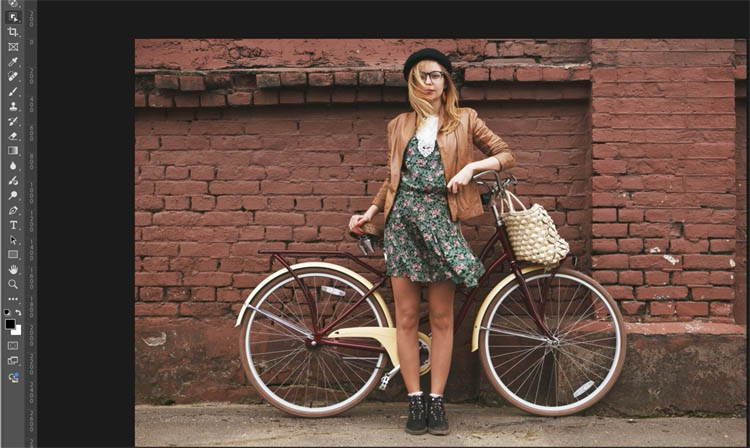
Choose the Object Selection tool. So we want to change this to cloud, and this is where the big improvements are happening.
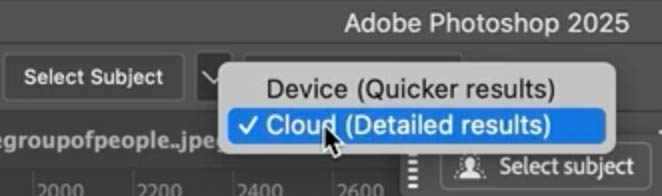
And then we’re going to choose Select Subject. Okay, so there we go. We’ve got a nice selection there.
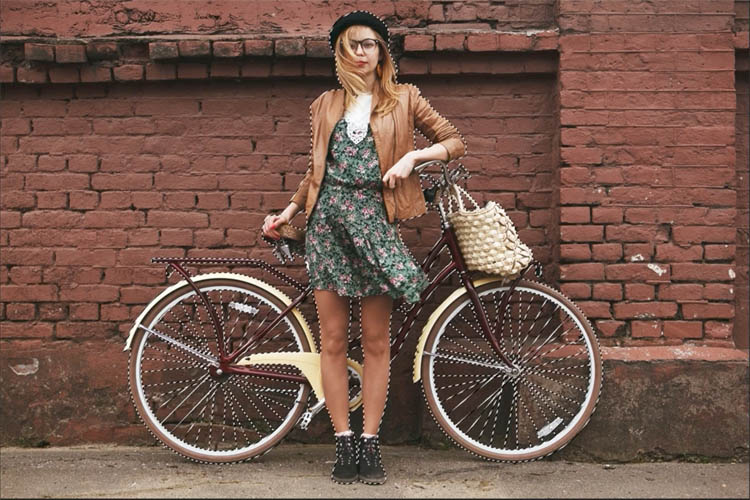
Click the new Layer Mask icon to create a mask.
Here I am showing the mask view so you can see the result.
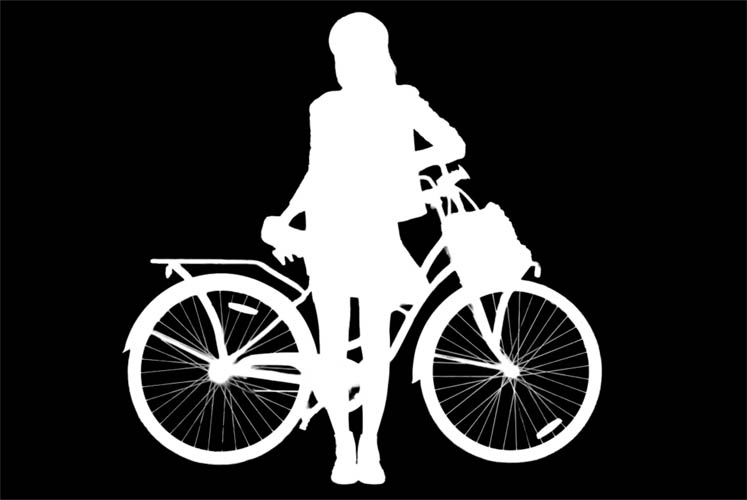
And there’s our cutout. Let’s have a look at against a solid red color so we can clearly see what’s happened.
And let’s have a look. It’s not perfect, but it’s pretty good.

Here you can see more in depth and Auto selections on difficult images
Photoshop Beta Updates
ai Remove tool improvements
Okay, next thing I want to show you is a remove tool improvement.
Grab the Object Selection tool and make a selection around this person.
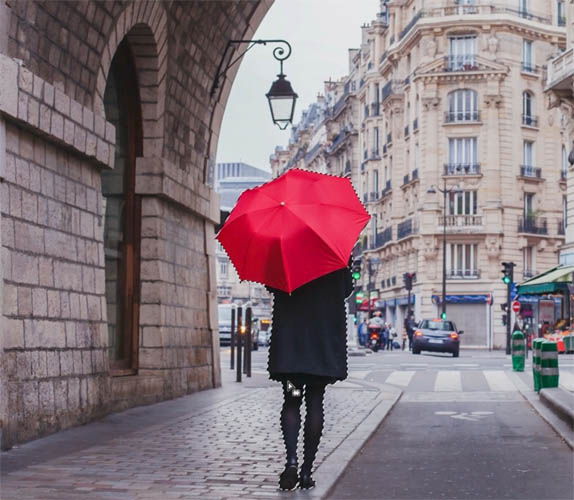
Choose the Contextual Task Bar and click Generative Fill, leave the field black and generate to remove the object.

When you use Generative Fill with a tight selection in the shape of a person, rather than removing the object, its often replaced with another object instead..
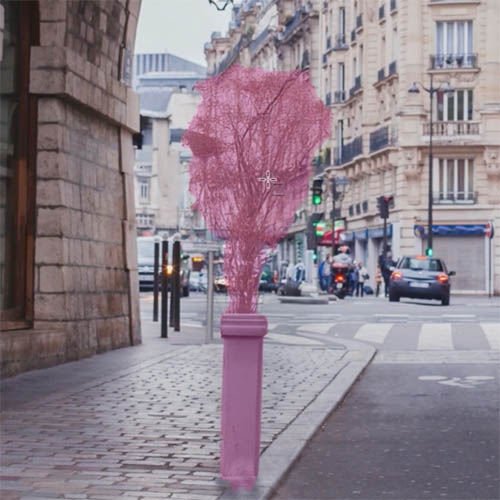
Now if we want to remove something, we just simply go under the taskbar and click on the new remove button. And now it knows, Hey, I I want to remove this.

I don’t want to replace it with something else. And now we get a removal.

New Actions Panel
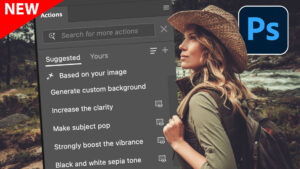
So the next new feature I want to show you is the new Actions Panel. You’ll see now we have actions here, but we also have suggested actions.
And so what it does is it looks at the photograph, analyzes it, and based on the content, it suggests some of the actions from the included action library.
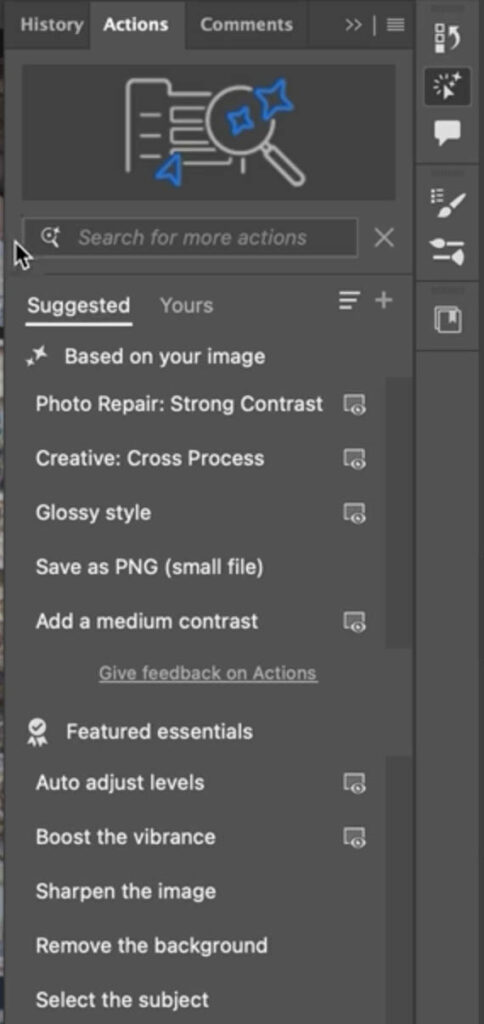
And as I roll over here, I can actually get a preview of what these actions are going to look like. Now, if you look in the Layers panel, as I roll over these, you’ll notice it actually runs the action in the background. But it doesn’t apply it. But if I click on the action, it will apply it.
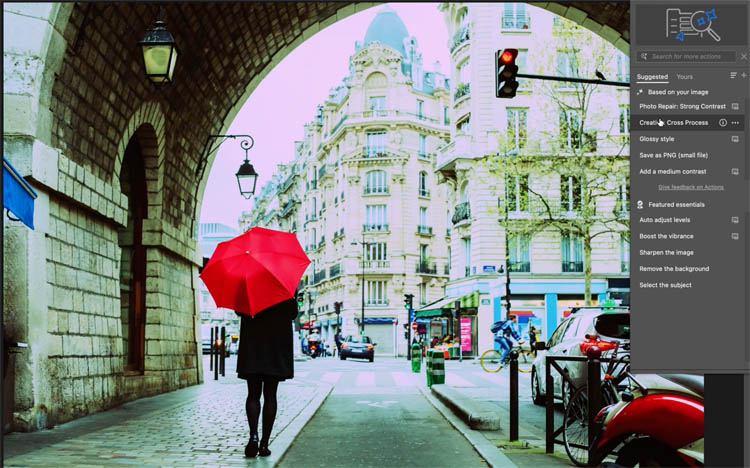
You can search for actions if you like. It now comes with a ton of Adobe Actions. (Some better than others).
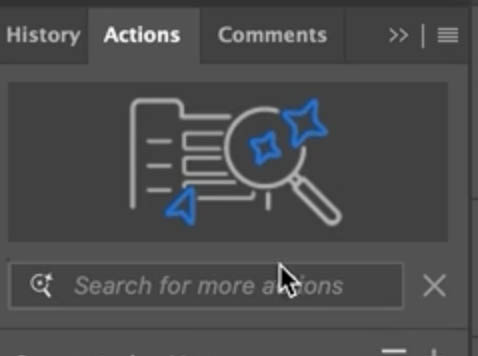
And then if you want to search the actions and see all the actions that are included, there’s no way to do that right now.
But there is a little hack that I got from Pete Green at Adobe and that’s to put a spacebar into the search field.
And now it will list all the actions that include a space in the name.
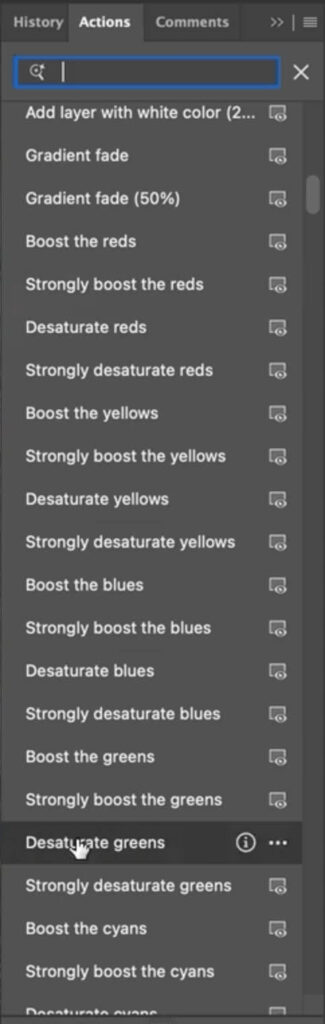
Check out my more in-depth tutorial on these actions.
Here are more resources on the latest Photoshop and Lightroom UPDATE.
7 Favorite new features in Photoshop 2025 April update
Auto Selections | Auto selections on difficult images
Thanks for checking it out
Colin

Keep growing with Premium Courses
Photoshop 2026 for Digital Photographers
Learn Photoshop properly, from the basics to pro retouching, step by step.
$129.00 · one-time purchase · instant download

Free for you
The Photoshop Vault
Get my free Layer Blending Modes ebook along with dozens of exclusive Photoshop goodies: actions, brushes, presets and cheat sheets.
You're on the list, so your free goodies are waiting for you in the Vault.
Get Free Photoshop Goodies Open the Vault
New Features in Photoshop 2026 Jan 26 update
Photoshop’s January 2026 update is here, what’s new? Read tutorial
What’s New in Photoshop 2026 (Full Release Overview)
Explore the top new features in Photoshop 2026, Full release Read tutorial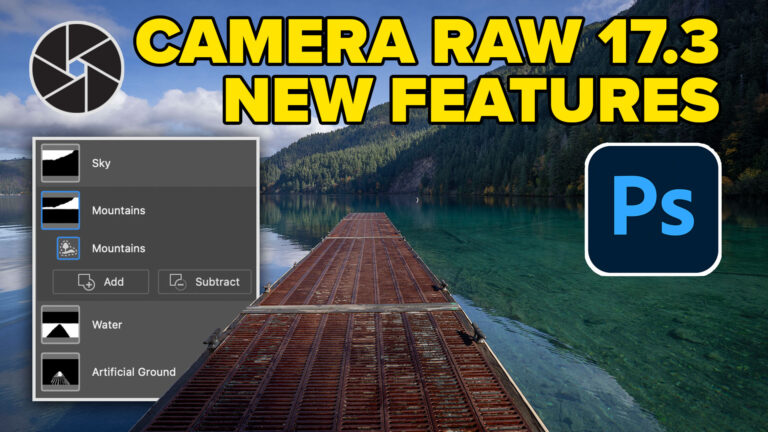
New in Adobe Camera RAW 17.3
New Features in Adobe Camera Raw 17.3 ACR in Photoshop 2025 April update. Landscape Masks and reflection removal updates Read tutorial
Adobe Camera RAW 17 in Photoshop 2025 new Features
New Features in ACR 17 Adobe Camera Raw 17 in Photoshop 2025 Read tutorial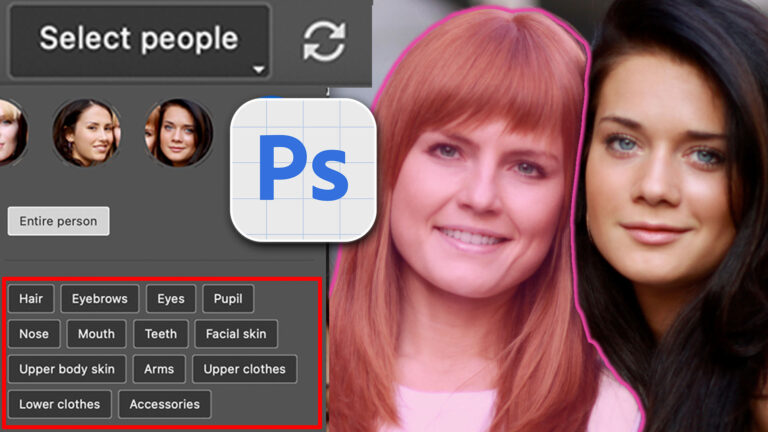
Auto Select people and features in Photoshop
How to automatically select people and facial features in Photoshop, like in ACR + Lightroom Read tutorial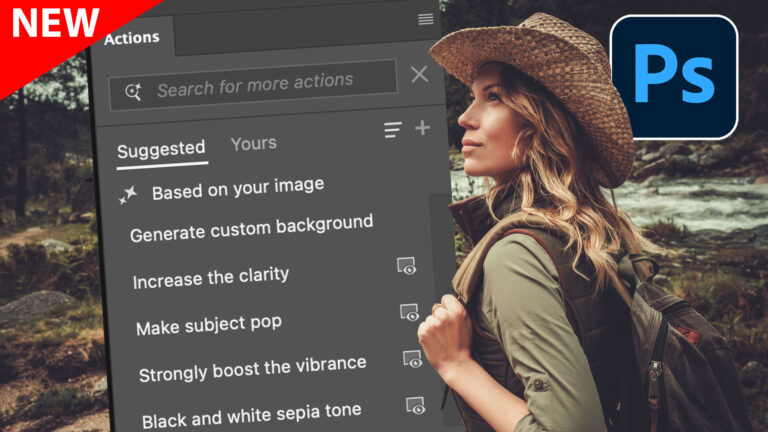










I find your tutorials very useful and understandable. But why are the emails nearly invisible? They appear to be about 15% gray on white with a very thinline font. How about a little contrast? Not everyone is 20.
Maybe your email reader is rendering it differently? When I receive them, they are black type on white.
Not sure what app you are using, but many apps allow you to change the look of the text, or reformat it to plain text
unable to access freebies from safari or chrome
Please send a message to support and we will help you
Love, love the new actions panel.
This really has to be the golden age of Photoshop. So exciting. Now I have to learn how to use these new tools. Thanks Colin!
Great quick review. Thank you. If I HAD to choose a favorite. I couldn’t. Based on the majority of subjects I shoot, though, I might rank them like so.
1. Landscape
2. Adjust colors
3. Selections
4. New Actions Panel
5. Removal Tool and Reflection Removal
You are a genius! Thanks.
Does not seem to be available in the main version and seems not to work in Beta version. Any ideas?
Not seeing the Remove Reflections option in Camera Raw? I am on the same Camera Raw version as you – 17.3?
Make sure you enable technology previews, see the ACR tut I just did for steps here: https://photoshopcafe.com/new-in-adobe-camera-raw-17-3/
Love love love these new features!! 🙂
Time savers all over the place – the masking tools will be amazing to use
thank you Colin
Is this a change as an app and not the full update to Photoshop?
This is an update, no reinstall needed