
Swapping Backgrounds in Photoshop. Selection tips and how to get Refine Edge in CC 2017
This Photoshop CC tutorial shows you how to change the background in a photo. But it goes way beyond that. Here is a tip that will show you how to make the old refine edge work in the latest version of Photoshop with a secret shortcut. You will also learn a couple of tips to get cleaner edges on your cutouts, so that they blend in perfectly with the background.
Quickly Replace Backgrounds in Photoshop Secret Refine Edge in CC
Hey CAFE Crew, it’s Colin Smith here from PhotoshopCAFE. Today I’m going to show you how to cut out this lady from the beachwith Refine Edge in CC . Whoa, you say, “Hang on a second, isn’t Refine Edge gone?” Aha! Actually, it’s not. It’s a little secret I’m going to show you how to get Refine Edge back in CC 2017.

Step 1.
Grab the Quick Select Brush and set it to a pretty small size and start selecting this object. Now, don’t worry if you go over the edges because sometimes when you go back and you hold down the Alt or the Option key to recover it, it can actually get more accurate selections than it does when you’re actually adding it.
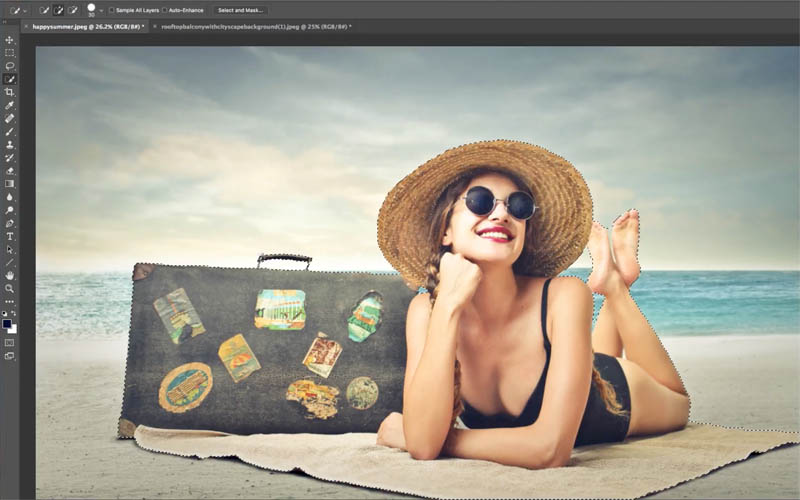
Step 2
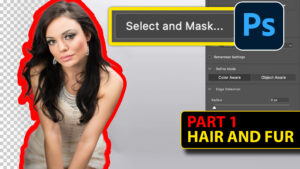
So we’ve got somewhat of a pretty decent selection to start with. So what we want to do now is we want to go in and refine our selection. So, typically, you’ll go in, you’ll choose Select and Mask, and then, you’ll get this Select and Mask workspace. Now, not everybody likes this. Some people prefer the old Refine Edge. In fact, sometimes this works better, sometimes Refine Edge works better, so let’s just hit the Cancel. So how do we get Refine Edge if we go under the Select, you’ll notice it’s nowhere to be found. Select and Mask works well for hair and fur, see Select and Mask Tutoral

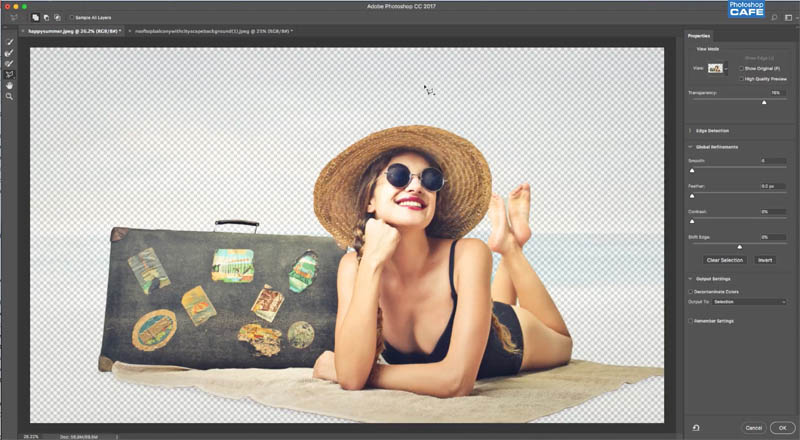
Step 3.
Okay, here’s the secret squirrel handshake. Go down to Select and Mask in the Select menu, which is going to take us into that Select and Mask workspace, but this time hold down the Shift key and click and voila, look at that! The old Refine Edge comes up like it used to. Detailed tutorial on using Refine Edge in photoshop

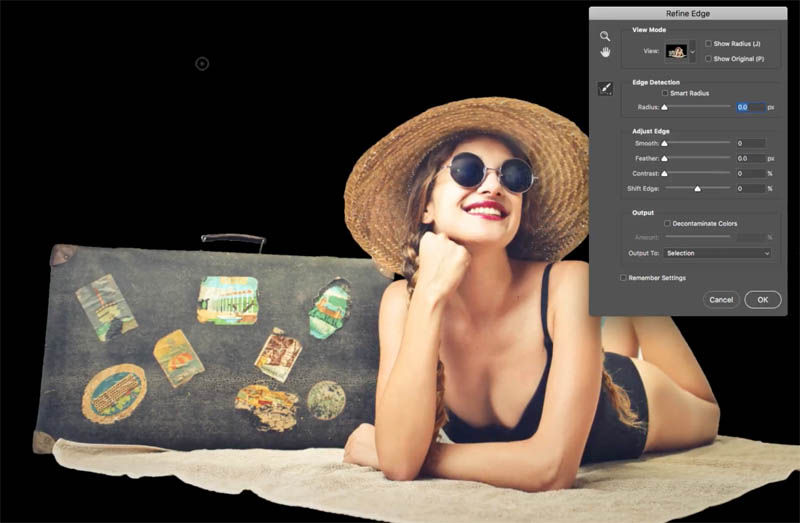
You might want to play around with the radius a little bit to get a nice radius. Look at it against black and have a look at it again against white.
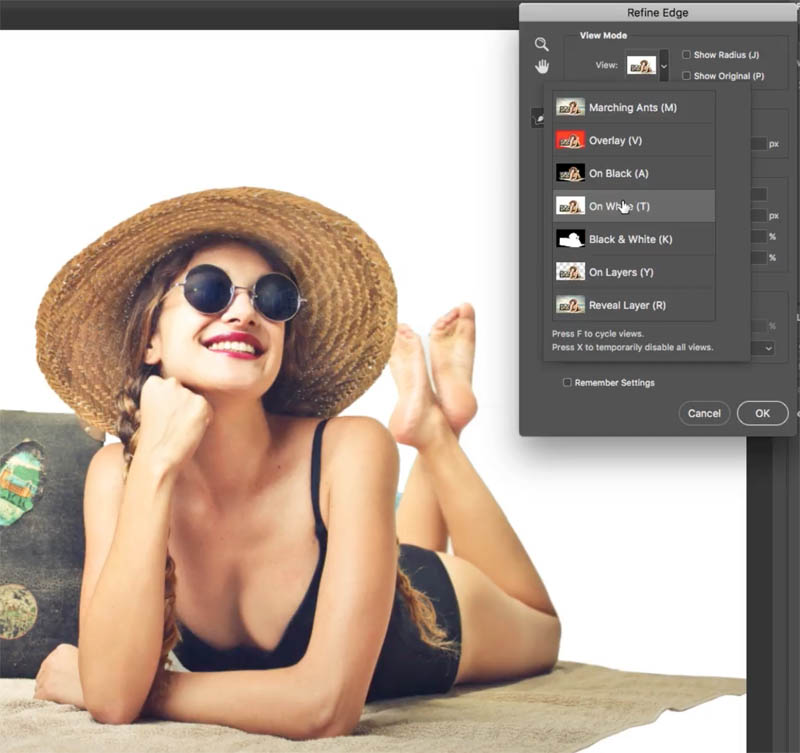
Step 4
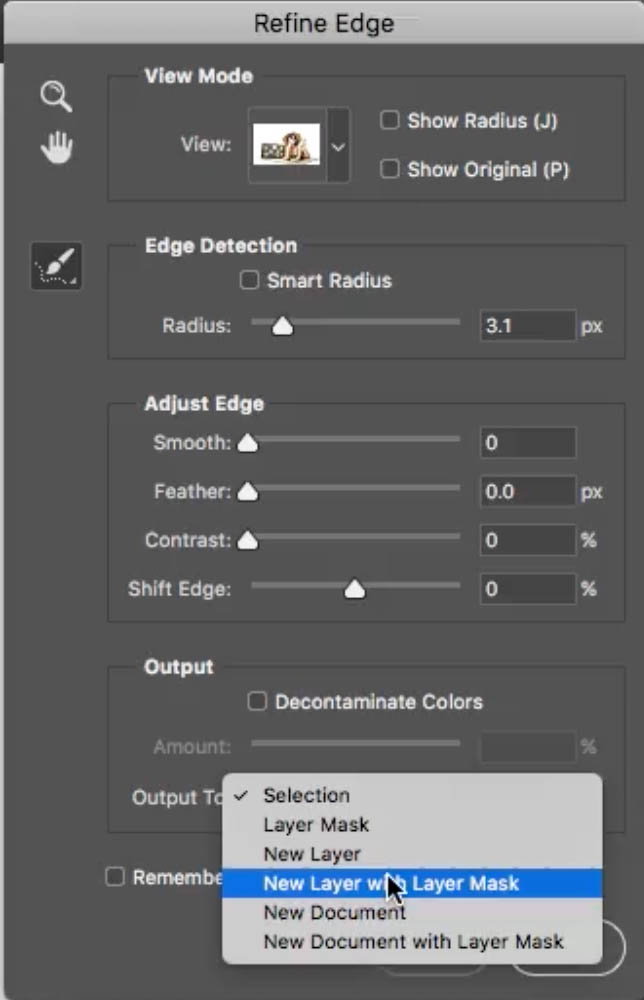
Choose the output and go to New Layer with Layer Mask, click OK, and boom! We’ve cut that out. So, as you can see, it’s really easy.
So why don’t we just add this on to background for a bit of fun, so I’m just going to click and hold. The new tab is going to open for the next window, move it down, haven’t released yet. Hold down the Shift key, release and it will drop it right in the middle.

Xtra Credit
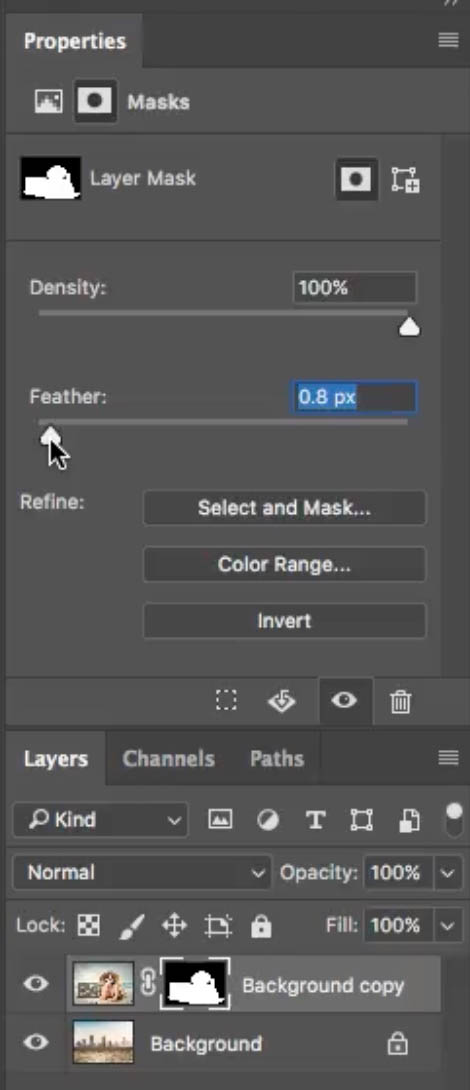
Okay, I’m going to show you an additional little tip to clean up these edges. Sometimes we get these hard edges. Go on to our mask that we’ve created in the Layers Panel and bring the Feather up a little bit (Properties panel), because that’s more natural. We have some natural depth of field.
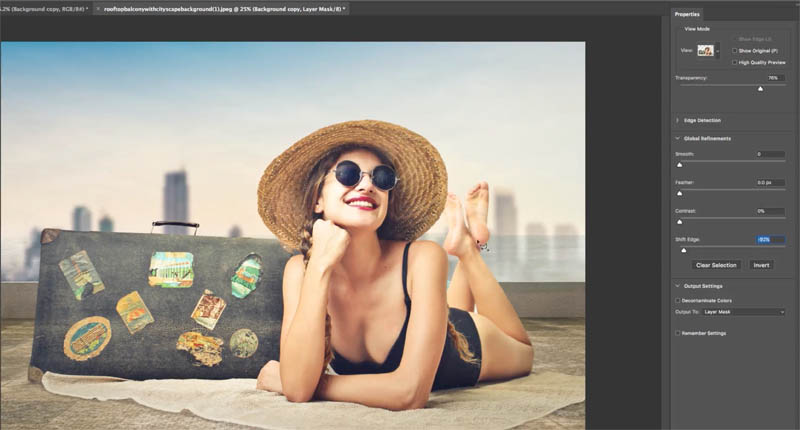
If we still have fringing on the edges, choose the Select and Mask

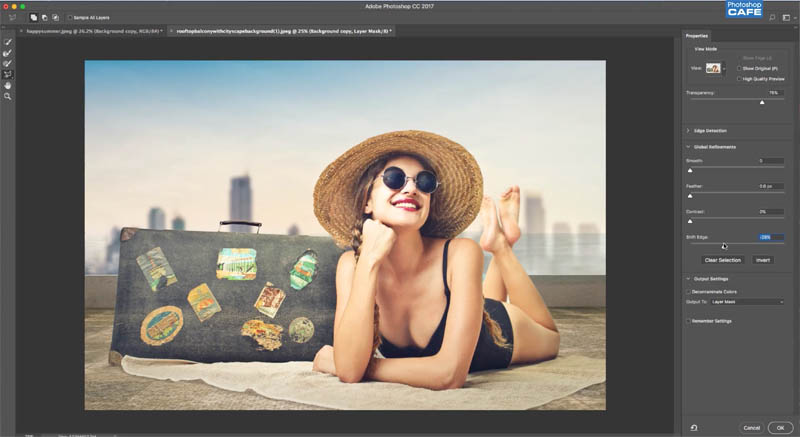
Pull the Shift Edge back a little bit. Notice if we go too far, it’s going to clean that up a lot, but it might take out some of the image, if so, bring it back a little.
So anyway, guys, short and sweet. I hope you enjoyed it.
Check out my SKY City Project “Compositing in Photoshop” For some real world cutout and photo-manipulation tutorials.
Don’t forget to subscribe for next weeks tutorial and check out all the free tuts right here at the CAFE!
Ciao
Colin

Keep growing with Premium Courses
Photoshop 2026 for Digital Photographers
Learn Photoshop properly, from the basics to pro retouching, step by step.
$129.00 · one-time purchase · instant download

Free for you
The Photoshop Vault
Get my free Layer Blending Modes ebook along with dozens of exclusive Photoshop goodies: actions, brushes, presets and cheat sheets.
You're on the list, so your free goodies are waiting for you in the Vault.
Get Free Photoshop Goodies Open the Vault

Sky Replacement and Adding Clouds to a Photo in Photoshop Tutorial
How to add clouds and change a sky in Photoshop,. The 2 rules of realistic sky replacement and clouds in photos Photoshop... Read tutorial
How to create Bokeh background blur to a photo in photoshop
Learn how to make a photo realistic Bokeh lens effect with photoshop. Create depth of field with a blurred background which adds... Read tutorial
5 ways to fix selection edges in Photoshop
5 ways to fix every selection edge in Photoshop, the ultimate guide Read tutorial
How to use Select and Mask in Photoshop. Refine edges on every cutout
Free Photoshop tutorial. Ultimate guide to select and mask in Photoshop, how to get perfect edges on every background removal Read tutorial
How to Cut out Hair in Photoshop CC Tutorial
How to select hair, cut out people and remove them from their background in Photoshop CC . This free tutorial is your... Read tutorial











Quick Mask with new function of Ps. Even so, there has some negative approaches on this tool!
Great, I hate the new select and mask a very backward step from Adobe
Thanks, I like to have all the tools I can get my hands on….Fine video!