
Wire frame Text effect in Photoshop Tutorial

In this tutorial, I’m going to show you how to create text that looks like it’s made out of metal wire. The cool thing about this, is that the text remains fully editable throughout so you can try different fonts and different words. Oh yeah, I’ll also give you the layer style for free at the end, but don’t cheat, read the tutorial first so that you know how to use it correctly, or you’ll run into problems with the shadow. This tutorial follows the popularity of my outline text tutorial

Step 1
Create some type and apply a Layer style by clicking the little “f” in the Layers Panel. Add a stroke as shown here. The color of the stroke is unimportant at this stage. 
Step 2
Change the fill type to gradient for the stroke 
Step 3
Add a bevel and emboss. Choose Stroke emboss Remember to adjust the size to look good for your text. You will see when it looks right, it’s ugly when too big. Change the Gloss contour to what’s shown 
Step 4
Refine the shape a bit more by adding a contour to the bevel 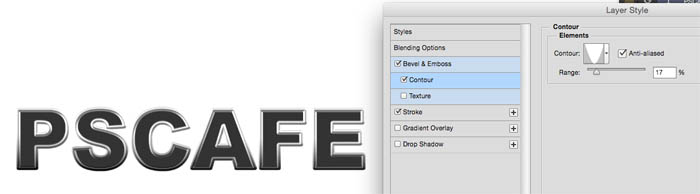
Step 5
If you go to blending options at the top of the styles panel you will see opacity and fill opacity. Turn fill Opacity all the way down to 0. Give it a drop shadow. Do you see the problem with the shadow here? It adds a shadow for the whole word, not just the outline. We have to be sneaky and figure out a work-around. 
Step 6
Hide the Drop Shadow for now and this is what your text and layers panel should look like so far. (Ignore the Gradient Overlay in the screenshot) 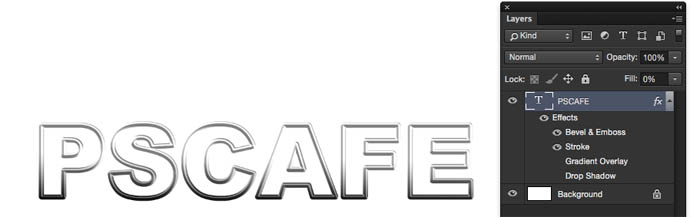
Step 7
Here is something a lot of people don’t know, You can add layer styles to layer groups and they respect the transparency of all the nested layers combined. Whaa? That means you can get it to do what you want. Select the type layer and press Ctrl/Cmd+G to put in a layer group
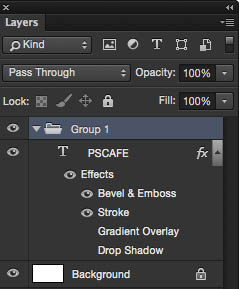
Step 8
Now, apply the drop shadow to the Group (Group 1) and notice you now have full control over it as a wireframe. Very cool. 
Xtra Credit
In case you want to jazz it up a bit, you can add a light beam using Lighting effects. Filter>Render>Lighting Effects (Note: Lighting effects ONLY works in RGB mode and earlier version of Photoshop).
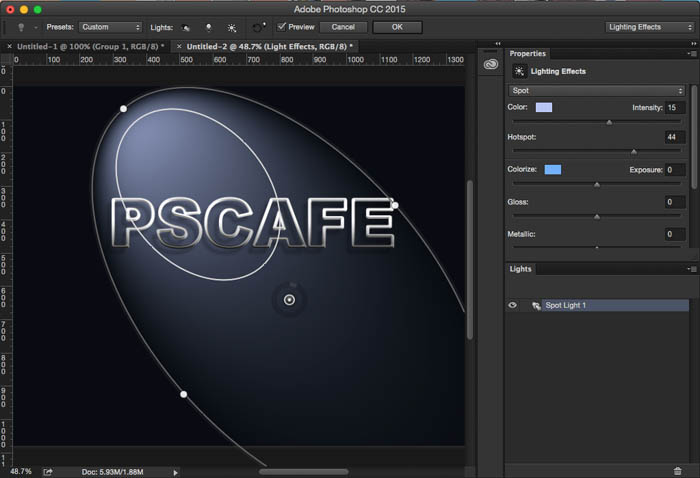
Here is the result.

Make sure you adjust the shadow so that it falls in the right direction, away from the light source.

Also check out a similar tutorial on creating a metal outline effect here.

Thanks for checking it out
Colin
Recommended for this tutorial
Photoshop Compositing: Sky City Project. Photoshop 2026
Build a complete composite from start to finish and learn the techniques behind it.
$39.99 · one-time purchase · instant download

Free for you
The Photoshop Vault
Get my free Layer Blending Modes ebook along with dozens of exclusive Photoshop goodies: actions, brushes, presets and cheat sheets.
You're on the list, so your free goodies are waiting for you in the Vault.
Get Free Photoshop Goodies Open the Vault
Reflective Liquid type Photoshop Tutorial
Tutorials on creating metal type abound online, as do variations on simple liquid effects. Most are fairly short, offering a good foundation... Read tutorial
Texturing your way to 3D Photoshop Tutorial
Let's talk some more about texturing, this time working with an interface style image over several layers. Photoshop 6 layer styles allow... Read tutorial
ANIME BEADS Photoshop Tutorial
I received a request from the forum for this effect from one of our Members living in Japan. This is a technique... Read tutorial
Plastic Engraved type in Photoshop Photoshop Tutorial
How to embed type in photoshop. Heres a tutorial that will how you how to carve your mark. This is so simple... Read tutorial
Transparent Glass Text Photoshop Tutorial
Learn how to create a transparent glass effect to text in Photoshop tutorial. Read tutorial












text design is so useful for logo design.
So cool and well done! Thank you for the explanation!