5 New Photoshop Beta Feature You Need to See
Adobe has been busy adding new features to Photoshop and Photoshop Beta. Some of these are big changes, while others are smaller improvements that can make working in Photoshop a little easier.
Let’s look at five of the top new features in Photoshop Beta, including a redesigned interface. I’ll show you how they work, along with a few things to watch out for.
The new Photoshop Spectrum interface
One of the first things you’ll notice in Photoshop Beta is a new interface. Adobe is calling this the Spectrum interface, and it’s designed to make things easier to see and reduce the amount of clicking.
Notice the rounded corners on the panels and the darker appearance. It’s not quite as boxy as the previous interface.
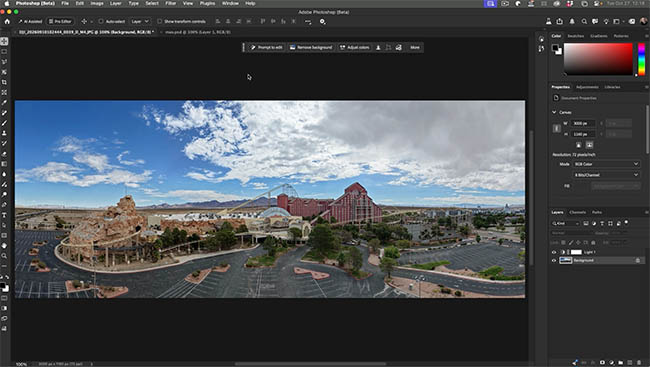
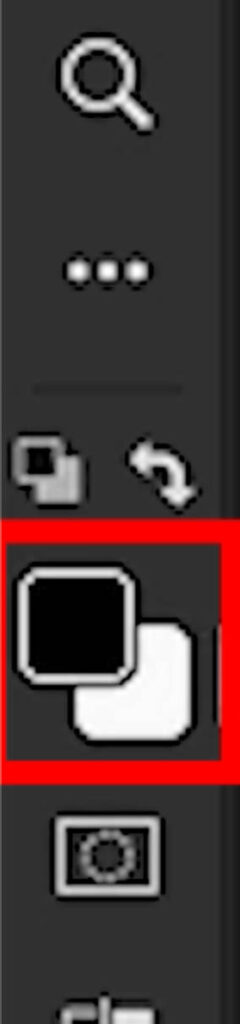
When you move your cursor over a tool in the toolbar that contains additional tools, the other tools pop open automatically. We no longer have to click and hold the little disclosure triangle to see what’s hidden underneath.
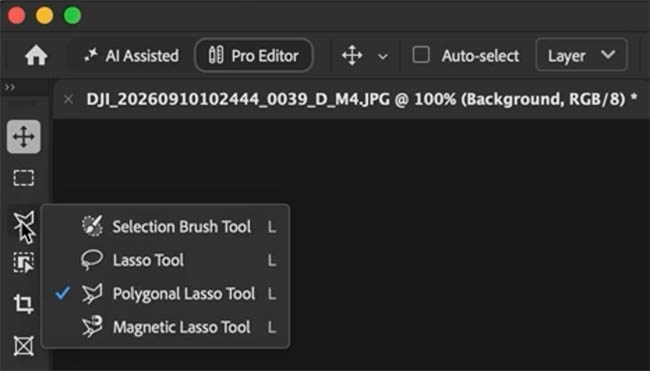
This is particularly useful with the newer selection and removal tools. I don’t know about you, but sometimes I forget which tool is hiding underneath another one.
Now they’re much easier to find.
How to turn the new Photoshop interface on or off
The new interface isn’t something you’re stuck with. You can switch back to the older appearance if you prefer.
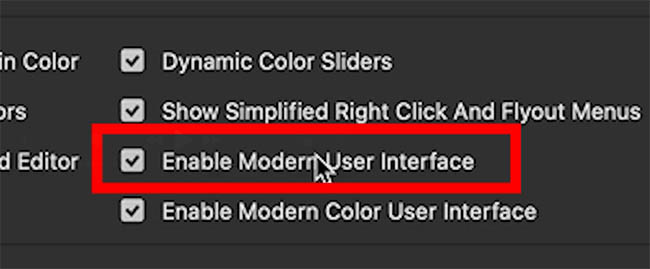
In Photoshop Beta, open the Settings>Interface and look for Enable Modern User Interface.
Turn this option off to return to the previous interface.
You can also change the interface color independently.
If you prefer a slightly lighter gray, or even the lighter Photoshop interface, you can choose that here too.
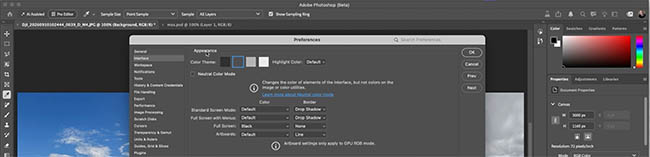
So even with the new modern interface enabled, you can customize the overall appearance.
The new Photoshop Color Picker
There’s another interface change that’s worth looking at.
In the Beta settings, you’ll find an option for the Modern Color User Interface.
In the version I’m demonstrating, this option was turned off by default.
Enable it and click OK.

Now open the Photoshop Color Picker.
Notice something new at the bottom? We can see our recently used colors.
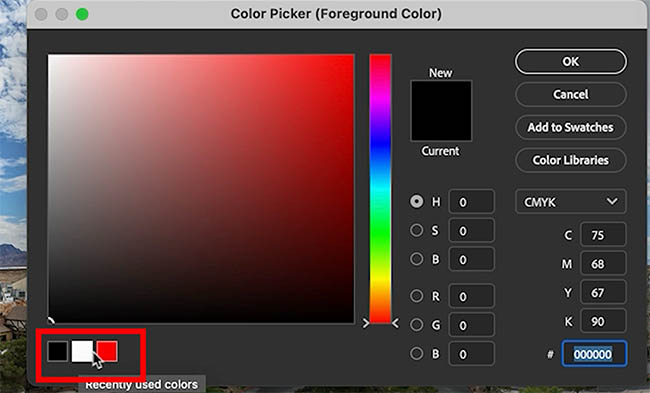
This is really useful when you’re working with a particular set of colors and want to reuse them without having to sample them again.
Click and drag inside the Color Picker. The controls feel nice and smooth.
But there’s one thing missing that I noticed.
What happened to Web Safe Colors?
In the older Color Picker, we have an option to restrict the selection to Web Safe Colors.
These are the original 216 colors that were designed to display consistently across older computer systems and web browsers.
I actually still use this option.
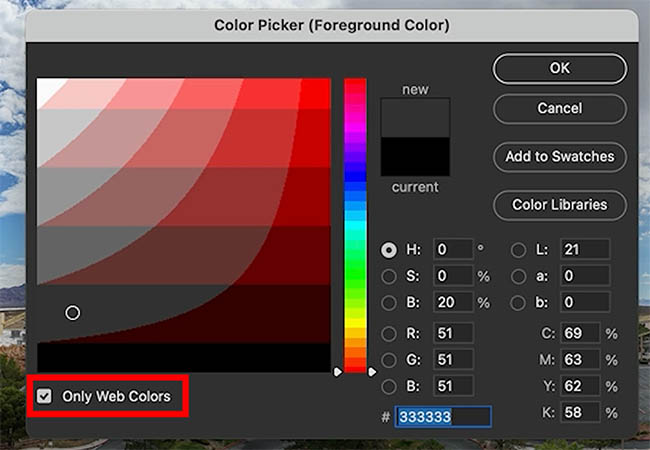
For example, I like using it when selecting certain grays. It’s also useful for finding some of the orange colors I use in my corporate branding.
With the modern Color Picker, I’m not seeing that option in this Beta version. If I have to choose between the two, I personally find the websafe colors more useful than recent color.
What’s actually changed in the interface?
Adobe says it has updated 24 panels and pickers as part of the move to Spectrum.
These include updates to the toolbar and various panels, including the Color Picker.
Spectrum is Adobe’s interface design system, so this is more than just changing the rounded corners.
Adobe is modernizing the underlying interface to make it more consistent and easier to develop going forward.
If you want to read more about the changes, there’s an Adobe community announcement about the new Photoshop interface.
Tip: Remember, we’re working in Photoshop Beta. Features can change during testing, and there’s no guarantee that everything will make it into the regular version exactly as it appears here.
Dynamic Layers is now called Restyle Layer
You might remember my earlier tutorial on Dynamic Layers. Adobe has changed the name, and this feature is now called Restyle Layer.
The idea is that we can generate a different version of an image from an exact moment of transition between 2 states. For example, summer to winter, we don’t have to use the Summer or the Winter moment, we can capture an in between moment. It could be many things, color trasnsitions, time, or even styles.
Let’s see how it works.
Creating two versions of an image
I’m starting with an image that I actually generated using GPT Image 2, which has also been added to the Partner Models available in Photoshop. The prompt was “Cowboy town from above”.
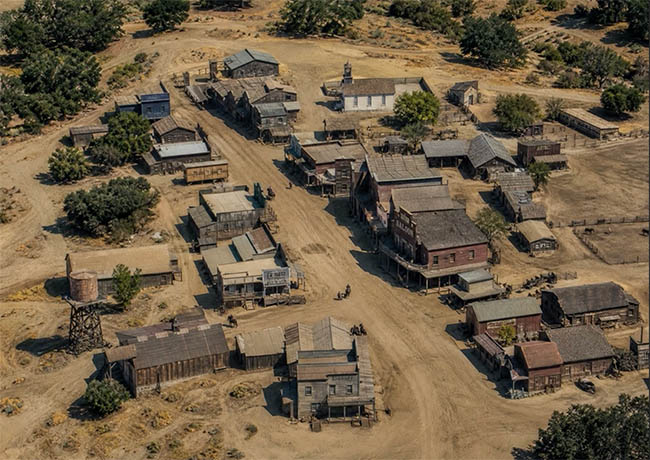
We want to keep the general composition but completely change the appearance.
Go to the contextual taskbar and choose Partner Models.
For this demonstration, I’m going to use Gemini 3.1 (Nano Banana 2).
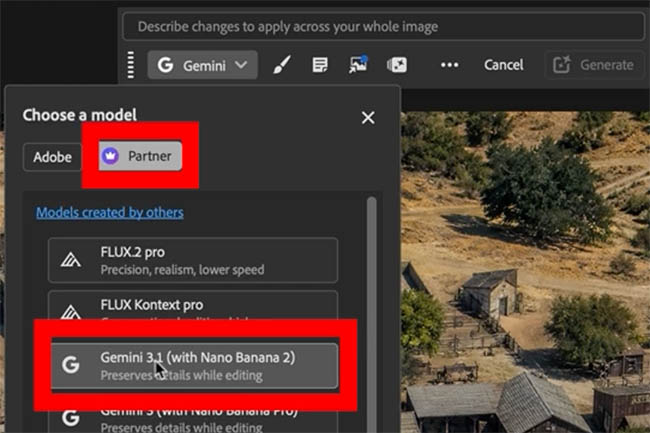
I’m going to generate the same scene, but make it winter, 100 years into the future.

Let’s compare the two results.
We now have a winter scene with changes to the environment. There are vehicles, power lines, and even what appear to be cell towers.
That’s actually hilarious.
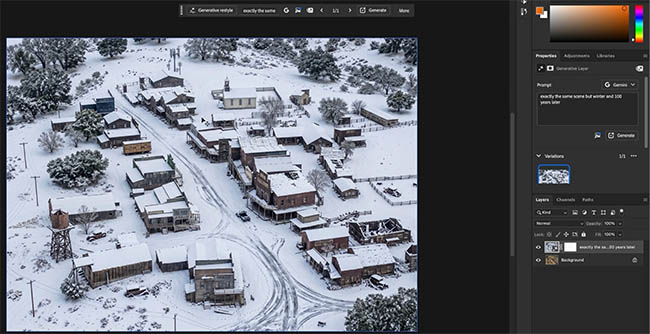
The important thing is that the general positions of the objects remain similar between the two images.
This gives Photoshop something to work with when creating a transition between them.
We now have two layers representing the original and altered versions of the scene.
Creating an animation with Generative Restyle
With our two versions ready, look toward the top of the interface for Generative Restyle.
Notice that Photoshop tells us how many generative credits it’s going to use.
In this demonstration, the cost is 80 generative credits.
That’s quite expensive, but there’s a reason. We’re not simply generating another still image. We’re creating a video transition between the two images.

Click Generative Restyle.
Photoshop generates a video layer that transitions between the original scene and the winter version.
Scrubbing through the Restyle animation
Now we can drag through the animation.
At the beginning, we have our original scene.
As we move forward, the environment gradually changes. Snow begins to appear, and eventually we arrive at the fully transformed winter image. See the video at the top to see this in action, its actually pretty cool.
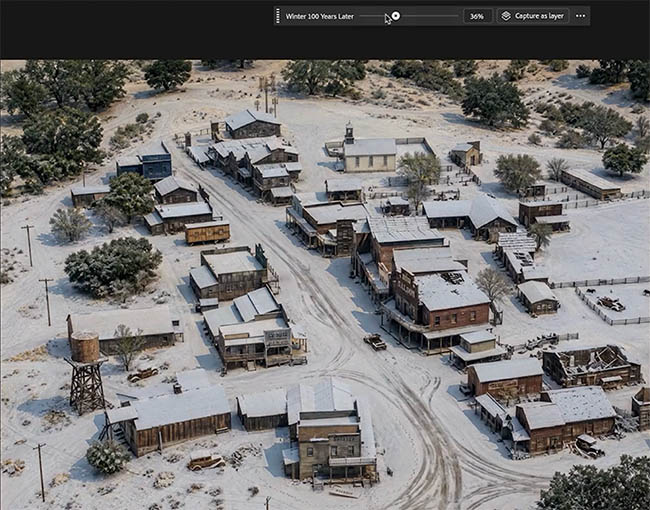
The point of this feature isn’t just to make an animation. It’s also to let us choose an interesting point between the two images.
Maybe we don’t want the completely snow-covered version. Perhaps the halfway point gives us a better result.
We can scrub back and forth until we find the look we want.
Capture any frame as a new Photoshop layer
Now, notice that the preview isn’t particularly high-resolution.
But Photoshop has a useful feature for this.
Move to a frame you like and choose Capture as Layer.

Photoshop captures the selected frame and creates a new layer containing an enhanced version.
The captured image is a little crisper than the lower-resolution video preview.
We can repeat this to capture different moments from the animation as separate layers.
This is a nice way to explore variations between the two images without starting another generation for every intermediate version.
You can now export the Restyle animation as video
When I demonstrated Dynamic Layers previously, one of the biggest questions people asked was whether they could save the animation as a video.
At that time, the answer was no.
Well, that’s changed.
With the Restyle animation available, open the Options menu and choose the video export option.
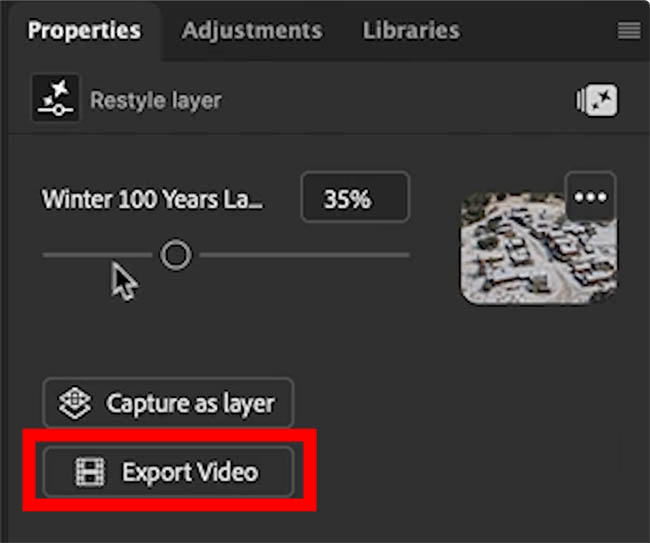
I’m going to return to the beginning of the animation and export it.
We don’t have to wait for another generation. Photoshop has already created the video, so we’re exporting the existing result.
That’s a useful addition because now we can take that animated transition outside Photoshop rather than being limited to capturing individual frames.
Quick Compare: A new way to see before and after
This next feature is a non-ai one that I think a lot of photographers are going to appreciate.
It’s called Quick Compare.
We’re all used to turning layers on and off to see our changes. But now Photoshop Beta has a built-in comparison view.
Click the Quick Compare icon.
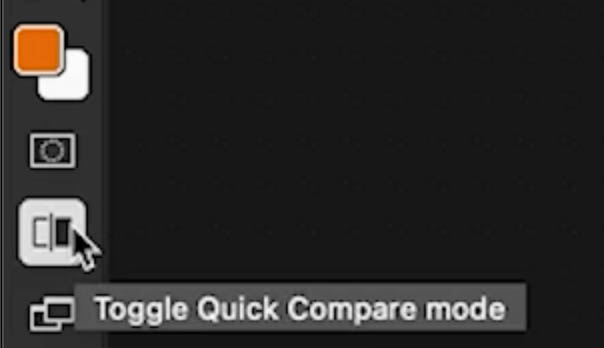
Notice that we get a before-and-after comparison with a slider. You would be correct if this looks like a familiar feature that you have seen in other apps like Nik Collection.
Drag the slider across the image to reveal the original on one side and the edited version on the other.
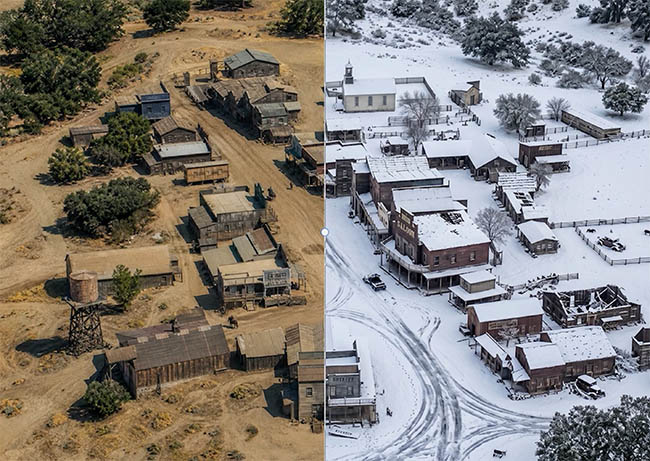
This makes it easy to compare different parts of the photograph without switching layers on and off.
Zoom in to inspect details
One of the nice things about Quick Compare is that we can zoom in.
In my demonstration, I zoomed all the way to 409%.
This is great when you want to inspect detailed work, such as retouching.
Change the comparison direction
In the Contextual Tool bar, you’ll se options to view it different ways.
Change the view to a horizontal split.
Now the before and after are divided across the image horizontally instead of vertically.
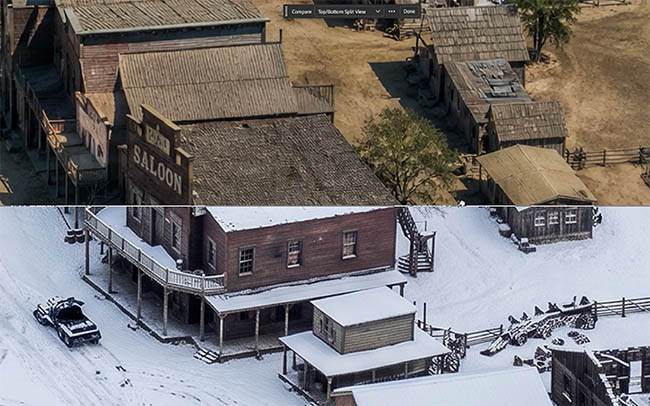
Depending on the photograph, one direction might make the changes easier to see than the other.
Single View comparison
We also have Single View, which let’s us see the entire image at once..
Rather than dragging a divider, click to switch between the before and after.
One important detail: Quick Compare uses the state of the document when it was opened in the current session as its starting comparison.
Here’s a little tip, I stumbled on when experimenting: If you want to compare something different, turn off the layer to compare, save the image and then turn the layer back on and use it as a quick compare.
Remove Tool: Removing related elements on a separate layer
The final feature is an update to something I’ve recently demonstrated.
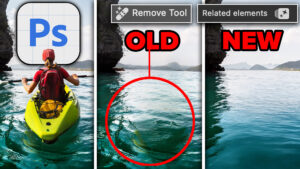
It’s the Remove Tool, specifically its ability to remove related elements such as shadows.
This is useful because sometimes removing the main object isn’t enough. We also need to remove the traces it leaves behind (This was called Trace Erase at Sneaks in 2026).
Let’s look at a practical example.
Removing the building
I’m returning to the original background image and hiding the other layers.
In this scene, I want to remove a building.
Choose the Remove Tool from the toolbar.
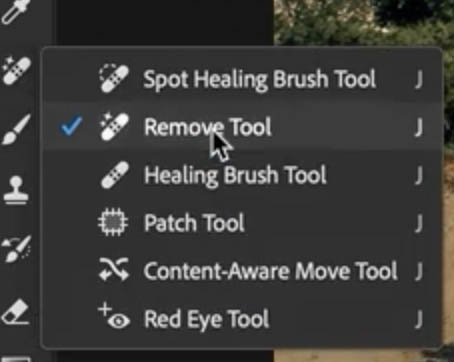
Paint around the building to remove it.
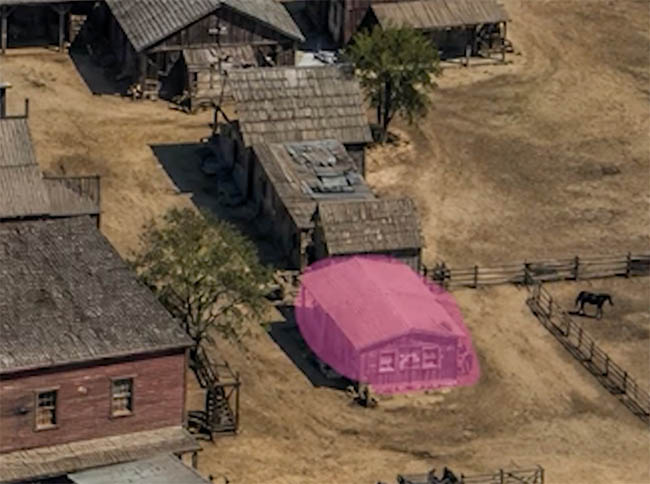
If Photoshop removes the building, it will leave the shadow behind, we have all seen this.
With the Remove Tool active, look in the contextual taskbar.
Choose Remove Related Elements. This tells Photoshop to look beyond the selected object and attempt to remove related details, such as its shadow.

Notice the small icon indicating that this operation uses generative credits. 🙁 (I know)
Now click Remove.
Photoshop removes the selected object, including the leftover shadow.
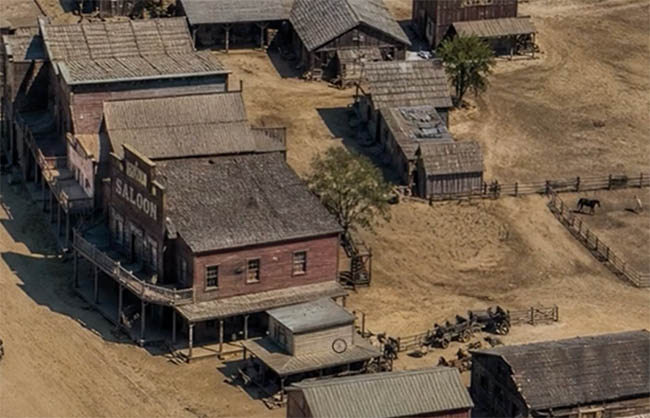
Note: Photoshop applies the adjustment to thew entire image. Use a mask to apply it only where needed. For a more detailed look at the Remove Tool and how it handles shadows, reflections, splashes and other traces, (including inverted masking) see my tutorial on removing related elements in Photoshop.
Join me for XAM

Speaking of new Photoshop features, Adobe MAX is coming up in the video, and although I won’t be attending in person this year, I’ve got something planned for those of us who won’t be there.
I’m calling it XAM, the mirror image of MAX (Pronounced SAM)


I’ll be doing a livestream where we take an in-depth look at the new Photoshop features announced at MAX.
If you want to know when the livestream is happening, join the livestream notifications on the PhotoshopCAFE newsletter. I’ll send out an email with the details as we get closer to the time.
And I’m curious, which of these five features are you most interested in using? Is it the new interface, Restyle Layer, Quick Compare, or the Remove Tool improvements? Let me know in the comments.
It’s great to see you here at the CAFE
Colin

Recommended for this tutorial
Complete Guide to ai in Photoshop 2026
Generative Fill, Firefly, Harmonize and every AI tool in Photoshop, step by step.
$79.00 · one-time purchase · instant download

Free for you
The Photoshop Vault
Get my free Layer Blending Modes ebook along with dozens of exclusive Photoshop goodies: actions, brushes, presets and cheat sheets.
You're on the list, so your free goodies are waiting for you in the Vault.
Get Free Photoshop Goodies Open the Vault

How to Stop Nano Banana Stretching Selections in Photoshop
Stop Nano Banana stretching selections in Photoshop with this Smart Object trick that also produces sharper, higher-quality AI results. Read tutorial
5 big new features in Photoshop 2026 August update
5 New Photoshop 2026 Features You Need to Know Adobe has added a number of new features to Photoshop 2026, and some... Read tutorial
Testing ai Remove power lines in Photoshop, how good is it?
Testing the auto remove power lines in Photoshop. Testing with difficult images Read tutorial
Auto Select people and features in Photoshop
How to automatically select people and facial features in Photoshop, like in ACR + Lightroom Read tutorial
New Actions Panel in Photoshop Beta
Reimagined Actions in Photoshop The actions panel hasn’t been changed in years, but now there’s a big update that promises to make... Read tutorial