
Photo zoom blur effect in Photoshop tutorial
Step 1
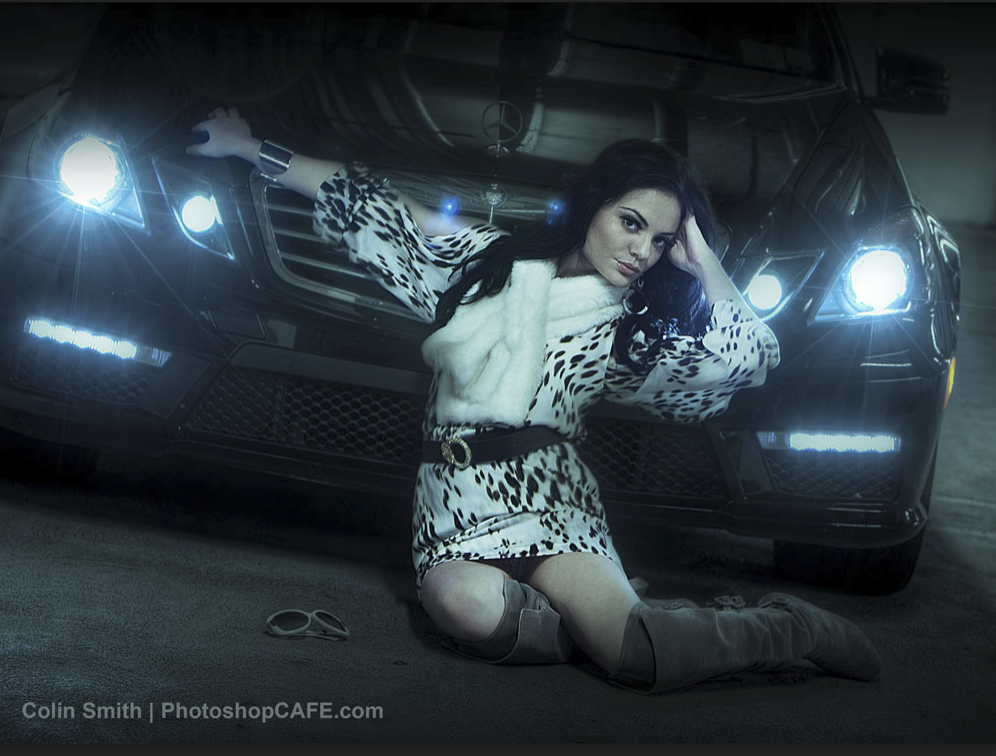
The first thing you do is start with a photo.
Choose the eliptical marquee tool from the toolbox.
Make a selection on the photo, as shown.
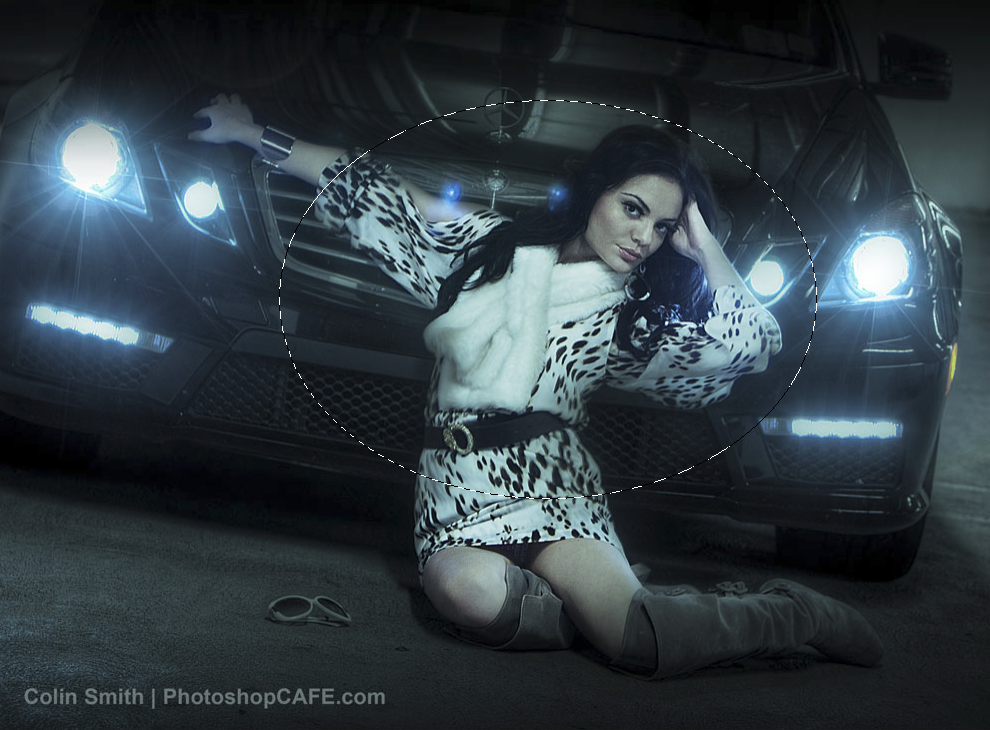
Tip: Hold the space bar to reposition the selection as you are drawing it.
Step 2
Now, it’s important to feather the selection. If you don’t the effect will be too harsh and obvious. The feather creates a soft edge and a smooth transition to the blurred areas.
Select>Modify>Feather
(Photoshop CS3 and CS4 / before that it was Select>Feather)
Depending on the resolution you will change the size of the feather. This was low res so I used 30.
Step 3
Right now you have a selection around the center of the image. We want to select everything BUT the center.
Choose Select>Inverse or Ctrl-Shift-I (Cmd-Shift-I on Mac)
You should see the selection go around the edge of your page now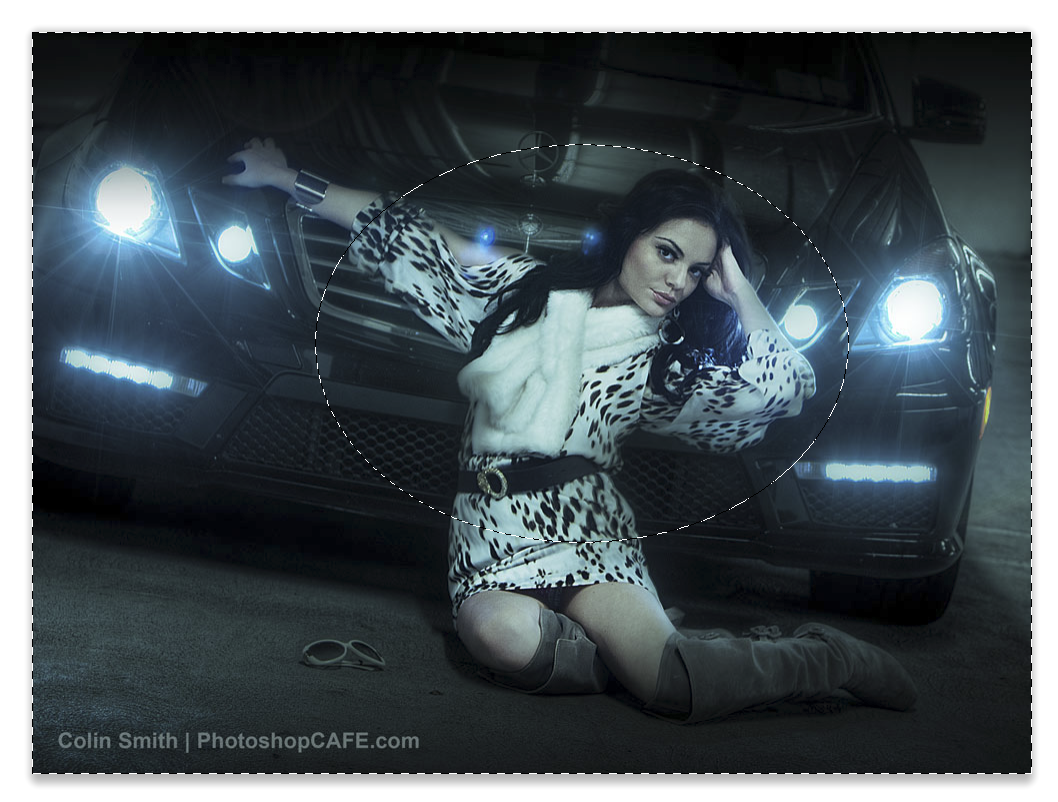 Step 4
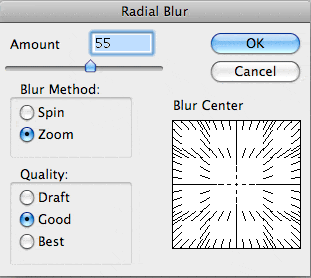 This is where the effect happens.
Choose Filter>Blur>Radial Blur
Choose Zoom as the method
Select Good for quality (Best takes forever with little improvement in quality)
Choose your amount to suit. For a heavier blur use 100. You might have to test it and undo a few times to get exactly what looks best on your image. In this case I used 25.
Step 5
And here we have the final result. Changing the feather and the blur amount will change the effect. Experiment with different shaped selections and different amounts of blur. In some cases you may want to apply the blur more than once.
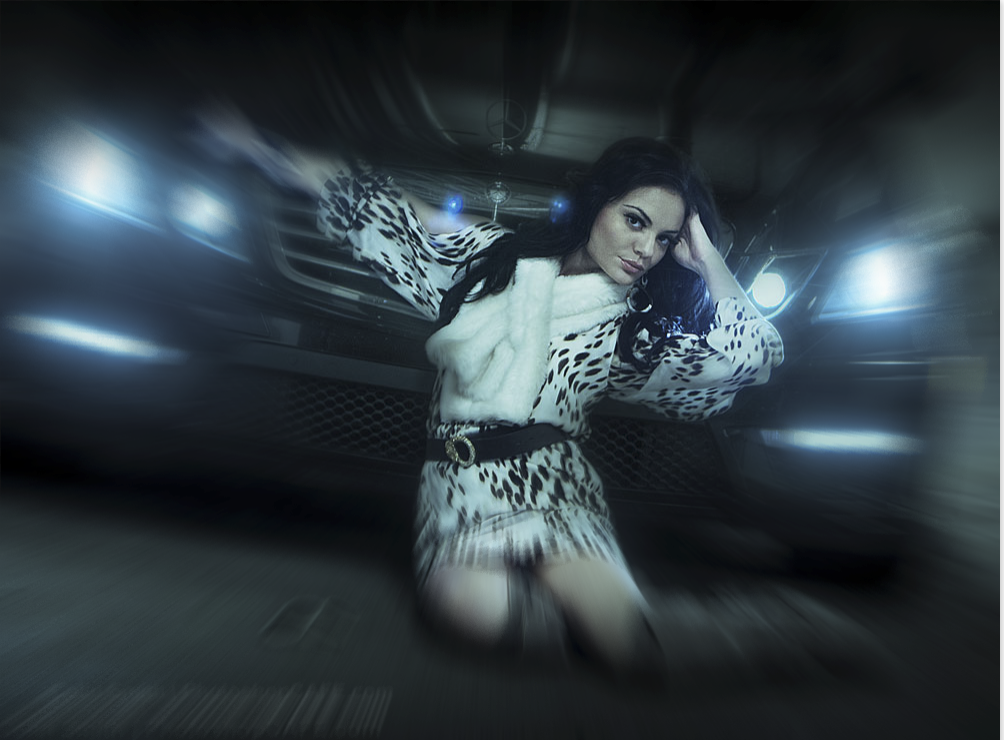
Note to Advanced users: best wayto do this is to create a smart object, run a smart filter and then mask the filter, that way the file size doesn’t increase and you can use a raw file.
However I wanted to keep it simple for the tut. 🙂 Also experiment with the Blur Gallery in Photoshop CC to get interesting results.
Step 6
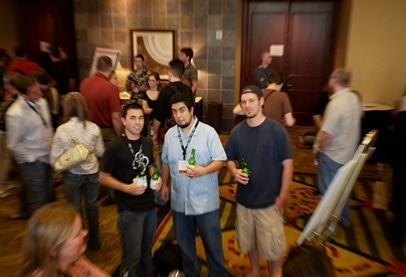
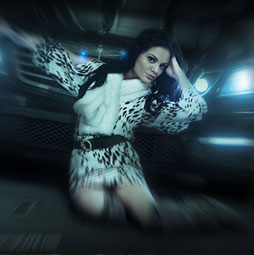
Here’s an example of the effect in-camera.
I used a slower shutter speed and pulled the lens in as I took the shot. Start moving th lens before clicking the shutter, this way you will get a smoother movement.

Keep growing with Premium Courses
Photoshop 2026 for Digital Photographers
Learn Photoshop properly, from the basics to pro retouching, step by step.
$129.00 · one-time purchase · instant download

Free for you
The Photoshop Vault
Get my free Layer Blending Modes ebook along with dozens of exclusive Photoshop goodies: actions, brushes, presets and cheat sheets.
You're on the list, so your free goodies are waiting for you in the Vault.
Get Free Photoshop Goodies Open the Vault
Make photo edges in Photoshop tutorial
Here is a photoshop tutorial that will show you how to roll your own dynamic photo edges in Photoshop Read tutorial
Hollywood style searchlight in Photoshop Tutorial
Create a hollywood style, spotlight effect. This tutorial came about as a result of a request from the forums. This effect will... Read tutorial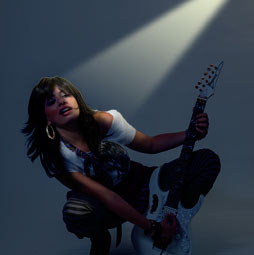
Realistic Spotlight Effect in Photoshop Photoshop Tutorial
I am going to show you an alternative to lightening your photographs. This technique will add depth to your lighting and emphisis... Read tutorial
Golf Ball Photoshop Tutorial
Phil has provided an excellent tutorial on making a realistic Golfball in Photoshop. Read tutorial
Creating a cylinder in Photoshop Tutorial
Here is another tutorial that has come about by a request from the forum. This is how you wrap something around a... Read tutorial











On cloudy days or in low light, we must adjust some camera settings before performing these photos.
Once an ISO value low to reduce the sensitivity of the sensor, then selects the shutter priority mode selected on the camera.
The advantage of the mode shutter priority is that we should only worry about the shutter speed, and for this I use a rule of selecting the shutter speed to 1 second and then took a couple of test shots varying the speed of shutter to see the results. Then I decide what shutter speed I get the effect I’m after.
Thank you for your best ideas and its very useful for photographers like us.