Big ambitious NEW features in Photoshop 2025 July 29 update
NEW features in Photoshop 2025 July 29 update
Today Adobe dropped an update to Photoshop with some features we haven’t seen before. Some are in Photoshop beta and some are in the shipping version.
In order to make sure you have the latest update, launch your Create Cloud app. Click on Check for updates in the top right before updating, to make sure you have the newest, “latest” version.

Lets look at the features.
1. Harmonize (Photoshop beta)
This was first shown at Adobe Max in Miami 2024 as”project perfect blend” I was speaking at the event, so I happened to catch this “sneak” in person.
What is does is Blends a layer into the photo, matching the color, lighting and adding shadows and reflections. This uses Generative ai.
Start with an isolated layer. (the video shows how I extracted the woman in the dress). Notice it doesn’t match the scene very well.
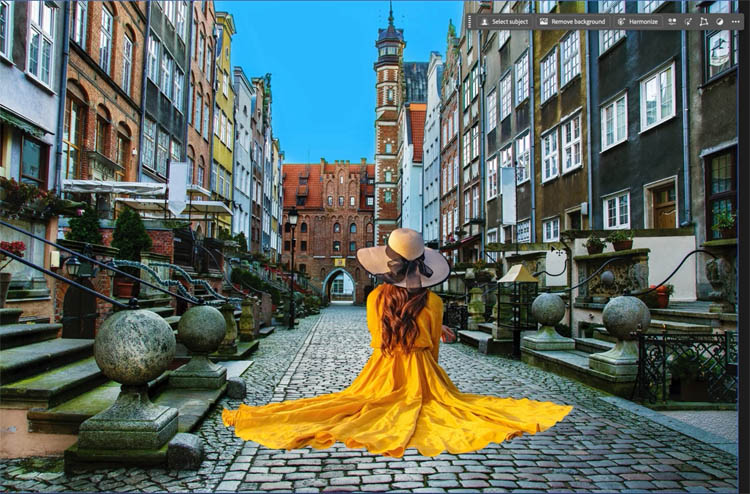
This is where we usually match color and then add shadows.
Click on the layer (not the mask). In the Task Bar, click on Harmonize

Now it matches the color, lighting and adds shadows to fit ino the scene.
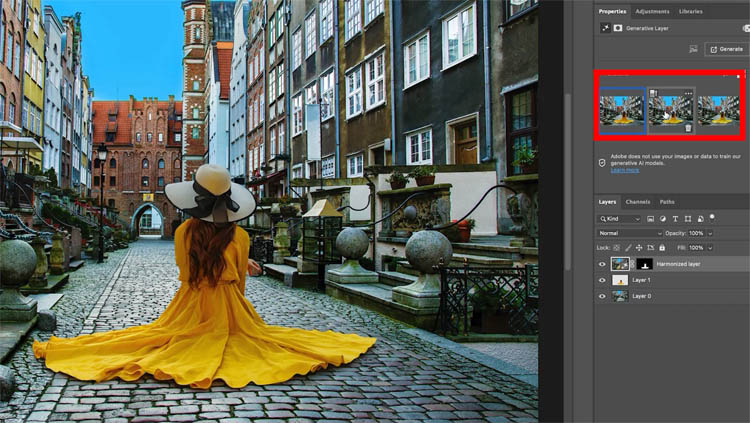
How this works:
What it does is generate the entire image onto a new layer and then masks out just the areas that have changed.
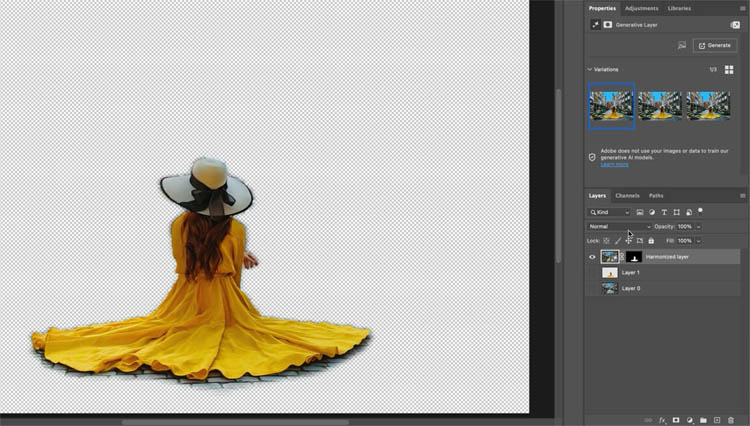
The downside is it’s still limited by resolution because it uses Gen Fill. Here Im showing the entire generative layer (easier to see on the video)
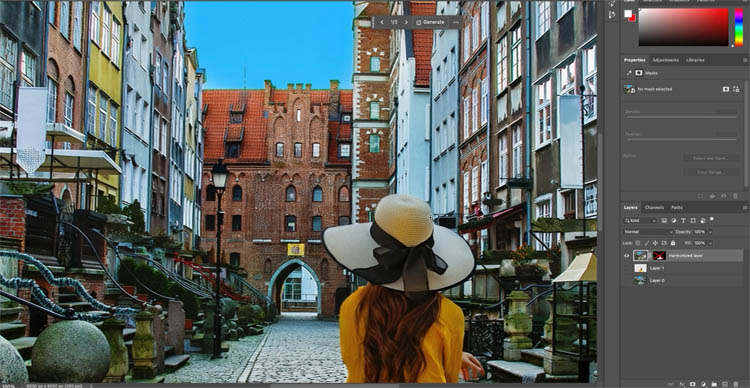
Here is the original resolution on the background.
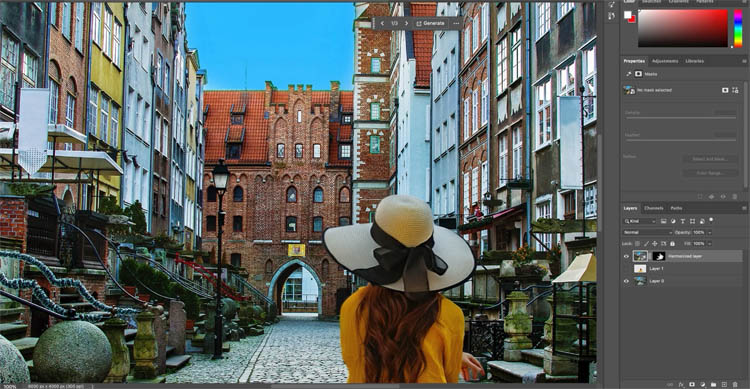
Another disadvantage, because it generates the whole image, you can’t move the subject without running harmonize again.
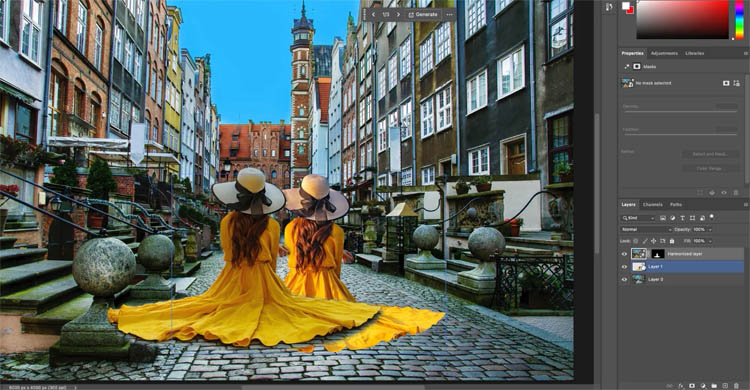
Let’s look at another example.
Here we have a person, one foot on the sidewalk and another in the air. Lets harmonize.
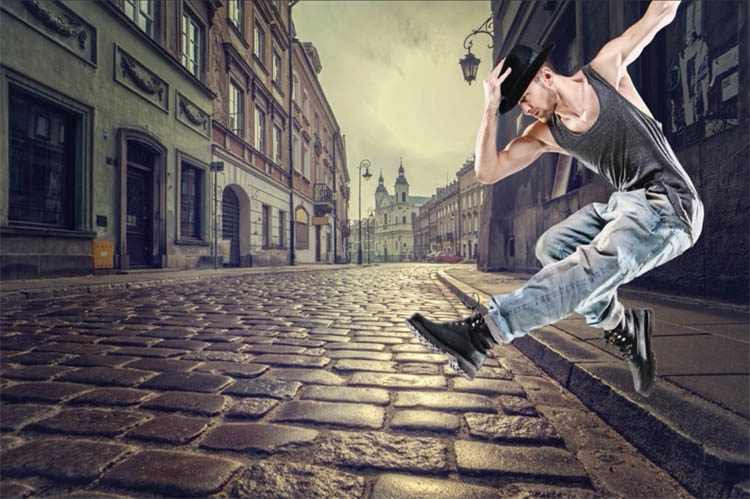
First glance, it looks good.
I think it did a decent job of color and lighting, although I think it’s a bit dark.
Also there is a clear loss of detail on the man. The shadows look good and accurate, although it looks like both feet are planted on the ground. I tried a few examples and it doesn’t seem to allow things to be hovering.
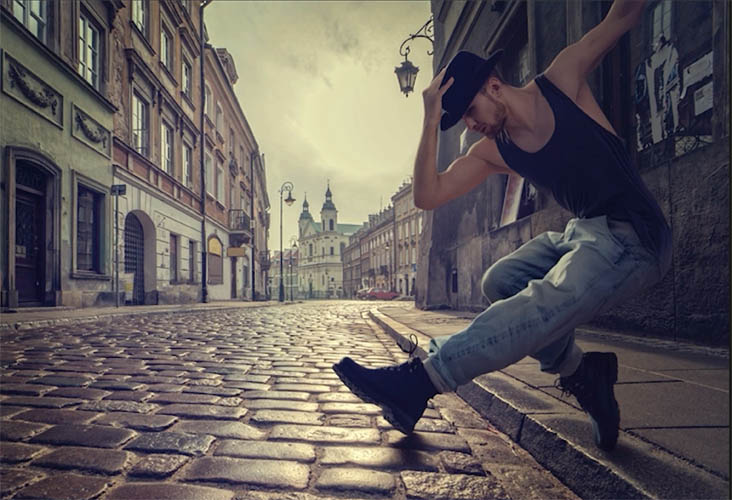
At this point, I think it does a decent job, but with the resolution, its not ready for large scale production work. It works well with smaller objects and images where resolution isn’t a problem. This tool uses Generative Credits.
2. Enhanced Remove Tool – Mainline Photoshop Version
This one is in the regular Photoshop.
Lets make a selection around our yogi.
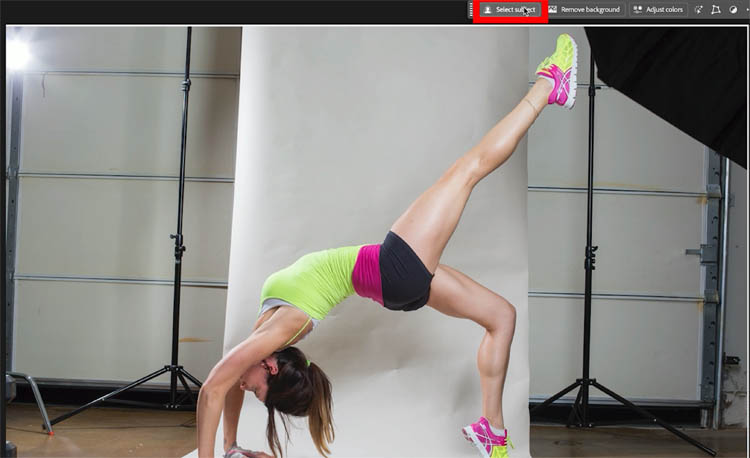
Choose Generative Fill, leave the prompt blank and click generate.
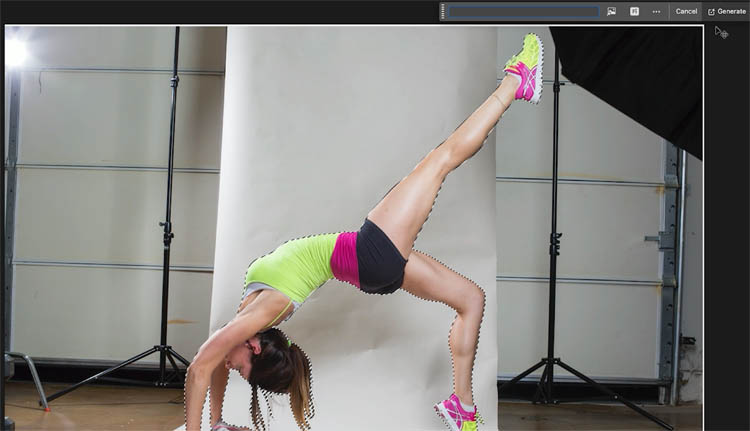
Sometimes, especially with a tight selections, you get these weird artifacts instead of completely removing an object.
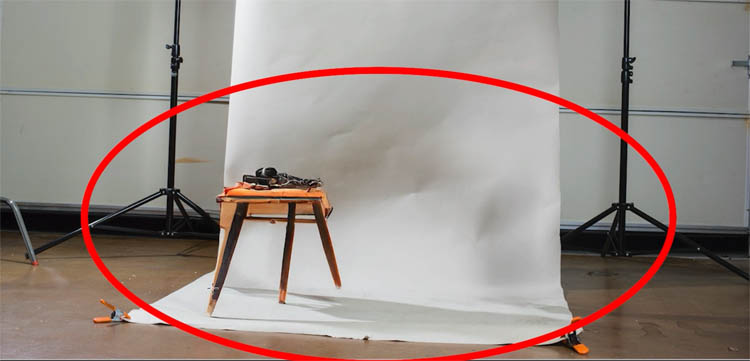
Lets undo and try this again. This time, notice there is now a remove button in the task bar, Click Remove.
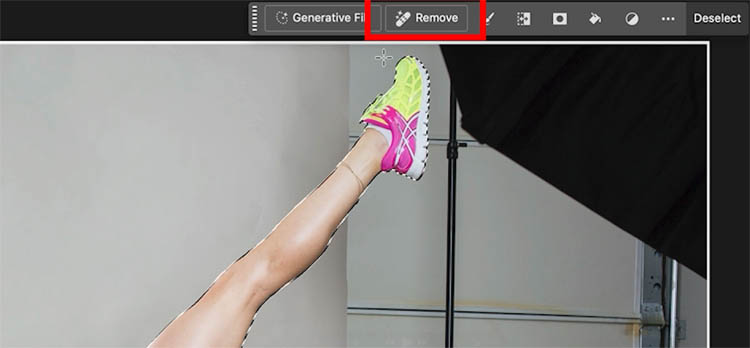
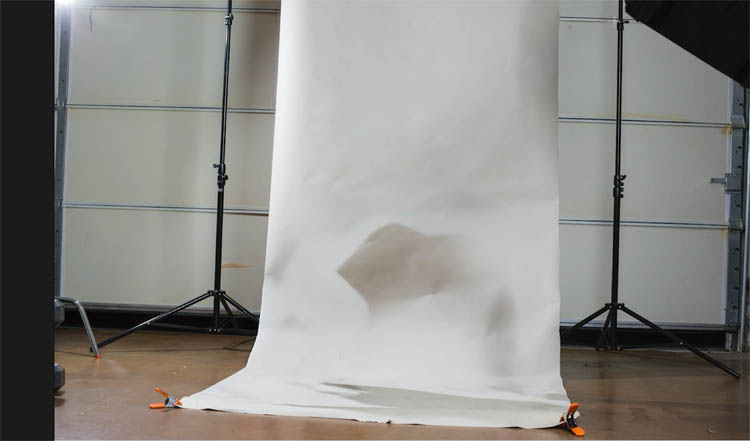
And we get a great removal with nothing left over.
Using the Remove Tool.
Choose the remove tool from the toolbox. Paint over the tag
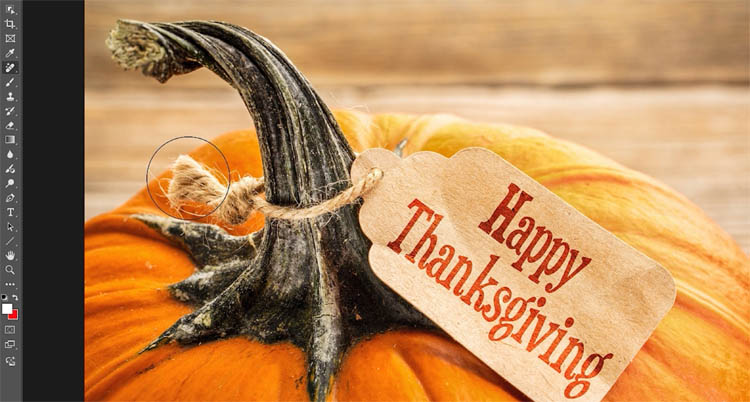
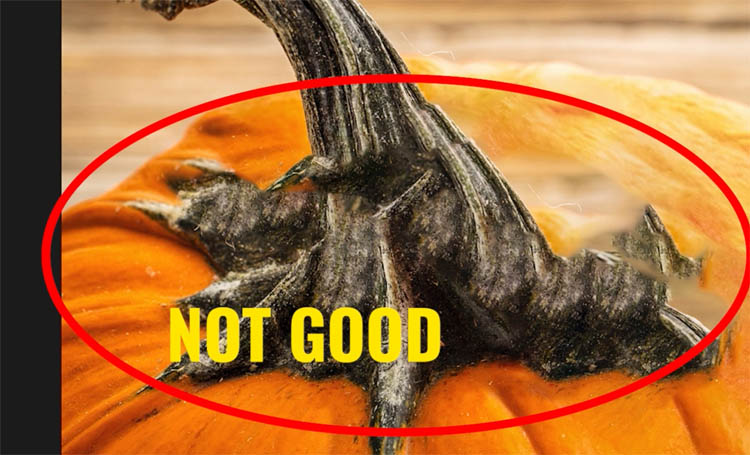
Notice the results aren’t very good.
This time, change the mode to Generative AI on. Also notice there is now a box for “create new layer”. This saves us making a layer (and turning on Sample All Layers) to work non destructively.

Apply the remove tool again

Much better result! Another thing, The remove tool doesn’t use any Generative Credits.

3 Projects Photoshop Beta
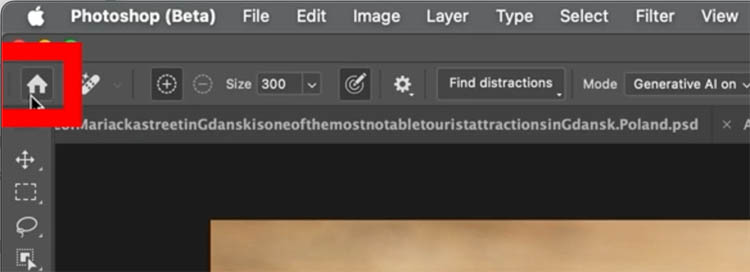
Choose the house Icon to go to the Splash Screen.
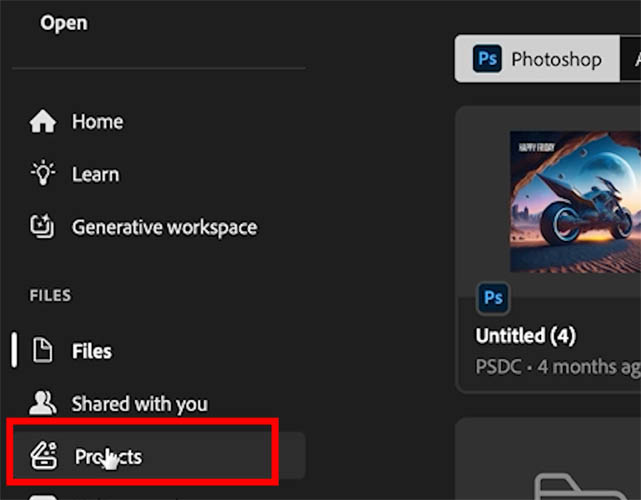
Go down to Projects.
This is where you can create a project and add assetts and invite people to share. Now you don’t have to keep emailing images to people, you can all work from the same set of project assets.
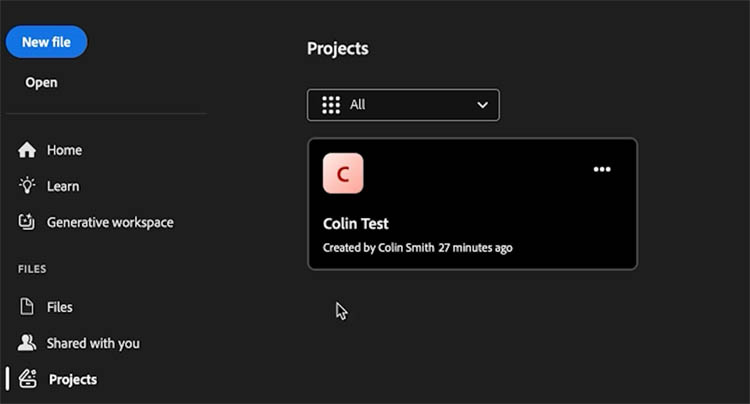
Click Create Project
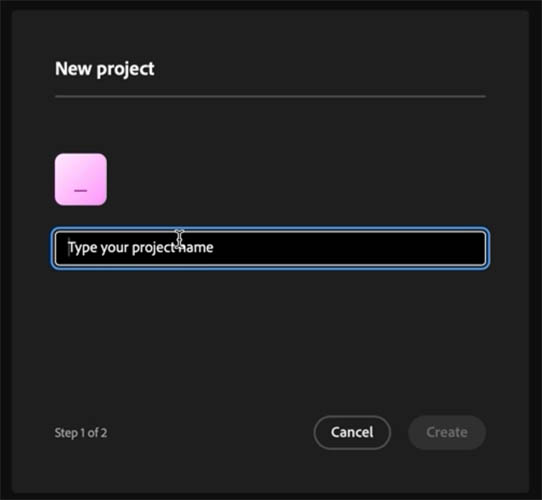
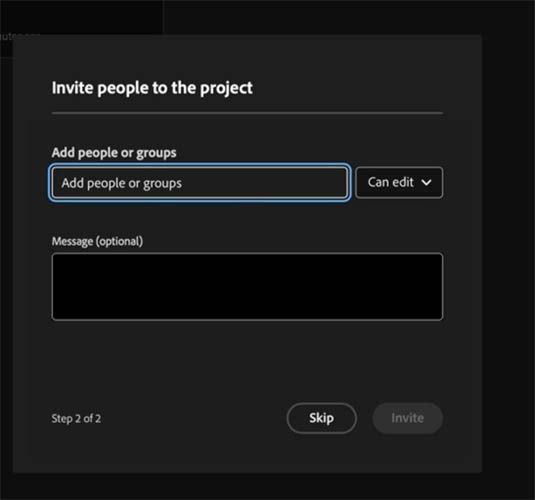
Add the people you want to work with.
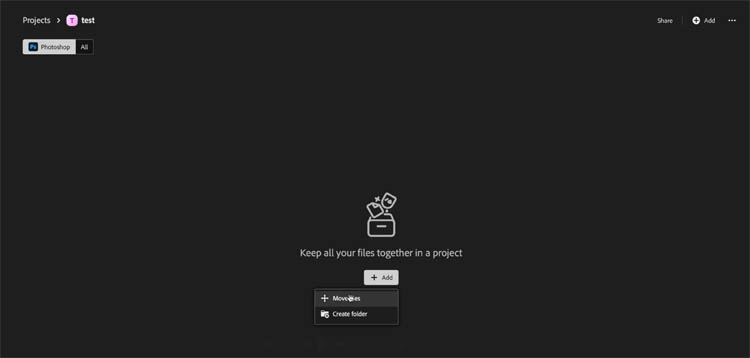
Add the images to the project.
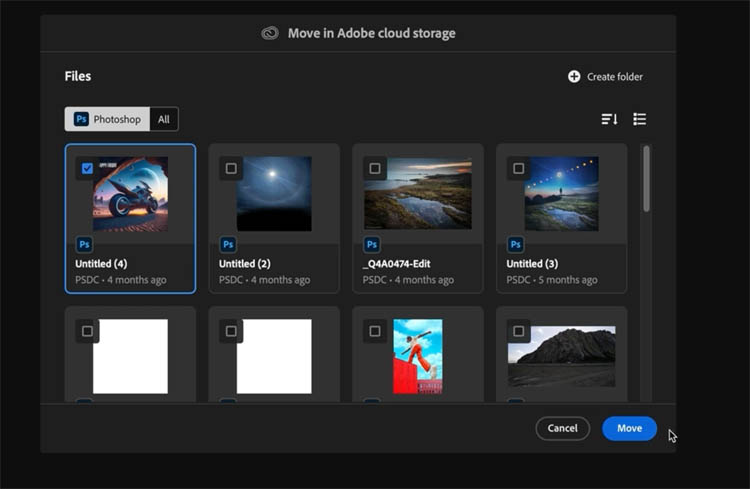
Grab them from Creative Cloud Storage
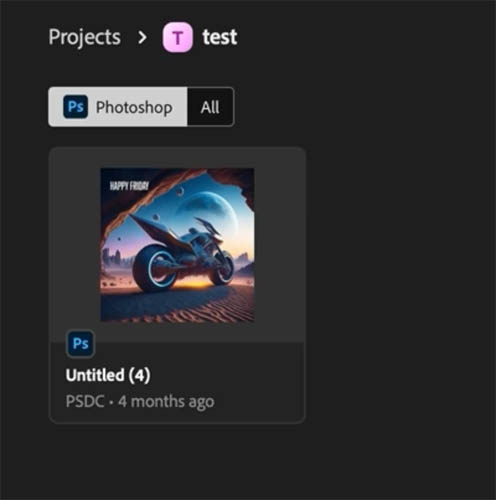
And we have a project. I’ll make amore in depth tutorial on this and the other top features.
4 Generative Ai Model Picker – Mainline Photoshop Version
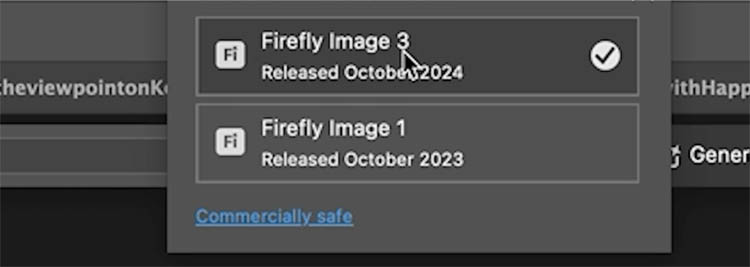
When you choose to generate, you now see “Fi” where you can change the version of Firefly. This is very common with ai,m where you can change the model, because certain models do some things better than others. I’m glad we have that option in Photoshop now.
Let me demonstrate.
Make a selection and type “hat” into the prompt.
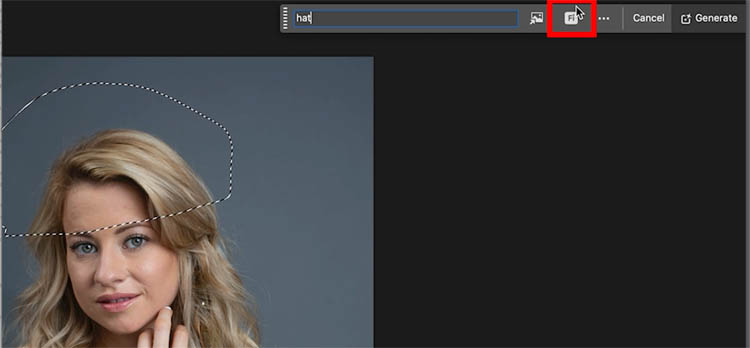
Click fi and choose Version 3, the default.
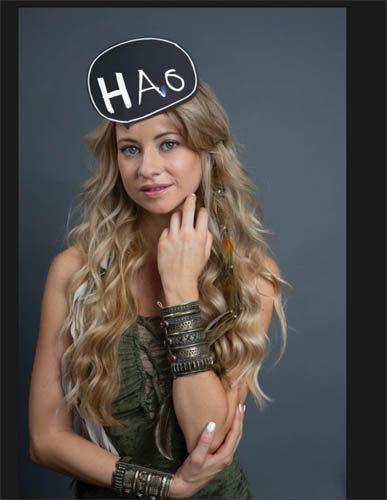
Have you ever had this happen? Its very reproducible on this example.
Let’s try that agaon, but use Version 1.
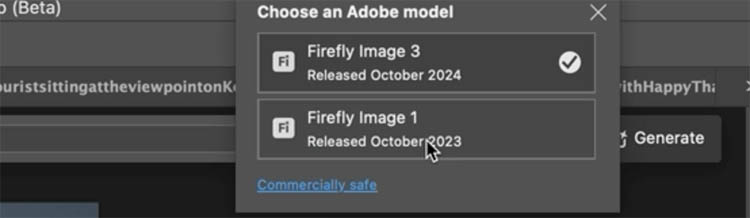
Now, we get perfect hats. While Version 1 couldn’t count fingers, it was good at this kind of thing.
As I said, it’s good to have this option.
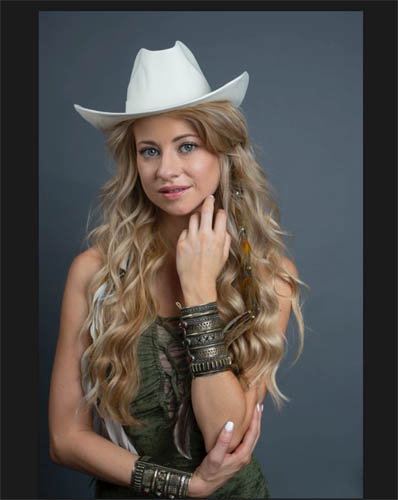
5. Generative Upscale
There is a generative Upscale added to Beta, this enlarges images and generates the new result up to 4 times larger.
Here’s is the test and tutorial on Generative Upscale in Photoshop Beta.
Other new feature tutorials in this Photoshop update
I hope you found this overview useful! Keep checking out my weekly tutorials. I’m also dropping daily Photoshop shorts on youtube, Instagram and Tik tok.
Thanks
Colin

Recommended for this tutorial
Complete Guide to ai in Photoshop 2026
Generative Fill, Firefly, Harmonize and every AI tool in Photoshop, step by step.
$79.00 · one-time purchase · instant download

Free for you
The Photoshop Vault
Get my free Layer Blending Modes ebook along with dozens of exclusive Photoshop goodies: actions, brushes, presets and cheat sheets.
You're on the list, so your free goodies are waiting for you in the Vault.
Get Free Photoshop Goodies Open the Vault

Auto Blend layers in Photoshop with Harmonize, includes Resolution Hack
Harmonize Layers in Photoshop and how to get BETTER results from new Harmonize Read tutorial
What’s New in Photoshop 2026 (Full Release Overview)
Explore the top new features in Photoshop 2026, Full release Read tutorial
How to choose the best Generative ai Model in Photoshop
How to choose the best Generative ai model in Photoshop. Firefly, Flux and Nano banana, which is best? The answer is simple,... Read tutorial
How to use Generative Workspace in Photoshop
Photoshop Beta Generative Workspace Explained: Prompts, References & Variables Read tutorial
How to Generate 3D with Generative ai in Adobe’s free Substance viewer
How to generate 3D models using Firefly ai in free Adobe Substance 3D viewer. Generate images from the 3D models Read tutorial