
Remove distractions in photos with Photoshop advanced Content Aware Fill
Easily remove distractions from a photo in Photoshop using advanced Content Aware Fill
In this photoshop tutorial, I’ll show you an easy way to retouch a photo and get rid of a distracting background.
Here is a shot, I took of a duck taking off. I have already applied some adjustments in Lightroom, but can’t quite remove the background above the bird.
Let’s fix it now.

Choose the Lasso tool

Make a selection around the area to replace.

Press Cmd/Ctrl+Shift to open the fill dialog box.
Choose Content Aware From the Contents.

Press OK to apply.
Usually, that’s all you need to do. However, sometimes you get parts of the image that you don’t want as a fill.
This is the point of this tutorial, What to do when Content Aware Fill doesn’t work.

If you don’t get the expected results, you can use advanced Content aware fill. I don’t call it advanced because I think it’s hard, its just a different set of tools that isn’t always obvious.
Choose Edit>Content Aware Fill

Now you will see a dialog box.
On the left is your image with the selected area at the top left. On the right, you will see a preview of the new result.
We are in Auto mode and right now the result looks the same.

With the brush paint aware the areas that you don’t want used in the content aware fill. In this case, remove the bird and the water splashes.
CAF (Content Aware Fill) will use the green area.
See the result looks better, click ok.

And as simple as that, Content aware Fill now gives us the result we want.

Thanks for checking out this weeks quick little tutorial. I have more tutorials on removing things in Photoshop.
How to remove reflections from Glasses
How to remove shadows in a photo
How to remove anything in Photoshop.
Until next week, see you at the CAFE
Colin

Keep growing with Premium Courses
Photoshop 2026 for Digital Photographers
Learn Photoshop properly, from the basics to pro retouching, step by step.
$129.00 · one-time purchase · instant download

Free for you
The Photoshop Vault
Get my free Layer Blending Modes ebook along with dozens of exclusive Photoshop goodies: actions, brushes, presets and cheat sheets.
You're on the list, so your free goodies are waiting for you in the Vault.
Get Free Photoshop Goodies Open the Vault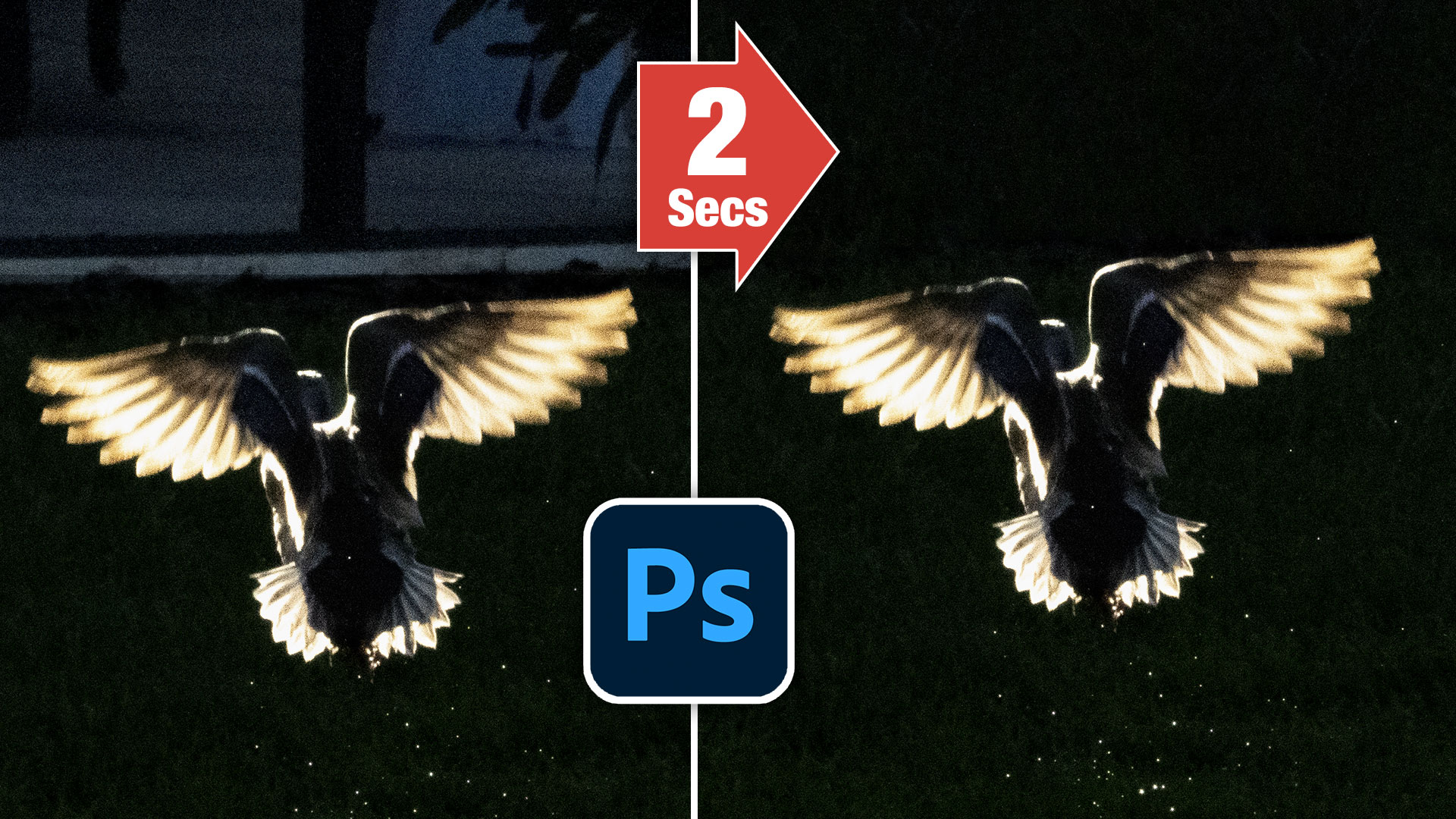
Clean photos and remove distractions with the patch tool in Photoshop
How to use the patch tool in Photoshop to quickly clean up smudges and dirt and remove distractions. Difference between Source +... Read tutorial
Photoshop CC 2014, best new features for photographers
This tutorial touches on the best new features in the 2014 release of Photoshop CC and how to use them. This includes... Read tutorial
How To Remove Anything from a Photo in Photoshop
This Photoshop tutorial shows you different tools and techniques to remove anything from a photo. We will remove braces from teeth, make... Read tutorial
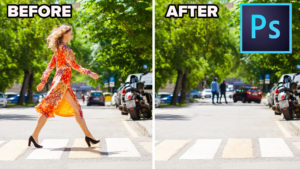
How to remove a person from a photo in Photoshop without ai (Complex Background)
How to remove a person from a photo in Photoshop. 2 ways to remove something with a complex background in this Photoshop... Read tutorial
Unreleased Photoshop features remove anything in a picture
How to use experimental Multi Image Content aware fill in Photoshop to remove anything from a photo. How to get Photoshop Beta Read tutorial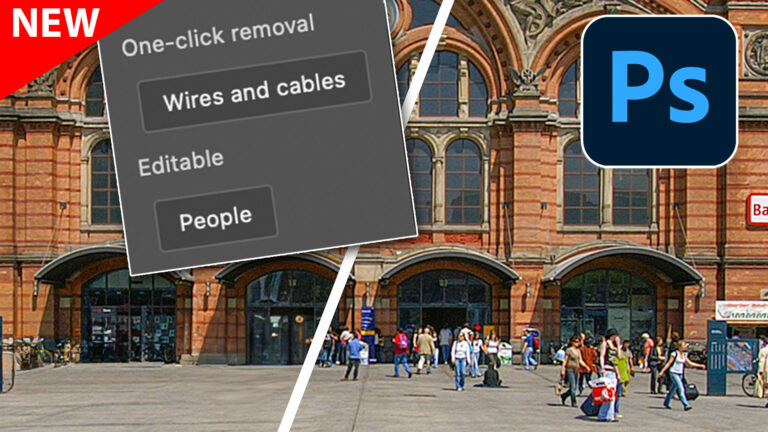













Thanks for this tutorial, I have been struggling with this!
Nice tip and thanks for including the written instructions too.
Great, that you mentioned this feature, that I only discovered a few months ago. I now use it all the time, I like the additional control over the process. You also found a great example to demonstrate it.
I knew about content aware fill and have used it a lot but often got really frustrated with it. I obviously didn’t have a good grasp on what to paint out to get better results. I have pretty much resorted to just fill-content aware. Never thought to use them together. This tip was very enlightening. Thanks!
thanks- something both new to me and very helpful
I definitely need to watch more of these quick tutorials. I seem to learn better in small doses. I’ve been trying to understand and apply Photoshop. It does not come easy to me. I love photography taking pictures, great eye , But I’m not doing enough hands on.
Fabulous – I did not know this trick but I have needed it sooooo many times, so thanks! Dee
Thank you!
Wonderful, keep them coming
Hey Colin, that mini-tutorial was great!! (‘When Content Aware Fill doesn’t work as expected’) I STILL use CS PS6, and it was pretty easy with minimal fiddling around!!! Thanks a bunch!! I don’t use or have Lightroom, and that’s fine with me…..I want to be able to keep using Photoshop! So I do check out your GREAT tutorials as I can and think I can handle them!!!!
Yes I knew it but thanks for your great teaching always
Tutorials are great and easy to follow. Thanks