
Photoshop refine Mask Tricks in 2022
There are many ways of making selections in Photoshop. Sometimes the masks need to be cleaned up, because they can appear like snow, or just specks here and there. This Photoshop tutorials shows you an easy way to reveal spots on your mask and a quick way to clean up all the specks.
These are techniques I have been using for years and they work on any version of Photoshop including the latest. This tutorial isn’t about making masks, ((In-depth course on selections and masks in Photoshop). This tutorial teaches you how to clean up your mask. I’ll use color range for this example, but you can use any tool, the point of the tutorial is to show you how to fix your masks.
Making a selection in Photoshop with Color Range
This is the starting image, of course, you will be using the images you are working on. If you already have a selection, skip to the mask tricks in step 2.

To make a selection of the sky area, choose Selection>Color Range. (Remove background with Photoshop Color range)
Once again, it doesn’t matter what you are selecting for this Photoshop tutorial, as it will work on many types of selections.
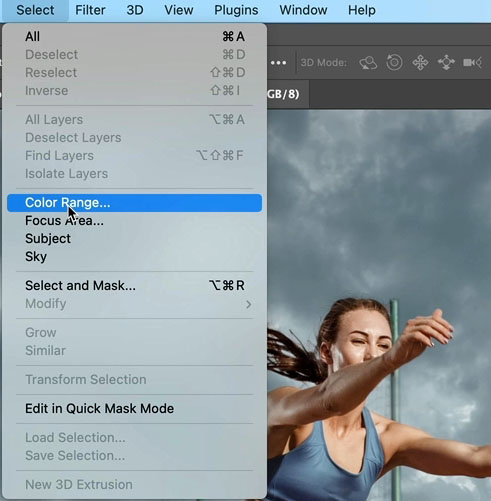
Choose the eyedropper in Color Range and click on the image to select a color on the background
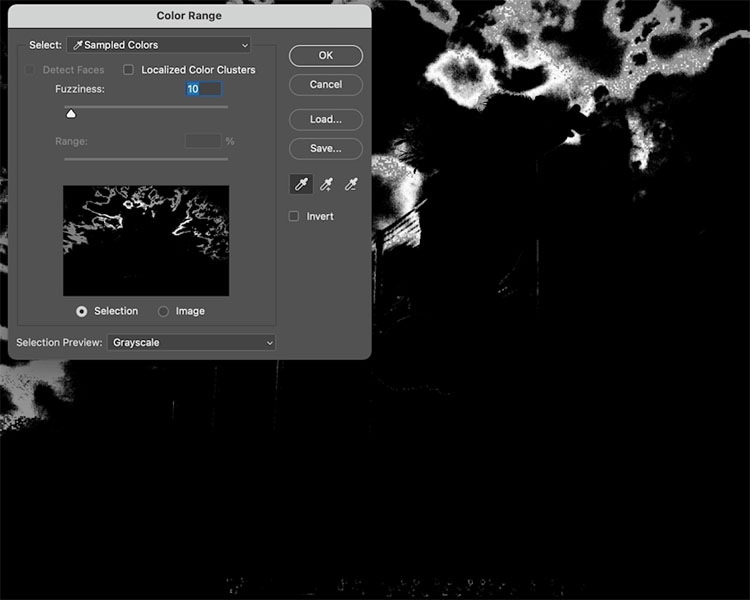
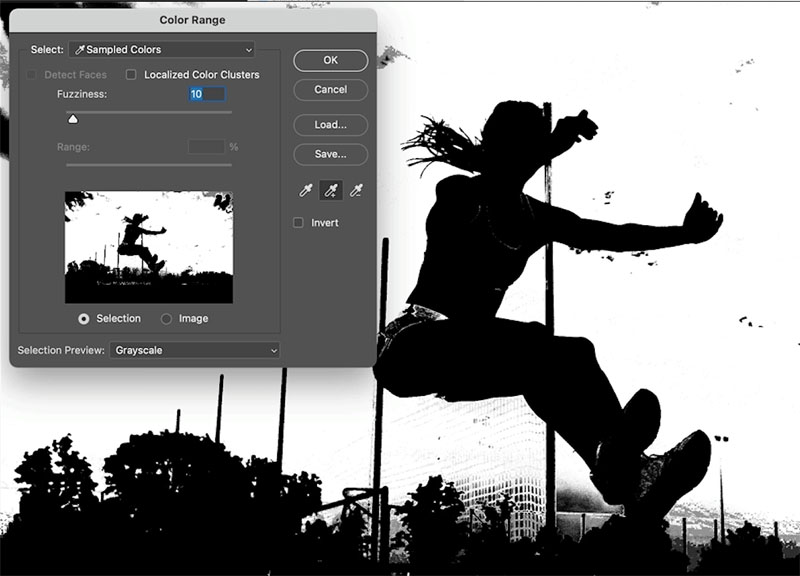
Choose the plus-eyedropper to add to the selection
Click on other colors on the background, or drag to expand the selection.
Use Fuzziness to change the sensitivity.
Click ok
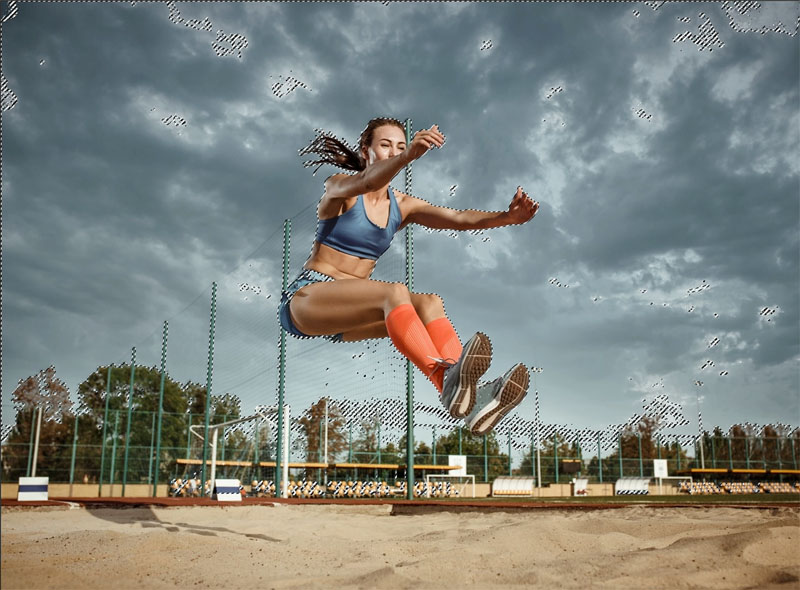
We now have a selection.
Hold down Alt/Option and click the new layer mask to transer the selection into a layer mask.
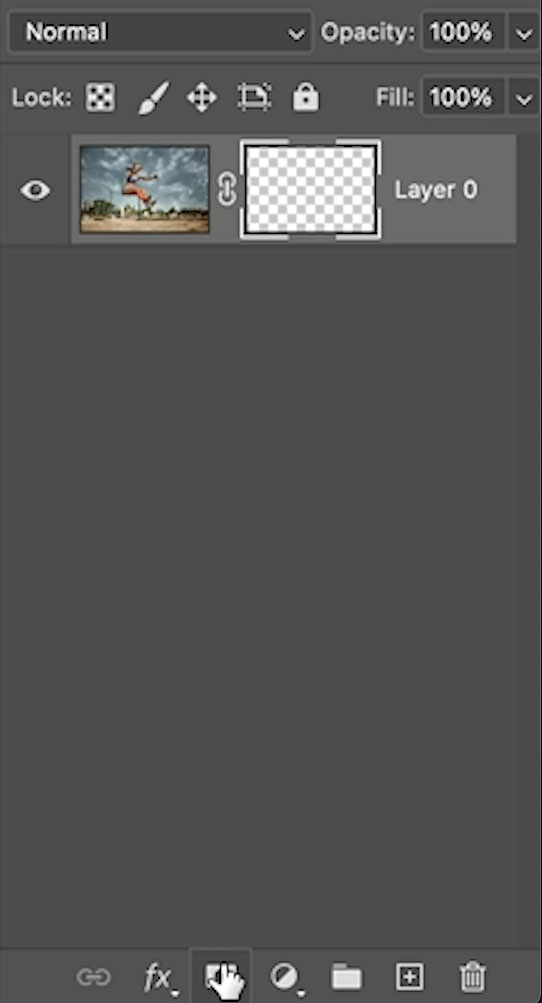
How to easily find problems in your Photoshop Layer Mask
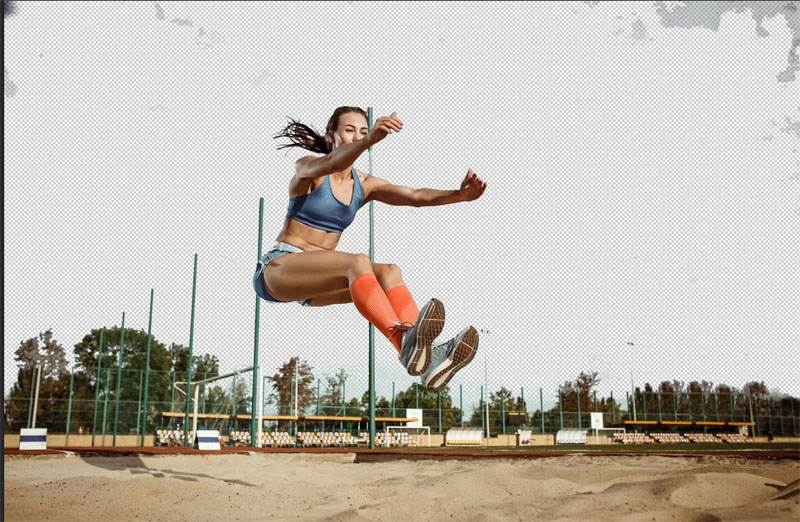
Here is our first tip. Mask trick #1: You have a selection, it’s clear some of the problem areas, but these can easily be highlighted.
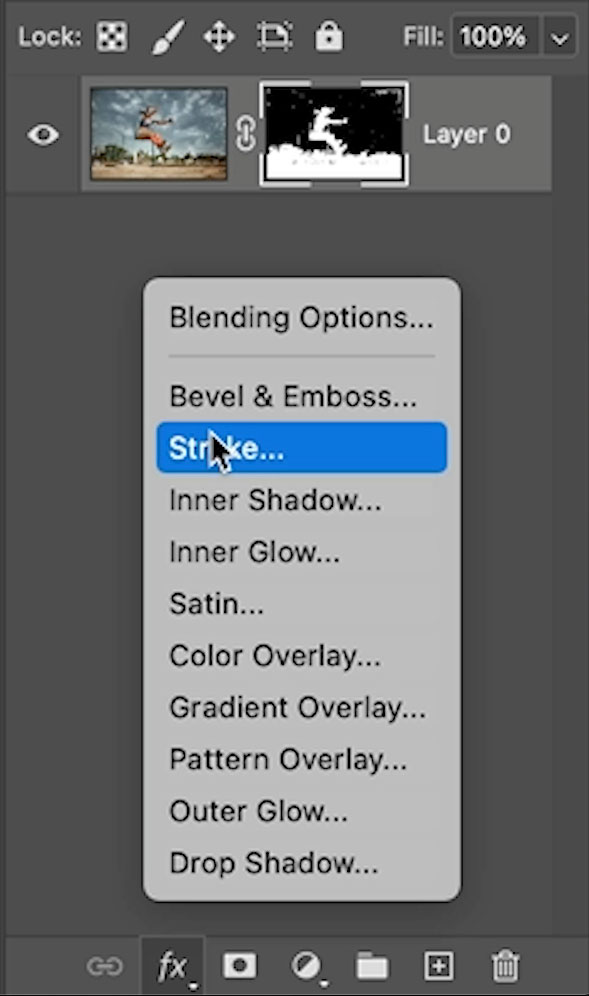
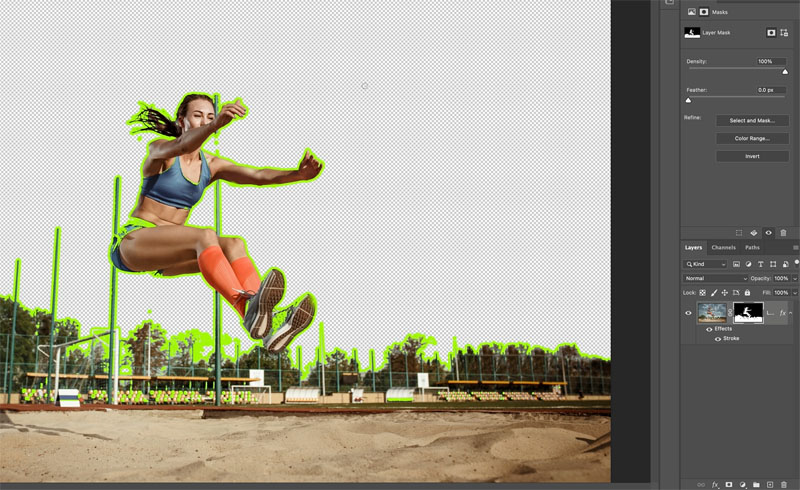
With your Layer mask selected, click fx, for layer Styles and choose Stroke.
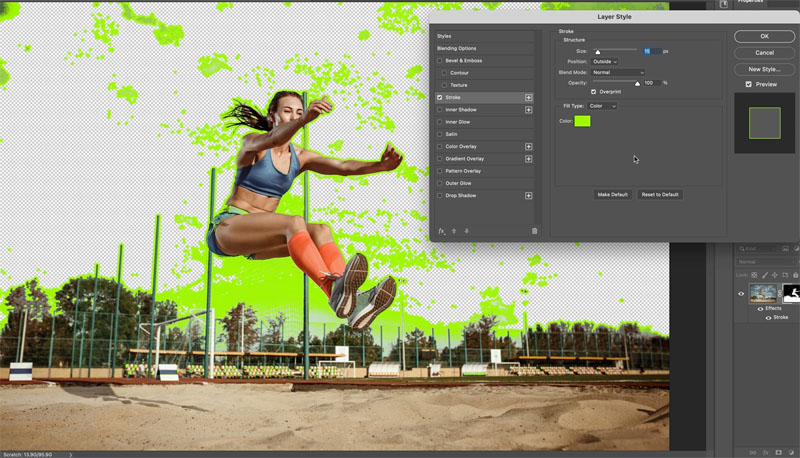
Now you can easily see all the problem areas.
Change the color and stroke amount to make it more obvious.
Click ok. We have now easily identified the problems. I often keep the stroke until I have finished refining the mask, because its super easy to see the problems.
Tip 2: Cleaning up noisy Masks in Photoshop
Now we have identified the problems, let’s clean them up.
This won’t happen on every selection, but sometimes you will get a lot of little spots everywhere. Sure you can paint them all away one at a time, but here is a quick way to get these pesky 1-2 pixel spots to go away.
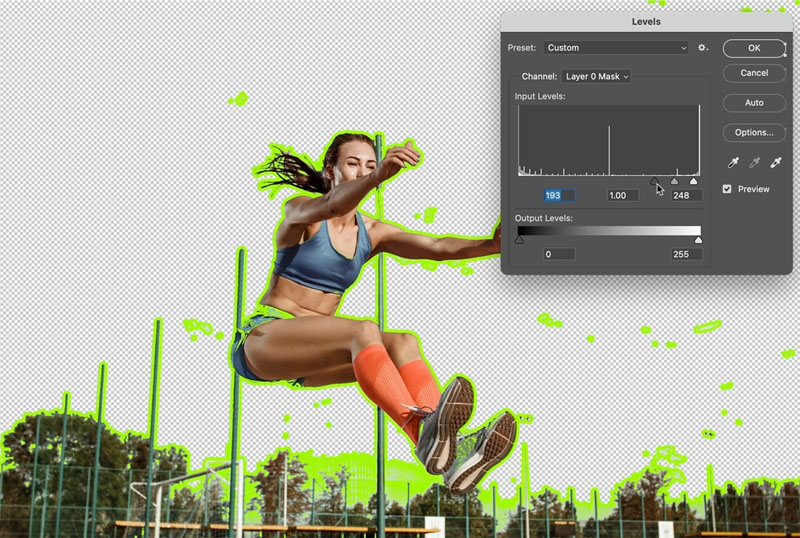
With the Mask selected, press Ctrl/Cmd+L for levels.
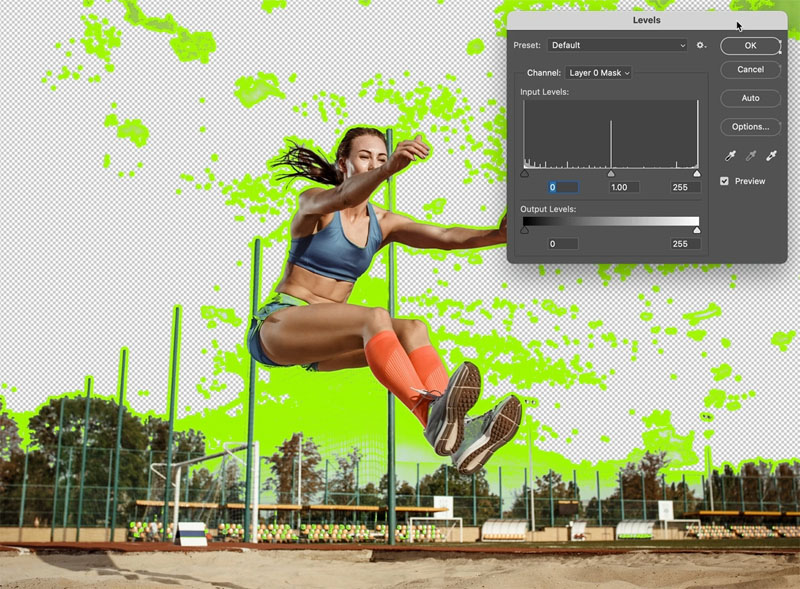
Slide the black slider to the right. Sometimes, you will slide the white slider to the left, it will be obvious which you need once you start sliding.
As you slide, you are cleaning the mask and all the tiny dots will disappear in seconds.
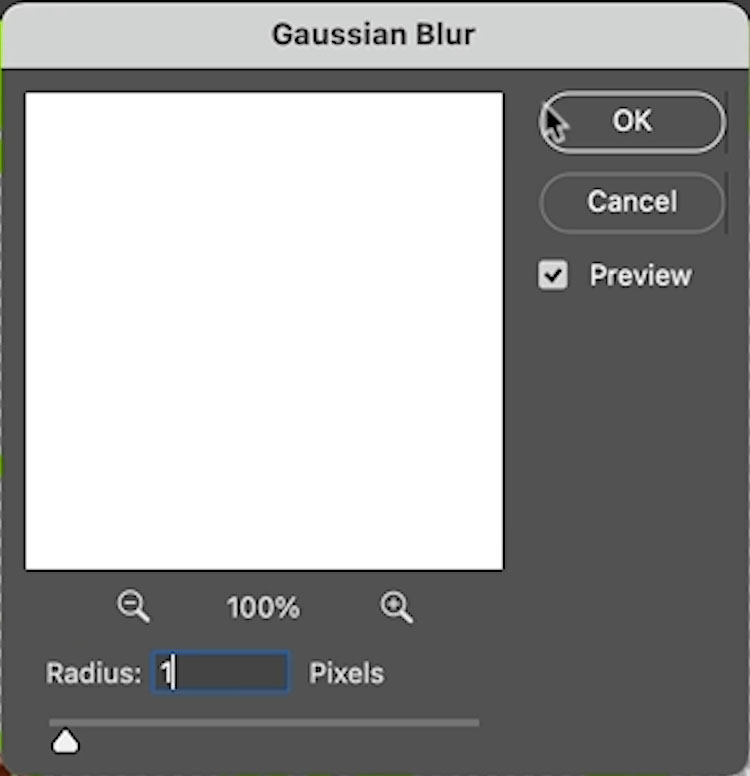
If the spots are stubborn, try adding slight (1px or less) blur to the mask before levels. Filter>Blur>Gaussian Blur. (see the video at the top)
Painting on A Photoshop mask
The tips are above, but just to round out the tutorial, here is how to manually finish the mask.
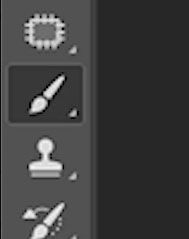
Choose the Brush tool (Make it a hard edged brush)
Choose black as foreground color.
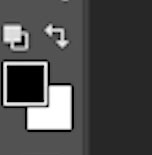
With the mask selected, paint away the trouble spots.
If you want to paint anything back into the image, change to white as your painting color
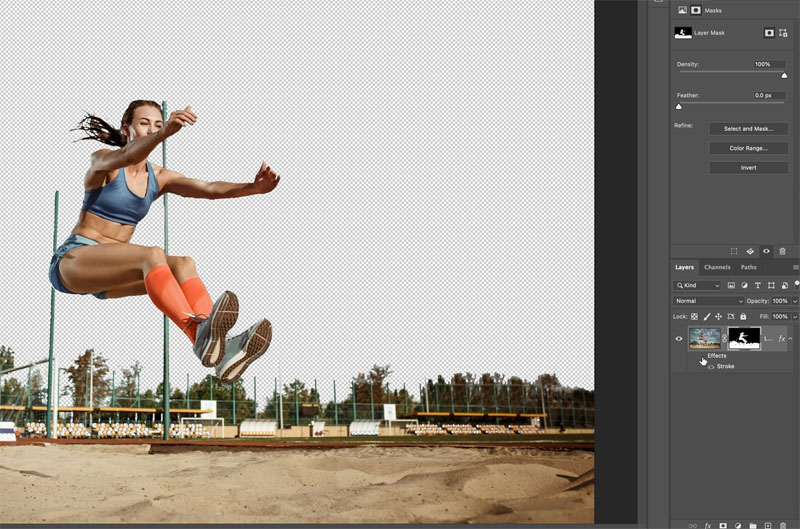
When you are done, hide the stroke layer style and you have a nice cutout.
I hope you found these masking tips helpful. There are many more tutorials here at PhotoshopCAFE on masking, selecting and refining edges, as well as every other type of Photoshop tutorial. Have a little binge on some of our tutorials, you won’t regret it 🙂
As always, It’s great to have you here at the CAFE!
Colin

Keep growing with Premium Courses
Photoshop 2026 for Digital Photographers
Learn Photoshop properly, from the basics to pro retouching, step by step.
$129.00 · one-time purchase · instant download

Free for you
The Photoshop Vault
Get my free Layer Blending Modes ebook along with dozens of exclusive Photoshop goodies: actions, brushes, presets and cheat sheets.
You're on the list, so your free goodies are waiting for you in the Vault.
Get Free Photoshop Goodies Open the Vault

How to quickly select any object in Photoshop
How to select an object within an object. Read tutorial
Hidden settings to get the very best auto Selections in Photoshop
How to get selections in Photoshop as a fast as possible with the best results possible for cut outs and background removal Read tutorial
Newly updated ai selections and masks in Photoshop are amazing
Updated ai selection tool in Photoshop is stunningly good now Read tutorial
How to Remove the Background of a photo in Photoshop
This Photoshop tutorial will teach you some of the detailed steps to remove a background in Photoshop with high resolution quality edges.... Read tutorial
How to use Select and Mask in Photoshop. Refine edges on every cutout
Free Photoshop tutorial. Ultimate guide to select and mask in Photoshop, how to get perfect edges on every background removal Read tutorial













Super new information, thanks Colin!
This was completely new to me as a way to clean up masks. I’m definitely going to try it on my pics. Thx Colin!
thanks this is new to me . i did not know about this tip brfore thanks colin
New to me. Thanks.
I hadn’t seen this trick previously. Thanks Colin. Looking forward to using it.
New to me. Thanks!
New trick for me, Thanks.