
How to change Hair color in Photoshop tutorial
How to change the color of hair in Photoshop
Before reaching for that bottle of dye, have a look in Photoshop and see how you will look with different colored hair. Also useful for retouching and special effects.
In this tutorial, I am going to show you how to quickly and easily change the color of hair. We are going to go over from blonde to black and some kind of fun colors as well.
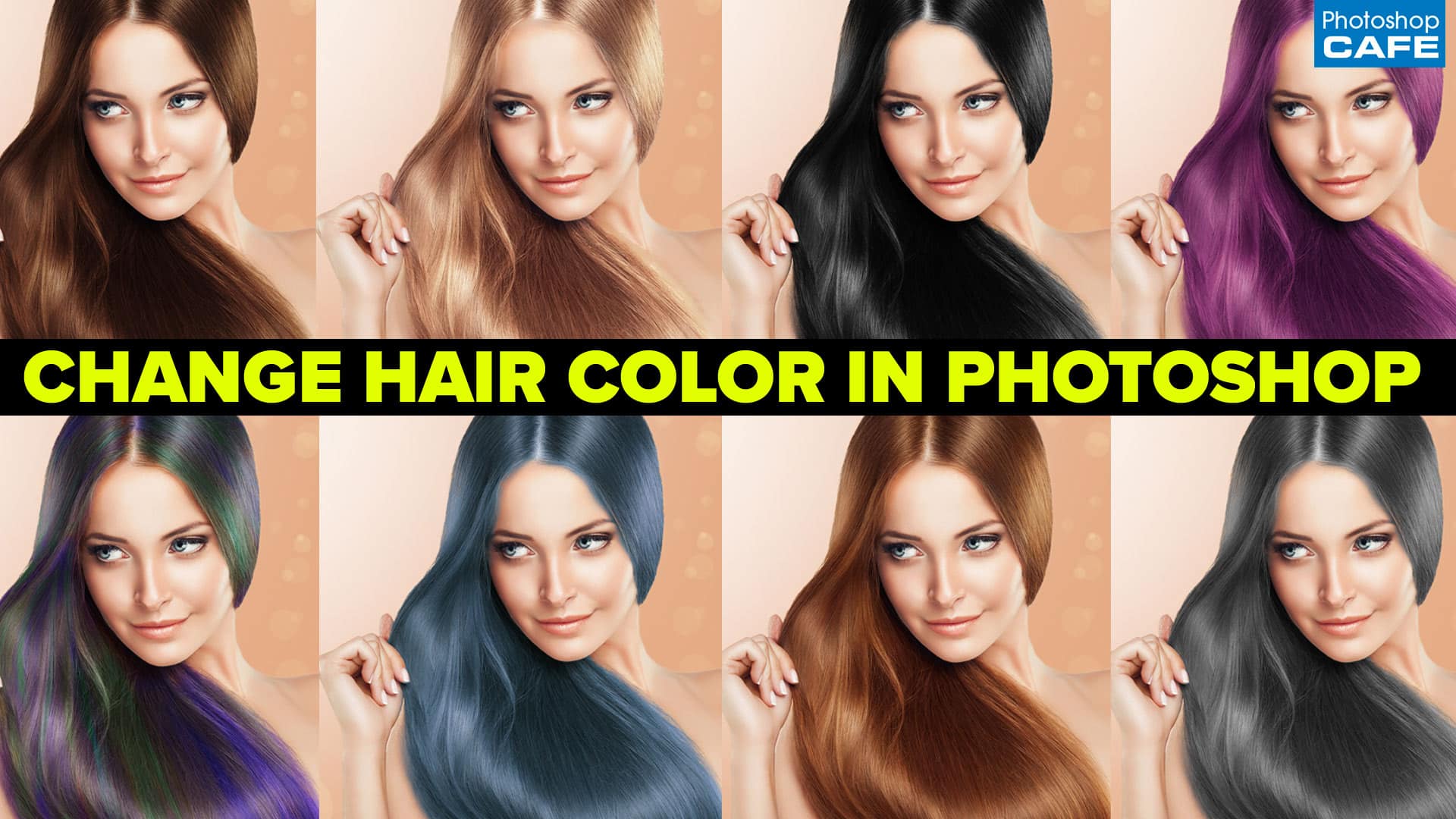
How to change hair color in Photoshop
I started with this photo from Adobe Stock.
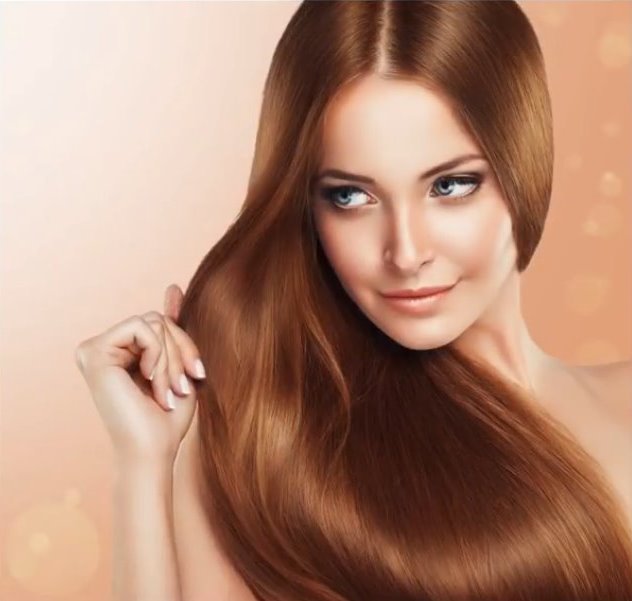
Step 1. Isolating the hair
Grab the Quick Select Tool 
Make a selection around the hair.
( if you go over the edge.) Hit Alt key on Windows/Option on Mac and paint to fix selection

Step 2
Choose the Select and Mask option from the top toolbar
 .
.
In select mask, Click Refine Edge Brush Tool 
Go around the rough edges of the hair to refine the selection

To help with the selction:
Increase the radius.
Turn on Smart Radius.
Turn on Decontaminate Colors.
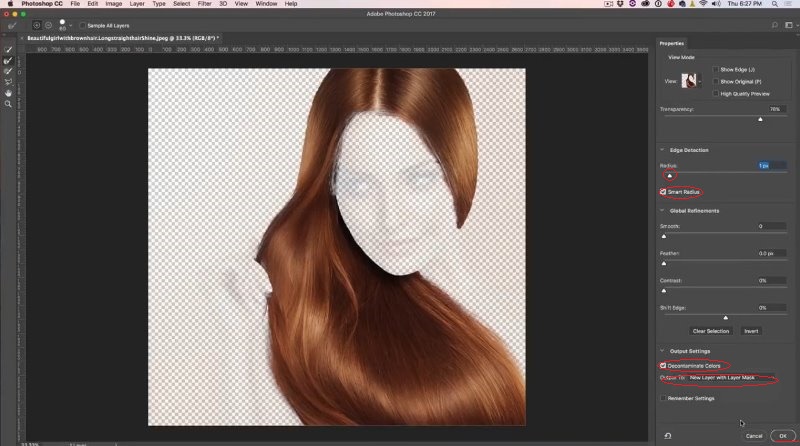
Select new Layer with Layer Mask

Click OK.
Step 3. Setting up the adjustments
Turn on the background to see the entire image.
Click the Adjustment layer in the Layers panel We are going to create 2 empty adjustments.
Create a Hue/Saturation Adjustment Layer.
Create a Curves Adjustment Layer

The Hue/Saturation will control the color, while the Curves will adjust the brightness.
Step 4. Targeting the adjustments to the hair layer
Right now, the adjustment layers will affect every layer underneath. We want to restrict them to just the layer with the hair cut out.
2 different ways to do this.
- Click on the little square arrow icon in the properties panel for each adjustment layer.

- Or you can hold down the Alt key on Windows / Option on Mac and move the curser onto the line between 2 layers. When you see the square arrow, click to apply. This is a clipping group. Make sure you do this to both adjustment layers.

We are all set up. All we have to do now is change these 2 adjustments to get any color and tone we like.
Step 5. Changing the hair color and tone
Change the hair color by adjusting Saturation. (click on the Hue/Saturation Adjustment layer. Then open the properties panel window>properties, if you can’t see it already)

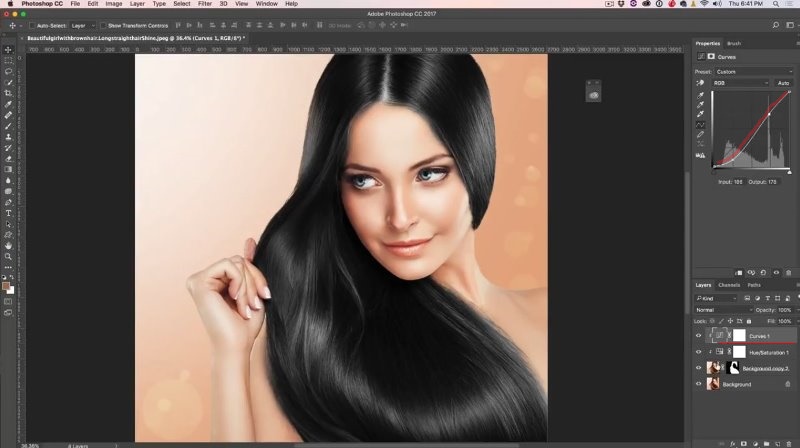
First, let’s make the hair black.
Pull the Saturation all the way down.

Select the Curves Layer to darken the black
Drag on the curve as shown to add contrast for a perfect black sheen.
Let’s make it dark brown.
Select Hue/Saturation Layer.
Pull Saturation up.

Step 7 From dark to blond hair
Let’s make the hair blonde.
Reset Hue/Saturation and curves
Select Curves Layer.
Pull the curve up in the shape shown (an n-shape) to get the tone you need.

If you want to make it a bit more platinum and less gold, Go to Hue/Saturation.
Pull down Saturation a bit
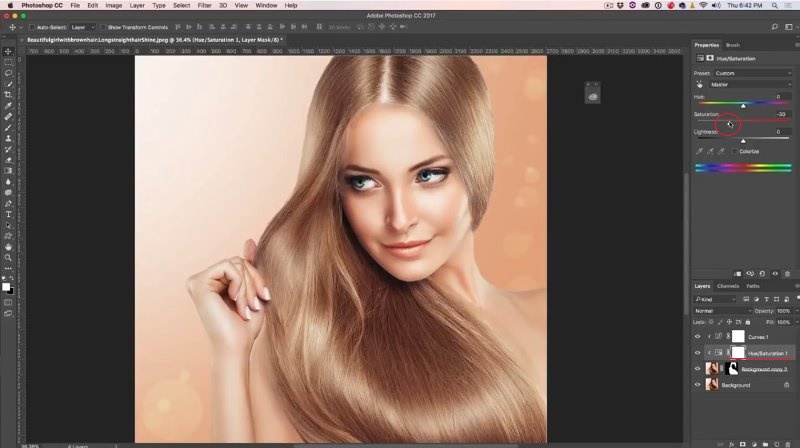
Step 8 Trying some fun hair color in Photoshop
If you are thinking about dying your hair a more fun color, I highly recommend trying it here in Photoshop first (you might save yourself a little heartbreak, or find the perfect color ;))
Play with Hue/Saturation to get different colors and effects. (apply a curves adjustment when you need to lighten or darken it)
Copper / red Hair
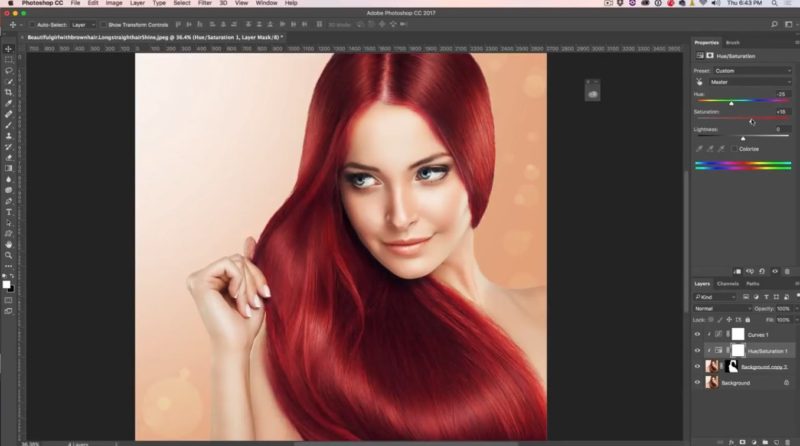
Purple Hair

Blue Hair

Grey Hair

Brown

Green

Bonus tutorial: Add multi colored streaks to hair in Photoshop
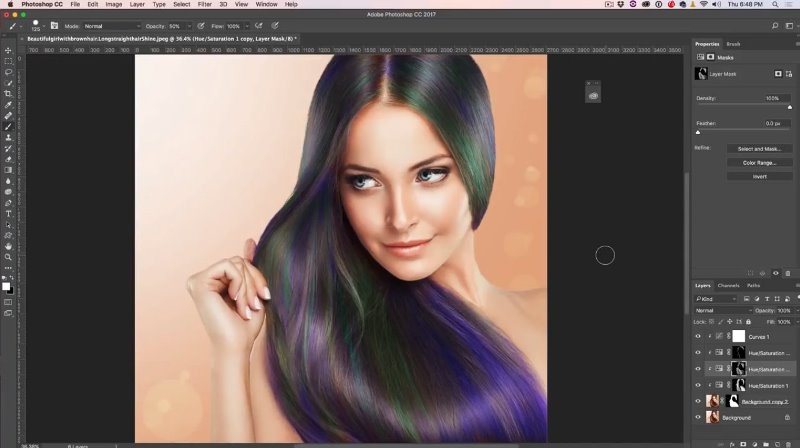
Now we are going to create some cool multi-Colored streaks for the hair. It’s definitely easier to so with this woman who has long straight hair. If you are working with curly hair, it will just take a little more careful brush work.
1. Set up multiple hue saturation adjustment layers.
In this case a I added 3 Hue saturation adjustment layers
Make sure you clip the layers as we did above (Alt-click between the layers)
I made a blue, purple and green adjustment, respective on each hue/saturation layer.
Invert each mask, by selecting and clicking Ctrl/Cmd+I
Add a curves adjustment at the top for any tonal tweaks.
2. Painting the streaks in the hair
We are ready to add the color. We will paint the streaks by hand.
Grab a brush and set the color to white. Drop the opacity down to 50.
Select the layer mask on the first adjustment layer Paint the colored strokes.

Switch to a different mask and paint.
You can adjust brush settings (choose a softer brush and play around with opacity settings) so that color strokes blend in better.

Here’s the result.
Thank you for checking out this tutorial.
New Photoshop tutorials are coming out every few days! Subscribe to our newsletter so you don’t miss out, and don’t forget to leave a comment! Let’s get a discussion going and until next time, I will see you at the Cafe.
Colin

Keep growing with Premium Courses
Photoshop 2026 for Digital Photographers
Learn Photoshop properly, from the basics to pro retouching, step by step.
$129.00 · one-time purchase · instant download

Free for you
The Photoshop Vault
Get my free Layer Blending Modes ebook along with dozens of exclusive Photoshop goodies: actions, brushes, presets and cheat sheets.
You're on the list, so your free goodies are waiting for you in the Vault.
Get Free Photoshop Goodies Open the Vault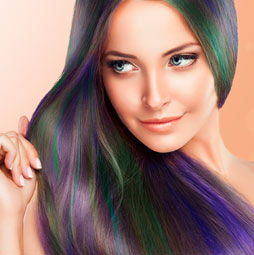

How to Paint hair and fur in Photoshop tutorial
How to paint hair and fur in Photoshop. This free Photoshop tutorial shows how to make custom hair and fur brushes and... Read tutorial
How to make water splashes in Photoshop tutorial
How to make water splashes in Photoshop. This easy Photoshop tutorial shows you how to make the popular splash effects on your... Read tutorial
Face Aware Liquify in photoshop, change a face to look like someone else
The Face Aware Liquify in Photoshop C enables you to easily change someones face to look like someone else. See it in... Read tutorial
Blending layers in Photoshop, Double Exposure Tutorial
The intro to the hit TV show True Detective has everyone talking about the double exposure effect. I have made this tutorial... Read tutorial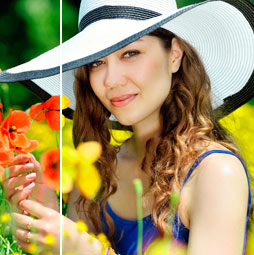
Easily Change the Color of an object in Photoshop, no selections required
This Photoshop tutorial shows you how to easily change the color of anything in a photo without the need to create selections.... Read tutorial










I really like the multi-colored version! LOL Very cool!
Love this tutorial. I might just try this out in PS the next time I want to color my hair!
Hello, thank you for yor turtrial, but I have a question, when I am making hue, saturation it is reflected to my all photo, not onlky to hairs?, whats wrong can you help me?
OK, now all correct, I understand whats wrong, thank you
My best learning success is THIS METHOD: written step-by-step with illustrations (don’t know how to refer to it). I just used it to change hair color for one of my wedding photos. Videos are good, but nothing relieves my learning anxiety as this written description. If you have more of these, please direct me. I will gladly purchase them.
THanks, almost all of our tutorials here include written steps