
Face Aware Liquify in photoshop, change a face to look like someone else
If you are like most people, you have probably had some real fun with the liquify tool. It’s actually a very useful tool when it comes to retouching. The Liquify in photoshop can be used as a subtle tool to push pixels around like no other tool in Photoshop. It has also been abused a few times and been the cause of many “photoshop fail” type posts, usually by those who are just hungry for cheap clicks online. In Photoshop CC 2015.5, we see a brand new addition to the liquify tool. This enables us to isolate different parts of a face and then alter it with just a few moves of a slider. You can even create presets. This quick video will show you how to use the face aware liquify tool to change the appearance of this woman’s face. You can literally mimic features of other people, even celebrities. It won’t look exactly like the other person because there are other features at play, such as cheekbone shape, eye brows, eye color, cheek shape, type of nose, hair, skin texture and other unique qualities. However, this tool is enough to get a “Hey, has anyone told you, you look like…” Creepy? Cool? Useful? Check out the video and add a comment below and tell us your thoughts.
Face Aware Liquify in Photoshop CC 2015.5
Face Aware Liquify, takes the Liquify tool in photoshop to a new level. Instead of pushing pixels across the screen, this tool actually detects faces. It can detect a single face, or multiple faces in an image. It detects and allows you to adjust these perts:
- Eyes: Width, height, size, distance apart and angle (this last one is crazy). Both eyes change together as a group
- Nose: Width and Height, height moves it closer or further away from the mouth.
- Mouth: Width, height and smile. Yup, you can make people smile. All babies are now happy babies.
- Jaw: Make it wide or narrow, long or short
- Face width: Make it thinner or more rounded
This can actually be a useful retouching tool if used in a subtle way. You can also go nuts and create caricatures of people with it. One thing for sure, it’s fun.
It also works on a smart object. This means that you can apply it to a video, which is how I made the silly part in my intro in the video above.
Check out the rest of the new features in Photoshop CC 2015.5
The Top 5 things in Photoshop CC 2015.5
See all the new features in Photoshop CC 2015.5

Select and Mask Space
New Select and Mask Space for cutting things out. This replaces the refine edge, which was good, but weak on fine edges such as hair. See Select Mask in action (In-depth video tutorial) and more info here.
Layer Blending Modes. Free eBook by Colin Smith
Don’t forget to check out the website as we add new content every week. You can also find us on social media: Youtube, Facebook, Twitter, Pintrest and Instagram @PhotoshopCAFE.
See you at the CAFE!
Colin

Keep growing with Premium Courses
Photoshop 2026 for Digital Photographers
Learn Photoshop properly, from the basics to pro retouching, step by step.
$129.00 · one-time purchase · instant download

Free for you
The Photoshop Vault
Get my free Layer Blending Modes ebook along with dozens of exclusive Photoshop goodies: actions, brushes, presets and cheat sheets.
You're on the list, so your free goodies are waiting for you in the Vault.
Get Free Photoshop Goodies Open the Vault
instant weight loss in Photoshop
Use Photoshop to get rid of those little love handles and slim a figure. Learn how to reshape a body in this... Read tutorial
Small planets in Photoshop, aerial drone photos from quadcopters
In this Photoshop Tutorial, Colin Smith uses aerial photos from his DJI Phantom quadcopter to create a small planet effect. In this... Read tutorial
How to change Hair color in Photoshop tutorial
How to change hair color in Photoshop. This easy tutorial shows you how t change hair color to blond, black, brow and... Read tutorial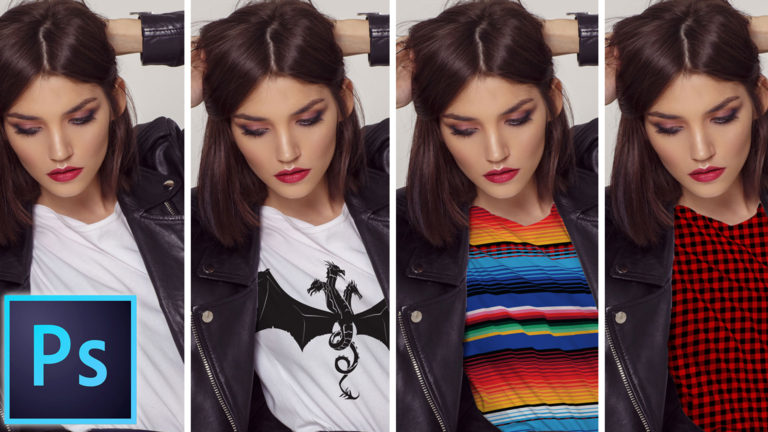
How to put a logo or pattern on a shirt
How to realitically place a pattern or logo on a shirt or other clothing in Photoshop. In this Photoshop tutorial, Colin Smith... Read tutorial
How to use the clone stamp in Photoshop
Learn how to use the clone stamp tool in photoshop to remove distractions and duplicate objects. Photoshop tutorial. Read tutorial











Thanks Colin, a very helpful and informative tutorial. Looking forward for more every week.
It’s a good resource for learning. I see the post again and again.
Very extraordinary photo manipulations, cool style! I wanted to retouch in this genre, but image manipulations are not my strong points. I send my works to online photo retouching services like FixThePhoto or HighEndBeautyRetouching if I need
Really Liquify tool is a good and use full tool when anyone create a retouch…