
Crystal Craze in Photoshop Photoshop Tutorial
Step 1

Create a new document.Mine was 300X200 pixels. You would probably want something larger. Modify all the settings for a larger image size. Experiment.
Create a new layer
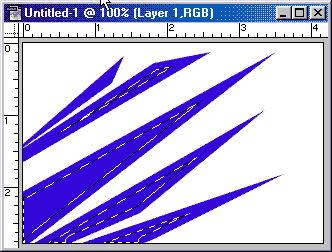
With the Polygon lasso tool, draw your rough shape. Notice that in Photoshop 6 you can draw off the canvas. When you get to the start/finish point you will see a little circle. As soon as you click on the start point, the entire shape will b loaded as a selection.

Step 2
 Fill with a dark color. Here I chose blue.
Don’t deselect.
Step 3
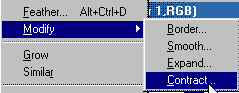
 Now we want to add a gradient, use this method:
Select>modify>contract
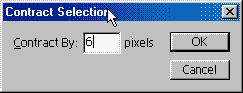
I entered 6 pixels. If you are using a larger image size, consider 10 or even 15
Step 4
 Now we want to soften the selection.
Select>Feather: I chose 5, you may want to choose 10
Step 5
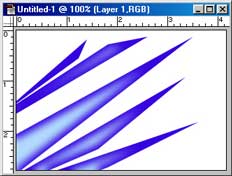
 Choose a lighter shade of the same color as the crystals and fill. I chose light blue.
Step 6
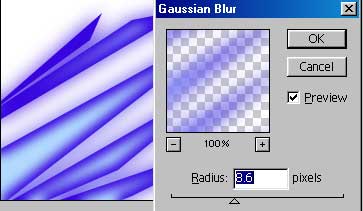 Duplicate the layer and add a gaussian blur to the copy.
Move the blurred layer beneath the original layer.
Step 7
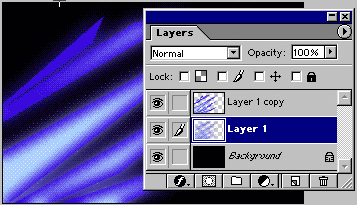 Here I changed the background to black.
Notice the original layer and the blurred layers.
Step 8
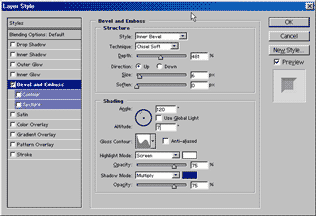
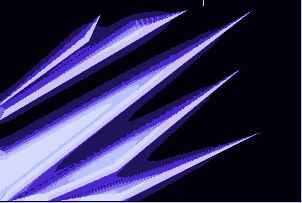 Here is where the crystals take on their 3D look:
Add a layer style to the shape. (Click the little “f” at the bottom of the layers pallette)
Choose bevel and emboss.
Technique:Chisel soft
Increase the depth and size until you are happy with the result.
Change the gloss contour , uncheck global light and change the altitude to 7
Step 9
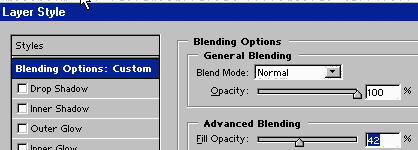
 To get the translucent crystal like opacity:
Still in the layer style box. go toBlending options
lower the fill opacity to 42.
Press ok
In the layers pallette, change the blending mode to screen.
Step 10
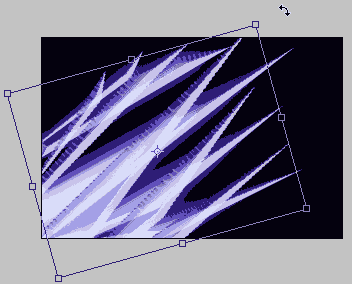
Duplicate the crystal layer.
Press Ctrl/Cmd+T for free transform.
Rotate the new layer, you will see it interact with the other crystal layer.
Step 11
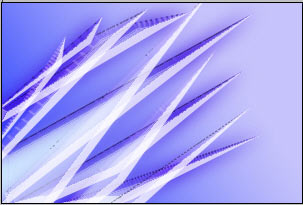
 Time to spruce up the background a bit. I added a linear gradient.
You could do anything you wanted really.
Step 12

 Here is an optional step:
Copy the layer style to the blurred layer. It adds an interesting feel.
If you want you can keep coping layers and rotating them. Experiment and come up with some of your own results.
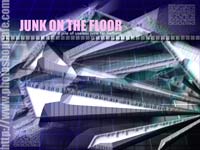
So there you have it. Your own crystals. On the left you will see 2 variations on the theme. Click on them to download the high res wallpapers. Download them, distribute tham freely and load them onto your desktop.
Have fun creating your own crystals. Be sure to show us your finished artwork at the cafe.
Get in-the-know!
Photoshop VAULT
Access valuable Photoshop extras and goodies for free and much more a


Keep growing with Premium Courses
Photoshop 2026 for Digital Photographers
Learn Photoshop properly, from the basics to pro retouching, step by step.
$129.00 · one-time purchase · instant download

Free for you
The Photoshop Vault
Get my free Layer Blending Modes ebook along with dozens of exclusive Photoshop goodies: actions, brushes, presets and cheat sheets.
You're on the list, so your free goodies are waiting for you in the Vault.
Get Free Photoshop Goodies Open the Vault
Creating Starburst glints of light in Photoshop Photoshop Tutorial
Here is a nice effect that looks like the sun glinting off a metallic or shiny surface. This starburst effect even includes... Read tutorial
Turning on lights in Photoshop tutorial
In this Photoshop tutorial, I’m going to show you how to turn on the lights in a photo. I made this car composite where... Read tutorial
Realistic Microphone in Photoshop Photoshop Tutorial
You asked for it and you got it. More Intermediate/Advanced Tutorials Step up to the Microphone please. We are going to create... Read tutorial
Realistic rope in Photoshop Photoshop Tutorial
This tutorial came out of a request from the forum. I was asked if I could make a realistic rope.. Read tutorial
ANIME BEADS Photoshop Tutorial
I received a request from the forum for this effect from one of our Members living in Japan. This is a technique... Read tutorial










I’m looking forward to as much information as I can…