
How to Convert Photos to Black and White in Photoshop, the best way!
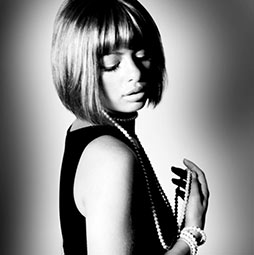
As you know, there are a number of way to convert a photograph to black and white in Photoshop.
- You can convert to grayscale mode (and lose 2/3 of the information)
- You can desaturate the image, this will give you no control over the conversion
- You can use the Black and White Adjustment (A very good method, but be careful not to add artifacts).
- You could do it in Camera RAW, awesome results too.
We are going to do it with Channel Mixer. I’m going to show you why, I believe this is the best method in Photoshop for most black and white conversions.
You can also use 3rd Party plugins like Macphun and Nik that produce excellent results too.
As always, this is my preferred way to work (Although I do use the Black and White adjustment a lot too). Try this out, and see if it fits into your workflow.
See this tutorial on Black and White Noir effect
Thanks for watching,
See you at the CAFE!
Colin

Keep growing with Premium Courses
Photoshop 2026 for Digital Photographers
Learn Photoshop properly, from the basics to pro retouching, step by step.
$129.00 · one-time purchase · instant download

Free for you
The Photoshop Vault
Get my free Layer Blending Modes ebook along with dozens of exclusive Photoshop goodies: actions, brushes, presets and cheat sheets.
You're on the list, so your free goodies are waiting for you in the Vault.
Get Free Photoshop Goodies Open the Vault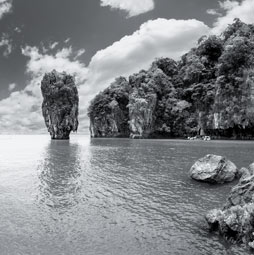

Partial color in a black and white photograph in photoshop
In this photoshop tutorial you will learn how to paint color into a photograph exactly where you want it, while nmaking the... Read tutorial
Hidden Luminosity Mask trick in Photoshop
Use Black and White, to darken and lighten COLORS in Photoshop. How to do color-based luminosity masking in Photoshop Read tutorial
How to Colorize a black and white photo in Photoshop – portrait
How to colorize a black and white photo in Photoshop. How to turn a black and white picture of a person into... Read tutorial
How to add adjustments to multi-layered photos in Photoshop tutorial
How to apply photo adjustments to multi layered images. Tips for clipping adjustment layers to single layers and how to turn an... Read tutorial
Quick Actions in Photoshop, a hidden gem for beginners
Do you use Quick Actions in Photoshop? How to find quick actions and how to use these quick actions on your images Read tutorial











I like how guys from FixThePhoto working with B/W effect in landscape photos. Your techniques look like him
Thanks for the tutorial. Clearly the channel mixer is the best way to convert to b/w, but just curious about converting to LAB and clicking on light. I remember being taught that years ago. Is that any better than the first 3 ways for a quick and dirty solution?
It’s another option (a good option), but less control over specific color regions
Thank you for this tutorial. I tried it with great results! However, I have a question: can an image converted in this way be submitted for printing as part of a black and white publication? The file itself is still RGB even though it looks B&W, but in the actual printing no color inks will be used at all, just black. I am worried that the adjustments will be lost and the printer will be mad at me.
You need to convert it to CMYK or Monochrome (depending on the printing process) before sending to print.
Would there be times you’d use a Black & White adjustment layer over Channel Mixer?
Sure, lots of times 🙂 I like that there are multiple ways to do things in PS