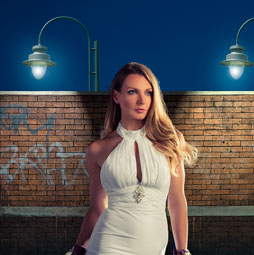
color splash, partial color effect in Photoshop tutorial
This Photoshop tutorial shows you how to make the cool looking color splash effect, also called partial color, spot color color and black and white. Whatever you want to call it, it’s a fun effect to use from time to time and even if you dont need the effect, you will learn a lot about adjustment layers by watching this very quick tutorial.
Start with 2 images that I grabbed from Adobe stock.


I cut out the woman and flipped her, here is a tutorial on how to combine images and cut out a person if you need that step.

Step 1
First thing we want to do is make the foreground photo match background a bit more. Select the top layer.

Grab an adjustment layer. Select Black And White.


This is going to create a black and white adjustment layer.

step 2
Now you open properties panel by double-clicking on the Black & White Layer if it isn’t visible
If you make any adjustments, it will affect all layers.

We want to affect the top layer only.
In the properties panel, click the little square icon. Now the adjustment will only affect the layer directly beneath (our woman layer).

Tip: You can do the same thing (clipping group) in the layers panel. Hold down the Alt/Option key and notice when you put your mouse pointer in the Layers Panel between the two, you see that little arrow.
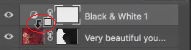
Click.

Step 4
Adjust the different color sliders until the luminosity (blank and white tones) matches the best you can between the layers.

Step 5 matching the color tones
By now the luminosity matches, but not the color, the background has a slight blue tint, lets grab it!
in black and white Properties, Select Tint.
Under Tint click on the tiny swatch

You now want to sample the color to use on the foreground image.

Place the eyedropper (cursor) on an area close to 50% on the background to sample the color.
Step 6
Now we need to match the contrast
Create a new Curves adjustment layer

Click on the clipping icon to only affect the top layer 

You pull the line and adjust the curves, now affecting only the foreground image.
Here I have created a slight S curve. Darkening the shadows and lightening the highlights to increase contrast.

This gives us a moody and mysterious feel

Step 7
Ok, lets apply the color splash effect and just make her hat red. (Very Carmen San Diego)
Click on the mask on our black and white layer.
Make sure black is our foreground color.

Grab a brush. (B key) 
Choose a hard edged brush and paint over the hat and you should see the color appear as you paint on the mask.

And here is the result!

I hope you enjoyed this tutorial and added a few useful skills to your arsenal. Check out more tuts here at the cafe. Signup for our mailing list if you haven’t and never miss a tutorial. Also add a comment below, I’d love the hear your thoughts.
See you in a couple of days with a new tutorial!
Colin

Keep growing with Premium Courses
Photoshop 2026 for Digital Photographers
Learn Photoshop properly, from the basics to pro retouching, step by step.
$129.00 · one-time purchase · instant download

Free for you
The Photoshop Vault
Get my free Layer Blending Modes ebook along with dozens of exclusive Photoshop goodies: actions, brushes, presets and cheat sheets.
You're on the list, so your free goodies are waiting for you in the Vault.
Get Free Photoshop Goodies Open the Vault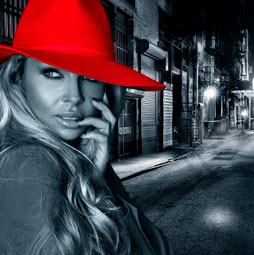

Partial color in a black and white photograph in photoshop
In this photoshop tutorial you will learn how to paint color into a photograph exactly where you want it, while nmaking the... Read tutorial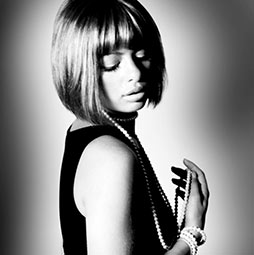
Black and white noir photograph effect in Photoshop
in this Photoshop tutorial, learn how to add a nostalgic Black and White Film Noir look to a portrait. This emulates the... Read tutorial
How to change the color of anything in Photoshop in seconds
You are going to love how easy it is to change the color of anything in Photoshop. Check out how to change... Read tutorial
How to change the color of eyes in Photoshop
Here is a very realistic way of chaging the color of anyones eyes in Photoshop using curves. Colin Smith shows you his... Read tutorial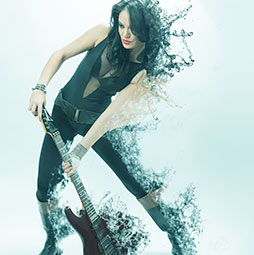
Photoshop Dispersion splatter effect
Learn How to do a splatter, shatter effect in Photoshop tutorial on the dispersion effect. This dynamic free tutorial adds visual punch... Read tutorial