
Ridiculously easy way to remove power lines from a photo in Photoshop
This tutorial shows you the fastest way to remove distractions in photos such as power lines. This works for any linear distraction in a photo. It makes it so fast and simple, you will laugh (or cry at the time you have wasted in the past).
I hope you enjoy this quick little video and get some use out of it.
Remove Power Lines in a Photo with Photoshop
Here’s a photo that I shot recently at fabulous Las Vegas and as you can see, all these power lines are in there and are kind of getting in the way of the photo. Not only am I going to show you how to quickly remove these lines. I’m going to show you how to do it non-destructively.

Step 1.
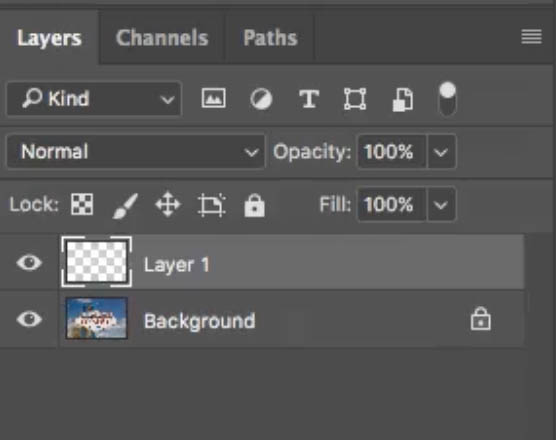
Go to our layers panel, create a new layer. You can name it if you want. We will be working on this new layer.
Step 2.
Grab our Spot Healing Brush. go up to the top, turn on Sample All Layers. This will enable us to clone on to the blank layer.

Make a brush size about the size of the power line and you can make it smaller by hitting the left bracket or larger by hitting the right bracket.
Step 3.
Now here’s the tip: If you Shift Click, you can draw in a straight line. This works on any brush tool including the Spot Healing Tool!
So here’s the trick to it though. Click and Hold. Now hold down the Shift key. Now I’m just going to release everything, but keep holding down Shift. Move over to the end of this line, and then, click, and notice what it does is it creates a line in-between and gets rid of the power line.
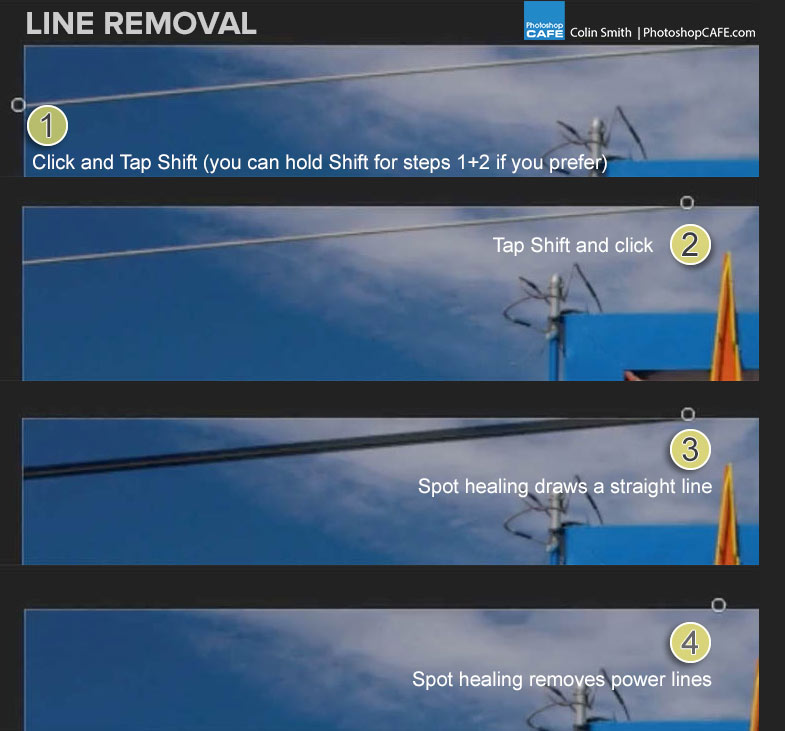
When we start a new one, you don’t want to Shift Click because if you Shift Click notice it draws a line from the previous destination. So what you’re going to do is you click, hold down that mouse or that Wacom pen, and then, click the Shift key, release the Shift key.
And you can see how easy it is to do this. It’s almost laughable, so if you’ve been cloning this out by hand, you’ve just found a new and better way of doing it.
Step 4.
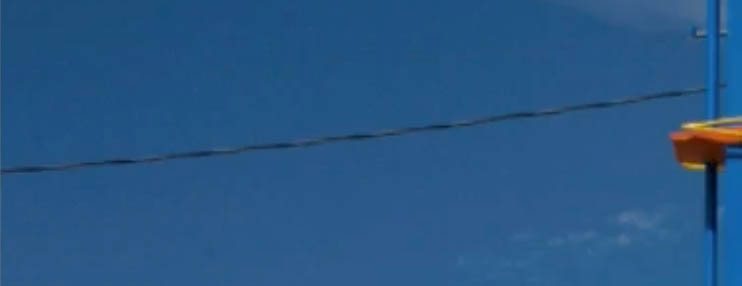
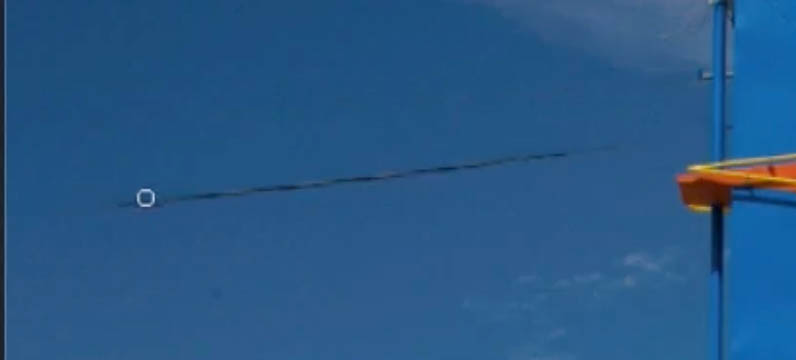
So what do we do if we get to these ones that are a little bit curved? Well, let’s do the same technique and you might have to go across a couple of times; it’s not a problem.

So I hope you enjoyed it. If you did, hit that Subscribe button right now, become part of the Cafe crew. I’ve got a new Photoshop or Lightroom tutorial every week, and also the occasional gadget video including drones and things like that. Share this with your friends, add a comment. Let me know what you think about this if you like this technique. And, by the way, when you do this in Camera Raw or in Lightroom, the same thing works with the Spot Brush. So, thanks guys for watching, until next time, I’ll see you at the Cafe.
Colin

Keep growing with Premium Courses
Photoshop 2026 for Digital Photographers
Learn Photoshop properly, from the basics to pro retouching, step by step.
$129.00 · one-time purchase · instant download

Free for you
The Photoshop Vault
Get my free Layer Blending Modes ebook along with dozens of exclusive Photoshop goodies: actions, brushes, presets and cheat sheets.
You're on the list, so your free goodies are waiting for you in the Vault.
Get Free Photoshop Goodies Open the Vault
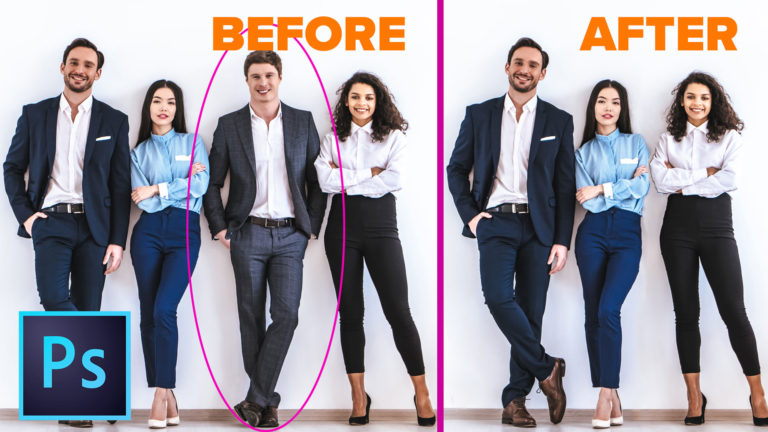
How To Remove Anything from a Photo in Photoshop
This Photoshop tutorial shows you different tools and techniques to remove anything from a photo. We will remove braces from teeth, make... Read tutorial
Photoshop Tutorial: Blend If for cutouts in Photoshop
Dave Cross shows how to use the Blend if sliders in Photoshop. This enables you to cut out objects and do non... Read tutorial
Frequency Separation retouching tutorial in Photoshop
Frequency Separation allows retouchers to separate the high frequency pixel information from the low frequency pixel information in images and make edits... Read tutorial
How to retouch eyes in photoshop. Ultimate eye retouching tutorial
Learn how to realistically retouch eyes in this photoshop tutorial. Clean up the whites, remove veins, enhance the iris and pupils and... Read tutorial
How to Retouch a face in Photoshop, workflow tutorial
How to retouch a face in Photoshop. Learn how to retouch skin, enhance eye and do contouring to define the shape of... Read tutorial









This is amazing advice.
Thank you ever so much for the tip. Especially knowing that this technique works for all PS brushes is fantastic! Thanks again
you’re welcome
When I use this technique on curved lines I do the shift-click in successive small steps. If the line is very curved I use baby steps. 🙂
Although I already knew about this method, I learn a lot from your
tutorials. Thanks, Colin, and a happy new year to you and yours.
thanks for the nice comment. Its probably quicker to use the spot healing brush in freehand mode for very curved lines?
Yes. Although I’m quick with the shift-click technique, if it’s really curvy or swirly, I would just freehand it. I can’t tell you how many times I start out with one method and halfway through it occurs to me that another approach would have been quicker and easier! So many ways to do things in Photoshop!
Brilliant, I have only been a member for 5 minutes, & learned something new already.
THANK YOU! I had no idea how to do this and doing it as a straight line was the icing on the cake. Thanks so much for sharing!
Is it possible that this changed with Photoshop 2020. As I press the shift key it automatically turns into the handtool
It works normal for me in 2020, try resetting your preferences, or go to your keyboard shortcuts and fix it
Have always wanted to know how to do this – AWESOMELY SIMPLE!
Thank you!!!
Colin,
I have followed your 4 step process. But when I do the final step, the wire are still there. I have repeated the process endless times to no avail. I also have photoshop 2020. I am in my 70’s and not sure how to reset preferences or where to find keyboard shortcuts. I am totally frustrated!,
Make sure Sample all layers is on
very good information. thank you