
Top 5 new features in Photoshop CC 2018
What’s new in Adobe Photoshop CC 2018?
Adobe has just announced a big update to Photoshop, this is Photoshop CC 2018. In this tutorial I’m bringing you the top 5 new features in Photoshop CC 2018. I’ll also mention other top features at the end of this article. Stay tuned here at photoshopCAFEfor more info on CC 2018 too.
Here are 5 of my favorite features in Photoshop CC 2018 for photographers:
Feature 1: Lightroom Photos
By clicking on LR Photos inside the welcome screen of Photoshop, your Lightroom photos will be synced with your Lightroom photos in the cloud.
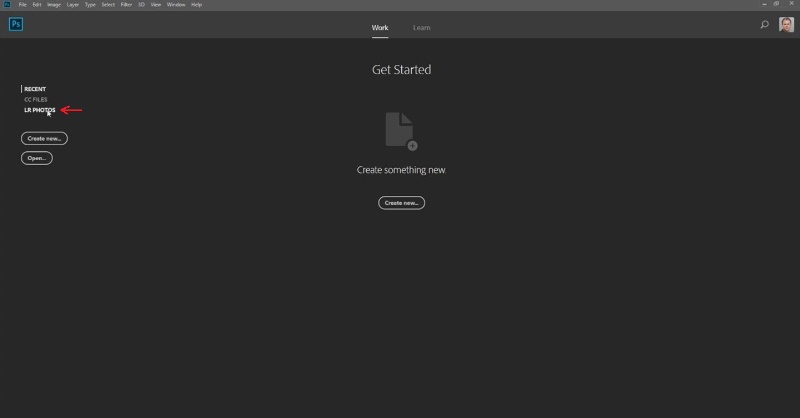
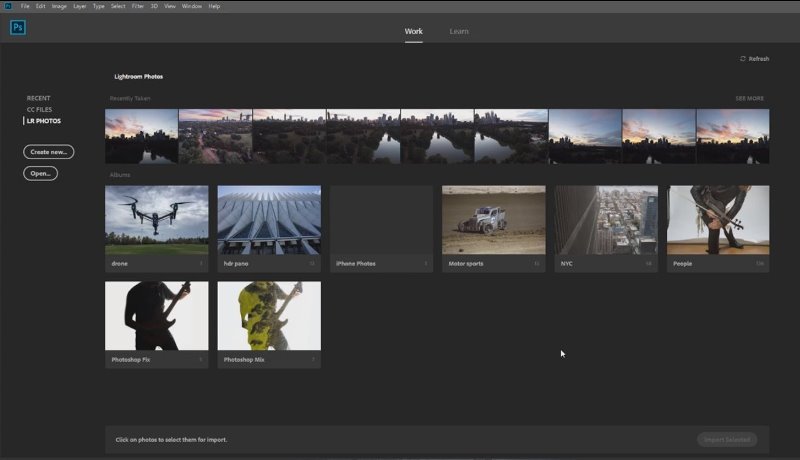
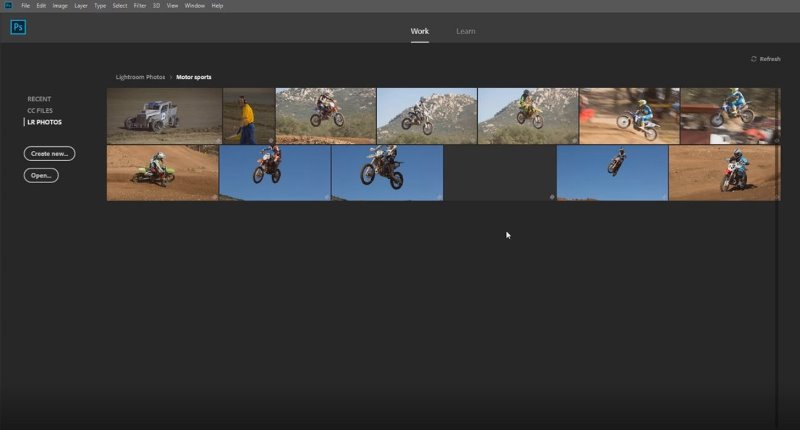
Now you can view your photos that you’ve got synced on Lightroom CC and access them right here within Photoshop. Any changes will also be updated to the cloud.
Feature 2: Range Mask in Camera Raw
Let’s open one of synced photos inside of Photoshop, inside of Camera raw.
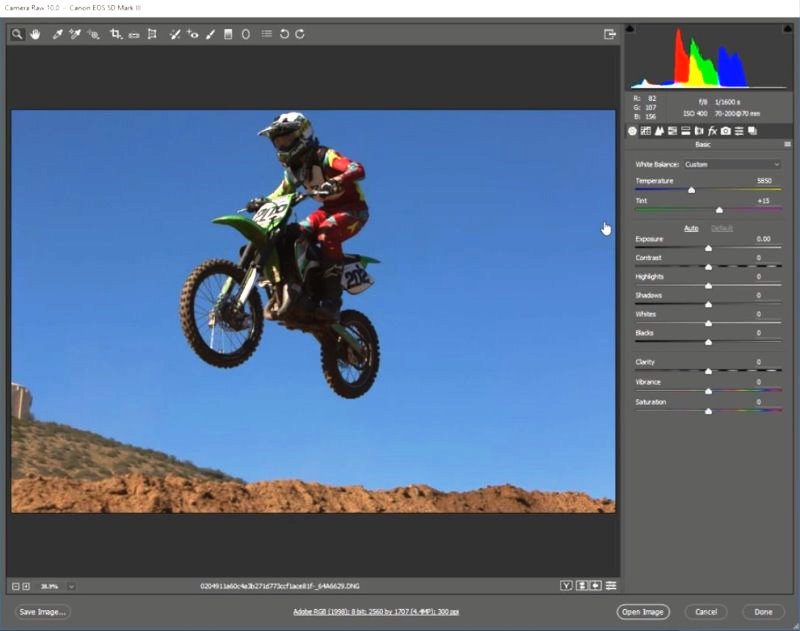
We want to make the motorcycle brighter, but at the same time, we want to make background darker.
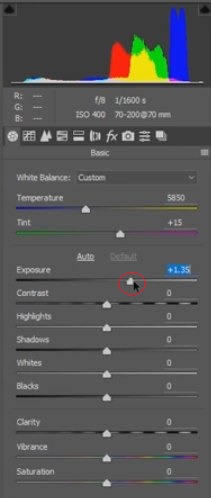
We can use Exposure to make the photo brighter or darker.
Once you’ve made the whole photo brighter, you now want to darken the background only.
Of course, you could use Adjustment Brush (quick select brush).
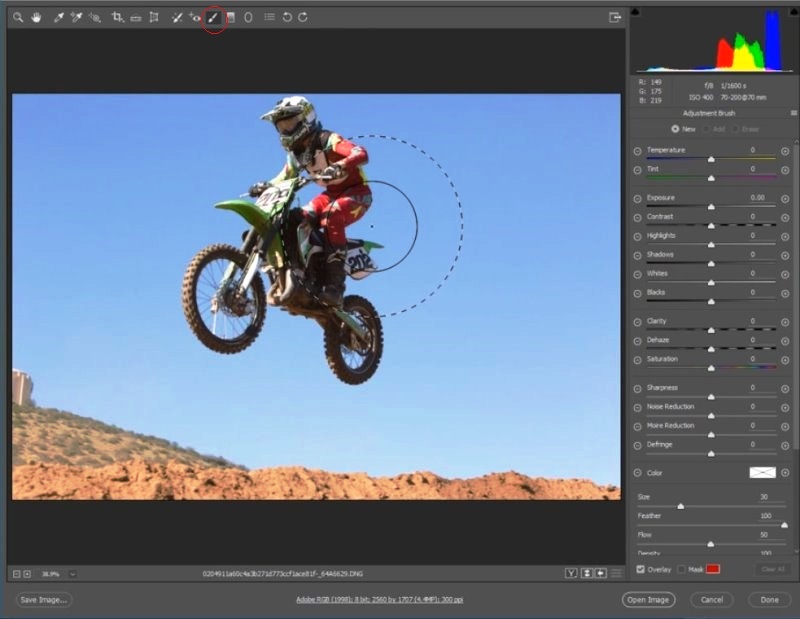
Here’s where a new feature comes into play.
View the mask and paint the quick selection over the whole area.
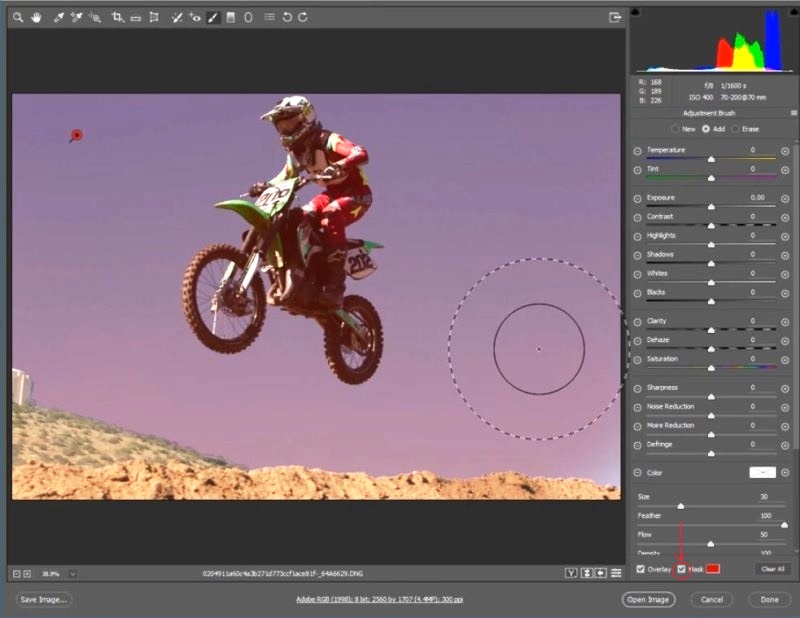
You should now scroll down and turn on Auto Mask.

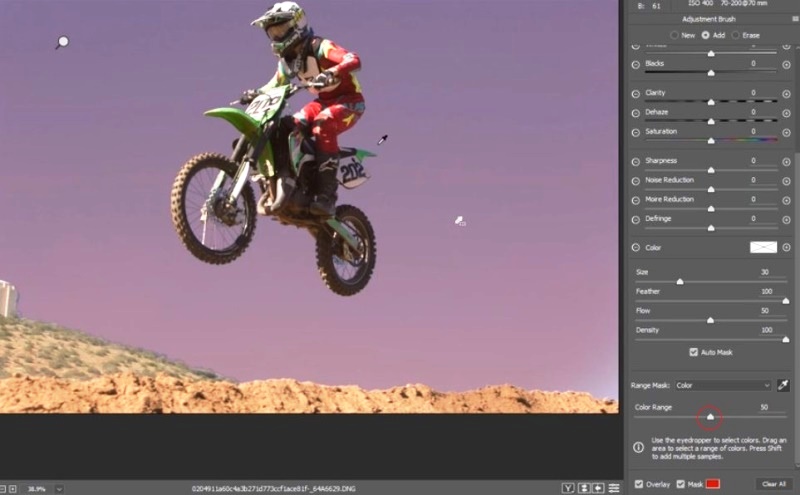
You will see some new options called Range Mask. Color and luminosity can now be used to get a much better selection than possible in the past. (This feature is in Adobe Camera Raw and Lightroom Classic. (See the end of this article for more on Lightroom “Classic”)
Under Range Mask choose Color.
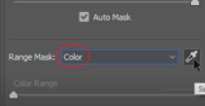
Grab the eyedropper

Use the eyedropper to select the area on the background, this is the blue color we want to isolate (its blue under the mask)
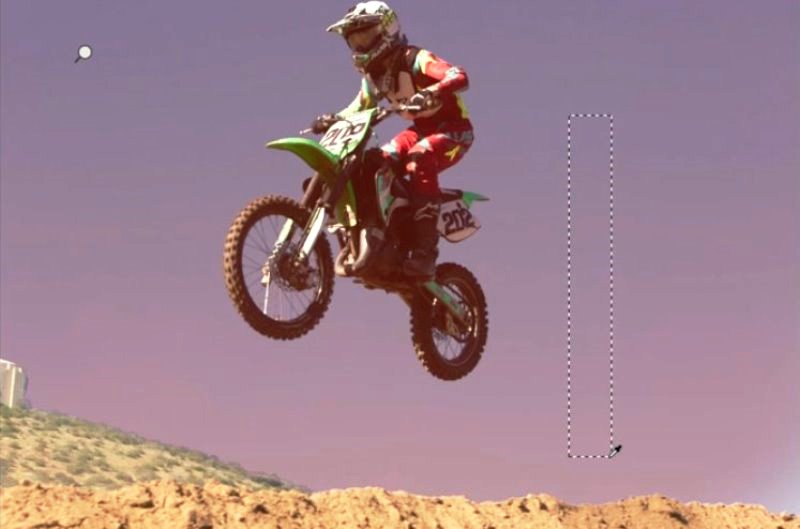
The Motorcycle area now becomes deselected.
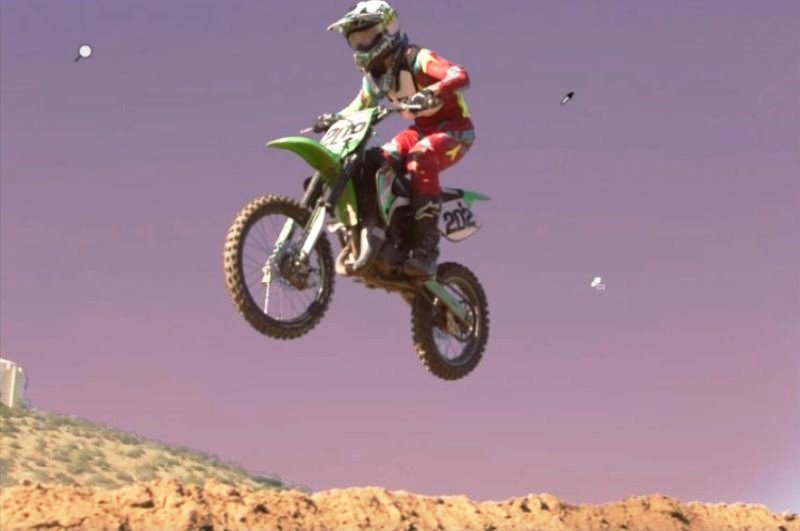
You can also adjust color range by tweaking it.
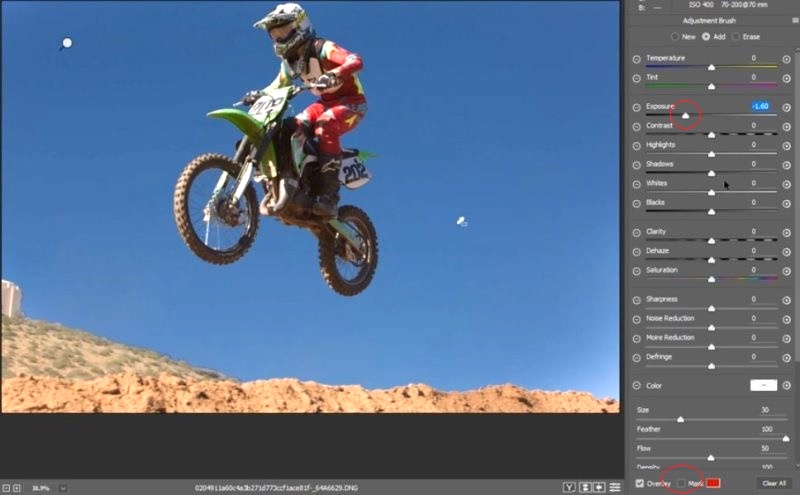
Turn off Mask.

Turn exposure down.

Now you can darken the sky without effecting the motorcycle, thanks to better masking.
Feature 3: An improved select and Mask workspace
Here’s a photo to work with.

Grab the quick select tool. 
Make a selection around the model.
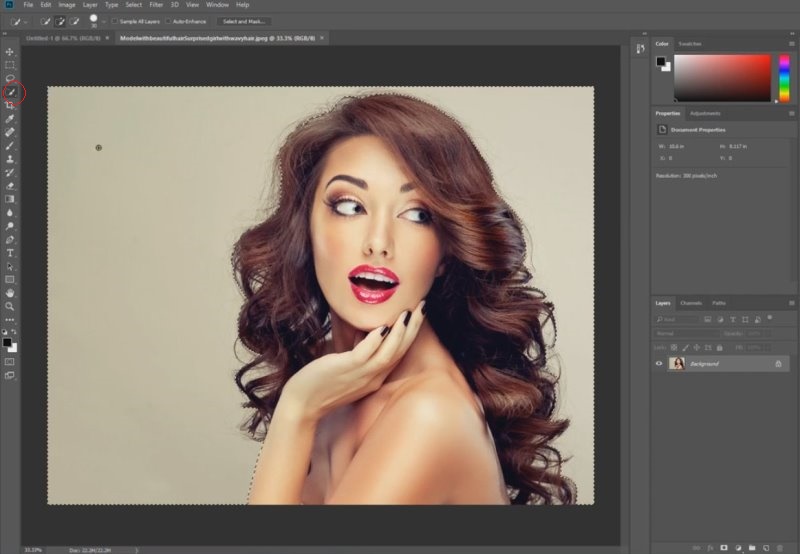
Choose select and mask.

Now you’ll be presented with this.

Inverse the selection by clicking Invert.
Decrease the transparency a little bit.
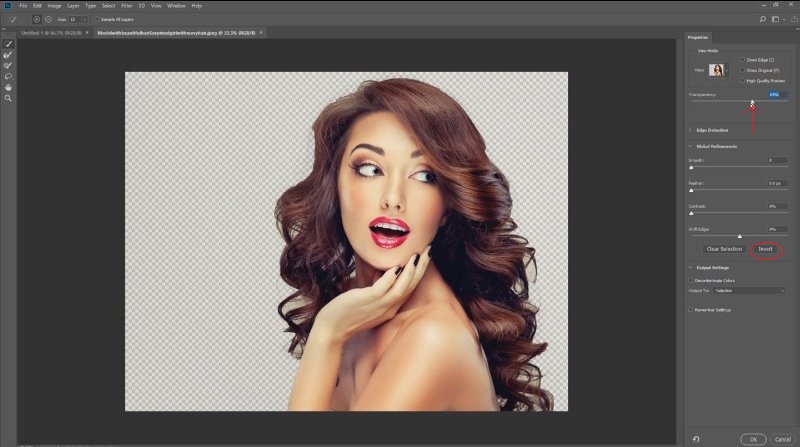
lets take a peek at the selection edge. Select Show Edge.
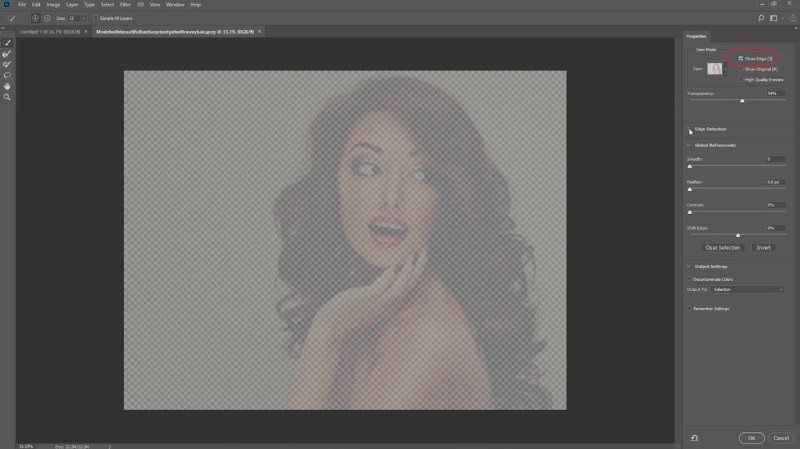
Increase the radius until you see an outline.
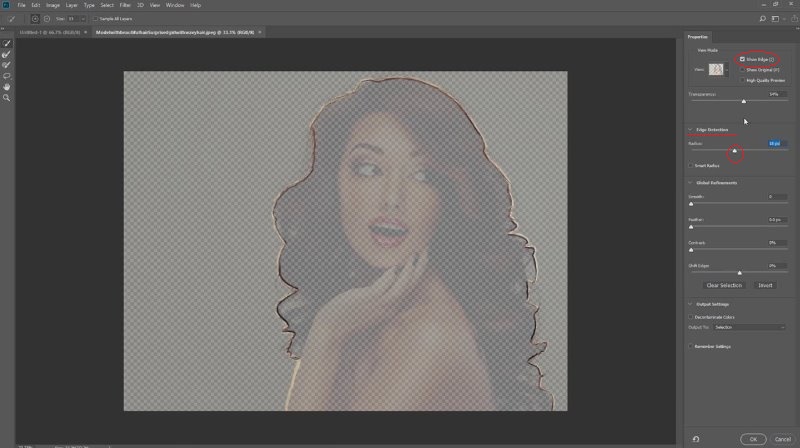
Turn off Show Edge.
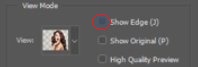
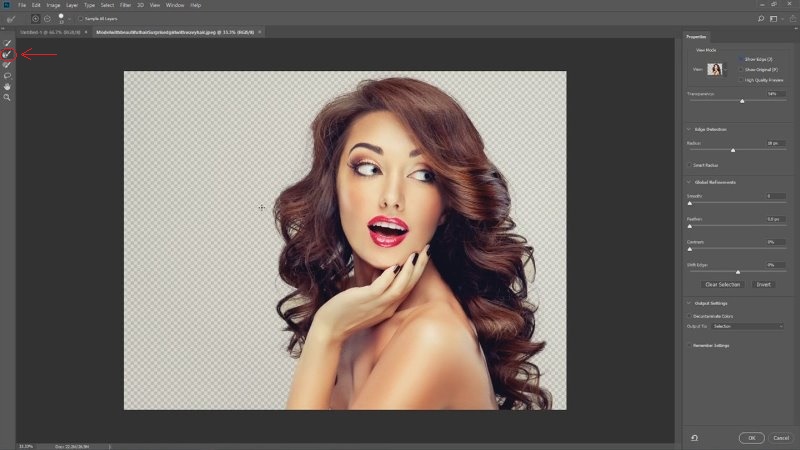
Grab the refine mask tool 
Use this tool to go all around the hair on the model.
Check Decontaminate Colors.
Make sure that the “Output To” is set to New Layer with Layer Mask.
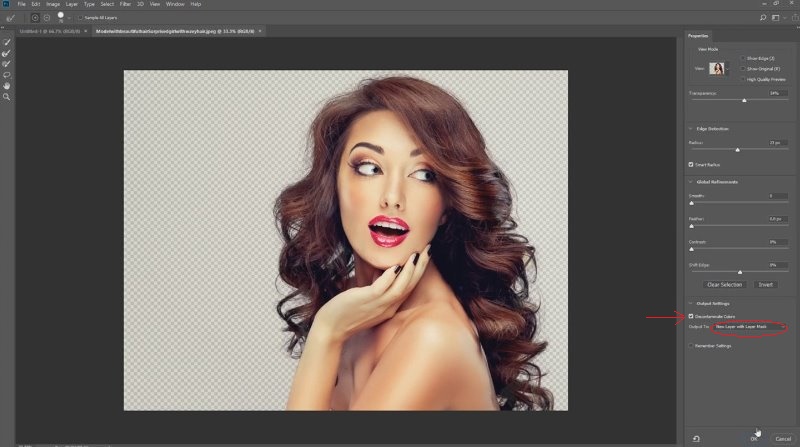
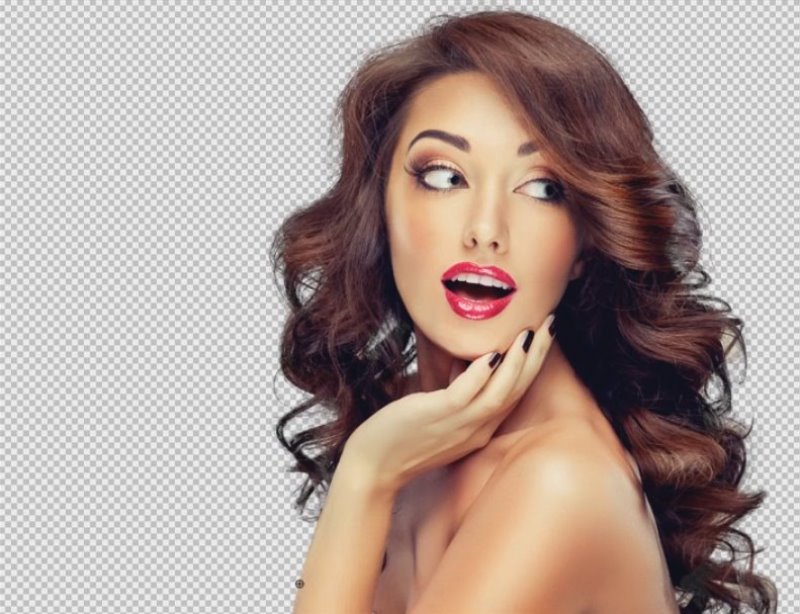
Click OK.
Now you will be able to see that hard edges and hair look much better than with the previous version. In fact the Select and mask was pretty bad on the previous version, but now, I’m happy to say, it’s much better in CC2018!
Feature 4: Intelligent Scaling
We have the same picture in two separate documents.
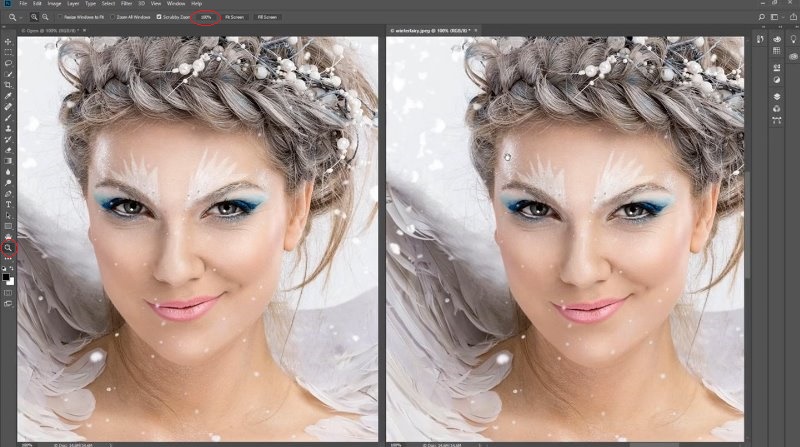
First we’ll set both of them to 100%.
Select the left image and choose Image>Image Size
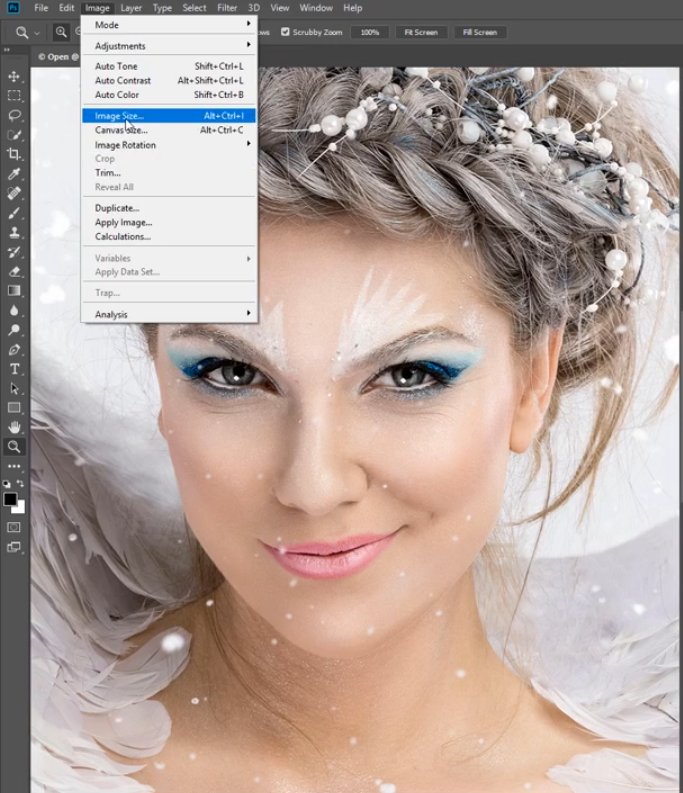
Scale up by 300%.
Under Resample we’ll use Preserve Details (enlargement).
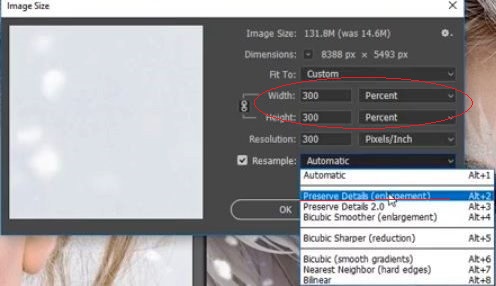
Preserve Details (enlargement) was actually the best that we had before with Photoshop resizing images.
Click OK to apply the settings to the left photo.
Select the photo on the right and choose Image>Image Size.
Scale up by 300%.
With this image, under Resample we’ll use Preserve Details 2.0. This new feature uses machine learning or deep learning or artificial intelligence to actually recompose a photo.
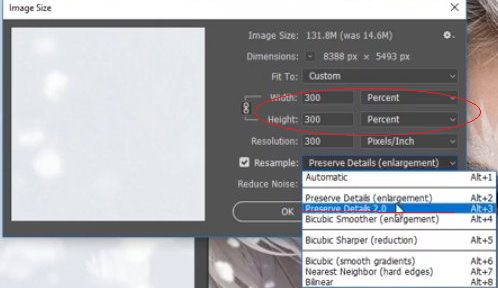
Click OK to apply the settings for the right image.
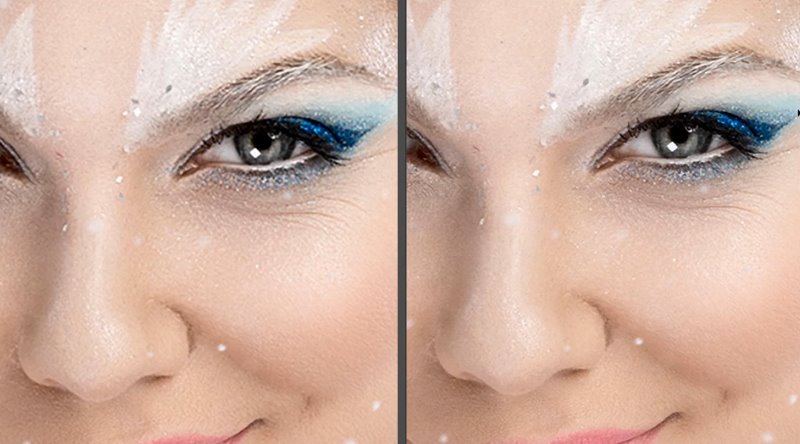
Now both of our images are scaled up by 300%. With the left image we used Preserve Details (enlargement). With the right one we used all new Preserve Details 2.0.
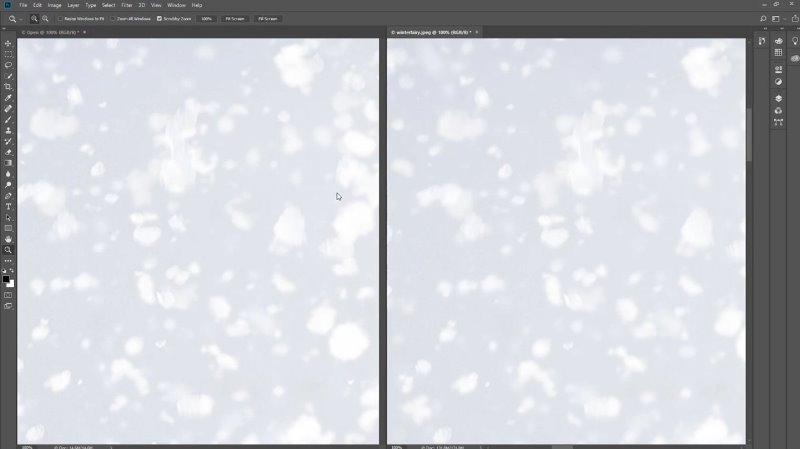
Select the left image.
Hold down the H key.
Click and drag.
Use the Birdseye to get a close-up.

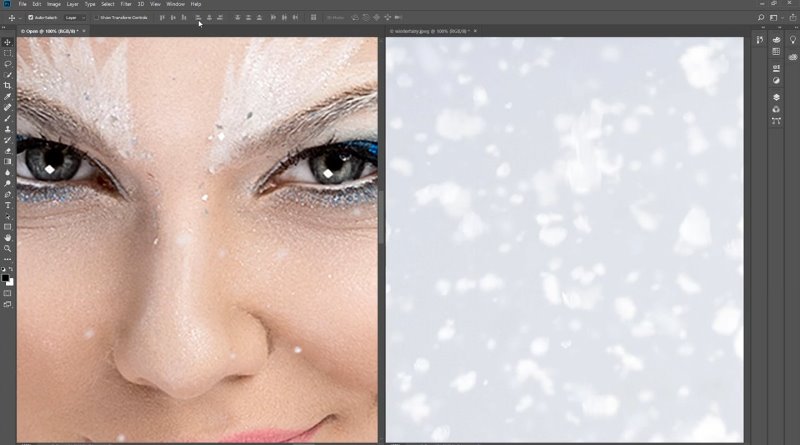
We have to bring the right image to the same size so we can make a comparison.
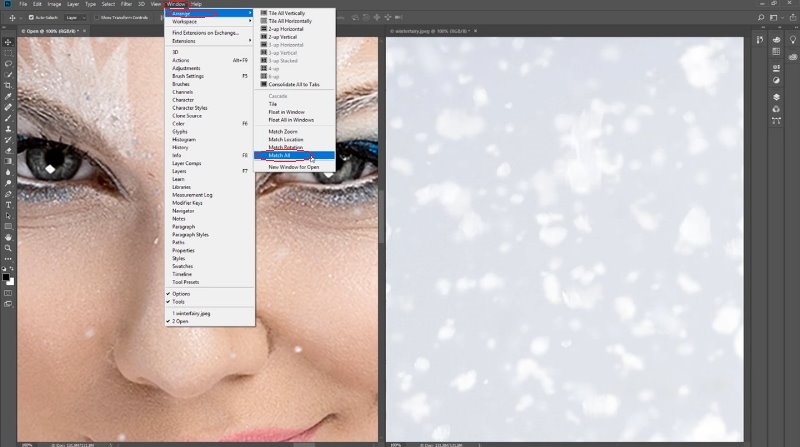
Choose Window>Arrange>Match All
Now you have two images side by side and you can compare the details.
Maybe the biggest difference can be seen around the eyes with the right image having more distinct details.
Of course, the real difference can only be spotted when using higher magnification.
Feature 5: Ability to work with 360 degree photos
Here is a photo taken by Russel Brown. This is shot with a Ricoh Theda on top of his DJI Phantom drone.
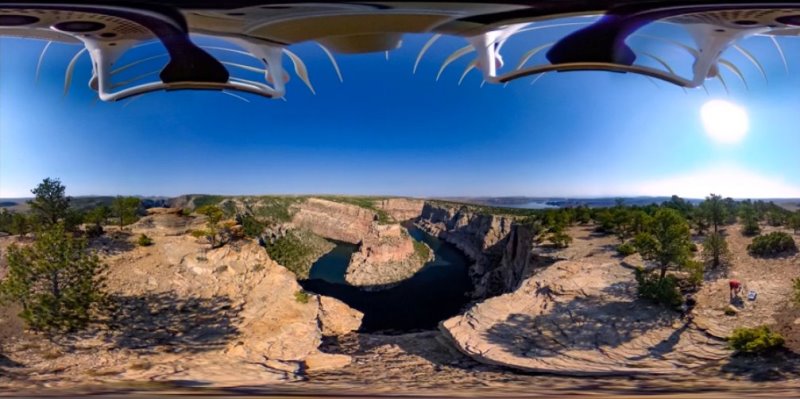
We now have the ability to work on this inside Photoshop
Let’s turn this into an actual panorama.
Go to 3D>Spherical Panorama>New Panorama Layer From Selected Layer(s)
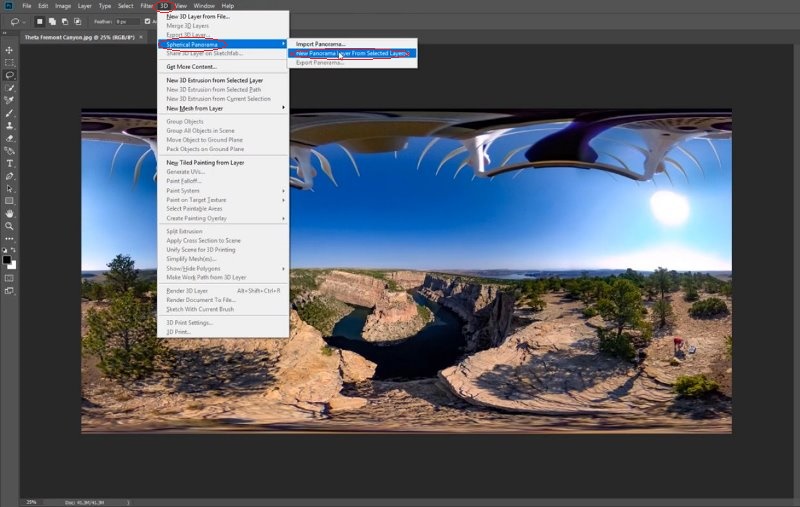
We’ll now have an actual panorama that we can pan around and see everything.
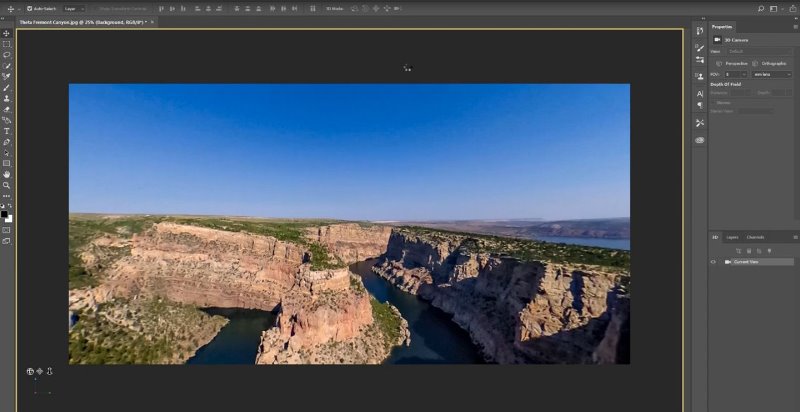
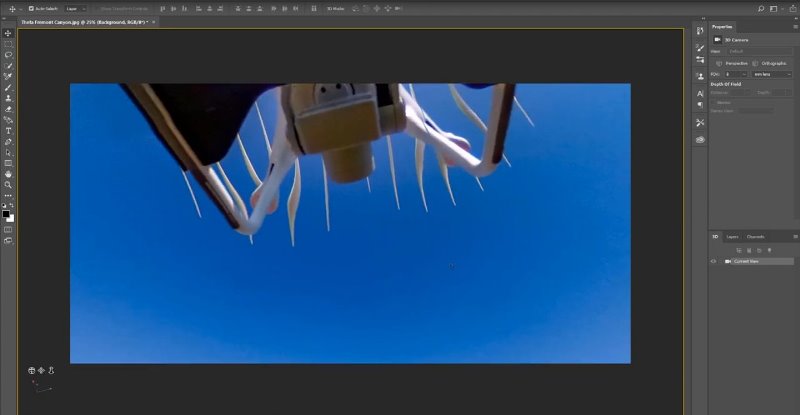
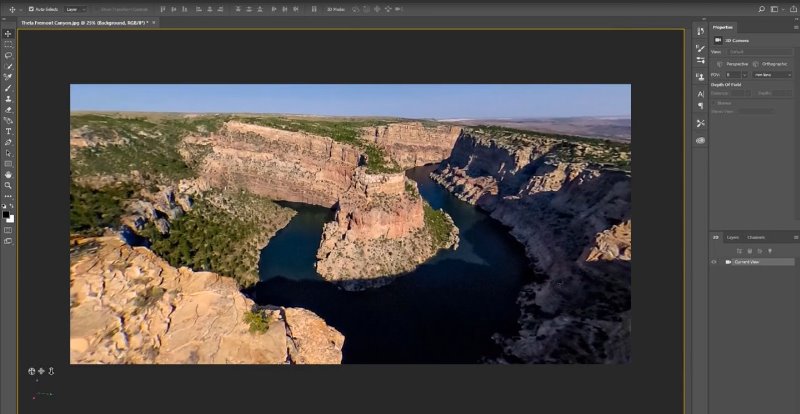
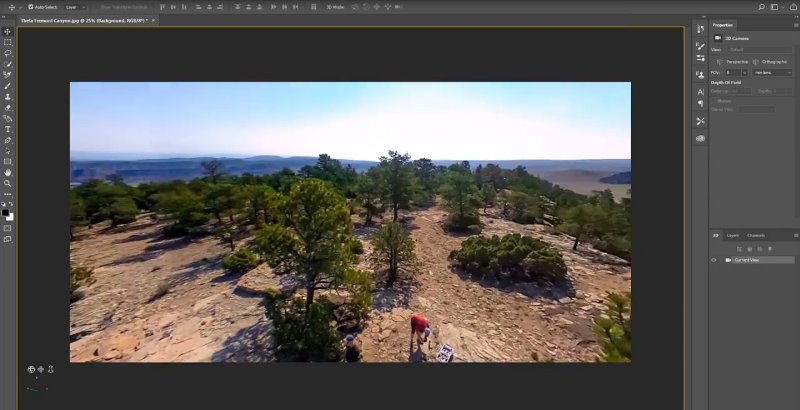
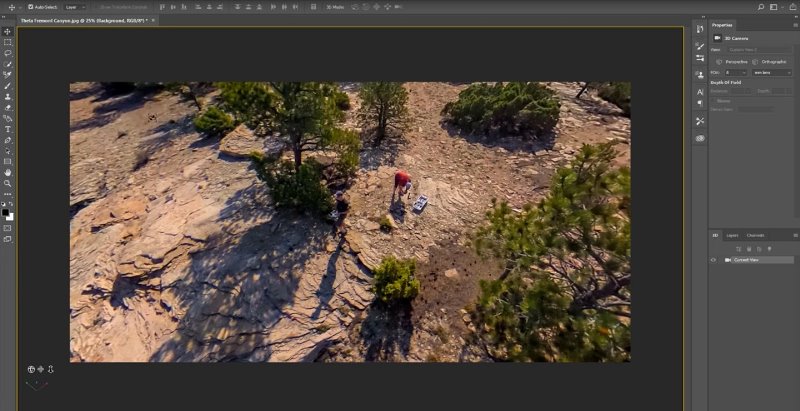
Let’s take this drone out of the shot.
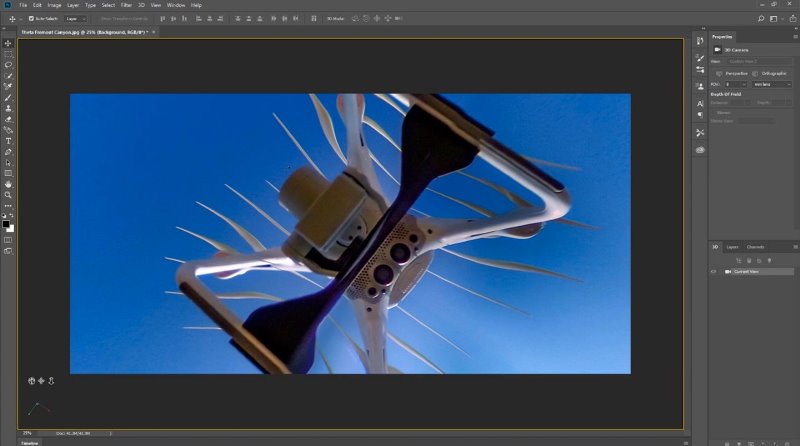
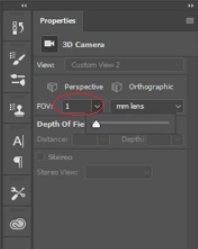
First, set Field of View (FOV) to 1.
Grab a selection tool. 
Make a selection around the drone.
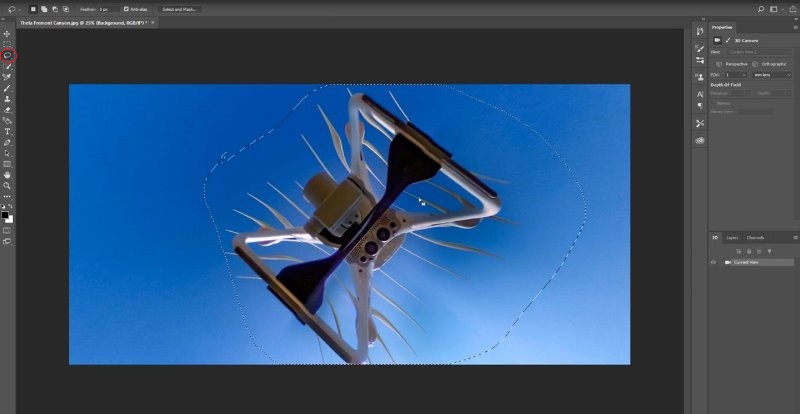
We will use Content-Aware fill.
Click Shift + Backspace or Shift + Delete for Mac
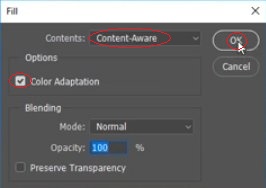
Make sure Color Adaptation and Content-Aware are selected.
Click OK.
The drone is gone.
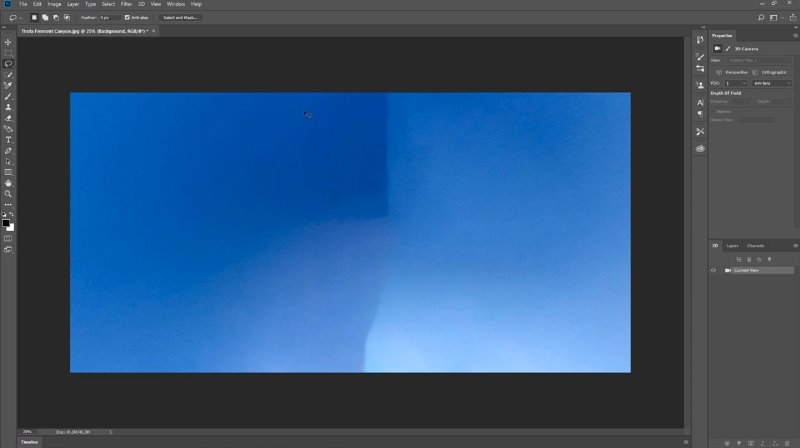
We still need to get the remaining parts of a drone removed.
Move to the remaining part.
Grab the lasso tool .
Make a selection around the remaining part.
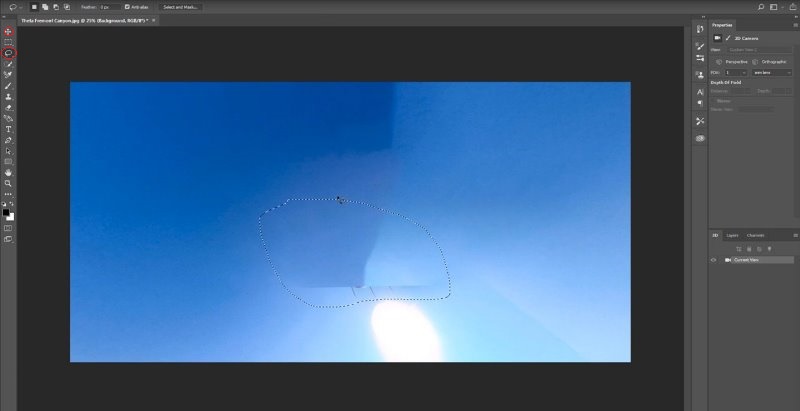
We will once again use Content-Aware fill.
Click Shift + Backspace or Shift + Delete for Mac
Make sure Color Adaptation and Content-Aware are selected.
Click OK.
The drone is completely removed.
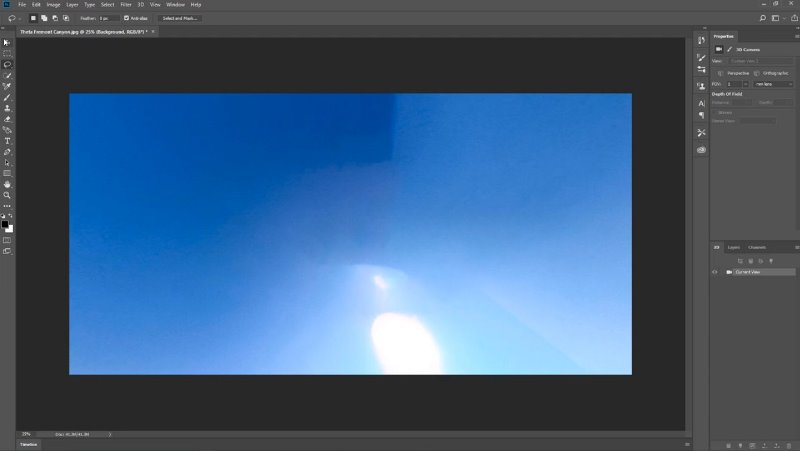
Now that the drone is removed, people can move around all over the photo and enjoy the panorama without a drone above their heads.
It can also be exported under Go to 3D>Spherical Panorama>Export panorama
This panorama can be imported into Facebook and displays as a VR 360.
Watch this video to see the whole process
Making 360 panorama VR images in Photoshop CC 2018
Other features of mention in Photoshop CC 2018.
There are a lot of other new features and I will be covering them soon.
Of note
- Drawing: Symmetry tool that enables you to draw mirrored in several ways.
- (One of my favs) Adjustable path outline, make it thicker and change the color, so you can see it while working with the pen tool.
- The ability to copy and paste layers with their attributes.
-
Curvature tool in pen tool: a more natural way of drawing curves.
-
Brush Presets, now retaining color and other properties from tool presets
-
brush smoothing, smoothens out the jitters while drawing freehand 🙂
-
variable font, adjust all the properties of a font on the fly, this was in the sneaks at Adobe MAX last year.
- more, stay tuned!
Big changes to Lightroom!
The Lightroom we all know has been renamed to Lightroom Classic. Don’t worry, it’s not going away. In fact it has major speed boosts in this release as well as The range masking feature.
What about Lightroom CC? Lightroom CC is now a suite of products to support a cloud based mobile workflow. There are the mobile apps on the phones and tablets that you are familiar with already. Now a new desktop app has been added to the suite. This dektop app syncs with the the mobile apps and stores all the photos in the cloud. (It can still store them on the desktop too). What this means for you is your photos anywhere, including in Photoshop as you saw with the first feature. Ill give you more info about Lightroom CC soon!
Don’t forget to check out the other tutorials I have, a little bit more in-depth on the new features here, inside of Photoshop CC 2018.
If you like Photoshop and Lightroom tutorials, make sure you subscribe to our newsletter and then you will never miss any one of my tutorials.
Let’s get a discussion going, add a comment. What’s your favorite feature, are you excited about CC 2018, do you love Photoshop? If you do, let me know, if you hate it, let me know!
Until next time, I’ll see you at the Cafe.

Keep growing with Premium Courses
Photoshop 2026 for Digital Photographers
Learn Photoshop properly, from the basics to pro retouching, step by step.
$129.00 · one-time purchase · instant download

Free for you
The Photoshop Vault
Get my free Layer Blending Modes ebook along with dozens of exclusive Photoshop goodies: actions, brushes, presets and cheat sheets.
You're on the list, so your free goodies are waiting for you in the Vault.
Get Free Photoshop Goodies Open the Vault
New Photoshop features Photoshop 2025 April update
7 best new features in Photoshop 2025 April update Read tutorial
New Features in Photoshop 2026 Jan 26 update
Photoshop’s January 2026 update is here, what’s new? Read tutorial
New in Adobe Camera RAW 17.3
New Features in Adobe Camera Raw 17.3 ACR in Photoshop 2025 April update. Landscape Masks and reflection removal updates Read tutorial
What’s New in Photoshop 2026 (Full Release Overview)
Explore the top new features in Photoshop 2026, Full release Read tutorial
Adobe Camera RAW 17 in Photoshop 2025 new Features
New Features in ACR 17 Adobe Camera Raw 17 in Photoshop 2025 Read tutorial












Waw great… im still using photoshop sc6 hehehe…
I have a problem with warping. I used to be able to warp items e.g. text, pictures, etc easily in about 2 steps, now it’s a big deal about 10 steps or so with the perspective warp. I’ve gone through tutorials and that hasn’t helped. I’m disappointed in some of the changes because it’s added more steps. I’m a novice user and have to learn things on the fly. I like the old versions.
The warp feature is still there, you don’t have to use perspective warp
what can you do when the sky leaves those kind of waves/lines when the gradient color its too hard? like in the photo of the bike and the drone?
I think you are referring to prop shadow, make sure you don’t have sun directly behind you when you shoot
Don’t forget to share your images with the community on our facebook group https://www.facebook.com/groups/53878338135/