
How to create a neon glow in Photoshop, layer style and font included.
How to make a neon glow in Photoshop tutorial
I’m going to show you how to create neon text in Photoshop using Layer Styles. There are a couple of cool Layer styles tips you will pick up in this tutorial.
Download assets
- You can get the font here (I offer no support for the font, I’m not affilated with the creator in any way).
- Download the photo here
- Extra bonus, here is the layer style ready for use.
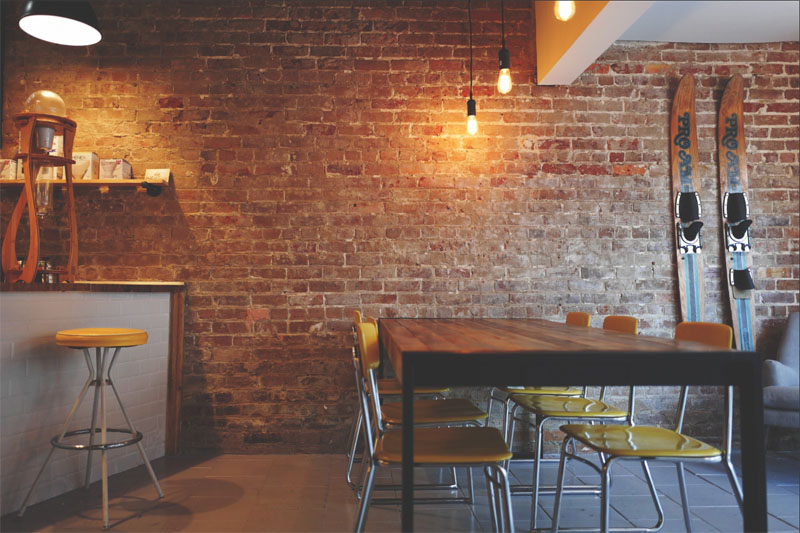
Here we have a nice brick wall to put it against.
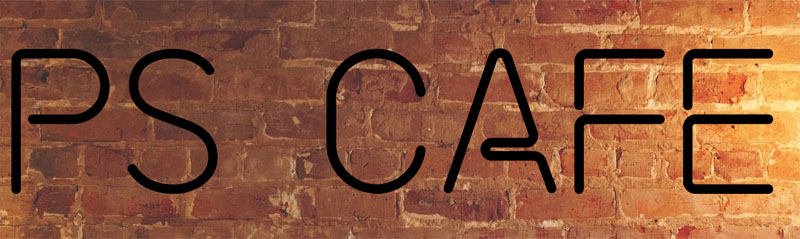
1. Let’s add some type, with the type tool.
Type in PSCafe. or whatever you want to say. Use the options bar at the top to change the type size.
I found a free font called Neon Tubes 2 (link at top)

Zoom into 100% by double click the magnifying glass. Hold the space bar and drag to position your window.
2. Creating the Neon Effect in Photoshop (Layer Styles)
With our type layer selected, go down to the layer styles where it says fx. Click and choose color overlay.
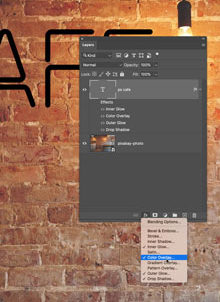
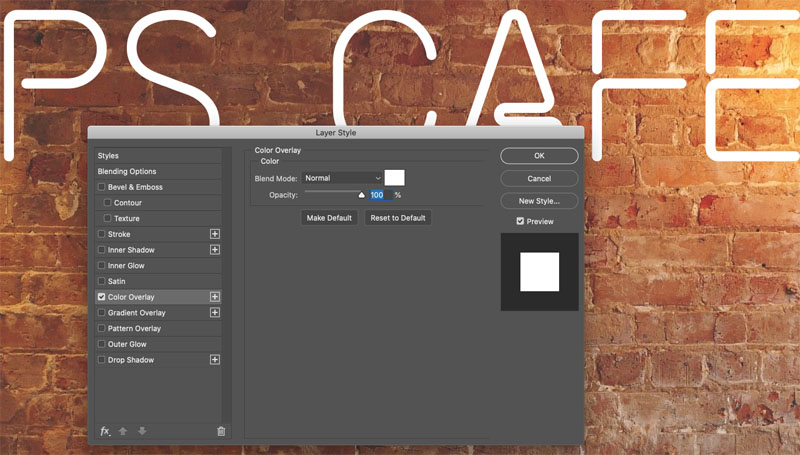
The Layer Effects dialog box will open.
Set color overlay to white by clicking the color swatch. I probably could have just created white text in the first place, but it doesn’t matter.
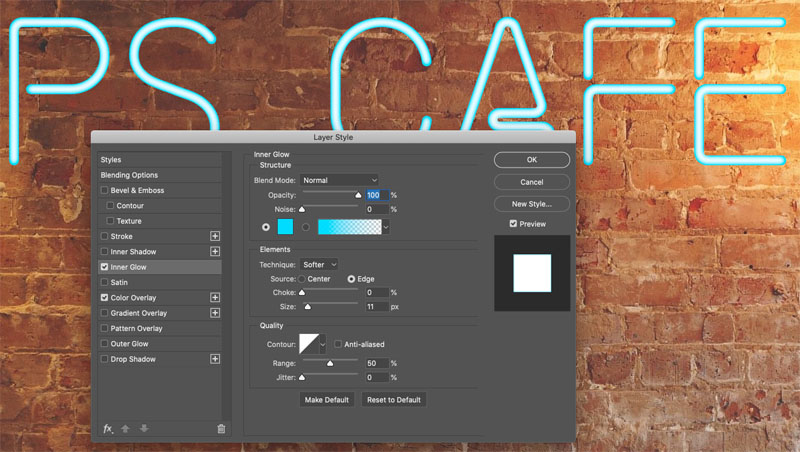
Let’s give this a neon color. Choose the inner glow and click on it to bring up its options.
Choose a color with the color picker, grab a nice neon blue, or choose whatever color you want. It could be yellows, pinks, whatever you want.
Change blend mode from screen to normal.
Adjust the size and turn the opacity all the way up. Now you have two options, center or edge, we’re going to use edge.
We’re starting to get a little neon color around the edges of our type. That’s great.
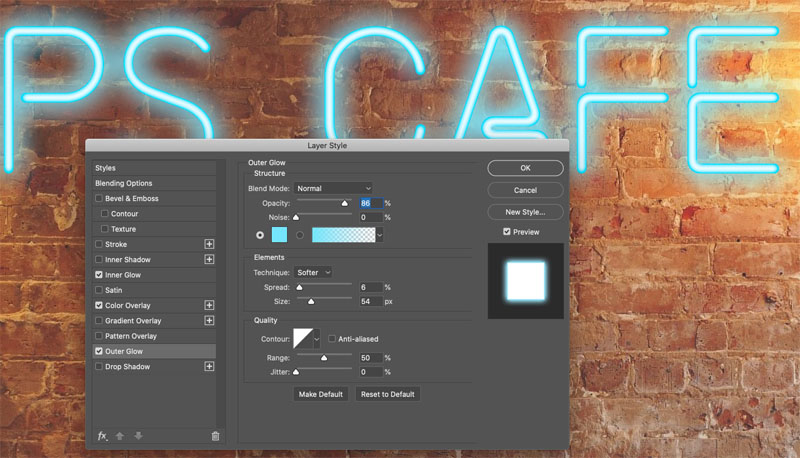
Go down to our outer Glow and give it a bluish color
Choose normal blend mode, and let’s increase our size.
Set opacity to 86
We have a nice haze. We need another glow on the inside, which is going to give off a brighter color.
Now, notice that there’s only one outer glow option. What do we do?
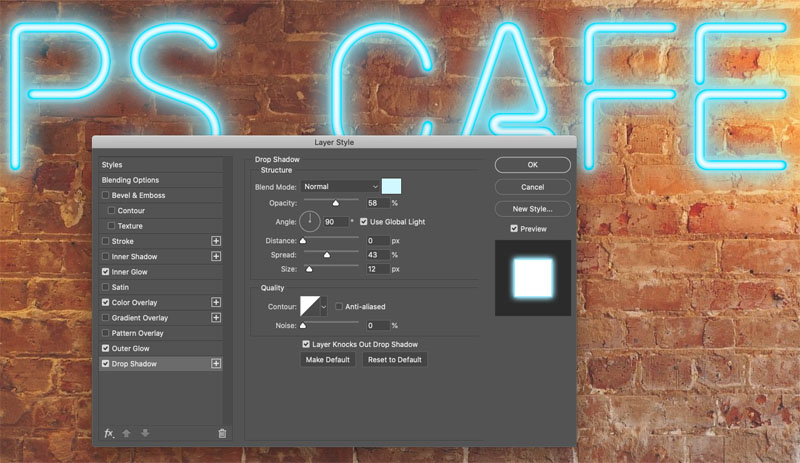
We can cheat, we can use the drop shadow as an outer glow. In fact, it works very similar if we set the distance to zero.
Choose a color. Give it some blue, but not too much.
Turn our capacity up and increase the size. Change to normal blend mode and see how it starts to glow.
Bring the size down just a little bit and increase our spread. As we increase the spread it makes it thicker and soften it with the size and notice a little bit goes a long, long way with that.
Finally adjust the opacity.
We’ve got our neon tubes going, let’s give this a little bit of a glow around the background area.
Grab our rectangular Marquee tool and make a rectangular selection around the area of the neon.
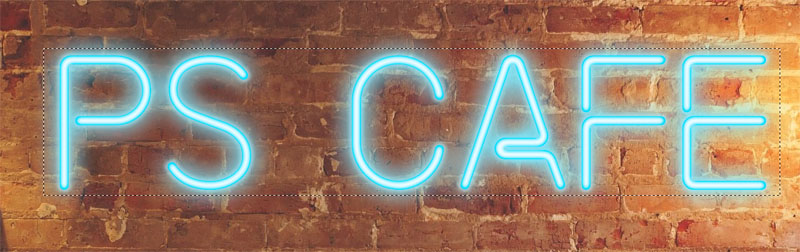
Select>modify>Feather and make it really big. I used 177, it’s going to create a big soft edge.
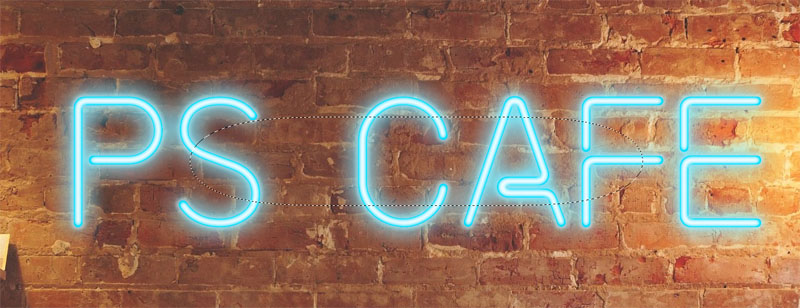
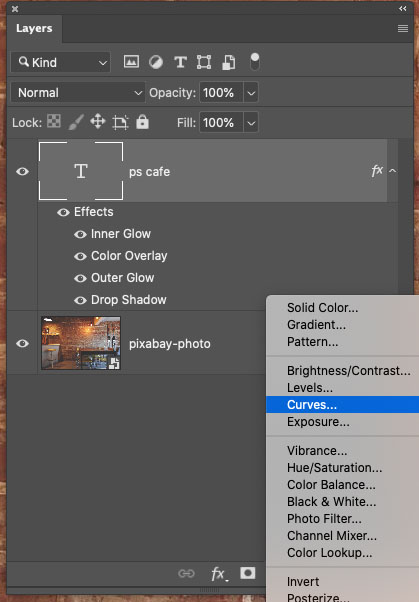
Click to add an Adjustment layer. Choose curves.
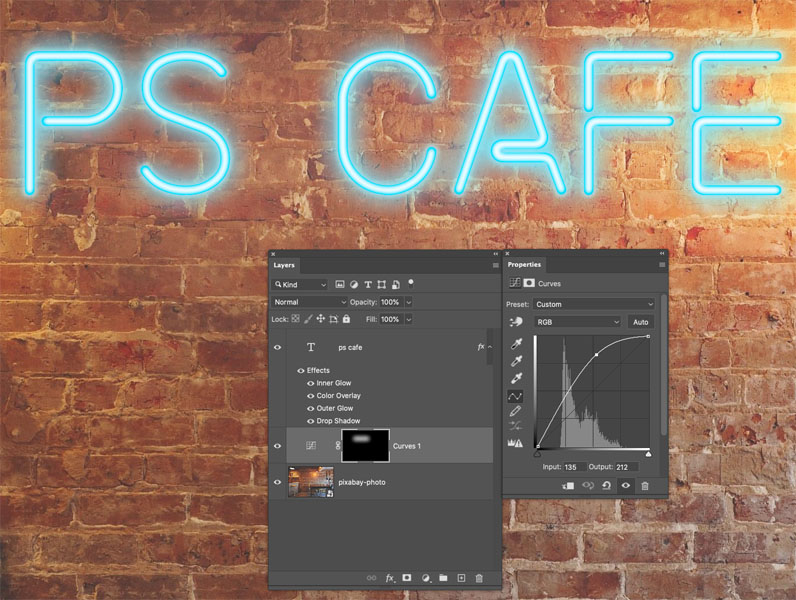
Push the curves up in the midtone area.
And if you wanted to do a little bit of the color, chooose the Blue channel (Click RGB and change to Blue) and boost it.
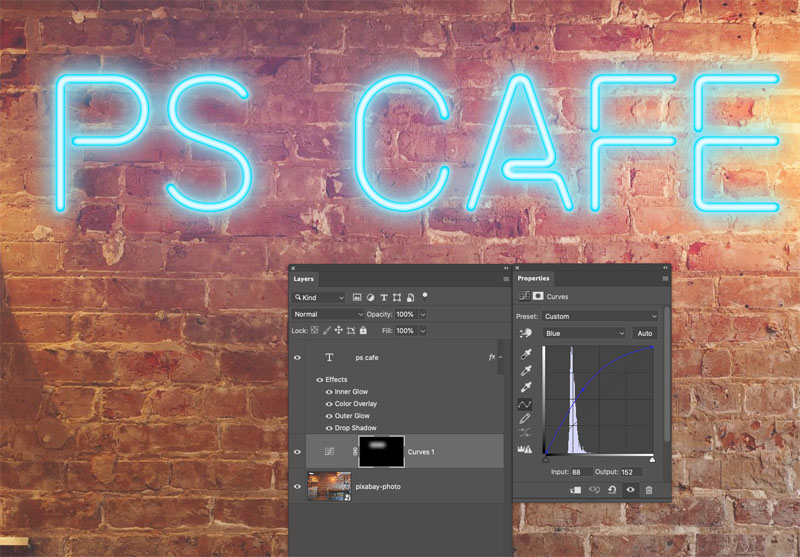
Grab the Red channel and reduce it a little.
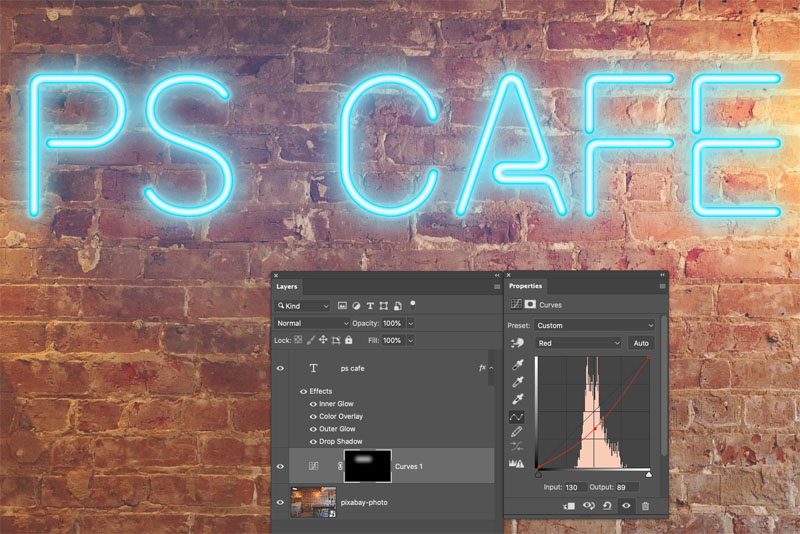
One of the neat things about this effect is that we can change it at any time, just grab our type to select our type and type in whatever you like.


If you want to finish this effect, you could create some wires behind the type, and even paint a little blue onto some of the facing surfaces for a little bit of reflection. But I want to kee this tutorial simple and to the point.
Thanks for checking out this tutorial! New Photoshop tuts added each week.
Colin
Recommended for this tutorial
Learning Layers in Photoshop.
Understand layers, masks and blend modes, the foundation of everything in Photoshop.
$54.99 · one-time purchase · instant download

Free for you
The Photoshop Vault
Get my free Layer Blending Modes ebook along with dozens of exclusive Photoshop goodies: actions, brushes, presets and cheat sheets.
You're on the list, so your free goodies are waiting for you in the Vault.
Get Free Photoshop Goodies Open the Vault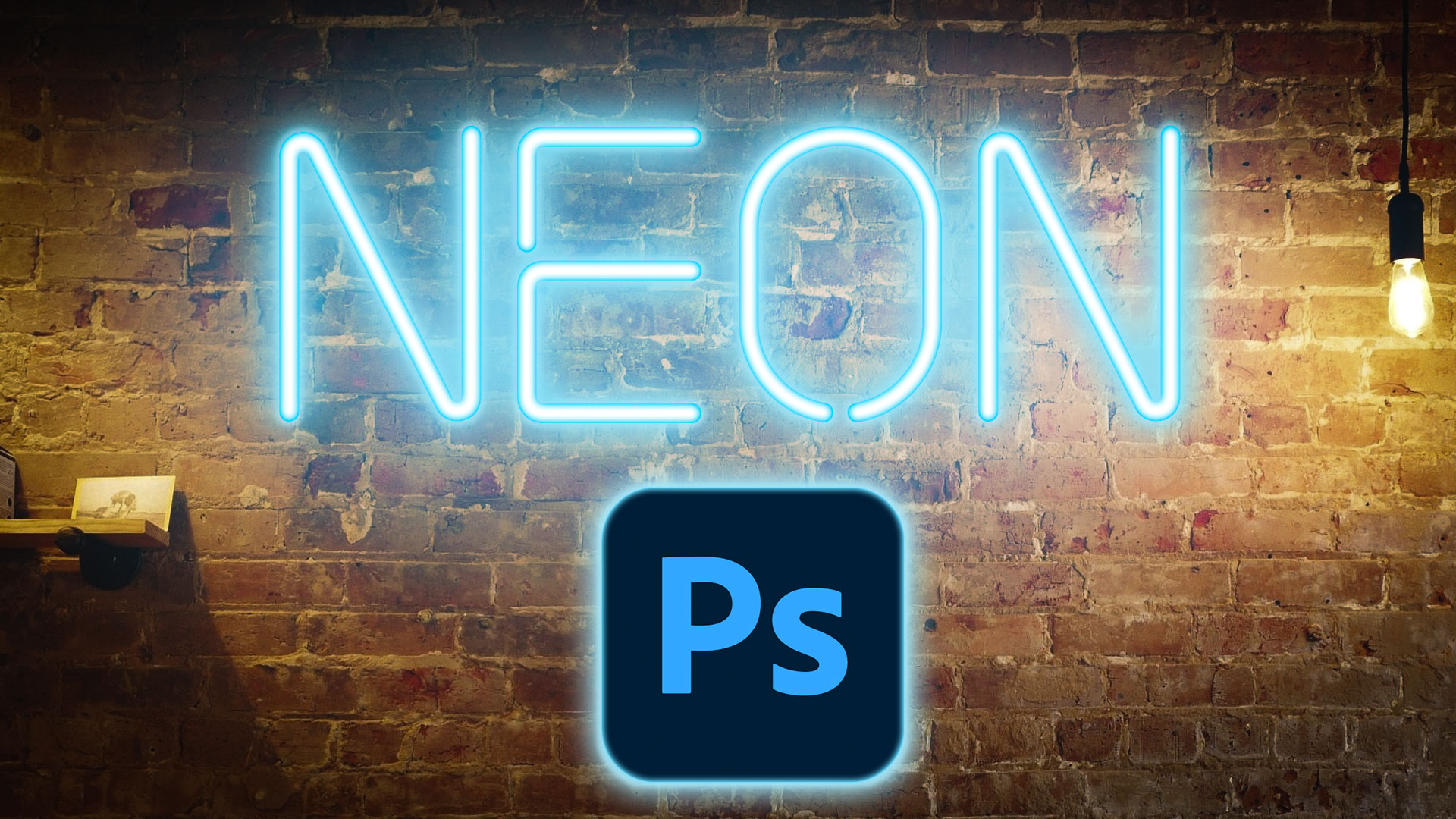
Hollywood style searchlight in Photoshop Tutorial
Create a hollywood style, spotlight effect. This tutorial came about as a result of a request from the forums. This effect will... Read tutorial
Kiosk Orbs
This Tutorial has come about due to a few requests. This starts with a fairly simple object, and finally ends up with... Read tutorial
Crazy Cars, Being creative with Photoshop tools
This tutorial shows you how to make some fun cartoon styles cars from Photos using the Content Aware Scale tool in Photoshop.... Read tutorial
Vintage Photo effects in Photoshop tutorial. 4 popular processing effects
Learn how to make 4 vintage photo effects in thisPhotoshop tutorial. Learn processing techniques that were historically used and how to reproduce... Read tutorial
The 10 Best Photoshop Tutorials of 2020
The top free Photoshop and Lightroom tutorials. 12 best free Photoshop and Lightroom tutorials are right here. Read tutorial










A pretty cool technique; love it. And thanks for always sharing your know-how with us. I think your explorations are incredibly useful and the rim lighting was actually quite alluring. Thanks again.
sure did learn a lot from this tut. tks.
Thanks Colin – yes certainly learned something new. Always learn something new (or new technique) from your videos.
Thanks again. More learning by solving a problem I had.
Great tut….easy to follow steps and great results as usual; and for that I thank you. You are “Awesome”!!!!