
How to blur the background of a photo without fuzzy edges
How to add a blended Background Blur to a photo in Photoshop and get rid of the fuzzy edges.
This tutorial shows you how to add depth to your flat photo by creating a background blur that emulates using a camera with a wide aperture. This is called Bokeh when the background falls out of focus. Its a really nice look and commonly done in camera. If you are the photographer and didn’t choose the settings in camera, or you as most designers, have to work with the photos given to you, what do you do with a flat photo. In this Photoshop tutorial, I will show you how to create this nice high end look. Check out the video here and then use the written steps as reference.
I have done a couple more tutorials that are released to this. Check them out too because they each apply to different photos,
- Graduated background blur using a different method in Photoshop
- A romantic background blur with bokeh lights
Step 1.
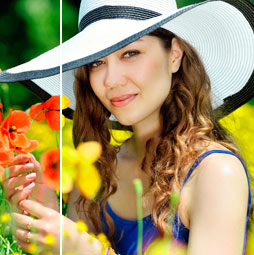
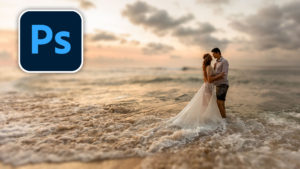
Begin with a photo that looks like it could use a little depth.

Step 2.
Right click on the layer thumbnail and choose Convert To Smart Object

Step 3.
Choose Filter Blur Gallery>Field Blur

Step 4.
Set the blur to 15

Step 5.
Click to add a second blur point
To set it to zero Hold Cmd/Ctrl+Double click

Step 6.
Drag the points until the blur makes the background fall off in a realist way.
Click ok

Step 7.
The result is a nice blur that looks like a more expensive lens than was used. Only problem, our person is blurred too. Let’s fix that now.

Step 8.
Click the eye icon to the left of the Smart Object to hide the smart blur. (A filter on a Smart object is called a Smart Filter because you can change its settings at any time).

Step 9.
Make selection around the person: Choose the selection brush and click select subject from the options bar. (If you are using an earlier Photoshop version, make the selection with the quick select brush, lasso or magic wand.)

Step 10.
Turn back on the Smart object and then choose the white mask under the layer
Press the D key to reset the foreground and background colors
Press Cmd/Ctrl+Backspace to fill the mask with black.
The person is now sharp because we masked away the filter where the selection is.

The only problem is that when you blur and mask, you will get a little bit of bleed. This means the edges are fuzzy because thats the overlap of the edges. I see this all the time in Photoshop work.
If you don’t mind, you are done. But if you are striving for perfection, read on.
I’m now going to show you how to get rid of that fuzz and make a perfect edge.

Step 11.
Duplicate the Layer (Cmd/Ctrl+J)

Step 12.
Turn it into a regular layer (no longer a Smart Object)
Right click on the layer thumbnail and choose Rasterize layer

Step 13.
Ctrl+Click on the White Layer mask on the original smart Object. This will load the selection of the person.
Press Cmd/Ctrl+J to copy the selected person to a new layer.
Hide or even delete the middle layer, its no longer needed.

Here I’m hiding the background just for a second, so you can see the cutout. You don’t need to do this.

Step 14.
Lets open the Smart Object Layer
Double click the thumbnail to open the Smart Object

It will open in a new Window. To understand Smart Objects, see this tutorial where I used Potatoes to explain Smart Objects

Step 15.
Select our person again, by using the Select Subject like we did in step 9.
Choose Select>Modify>Feather and set it to 2 pixels, we are expanding beyond the edge so we get all of the person and don’t have any of the edges unselected.

Step 16.
Press Shift+Delete (Shift+ Backspace on Windows) for the fill dialog box
Choose Content Aware Fill for the Contents

Step 17.
Press ok and the person will be gone and filled somewhat with the surrounding image. It doesn’t have to be perfect for this.
Close the window that you were working in and choose YES when it asks to save.

Step 18.
Back in your main window with the top layer on, it should look like this.

Zoom in and see how nice the edges are now, no fuzzy edges anymore, just a realistic looking background blur what starts sharp and fades away naturally.

I hope you enjoyed this tutorial, is so, share it with your friends. (There are buttons to share on social media, or just cut and paste the address on top of the page).
Thanks,
Colin

Keep growing with Premium Courses
Photoshop 2026 for Digital Photographers
Learn Photoshop properly, from the basics to pro retouching, step by step.
$129.00 · one-time purchase · instant download

Free for you
The Photoshop Vault
Get my free Layer Blending Modes ebook along with dozens of exclusive Photoshop goodies: actions, brushes, presets and cheat sheets.
You're on the list, so your free goodies are waiting for you in the Vault.
Get Free Photoshop Goodies Open the Vault
4 levels of background blur in Photoshop, ultimate Blur background tutorial
4 levels of background blur in Photoshop, ultimate Blur background tutorial Read tutorial
How to blur a photo background in Photoshop using blur masks and Depth Maps
How to add a background blur to a Photo in Photoshop. Learn to make a blur mask / depth map to blur... Read tutorial
Instantly Blur the background of a picture in Photoshop with Depth Blur Neural Filter
How to blur the background of a photo in Photoshop. Add realistic depth blur to you photos with automatic neural filters in... Read tutorial
How to Change the focus of a photo in Photoshop, use Depth Maps for depth of field blur
How to change the focus of a photo in Photoshop. Use AI Depth maps and lens blur to change the focus and... Read tutorial
How to make any photo look better in seconds in Photoshop
This easy Photoshop tutorial shows you how to make a photo look better in a few simple clicks. It works on portrait,... Read tutorial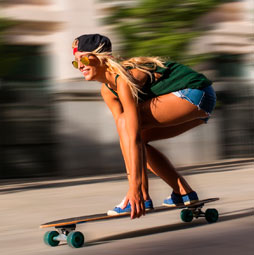








Thank you so much for this tutorial. Yours are always so informative and helpful!